
How to fix "DirectX 12 is not supported on your system" error in Windows?

Prefer to fix it yourself? The manual steps follow.
- 6methods
- 2 to 30 minutes
- Easy
Applies to PC games on Windows 11 and Windows 10 that use DirectX 12, mostly Unreal Engine 5 titles such as AION 2 and Marvel Rivals, on Steam and other launchers
6 methods in this guide
I recently got a game on Steam and I can't play it, because when I click Launch I get an error instead. It says: "DirectX 12 is not supported on your system. Try running without the -dx12 or -d3d12 command line argument." What does this mean? I tried launching the game again, but it still returns this error every time.
The message comes from the game, most often one built on Unreal Engine 5, when its DirectX 12 renderer cannot start on your PC. Windows 10 and 11 already include DirectX 12, so installing DirectX again does not help. Remove any -dx12 launch option first, then make sure the game runs on the right graphics card with its maker's driver.
The game asked your graphics card for DirectX 12 and did not get what it needs. First look in the game's launch options for -dx12 or -d3d12 and remove them (Fix 1). On a laptop, make the game use the dedicated graphics card (Fix 2), then install the card maker's current driver (Fix 3). If your card is below the game's minimum, only a DirectX 11 mode or better hardware will help.
| Error | "DirectX 12 is not supported on your system. Try running without the -dx12 or -d3d12 command line argument." A small box titled Message with one OK button. |
|---|---|
| Where it appears | Right after you press Play or Launch, before the game window opens. It is shown by the game's engine, not by Windows, Steam or the graphics driver. |
| Main cause | The game runs on a graphics adapter that cannot give it the DirectX 12 features it was built for: an integrated GPU on a laptop, a card without its maker's driver, or a card that is too old. |
| Fastest fix | Remove -dx12 or -d3d12 from the launch options (Fix 1), then set the game to High performance in Windows graphics settings (Fix 2). |
| Also written as | DX12 is not supported on your system, DirectX12 is not supported, direct x12 not supported. Marvel Rivals uses its own longer text that names Windows 10 version 1909 and a GTX 1060 or RX 580. |
| Affects | Windows 11 and Windows 10 PCs. Reported for AION 2, Marvel Rivals and many other Unreal Engine 5 games on Steam. |
| Vendor status | Not a Windows bug. Microsoft says DirectX 12 ships with Windows 10 and 11 and has no stand-alone package. Epic lists Windows and GPU requirements for the DirectX 12 features of Unreal Engine 5. |
| Not the fix | The DirectX End-User Runtime download. Microsoft says it makes no change to your version of DirectX or Direct3D. |
| Time to fix | 1 minute for a launch option, 5 to 15 minutes for a GPU setting or driver, longer for a Windows feature update. |
| Where the cause is logged | dxdiag, Display tab: Name, Direct3D DDI and Feature Levels. Some games also write a log in a Saved\Logs folder. |
Facts checked on 14 October 2026. Steps written for Windows 11 (25H2 and 26H2) and Windows 10 22H2, with Steam.
What "DirectX 12 is not supported on your system" means
The text is a stock message of Unreal Engine, the engine behind a large share of new PC games. A bug report in the vkd3d-proton project traces it to the engine file WindowsDynamicRHI.cpp, the part that picks which graphics interface (DirectX 11, DirectX 12 or Vulkan) the game will use. When the engine is set to DirectX 12 and cannot create a working DirectX 12 device that meets the game's needs, it shows this box and quits.
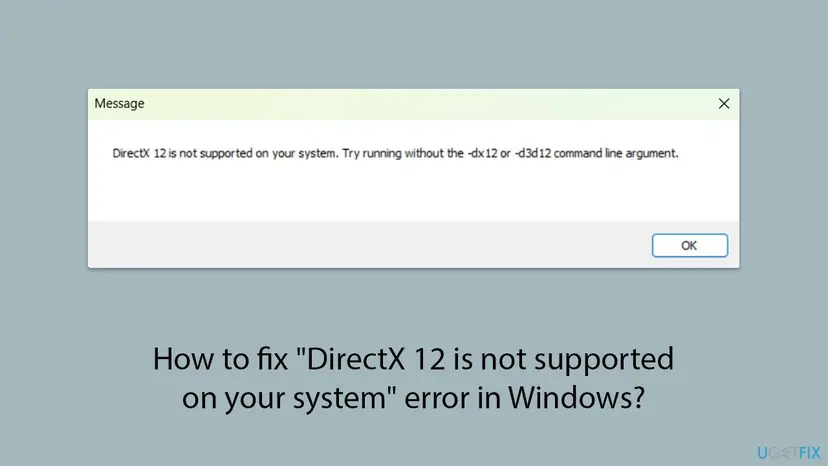
So the word "system" is misleading. DirectX 12 itself is almost certainly installed: Microsoft states that DirectX 12 is included with Windows 10 and Windows 11 and is updated only through Windows Update. What failed is the pairing of the game with your graphics adapter, its driver and your Windows build.
| What you see | Who shows it | What it tells you |
|---|---|---|
| "DirectX 12 is not supported on your system. Try running without the -dx12 or -d3d12 command line argument." | Unreal Engine games: AION 2, The First Descendant, Hell is Us, Subnautica 2 and others, by player reports | The engine could not start its DirectX 12 renderer. The second sentence is written for developers and testers. |
| "DirectX 12 is not supported on your system. Please update your Windows 10 64-bit operating system (version 1909 or later) and upgrade your graphics card driver. Ensure that your graphics card meets the minimum requirements (NVIDIA GTX 1060 or AMD RX 580)." | Marvel Rivals | The same failure, worded by the game itself. The GPUs it names match the minimum on its Steam page. |
| The same text in Thai, German or another language | The game's own translation | Same meaning. One German search reads "Das Spiel konnte nicht gestartet werden, weil Ihr Betriebssystem DirectX 12 nicht unterstützt". |
If you added -dx12 or -d3d12 yourself, removing it lets the game pick its default. But many Unreal Engine 5 games use DirectX 12 by default and show the same box with empty launch options. For those, the fix is in the GPU, driver or Windows build, not in the option.
AION 2, Marvel Rivals and other games that show it
Most searches for this message name a game. Each one checks your PC against its own minimum, so the first thing to compare is the game's published requirements. The table lists the minimum PC specs from each game's Steam page, read on 14 October 2026.
| Game | Minimum graphics card | Windows | DirectX |
|---|---|---|---|
| AION 2 (NC, Steam release 5 October 2026) | NVIDIA GTX 1050 Ti (4GB) | Windows 10/11 (64-bit) | Version 12 |
| Marvel Rivals (NetEase Games) | NVIDIA GeForce GTX 1060, AMD RX 580 or Intel Arc A380 | Windows 10 64-bit (1909 or newer) | Version 12 |
| Bus Bound (stillalive studios) | GTX 1070 8gb VRAM or AMD Radeon RX Vega 64 8gb VRAM | Windows 10/11 (64-bit) | Not listed |
AION 2 describes itself on Steam as "PC only, on Unreal Engine 5". In its Steam discussion about this error, players report three cases: a laptop with Intel UHD integrated graphics only, a Quadro K2200, and a GTX 1050 Ti on Windows 10 22H2. The 1050 Ti owner reports that the game started after he updated Windows 10 with Microsoft's upgrade tool.
- Integrated graphics only: below the AION 2 minimum. dxdiag can still say "DirectX 12" and show feature level 12_1, so the box looks wrong, but the game needs more than the label.
- Card at or above the minimum: treat it as a setup problem. Check the launch options, the GPU the game runs on, the driver and the Windows build (Fixes 1 to 4).
- Marvel Rivals on Intel HD Graphics 4600: a Microsoft Q&A thread shows exactly this case, and the independent advisor's answer was that the PC does not meet the game's minimum.
Neither NC nor NetEase publishes a support article about this exact message that we could find. The game-specific notes above come from the Steam store data and from player reports, and are said as such.
Why your PC fails the DirectX 12 check, most common cause first
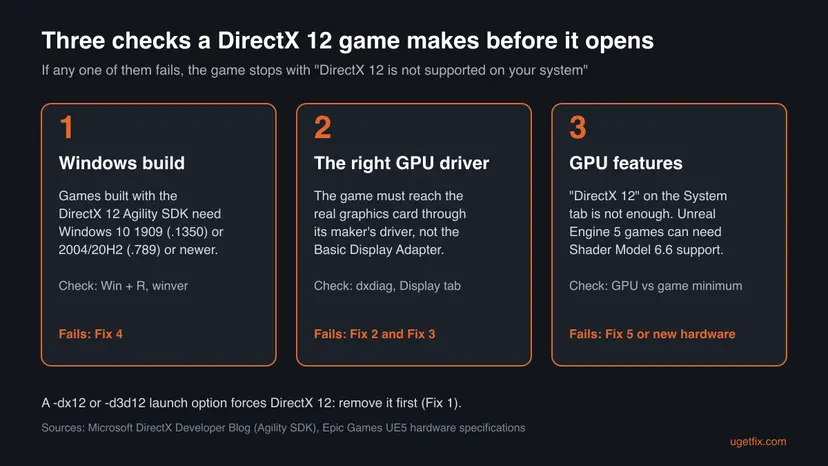
A DirectX 12 game needs three things to line up before its window opens. The picture shows them, and the table ranks the causes by how often they come up in the reports we read, with the fix for each.
| How often | Cause | How to spot it | Fix |
|---|---|---|---|
| Most often | The game runs on the integrated GPU of a laptop or desktop that also has a dedicated card | dxdiag shows Intel or AMD integrated graphics on its first display tab; on a desktop, the monitor cable is plugged into the motherboard | Fix 2 |
| Often | The graphics card has no proper driver, or a very old one | dxdiag or Device Manager shows Microsoft Basic Display Adapter, or the driver date is years old | Fix 3 |
| Often | The card is below the game's minimum | The card is older or weaker than the one on the store page; Feature Levels stop at 11_0 or 11_1 | Fix 5, or new hardware |
| Sometimes | A -dx12 or -d3d12 option forces DirectX 12 | The option is in Steam's Launch Options or in a shortcut's Target | Fix 1 |
| Sometimes | Windows 10 is too old for the game's DirectX 12 runtime | winver shows a version older than 22H2, or a 1909 build below .1350 | Fix 4 |
| Rarely | Damaged or missing game files after an update | It started after a patch and the PC meets every requirement | Fix 6 |
The Windows build matters because many new games bring their own copy of Direct3D 12 through Microsoft's DirectX 12 Agility SDK. Microsoft's guide says the Agility SDK needs Windows 10 version 1909 with revision .1350 or later, or version 2004 and 20H2 with revision .789 or later, and is not supported before Windows 10. Epic's Unreal Engine 5 specifications repeat the same builds for Nanite and Virtual Shadow Maps, and add "DirectX 12 (with Shader Model 6.6 atomics)".
Check what your graphics card really supports with dxdiag
The DirectX Diagnostic Tool is built into Windows and answers most of the table above in one minute. Microsoft's own steps start it from search; the Run box works too.
- Press Win + R, type
dxdiagand press Enter. If Windows asks whether to check that drivers are digitally signed, select Yes. - On the System tab, DirectX Version shows DirectX 12 on every Windows 10 and 11 PC. This line says nothing about your graphics card, so move on.
- Open the Display tab (on some PCs Display 1). Read Name under Device: it must be your real graphics card, not Microsoft Basic Display Adapter.
- Under Drivers, read Direct3D DDI, Feature Levels and Driver Model. DDI 12 means the driver speaks DirectX 12.
- Look at the first value in Feature Levels. 12_0 or higher is the usual floor for new games; 11_0 or 11_1 means only basic DirectX 12.
- If there is more than one display tab, check each. On a laptop the dedicated card is often not the one on the first tab.
- To keep the report for support, select Save All Information and save the text file.
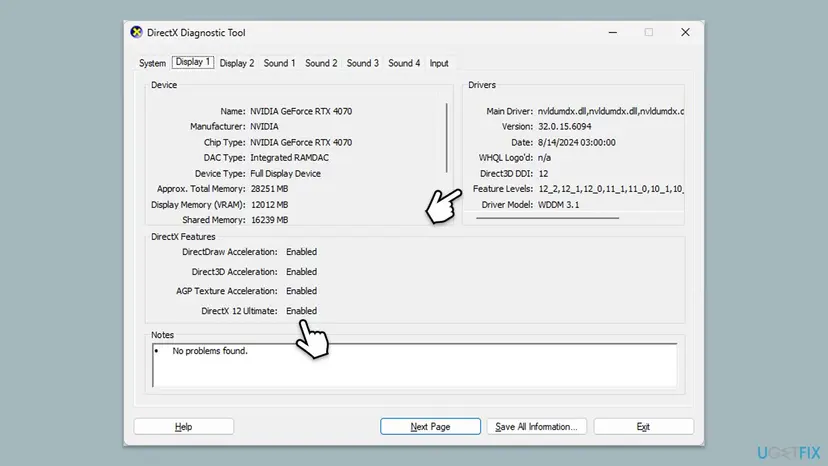
Microsoft's documentation says every Direct3D 12 driver is at feature level 11_0 or better, so "DirectX 12" on a card can mean very little. Unreal Engine 5 features such as Nanite need Shader Model 6.6, which dxdiag does not show. That is why a card can list DDI 12 and still fail the game's check.
How to fix "DirectX 12 is not supported on your system"
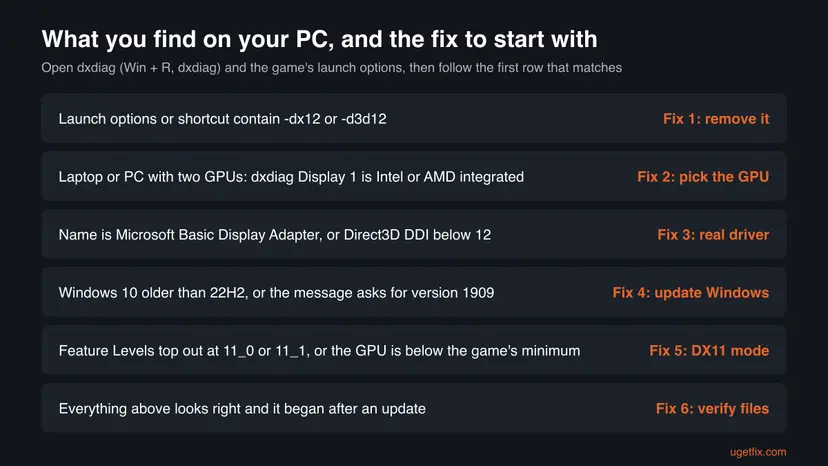
Start with Fix 1: it takes a minute and rules out the one cause the message itself names. Fixes 2 to 4 solve most cases on PCs that meet the game's minimum. Fix 5 is the honest option for older cards, and Fix 6 is for a game that broke after a patch.
| What you see or what your PC has | Start with |
|---|---|
-dx12, -d3d12 or another graphics option in the launch options or shortcut | Fix 1 |
| A laptop, or a desktop with both integrated and dedicated graphics | Fix 2 |
| dxdiag shows Microsoft Basic Display Adapter, or the driver is more than a year old | Fix 3 |
| Windows 10 older than 22H2, or the message asks for version 1909 or later | Fix 4 |
| Your card is below the game's minimum, or Feature Levels stop at 11_0 or 11_1 | Fix 5 |
| The game worked before and broke after a patch | Fix 6 |
Fix 1. Remove -dx12 and -d3d12 from the launch options
1 minuteNo riskAnyone who ever typed a launch option for this game, used a guide's tweak or started it from a custom shortcut.
The message names these two switches because they force the DirectX 12 renderer. Epic's command-line reference lists dx12 as "Use DX12 for RHI", so with the switch present the game cannot choose anything else.
- Open Steam and go to your Library.
- Right-click the game and select Properties.
- On the General tab, find Launch Options.
- Delete
-dx12,-d3d12and any other graphics switch you do not need. Leave the box empty if you are unsure. - Close the Properties window and start the game.
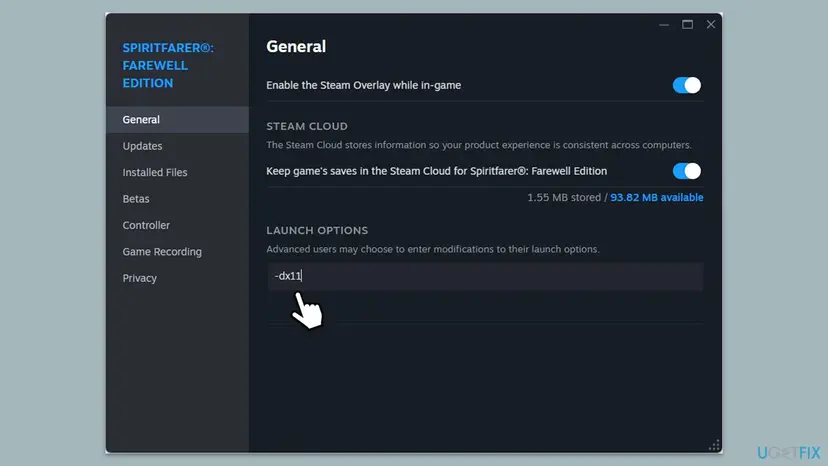
If you start the game from a desktop shortcut, right-click the shortcut, select Properties, and read the Target field on the Shortcut tab. Delete -dx12 or -d3d12 from the end of that line and select OK.
It worked if: The game opens, or it shows the same box even with empty launch options. Both results tell you something.
If not: If the box stays with no options at all, the game uses DirectX 12 by default. Go to Fix 2.
Fix 2. Make the game run on the dedicated graphics card
5 minutesNo riskLaptops with two GPUs, and desktops whose monitor may be plugged into the motherboard instead of the graphics card.
A laptop with integrated and dedicated graphics lets Windows pick a GPU per app. If the game lands on the integrated chip, it can fail the DirectX 12 check even though the dedicated card would pass. Windows has a per-game setting for this.
- Close the game. Open Settings with Win + I.
- Go to System > Display > Graphics.
- Under Custom options for apps, select the game. If it is not listed, select Browse next to Add desktop app and choose the game's .exe file.
- Select Options.
- Under Graphics preference, select High performance. The dedicated card's name shows next to it.
- Select Save and start the game again.
On Windows 10 the same setting is under Settings > System > Display > Graphics settings. AMD's instructions for Windows 10 laptops are: choose Desktop app, select Browse, pick the game's .exe and select Add, then Options, High performance and Save.
Many Unreal Engine games keep the real program in a Binaries\Win64 subfolder of the install folder, next to a small launcher at the top. If the setting does not take, add that second .exe as well. On a desktop, plug the monitor into the graphics card's ports, not the motherboard's: the motherboard ports run on the processor's integrated graphics.
It worked if: The game window opens. In Task Manager, the GPU engine column (right-click the column headers to add it) shows the game on the dedicated card.
If not: If High performance shows the same integrated chip, Windows does not see the dedicated card. Install its driver in Fix 3.
Fix 3. Install the graphics driver from your card's maker
10 to 15 minutesLow riskdxdiag shows Microsoft Basic Display Adapter, the driver is old, or Fix 2 did not list your dedicated card.
Microsoft describes the Basic Display Adapter as a generic driver with basic display capabilities, used when the maker's driver is missing. A game needs the full NVIDIA, AMD or Intel driver to reach the card's DirectX 12 features.
Get the driver from the card maker's own download page: NVIDIA, AMD or Intel. For a laptop, the laptop maker's support page has the version tested for that model. Device Manager can update or roll back a driver; step by step: Update, roll back or reinstall a driver.
- Open Device Manager. Right-click Start and select Device Manager.

Device Manager lists devices by category; a yellow warning sign marks a device with a problem. Screenshot: Windows 11 26H2. - Open the device's Driver tab. Expand the category (for example Display adapters), right-click the device, select Properties and open the Driver tab. Driver Date and Driver Version show what is installed now.
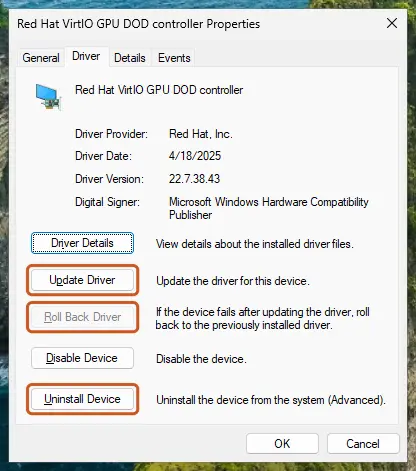
The Driver tab holds all three actions: update, roll back, uninstall. Screenshot: Windows 11 26H2. - Update the driver. Select Update Driver and let Windows search automatically. To use a driver you downloaded from the device maker, select Browse my computer for drivers instead and point to the unpacked folder.
These steps were written for Windows 11 24H2 and later. The full page with the other versions and what each result means: Update, roll back or reinstall a driver
NVIDIA says that from October 2025 Maxwell, Pascal and Volta GPUs receive driver updates only for critical security items, through October 2028. The GTX 1050 Ti and 1060 are Pascal cards, so new game fixes will not arrive in Game Ready drivers for them. Install the latest driver NVIDIA offers for your card anyway.
It worked if: dxdiag shows the real card name with Direct3D DDI 12, and the game starts.
If not: If the driver installs but the game still refuses, check your Windows build in Fix 4.
Fix 4. Update Windows to a build the game supports
15 to 60 minutesLow riskWindows 10 PCs that are not on 22H2 with recent updates, and anyone whose message asks for version 1909 or later.
Games built with Microsoft's DirectX 12 Agility SDK load their own Direct3D 12 code, but only on Windows builds that have the newer loader. Microsoft lists Windows 10 1909 revision .1350 and 2004 or 20H2 revision .789 as the floor.
- Press Win + R, type
winverand press Enter. Note the version and the OS build. - On Windows 11, open Settings > Windows Update and select Check for updates.
- On Windows 10, open Settings > Update & Security > Windows Update and select Check for updates.
- Install everything offered, including a feature update to Windows 10 22H2 if you are on an older version.
- Restart the PC and run
winveragain to confirm the new build.
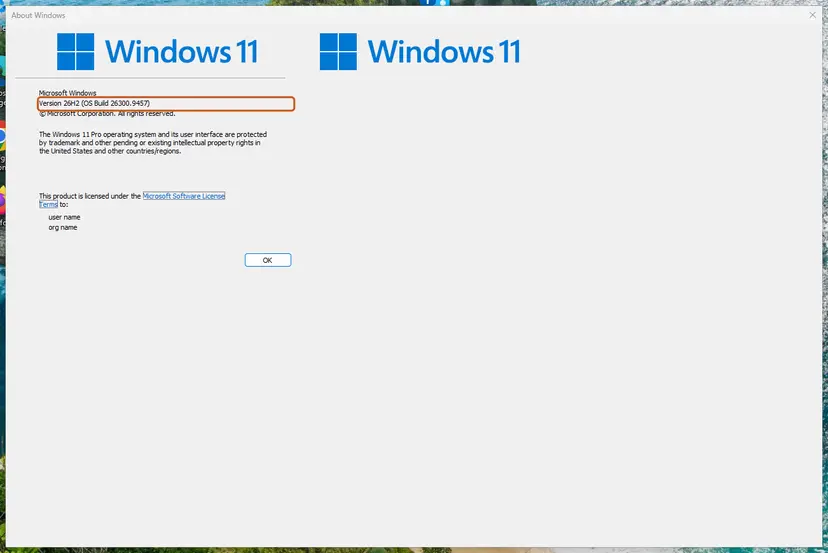
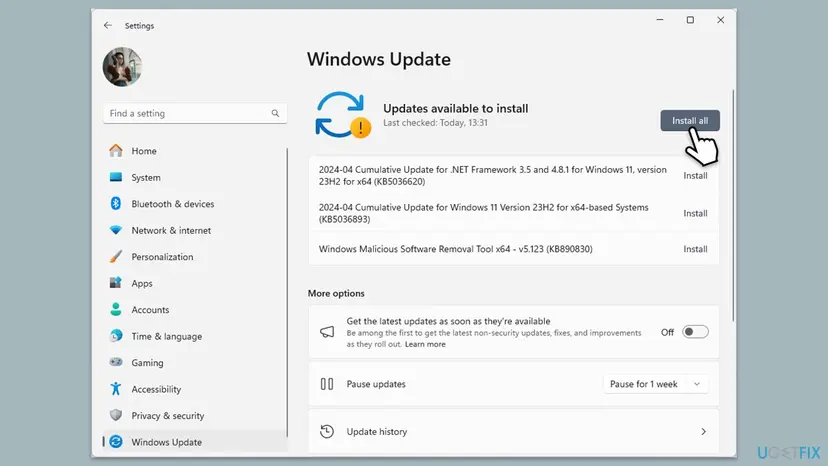
Windows 10 reached the end of support on 14 October 2025, so 22H2 is its last version. If Windows Update refuses to install, the manual route is here: Install an update from the Microsoft Update Catalog.
It worked if: winver shows the newest build for your Windows version, and the game opens after the restart.
If not: If Windows is current and the card meets the minimum, try the game's DirectX 11 mode in Fix 5 or check its files in Fix 6.
Fix 5. Start the game in DirectX 11 mode, if it has one
2 minutesNo riskOlder cards, cards below the game's minimum, and anyone who wants to test whether DirectX 12 itself is the problem.
Epic's reference lists dx11 as "Use DX11 for RHI". If the developer shipped a DirectX 11 renderer, this switch moves the game off DirectX 12 and past the failed check.
- In Steam, right-click the game and select Properties.
- On the General tab, type
-dx11in Launch Options. - Start the game. If it opens, lower the graphics settings in the game's menu.
- If the game shows the same box or closes, delete
-dx11again so it does not get in the way later.
Unreal Engine 5 features such as Nanite and Lumen need DirectX 12 with Shader Model 6, so many new games ship without a DirectX 11 renderer. An AION 2 player reports that -dx11 did not help. When the switch does nothing, the card or Windows has to change, not the setting.
It worked if: The game opens in DirectX 11 and runs, usually with fewer graphics options.
If not: If it still shows the message, the game has no DirectX 11 fallback. Read the still-broken section below about hardware limits.
Fix 6. Verify the game's files
5 to 20 minutesNo riskThe game ran before on this PC and the message appeared after a patch or a moved install folder.
Agility SDK games keep their own Direct3D 12 files in a D3D12 subfolder next to the game, according to Microsoft's guide. A damaged or missing file there can stop the DirectX 12 start, and a file check restores it.
Steam, the Epic Games Launcher, the Xbox app and other launchers can compare the files with the server and download what is broken. Step by step for each launcher: How to verify game files in Steam, Epic Games, Xbox app, EA app, Battle.net and GOG Galaxy.
- Restart and open Steam. Restart your computer and launch Steam.
- Open the game's menu. Right-click the game in your Library, or open the game's Library page and select the gear icon on the far right.
- Open Properties. Select Properties in the menu.
- Verify the files. Select the Installed Files tab and select Verify integrity of game files.
- Wait for the result. Steam checks the game's files. This can take several minutes.
These steps were written for Steam on Windows. The full page with the other versions and what each result means: How to verify game files in Steam, Epic Games, Xbox app, EA app, Battle.net and GOG Galaxy
It worked if: Steam reports that all files were validated or that it reacquired some, and the game starts.
If not: If the files were fine, collect dxdiag and the game's log as described below and send them to the game's support.
Still broken: read the log and check the hardware limits
If none of the fixes helped, gather the evidence before you contact the game's support. They will ask for the same three things.
- The dxdiag report. In dxdiag select Save All Information and keep the text file. Microsoft describes this as the format to share with a support person or a forum.
- The game's log, if it writes one. Epic's documentation says Unreal Engine writes its log as a .txt file in the project's
Saved\Logsfolder. Installed games often keep it under%LOCALAPPDATA%in a folder named after the game. We could not confirm one path that holds for every game. - Your Windows version and build from
winver, and the driver version from dxdiag's Display tab.
Then compare your card with the store page once more. When the card is below the minimum or its Feature Levels stop at 11_0 or 11_1, no setting can add DirectX 12 hardware features. The real options are a newer graphics card, a cloud gaming service that offers the game, or a different game. Search for the log line that names D3D12 or RHI near the end of the file; it usually says which check failed.
Microsoft says there is no stand-alone package for DirectX 12. Its DirectX End-User Runtime only adds old helper files for DirectX 9 to 11 games and, in Microsoft's words, makes no change to your version of DirectX. Sites that offer a "DirectX 12 download" are offering something else.
How to avoid the DirectX 12 error with the next game
Most cases can be seen coming before you pay for a game. Check these points against the store page first, since refund windows are short.
- Compare the store page's Graphics line with dxdiag's Name before you buy.
- Keep Windows on a supported version: Windows 11, or Windows 10 22H2 with every update.
- Install the GPU maker's driver after every Windows reinstall, before the first game.
- On a laptop, set new games to High performance in Windows graphics settings.
- Keep launch options empty unless the developer tells you to add one.
- Do not copy
-dx12or other switches from videos into every game. - Do not trust the DirectX version on the System tab as proof your card is ready.
- Do not install DirectX packages from third-party sites.
- Do not assume integrated graphics will run a game that lists a dedicated card as its minimum.
Frequently asked questions
What does "DirectX 12 is not supported on your system" mean?
It means the game tried to start its DirectX 12 renderer and could not get a DirectX 12 device that meets its needs. The text is Unreal Engine's stock message, so it appears in many different games. It does not mean DirectX is missing from Windows: Windows 10 and 11 always include DirectX 12. The usual reasons are the game running on integrated graphics, a missing driver, an old Windows 10 build, or a card below the game's minimum. Start with the launch options in Fix 1 and the GPU choice in Fix 2.
Why does dxdiag say DirectX 12 when the game says it is not supported?
The System tab of dxdiag shows the DirectX version of Windows, not of your graphics card. Even the Display tab can show Direct3D DDI 12 on a card that only reaches feature level 11_0, because Microsoft allows every DirectX 12 driver to start at that level. Unreal Engine 5 games often need Shader Model 6.6, which dxdiag does not list at all. So a yes from dxdiag and a no from the game can both be true. Compare your card with the game's minimum instead.
How do I fix the error on Steam?
Steam itself does not cause it, but Steam is where the launch options live. Right-click the game in your Library, select Properties, and on the General tab clear Launch Options of -dx12 or -d3d12. If they were empty, set the game to High performance in Windows graphics settings, update the GPU driver and verify the game files with Installed Files > Verify integrity of game files. Running Steam as administrator does not change which GPU or DirectX version the game uses.
How do I fix it in AION 2?
Check your card against the AION 2 minimum on Steam: an NVIDIA GTX 1050 Ti (4GB), Windows 10/11 64-bit and DirectX 12. With a weaker card or integrated graphics only, players report the message and no working fix. With a card at or above the minimum, set AION 2 to High performance (Fix 2), install the latest driver (Fix 3) and bring Windows 10 to 22H2 with all updates (Fix 4). One player with a GTX 1050 Ti reports that updating Windows 10 cleared it.
Can I download and install DirectX 12?
No. Microsoft says DirectX 12 is included with Windows 10 and Windows 11, updates come only through Windows Update, and there is no stand-alone package. The DirectX End-User Runtime you may find on Microsoft's site installs old helper libraries for DirectX 9, 10 and 11 games. Microsoft notes that it makes no change to your version of DirectX or Direct3D, so it cannot fix this message. Any site offering a separate DirectX 12 installer is not offering Microsoft's DirectX.
Will -dx11 in the launch options fix it?
Only if the game ships a DirectX 11 renderer. Epic's command-line reference lists -dx11 as "Use DX11 for RHI", and older Unreal Engine games often accept it. Many Unreal Engine 5 games are built for DirectX 12 with Shader Model 6 only, and then the switch is ignored or the same box returns. An AION 2 player reports that -dx11 did not help. It costs two minutes to test, so try it, and remove it again if nothing changes.
Does the error mean my graphics card is too old?
Sometimes, but check the setup first. On laptops the game often runs on the integrated chip, and a missing driver makes even a new card look like the Microsoft Basic Display Adapter. If dxdiag shows your dedicated card with a current driver, Windows is up to date, and the card is still below the game's published minimum, then yes: the card is the limit. Marvel Rivals, for example, asks for at least a GTX 1060, RX 580 or Arc A380.
Do I need Windows 11 to play DirectX 12 games?
Not for the DirectX 12 check itself. Microsoft's Agility SDK, which many new games use, runs on Windows 10 from version 1909 revision .1350, and on Windows 11. Games list "Windows 10/11" for that reason. But Windows 10 reached the end of support on 14 October 2025 and 22H2 is its last version, so keep it fully updated. Some games may drop Windows 10 later; check the store page of each game.
Can integrated graphics run DirectX 12 games?
Integrated graphics from Intel and AMD support DirectX 12, and dxdiag will show it. Whether they can start a given game is another matter. AION 2, Marvel Rivals and Bus Bound list dedicated GeForce or Radeon cards as their minimum, and Marvel Rivals also accepts Intel Arc A380. A laptop with only Intel UHD graphics is below those lines, and players report the message on such laptops. If your laptop also has a dedicated GPU, Fix 2 moves the game to it.
What does "Try running without the -dx12 or -d3d12 command line argument" mean?
It refers to two optional switches that force a game to use DirectX 12. You can add them in Steam's Launch Options or at the end of a shortcut's Target. If one of them is there, the game cannot fall back to anything else, so the advice is to delete it. If your launch options are already empty, the sentence does not apply to you, and the cause is the GPU, driver or Windows build.
Sources
- Microsoft Support: How to install the latest version of DirectX (support.microsoft.com)
- Microsoft Support: Which version of DirectX is on your PC? (support.microsoft.com)
- Microsoft Support: Microsoft basic display adapter in Windows (support.microsoft.com)
Did this fix work?
One click, no account. It tells the next reader which guides are worth their time.
Questions and experiences: fix "DirectX 12 is not supported on your system" error in Windows
Still broken, or found a fix we did not cover? Ask here: members and our editors answer. Reading is open; writing needs a free account.
…