How to fix
Discord video call not working
on Windows
Resolve Discord video call issues on Windows 10 and 11 effortlessly. Get clear fixes and expert-tested solutions to enjoy seamless communication.

What causes How to fix Discord video call not working?
- Program compatibility issues
- Corrupted files
- Outdated drivers
- Windows OS update issues
- Potential PUP infections
Repairs Windows system files, removes malware, and restores a clean OS state — without reinstalling.
Hello, I have a problem with the Discord video call. Vice calling is happening normally, all good. However, the video call is not working, and I don't know why. The video starts but loads and loads, finally never leading entirely. It fails, and I tried a few times already I reinstalled the Discord and restarted the machine. Can you offer any solution?
Discord video call, not working problem can be extremely annoying and frustrating. Especially in this day and age when this and similar platforms are one of the main communication methods. The problem with this feature can keep the user from using the program properly. It affects desktop app users, so you might want to switch to a web application, but that is only temporary.
Unfortunately, these Discord problems annoy users[ref en-1] pretty often. We have already covered the freezing issue, audio problems, and other application problems like red dot removal and search function issues. According to some users, this particular video call problem can be caused by program compatibility and similar issues with the machine, but it is not easily solvable.
When the video call function is available, people can connect with the person or a group of them directly and chat on the server. This is a helpful feature for many people and even companies.[ref en-2] However, Discord video call not working is still the problem for people who complain in various online forums.
A few possible ways to fix the problem could be checking the driver state and Windows OS update. The latter can be significant if you have upgraded the OS recently or are running the Windows 10 version.[ref en-3] Generally, there are troubleshooting steps and possible fixes, but the quickest way to check issues with the system and files o the machine could be running the tool like [d1].
This app can find various affected or corrupted files, registry entries and indicate problems with possible PUP infections. Such PC optimization or file repair tools can fix virus damage or replace corrupted pieces using safe and compatible ones. Then you can freely use more in-depth methods listed below.
Option 1. Troubleshoot camera access problems
- Go to Settings and select Privacy.
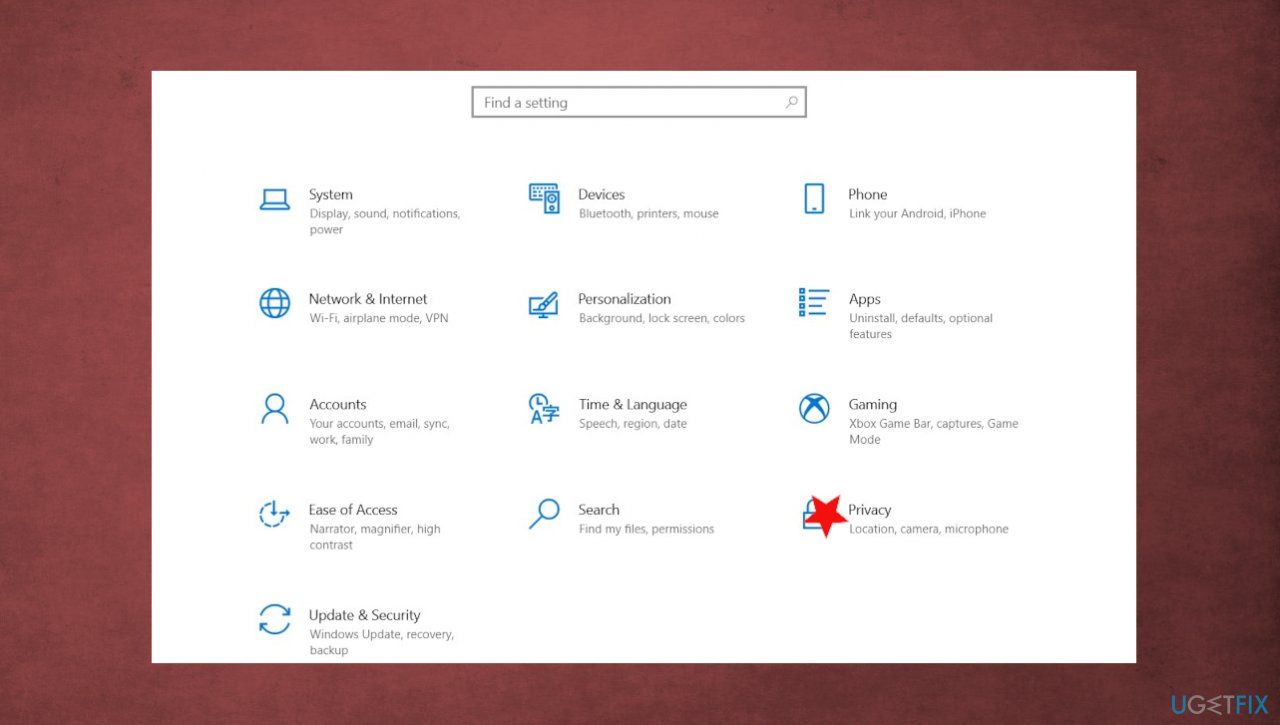
Discord video call not working fix privacy - On the left-hand pane, scroll down to App permissions.
- Choose Camera.
- Make sure particular apps like Discord are allowed to use your camera.
Option 2. Update webcam drivers
- Open the Device Manager by right-clicking the start button.
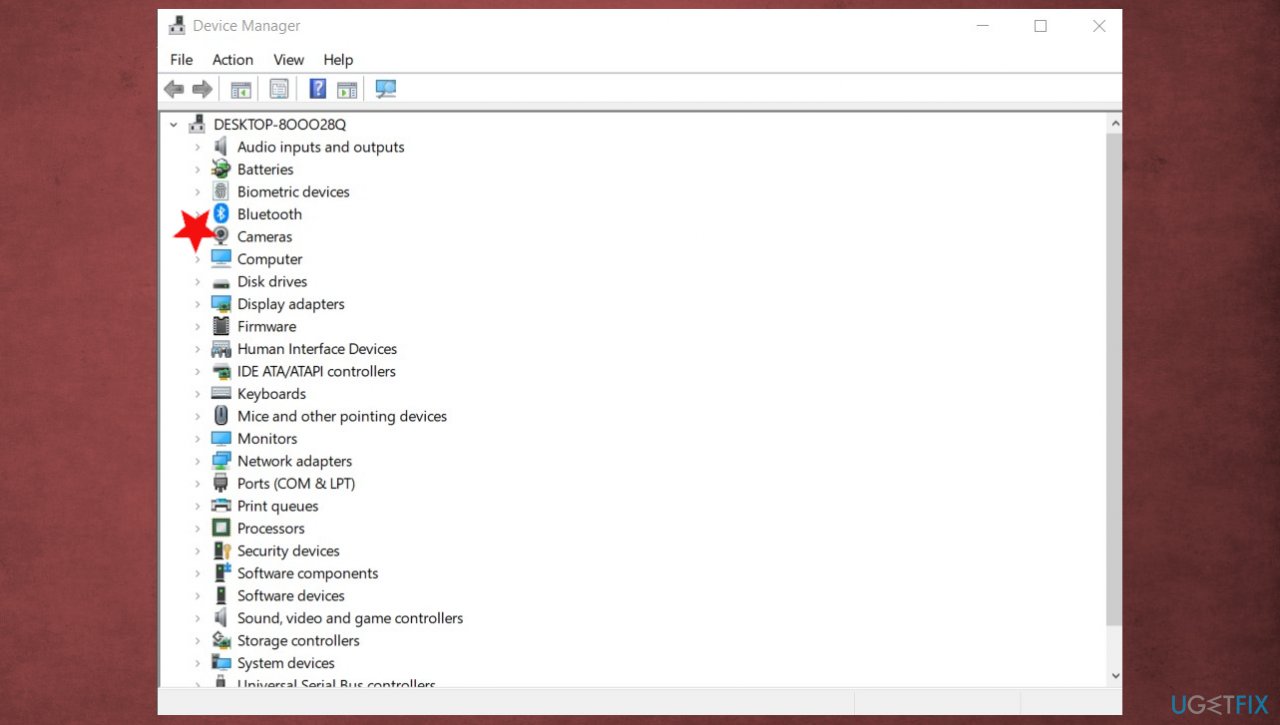
Discord video call not working fix camera device - Select Cameras section to expand.
- Find your webcam driver.
- Right-click on it and select Update Driver.
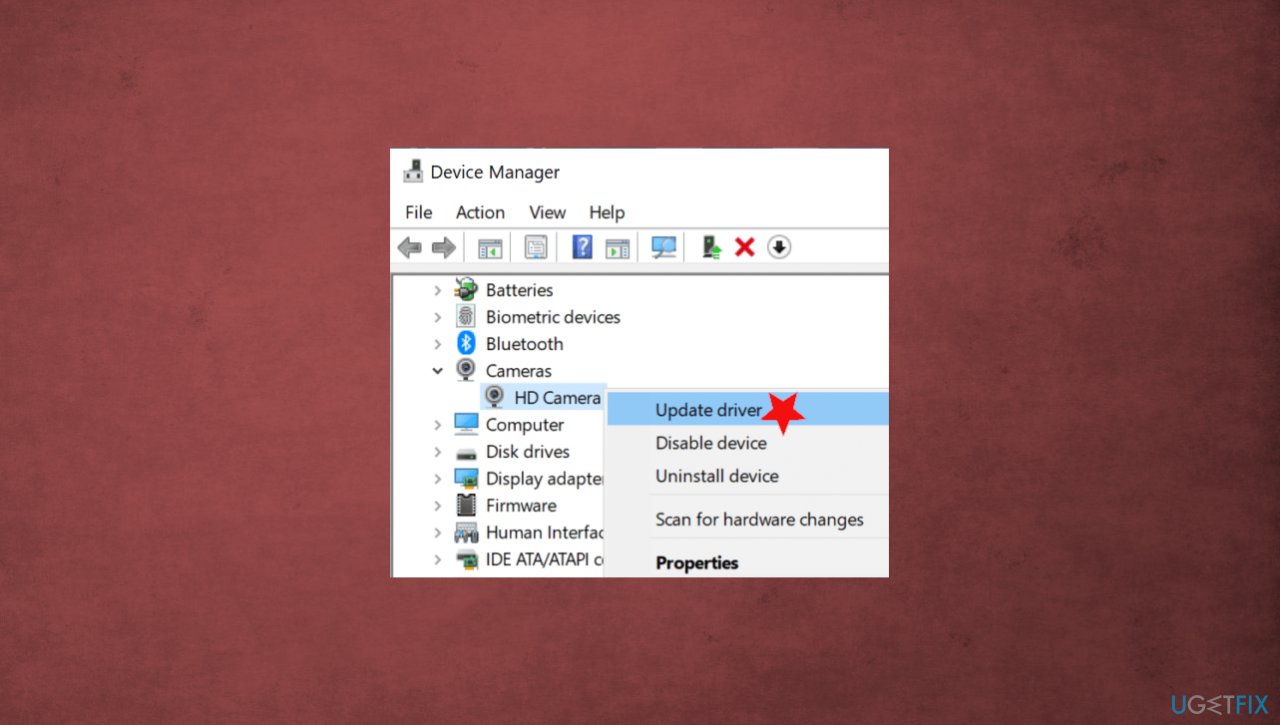
Discord video call not working fix update drivers - Choose the search automatically option.
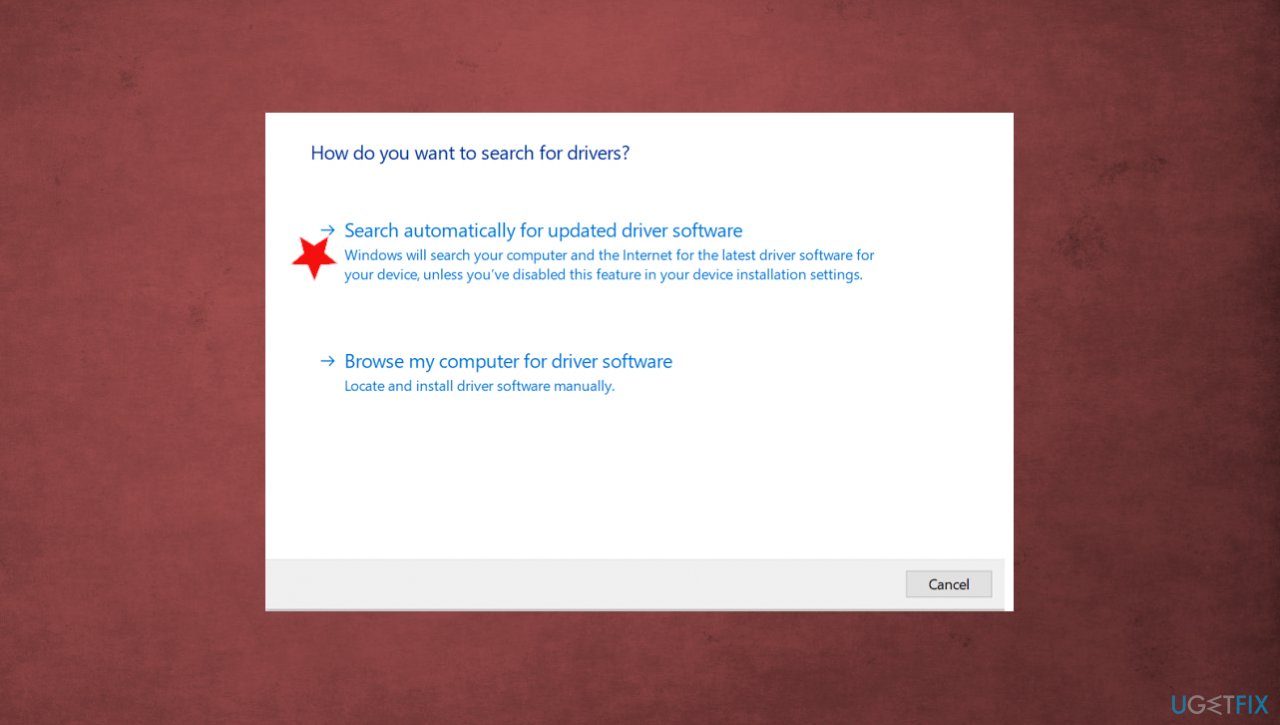
Discord video call not working fix search for drivers - Restart your computer and check if Discord now allows the video call.
- Try reinstalling the webcam driver by selecting Uninstall device in the Device Manager and installing it again, if not.
You can rely on an automatic driver maintenance tool, so this procedure when you manually search for particular drivers or check which ones need updates or reinstalling gets easier. You can run [rev id="DriverFix"], and the application does everything for you. This program can check for needed updates, install particular drivers and add the proper and compatible ones with your machine.
Option 3. Disable hardware acceleration
- Go to Discord.
- Under App Settings, click the gear icon.
- Select Appearance.
- Scroll down, locate the Hardware Acceleration feature and toggle it off.
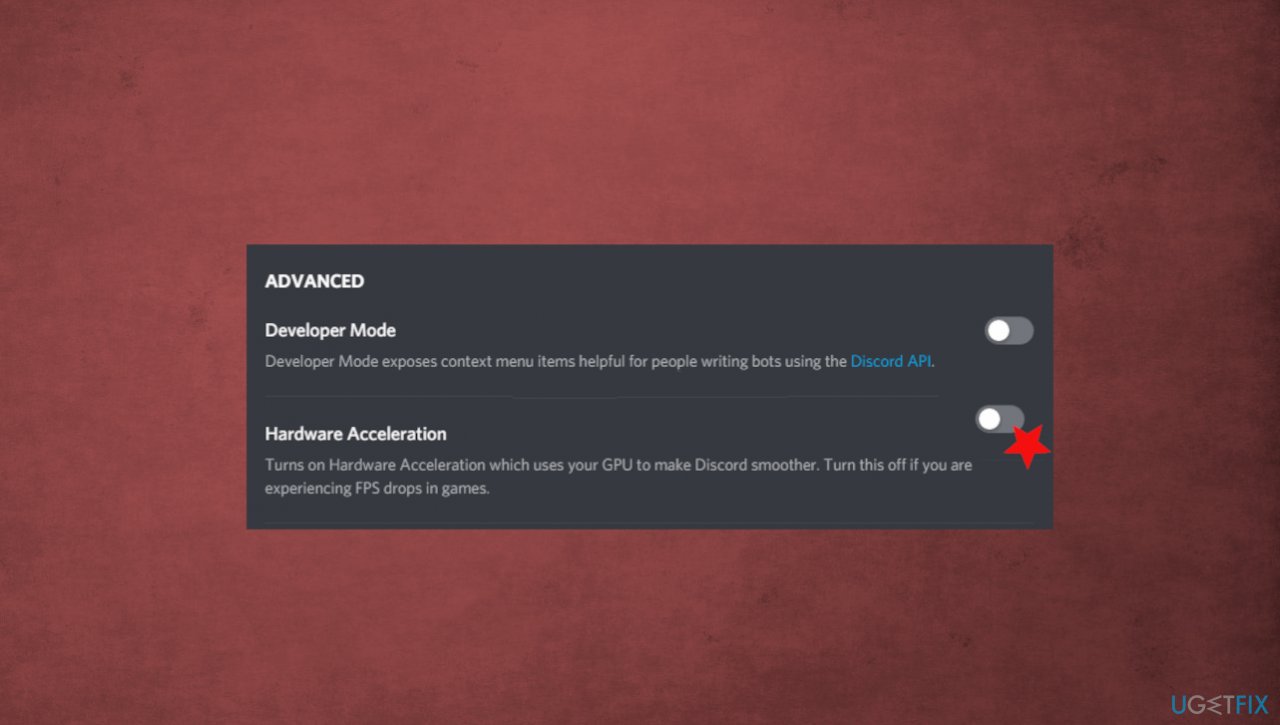
Discord video call not working fix hardware acceleration
Option 4. Check for OS updates
- Go to Settings.
- Click Update & Security.
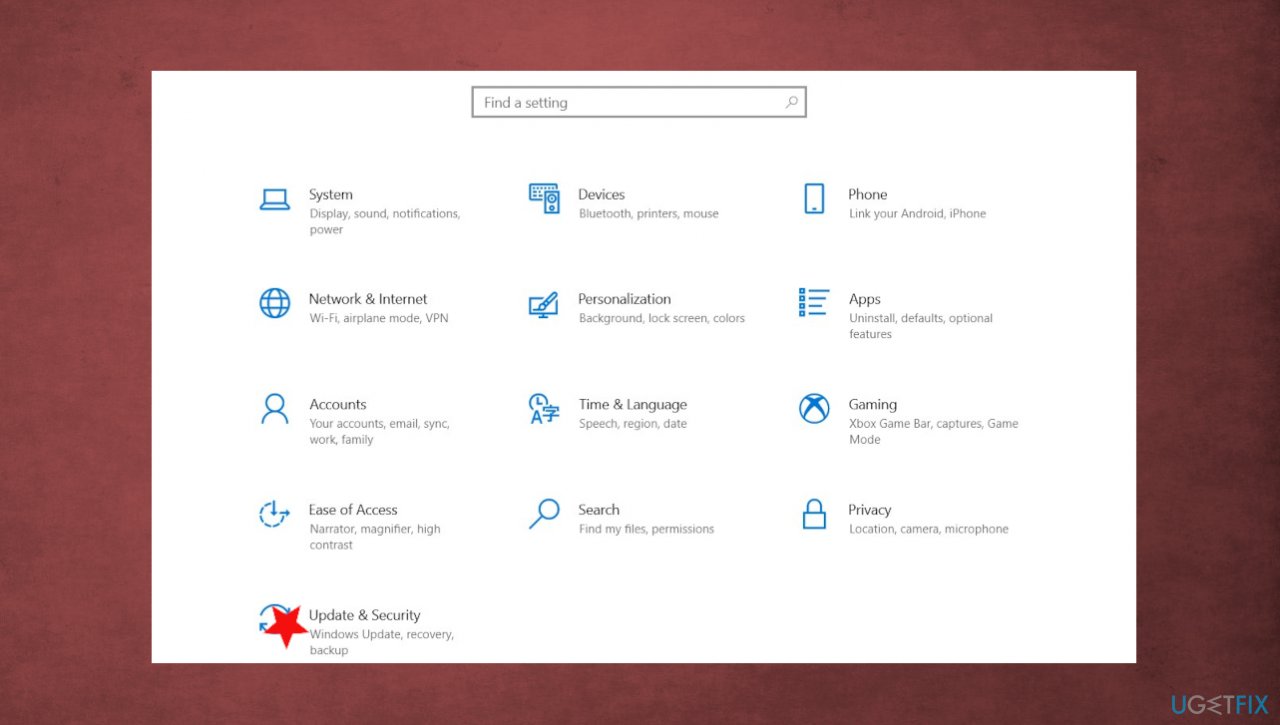
Discord video call not working fix update settings - Find Windows Update section.
- Click Check for update.
- If there is an available update - install it.
Bottom line
To fix the Discord video call not working issue, you can check the driver state, ensure your Windows OS is up to date, and run a tool to identify corrupted files or registry entries. If these solutions do not resolve the problem, consider switching to the web application temporarily or seeking further assistance.
Frequently asked questions
Your Discord video call may not work on Windows 10 due to outdated graphics drivers or incorrect Discord settings. Make sure to update your drivers and check the video settings in Discord.
If your camera isn't functioning in Discord on Windows 11, try restarting the app or checking your privacy settings to ensure Discord has permission to access the camera. Additionally, reinstalling Discord can help resolve persistent issues.
To fix lagging video calls on Windows, check your internet connection and consider lowering the video quality in Discord's settings. Closing background applications that consume bandwidth can also improve performance.




Report an issue
What's wrong with this guide? We review every report and update or remove content.
Report received — thank you. We'll review and fix it.
You need a free account to submit a report.
Be the first to comment