
How to fix DISM RestoreHealth stuck at 62.3% in Windows?

Prefer to fix it yourself? The manual steps follow.
- 6methods
- 5 minutes to check, 20 minutes to several hours for the repair
- Intermediate
Applies to DISM.exe on Windows 11 and Windows 10, in Command Prompt, PowerShell and Windows Terminal
6 methods in this guide
So I had some problems with a Bluetooth connection, and I ran SFC and DISM scans, as advised online. The first one went completely fine, but DISM got stuck at 62.3% and has not moved for hours now. What can I do?
DISM /Online /Cleanup-Image /RestoreHealth often holds at 62.3 % for many minutes, sometimes hours, while it is still repairing Windows in the background. Microsoft's documentation does not explain that number, but the CBS.log file shows whether the work goes on. Check the log first and stop the run only when the log has gone silent.
62.3 % is usually not a freeze. DISM is still checking and repairing, and its progress bar simply does not move during that phase. Press Esc once in case a mouse click paused the window, then watch C:\Windows\Logs\CBS\CBS.log with Get-Content -Tail 10 -Wait (Fix 2). New lines mean wait. A log that stays silent for an hour or more means stop it cleanly, restart, and repair from a Windows ISO (Fixes 3 and 4).
| Error | No error message: the bar of DISM /Online /Cleanup-Image /RestoreHealth stops at 62.3% (also 62 %, 63 % or 64 %) and does not move for a long time. |
|---|---|
| Where it appears | In an administrator Command Prompt, PowerShell or Windows Terminal window, on the progress line under Image Version. |
| Main cause | A long repair phase that the bar does not show. The servicing stack keeps checking, downloading and replacing components, and writes each step to CBS.log. |
| Fastest fix | Press Esc in the DISM window (Fix 1), then tail CBS.log to see whether lines still arrive (Fix 2). If they do, let it finish. |
| Also written as | dism stuck at 62.3, restorehealth stuck at 62.3, dism.exe stuck at 62.3, Deployment Image Servicing and Management tool stuck at 62.3, dism stuck at 62%, restorehealth se queda en 62.3. |
| Affects | Reported on Windows 10 and on Windows 11 from 21H2 to 24H2. Steps here are for 25H2, 26H2 and Windows 10 22H2, which left support on 14 October 2025. |
| Microsoft's status | Not listed as a known issue. Microsoft documents RestoreHealth as an operation that "will take several minutes" and does not explain the 62.3 % mark. |
| How long it can take | Users report 20 minutes on fast PCs and several hours on slow drives or connections. Microsoft gives no upper limit. |
| Logs to read | C:\Windows\Logs\CBS\CBS.log (live progress and the repair summary) and C:\Windows\Logs\DISM\dism.log (the command, the source and the final error). |
| Time to fix | 1 minute for Fix 1, 5 minutes to judge the log, 20 to 60 minutes for a repair from an ISO. |
Facts checked on 14 October 2026. Steps written for Windows 11 (25H2 and 26H2) and Windows 10 22H2.
What DISM RestoreHealth stuck at 62.3% means
DISM (Deployment Image Servicing and Management) repairs the component store, the folder C:\Windows\WinSxS and its records, from which Windows rebuilds its own system files. Microsoft's reference describes /RestoreHealth in one line: it "scans the image for component store corruption, and then performs repair operations automatically. This operation will take several minutes."
While it works, DISM draws a text bar such as [=====62.3%==== ]. The bar does not move evenly. It can stay on one figure while a long step runs underneath. Most readers see exactly 62.3 %, others 62 %, 63 % or 64 %. None of these figures is an error code, and none tells you what is damaged.
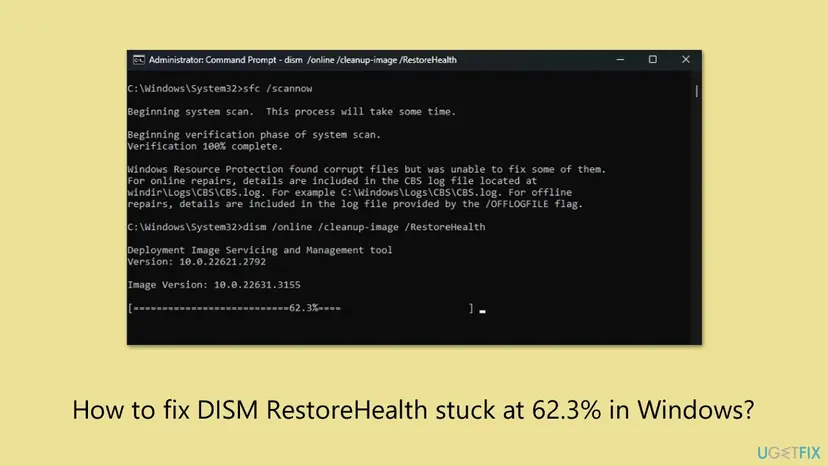
| What you see | What it means |
|---|---|
| Bar at 62.3 % for 10 to 60 minutes, CBS.log still growing | Normal. The repair stage is running. Wait. |
| Bar at 62.3 % for hours, CBS.log still growing slowly | Still working: many components to check or a slow download. Wait, or give DISM a local source (Fix 4). |
| Title bar starts with Select | A mouse click started a text selection and paused the window. Press Esc (Fix 1). |
| No new CBS.log line for an hour, no CPU or disk use | Stuck. Stop it cleanly and restart (Fix 3). |
Ends with 0x800f081f or "The source files could not be found" | DISM found damage but no clean copy to repair it. Use a Windows ISO as the source (Fix 4). |
Microsoft's documentation says nothing about the 62.3 % mark, and we did not find a Microsoft statement that explains it. What the documentation does give is the log: DISM "creates a log file (%windir%\Logs\CBS\CBS.log) that captures any issues that the tool found or fixed". That file, not the bar, tells you whether the run is alive.
Why DISM stops at 62.3%, from most to least common
- Most often: it is not stuck. The repair stage runs without moving the bar. Users report 20 minutes on a fast PC and several hours on a slow one. CBS.log keeps getting new lines. Fix 2.
- Often: the window is paused. In the classic console window a single mouse click starts a text selection, and while it is active the program cannot print its next line. Users report that pressing a key made DISM jump to 100 %. Fix 1.
- Less often: DISM waits for Windows Update. RestoreHealth downloads clean copies from Windows Update by default. A slow connection, a blocked update service or a company update policy makes it wait, then end with
0x800f0906or0x800f081f. Fixes 4 and 5. - Rarely: the store is too damaged. When hundreds of manifests are missing, a volunteer moderator on Microsoft Q&A advised a repair install instead of sourcing them one by one. Fix 6.
- Rarely: the drive is failing. If the whole PC crawls and the disk shows 100 % activity for hours, the drive itself can be the bottleneck. See the last section.
| Cause | Sign | Start with |
|---|---|---|
| Long repair stage | CBS.log grows, Windows Modules Installer Worker busy | Fix 2 |
| Paused console | Title bar begins with Select, a highlighted block of text | Fix 1 |
| No usable source | dism.log: 0x800f081f, "The source files could not be found" | Fix 4 |
| Windows Update unreachable | dism.log or CBS.log: 0x800f0906, long silent waits | Fix 5 |
| Store beyond repair | CheckHealth: non-repairable, or many missing manifests | Fix 6 |
How to tell a working DISM run from a stuck one
You need three checks, and none of them touches the running repair. Do them in this order: the title bar of the DISM window, the end of CBS.log, and the Windows Modules Installer Worker process in Task Manager. That worker is the servicing process that DISM hands the repair to.
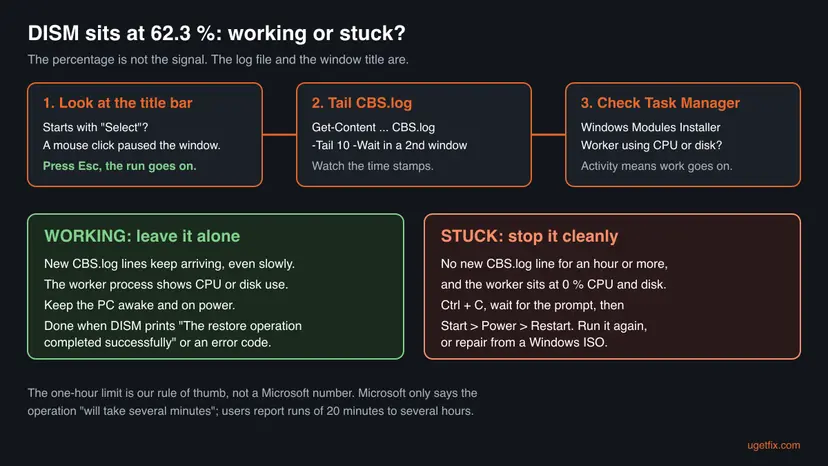
Microsoft gives no time limit. We treat a run as stuck only when CBS.log has had no new line for an hour or more and the worker process shows no CPU or disk use. A slow but growing log is a working run, however long it takes.
One user on Microsoft Q&A who measured it reports that the run is really over when CBS.log prints Ending TrustedInstaller finalization. After that the DISM window shows its final message and the worker process closes by itself.
How to fix DISM RestoreHealth stuck at 62.3%
Fixes 1 and 2 cost nothing and solve most cases: they unpause the window and show you that the repair is still running. Fix 3 stops a run that really froze. Fixes 4 and 5 give DISM a source it can actually reach. Fix 6 is the last step when the store cannot be repaired.
| What you see | Start with |
|---|---|
| The title bar of the DISM window begins with Select, or you clicked into the window | Fix 1 |
| The bar has been at 62.3 % for a while and you do not know whether DISM is alive | Fix 2 |
| CBS.log has had no new line for an hour or more, the worker shows no activity | Fix 3 |
DISM ends with 0x800f081f or "The source files could not be found" | Fix 4 |
The log shows long download waits or 0x800f0906, or you are on a company PC | Fix 5 |
| CheckHealth says non-repairable, or Fix 4 failed with a matching ISO | Fix 6 |
Fix 1. Check that a mouse click has not paused the DISM window
1 minuteNo riskYou clicked into the DISM window, or its title bar begins with Select.
The classic console window has QuickEdit Mode, which Microsoft describes as letting you "use the mouse to select and edit text". While a selection is active the window stops taking new output, so DISM waits until you clear it.
- Look at the title bar of the DISM window. If it begins with Select, or part of the text is highlighted, the window is paused.
- Click once on the title bar of that window so it has the keyboard focus. Do not click inside the black area again.
- Press Esc once to cancel the selection. Select disappears from the title.
- Watch the bar for a minute. If DISM had finished its work during the pause, it may jump straight to 100 % and print its result.
Ctrl + C in a console stops the running program. Use Esc to clear a selection. Pressing Enter also clears it, and it copies the highlighted text to the clipboard, which does no harm.
We could not find a Microsoft page that documents this pause for DISM. It is reported many times on Microsoft Q&A, where users say that clicking into the window and pressing a key made DISM continue. We could not confirm whether Windows Terminal, the default on Windows 11, pauses in the same way. If you see highlighted text there, press Esc anyway, then go on to Fix 2.
It worked if: The word Select leaves the title bar and the percentage moves again, or DISM prints "The restore operation completed successfully".
If not: If nothing was selected or the bar still does not move, check whether DISM is working with Fix 2.
Fix 2. Watch CBS.log and Task Manager, then let DISM finish
5 minutes, then the waitNo riskThe bar sits at 62.3 % and you want to know whether DISM is still working.
Microsoft documents CBS.log as the file where DISM records what it found and fixed. Reading its last lines in a second window shows each step as it happens, so you can see the repair go on while the bar stands still.

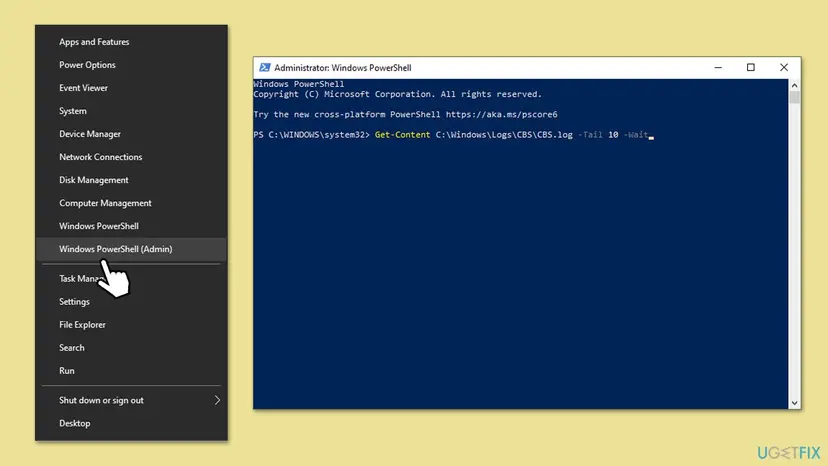
- Leave the DISM window open. Right-click Start and select Terminal (Admin) on Windows 11, or Windows PowerShell (Admin) on Windows 10. Select Yes.
- In the new window, show the last 10 lines of CBS.log and keep following it.
Get-Content C:\Windows\Logs\CBS\CBS.log -Tail 10 -Wait - Watch the time stamps at the start of each line for a few minutes. New lines, even one every few minutes, mean DISM is working.
- Press Ctrl + Shift + Esc to open Task Manager, select Processes and find Windows Modules Installer Worker. CPU or disk use there means the repair is active.
- Keep the PC on power and stop it from sleeping until DISM prints its final line.
- When you are done watching, press Ctrl + C in the PowerShell window. This stops only the log viewer, not DISM.
Do not open CBS.log in Notepad and save it while DISM runs. Get-Content only reads the file. If you want to search it later, copy it first, for example to your Desktop, and open the copy.
It worked if: New lines keep appearing in the PowerShell window, and DISM ends with "The restore operation completed successfully" after some time.
If not: If no new line appears for an hour or more and the worker process stays at 0 %, stop the run with Fix 3.
Fix 3. Stop a frozen run cleanly, restart, and check the store before running it again
20 to 40 minutesLow riskCBS.log has been silent for an hour or more and the worker process shows no activity.
A restart lets Windows finish or roll back what the servicing stack left pending. CheckHealth and ScanHealth then tell you whether the store needs RestoreHealth at all, so you do not repeat a long run for nothing.
- Click the DISM window and press Ctrl + C once. Wait until the prompt
C:\Windows\System32>returns. This can take a while. - If the prompt does not return after 10 minutes, close the window with the X button.
- Restart through Start > Power > Restart. Do not hold the power button: Windows may have repair work to finish during the restart.
- Open Terminal (Admin) again and ask DISM whether the image was flagged as damaged. This takes seconds.
DISM /Online /Cleanup-Image /CheckHealth - Run a full scan without repairing anything. Microsoft says it "will take several minutes".
DISM /Online /Cleanup-Image /ScanHealth - If the result is The component store is repairable, run RestoreHealth again and then System File Checker, as in the procedure below.
- If the result is No component store corruption detected, you do not need RestoreHealth. Run only
sfc /scannow.
Step by step, with screenshots of each scan: Run DISM and SFC to repair Windows system files. Run RestoreHealth before SFC, as Microsoft's own sequence does, because SFC repairs files from the store that DISM has just fixed.
Microsoft does not document what happens when you interrupt RestoreHealth. A user on Microsoft Q&A reports that the next run starts over from the beginning. We found no report that a clean stop and restart damaged Windows, but plan for the full time again.
It worked if: CheckHealth or ScanHealth reports no corruption, or the second RestoreHealth run ends with The restore operation completed successfully.
If not: If ScanHealth says the store is repairable and RestoreHealth freezes again at the same point, give DISM a local source with Fix 4.
Fix 4. Repair from a Windows ISO with /Source and /LimitAccess
30 to 60 minutesLow riskDISM ends with 0x800f081f, or it freezes again while waiting for Windows Update.
Without a source, RestoreHealth fetches clean files from Windows Update. Microsoft documents /Source to give it a Windows image instead and /LimitAccess to stop it from contacting Windows Update, which removes the download wait.
- Press Win + R, type
winverand press Enter. Note the version (for example 25H2), the build number and your edition (Home or Pro). - Download the Windows 11 ISO from Microsoft's software download page, in the same language as your Windows. The page currently offers version 26H2.
- Right-click the ISO file and select Mount. Note the drive letter it gets in File Explorer, for example
E:. - In Terminal (Admin), check which image file the ISO holds.
dir E:\sources\install.* - List the editions inside it and note the Index of yours (Home, Pro).
DISM /Get-ImageInfo /ImageFile:E:\sources\install.wim - Run the repair from that image. Replace
E:with your drive letter and6with your index.DISM /Online /Cleanup-Image /RestoreHealth /Source:Wim:E:\sources\install.wim:6 /LimitAccess - When it ends successfully, run
sfc /scannow, then restart the PC.
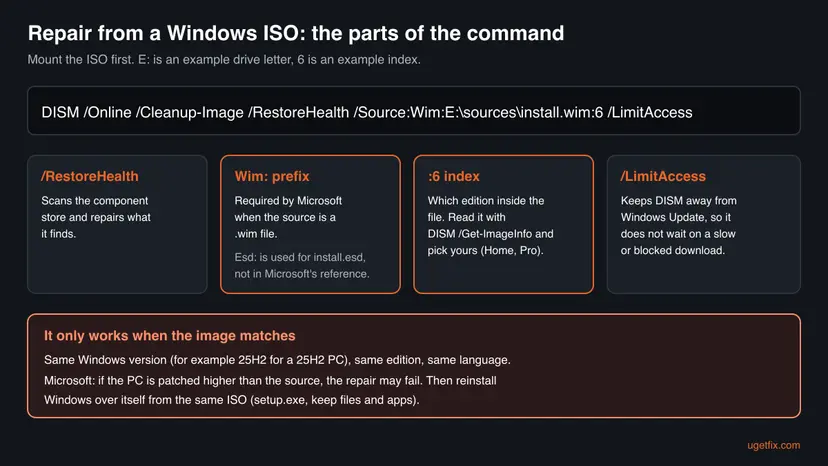
Microsoft's repair source page documents only the Wim: prefix with an index, for example Wim:\\network\images\contoso.wim:3. For an install.esd file, Microsoft Q&A answers use /Source:Esd:E:\sources\install.esd:6, but we could not confirm that syntax on a Microsoft documentation page. If it fails, use the same ISO for Fix 6.
Two Microsoft rules decide whether this works. The source must be patched at least as high as your PC: "If the target OS is patched to a higher level than the source, adding features or repairing Operating Systems may fail." And it must contain your language packs. A 26H2 ISO cannot always repair a 25H2 PC, so when the versions differ, Fix 6 with the same ISO is the more reliable way.
If a Windows update also fails with store errors, our guide to Windows update error 0x80070302 shows how to find the exact missing package in CBS.log.
It worked if: DISM moves past 62.3 % without a long wait and ends with The restore operation completed successfully, and SFC then reports no integrity violations.
If not: If it ends with 0x800f081f again, the ISO does not match your build. Use the same ISO for an in-place repair with Fix 6.
Fix 5. Make Windows Update reachable as the repair source
15 minutesLow riskYou have no ISO, and the logs show download failures, 0x800f0906, or a company update policy.
Microsoft names Windows Update as the default repair source when policy allows it, and says that DISM repair "works best when you connect to Microsoft Update servers". If the update service or its cache is broken, DISM waits on a download that never arrives.
- Open
C:\Windows\Logs\DISM\dism.log(make a copy first) and search for0x800f0906or0x800f081fnear the end. - Check that the PC is online and that Settings > Windows Update > Check for updates works without an error.
- Reset the Windows Update services and their cache with the procedure below, then restart.
- Run
DISM /Online /Cleanup-Image /RestoreHealthagain without/LimitAccessand watch CBS.log as in Fix 2.
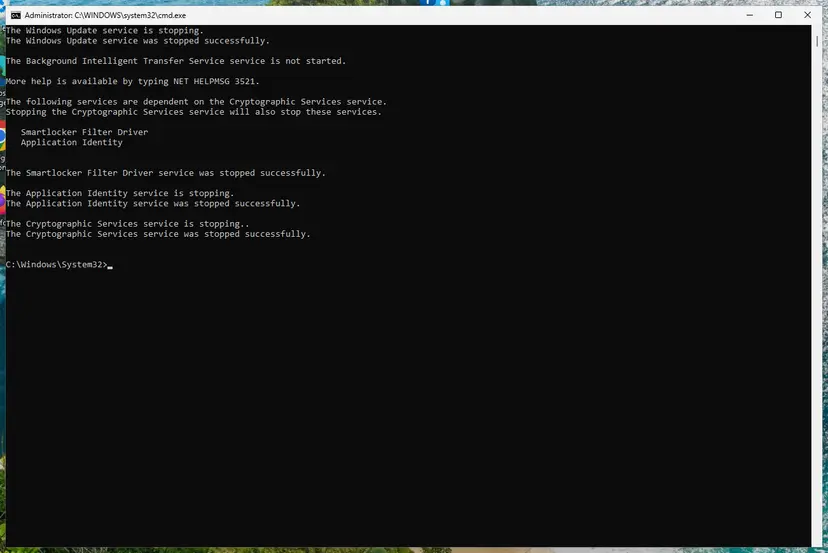
Step by step: Reset Windows Update components. On a work or school PC, an administrator may point Windows at a company update server. Microsoft's Group Policy setting for this is Computer Configuration > Administrative Templates > System > Specify settings for optional component installation and component repair. Ask your IT team before you change it.
It worked if: Check for updates works, CBS.log shows downloads and progress, and RestoreHealth completes successfully.
If not: If RestoreHealth still ends with a source or download error, use a Windows ISO (Fix 4) or reinstall Windows over itself (Fix 6).
Fix 6. Reinstall Windows over itself and keep your files and apps
1 to 2 hoursLow riskThe store is non-repairable, hundreds of manifests are missing, or Fix 4 failed with a matching ISO.
A repair install replaces the whole component store with a fresh copy. Microsoft says the Windows 11 option "repairs system files and components" and "preserves your apps, files, and settings", so it fixes what RestoreHealth could not.

- Back up the files you cannot lose first: Back up your files (Windows Backup, File History, Time Machine).
- On Windows 11 open Settings > System > Recovery and, under Fix problems using Windows Update, select Reinstall now. Keep the PC on power and online.
- If that option is missing (managed PCs, older builds), mount a Windows ISO of the same version and run setup.exe, keeping personal files and apps.
- After the restart, run
DISM /Online /Cleanup-Image /ScanHealthto confirm the store is clean.
Step by step, with both ways and the Windows 10 path: Reinstall Windows without losing files. Microsoft notes that Fix problems using Windows Update needs Windows 11 22H2 or later with the February 2024 optional update, and is unavailable on PCs whose updates are managed.
It worked if: Windows starts on the same version with your apps and files, and ScanHealth reports No component store corruption detected.
If not: If even the repair install fails, collect the logs listed in the next section and look for hardware signs before you reset the PC.
If DISM still stops at 62.3%: logs, support and hardware
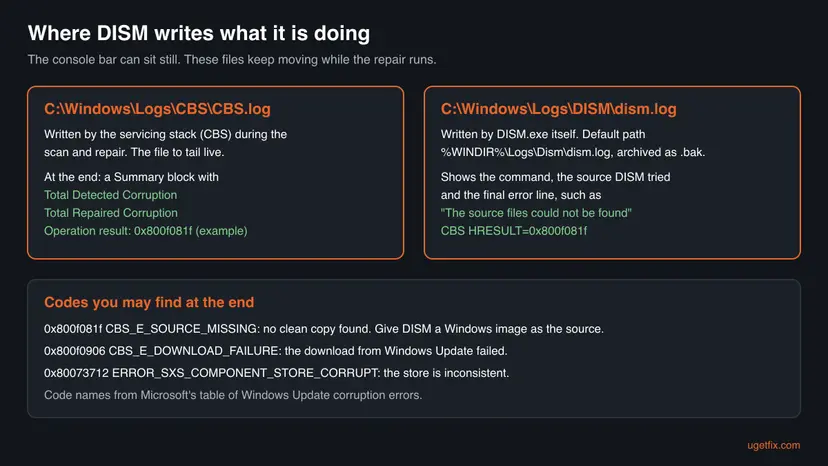
- Copy
C:\Windows\Logs\CBS\CBS.logandC:\Windows\Logs\DISM\dism.logto your Desktop. Work on the copies. - In the CBS.log copy, search for
Summary:. Microsoft's example shows Total Detected Corruption, Total Repaired Corruption and Operation result. - Lines such as
CSI Payload CorruptorCBS MUM Missingname the damaged component and its build number, for example10.0.19045.4291. - In dism.log, read the last Error lines.
0x800f081fmeans no clean copy was found,0x800f0906means the download failed. - For help on Microsoft Q&A or from support, zip the whole
C:\Windows\Logs\CBSfolder and dism.log. Volunteers there ask for exactly these files.
Suspect the hardware when everything is slow, not only DISM: Task Manager shows the disk at 100 % for hours, files take long to open, or the drive makes noise. Check the drive with Check a disk for errors (chkdsk) and back up your files before anything else. A failing drive can also be what damaged the component store in the first place.
How to keep RestoreHealth from stalling next time
- Run
DISM /Online /Cleanup-Image /ScanHealthfirst and repair only when it says repairable. - Keep a mounted ISO of your exact version ready as a
/Source. - Watch CBS.log instead of the bar, and keep the PC on power.
- Let Windows Update install the monthly updates so the store stays current.
- Click inside a classic console window while DISM runs.
- Force the PC off with the power button during a repair.
- Delete files from
C:\Windows\WinSxSby hand. Microsoft warns the PC might not boot. - Add
/ResetBaseto a cleanup unless you accept that installed updates can no longer be uninstalled.
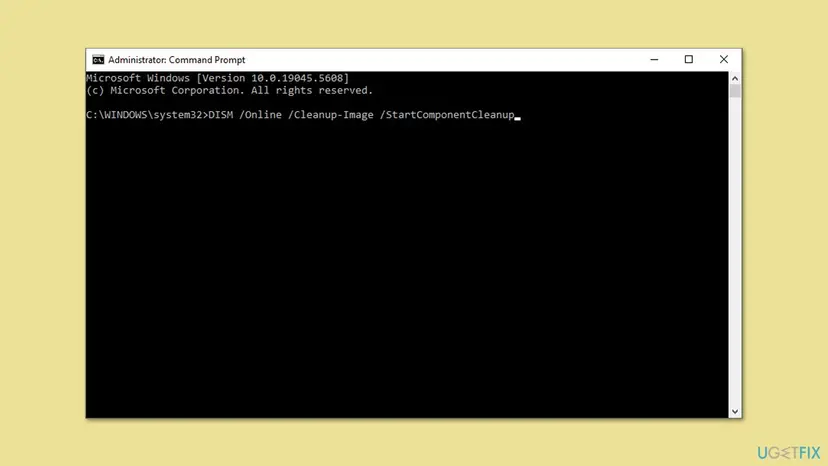
Windows already cleans the store on its own through the StartComponentCleanup task in Task Scheduler, which waits at least 30 days before it removes older component versions. You can run the same cleanup by hand with Dism.exe /online /Cleanup-Image /StartComponentCleanup, but it shrinks the store and does not repair it.
Frequently asked questions
Why does DISM stop at exactly 62.3%?
Microsoft has not explained the number in its documentation, and we found no Microsoft statement about it. Users on Windows 10 and on every Windows 11 version report the same figure, so it marks a point in DISM's own progress, not a fault on one PC. Others see 62 %, 63 % or 64 %. The number itself is not an error and does not tell you what is damaged. CBS.log shows what DISM is actually doing at that moment.
How long should DISM RestoreHealth take?
Microsoft only says the operation "will take several minutes". In practice it depends on how much is damaged, the speed of the drive and, without /Source, the speed of the download from Windows Update. Users on Microsoft Q&A report about 20 minutes on a fast PC and several hours on slow ones. Judge by the log, not the clock: as long as CBS.log keeps getting new lines, the run is working.
Is it safe to close DISM while it is stuck at 62.3%?
Only when it is really stuck: CBS.log silent for an hour or more and no activity from Windows Modules Installer Worker. Then press Ctrl + C, wait for the prompt, and restart through Start > Power > Restart. Microsoft does not document the effect of an interruption, and users report that the next run starts again from zero. Never cut the power during a repair, because Windows may still be writing to the component store.
Does pressing Enter really make DISM continue?
Only when the window was paused by a text selection. In the classic console window a mouse click starts a selection, and while it is active DISM cannot print its next line, so it waits. Pressing Enter or Esc clears the selection and the run goes on. Users on Microsoft Q&A report DISM jumping to 100 % right after a key press. If nothing was selected, a key press does nothing at all.
Do I run SFC or DISM first?
Microsoft's Windows Update repair article runs DISM RestoreHealth first and sfc /scannow second. SFC replaces damaged system files with copies from the component store, so the store must be healthy before SFC can do its job. If SFC already ran and said it could not fix some files, run DISM now and then SFC once more. Our step-by-step page with both commands is linked in Fix 3.
Should I restart after DISM RestoreHealth?
Yes, after RestoreHealth and SFC have both finished. DISM itself does not always ask for a restart, but files that were in use can only be replaced at startup, and Windows may finish pending servicing during the restart. After you stopped a frozen run, a restart is required before you try again. Use Start > Power > Restart rather than Shut down, so a fast startup setting does not skip the full restart.
What is the difference between CheckHealth, ScanHealth and RestoreHealth?
CheckHealth only reads whether a failed process has already flagged the image as damaged and whether it can be repaired. It takes seconds. ScanHealth scans the whole component store for damage and repairs nothing. RestoreHealth scans and then repairs automatically, which is why it takes the longest and is the one that stalls at 62.3 %. Microsoft's DISM reference describes the three options this way. Run ScanHealth first to know whether RestoreHealth is needed.
Can I use an ISO of a newer Windows version as the DISM source?
Sometimes, but not reliably. Microsoft warns that when the PC is patched higher than the source, a repair may fail because the PC needs newer files than the source holds. A newer ISO can lack the older component versions your PC refers to. Microsoft's download page offers only the current release, now 26H2. When the versions differ, an in-place repair install from that ISO (Fix 6) is the more dependable way.
Is my data at risk when DISM hangs?
Not your personal files. DISM RestoreHealth works only on the Windows component store in C:\Windows\WinSxS and its records, and it never touches documents, photos or apps. The risk is to Windows itself if the PC loses power in the middle of a repair, which is why you stop it with Ctrl + C and a normal restart. Back up your files anyway before Fix 6, as you would before any reinstall.
I searched 'restorehealth se queda en 62.3'. Does this guide apply?
Yes. "Se queda en 62.3" is the Spanish way of saying that RestoreHealth stays at 62.3 %, and it is the same behaviour on a Spanish Windows. The commands are identical in every language, and the log paths are the same. Only the messages DISM prints are translated. Add /English to a DISM command if you want its output in English while you follow this guide.
Sources
- Microsoft Learn: Repair a Windows Image (learn.microsoft.com)
- Microsoft Learn: DISM Operating System Package Servicing Command-Line Options (/Cleanup-Image) (learn.microsoft.com)
- Microsoft Learn: Fix Windows Update corruptions and installation failures (learn.microsoft.com)
Did this fix work?
One click, no account. It tells the next reader which guides are worth their time.
Questions and experiences: fix DISM RestoreHealth stuck at 62.3% in Windows
Still broken, or found a fix we did not cover? Ask here: members and our editors answer. Reading is open; writing needs a free account.
…