
How to fix Windows update error 0x80070302?

Prefer to fix it yourself? The manual steps follow.
- 7methods
- 10 minutes to 2 hours
- Intermediate
Applies to Windows 11 24H2, 25H2 and 26H2: monthly cumulative updates and preview updates that end with Install error - 0x80070302 in Settings > Windows Update
7 methods in this guide
Hey, I keep getting this Windows update error 0x80070302 every time I try to install an update. Does anyone know what might be causing this or how to fix it?
Install error 0x80070302 means a Windows 11 cumulative update downloaded and installed, then failed and rolled back during the restart. The code is Win32 error 770, and Microsoft gives it no Windows Update meaning, so the real cause sits in CBS.log. Restart, check which build you are on, then install the newest update, not the one from the old message.
0x80070302 is not a download problem. The cumulative update reaches the restart, the part of Windows that installs updates fails, and the update is rolled back. Restart once, compare your build in winver with the update, and install the newest update Windows offers (Fix 1). If it fails again, read CBS.log for the package that broke (Fix 2) and repair the component store (Fix 3). When nothing else helps, a repair install that keeps your files and apps is the fix readers report working (Fix 7).
| Error | Install error - 0x80070302: Win32 error 770, ERROR_CANTFETCHBACKWARDS, "The data provider cannot fetch backwards through a result set." |
|---|---|
| Where it appears | Settings > Windows Update, next to a cumulative update, after the restart that should have finished it. Also in Update history, and as error 770 in the output of DISM. |
| Main cause | The servicing stack, the part of Windows that installs updates, cannot finish the update with the files in the component store. Damaged or missing store files and old packages left by an upgrade are the reported causes. |
| Fastest fix | Restart, check the build with winver, and install the newest update Windows offers (Fix 1). Then read CBS.log (Fix 2). |
| Also written as | 80070302, 0x80070302 error, error 770, 0x302, -2147024126, Erro de instalação - 0x80070302, Ошибка установки - 0x80070302, Installationsfehler - 0x80070302, インストール エラー - 0x80070302. |
| Affects | Every report we found is on Windows 11 24H2 or 25H2 (OS builds 26100 and 26200), on x64 and arm64 PCs. We found no report from Windows 10. |
| Microsoft's status | Not a known issue. The code is not on Microsoft's list of common Windows Update errors, not in the Windows Update error reference and not on the release health pages of 24H2 and 25H2 (read 14 October 2026). |
| Sibling codes | Seen on the same PCs: 0x800f0993, 0x800f0983, 0x800f0838 and 0x80070306 (error 774, "One or more errors occurred while processing the request"). |
| Time to fix | 10 minutes for Fix 1. About 30 minutes for the log and DISM. 1 to 2 hours for a repair install. |
| Where the cause is logged | C:\Windows\Logs\CBS\CBS.log and C:\Windows\Logs\DISM\dism.log. Search for 0x80070302 and , error. |
Facts checked on 14 October 2026. Steps written for Windows 11 (25H2 and 26H2) and Windows 10 22H2.
What install error 0x80070302 means
0x80070302 is an ordinary Windows system error in the eight-digit form that Windows Update prints. The first half, 0x8007, marks a plain Win32 error that was wrapped for the update components. The second half, 0302, is 770 in hexadecimal. Microsoft's list of system error codes names 770 ERROR_CANTFETCHBACKWARDS, with the text "The data provider cannot fetch backwards through a result set."
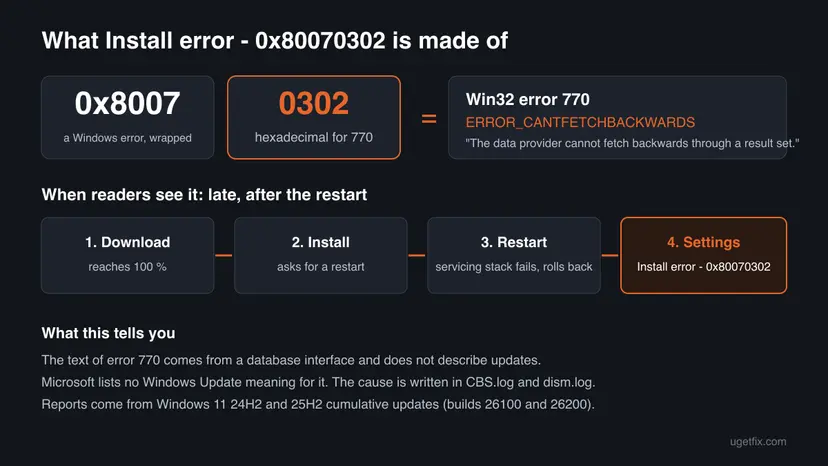
That text does not describe an update at all. Errors 770 to 775 in Microsoft's list all speak of a "data provider" and a "result set", the language of components that read rows from a database. Microsoft has not published what 770 means when the servicing stack returns it, so treat the code as a signal that the installation failed late, not as a description of why.
| What you see | Where | What it tells you |
|---|---|---|
| Install error - 0x80070302 under the name of a cumulative update, with a Retry button | Settings > Windows Update | The update downloaded and the installation failed. The page does not say why. |
| The same update listed as failed, with a date and the code | Settings > Windows Update > Update history | How often it failed. The date tells you where to look in CBS.log. |
| "Error: 0x80070302" or "Error: 770" with "The data provider cannot fetch backwards through a result set." | Command window, after DISM installs a downloaded .msu file | The same failure without Windows Update in between. A manual install will not get around it. |
winver still shows the old OS build after a restart | Win + R, winver | The update was rolled back. Nothing from it stayed on the PC. |
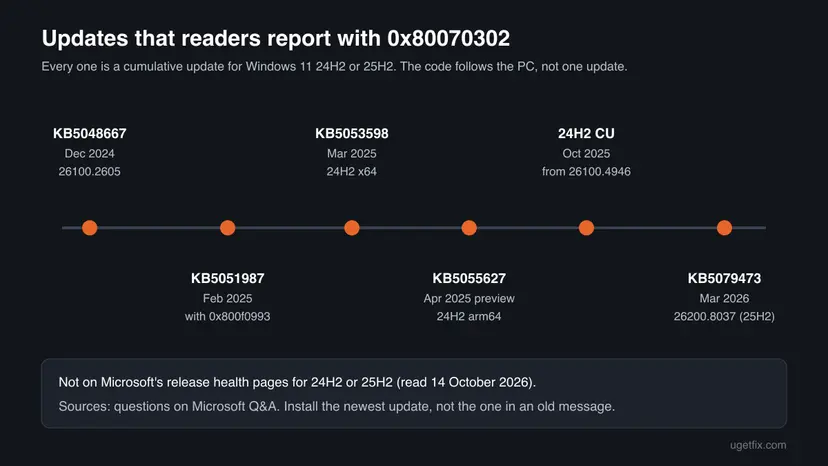
Readers report this code with many different updates over two years, from KB5048667 in December 2024 to KB5079473 in March 2026. When one PC fails month after month with the same code, the fault is on that PC. Waiting for Microsoft to fix the update rarely helps.
Which Windows updates readers report with 0x80070302
We read the questions about this code on Microsoft Q&A, Microsoft's own forum. Each line below is a report by a user, not a statement by Microsoft. Together they show a clear pattern: all are cumulative updates for Windows 11 version 24H2 or 25H2, both regular monthly updates and optional previews.
| Update | Released | Windows | What the user reported |
|---|---|---|---|
| KB5048667 | December 2024 | 24H2, OS build 26100.2605 | The install ran to the end and then showed 0x80070302. |
| KB5051987 | February 2025 | 24H2, Pro N, build 26100.2605 | 0x800f0993 from Windows Update, 0x800f0838 by hand, and "Failed to install" with 0x80070302 on 24 February. After one manual install, the update downloaded again at 0 % after the restart and failed once more. |
| KB5053598 | March 2025 | 24H2, x64 | It kept failing to install with Install error - 0x80070302. |
| KB5055627 (preview) | April 2025 | 24H2, arm64 | The same code on an ARM PC. Installing the catalog file by hand also failed. |
| The current 24H2 cumulative update | October 2025 | 24H2, Pro, build 26100.4946 | Reset of Windows Update, DISM, SFC and restarting services did not help. A repair upgrade failed with 0x8007042B - 0x2000D. A volunteer found files missing in the component store. |
| KB5079473 | March 2026 | 25H2, OS build 26200.8037 | SFC and DISM found nothing. DISM showed error 770 for the manual install. CBS.log named an old Windows 10 package. A repair install fixed it. |
- Microsoft's release health pages. We read the known issues of Windows 11 24H2 and 25H2 on 14 October 2026. Neither page mentions 0x80070302.
- Press reports. Windows Latest listed 0x80070302 among the codes users saw with KB5065426 in September 2025, next to 0x800F0991, 0x800F0922 and others. It did not quote a Microsoft statement about this code.
- Windows 11 24H2 Home and Pro. Microsoft's release health page says these editions reached the end of updates on 13 October 2026. A 24H2 Home or Pro PC that fails with this code needs a move to 25H2 or 26H2 anyway, which Fix 7 does in one step. Enterprise and Education editions of 24H2 are supported until 12 October 2027.
Why Windows update error 0x80070302 happens, from most to least likely
Microsoft has not described a cause for this code. The ranking below comes from what Microsoft documents about how 24H2 updates are built and from the log findings that volunteers and users posted in the cases above. Each cause points to the fix that matches it.
| Cause | How often | How to tell | Fix |
|---|---|---|---|
| Files are missing or damaged in the component store, the WinSxS folder from which the update builds new system files. | Most often | DISM /Online /Cleanup-Image /ScanHealth says the store is repairable, or CBS.log names a missing file. | Fix 2, Fix 3 |
| An old package, often left from an upgrade from Windows 10 or an earlier Windows 11 version, blocks the new update. | Often on upgraded PCs | The PC did not come with 24H2. CBS.log or dism.log names a package with an old version number. | Fix 4, then Fix 7 |
| The message is old. A later update already replaced the failed one, or the failed update is in fact installed. | Sometimes | winver shows the build of the update, or Windows Update now offers a newer KB. | Fix 1 |
A checkpoint update is missing because updates were installed by hand from .msu files in the wrong order. | Sometimes | You use the Microsoft Update Catalog, and the catalog lists more than one file for the update. | Fix 5 |
| A damaged download in the update cache, or a stuck update service. | Rarely | The log shows download or hash errors, not packages. Other fixes changed nothing. | Fix 6 |
The first cause is the finding in the October 2025 case: a volunteer moderator read the CBS logs and wrote that files were missing in the component store. The second is the finding in the March 2026 case, where the user read dism.log and CBS.log and found an old Windows 10 package blocking security updates.
Low disk space, Disk Cleanup and a clean boot are the usual advice for this code, but no case we read was solved that way, and Microsoft does not connect this code with them. An update that fails at the restart has already passed the download and the space check. Keep enough free space, but do not expect it to clear 0x80070302.
How to fix install error 0x80070302 in Windows Update
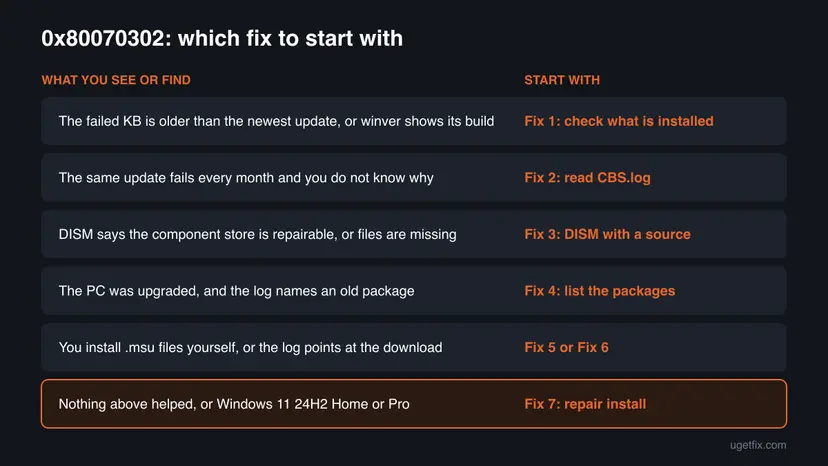
Fix 1 takes ten minutes and changes nothing, so everybody starts there. Fix 2 tells you which of the next fixes is yours. Fixes 3 to 6 repair one cause each. Fix 7 is the repair install: it takes longest, but it is the fix that ended the two cases above where the user reported back.
| What you see or have | Start with |
|---|---|
| The message names an older KB, or you have not restarted since it appeared. | Fix 1 |
| The same code every month, and you do not know the cause yet. | Fix 2 |
| DISM says the component store is repairable, or RestoreHealth cannot find source files. | Fix 3 |
| The PC was upgraded to 24H2 or 25H2, and the log names an old package. | Fix 4, then Fix 7 |
| You install updates from the Microsoft Update Catalog yourself. | Fix 5 |
| The logs point at the download or at the update services. | Fix 6 |
| Windows 11 24H2 Home or Pro, or every other fix failed. | Fix 7 |
Fix 1. Restart, check which build you are on, and install the newest update
10 minutesNo riskAlways first, and above all when the message names an update that is a month or more old.
Cumulative updates replace each other every month, so the update in an old message may no longer be the one Windows needs. In one Q&A case the update was reported as already installed while the error stayed on screen. The build number shows what really happened.
- Restart the PC once with Start > Power > Restart, not with Shut down, so that pending update work can finish.
- Press Win + R, type
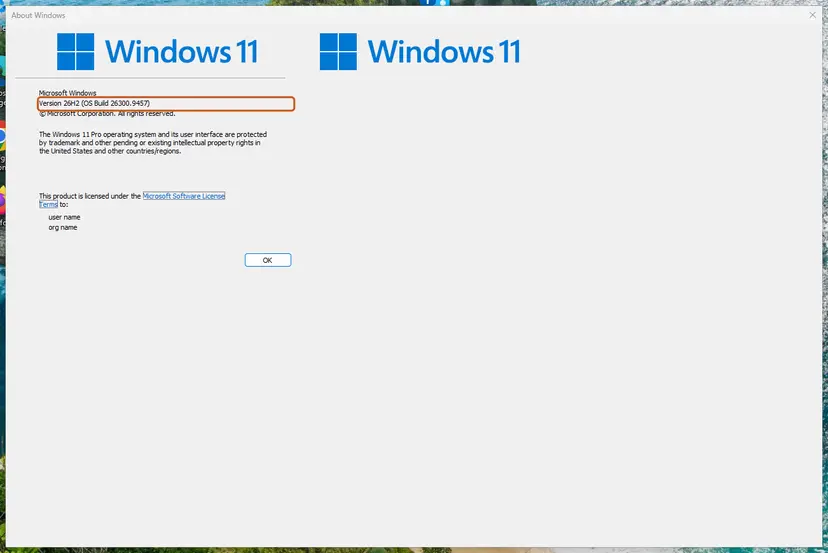
winverand press Enter. Note the version (24H2, 25H2 or 26H2) and the OS Build, for example 26200.8037. - Open Settings > Windows Update > Update history and note the KB number of the failed update and the date of the last failure.
- Search the KB number on Microsoft Support. The title of its page gives the build it installs, for example "KB5079473 (OS Builds 26200.8037 and 26100.8037)".
- Compare the two builds. If your build in
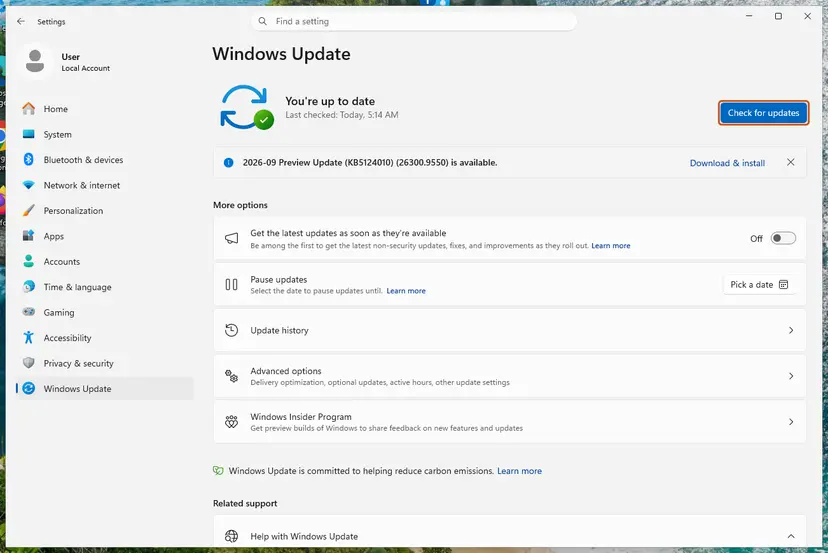
winveris the same or higher, the update is in place and the old message can be ignored. - If your build is lower, go back to Settings > Windows Update and select Check for updates. Install whatever is offered now, which may be a newer KB than the one that failed.
- Restart when asked and run
winveragain.
| winver shows | Meaning | Next |
|---|---|---|
| The build of the failed update or higher | The update installed. The failure entry is history. | Nothing to fix. Check for updates once more. |
| A lower build, and a newer KB installs fine | A one-time failure. The newer update replaces the old one. | Done. |
| A lower build, and the newest KB fails with the same code | The cause is on the PC. | Fix 2 |
| Version 24H2 on Windows 11 Home or Pro | No more monthly updates for this version since 13 October 2026. | Fix 7, which moves the PC to a supported version |
Microsoft offers version 26H2 to 24H2 and 25H2 PCs as an enablement package, a small update that turns on features already delivered by monthly updates. If Feature update to Windows 11, version 26H2 appears in Windows Update, try it. If it also fails, Fix 7 does the same move with a full repair.
It worked if: winver shows the build of the newest cumulative update, and Windows Update says you are up to date.
If not: If the newest update also fails with 0x80070302 after the restart, the cause is on the PC. Read the logs in Fix 2.
Fix 2. Find the failing package in CBS.log and dism.log
15 minutesNo riskThe newest update still fails with 0x80070302 and you want to know which of the next fixes is yours.
The Windows Update page shows only the code. Microsoft describes CBS.log as the log of the update installation part of the servicing stack, and it names the package or file that failed. Both solved cases above were solved from these logs.
- Right-click Start and select Terminal (Admin). On Windows 10, search for
cmdand select Run as administrator. - Copy both logs to the desktop, so that you read copies and Windows keeps writing the originals.
copy %windir%\Logs\CBS\CBS.log %USERPROFILE%\Desktop\CBS-copy.log copy %windir%\Logs\DISM\dism.log %USERPROFILE%\Desktop\dism-copy.log - List the lines that carry the code. Note the date and time of the last hit.
findstr /i /c:"80070302" %USERPROFILE%\Desktop\CBS-copy.log - Open
CBS-copy.login Notepad, press Ctrl + F and search for, error. Go to the lines with the same time as the last hit. This is the search Microsoft gives for reading CBS.log. - Read 20 to 40 lines above the error line. Note every package name, file name and version number there.
- Do the same in
dism-copy.logif you installed the update by hand. Look forErrorand for770near the time of your command.
| You find | It points to |
|---|---|
A file under WinSxS that is missing, a hash mismatch, or the words "store corrupt" | Fix 3: repair the component store |
A package with RollupFix and the version 26100.1742.1.10 | Fix 4: the leftover package from a 24H2 upgrade |
A package with an old version number, for example a Windows 10 build that starts with 19041 or 19045 | Fix 4 to confirm it, then Fix 7 |
| A message that a prerequisite or checkpoint is missing | Fix 5 |
| Nothing clear, or many errors at once | Fix 3, then Fix 7 |
PowerShell (administrator): pack all CBS logs into one file to share with a helper
Compress-Archive C:\Windows\Logs\CBS -f (Join-Path ([Environment]::GetFolderPath('Desktop')) 'CBS.zip')This is the command a volunteer moderator on Microsoft Q&A asked for in the October 2025 case. Share the zip through OneDrive or a similar service. Add the output of winver, the KB number and the dates from Update history. CBS logs list package and file names, not personal documents, but read them before you share them.
It worked if: You have a package name, a file name or a clear error line to act on, and you know which of Fix 3, Fix 4 or Fix 5 matches it.
If not: If the log is too long or nothing stands out, go straight to Fix 3. It is safe on every PC and repairs the most common cause.
Fix 3. Repair the component store with DISM, using a Windows image as the source when needed
30 to 45 minutesLow riskThe log names missing or damaged files, DISM reports the store as repairable, or you have no clear cause yet.
The cumulative update builds new system files from what is already in the component store. If store files are missing, the build fails at the restart. DISM RestoreHealth puts the missing files back. When it cannot download them, Microsoft documents how to give it a Windows image as the source.
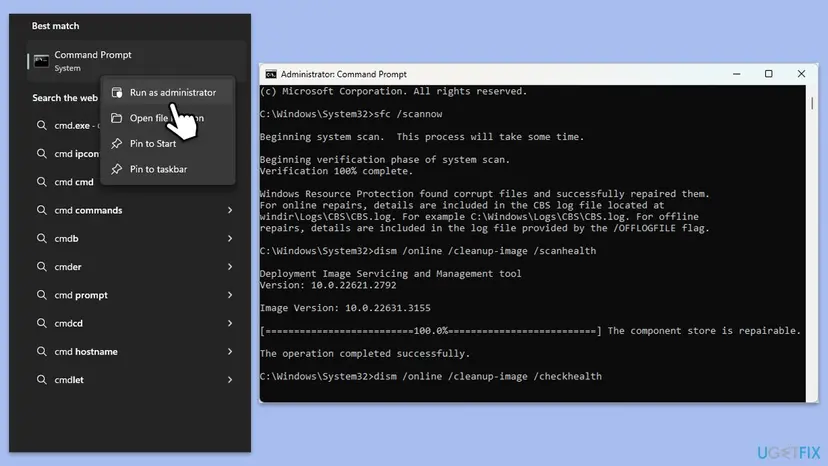
- In an administrator terminal, check the store first. Microsoft says DISM reports the image as healthy, repairable or non-repairable.
DISM /Online /Cleanup-Image /ScanHealth - Run the repair and then System File Checker with the library steps below. Restart and try the update.
- Open an elevated command window. Right-click Start and select Terminal (Admin), or type cmd in the search box, right-click Command Prompt and select Run as administrator. Select Yes when Windows asks for permission.
- Run DISM first. Type the command below and press Enter. DISM downloads clean copies of damaged components from Windows Update, so it can take several minutes. Wait until it says The operation completed successfully.
DISM.exe /Online /Cleanup-Image /RestoreHealth - Run System File Checker. In the same window, type the command below and press Enter. Do not close the window until the verification reaches 100%.
sfc /scannow - Read the result and restart. Compare the last message with the table below this guide, then restart the PC so that repaired files are loaded.
These steps were written for Windows 11 24H2 and 25H2. The full page with the other versions and what each result means: Run DISM and SFC to repair Windows system files
If RestoreHealth stops and says that the source files could not be found, it could not get clean copies from Windows Update. Give it a Windows image instead. Microsoft's documentation of repair sources requires the Wim: prefix and the index of the image inside the file.
- Download the Windows 11 ISO file from Microsoft's software download page. Use only that page.
- Right-click the ISO file and select Mount. Note the drive letter it gets in File Explorer, for example
E:. - Check which image file the ISO holds.
dir E:\sources\install.* - If it is
install.wim, list the editions inside and note the index of your edition (Home or Pro).DISM /Get-ImageInfo /ImageFile:E:\sources\install.wim - Run the repair from that image. Replace
6with your index./LimitAccesskeeps DISM from going to Windows Update.DISM /Online /Cleanup-Image /RestoreHealth /Source:Wim:E:\sources\install.wim:6 /LimitAccess - Run
sfc /scannow, restart, and select Check for updates.
Microsoft's download page offers the current release, which may be newer than your version, and an image of another version may not hold matching files. If the ISO holds install.esd instead of install.wim, we could not confirm the source syntax on a Microsoft page. In both cases use the same ISO for Fix 7 instead.
It worked if: ScanHealth or CheckHealth reports no component store corruption, SFC finds no integrity violations, and the update installs after the restart.
If not: If the store is non-repairable, or the update fails again with a clean store, look for an old package with Fix 4 or go to Fix 7.
Fix 4. List the installed packages and look for an old one left by an upgrade
10 minutesNo riskThe PC was upgraded to Windows 11 24H2 or 25H2 from Windows 10 or an older Windows 11, or the log named an old package.
In the March 2026 case CBS.log showed an old Windows 10 package that blocked security updates, and only a repair install cleared it. In June 2026 Microsoft confirmed a similar case for upgraded PCs, reported with 0x800f0993 and 0x80073712. This fix finds out whether your PC has such a package.
- Right-click Start and select Terminal (Admin).
- List the cumulative update packages. Microsoft documents
/Format:Tablefor a readable list.dism /online /get-packages /format:table | findstr /i RollupFix - List all packages into a text file on the desktop, so that you can search it.
dism /online /get-packages /format:table > %USERPROFILE%\Desktop\packages.txt - Open
packages.txtin Notepad and search for the package name that CBS.log gave you in Fix 2. Note its state. - Search also for
19041and19045. These numbers begin the versions of Windows 10 packages. A Windows 11 24H2 or 25H2 PC has 26100 packages. - Search for
26100.1742.1.10. A RollupFix package with this version is the one from Microsoft's known issue for upgraded PCs.
Microsoft's service alert of June 2026, as BleepingComputer quoted it, says some PCs upgraded from Windows 10 22H2 or 21H2, or from Windows 11 23H2, to 24H2 or 25H2 might fail to install the latest cumulative update. The alert names the codes 0x800f0993 and 0x80073712, not 0x80070302, so treat it as a lead to check, not as proof.
| You found | Do this |
|---|---|
Package_for_RollupFix~31bf3856ad364e35~amd64~~26100.1742.1.10 | Remove it with the command from Microsoft's alert, step by step in our guide to error 0x800f0993. Then retry the update. |
| Another old package, for example with a 19041 or 19045 version, named in CBS.log | Do not remove it by hand. Microsoft documents no removal for it. Go to Fix 7, which rebuilds the package list. |
| No old package, and the log named none | The packages are not the problem. Go to Fix 5 or Fix 6. |
dism /online /remove-package changes the component store, and a removed package cannot be put back with one click. Remove a package only when the log names it and a Microsoft source gives the command for it. Back up your files first: Back up your files (Windows Backup, File History, Time Machine)
It worked if: You know whether an old package sits on the PC. If it was the known RollupFix package and you removed it, the update installs after a restart.
If not: If an old package is there and no Microsoft command removes it, go to Fix 7. If there is none, try Fix 5.
Fix 5. Install the update by hand with its checkpoint update
20 to 40 minutesLow riskYou install updates from the Microsoft Update Catalog yourself, or the log says a prerequisite is missing.
Since 24H2, Microsoft builds monthly updates as differences against a checkpoint update. Its documentation says a device must have all prior checkpoints before it can take the target update. Windows Update handles this by itself, but a manual install needs the files in the right order.
- Check your Windows version. Press Windows key + R, type winver and press Enter. Note the version (for example 25H2) and the OS build.
- Find the KB number. Open Settings > Windows Update. A failed or pending update is listed with its KB number; earlier ones are under Update history.
- Check the processor type. Open Settings > System > About and look at System type: an x64-based PC needs the x64 file, an ARM-based PC (for example Snapdragon) needs the arm64 file.
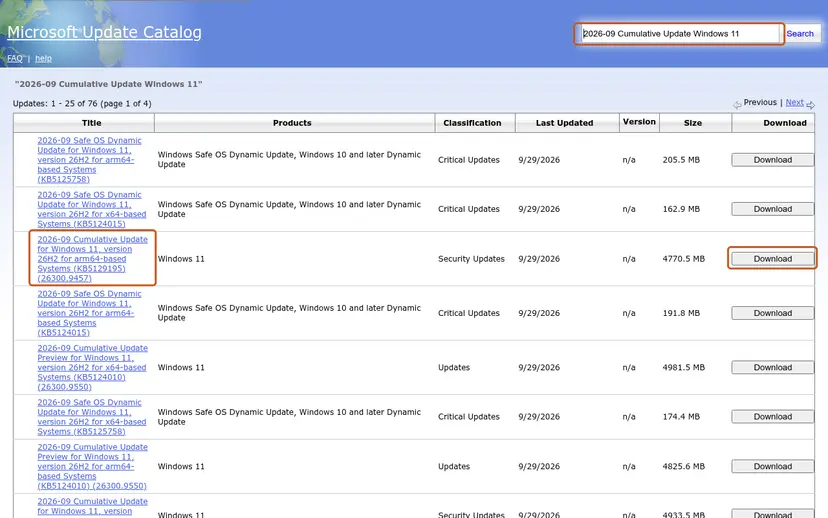
- Search the catalog. Open the Microsoft Update Catalog at catalog.update.microsoft.com in your browser, type the KB number (for example KB5124010) in the search box and press Enter.
- Pick the right row. Find the row whose title names your Windows version and your processor type (x64-based or arm64-based) and select Download on that row.
- Download every file listed. A window lists one or more .msu links. Download all of them into one empty folder, for example C:\packages. On Windows 11 24H2 and later the list can include earlier checkpoint updates that the new one needs.
- Install a single file. If there is only one file, double-click it and confirm the installation in the Windows Update Standalone Installer.
- Install several files with DISM. If there are several files, open an elevated Terminal or Command Prompt and run DISM with the newest file. DISM finds the other files in the same folder and installs them in the right order.
DISM /Online /Add-Package /PackagePath:C:\packages\<newest-file>.msu - Restart. Restart the PC when the installation finishes, then run winver again: the OS build should have changed.
These steps were written for Windows 11 24H2 and later; Windows 10 22H2. The full page with the other versions and what each result means: Install an update from the Microsoft Update Catalog
- The checkpoint. The first checkpoint for 24H2 is KB5043080 of September 2024, OS build 26100.1742. Microsoft's own example uses KB5048667, one of the updates readers report with 0x80070302, which needs that checkpoint first.
- "Not applicable to your computer." In the March 2026 case the catalog asked for KB5043080 first, and that file said it did not apply. The user found that Windows Update already carried the right servicing stack update. The message does not mean the PC is broken.
- The same error by hand. If DISM ends with error 770 or 0x80070302 for the
.msufile, the store or a package is the cause, not the download. Go back to Fix 3 or Fix 4.
It worked if: DISM or the update installer says the operation completed, and after the restart winver shows the new build.
If not: If the manual install fails with the same code, the download was never the problem. Go to Fix 7.
Fix 6. Reset the Windows Update components and run the troubleshooter
15 minutesLow riskThe logs point at the download or the update services, or you want the standard reset before a repair install.
A reset gives Windows Update an empty download cache and restarts its services. That clears a damaged download, which is a rare cause of this code. Every reader in the cases above who tried it still had the error, so it comes late here.
- Open Command Prompt as administrator. Type cmd in the search box, right-click Command Prompt and select Run as administrator. Select Yes when Windows asks for permission.
- Stop the update services. Type the commands below and press Enter after each one. If Windows says that other services depend on Cryptographic Services, it stops them too. A message that a service is not started is fine.
net stop wuauserv net stop bits net stop cryptsvc - Delete the download queue files. This clears the list of downloads that the Background Intelligent Transfer Service keeps. If Windows says it cannot find the files, continue.
del "%ALLUSERSPROFILE%\Application Data\Microsoft\Network\Downloader\qmgr*.dat" - Rename the update cache folders. Renaming keeps a copy in case you need it; Windows creates new, empty folders when the services start again. If you get Access is denied, a service is still running: repeat the previous step.
ren %systemroot%\SoftwareDistribution SoftwareDistribution.old ren %systemroot%\System32\catroot2 catroot2.old - Start the services again. Type the commands below and press Enter after each one. The requested service has already been started is fine: Windows started it on its own.
net start cryptsvc net start bits net start wuauserv - Restart and check for updates. Restart the PC. Then select Start > Settings > Windows Update > Check for updates. The first check can take longer than usual because everything is downloaded again.
These steps were written for Windows 11 and Windows 10 (the steps are the same). The full page with the other versions and what each result means: Reset Windows Update components

- Restart the PC.
- Open Settings > System > Troubleshoot > Other troubleshooters and select Run next to Windows Update.
- Follow the steps in Get Help, then select Check for updates.
Full steps for both versions of Windows: Run the Windows Update troubleshooter. If the drive is nearly full, free space first, because a cumulative update needs room to stage its files: Free up disk space and delete temporary files
It worked if: The update downloads again from the start and installs without the error after the restart.
If not: If it downloads, installs and fails at the restart again with 0x80070302, the cause is in the component store. Go to Fix 7.
Fix 7. Reinstall Windows over itself and keep your files and apps
1 to 2 hoursLow riskEvery other fix failed, an old package blocks updates, or the PC runs Windows 11 24H2 Home or Pro.
A repair install writes a fresh copy of Windows with a new component store and package list, and keeps apps, files and settings. In the March 2026 case it brought the PC fully up to date after every other step failed. With current media it also moves 24H2 to a supported version.
Both routes below are designed to keep your files, apps and settings. Copy your important files to another drive before you start all the same, keep the PC on mains power, and unplug external drives you do not need: Back up your files (Windows Backup, File History, Time Machine)
- Open Recovery in Settings. Open Settings > System > Recovery. Next to Fix problems using Windows Update, select Reinstall now. This keeps your apps, files and settings.

Fix problems using Windows Update reinstalls the current version and keeps apps, files and settings. Screenshot: Windows 11 26H2. - Start the reinstall. Choose whether the PC may restart on its own 15 minutes after the installation, then select OK.
- Wait and restart. Windows Update downloads and installs a repair copy of your current Windows version. Keep the PC plugged in and online, and restart it when asked.
These steps were written for Windows 11 22H2 and later. The full page with the other versions and what each result means: Reinstall Windows without losing files
In the March 2026 case Reinstall now stopped with "Repair version of Windows not found, please try again later". The route with installation media below does not depend on that download, and it is the one Microsoft gives for Windows 10 too.
- Download the Windows 11 ISO from Microsoft's software download page, or use the one from Fix 3.
- Right-click the ISO and select Mount, then open
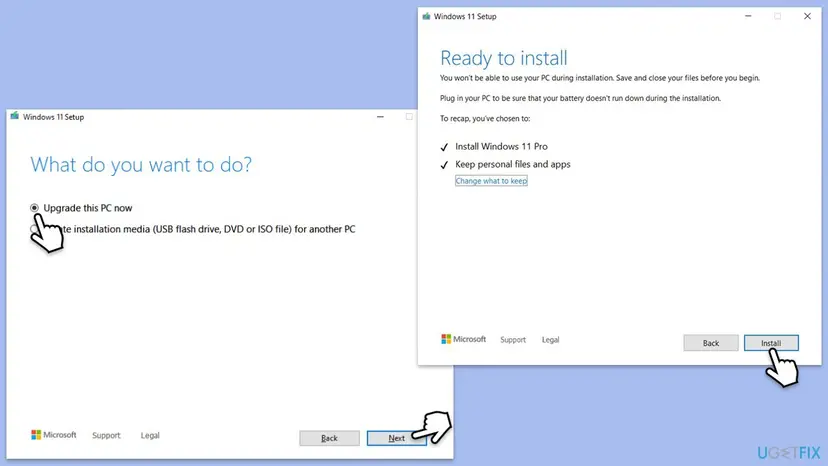
setup.exefrom the new drive. Select Yes when Windows asks for permission. - Follow the screens until Ready to install. Check that it says Keep personal files and apps. If not, select Change what to keep and pick that option.
- Select Install. The PC restarts several times. Do not turn it off.
- When Windows is back, run
winver, then open Settings > Windows Update and select Check for updates.
- If setup fails too. In the October 2025 case the repair upgrade ended with 0x8007042B - 0x2000D. 0x42B is Win32 error 1067, "The process terminated unexpectedly". Read
setupact.loginC:\$Windows.~BT\Sources\Panther, which Microsoft calls the most useful setup log. - Windows 10. Microsoft ended support for Windows 10 on 14 October 2025. The repair install works there with Windows 10 media, but Windows Update no longer brings free security updates.
- All reset options, including the ones that remove apps: Reinstall Windows without losing files
It worked if: winver shows a current build, Windows Update installs the newest cumulative update, and Update history shows no new 0x80070302 entry.
If not: If setup itself fails, collect the setup logs from the next section and ask for help on Microsoft Q&A with them.
If 0x80070302 is still there: the logs to read and what to send
Each attempt leaves a trace in four places. Collect them right after a failed attempt, because CBS.log keeps growing and older parts move into other files in the same folder.
| Log | Where | What to look for |
|---|---|---|
| CBS.log | %windir%\Logs\CBS | 80070302 and , error, then the package or file named above the error |
| dism.log | %windir%\Logs\DISM | Error and 770 near the time of a DISM command |
| WindowsUpdate.log | On the desktop, made by the PowerShell command Get-WindowsUpdateLog | The KB number and the time of the failed attempt |
| setupact.log and setuperr.log | C:\$Windows.~BT\Sources\Panther and, after a rollback, C:\$Windows.~BT\Sources\Rollback | The last error lines of a failed repair install |
- What to send to support or to Microsoft Q&A: the CBS.zip from Fix 2, the output of
winver, the KB number, the dates from Update history and what you already tried. Adddism.logif you installed the update by hand. - One test with the antivirus paused. Microsoft's support staff often ask users to make sure that only Microsoft Defender is active. If you use another antivirus, pause it for one attempt and turn it back on right after: Turn off Microsoft Defender protection for a moment
- A work or school PC. Updates may come from your organization's server and run on its schedule. Send the logs to the administrator before you try a repair install.
- Is it hardware? Nothing in the cases we read pointed at hardware. A failing drive can damage the component store, though. If DISM finds new damage after every repair, check the drive.
Windows shows the same code in every language: "Erro de instalação - 0x80070302" in Portuguese, "Ошибка установки - 0x80070302" in Russian, "Installationsfehler - 0x80070302" in German. Only the words around it are translated, and every fix on this page applies.
How to keep install error 0x80070302 from coming back
- Install the cumulative update each month, so that the PC never needs a long chain of updates at once.
- Restart soon after Windows asks, so that the restart part of the install runs while the files are fresh.
- Run DISM ScanHealth once after a failed update, before the next month's update arrives.
- Move from Windows 11 24H2 Home or Pro to 25H2 or 26H2, which still receive monthly updates.
- Keep a copy of your files on another drive before every repair install.
- Do not delete folders inside WinSxS to save space. Use Disk Cleanup or Storage Sense for that.
- Do not remove packages with DISM unless a log and a Microsoft source name them.
- Do not install old .msu files from an error message. Install the newest update instead.
- Do not use registry cleaners or tweaking tools on the servicing stack.
- Do not download Windows images or update files from sites other than Microsoft's.
Each point follows from how these updates are built. Microsoft documents that a 24H2 or later update is a set of differences against the files already in the component store and the last checkpoint. Anything that removes or damages those files leaves the next update with nothing to build on, and it fails at the restart.
Frequently asked questions
What does install error 0x80070302 mean?
It means a Windows 11 cumulative update failed during installation, usually at the restart, and Windows rolled it back. The code is Win32 error 770 in the notation Windows Update uses. Microsoft names 770 ERROR_CANTFETCHBACKWARDS, "The data provider cannot fetch backwards through a result set". That text belongs to database components and does not describe updates, and Microsoft has not published a Windows Update meaning for it. In practice the update could not be finished with the files in the component store, and CBS.log names the part that failed.
Which updates fail with error 0x80070302?
Readers on Microsoft Q&A report it with cumulative updates for Windows 11 24H2 and 25H2: KB5048667 (December 2024), KB5051987 (February 2025), KB5053598 (March 2025), the preview KB5055627 for ARM PCs (April 2025) and KB5079473 (March 2026), among others. Windows Latest also listed it with KB5065426 in September 2025. The list keeps growing because the code follows the PC, not one update. If your PC fails one month, it will likely fail the next month too, until the cause on the PC is repaired.
Why does the update reach 100 % and then fail with 0x80070302?
Because the hard part of a cumulative update runs during the restart. The download and the first install phase only prepare the files. During the restart the servicing stack builds the new system files from the component store and switches to them. If a file or package it needs is missing, it cannot finish and rolls everything back. That is why winver still shows the old build afterwards, and why resetting the download cache rarely helps with this code.
Is 0x80070302 a known issue that Microsoft is fixing?
No. We read the release health pages of Windows 11 24H2 and 25H2 on 14 October 2026, and neither lists this code. It is also missing from Microsoft's list of common Windows Update errors and from its Windows Update error reference. The closest known issue is the one Microsoft confirmed for 0x800f0993 and 0x80073712 on upgraded PCs, and Fix 4 checks for the package behind it. For everything else the fix is on your PC.
What does "Windows update could not be installed because of error 2359302" mean?
It is a different code from 0x80070302, and a harmless one. 2359302 written in hexadecimal is 0x00240006. Microsoft's Windows Update error reference names it WU_S_ALREADY_INSTALLED: "The update to be installed is already installed on the system." It usually appears when you run an .msu file for an update that is already in place. Check the build with winver as in Fix 1. If the build matches, there is nothing to install.
Will a repair install delete my files or programs?
Not when you choose Keep personal files and apps. Microsoft designs both routes in Fix 7, Reinstall now in Settings and setup.exe from installation media, to keep your files, apps and settings. Check the Ready to install screen before you select Install: it must say Keep personal files and apps. Back up your important files anyway, because a repair install is a large operation. Some apps may ask you to sign in again afterwards.
I see "Erro de instalação - 0x80070302" or "Ошибка установки - 0x80070302". Is it the same error?
Yes. Windows prints the same code in every language, only the words in front of it change. "Erro de instalação" is Portuguese, "Ошибка установки" is Russian, "Installationsfehler" is German and "インストール エラー" is Japanese, and all of them mean install error. The cause and every fix on this page are the same. The menu names in Settings are translated, but the commands, such as winver, DISM and sfc /scannow, are typed the same way in every language.
Should I turn off my antivirus to fix 0x80070302?
Not for good. No case we read was solved by the antivirus, and Microsoft does not link this code to it. Microsoft's support staff do ask users to check that Microsoft Defender is the active antivirus, because a third-party product can interfere with updates. If you use one, pause it for one attempt and turn it back on right after, whatever the result. If the update still fails, the antivirus is not the cause, so continue with the logs.
Does error 0x80070302 happen on Windows 10?
We found no report from Windows 10. Every case we read was on Windows 11 24H2 or 25H2, with OS builds 26100 and 26200. These versions build monthly updates on checkpoints, and Windows 10 does not. Microsoft ended support for Windows 10 on 14 October 2025, so a Windows 10 PC gets security updates only through the paid Extended Security Updates programme. If you do see the code on Windows 10, Fix 2, Fix 3 and Fix 7 apply there in the same way.
Sources
- Microsoft Learn: System Error Codes (500-999), ERROR_CANTFETCHBACKWARDS 770 (0x302) and ERROR_ERRORS_ENCOUNTERED 774 (0x306) (learn.microsoft.com)
- Microsoft Learn: System Error Codes (1000-1299), ERROR_PROCESS_ABORTED 1067 (0x42B) (learn.microsoft.com)
- Microsoft Learn: Windows Update error codes by component (WU_S_ALREADY_INSTALLED 0x00240006) (learn.microsoft.com)
Did this fix work?
One click, no account. It tells the next reader which guides are worth their time.
Questions and experiences: fix Windows update error 0x80070302
Still broken, or found a fix we did not cover? Ask here: members and our editors answer. Reading is open; writing needs a free account.
…