
How to fix "Download failed" error on Brave browser?

Prefer to fix it yourself? The manual steps follow.
- 8methods
- 1 to 15 minutes
- Intermediate
Applies to Brave browser on Windows 11 (25H2, 26H2) and Windows 10 22H2 (Windows 10 left support on 14 October 2025)
8 methods in this guide
Hello. I can't download files on the Brave browser and I get the "Download failed" error. How do I fix this?
"Download failed" is a general message: Brave stopped the transfer, and a short reason such as Network Error, Disk Full, Access Denied or Blocked says why. Open the downloads page, read that reason, and use the fix that matches it. Most readers need Fix 1 and one more.
Open the downloads page with Ctrl + J and read the reason under the failed file. Network Error or Disk Full means Fix 2, a wrong or unreachable folder means Fix 3, and Blocked means a policy on your PC, so go to Fix 6. Start with Fix 1, it takes one minute.
| Error | Download failed in Brave on Windows. Brave is built on Chromium, which gives every stopped download one reason from a fixed list. |
|---|---|
| Where it appears | On the failed file in the Brave downloads list (Ctrl + J, or brave://downloads), and in the download bubble after you click a link. |
| Main cause | Not one cause: the connection dropped, the drive is full, the save folder is unusable, or a policy or security check refused the file. The reason label tells which. |
| Fastest fix | Fix 1: read the reason label. Then Fix 2 for network or disk space, or Fix 3 for the save folder. |
| Also written as | Brave download failed, Brave not downloading files, Brave downloads not working, and the reason labels Network Error, Disk Full, Access Denied, Blocked, Virus. |
| Affects | Brave on Windows 11 (25H2, 26H2) and Windows 10 22H2. The list of reasons comes from Chromium, so other Chromium browsers use the same ones. |
| Vendor status | We found no Brave notice of a known bug behind this message. Brave documents its own policy settings in its Group Policy help page. |
| Time to fix | 1 to 15 minutes. Fixes 6 and 7 need an administrator account. |
Facts checked on 16 October 2026. Steps written for Steps checked against Brave Help Center (Group Policy), the Chromium download reason list and the Chromium DownloadRestrictions policy definition; screenshots from Brave on Windows..
What "Download failed" means in Brave
Brave uses the Chromium engine to download files. When Chromium cannot finish a download, it records one interruption reason from a fixed list, and the browser shows a failure for that file. "Download failed" is the headline. The reason is the part that tells you what to fix.
Chromium describes the reasons in its source code. The ones you can meet on a Windows PC fall into four groups:
- File and folder reasons: File Error, Access Denied ("cannot be accessed due to security restrictions"), Disk Full, Path Too Long, File Too Large, Temporary Problem.
- Network reasons: Network Error, Operation Timed Out, Connection Lost, Server Down.
- Server reasons: Server Error and "Unable to get file", where the site does not have the data you asked for.
- Safety and policy reasons: Virus ("the file contains a virus"), Blocked ("blocked due to local policy") and a failed safety check.
The wording in Brave's window can differ a little between versions. We did not find a Brave page that lists every label, so match by meaning, not by exact spelling. A plain "Canceled" is not an error: it means you or a site stopped the download.
Why Brave stops a download: causes from cheapest to check
We could not measure how often each cause happens, so the table runs from the cheapest check to the rarest cause. Each row names the fix that answers it.
| Cause | What you see | Fix |
|---|---|---|
| The connection dropped or timed out during the transfer | Network Error, Operation Timed Out or Connection Lost | Fix 2 |
| The drive that receives the file is full | Disk Full | Fix 2 |
| The save folder was moved, sits on a disconnected drive, or has a path that is too long | Access Denied, Path Too Long or File Error | Fix 3 |
| Old cache or cookies of one website interfere | Only one site fails, others download | Fix 4 |
| A page starts several downloads on its own and Brave refuses the extra ones | Only the first file arrives, or a multi-file page fails | Fix 5 |
| A download restriction policy is set on this PC | Blocked, and every site fails | Fix 6 and Fix 7 |
| Windows Security or Brave decides the file is unsafe | Virus or a failed safety check | Fix 8 |
Users on the Brave community forum also report Access Denied style failures when the save folder was the Desktop, and that choosing another folder helped. That is a user report, not a Brave statement. Fix 3 covers it.
How to fix the "Download failed" error on Brave
Fix 1 finds the reason in one minute, so you do not try fixes that do not fit. Fixes 2 to 5 handle the common causes. Fixes 6 and 7 are for a PC where a download policy was set, which also blocks every site. Fix 8 is for a safety result.
| What you see or have | Start with |
|---|---|
| You do not know the reason yet. | Fix 1 |
| Network Error, Operation Timed Out, Connection Lost or Disk Full. | Fix 2 |
| Access Denied, Path Too Long or File Error, or you changed the download folder once. | Fix 3 |
| One website fails, other sites download normally. | Fix 4 |
| A page that gives several files fails after the first one. | Fix 5 |
| Blocked, on every site, with no reason you can explain. | Fix 6 |
| Group Policy Editor is missing (Windows Home) or the Brave folder is not there. | Fix 7 |
| Virus or a failed safety check. | Fix 8 |
Fix 1. Read the reason on the failed download
1 minuteNo riskAlways first, because the reason decides which of the other fixes can help.
Chromium keeps one reason for each failed download. Reading it replaces guessing, and it saves you from changing settings that have nothing to do with your failure.
- In Brave press Ctrl + J, or type
brave://downloadsin the address bar and press Enter. - Find the failed file. Read the short reason under its name, for example Network Error, Disk Full or Blocked.
- Select Show in folder if it is there. If Brave cannot open the folder, that already points to the save folder (Fix 3).
- Write the reason down and use the chooser table above to pick the next fix.
It worked if: You know the reason in your own words, such as network, space, folder, site or policy.
If not: If the list shows no reason, only a red or empty entry, try the same file once from another website and go to Fix 2.
Fix 2. Check the connection and free space on the drive
5 minutesLow riskThe reason is Network Error, Operation Timed Out, Connection Lost, Server Down or Disk Full.
Chromium lists these reasons for a lost connection and for a drive without room. Both are properties of the PC, not of Brave, so the repair sits outside the browser.
- Open any other website in a new tab. If it does not load, follow How to check your internet connection in Windows first.
- If the site loads, retry the download once while you watch the progress bar. A download that dies at the same point each time points at the site, so try another website offering the same file.
- Open Settings > System > Storage and look at the drive that holds your download folder.
- If less than the file size is free, make room with Free up disk space and delete temporary files, then retry from the website, not from the old failed entry.
A download to an external drive can also fail with File Too Large, because Chromium says the file is too big "for the file system to handle". Save to an internal folder instead.
It worked if: The download finishes and appears in the downloads list without a failure label.
If not: If the connection and space are fine, the folder is the next suspect. Go to Fix 3.
Fix 3. Check and reset the download folder
3 minutesLow riskThe reason is Access Denied, Path Too Long or File Error, or you once changed the download location.
Brave saves to one folder. If that folder moved, sits on a drive that is not connected, or has a path that is too long, every download fails the same way until you set a folder that exists.
- Type
brave://settings/downloadsin the address bar and press Enter. This is Settings > Downloads. - Read the Location field. Note the drive letter and whether the folder still exists.
- Select Change and choose a folder with a short path on your main drive, such as your user Downloads folder.
- Optional: turn on Ask where to save each file before downloading, so every download shows the folder it will use.
- Retry the download from the website.
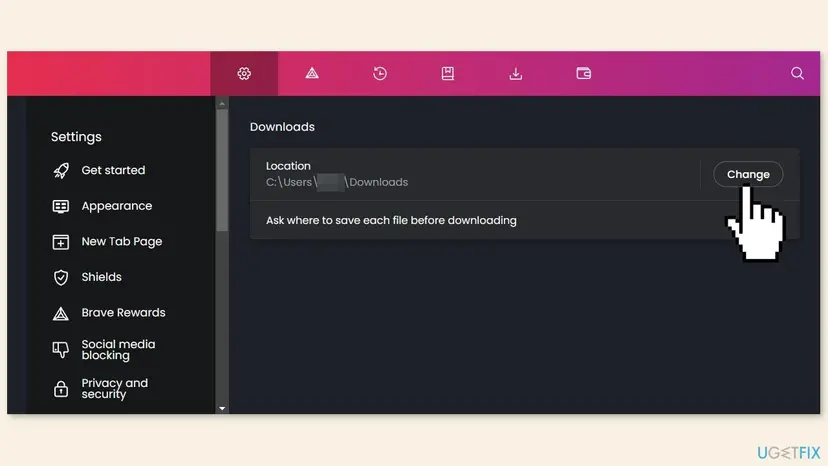
It worked if: The file lands in the folder you chose and the downloads list shows it as complete.
If not: If it still fails with a new folder, the folder is not the cause. If only one website fails, go to Fix 4; if all sites fail with Blocked, go to Fix 6.
Fix 4. Clear the data of the website that fails
3 minutesLow riskOne website fails while other sites download normally.
Old cache, cookies and other site data can keep a page in a state that no longer matches the server, for example after the site changed its files or moved to another server.
- Open the website that fails in Brave.
- Select the icon at the left end of the address bar (the padlock or site information icon).
- Select Site settings. A settings page for this site opens.
- Find Clear data and select it.
- In the confirmation, keep cache, cookies and other site data selected and select Clear data again.
- Reload the page and start the download again.
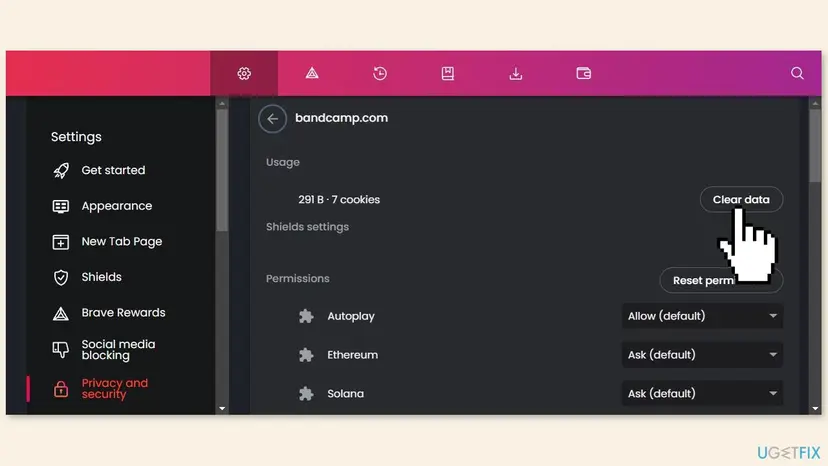
This signs you out of that one website. Other sites keep their data.
It worked if: The site asks you to sign in again if it had a session, and the download now completes.
If not: If the same site still fails, test it in another browser. If it fails there too, the problem is the site, not Brave.
Fix 5. Let a site download several files
3 minutesLow riskA page that gives several files, or starts a download by itself, delivers only the first file or fails.
Brave has a setting for pages that start more than one download on their own. When it blocks them, the second and later files from such a page do not arrive.
- Open the Brave menu and select Settings.
- On the left select Privacy and security, then Site and Shields Settings.
- Scroll to Additional content settings if it is shown, and open Automatic downloads.
- Select Sites can ask to automatically download multiple files.
- Close the settings tab and try the multi-file download again.
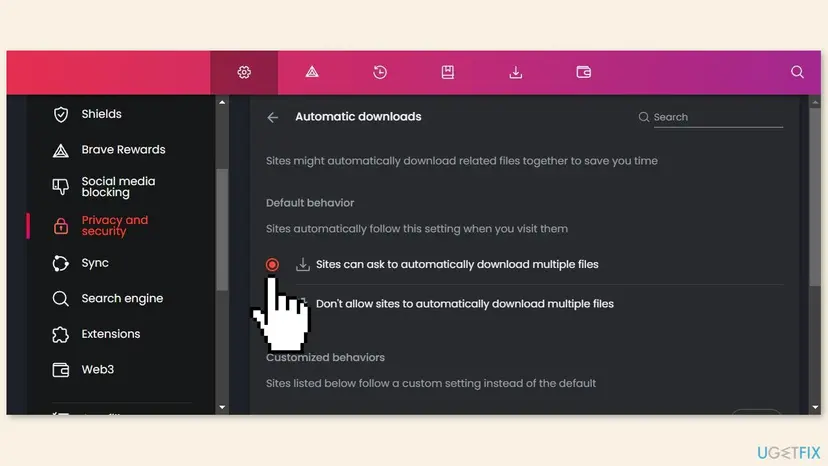
If the page offers an Add button for a list of allowed sites, add only the site you trust and leave the general setting as it was. We could not confirm that this setting produces the exact words "Download failed", only that it affects pages that start several downloads on their own.
It worked if: Every file of the multi-file page downloads, one after another.
If not: If single files fail too, this setting is not the cause. Return to the reason from Fix 1.
Fix 6. Check whether a download restriction policy is active
10 minutesLow riskThe reason is Blocked, every website fails, and Windows is Pro, Enterprise or Education.
Brave reads the Chromium policy DownloadRestrictions. Chromium describes value 3 as "Blocks all downloads", and values 1 and 2 block dangerous file types as well, so one stored value can stop every download.
| DownloadRestrictions value | What Chromium says it does |
|---|---|
| 0 | No special restrictions (default) |
| 1 | Blocks malicious files flagged by Safe Browsing and all dangerous file types |
| 2 | Blocks malicious, uncommon or unwanted files and all dangerous file types |
| 3 | Blocks all downloads |
| 4 | Blocks malicious files flagged by Safe Browsing, but not dangerous file types |
Brave's own help page explains how its policy templates are added: in the Local Group Policy Editor, add the file brave.adm from Brave's policy template package, and a Brave folder appears under Classic Administrative Templates. If that folder is missing, nothing is set here, so go to Fix 7. Opening the editor step by step: Open the Local Group Policy Editor.
- Press Win + R, type
gpedit.mscand press Enter. - Go to Computer Configuration > Administrative Templates > Classic Administrative Templates (ADM) > Brave > Brave.
- Double-click Allow download restrictions.
- Select Not Configured and select OK.
- Close the editor and restart Brave.
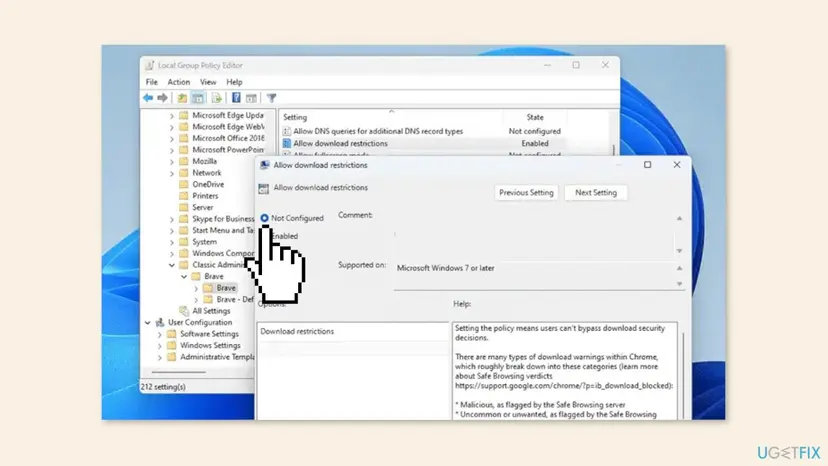
It worked if: Downloads that failed with Blocked now complete after you restart Brave.
If not: If the Brave folder is missing or the editor does not exist (Windows Home), the value can still sit in the registry. Go to Fix 7.
Fix 7. Remove the DownloadRestrictions value from the registry
10 minutesRead the warningBlocked on every site, and Fix 6 found nothing or Windows is a Home edition.
Brave's help page says registry values are the way to set policies on Windows Home, under the key SOFTWARE\Policies\BraveSoftware\Brave. A leftover DownloadRestrictions value there blocks downloads with no setting to see.
A wrong registry change can break programs. Before you delete anything, export the key you are about to change: Back up the registry before editing it. Delete only the one value named below, and nothing else.
- Open the Start menu, type
regeditand open Registry Editor. Select Yes in the User Account Control prompt. - Go to this key. If the key does not exist, this fix does not apply:
HKEY_LOCAL_MACHINE\SOFTWARE\Policies\BraveSoftware\Brave - Look for a value named DownloadRestrictions (type REG_DWORD). Write down its data (0 to 4) before you change it.
- Right-click DownloadRestrictions and select Delete. Confirm.
- Close Registry Editor and restart Brave. Restart the PC if downloads still fail.
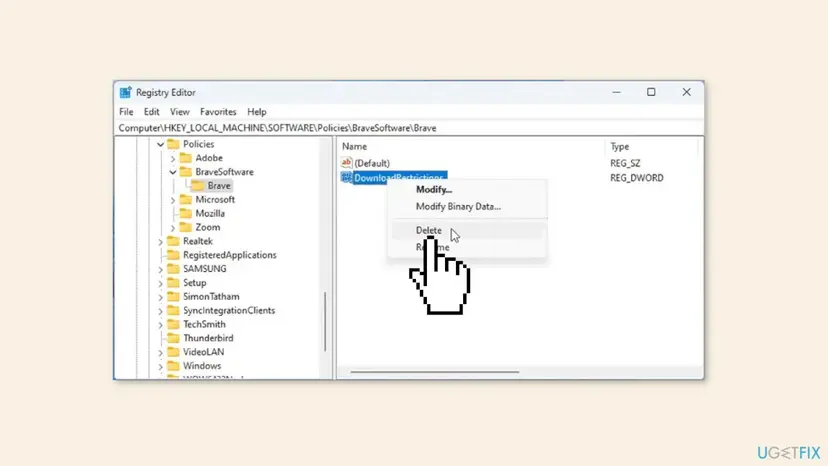
It worked if: The DownloadRestrictions value is gone, and downloads that failed with Blocked complete.
If not: If the Brave key never had that value, the block comes from a work or school setting or from another policy. Read Still broken below.
Fix 8. Scan the file and check the safety result
10 minutesLow riskThe reason is Virus or a failed safety check.
Chromium keeps separate reasons for a file that contains a virus and for a safety check that failed for an unexpected reason. Treating either one as a simple retry hides a real warning.
- Do not open or run anything that Brave has flagged as a virus.
- Scan the PC with Microsoft Defender: How to scan for malware with Microsoft Defender.
- Download the same file again from the publisher's own website, not from a mirror or a link in an email.
- If a failed safety check repeats on the publisher's file, note the time and continue with Still broken below.
It worked if: The file from the publisher's own website downloads, or the scan names a real problem you can remove.
If not: If the publisher's file fails with the same safety result, keep the exact label and the time and use Still broken below.
Still failing: gather the facts before asking for help
If none of the fixes helped, narrow it down with three comparisons. Each one rules out a whole group of causes.
- Another browser, same file: if Microsoft Edge or another browser downloads it, the problem is Brave's settings, folder or policy. If it fails there too, the site or your connection is the problem.
- Another file, same browser: if a small file from a big site works, the first file or its server is the cause, not Brave.
- Another network: a phone hotspot that works shows that the home network or a filter on it is the cause.
A drive that shows File Error again and again, even with free space, can be failing. Check it with Check a disk for errors (chkdsk). On a PC from work or school, an administrator can set a download policy that you cannot remove yourself. Send them the exact reason label and the time of the failure.
The Brave community forum collects reports of this message, for example after updates. Treat those as user reports and compare them with your own reason label before trying a forum tip.
How to keep Brave downloads working
- Keep the download folder on your main drive, with a short path.
- Read the reason label before you change settings.
- Keep enough free space for the largest file you download.
- Allow multiple automatic downloads only for sites you trust.
- Do not delete registry values without a backup of the key.
- Do not point downloads at a network share or removable drive and then forget it.
- Do not run a file Brave marked as a virus.
If you manage Brave with policies, remember that Brave reads BraveSoftware\Brave, not the Google Chrome policy key. A policy set for Chrome does not apply to Brave, and the reverse is also true.
Frequently asked questions
Why does Brave say "Download failed"?
Brave stopped the transfer, and the engine records a reason: a lost connection, a full drive, a folder it cannot write to, a blocked file type, or a safety result. The message alone does not say which. Press Ctrl + J, read the reason under the file, and use the chooser table. Without the reason, you are guessing between causes that need different fixes.
Why is Brave not downloading files at all?
When every file fails, look at causes on your PC, not at one website. The most common are the save folder (Fix 3), a full drive (Fix 2) and a download policy that blocks everything (Fixes 6 and 7). If only one site fails, clear its data (Fix 4) or try another browser to see whether the site is the problem.
Why does Brave say Download failed on iOS?
This page is about Brave on Windows, and its steps do not apply to an iPhone or iPad. We could not confirm iOS specific causes in the sources we read. As a general first step, check the connection and the free storage on the phone, then try the same file from another network. Brave's own help pages are the place to look for the iOS app.
What does Brave error code 11 mean?
We found no Brave page that shows a numbered code. In Chromium, the engine under Brave, the internal interruption reason 11 is named FILE_BLOCKED and means the file was blocked due to local policy. If you see Blocked in the downloads list, go to Fixes 6 and 7 and check the DownloadRestrictions policy.
What does Brave virus scan failed mean?
Chromium has two related reasons: Virus, where the file is reported to contain a virus, and a failed safety check, where the check itself failed for an unexpected reason. They need different handling. For the first one, do not open the file. For the second, scan with Microsoft Defender and get the file again from the publisher. See Fix 8.
Why is Brave stuck on waiting to download?
We could not confirm a single cause in the sources we read. A download can wait while the connection is slow or lost, while the drive has no room, or while the save folder is not usable. Check the downloads page for a reason, then follow Fix 2 and Fix 3. On a phone, also check that the app has storage permission.
Is it safe to delete the DownloadRestrictions value?
It is safe when you delete only that value and you made a backup of the key first. The value is a policy that restricts downloads, with data from 0 to 4. Deleting it returns Brave to the default, where Chromium says there are no special restrictions. On a PC managed by an employer, an administrator may set it again.
Why do downloads work in Chrome or Edge but not in Brave?
Brave has its own settings, its own site data and its own policy key. Brave reads policies from BraveSoftware\Brave, not from the Google Chrome key, so a restriction can exist for Brave alone. Check Fix 3 for the save folder, Fix 5 for automatic downloads and Fixes 6 and 7 for policy.
Will I lose my logins if I clear site data?
You are signed out of that one website, because cookies and cache for that site are removed. Other websites keep their data, and your bookmarks and passwords saved in Brave are not part of site data. Use this fix when only one website fails to download, and sign in again afterwards.
Sources
- Brave Help Center: Group Policy (support.brave.com)
- Chromium source: download interrupt reasons (raw.githubusercontent.com)
- Chromium source: DownloadRestrictions policy definition (raw.githubusercontent.com)
Did this fix work?
One click, no account. It tells the next reader which guides are worth their time.
Questions and experiences: fix "Download failed" error on Brave browser
Still broken, or found a fix we did not cover? Ask here: members and our editors answer. Reading is open; writing needs a free account.
…