
How to fix ERR_CACHE_MISS error?

Prefer to fix it yourself? The manual steps follow.
- 8methods
- 1 to 10 minutes
- Easy
Applies to Google Chrome on Windows 11 and Windows 10; Chromium-based browsers; Android apps that use WebView
8 methods in this guide
- What the error means
- Why Back triggers it
- Causes, ranked
- The fixes
- 1. Reload and resubmit
- 2. Open the page fresh
- 3. Clear Chrome's cache
- 4. Incognito and extensions
- 5. Update and reset Chrome
- 6. Find it in DevTools
- 7. Redirect after the form
- 8. Android WebView apps
- Still there: read the log
- Keep it from coming back
- FAQ
Hi, guys. When I'm browsing the net, some of the websites I try visiting return an error ERR_CACHE_MISS. It does not tell much about the problem, so I don't know what I can do to fix it.
ERR_CACHE_MISS means Chrome was told to show a page from its cache only, and the cache has no copy of it. It appears most often as Confirm Form Resubmission after you press Back to a page that a sent form produced. Reload the page to send the form again, unless that would repeat a payment or an order.
Nothing is broken on your PC. You went back to a page that a form created, and Chrome will not send that form again without asking. Select Reload, then Continue in the Confirm Form Resubmission box (Fix 1). If the form paid for something or placed an order, do not reload: check that the first attempt went through and open the page fresh (Fix 2). Developers start with Fix 6.
| Error | ERR_CACHE_MISS, Chromium network error -400: "The cache does not have the requested entry." The page around it is usually titled Confirm Form Resubmission. |
|---|---|
| Where it appears | In a Chrome tab after Back, Forward or a restored session, in the DevTools Network panel and Console as net::ERR_CACHE_MISS, and in Android apps that show web pages. |
| Main cause | You returned to a page that was the answer to a sent form (an HTTP POST). Chrome may load such a page from its cache only, and no copy is stored. |
| Fastest fix | Select Reload, then Continue (Fix 1). For a payment or an order, check the first attempt and open the page fresh instead (Fix 2). |
| Also written as | net::ERR_CACHE_MISS, net err_cache_miss, err cache miss, error cache miss, Confirm Form Resubmission, "This site can't be loaded from the cache". |
| Affects | Every Windows version that runs Chrome (Windows 10 and Windows 11), plus macOS, Linux and Android. The error comes from the browser, not from Windows. |
| Chrome's status | Not a bug that waits for a patch. Chromium's source code describes the case as expected: "back/forward navigations to a page generated via a form post". |
| Not the cause | Your internet connection, DNS servers, proxy settings or malware. The code is about Chrome's own cache, so network resets do not touch it. |
| Time to fix | A few seconds for a reload. About 5 minutes to clear the cache. On your own website: one redirect after the form is handled (Fix 7). |
| Where the cause is logged | DevTools Network panel, Status column: (failed) followed by net::ERR_CACHE_MISS. For a full record: chrome://net-export. |
Facts checked on 13 October 2026. Steps written for Chrome 155 on Windows 11 (25H2 and 26H2) and Windows 10 22H2.
What ERR_CACHE_MISS means
ERR_CACHE_MISS is one of Chrome's internal network error codes. In the Chromium source file that lists them it has the number -400 and one line of description: "The cache does not have the requested entry". Chrome was asked to load something from its cache without contacting the website, and the cache came back empty.
That sounds like a fault, but in the usual case it is a safety brake. Chrome reaches for the cache alone when the page in your history was created by a form you sent. Asking the website again would mean sending the form again, and Chrome leaves that decision to you.
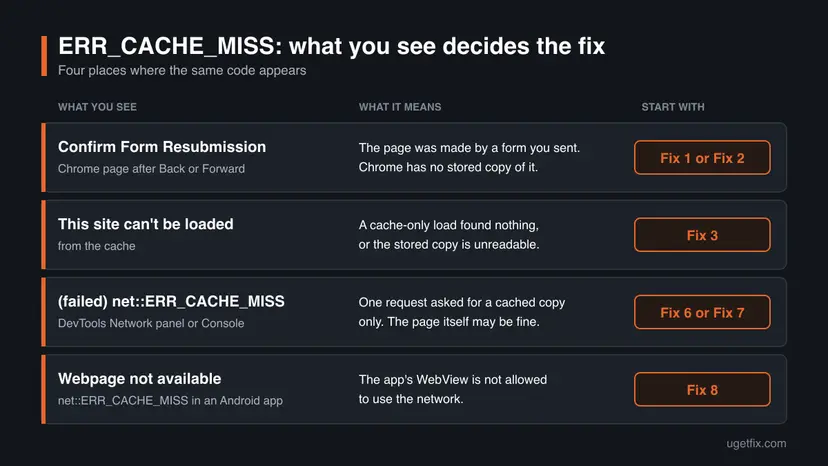
| What you see | Where | What it tells you |
|---|---|---|
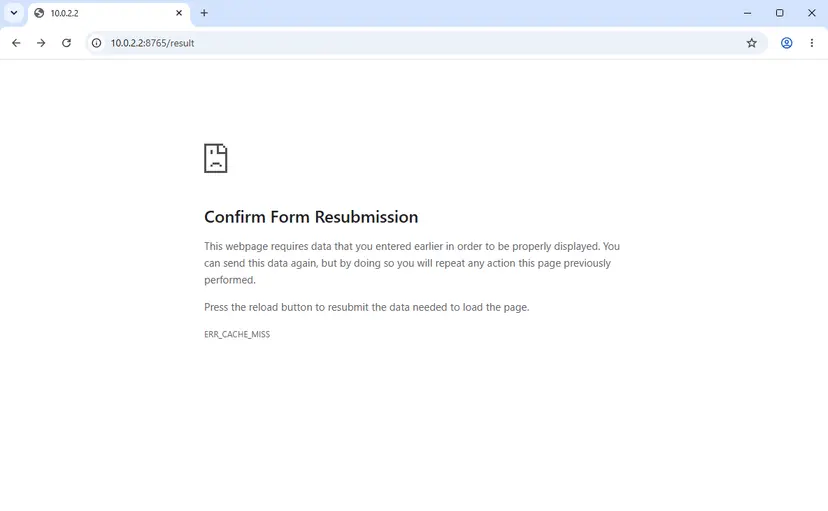
Confirm Form Resubmission, then "This webpage requires data that you entered earlier in order to be properly displayed" and ERR_CACHE_MISS | A Chrome tab, after Back, Forward or a restored session | The page was made by a form you sent. Chrome suggests: "Press the reload button to resubmit the data needed to load the page." |
This site can't be loaded from the cache, then "The saved (cached) copy of this site was unreadable" and ERR_CACHE_MISS | A Chrome tab, on a page with no form behind it | A cache-only load found nothing usable. Chrome shows a Reload button on this page. |
(failed) and net::ERR_CACHE_MISS in the Status column, or a Console line that ends with net::ERR_CACHE_MISS | Chrome DevTools | One request asked for a cached answer only. The page itself may work. |
Webpage not available, "The webpage at (address) could not be loaded because:" and net::ERR_CACHE_MISS | An Android app that shows web pages in a WebView | The app is not allowed to use the network, or it was set to load from the cache only. |
The prefix net:: is how Chrome prints its network errors in DevTools and in Android apps. net::ERR_CACHE_MISS, net err_cache_miss, err cache miss and error cache miss are all the same code. It is a different error from ERR_CACHE_READ_FAILURE (-401), where a stored copy exists but cannot be read.
Why the Back button ends in Confirm Form Resubmission
A sign-in, a search box, a checkout step: each of them sends your data to the website with an HTTP POST request, and the page you see next is the answer to that request. Chromium treats a return to such a page as a special case. For a history move or a restored tab whose page came from a POST, its code allows the cache as the only source.
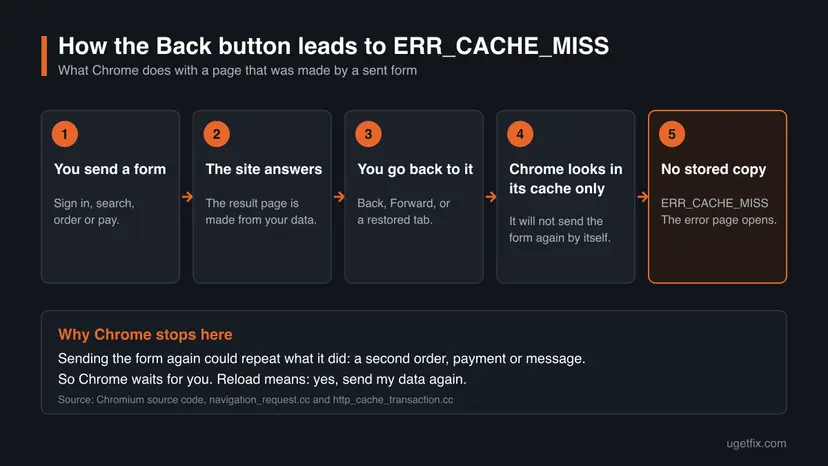
Whether a copy is in the cache depends on the website. Many sites answer a form with the header Cache-Control: no-store. MDN describes that directive plainly: no cache of any kind should store the response. With nothing stored, the cache-only load fails and Chrome shows the resubmission page.
- Back or Forward to a page that a form produced. This is the everyday case.
- A restored tab. Chromium has a separate case for restoring a page that came from a POST, and it is cache-only too. This is why the page can greet you right after Chrome starts with your old tabs.
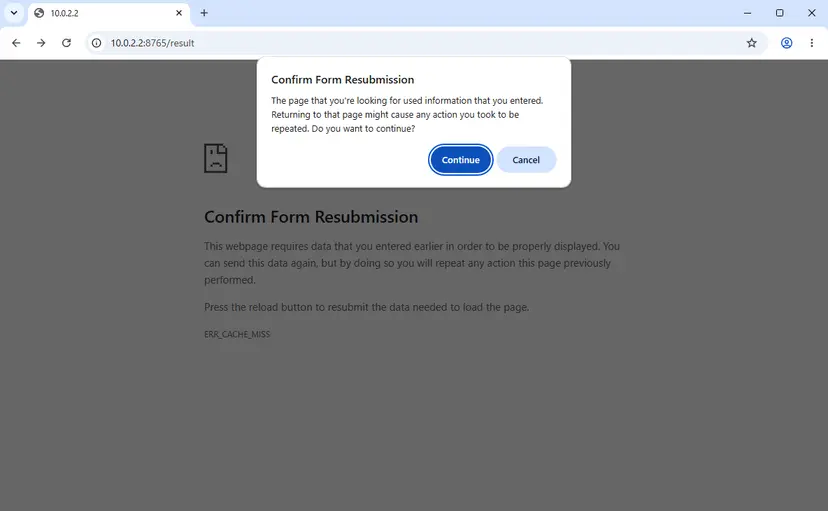
- Reload on the error page. Chrome asks first, in a box titled Confirm Form Resubmission: "The page that you're looking for used information that you entered. Returning to that page might cause any action you took to be repeated. Do you want to continue?"
Chromium's code shows when the cache-only rule applies. It does not promise which form answers get stored, because that depends on the headers each site sends. So the same Back click can work on one site and stop with ERR_CACHE_MISS on another.
What causes ERR_CACHE_MISS, from most to least common
Most often you went back to a form result. Less often Chrome's stored files are damaged or an add-on changes how pages load. For developers the code points at one request or at an app setting. A broken internet connection is not on the list: Chrome has other codes for that.
| Cause | How often | How to tell | Fix |
|---|---|---|---|
| You returned to a page made by a sent form, and the site does not let browsers store it. | Most often | The heading is Confirm Form Resubmission. You had just signed in, searched, ordered or paid. | Fix 1, or Fix 2 when money is involved |
| Chrome restored a tab that held a form result. | Often | The error is there right after Chrome starts, on a tab from the last session. | Fix 2 |
| Chrome's cache on the disk is damaged or incomplete. | Sometimes | The heading is This site can't be loaded from the cache, or the code shows on pages where you sent nothing. | Fix 3 |
| Something in your Chrome profile interferes: stored site data or an extension. | Sometimes | The same page works in an Incognito window. | Fix 4, then Fix 5 |
| One request on the page asks for a cached copy only. | Developers | The page works, but DevTools lists a (failed) request with this code. | Fix 6 |
| The website shows a page as the direct answer to a POST. | Site owners | Your visitors report the resubmission page after Back or Reload. | Fix 7 |
| An Android app's WebView has no network access or is set to cache-only. | App developers | Every page in the app fails with net::ERR_CACHE_MISS, also on a good connection. | Fix 8 |
Advice to flush DNS, reset Winsock, change DNS servers or switch off a proxy does not belong to this code. Those steps repair the road to a website. ERR_CACHE_MISS is raised before Chrome uses that road at all.
How to fix ERR_CACHE_MISS
Fixes 1 and 2 are for the resubmission page and solve most cases in seconds. Fixes 3 to 5 repair Chrome itself when the code appears without a form. Fixes 6 to 8 are for developers: the failing request, the website and the Android app.
| What you see or have | Start with |
|---|---|
| Confirm Form Resubmission after Back or Forward, and the form was a sign-in, a search or a filter. | Fix 1 |
| Confirm Form Resubmission and the form paid, ordered, booked or sent a message. | Fix 2 |
| The error sits on a tab that Chrome reopened after a restart. | Fix 2 |
| This site can't be loaded from the cache, or the code on pages where you sent no form. | Fix 3 |
| The error keeps coming back on many sites in normal windows, but not in Incognito. | Fix 4, then Fix 5 |
net::ERR_CACHE_MISS in the DevTools Console or Network panel. | Fix 6 |
| Visitors of your own website report the resubmission page. | Fix 7 |
net::ERR_CACHE_MISS inside your Android app. | Fix 8 |
Fix 1. Reload the page and confirm the resubmission
10 secondsRead the warningYou see Confirm Form Resubmission and the form did nothing that costs money or cannot be repeated.
This is the fix Chrome itself prints on the page: press the reload button to resubmit the data. A reload sends the form once more, the website builds the page again and Chrome shows it.
Chrome's own text says that you will repeat any action this page previously performed. For a sign-in, a search or a filter that is harmless. For a payment, an order, a booking, a transfer or a posted message it can mean a second one. In that case use Fix 2 and check your order history, your e-mail or your bank statement first.
- Stay on the tab that shows Confirm Form Resubmission.
- Select the Reload button to the left of the address bar.
- A box titled Confirm Form Resubmission opens and asks "Do you want to continue?"
- Select Continue to send the form again. Cancel closes the box and sends nothing.
- Wait for the page to load.
If you now need the page before the form, do not press Back twice in a hurry. Each return to a form result can raise the same question again. Use the links of the website itself to move around.
It worked if: The page you were looking for loads, with the same content the form produced the first time.
If not: If the site answers with its own message, such as an expired session, the form data is no longer accepted. Go to Fix 2.
Fix 2. Open the page fresh instead of going back
2 minutesNo riskThe form paid, ordered, booked or sent something, or the error sits on a tab that Chrome restored.
The warning only concerns the copy of the page in your tab history. A fresh visit to the address is an ordinary request without the form data, so nothing is sent twice and the cache-only rule does not apply.
- Leave the error page as it is. Do not select Reload.
- Check whether the first attempt went through: look for a confirmation e-mail, open the order or booking history of the site in a new tab, or check the bank statement.
- Back on the error tab, select the address in the address bar and press Enter. Chrome requests the address again without the form data.
- If the site now shows an empty or error page, open its start page and reach the section through its own menu.
- Fill in the form again only when step 2 showed that the first attempt did not arrive.
When the error greets you on a tab from your last session, step 3 is all you need. The old form data belonged to a visit that is over, and a fresh request gives you the current page.
Some addresses only make sense together with the form, for example a checkout step. The site then sends you to its cart or its start page. That is the site working as designed, not a second error.
It worked if: The site opens without the resubmission question, and your account shows one order or payment, not two.
If not: If the code appears on a page where you sent no form at all, the cause is in Chrome. Go to Fix 3.
Fix 3. Delete Chrome's cached images and files
5 minutesLow riskThe heading is This site can't be loaded from the cache, or the code appears on pages where you sent no form.
Chromium shows this page with the texts it also uses for an unreadable cache, and its developers note that this generally happens when the disk cache is damaged by an improper shutdown. Deleting the cached files makes Chrome build a clean cache.
Tick Cached images and files and leave Cookies and other site data unticked. You stay signed in everywhere. Google describes the cached files as parts of pages that Chrome remembers to open them faster, so nothing personal is lost.
- Open Delete browsing data. Press Ctrl + Shift + Delete. Or select More (the three dots at the top right) > Delete browsing data.
- Choose how far back to delete. Select a time range at the top, such as Last hour. To clear everything, open More next to the ranges and choose All time.
- Choose what to delete. Check Cached images and files. Check Cookies and other site data too if a site will not sign you in. Uncheck anything you want to keep.
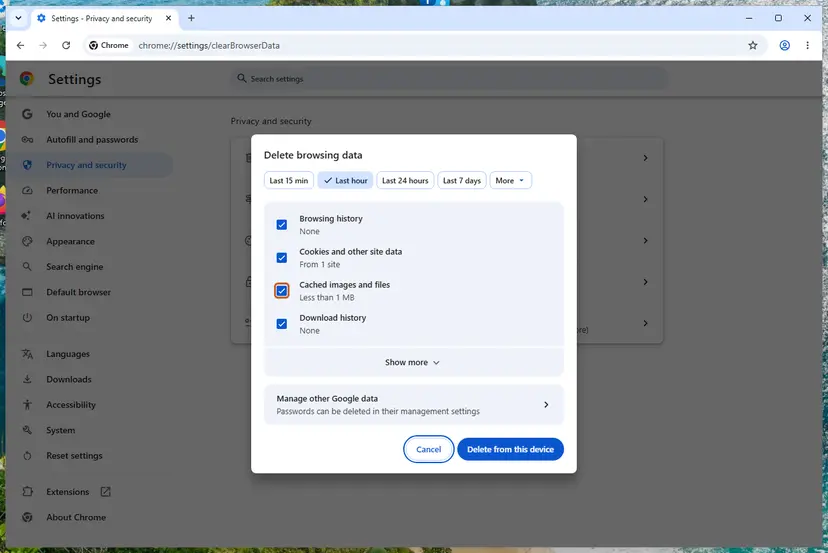
Chrome: Delete browsing data, with the time ranges at the top. Screenshot: Windows 11 26H2. - Delete the data. Select Delete from this device.
These steps were written for Chrome for Windows (screenshot: Windows 11 26H2). The full page with the other versions and what each result means: Clear the browser cache and cookies
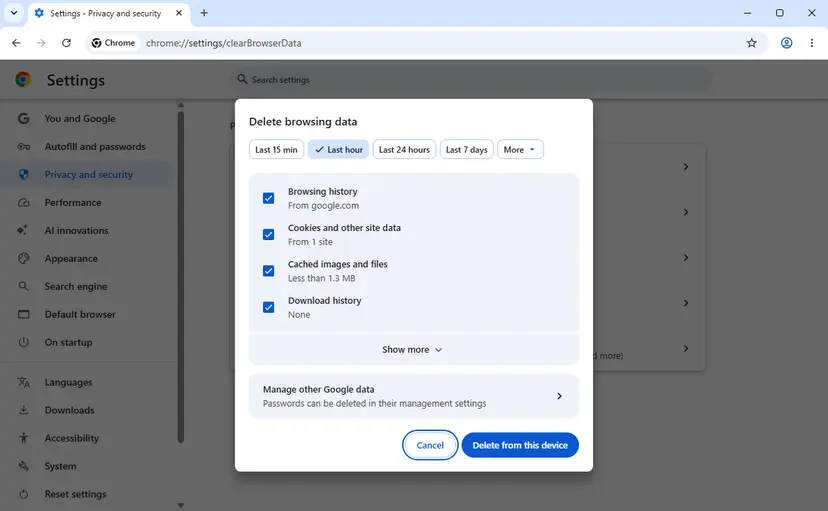
In Chrome 155 the last button reads Delete from this device. Google's help page still calls it Delete data, so an older version may show that label. After the cache is deleted, close every Chrome window and open the page again.
Clearing the cache cannot bring back a form result, because the site never allowed it to be stored. For Confirm Form Resubmission the fixes are Fix 1 and Fix 2.
It worked if: The page that showed the cache message loads normally, a little slower the first time because Chrome fetches everything again.
If not: If the code returns on the same pages, test whether your Chrome profile is involved with Fix 4.
Fix 4. Test the page in an Incognito window, then check your extensions
5 to 10 minutesLow riskThe code keeps appearing in normal windows on pages without a form, and clearing the cache did not help.
An Incognito window keeps its cookies and site data only until the session ends, and extensions run there only if you allowed each one. If the page loads in Incognito, the cause sits in your normal profile.
- Press Ctrl + Shift + N, or select More (the three dots) and then New Incognito window.
- Open the page that failed and repeat what you did.
- If the error is gone, close the Incognito window and select More, then Extensions, then Manage extensions.
- Turn every extension off with its switch.
- Try the page in a normal window. If it works, turn the extensions on one at a time until the error returns.
- On the extension that brings the error back, select Remove and confirm with Remove.
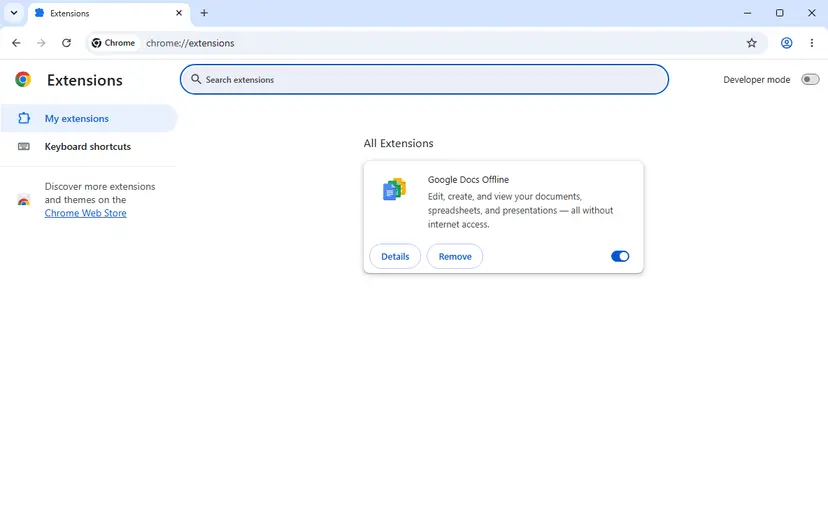
- The error also appears in Incognito: your profile is not the cause. On a form result this is expected, because the rule is the same in every window. Go back to Fix 1 or Fix 2.
- All extensions are off and the error stays in normal windows only: stored site data is left as the suspect. Fix 5 resets it.
- An extension is marked as corrupted: Google's help offers Repair on the same page, and advises a malware scan if the repair does not hold.
We found no Google page that names extensions as a cause of this code. The Incognito test is here because it separates your profile from the website in two minutes. Do not remove extensions you need before the test points at one.
It worked if: The page loads in the normal window once the extension that interfered is off or removed.
If not: If nothing in the profile explains it, update Chrome and reset its settings with Fix 5.
Fix 5. Update Chrome, then reset its settings
10 minutesRead the warningThe code appears on many sites without a form, and Fix 3 and Fix 4 did not stop it.
An update replaces Chrome's program files, and a restart closes a cache that was left in a bad state. The reset returns site data, content settings and extensions to their defaults, which covers what the Incognito test pointed at.
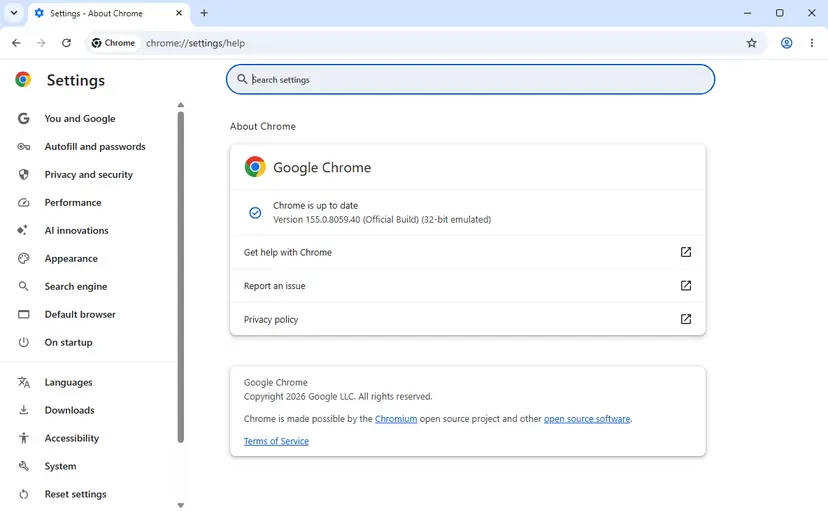
- Select More (the three dots), then Help, then About Google Chrome.
- Chrome checks for updates on this page and shows the version number under the heading. With nothing waiting it says Chrome is up to date.
- Select Relaunch if the button is there. Without the button you are on the latest version.
- On Windows, close all Chrome windows and tabs and open Chrome again. Your tabs come back, Incognito windows do not.
- Test the page that failed.
A reset returns the startup page, the new tab page, the search engine, pinned tabs and content settings such as site permissions. It deletes cookies and other temporary site data, so you are signed out of websites. It disables your extensions and resets Chrome shortcuts. The dialog states that bookmarks, history and saved passwords are not affected. Note the extensions you use before you start.
- If the update did not help, select More, then Settings.
- Select Reset settings.
- Select Restore settings to their original defaults.
- A box titled Reset settings? lists what will change. Confirm with Reset settings.
- Turn on only the extensions you need and test the page again.
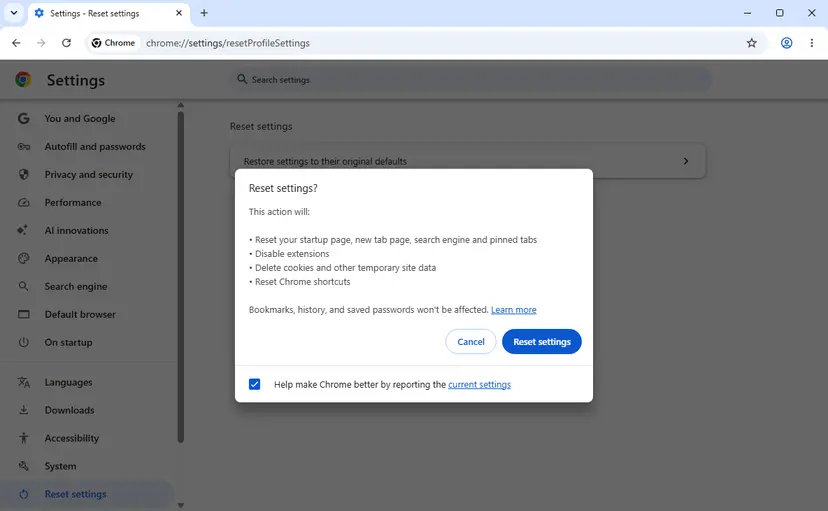
Google adds that these steps are not a full reset, and that a damaged Chrome whose settings will not open should be uninstalled and downloaded again from google.com/chrome. Removing a program in Windows is shown here: Uninstall a program or app in Windows
It worked if: The About page shows the latest version, and pages without a form no longer stop with the cache message.
If not: Record what Chrome does with the steps under "If ERR_CACHE_MISS is still there" below, and tell the site's support.
Fix 6. Find the failing request in Chrome DevTools
5 minutesNo riskYou build or run the website, or you see net::ERR_CACHE_MISS in the Console and want to know which request it is.
The error page shows the code only. DevTools shows which request received it, with its method and headers, and that tells you whether you face the form case, a script that asks for the cache only, or a harmless media request.
- Open the page and press F12 or Ctrl + Shift + I. You can also select More, then More Tools, then Developer Tools.
- Open the Network panel and tick Preserve log, so the list survives page loads.
- Repeat what leads to the error: send the form, move on, press Back.
- In the Status column look for
(failed)followed bynet::ERR_CACHE_MISS. - Select the earlier request of the same address, the POST that worked, and read its response headers.
- Look for
Cache-Control: no-store. It tells the browser to keep no copy, so a later cache-only load has nothing to find.
| The failed request is | What it means | What to do |
|---|---|---|
| The page itself (a document), reached with Back or Forward after a POST | The form case this guide describes. Chrome works as designed. | Change the website: Fix 7. |
A fetch() call | The script used cache: "only-if-cached". MDN says a miss should give a 504 answer and notes that Chrome fails with a TypeError instead. | Catch the failure and fetch again with another cache mode. |
| Audio, video or another request for part of a file | A comment in Chromium's cache code says cache-only reads are not supported together with byte ranges. | Usually nothing. Check that the media still plays. |
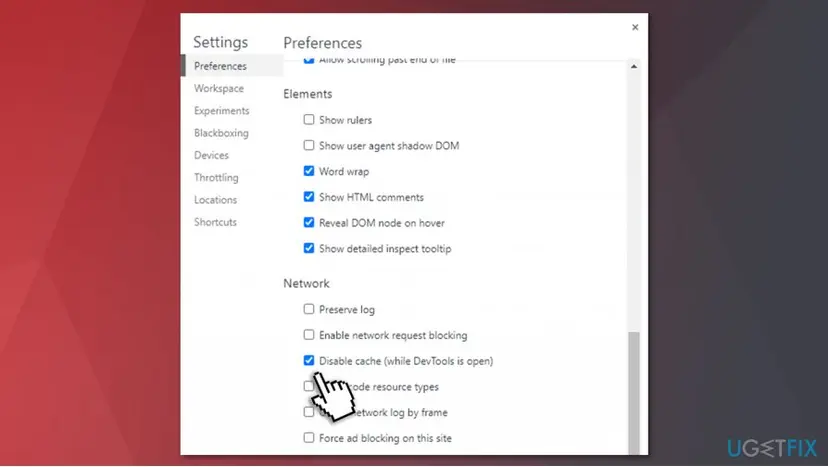
Disable cache works only while DevTools is open, and Google documents it as a way to emulate a first-time visitor. In Chromium's DevTools code a ticked box removes the cache-only flag from requests. We could not confirm from Google's documentation how Back then treats a form result, so never try it on a page that pays or orders. It is a test for developers, not a fix for visitors.
It worked if: You can name the request that failed, its method and the header that kept it out of the cache.
If not: If no row carries the code although the tab shows it, record a network log as described under "If ERR_CACHE_MISS is still there".
Fix 7. Redirect after the form on your own website (Post/Redirect/Get)
15 minutesLow riskYou own or build the site, and visitors meet Confirm Form Resubmission after they send a form.
If the answer to a POST is a redirect, the page in the visitor's history is an ordinary GET page. Back and Reload then repeat only that GET, so Chrome has no form to ask about and no reason for a cache-only load.
- Handle the POST first: validate the data and save it.
- Do not print the result page in the same answer.
- Answer with status
303 See Otherand aLocationheader that points to the result page. - Show the result on that page, which the browser requests with GET.
- Carry a short message, such as "Saved", in the session or in the address, because the redirect does not carry the form data.
- Test it: send the form, move to another page, press Back, then press Reload. No question should appear.
PHP: answer a handled form with a redirect
<?php
if ($_SERVER['REQUEST_METHOD'] === 'POST') {
    // 1. Validate and save the data here.

    // 2. Then answer with a redirect, not with a page.
    header('Location: /thanks.php', true, 303);
    exit;
}
?>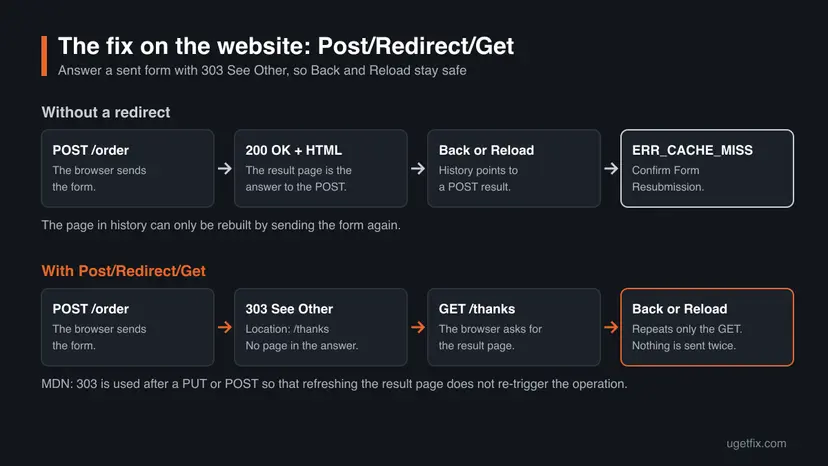
- Why 303. MDN lists 303 See Other as the redirect to use after a PUT or a POST, "so that refreshing the result page doesn't re-trigger the operation". The method used for the new address is always GET.
- PHP sends 302 by default. The manual says a
Locationheader returns status 302 unless a 201 or a 3xx code is already set. The third argument ofheader()sets 303. - Before any output.
header()must be called before any HTML, blank line orecho. The manual's own example ends withexit, so the code below the redirect does not run. - PHP sessions. The default
session.cache_limiterisnocache, which sendsCache-Control: no-store, no-cache, must-revalidate. Every page of a site with sessions is then kept out of the cache, so a POST answered with a page always ends in this error after Back.
PHP also offers the limiter values private and private_no_expire, which permit the browser to keep pages. That stores account pages on the visitor's disk, and we could not confirm that Chrome then reuses a form result on Back. The redirect removes the cause and needs no change to your cache headers.
It worked if: After a sent form the address bar shows the result page, and Back, Forward and Reload work without any question from Chrome.
If not: If the question still appears, one form on the path still answers a POST with a page. Find it with Fix 6.
Fix 8. Give the Android WebView network access
10 minutesNo riskYou develop an Android app, and its WebView shows Webpage not available with net::ERR_CACHE_MISS.
Android's documentation says network loads are blocked by default when an app lacks the INTERNET permission. Chromium's WebView code turns a blocked network load into a cache-only request, and on an empty cache that request ends as ERR_CACHE_MISS.
- Open
AndroidManifest.xmlof the app module. - Inside the
manifestelement, add the permission line shown below. - Search the project for
setCacheMode. If it is set toLOAD_CACHE_ONLY, change it toLOAD_DEFAULT, unless the screen is meant to work offline only. - Search for
setBlockNetworkLoads(true)and remove the call, or set it tofalsefor the screens that load web pages. - Build the app again and install it on the device.
- Open the screen with the WebView on a working connection.
AndroidManifest.xml
<manifest ... >
    <uses-permission android:name="android.permission.INTERNET" />
    ...
</manifest>| Constant | What Android says it does |
|---|---|
LOAD_DEFAULT | The default. Uses cached resources when they are available and not expired, otherwise loads from the network. |
LOAD_CACHE_ELSE_NETWORK | Uses cached resources even if they have expired, otherwise loads from the network. |
LOAD_NO_CACHE | Does not use the cache, loads from the network. |
LOAD_CACHE_ONLY | Does not use the network, loads from the cache. A page that is not cached cannot load. |
- Back inside the app.
goBack()to a page that a form produced follows the same rule as desktop Chrome. Android's reference says that on a move back, content is taken from the cache and not revalidated. The cure is the redirect in Fix 7, on the website. - You only use the app. You cannot add a permission to someone else's app. Check that the phone is online, install the app's latest version and report the message to its developer.
It worked if: The WebView loads the page from the network, and the Webpage not available screen is gone.
If not: If only Back fails, with a form involved, the website needs Fix 7. Other codes on that screen are different errors.
If ERR_CACHE_MISS is still there: record what Chrome does
When the code keeps returning and none of the screens above fits, let Chrome write down what happens. Chromium's own instructions for network problems use a built-in recorder, and its file shows each request with the flags and the error it ended with.
- Open a new tab and go to
chrome://net-export/. - Select Start Logging to Disk. Leave the Options below the button as they are: the default log mode is Strip private information.
- Repeat the problem in a different tab. The recorder tab must stay open, or logging stops.
- Go back to the recorder tab and select Stop Logging.
- Keep the whole file. The Chromium team says that snippets are rarely enough to diagnose a problem.
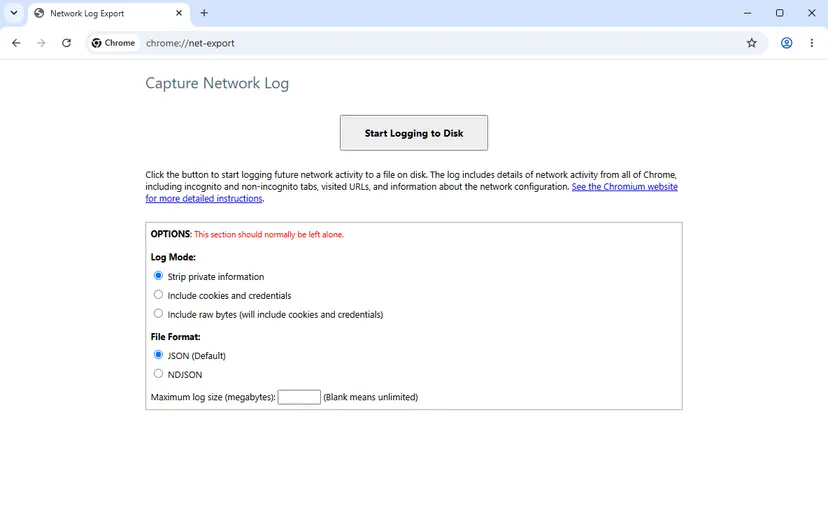
The page itself says the log covers network activity from all of Chrome, including Incognito tabs and visited addresses. Chromium warns that such a capture may include personal information. Send it by e-mail to the person who investigates, and do not post it on a public forum or in a public bug report.
- What to send to the website's support: the address, the time, what you did ("I sent the form on page X and pressed Back"), the full error text and your Chrome version from Help > About Google Chrome. The cure for the form case is theirs to make: it is Fix 7.
- When it is the website and not your PC: the error appears on one site only, always after the same form, and also in an Incognito window. No setting on your side changes that.
- When it is a different problem: other pages fail too, with other codes, or nothing loads at all. That is a connection fault, not this error. Start here: How to check your internet connection in Windows
- When Chrome itself is damaged: the cache message returns on many sites right after a clean cache and a reset. Uninstall Chrome and install it again, as in Fix 5.
We found no statement from Google that treats the form case as a defect. Chromium's source code describes it as expected behaviour, so a bug report about Confirm Form Resubmission on a form result is unlikely to change anything.
How to keep ERR_CACHE_MISS from coming back
- Use the website's own links and buttons to move around after you send a form.
- Wait for the confirmation page after a payment or an order before you touch Back or Reload.
- Check your order history or e-mail before you send a form that costs money a second time.
- Close Chrome through its menu or its window button, and let Windows shut down normally, so the cache is closed cleanly.
- On your own site, answer every handled form with a 303 redirect.
- Do not press Back right after a form if you still need its result. Open links in a new tab instead.
- Do not select Continue in the resubmission box when the form paid, ordered or booked.
- Do not reset network settings or change DNS servers for this code. They are not involved.
- Do not remove extensions or reset Chrome for a resubmission page. It is not a fault of your browser.
The advice about a clean shutdown follows from a note by Chromium's developers: an unreadable cache generally comes from an improper shutdown. The rest follows from the cause itself. A page made by a form lives in your history as a question about sending that form again, and only the website can change that.
Frequently asked questions
What does ERR_CACHE_MISS mean?
It means Chrome was told to load a page or a file from its cache only, and the cache holds no copy. Chromium's list of network errors gives it the number -400 and this description: "The cache does not have the requested entry". In everyday use it appears under the heading Confirm Form Resubmission, after you press Back or Forward to a page that a form created. Chrome will not send your form again by itself, because that could repeat an order or a payment. A reload is your permission to send it.
Is ERR_CACHE_MISS a virus or a sign that my PC is infected?
No. The code describes an empty spot in Chrome's own cache, and in the usual case it is a deliberate safety step after a sent form. Nothing in Chromium's source code or in Google's help pages connects it with malware. You do not need a full system scan because of this message. The one related case in Google's help is an extension that stays corrupted after a repair: for that, Google advises running antivirus software. If you see the resubmission page after pressing Back, your PC is behaving as designed.
Is it safe to select Continue in the Confirm Form Resubmission box?
It is safe when the form only read something: a sign-in, a search, a filter or a page of results. Continue sends the same data again and the site rebuilds the page. It is not safe to assume the same for a payment, an order, a booking, a bank transfer or a posted message. Chrome's own text warns that returning to the page might cause any action you took to be repeated. Many shops guard against double orders, but you cannot see that from the outside. Check your order history first.
How do I fix ERR_CACHE_MISS on Windows 10 or Windows 11?
The same way on both, because the error belongs to Chrome and not to Windows. Reload the page and confirm the resubmission, or open the address fresh if the form cost money. If the code shows on pages without a form, delete Chrome's cached images and files. Chrome itself still runs on Windows 10: Google lists Windows 10 and up for Intel processors and Windows 11 and up for ARM. Microsoft ended support for Windows 10 on 14 October 2025, but that has no effect on this error.
Why does an Android app show net::ERR_CACHE_MISS?
Because the app's built-in browser view, the WebView, was not allowed to use the network. Android's documentation says that an app must request the INTERNET permission to load pages, and that network loads are blocked by default without it. Chromium's WebView code turns a blocked load into a cache-only request, which fails on an empty cache with this code. The app's developer fixes it with one line in the manifest. As a user you can only check your connection, update the app and report the message to the developer.
Does clearing the cache fix ERR_CACHE_MISS?
Only in the less common case. If the heading is "This site can't be loaded from the cache", or the code appears on pages where you sent no form, deleting Cached images and files gives Chrome a clean cache and often ends it. If the heading is Confirm Form Resubmission, clearing the cache changes nothing. The page is missing from the cache because the website did not allow it to be stored, and an empty cache is still empty. For that page, reload and confirm, or open the address fresh.
Do I need to flush DNS, reset Winsock or change my DNS servers?
No. Those steps repair the connection between your PC and a website, and many older guides list them for every Chrome error. ERR_CACHE_MISS is raised earlier: Chrome looks in its cache, finds nothing and stops without using the network at all. A DNS or proxy fault produces other codes, such as a failed name lookup or a timeout. If other sites do not load either and the codes differ, you have a connection problem as well, and that one is worth a network check.
How do I stop Confirm Form Resubmission on my own website?
Answer every handled form with a redirect. After the server has validated and saved the POST data, send status 303 See Other with a Location header that points to a result page. The browser requests that page with GET, so Back and Reload repeat only the GET. MDN names 303 as the redirect to use after a POST so that refreshing the result page does not re-trigger the operation. In PHP that is header('Location: /thanks.php', true, 303) followed by exit, called before any output. Without the third argument PHP sends 302.
Why does the DevTools Console show net::ERR_CACHE_MISS although the page works?
Because one request on the page, not the page itself, asked for a cached answer only. A script can do that with fetch and the cache mode only-if-cached. MDN says a miss should return a 504 answer and notes that Chrome fails with a TypeError, which DevTools prints with this code. Chromium's cache code also notes that cache-only reads are not supported together with byte ranges, which media requests use. Open the Network panel, find the row marked (failed) and check which file it is. If the page and its media work, the line is harmless.
Sources
- Chromium source: net/base/net_error_list.h (CACHE_MISS, -400) (github.com)
- Chromium source: components/error_page/common/localized_error.cc (the error pages for ERR_CACHE_MISS) (github.com)
- Chromium source: components/error_page_strings.grdp (texts of the error pages) (github.com)
- Chromium source: components/dialog_strings.grdp (the Confirm Form Resubmission box) (github.com)
- Chromium source: net/http/http_cache_transaction.cc (where the cache returns ERR_CACHE_MISS) (github.com)
- Chromium source: content/browser/renderer_host/navigation_request.cc (cache flags for history moves and restored POST pages) (github.com)
- Chromium source: android_webview/browser/network_service/net_helpers.cc (blocked network loads in WebView) (github.com)
- Chromium source: content/browser/devtools/devtools_instrumentation.cc (what Disable cache changes) (github.com)
- The Chromium Projects: How to capture a NetLog dump (chromium.org)
- Google Chrome Help: Delete browsing data in Chrome (support.google.com)
- Google Chrome Help: Reset Chrome settings to default (support.google.com)
- Google Chrome Help: Update Google Chrome (support.google.com)
- Google Chrome Help: Browse in Incognito mode (support.google.com)
- Chrome Web Store Help: Install and manage extensions (support.google.com)
- Chrome for Developers: Network features reference (Disable cache, Preserve log, Status column) (developer.chrome.com)
- Chrome for Developers: Open Chrome DevTools (developer.chrome.com)
- MDN: 303 See Other (developer.mozilla.org)
- MDN: Redirections in HTTP (developer.mozilla.org)
- MDN: Cache-Control header (developer.mozilla.org)
- MDN: Request cache property (only-if-cached) (developer.mozilla.org)
- Android Developers: Build web apps in WebView (developer.android.com)
- Android Developers: WebSettings reference (setCacheMode, setBlockNetworkLoads) (developer.android.com)
- PHP Manual: header (php.net)
- PHP Manual: session_cache_limiter (php.net)
- PHP Manual: session runtime configuration (session.cache_limiter) (php.net)
Did this fix work?
One click, no account. It tells the next reader which guides are worth their time.
Questions and experiences: fix ERR_CACHE_MISS error
Still broken, or found a fix we did not cover? Ask here: members and our editors answer. Reading is open; writing needs a free account.
…