
How to fix ERR_NETWORK_ACCESS_DENIED error in Chrome?

Prefer to fix it yourself? The manual steps follow.
- 7methods
- 5 to 20 minutes
- Intermediate
Applies to Google Chrome on Windows 11 (25H2, 26H2) and Windows 10 22H2, and other Chromium browsers such as Brave and Opera
7 methods in this guide
Hello. When I try to open any website in Chrome I receive an ERR_NETWORK_ACCESS_DENIED error. How can I fix this?
ERR_NETWORK_ACCESS_DENIED is Chrome's network error -138: Windows refused to let Chrome open a connection, so the request never left your PC. The website is not blocking you. A firewall rule, a security suite, a VPN kill switch or a parental filter on this PC is, and you fix it by allowing Chrome there.
Chrome shows Your Internet access is blocked when Windows answers its connection attempt with "permission denied". Open the same site in Microsoft Edge: if Edge works, a rule aimed at chrome.exe is the cause. Check Windows Firewall for an outbound block rule on Chrome and remove and re-add Chrome in the allowed apps list (Fix 1), then allow Chrome in your security suite or VPN app (Fixes 2 and 3).
| Error | ERR_NETWORK_ACCESS_DENIED, Chromium network error -138. Chromium's list describes it as "Permission to access the network was denied", used for errors "most likely caused by a firewall". |
|---|---|
| Where it appears | On Chrome's error page Your Internet access is blocked, under "Firewall or antivirus software may have blocked the connection." Developers see net::ERR_NETWORK_ACCESS_DENIED in the DevTools console. |
| Main cause | A filter on your own PC refuses Chrome's outgoing connection: a Windows Firewall rule, a third-party firewall or web shield, a VPN kill switch or a parental control app. |
| Fastest fix | Find the rule that blocks chrome.exe and allow Chrome there (Fix 1 for Windows Firewall, Fix 2 for other security software). |
| Also written as | net::ERR_NETWORK_ACCESS_DENIED, err network access denied, "Your Internet access is blocked". Not the same as ERR_ACCESS_DENIED (-10). |
| Affects | Chrome and other Chromium browsers on Windows 11 and Windows 10; the same code exists on macOS, Linux and Android. |
| Vendor status | Not a Chrome bug in general. A separate Chrome issue (crbug 466139402) caused it for local addresses in December 2025 and March 2026; both rollouts were rolled back and the issue was still open on 14 October 2026. |
| Time to fix | 5 to 20 minutes for most PCs. |
Facts checked on 14 October 2026. Steps written for Chrome 155 on Windows 11 (screenshots); steps checked against the Chromium source code, Microsoft documentation and Chrome 155.0.8059.80, the stable version on 14 October 2026.
What ERR_NETWORK_ACCESS_DENIED means
When Chrome loads a page, it asks Windows to open a connection to the site's address. ERR_NETWORK_ACCESS_DENIED means Windows refused that request with a permission error. Nothing was sent to the website, so the site, your router and your internet provider never saw the attempt.
The source code is plain about where the code comes from. Chromium's Windows socket code turns the Winsock error WSAEACCES (10013) into ERR_NETWORK_ACCESS_DENIED only when it happens during a connect, with the comment that connect fails this way "when Windows Firewall blocks the connection". On macOS, Linux and Android the same code comes from EACCES. Microsoft describes WSAEACCES as "Permission denied": an attempt to use a socket in a way forbidden by its access permissions.
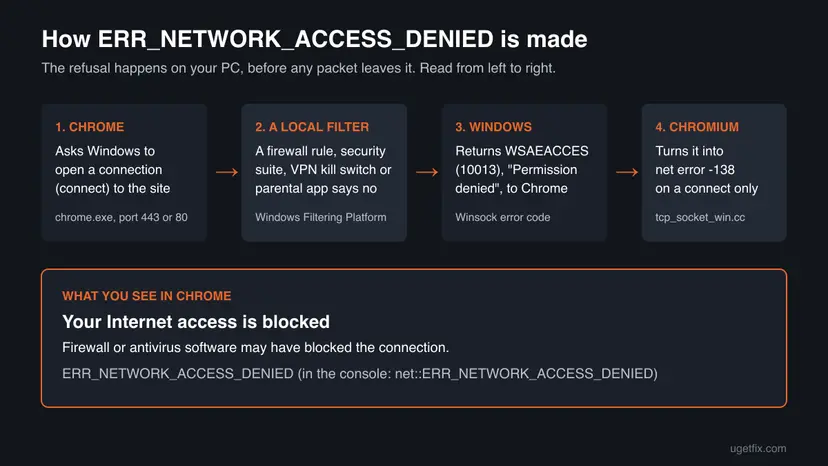
- On the error page: the heading Your Internet access is blocked, the line "Firewall or antivirus software may have blocked the connection.", then Try: with Checking the connection, Checking firewall and antivirus configurations and Running Windows Network Diagnostics. The code
ERR_NETWORK_ACCESS_DENIEDis at the bottom. - Behind the firewall link: Chrome's own advice reads "Allow Chrome to access the network in your firewall or antivirus settings. If it is already listed as a program allowed to access the network, try removing it from the list and adding it again." Fix 1 does exactly this.
- In the console or a log:
net::ERR_NETWORK_ACCESS_DENIED, often after "Failed to load resource" when one request on a page was refused. - Its number: -138 in Chromium's list of network errors. Errors from -100 to -199 are connection errors.
- Not the same error: ERR_ACCESS_DENIED (-10) is about a resource other than the network, for example a file Chrome may not read. ERR_SOCKET_NOT_CONNECTED (-15) is a connection that died after it was opened; we explain it in our ERR_SOCKET_NOT_CONNECTED guide.
Why Chrome says your Internet access is blocked
Because the code means "a local filter said no", the causes are the programs that can filter traffic on a Windows PC. They are listed here from the most common to the rarest, each with the fix that removes it.
| Cause | How often | Typical sign | Fix |
|---|---|---|---|
A Windows Firewall rule blocks chrome.exe outbound, or Chrome's entry in the allowed list is broken | Most often | Edge and Firefox work, Chrome fails on every site | Fix 1 |
| A third-party firewall, web shield or internet security suite blocks Chrome | Often | The suite was installed or updated shortly before; its firewall log shows Chrome | Fix 2 |
| A parental control or content filter app on the PC | Often on family PCs | Only some accounts or some hours are affected | Fix 2 |
| A VPN app's kill switch blocks traffic outside the tunnel | Often with VPN users | It started when the VPN disconnected or after it was closed | Fix 3 |
| Chrome's network service sandbox and Windows app isolation block a local address | Rare, in waves | Only 192.168.x.x, 10.x.x.x, localhost, a VM or a company address via VPN fail | Fix 4 |
| A firewall policy set by your employer or school | Rare at home | Rules are greyed out; the PC is managed | Fix 5 |
| Leftover filters of a removed VPN or security program | Rare | The program is gone but the block stayed | Fix 6 |
A filter on your router, a school network's web filter or a site that bans you does not produce this code. Those block traffic outside your PC and Chrome then shows a timeout, a refused connection, a DNS error or a block page. If you see ERR_NETWORK_ACCESS_DENIED, look on the PC itself.
A two-minute test: is only Chrome blocked?
Microsoft Edge is on every Windows 11 and Windows 10 PC and uses the same Chromium network code. That makes it the best comparison: open the address that fails in Chrome in Edge, on the same PC and the same Windows account.
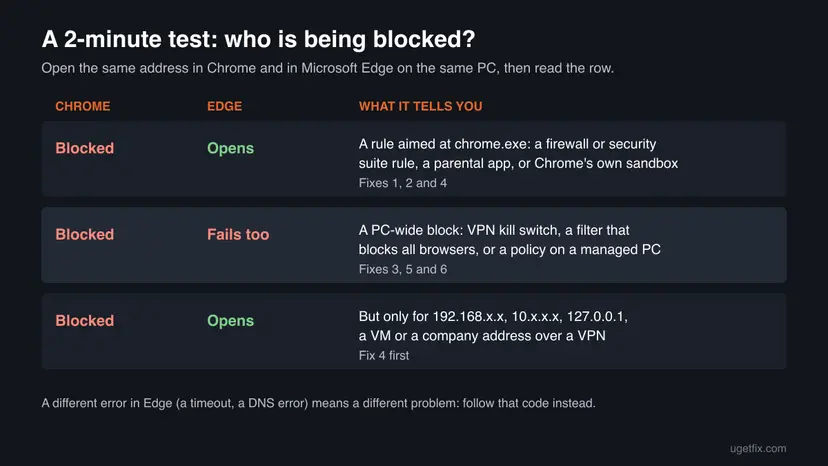
- Chrome fails, Edge opens: the block is aimed at
chrome.exe. Start with Fix 1, then Fix 2. - Both fail with the same code: a VPN kill switch, a filter that blocks every browser, or a managed PC policy. Go to Fix 3 or Fix 5.
- Only local or company addresses fail in Chrome: your router page, a NAS, a virtual machine,
localhostor an intranet site over a VPN. Go to Fix 4. - Edge shows a different error: the problem is elsewhere, for example a DNS or proxy failure. Follow the code Edge shows.
How to fix ERR_NETWORK_ACCESS_DENIED in Chrome
Fixes 1 and 2 remove the most common blocks: a firewall rule or a security program aimed at Chrome. Fix 3 is for VPN users and Fix 4 for local addresses. Fixes 5 and 6 cover managed PCs and leftovers. Fix 7 is a single test, never a permanent setting.
| What you see or have | Start with |
|---|---|
| Every site fails in Chrome, while Edge or Firefox work. | Fix 1 |
| A security suite, a third-party firewall or a parental control app is installed. | Fix 2 |
| A VPN app is installed, connected or not, or the error started when the VPN dropped. | Fix 3 |
| Only local addresses fail: the router page, a NAS, a VM, localhost, a company site over VPN. | Fix 4 |
| A work or school PC, or firewall rules you cannot change. | Fix 5 |
| You removed a VPN or an antivirus and the error stayed. | Fix 6 |
| Nothing above fits and nothing helped. | Fix 7 |
Fix 1. Remove the Windows Firewall block on Chrome and add Chrome again
10 minutesLow riskChrome fails on every site while Edge or Firefox work on the same PC.
Windows Firewall lets apps connect out unless a rule blocks them, and a block rule always wins over an allow rule. One outbound block rule on chrome.exe, or a broken entry for Chrome, is enough to produce exactly this error.
First find the exact program file of your Chrome. Type chrome://version in the address bar and read the line Executable Path. Most PCs show C:\Program Files\Google\Chrome\Application\chrome.exe; a Chrome installed for one account only sits in that account's AppData folder. Firewall rules work with the full path, so the path must match.
- Select Start, type Windows Security and open it. Select Firewall & network protection.
- Select Allow an app through firewall, then Change settings. Approve the administrator prompt.
- Find Google Chrome in the list. If it is there, select it and select Remove, then Yes. Chrome's own error page advises removing it and adding it again.
- Select Allow another app..., then Browse..., open the folder from Executable Path and choose
chrome.exe. Select Add. - Make sure both Private and Public are ticked for Google Chrome, then select OK.
- Close Chrome fully with More (the three dots) > Exit, open it again and load a site.
The allowed apps list is mainly about incoming connections. This error is about an outgoing one, and outgoing block rules live in a different window. If the steps above did not help, check the outbound rules below.
- Press Win + R, type
wf.mscand press Enter to open Windows Defender Firewall with Advanced Security. - Select Outbound Rules on the left. Sort by Action so the Block rules come first.
- Look for a block rule whose Program column ends in
chrome.exe, or whose name mentions Chrome or a tool that "blocks apps". - Right-click the rule and select Disable Rule. Disabling keeps it, so you can turn it back on if you need it later.
- Restart Chrome and test. If the rule is greyed out and cannot be changed, it comes from a policy: go to Fix 5.
Or list every enabled outbound block rule for Chrome in Terminal (Admin):
Get-NetFirewallRule -Direction Outbound -Action Block -Enabled True |
  Where-Object { ($_ | Get-NetFirewallApplicationFilter).Program -like '*chrome.exe' } |
  Format-Table DisplayName, Profile, PolicyStoreSourceType
An empty result means Windows Firewall has no outbound block rule on Chrome. PolicyStoreSourceType shows where a rule comes from: Local was made on this PC, GroupPolicy was pushed by an organisation.
It worked if: Sites open in Chrome again and the error page does not come back after a restart of Chrome.
If not: If Windows Firewall has no block rule on Chrome, the block sits in other security software. Go to Fix 2.
Fix 2. Allow Chrome in your security suite or parental control app
10 minutesLow riskA third-party antivirus with a firewall or web shield, or a parental control app, is installed.
Third-party firewalls, web shields and parental filters add their own filters to Windows. They do not show up in Windows Firewall, so Fix 1 cannot see them, but they refuse Chrome's connection in the same way.
- Open the security suite from its icon in the notification area or from Start.
- Open its Firewall section and find the list of application rules. The name differs by product: app rules, program control, application access.
- Find Google Chrome or
chrome.exe. If it is set to block, ask or restricted, set it to Allow. If there are two entries, check both: an old Chrome path can stay after an update. - Open the suite's event or threat history and look for entries about Chrome blocked at the time you saw the error.
- If the suite has a web shield or HTTPS scanning, add Chrome or the site to its exclusions instead of turning the shield off.
- Restart Chrome and test.
- Parental control apps: sign in to the app's parent dashboard and check the child account's rules for blocked apps, blocked browsers and time limits. Some apps allow only one browser and block all others.
- Several accounts on one PC: if only one Windows account sees the error, the cause is almost always a per-account parental rule, not the firewall.
- Two security suites: if two programs with a firewall are installed, check the app rules in both. Each one filters on its own, and either can refuse Chrome.
Allowing Chrome in the program keeps the rest of the protection working. Uninstalling the suite or switching its firewall off for good leaves the PC with less protection, and is not needed to fix this error.
It worked if: Chrome loads sites again while the security suite or parental app stays on and shows Chrome as allowed.
If not: If no rule blocks Chrome in the suite, check whether a VPN app is installed and go to Fix 3.
Fix 3. Check the VPN kill switch and reconnect the VPN
5 minutesLow riskA VPN app is installed on the PC, even if it is disconnected or closed.
A VPN kill switch blocks every connection outside the tunnel when the VPN is not connected. Proton VPN documents that its advanced kill switch creates persistent filters with the Windows Filtering Platform, which stay in place even when the app is disconnected, so apps get a permission error.
- Open the VPN app and look at its status. If it says disconnected, connect to a server and test Chrome again.
- Open the app's settings and find Kill switch, sometimes called network lock or internet lock.
- If it is set to a permanent or advanced mode, switch it to the standard mode, which blocks only while a VPN connection drops.
- If the app has split tunnelling, check that Chrome is not in a list of apps that may use only the VPN, or only the normal connection.
- Quit the VPN app completely, not just its window, and test Chrome without the VPN.
- If Chrome works now, turn the VPN back on and contact the VPN's support with the app version and the kill switch mode you used.
- Chrome VPN extensions: an extension changes Chrome's proxy, it does not add a firewall block. A broken proxy gives proxy errors, not this code, so this fix is about VPN apps installed in Windows.
- Company VPNs: some corporate VPN clients act as a local proxy or route intranet addresses through their own adapter. If only intranet sites fail in Chrome, Fix 4 is the more likely cause.
- After uninstalling a VPN: if the block outlived the app, go to Fix 6.
It worked if: Chrome opens sites with the VPN connected, and also with the VPN off after you changed the kill switch mode.
If not: If Chrome is still blocked without any VPN running and only some addresses fail, go to Fix 4. Otherwise go to Fix 5.
Fix 4. Local addresses only: restart Chrome fully and check its network sandbox
5 minutesLow riskOnly local or company addresses fail in Chrome, such as a router page, a NAS, a virtual machine or localhost.
In December 2025 and March 2026 Google switched on a new sandbox for Chrome's network service on Windows. On some PCs Windows app isolation then treated local adapters as public and refused the connection, and users saw ERR_NETWORK_ACCESS_DENIED or ERR_CONNECTION_TIMED_OUT.
- First wave
- Chrome 143, early December 2025. Google rolled the setting back from 5 December and said affected users should fully restart Chrome.
- Second wave
- Chrome 146, 12 March 2026. Rolled back again on 13 March 2026 at 08:00 UTC.
- Who was hit
- Local addresses through VPN clients, VMware, Hyper-V and WSL adapters, adapters with no default gateway, and many PCs upgraded from Windows 10 to Windows 11, according to the Chromium commit that addressed it.
- Status on 14 October 2026
- Issue 466139402 is still open. In the Chromium source the sandbox is off by default on Windows, but Google can switch it on remotely for a share of users.
- Close Chrome completely with More > Exit. A closed window is not enough, because Chrome picks up new remote settings only after a full restart.
- Open Chrome and go to
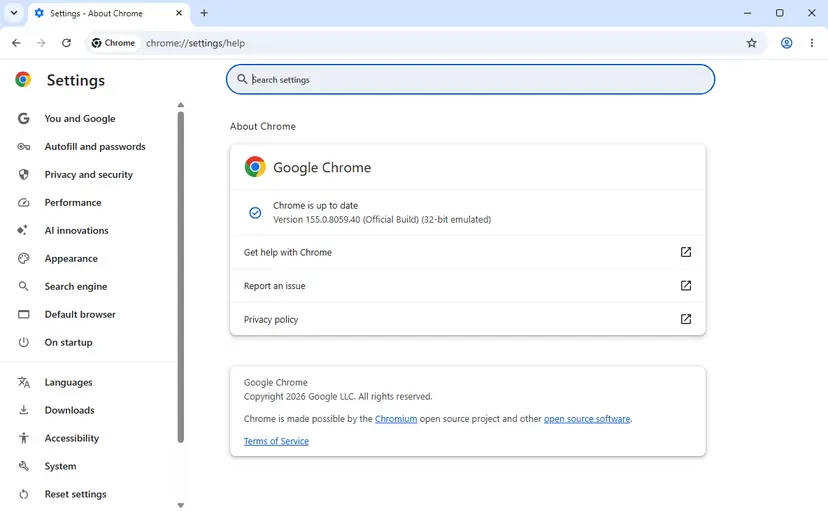
chrome://settings/help. Let it update to the latest version, then select Relaunch. - Type
chrome://sandboxin the address bar and find the row Network Service. - Read its sandbox column. A Chromium engineer explained in the issue that Network means the sandbox is on, while None or Not Sandboxed means it is off.
- If the sandbox is off and local addresses still fail, the sandbox is not your cause. Go back to Fixes 1 to 3: a firewall rule can block Chrome for private networks only.
- If the sandbox is on, report it at issue 466139402 with your Windows version and the adapter type, and wait for the next update.
Google's workaround was to start Chrome once with --disable-features=NetworkServiceSandbox. Use it only to confirm the cause, then remove it. The engineer in charge advised against switching the sandbox off for good, because you would also lose it once the fix ships. Organisations should use the policy NetworkServiceSandboxEnabled only for a known incompatibility.
It worked if: Your router page, NAS, virtual machine or local test server opens in Chrome again after a full restart.
If not: If chrome://sandbox shows the sandbox off and the error stays, the cause is a firewall rule for private networks: repeat Fix 1, then try Fix 5.
Fix 5. On a work or school PC, read the policies and ask the administrator
5 minutesNo riskThe PC belongs to an employer or a school, or firewall rules are greyed out.
Organisations can push firewall rules and Chrome policies to their PCs. Such rules cannot be changed locally and come back at the next policy refresh, so the only lasting fix is a change by the administrator.
- Run the PowerShell command from Fix 1. A rule with PolicyStoreSourceType
GroupPolicywas set by your organisation. - Type
chrome://managementin Chrome. If it says your browser is managed, your organisation controls Chrome's settings. - Type
chrome://policyand look for network policies such as a proxy, a URL block list or NetworkServiceSandboxEnabled. - Write down the address you tried, the time and the full error code.
- Send these details to your IT support. Ask whether Chrome is meant to reach that address on this network.
It worked if: Your administrator confirms the rule and allows Chrome, or tells you which approved browser to use for that address.
If not: If the PC is not managed and no policy rule exists, the block may be a leftover of removed software. Go to Fix 6.
Fix 6. Remove leftovers of an uninstalled VPN or security program
20 minutesRead the warningYou uninstalled a VPN, firewall or antivirus and the error stayed or started right after.
Some VPN and security programs leave their network filters or adapters behind when an uninstall is cut short. The filters keep refusing connections with nothing left on screen to turn them off.
The Windows network reset in step 4 removes and reinstalls every network adapter. You will need your Wi-Fi password again, and VPN apps or virtual adapters such as VMware or VirtualBox may need to be reinstalled. Write down any fixed IP or DNS settings first.
- Open Settings > Apps > Installed apps and check that the old VPN or security program is really gone. Remove what is left with Uninstall a program or app in Windows.
- If the vendor offers a removal tool for its product, download it from the vendor's own site and run it. It removes drivers and filters that a normal uninstall can miss.
- Restart the PC and test Chrome before doing anything else.
- If the error stays, reset the Windows network components. Start with the Winsock and TCP/IP commands and use the full network reset only if they do not help: Reset the network and flush DNS.

It worked if: After the restart Chrome opens sites, and the old program no longer appears in Installed apps or the notification area.
If not: If nothing was left to remove and the reset changed nothing, run the single pause test in Fix 7 to find out which program still filters Chrome.
Fix 7. Pause your security software for one test
5 minutesRead the warningNothing above found the block and you still suspect your security software.
Pausing protection for a minute shows whether the security program is the one refusing Chrome's connection. It is a diagnosis, not a fix: the fix is the allow rule in Fix 2.
While protection is paused the PC is less protected. Open only the one site you know and trust, do not download anything, and turn protection back on as soon as the test is done.
- Close every Chrome tab except one with a site you trust.
- Pause the third-party suite with its own pause or temporary disable option, for the shortest time it offers. For Microsoft Defender follow Turn off Microsoft Defender protection for a moment.
- Reload the page in Chrome and note whether it opens.
- Turn protection back on at once, even if the timer has not run out.
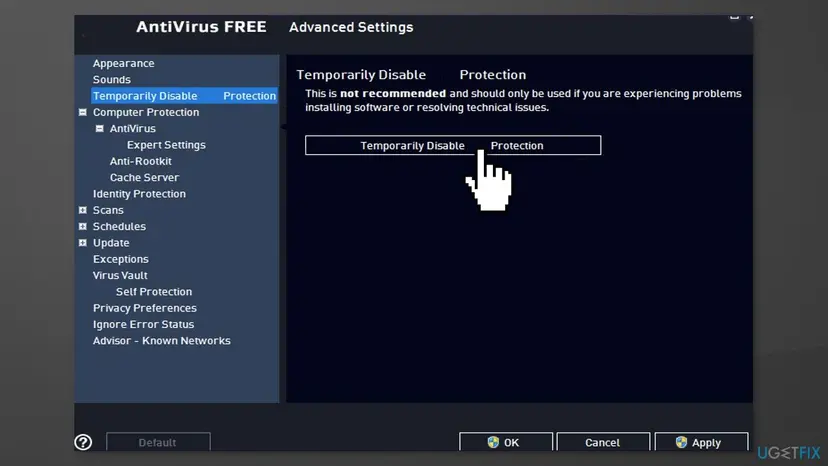
It worked if: The page opens while protection is paused and fails again when it is back on, which proves the security program is the cause.
If not: If the page also fails while protection is paused, the security program is not the cause. Collect the logs in the section below and send them to Chrome or your IT support.
Still blocked: find the rule in the Windows logs
Windows can write down every connection its filtering platform blocks, with the program and the filter that did it. This audit is off by default, so switch it on for the test and off again afterwards.
- Open Terminal (Admin) and switch on auditing of blocked connections:
auditpol /set /subcategory:"Filtering Platform Connection" /failure:enable - Reproduce the error in Chrome once.
- Open Event Viewer > Windows Logs > Security and filter the log for event ID 5157, "The Windows Filtering Platform has blocked a connection".
- Open an event whose Application Name ends in
chrome.exe. Note the Destination Address and the Filter Run-Time ID. - Export the active filters and search the file for that ID. The filter's name and provider tell you which program owns it:
netsh wfp show filters - Switch the audit off again:
auditpol /set /subcategory:"Filtering Platform Connection" /failure:disable
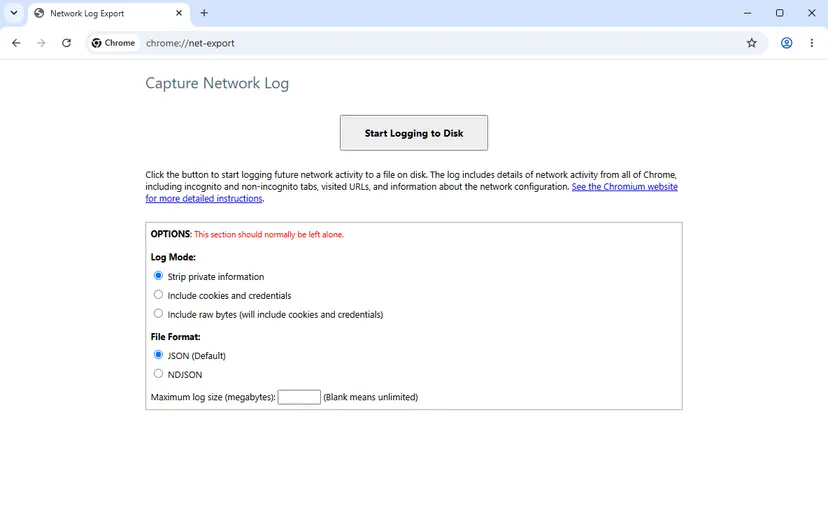
Chrome can record its side too. Open chrome://net-export, select Start Logging to Disk, reproduce the error and stop logging. Look for ERR_NETWORK_ACCESS_DENIED or error -138 next to a connect attempt. Keep Strip private information selected if you send the file to anyone.
- To your security vendor: the 5157 event, the filter name from
netsh wfp show filtersand the product version. - To Chrome: the net-export file, the output of
chrome://version, the Network Service row ofchrome://sandbox, and your Windows version from winver. - Hardware: this code never comes from a faulty network card or cable. A hardware fault shows as no connection in every app, not as a permission error in one browser.
How to keep Chrome from being blocked again
- Allow Chrome by its exact path in every firewall or security suite you install.
- Read the kill switch mode of a VPN app before you close it.
- Restart Chrome fully after an update, so it loads new settings.
- Remove VPN and security programs with their own uninstaller or removal tool.
- Check parental app rules when a child account gets a new browser.
- Do not switch the firewall or antivirus off for good to get Chrome online.
- Do not install two firewalls or two internet security suites side by side.
- Do not use firewall tools that block apps unless you know which rules they made.
- Do not keep the network sandbox switch in your Chrome shortcut after the test.
Windows 10 left support on 14 October 2025. Chrome still runs there, but the Chromium engineers found the local-address problem more often on old installs and PCs upgraded from Windows 10. Keep Windows 11 updated and keep a note of every program that filters traffic on your PC.
Frequently asked questions
What does ERR_NETWORK_ACCESS_DENIED mean in plain English?
It means "access to the network was denied": your own computer refused to let Chrome connect. In Spanish it reads roughly "acceso a la red denegado", and Chrome's page says "Your Internet access is blocked". The block comes from software on the PC, usually a firewall, a security suite, a VPN kill switch or a parental control app. The website did not reject you, and your internet connection itself is usually fine, which you can see because other apps still work.
Is the website blocking me when I see ERR_NETWORK_ACCESS_DENIED?
No. The code appears before Chrome sends anything to the site. Windows refused to open the connection, so the website never saw a request from you. A site that bans you shows its own page, an HTTP error such as 403, or a refused connection. If only one site fails with this code, look for a rule for that site or its address in your security software or parental control app, not on the site's side.
Why is only Chrome blocked while Edge and Firefox work?
Because the rule is tied to the program file chrome.exe. Firewalls and security suites allow or block each program by its path, so a rule on Chrome does not touch Edge or Firefox. This often happens when Chrome was once blocked by accident in a firewall prompt (Microsoft notes that cancelling or answering no to that prompt creates block rules), or when a parental app allows only one browser. Fixes 1 and 2 show where to find such a rule.
What is the difference between ERR_CONNECTION_REFUSED and ERR_NETWORK_ACCESS_DENIED?
ERR_CONNECTION_REFUSED (-102) means the connection reached the other computer and it answered that nothing is listening on that port. ERR_NETWORK_ACCESS_DENIED (-138) means your own PC stopped the connection before it left. Developers who see both on localhost or a local server usually have a firewall rule on Chrome, or were hit by the Chrome network sandbox problem described in Fix 4. Check that the server runs first, then the firewall.
Is ERR_ACCESS_DENIED the same error?
No. ERR_ACCESS_DENIED is error -10, and Chromium describes it as permission to access a resource other than the network being denied. It usually shows up with files, for example when you upload or open a file that Chrome is not allowed to read, or when a download folder is protected. The fixes here do not apply to it. ERR_NETWORK_ACCESS_DENIED is error -138 and is only about network connections.
Does ERR_NETWORK_ACCESS_DENIED work differently on Windows 11 and Windows 10?
The code and the causes are the same. The paths differ slightly: in Windows 11 Network reset is under Network & internet > Advanced network settings, in Windows 10 under Network & Internet > Status. The Chrome network sandbox problem of 2025 and 2026 was reported more on Windows 10 and on PCs upgraded from it. Windows 10 no longer gets security updates since 14 October 2025.
Should I turn off Windows Firewall or my antivirus to fix it?
No. Microsoft's own advice is to allow the blocked app through the firewall instead of turning the firewall off. Switching protection off may make Chrome work, but it removes protection from every program on the PC. Use a pause only as a one-minute test, as in Fix 7, then add an allow rule for Chrome in the program that blocked it.
Can malware cause ERR_NETWORK_ACCESS_DENIED?
It is possible but uncommon. Unwanted programs sometimes add firewall rules or filters, and a rule you did not create in Fix 1 deserves attention. If you find block rules with strange names or programs you do not recognise, run a full scan with Microsoft Defender: How to scan for malware with Microsoft Defender. Most cases, though, come from security software, VPNs and parental controls that the owner installed on purpose.
Does reinstalling Chrome fix ERR_NETWORK_ACCESS_DENIED?
Rarely for long. A firewall or security suite rule on the path chrome.exe stays when you reinstall, because the new Chrome uses the same path. During the sandbox problem of December 2025 some administrators reported that a clean reinstall helped only until Chrome loaded its remote settings again. Find and change the blocking rule first; reinstall only when Chrome itself is damaged.
Can I get ERR_NETWORK_ACCESS_DENIED on Android or a Mac?
Yes. Chromium uses the same code when macOS, Linux or Android refuse a connection with a permission error. On a phone the usual causes are a firewall or ad blocking app, a per-app network restriction, or a VPN app with an always-on block. This page gives Windows steps; on Android and macOS check the firewall, VPN and parental control apps installed on that device.
Sources
- Microsoft Learn: Windows Sockets error codes (WSAEACCES 10013) (learn.microsoft.com)
- Microsoft Support: Risks of allowing apps through Windows Firewall (support.microsoft.com)
- Microsoft Support: Firewall and network protection in the Windows Security app (support.microsoft.com)
Did this fix work?
One click, no account. It tells the next reader which guides are worth their time.
Questions and experiences: fix ERR_NETWORK_ACCESS_DENIED error in Chrome
Still broken, or found a fix we did not cover? Ask here: members and our editors answer. Reading is open; writing needs a free account.
…