
How to fix ERR_SOCKET_NOT_CONNECTED error in Google Chrome?

Prefer to fix it yourself? The manual steps follow.
- 8methods
- 1 to 30 minutes
- Easy
Applies to Google Chrome on Windows 11 and Windows 10, and other Chromium browsers (Microsoft Edge, Brave, Opera); the Sockets page also exists in Chrome on macOS, Linux and ChromeOS
8 methods in this guide
- What the error means
- Why it appears
- Chrome, network or site
- The fixes
- 1. Flush socket pools
- 2. VPN, proxy, other network
- 3. Incognito and extensions
- 4. Router and Winsock reset
- 5. Update Chrome
- 6. Developers and site owners
- 7. Pause web scanning once
- 8. Reset Chrome settings
- Still broken: read the log
- Keep it from coming back
- FAQ
Hello. I started getting the error on my computer, specifically in Chrome. ERR_SOCKET_NOT_CONNECTED is the particular code that I see, or Error 15. I think it is not related to a specific site, because I get this when I search on Google too. It is a very vague and random issue. Can you help me?
ERR_SOCKET_NOT_CONNECTED is Chrome's network error -15: Windows told Chrome that the connection it wanted to use was no longer open. The website is usually fine, and the cause is a stale connection in Chrome or a VPN, proxy or filter that dropped the link. Open chrome://net-internals/#sockets, select Flush socket pools, then close and reopen Chrome.
ERR_SOCKET_NOT_CONNECTED means Chrome tried to send or read data on a connection that Windows already considers closed. Type chrome://net-internals/#sockets in the address bar, select Flush socket pools, then quit Chrome completely and open it again (Fix 1). If the error returns, test without your VPN or proxy (Fix 2) and in an Incognito window (Fix 3). Changing DNS servers does not help with this code.
| Error | ERR_SOCKET_NOT_CONNECTED, Chrome network error -15. Chromium's list of network errors describes it in one line: "The socket is not connected." |
|---|---|
| Where it appears | On Chrome's grey error page This site can't be reached, under "The webpage at [address] might be temporarily down or it may have moved permanently to a new web address", with the code at the bottom. In the DevTools console it reads net::ERR_SOCKET_NOT_CONNECTED. |
| Main cause | A connection that was closed underneath Chrome. Windows reports it as WSAENOTCONN (10057), macOS and Linux as ENOTCONN. Most often a VPN, proxy, security filter or the server dropped the connection, or Chrome kept a stale one in its pool. |
| Fastest fix | Flush socket pools at chrome://net-internals/#sockets, then restart Chrome (Fix 1). |
| Also written as | net::ERR_SOCKET_NOT_CONNECTED, "Error 15 (net::ERR_SOCKET_NOT_CONNECTED): Unknown error" in old Chrome versions, "err socket not connected", "socket not connected error". |
| Affects | Chrome on Windows 11, Windows 10, macOS, Linux and ChromeOS, and every browser built on Chromium, such as Microsoft Edge, Brave and Opera. Checked against Chrome 155, the stable version in October 2026. |
| Google's status | No open Chrome bug for this code in 2026. One old bug (issues.chromium.org 40563961) made it appear after HTTP logins in Chrome 11, and it was fixed in Chrome 12 in 2011. |
| Time to fix | 1 minute for Fix 1. Finding a VPN, proxy or extension that drops connections takes 10 to 20 minutes. |
| Where the cause is logged | A NetLog file from chrome://net-export/. Search it for SOCKET_NOT_CONNECTED to see which site and which connection failed. |
Facts checked on 14 October 2026. Steps written for Chrome 155 on Windows 11 (screenshots); steps checked against the Chromium source code and Chrome 155.0.8059.80, the stable version on 14 October 2026.
What ERR_SOCKET_NOT_CONNECTED means
A socket is the endpoint of one network connection between Chrome and a website. Chrome keeps open sockets in pools and reuses them, so that the next page from the same site does not have to connect from scratch. ERR_SOCKET_NOT_CONNECTED means that Chrome reached for such a socket, or for a brand new one, and the operating system answered that it was not connected.
The code comes straight from Windows. Chromium's Windows network code translates the Winsock error WSAENOTCONN into ERR_SOCKET_NOT_CONNECTED, and its macOS and Linux code does the same with ENOTCONN. Microsoft describes WSAENOTCONN (10057) as "Socket is not connected": a request to send or receive data was refused because the socket was not connected. In Chromium's own list the error has the number -15, which is in the range of system related errors.
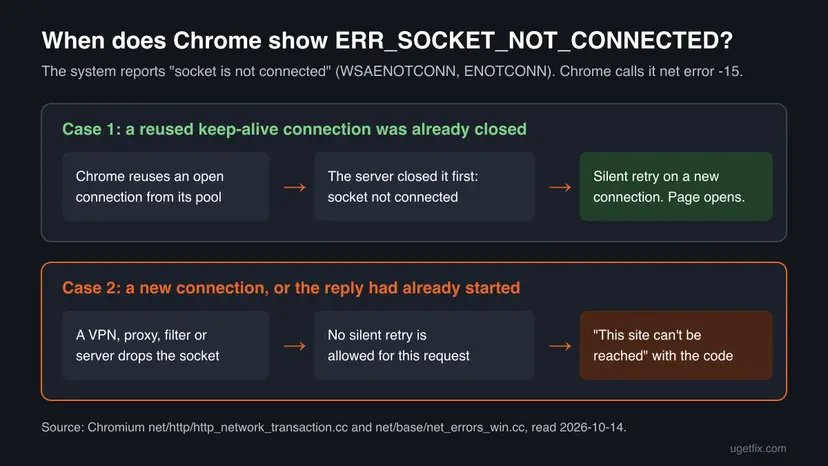
Chromium's source code expects dead sockets. When a reused keep-alive connection turns out to be closed and no reply has arrived yet, Chrome sends the request again on a new connection without telling you. The code allows up to 50 such retries for one request. The error page appears only when the connection was new, or when part of the reply had already arrived, so something cut a fresh link.
- On the error page: the heading This site can't be reached and the code
ERR_SOCKET_NOT_CONNECTEDat the bottom. Chromium has no special text for this code, so the page uses its generic wording and offers no suggestions and no Reload button. - In the console:
net::ERR_SOCKET_NOT_CONNECTED, usually after "Failed to load resource" when one image, script or API call failed. - In old Chrome versions: "Error 15 (net::ERR_SOCKET_NOT_CONNECTED): Unknown error". The 15 in the reader's question above is the same code without its minus sign.
- Typed by hand: "err socket not connected", "error socket not connected", "socket not connected" and misspellings such as "rr_socket_not_connected".
- Not the same error: ERR_SOCKET_IS_CONNECTED (-23), ERR_CONNECTION_RESET (-101) and ERR_NAME_NOT_RESOLVED (-105) are different codes with different causes.
Why Chrome says the socket is not connected
Neither Google nor Microsoft publishes how often each cause occurs. The order below follows what the sources show: Chromium's code, the old Chromium bug, the issue tracker of one VPN client, and Google's general steps for connection errors. Most causes are something that closes a connection between Chrome and the site. A broken website is the rarest one for a normal visitor.
| Cause | How often | How to tell | Fix |
|---|---|---|---|
| Stale or broken connections left in Chrome's socket pools, for example after sleep, a Wi-Fi switch or a VPN reconnect. | Most often | The error appears on several sites at once and goes away after Chrome restarts. | Fix 1 |
| A VPN client, its kill switch or a proxy that drops connections, often IPv6 ones inside the tunnel. | Often | It happens only while the VPN or proxy is on, and often only for the first load of a new site. | Fix 2 |
| An extension that routes or filters traffic: a VPN or proxy extension, a blocker or a security add-on. | Sometimes | The page opens in an Incognito window. | Fix 3 |
| An unstable network or a damaged Windows network stack. | Sometimes | Other apps also drop out, or other Chrome codes such as ERR_CONNECTION_RESET appear too. | Fix 4 |
| A bug in an old Chrome build. | Rarely today | Chrome has not been updated or restarted for a long time. | Fix 5 |
| The server, a local development server or your own code closes the connection. | Rarely for visitors, first suspect for developers | One site or localhost fails for everyone, or only your extension gets the code. | Fix 6 |
| A security program that scans web traffic, or adware that set a proxy. | Rarely | Only this PC is affected, and it runs a third-party antivirus or a program you do not recognise. | Fix 7, Fix 2 |
The reader above sees the error even on Google Search. That fits a broken path rather than a broken site: Google is the site most people open most often, so its connections are the ones most often reused from the pool. It does not mean Google is down. If Google fails while your phone on mobile data opens it, the cause is on your PC or network.
One fix that many pages repeat does not belong here: changing your DNS server to 8.8.8.8. DNS turns a site's name into an address before any socket exists. When DNS fails, Chrome shows a DNS code such as ERR_NAME_NOT_RESOLVED or DNS_PROBE_FINISHED_NXDOMAIN, not this one.
Is it Chrome, your network or the website? A two-minute test
Before you change settings, find out which side the fault is on. Each test takes less than a minute and points to one fix. Google's own steps for connection errors start the same way: reload, check whether one site or many are affected, then try an Incognito window.
| Test | Result | What it means |
|---|---|---|
| Reload the page with F5, or select the address bar and press Enter. | It opens on the second try. | A one-off dead connection. If it keeps coming back, go to Fix 1. |
| Open the page in an Incognito window (Ctrl + Shift + N). | It opens there. | An extension is involved. Go to Fix 3. |
| Disconnect the VPN, or open the page on your phone with Wi-Fi off. | It opens without the VPN or on mobile data. | The VPN or your network drops the connection. Go to Fix 2. |
| Open the same page in Firefox on the same PC. | Firefox fails too. | The cause is outside Chrome: network, Windows or security program. Go to Fix 4, then Fix 7. |
| Open several other sites in Chrome. | Only one site fails, on every device. | The website or its server is the cause. Its owner needs Fix 6. |
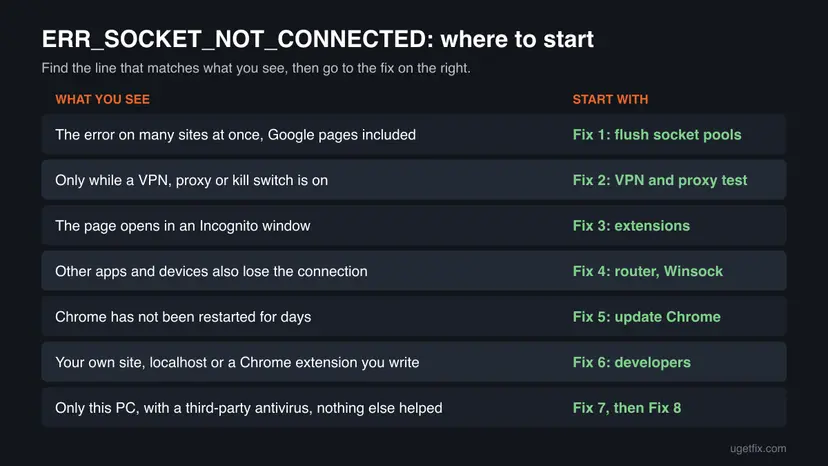
How to fix ERR_SOCKET_NOT_CONNECTED in Chrome
Fix 1 clears Chrome's open connections and solves the most common case in a minute. Fixes 2 to 5 find what keeps dropping connections on your PC or network. Fix 6 is for site owners and developers. Fixes 7 and 8 are single tests for the few cases that remain.
| What you see or have | Start with |
|---|---|
| The error on several sites, Google included, after sleep or a network change. | Fix 1 |
| The error only with a VPN, a VPN kill switch or a proxy on. | Fix 2 |
| The page opens in an Incognito window. | Fix 3 |
| Other apps or devices on the same network also lose the connection. | Fix 4 |
| Chrome has not been updated or restarted for days. | Fix 5 |
Your own website, a page on localhost, or a Chrome extension or app you develop. | Fix 6 |
| Only this PC is affected and it runs a third-party antivirus. | Fix 7 |
| Nothing above helped and the error appears on many sites. | Fix 8 |
Fix 1. Flush Chrome's socket pools and restart the browser
1 minuteNo riskYou see the error on several sites, or it started after the PC woke from sleep or changed networks.
Flush socket pools closes every connection Chrome is holding open, idle or busy, so the next request has to build a fresh one. A connection that died while Chrome still listed it is exactly what this error reports, so throwing all of them away removes it.
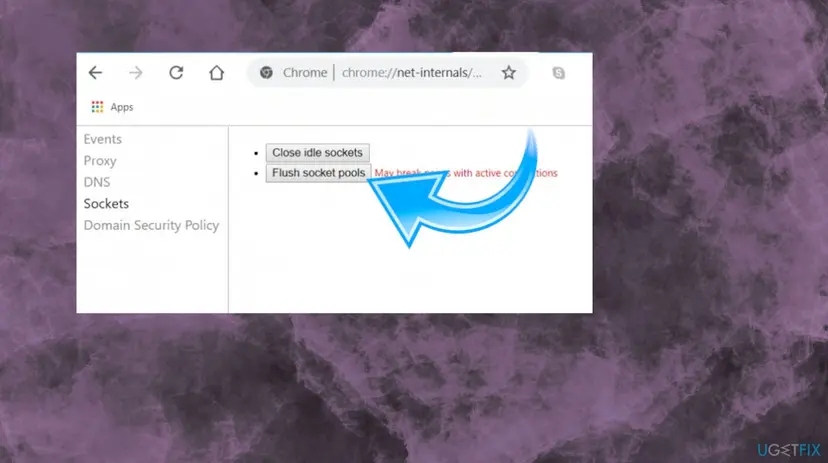
- Type
chrome://net-internals/#socketsin Chrome's address bar and press Enter. - The page opens on Sockets in the menu on the left. If it opens on another entry, select Sockets.
- Select Close idle sockets. This closes only the connections that are not in use.
- Select Flush socket pools. The red note next to it says "May break pages with active connections": a download or a video in another tab may stop and need a reload.
- Close Chrome completely: select More (the three dots) > Exit. Closing the window is not enough if Chrome keeps running in the background.
- Open Chrome from the Start menu and load the site that failed.
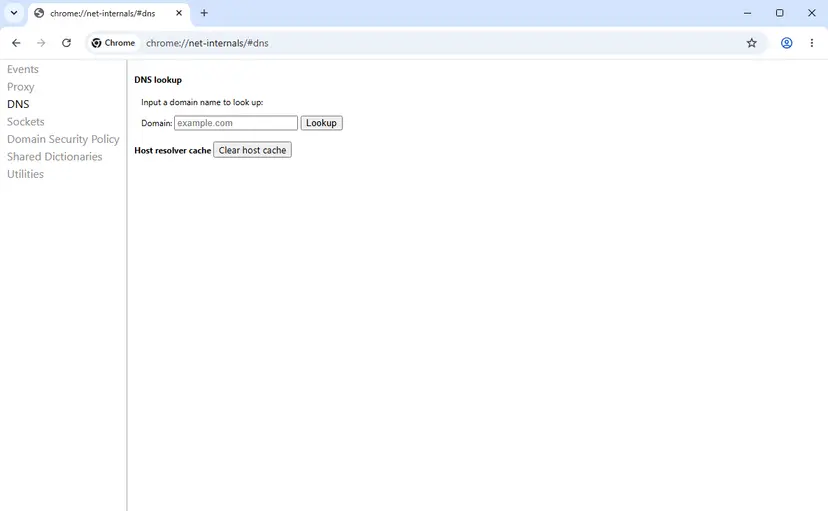
- Clear host cache: on the DNS page of the same tool. It makes Chrome look up site addresses again. It is harmless and worth one click if the error started after a router or VPN change, but on its own it does not close sockets.
- Microsoft Edge, Brave, Opera: these browsers are built on Chromium. Edge normally opens the same tool at
edge://net-internals/#sockets. We found no Microsoft page that documents it, so if the address does not open, quit and reopen Edge instead. - Chromebook: the same address works in Chrome on ChromeOS. The ChromeOS version of the tool has one more entry for network logs.
It worked if: The site opens after the restart, and the error does not come back during normal browsing.
If not: If the error is back within minutes, something keeps cutting connections. Go to Fix 2 if you use a VPN or proxy, otherwise to Fix 3.
Fix 2. Test without the VPN, kill switch or proxy, and on another network
10 minutesLow riskYou use a VPN or proxy, the error appears on one network only, or Fix 1 helped only for a short time.
A VPN client and a proxy sit inside every connection Chrome makes, and if they drop one, Windows reports the socket as not connected. In the public issue tracker of one VPN client, users report this exact code in Chrome only while the VPN is on, and a contributor traced it to the client's firewall blocking IPv6 inside its own tunnel.
- Disconnect your VPN, close its app from the notification area, and open the failing site in Chrome.
- If the site now opens, connect the VPN again and look in its settings for a kill switch, a network lock or a choice of protocol. Change one of them for a single test and turn the kill switch back on afterwards.
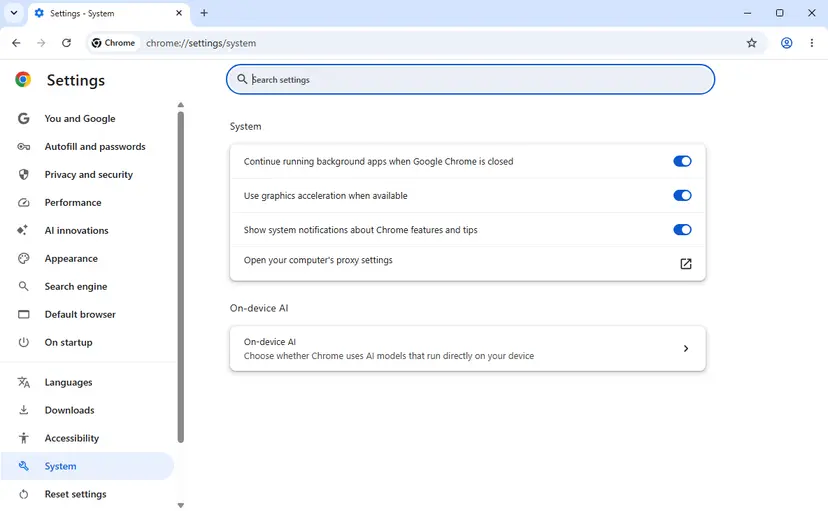
- In Chrome, select More > Settings > System > Open your computer's proxy settings.
- Windows opens Settings > Network & internet > Proxy. Check whether Use setup script or Use a proxy server is turned on.
- On your own PC, if a proxy is on that you did not set up, select Set up next to it, turn it off and select Save. On a work PC, change nothing and tell the administrator.
- Connect the PC to another network, for example your phone's hotspot, and open the site again.
- Note on which path the error appeared and read the table below.

| Result | Meaning | Next |
|---|---|---|
| It fails only with the VPN on. | The VPN client drops some connections. | Update the client, try its other protocol, and report the code to the VPN provider with a NetLog (see "If the error is still there"). |
| It fails only with the kill switch on. | The kill switch blocks traffic that Chrome tries first, often IPv6. | Ask the provider for a fix. Keep the kill switch on if you rely on it, and use Fix 1 when the error appears. |
| A proxy was on that you did not set. | A program changed your proxy settings. | Turn it off as in step 5, then scan the PC: How to scan for malware with Microsoft Defender |
| It fails on one network and works on the hotspot. | That network's router or filter is the cause. | At home: Fix 4. At work or school: tell the administrator. |
| It fails on every path, on this PC only. | Something on the PC is the cause. | Fix 3, Fix 5, then Fix 7. |
On Windows 10 the proxy page is in the same place, under Settings > Network & Internet > Proxy. If Chrome's System page says that an extension controls your proxy settings, go straight to Fix 3. A VPN that also breaks QUIC traffic shows a different code, which our guide to ERR_QUIC_PROTOCOL_ERROR covers.
It worked if: You can name the path on which the error appears: the VPN, its kill switch, a proxy, one network or this PC.
If not: If the error appears on every path and without any VPN or proxy, go to Fix 3.
Fix 3. Open the page in Incognito and turn off extensions that touch your traffic
5 minutesNo riskThe page fails in a normal window, or you use VPN, proxy, blocker or security extensions.
Extensions do not run in Incognito unless you allowed them there, so a page that opens in Incognito points at an extension. VPN and proxy extensions route every request, and a blocker or security add-on can cancel connections. Google's steps for connection errors check Incognito first and extensions second.
- Press Ctrl + Shift + N, or select More > New Incognito window, and open the failing site there.
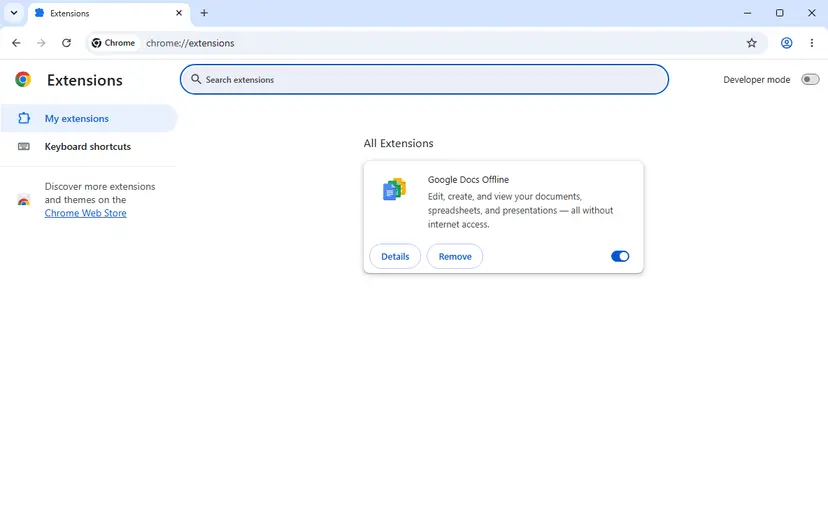
- If it opens, go back to a normal window and select More > Extensions > Manage extensions.
- Turn off every extension with the switch on its card.
- Reload the failing site in the normal window.
- Turn the extensions on again one at a time, and reload the site after each one.
- When the error returns, select Remove on the last extension you turned on and confirm, or just leave it turned off.
Start with extensions that change where your traffic goes or what it may load: VPN and proxy extensions, ad and tracker blockers, parental control add-ons and the browser add-ons of security programs. An extension that you do not remember installing is a reason to run a malware scan as well.
It worked if: With one extension off or removed, the site opens in a normal window and the error stays away.
If not: If the site also fails in Incognito, or with every extension off, extensions are not the cause. Go to Fix 4.
Fix 4. Restart the router and reset the Windows network stack
15 minutesLow riskOther apps or devices also lose the connection, or the error started after you installed or removed a VPN or security program.
WSAENOTCONN is a Winsock error, the Windows layer every program uses to make network connections. VPN and security programs hook into that layer, and a router that drops connections cuts sockets for every app. A router restart and a Winsock and TCP/IP reset put both ends back to a clean state.
- Unplug the power cable of the router, then of the modem, and wait at least 30 seconds.
- Plug the modem back in, wait until its lights stop blinking, then plug in the router.
- Open the failing site again. If it works, stop here.
- If not, right-click Start, select Terminal (Admin) and confirm with Yes.
- Run the three commands below, one after the other.
- Restart the PC and open the site again.
Flush the DNS cache, then reset Winsock and TCP/IP
ipconfig /flushdns
netsh winsock reset
netsh int ip reset
If you entered an IP address or a DNS server by hand, write it down first, because the TCP/IP reset can remove it. A VPN client may need to be repaired or reinstalled after a Winsock reset, so keep its installer at hand.
The full reset, including the Network reset button in Settings and the Windows 10 path: Reset the network and flush DNS Ping tests that show whether the connection itself drops: How to check your internet connection in Windows
It worked if: Pages load normally in Chrome and other apps, and the error does not return after the restart.
If not: If every device on your network keeps losing connections, the router or the internet provider is the cause: call the provider. If only Chrome on this PC fails, go to Fix 5.
Fix 5. Update Chrome and restart it
3 minutesNo riskChrome has not been restarted for days, or the About page offers an update.
Chrome's network code changes with every release, and an update downloaded in the background is applied only after a restart. The one Chrome bug documented for this code, in Chrome 11, was fixed in a later version, so an old build is worth ruling out.
- Select More > Help > About Google Chrome.
- Wait while Chrome checks for updates. The version number is under the heading "Google Chrome".
- Select Relaunch if the button is offered. If the page says Chrome is up to date, you already have the latest version.
- Open the failing site again.
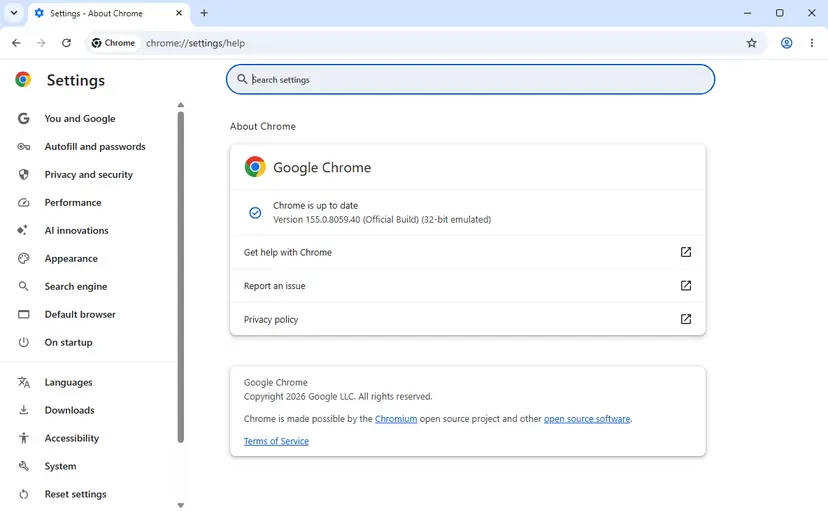
- On 14 October 2026 the stable version for Windows was 155.0.8059.80. Our screenshots were taken on 155.0.8059.40, where the menus are the same.
- Microsoft ended support for Windows 10 on 14 October 2025. Chrome still runs on Windows 10, so the Windows version alone does not cause this error.
- The 2011 bug appeared after a password prompt from the server (HTTP authentication) and went away on reload. If you see that pattern on an intranet site today, Fix 6 explains what the site's administrator can check.
It worked if: The About page says Chrome is up to date, and the site opens after the relaunch.
If not: If Chrome is current and the error stays, the cause is not the browser version. Go to Fix 6 if it is your own site, otherwise to Fix 7.
Fix 6. If it is your website, localhost or your own extension, find what closes the socket
20 minutesNo riskVisitors report the error on your site, you see it on localhost, or your extension gets it from a sockets API.
For a developer the code is a plain report: something tried to use a connection that the system already marked as closed. Chrome hides the common race with keep-alive connections by retrying, so a code that still reaches you means the server, a proxy in front of it, or your own code closed or never opened the socket.
- Open DevTools with F12, select the Network panel and reload. The failed request is marked in red; select it to see its address and timing.
- For
localhost, look at the console of your development server. A server that restarts on file changes, or crashes on one request, closes the socket while Chrome is waiting. - Test the same address outside Chrome, for example
curl -v http://localhost:3000/with your port. If curl also fails, the server is the cause, not Chrome. - Try
http://127.0.0.1:with your port instead oflocalhost. If that works, your server listens on IPv4 only, whilelocalhostmay also point to the IPv6 address::1. - On a public site, compare the time of the error with the server's error log, the load balancer's idle timeout and the CDN's logs.
- Capture a NetLog as described under "If the error is still there" and search it for
SOCKET_NOT_CONNECTED.
Test a local server outside Chrome (replace 3000 with your port)
curl -v http://localhost:3000/
curl -v http://127.0.0.1:3000/- Keep-alive timeouts: if the server or load balancer closes idle connections sooner than browsers expect, most of the damage is hidden by Chrome's retries. A visitor sees the error only when the cut happens while the reply is already on its way.
- Password prompts: the bug fixed in Chrome 12 hit pages behind HTTP basic authentication on Apache. Chromium's fix made Chrome reconnect when the server had closed the keep-alive connection before the login was sent.
- Chrome extensions and apps:
chrome.sockets.udpand the other sockets APIs return this code when you send on a socket that is not ready. The accepted answer to a Stack Overflow question on it says to bind the UDP socket before sending. - Firefox gives no code: if Firefox loads the page and Chrome does not, compare the two in their developer tools. It is still the server or the path that closed the connection.
It worked if: You can name the request, the time and the side that closed the connection, and the error stops after you fix that side.
If not: If your server shows no closed connections at the time of the error, the cut happens on the visitor's path. Ask an affected visitor to work through Fixes 1 to 4.
Fix 7. Pause your security program's web scanning for one test
5 minutesLow riskOnly this PC is affected, it runs a third-party antivirus or internet security suite, and Fixes 1 to 5 did not help.
Google's steps for connection errors name firewall and antivirus software as a cause. A security program that scans web traffic sits inside each connection, and if it closes a connection that Chrome still uses, Windows reports the socket as not connected. One short test shows whether yours does.
- Open your security program and find the settings of its web or HTTPS protection.
- Turn off only the web or HTTPS scanning option if there is one. If there is none, pause the protection for the shortest time offered.
- Reload the failing site in Chrome.
- Turn the option or the protection back on, whatever the result.
Do this for one page load only and open no other sites meanwhile. Never leave protection off as the fix. If the test shows that the scanner causes the error, update the program, and ask its vendor to fix it or to let you exclude the site.
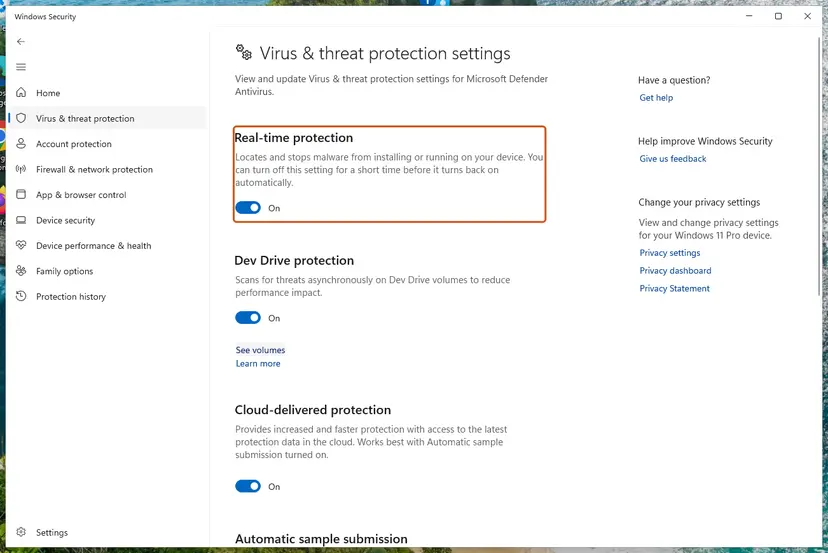
We found no Microsoft page that names Microsoft Defender as a cause of this error, so test it last. The steps for Defender: Turn off Microsoft Defender protection for a moment
It worked if: The site opens while web scanning is off and fails again when you turn it back on, which shows that the scanner is the cause.
If not: Turn the protection back on. The program is not the cause: go to Fix 8.
Fix 8. Reset Chrome settings to their defaults
5 minutesRead the warningThe error appears on many sites, nothing above helped, and you suspect a setting or a program changed Chrome.
A reset turns off every extension, deletes cookies and other temporary site data and returns the startup and search settings to their defaults in one step. It removes changes you may not know about. It is the last step in Google's own list for connection errors.
Cookies are deleted, so you are signed out of most websites, and every extension is turned off until you turn it on again. Bookmarks, history and saved passwords stay, as the dialog itself says. Make sure you know your passwords, or that Chrome sync is on, before you start.
- Type
chrome://settings/resetProfileSettingsin the address bar and press Enter, or select More > Settings > Reset settings > Restore settings to their original defaults. - Read the list in the Reset settings? dialog.
- Select Reset settings.
- Restart Chrome and open the site that failed.
- Turn on only the extensions you need, one at a time, in More > Extensions > Manage extensions.
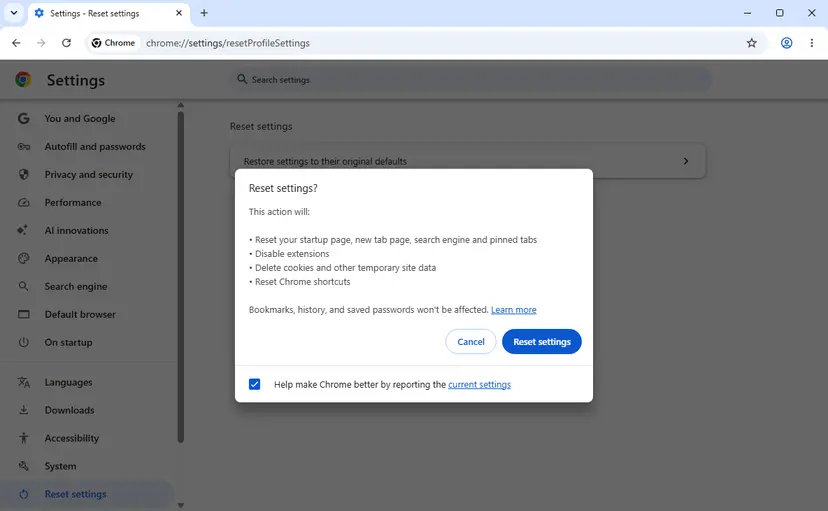
If you only want to clear cookies and the cache without touching settings or extensions, this is the shorter way: Clear the browser cache and cookies Do not delete the Default folder in Chrome's user data, as some old guides suggest. That removes the whole profile, including bookmarks and passwords that are not synced.
It worked if: After the reset and a restart, the site opens and the error does not come back.
If not: If the error survives a reset, Chrome's settings are not the cause. Record a NetLog as described below and send it to whoever runs the network or the site.
If the error is still there: record a NetLog and find the connection
The error page shows only the code. Chrome's NetLog shows which site, which connection and which step failed. It is the file that Chromium's developers ask for in bug reports, and it is what a VPN provider, a network administrator or a site owner needs from you.
- Open a new tab and go to
chrome://net-export/. - Leave the options as they are and select Start Logging to Disk. Choose where to save the file.
- Reproduce the error in a different tab. Keep the
chrome://net-export/tab open, or the logging stops. - Go back and select Stop Logging.
- Open the file in a text editor and search for
SOCKET_NOT_CONNECTED. The lines around it name the host and the kind of connection. We could not test this step on a failing connection.
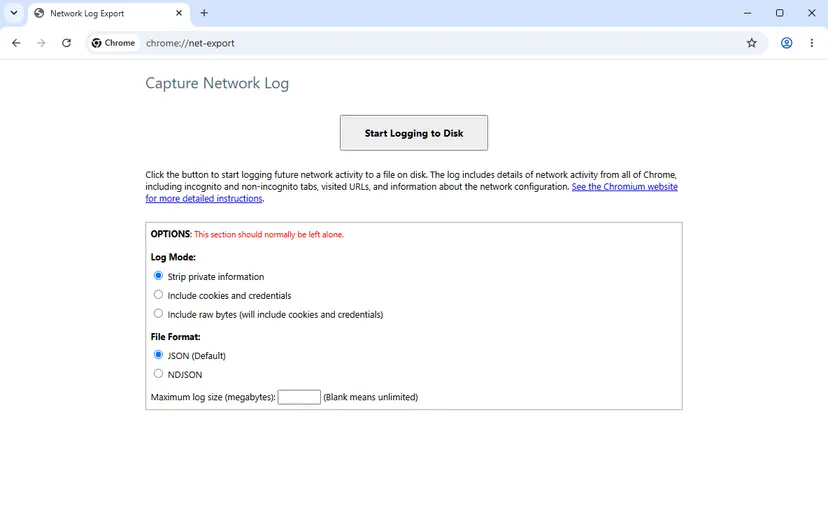
- What to send: the time of the error, the address of the page, the network you were on (home, work, VPN), your Chrome version from About Chrome, and the NetLog file.
- Privacy: the log covers all of Chrome with the addresses you visited. Chromium warns that its bug reports are public by default, so send the file by email to the person who asked for it, not to a public forum.
- When it is the network or the provider: every device on your network loses connections, and Chrome also shows codes such as ERR_CONNECTION_RESET or ERR_NETWORK_CHANGED. No browser setting repairs that: call the provider.
- When it is the hardware: a Wi-Fi adapter that drops out shows in Windows as a connection that comes and goes. Test with a network cable or another adapter. Driver steps: Update, roll back or reinstall a driver
Desktop apps built on Chromium, such as chat clients or game launchers, can print net::ERR_SOCKET_NOT_CONNECTED in their own windows. They have no chrome://net-internals page, so only Fixes 2, 4 and 7 apply to them.
How to keep ERR_SOCKET_NOT_CONNECTED from coming back
- Quit Chrome with More > Exit and reopen it after the PC wakes from a long sleep or after you switch networks or VPN servers.
- Restart Chrome when it offers an update, so fixes to its network code are applied.
- Keep your VPN client up to date, and tell its provider when the error appears only with the VPN on.
- Keep only the extensions you use, above all those that change proxy or VPN settings.
- Do not turn off the Windows firewall or your antivirus to make the error go away. Neither is needed for any fix on this page.
- Do not change your DNS servers for this error. DNS problems have their own codes.
- Do not delete Chrome's user data folders. A settings reset does the same job without losing bookmarks and passwords.
- Do not install "connection repair" programs or extensions that promise to fix socket errors.
If the error comes back every day on the same VPN or network, Fix 1 will keep working as a quick repair, but it does not remove the cause. The NetLog from the section above is what makes a provider or administrator take the report seriously.
Frequently asked questions
What does ERR_SOCKET_NOT_CONNECTED mean?
It means that Chrome tried to send or receive data on a network connection that the operating system already considers closed. Chromium lists it as network error -15 with the description "The socket is not connected". On Windows it comes from the Winsock error WSAENOTCONN (10057), on macOS and Linux from ENOTCONN. In plain words, the line between your browser and the website was cut before Chrome finished using it. The site is usually fine. The cut most often comes from a stale connection in Chrome, a VPN or proxy, an extension or a security filter.
What does "socket not connected" mean in general?
A socket is the endpoint of a network connection inside a program. "Not connected" means that the program asked to send or read data, and the system refused because that endpoint has no open connection behind it. Microsoft's documentation says the same about WSAENOTCONN: a request to send or receive data was disallowed because the socket is not connected. It is not a problem with your internet connection as such. Your PC can be online while one connection inside one program is already gone. That is why other apps often keep working while Chrome shows the error.
What is Error 15 in Chrome?
Error 15 is the same error in the wording of old Chrome versions. Chrome around version 11 printed "Error 15 (net::ERR_SOCKET_NOT_CONNECTED): Unknown error" on its error page, as a Chromium bug report from 2011 shows. The number is the code's value without its minus sign: in Chromium's list the error is -15. Today's Chrome shows only the name ERR_SOCKET_NOT_CONNECTED under the heading This site can't be reached. The fixes on this page apply to both spellings.
Does changing the DNS server to 8.8.8.8 fix ERR_SOCKET_NOT_CONNECTED?
Usually not, because DNS is not involved in this error. DNS turns a site's name into an IP address before Chrome opens any connection. If DNS fails, Chrome reports a DNS error such as ERR_NAME_NOT_RESOLVED or DNS_PROBE_FINISHED_NXDOMAIN. ERR_SOCKET_NOT_CONNECTED comes later, when a connection already exists or was being used. Changing DNS can seem to help because you reconnect to the network while doing it, which closes old connections. Flushing Chrome's socket pools (Fix 1) does that part directly and leaves your DNS settings alone.
Is it safe to click Flush socket pools?
Yes. It closes every network connection Chrome holds open at that moment and nothing else. No settings, passwords, cookies or history are touched. The only side effect is the one the page itself warns about with "May break pages with active connections": a download, a video or a chat in another tab may stop and need a reload. Chrome builds new connections on the next request. The button Close idle sockets next to it is even gentler, because it closes only connections that are not in use.
How do I fix ERR_SOCKET_NOT_CONNECTED in Microsoft Edge?
The error means the same in Edge, because Edge is built on Chromium and shares its network code and error list. Normally Edge opens the same tool at edge://net-internals/#sockets, where you can select Flush socket pools and then quit and reopen Edge. We found no Microsoft page that documents this address, so if it does not open, a full restart of Edge closes its connections too. The rest of this page applies unchanged: test without the VPN and proxy, check extensions in an InPrivate window, and reset the Windows network stack if other apps are affected.
How do I fix ERR_SOCKET_NOT_CONNECTED on a Chromebook?
Use the same first step as on Windows. Type chrome://net-internals/#sockets in the address bar, select Flush socket pools, then close Chrome and open it again from the Launcher. Chromium's source code shows that the ChromeOS version of this tool has the same Sockets entry, plus one more entry for network logs. If the error comes back, turn off any VPN app or VPN extension, try another Wi-Fi network, and check extensions in a Guest or Incognito window. The Windows steps for the router and Winsock reset do not apply to ChromeOS: restart the Chromebook instead.
Why do I get ERR_SOCKET_NOT_CONNECTED on localhost?
Because the local server closed the connection, or was not there when Chrome used it. Development servers that restart on every file change, or crash on one request, are the usual reason. Look at the server's console at the moment of the error, then test the address with curl -v outside Chrome. If http://127.0.0.1: with your port works while localhost fails, the server listens on IPv4 only. We found no Chromium document that ties this code to localhost specifically, so treat it as a server problem first. Fix 6 has the full checklist.
Why does the error happen only with my VPN on?
Because the VPN client sits inside every connection Chrome makes, and it closes some of them. In the public issue tracker of one VPN client, many users report this exact code in Chrome only while the VPN is connected, often on the first visit to a new site. A contributor traced it to the client's own firewall blocking IPv6 traffic inside the tunnel, and users report that turning off the kill switch made it stop. Keep the kill switch on if you rely on it, update the client, try its other protocols and send the provider a NetLog.
Can I fix ERR_SOCKET_NOT_CONNECTED on Android or iPhone?
The code can appear in Chrome on phones too, but we could not confirm that the Sockets page with Flush socket pools works in Chrome for Android or iPhone, so we do not give those steps here. On a phone, close Chrome completely from the app switcher and open it again, which closes its connections. Then switch between Wi-Fi and mobile data to see whether one network is the cause, and turn off any VPN app for one test. If only one Wi-Fi network fails, restart that router as in Fix 4.
Sources
Did this fix work?
One click, no account. It tells the next reader which guides are worth their time.
Questions and experiences: fix ERR_SOCKET_NOT_CONNECTED error in Google Chrome
Still broken, or found a fix we did not cover? Ask here: members and our editors answer. Reading is open; writing needs a free account.
…