
How to fix ERR_QUIC_PROTOCOL_ERROR on Google Chrome?

Prefer to fix it yourself? The manual steps follow.
- 8methods
- 2 to 30 minutes
- Easy
Applies to Google Chrome and other Chromium browsers (Microsoft Edge, Brave, Opera) on Windows 11 and Windows 10; the flag also exists on macOS, Linux, ChromeOS and Android
8 methods in this guide
- What the error means
- Why it appears
- PC, network or website
- The fixes
- 1. Turn off QUIC in flags
- 2. VPN, proxy, other network
- 3. Turn off extensions
- 4. Update Chrome
- 5. Restart router, reset network
- 6. Admins: policy and firewall
- 7. Site owners: HTTP/3 off
- 8. Pause web scanning once
- Still broken: read the log
- Keep it from coming back
- FAQ
Hello, I feel frustrated over here! I've started receiving an error when browsing with Google Chrome. The error says Error code: ERR_QUIC_PROTOCOL_ERROR. I can't browse on any Google-connected pages. It's interesting that when I browse using Incognito Mode, the error does not occur. Could you please help me fix this error?
ERR_QUIC_PROTOCOL_ERROR means that a connection Chrome opened over QUIC, the UDP transport of HTTP/3, broke after it had started. The usual reason is something between you and the site that mishandles UDP port 443: a firewall, web filter, VPN, security program or extension. Set Experimental QUIC protocol to Disabled at chrome://flags/#enable-quic first, because that one test shows whether QUIC is the cause.
Open chrome://flags/#enable-quic, set Experimental QUIC protocol to Disabled and select Relaunch (Fix 1). Chrome then loads the same sites with HTTP/2 over TCP, so the error should stop. That is a test and a workaround, not the cure. Next, find what breaks QUIC: try without the VPN or on another network (Fix 2) and in an Incognito window (Fix 3). On a work PC, give Fix 6 to the administrator. Site owners start with Fix 7.
| Error | ERR_QUIC_PROTOCOL_ERROR, net error -356. Chromium's source code describes it in one line: "There is a QUIC protocol error." |
|---|---|
| Where it appears | On Chrome's error page This site can't be reached, under the sentence "The webpage at [address] might be temporarily down or it may have moved permanently to a new web address." In the DevTools console it reads net::ERR_QUIC_PROTOCOL_ERROR. |
| Main cause | A QUIC (HTTP/3) connection on UDP port 443 that started and then failed. Most often a firewall, web filter, VPN, security program or extension on the path interferes with it. |
| Fastest fix | Set Experimental QUIC protocol to Disabled at chrome://flags/#enable-quic and select Relaunch (Fix 1). |
| Also written as | net::ERR_QUIC_PROTOCOL_ERROR, "err quic protocol error", "QUIC protocol error", and with a reason added: ERR_QUIC_PROTOCOL_ERROR.QUIC_TOO_MANY_RTOS, ERR_QUIC_PROTOCOL_ERROR.QUIC_NETWORK_IDLE_TIMEOUT. |
| Affects | Chrome on Windows 11, Windows 10, macOS, Linux, ChromeOS and Android. Microsoft Edge has the same flag and the same policy. Checked against Chrome 156, the stable version in October 2026. |
| Google's status | Not one bug with a patch date. Chromium keeps the QUIC flag for good, with the note that network administrators use it "to debug network issues related to QUIC". Cloudflare documents one known Chrome issue (crbug.com/41161335) that ends in this error. |
| For administrators | Policy QuicAllowed ("Allow QUIC protocol"), supported since Chrome 43, registry key Software\Policies\Google\Chrome. Edge: the same name under SOFTWARE\Policies\Microsoft\Edge. |
| Time to fix | 2 minutes for the test in Fix 1. Finding the device or program that breaks QUIC takes 10 to 30 minutes. |
| Where the cause is logged | chrome://net-export/ (a NetLog file) and the Protocol column of the DevTools Network panel, where h3 marks requests sent over HTTP/3. |
Facts checked on 13 October 2026. Steps written for Chrome 155 and 156 on Windows 11 (25H2 and 26H2) and Windows 10 22H2.
What ERR_QUIC_PROTOCOL_ERROR means
QUIC is the transport under HTTP/3. It does the job that TCP and TLS do for older HTTP versions, but it travels as UDP. A site tells the browser that it speaks HTTP/3 with a response header such as Alt-Svc: h3=":443", and Chrome may then open a QUIC connection to that UDP port. The standard allows any UDP port. In practice it is 443, which is the default port Fortinet's application database lists for QUIC.
The error is Chrome's way of saying that such a connection failed at the QUIC level. Chromium's list of network errors gives it the number -356 and describes it in one line as "There is a QUIC protocol error". On the screen you get the general page This site can't be reached with the code at the bottom, so the page text itself tells you nothing about the cause.
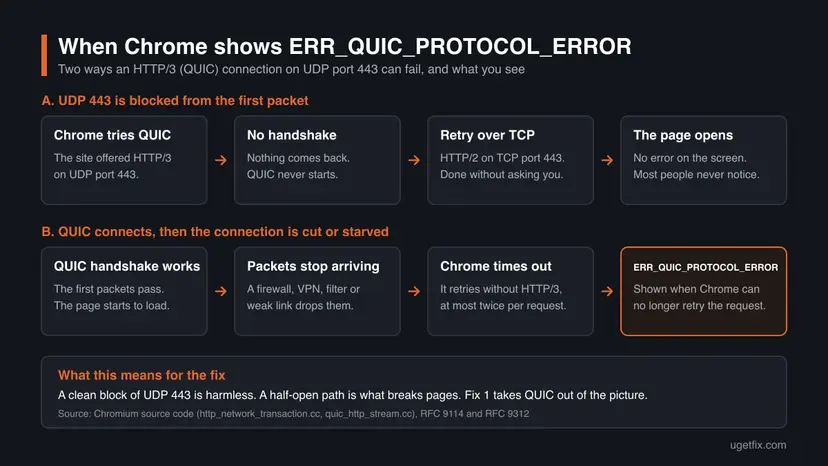
Many pages say that a firewall blocking UDP 443 is the cause. Chromium's code says otherwise. While the QUIC handshake is not finished, a failure is recorded as ERR_QUIC_HANDSHAKE_FAILED and the request is sent again over TCP without a message. RFC 9114 asks for exactly that fallback. ERR_QUIC_PROTOCOL_ERROR is used once the handshake has completed, so it describes a connection that worked and then broke.
- In the console:
net::ERR_QUIC_PROTOCOL_ERROR, often after "Failed to load resource". - With a reason: people search for the code followed by a dot and a QUIC reason name, such as
QUIC_TOO_MANY_RTOSorQUIC_NETWORK_IDLE_TIMEOUT. The reasons are decoded further down this page. - Typed by hand: "err quic protocol error", "quic protocol error", "error quic protocol error", and "QUICK protocol", which is a misspelling of QUIC.
- In other browsers: Edge, Brave and Opera are built on Chromium and show the same code.
Why Chrome reports a QUIC protocol error
No vendor publishes how often each cause occurs, so the order below follows what the sources document. Most of them describe a device or a program that stands between Chrome and the site. Less often the cause is Chrome's own QUIC code or a weak connection. Rarely, for a visitor, it is the website.
| Cause | How often | How to tell | Fix |
|---|---|---|---|
| A firewall, web filter or secure web gateway lets the first QUIC packets pass and then drops or limits the rest. | Most often, above all on work, school and hotel networks | Many sites that use HTTP/3 fail. The same PC works on another network. | Fix 1, Fix 2, Fix 6 |
| A VPN or proxy that does not carry UDP 443 well. | Often | The error appears only while the VPN or proxy is on. | Fix 2 |
| A Chrome extension that routes or filters traffic. | Sometimes | The site opens in an Incognito window. | Fix 3 |
| A Chrome side QUIC problem with some servers. Cloudflare documents one as a known Chrome issue. | Sometimes | Large downloads stall, or a page with many requests hangs for one to three minutes and then fails. Firefox loads the same page. | Fix 1, Fix 4 |
| An unstable connection that loses packets. | Sometimes | The code ends with QUIC_NETWORK_IDLE_TIMEOUT or QUIC_TOO_MANY_RTOS, and other sites are slow too. | Fix 5 |
| A security program that scans QUIC traffic. | Rarely | Only this PC is affected and it runs a third-party antivirus with web scanning. | Fix 8 |
| HTTP/3 set up wrongly on the server or its CDN. | Rarely for visitors, first suspect for site owners | One site fails for many visitors on different networks. | Fix 7 |
The first row is the one the internet standards warn about. RFC 9312, the guide for network operators, calls it "particularly unwise" to admit a handful of UDP packets and decide later to filter the rest. It says sudden drops then "result in slow and costly timeouts", and that blocking a random share of QUIC packets lets handshakes complete, "preventing TCP fallback".
The reader above cannot open Google pages. That fits: Fortinet's knowledge base notes that Google and YouTube have offered QUIC since 2015. Sites that use HTTP/3 are the only ones where a QUIC fault can show, so Google, YouTube, Gmail and Facebook fail while a site that offers only HTTP/2 keeps working.
Is it your PC, your network or the website? A two-minute test
Before you change anything, find out which side the fault is on. Each test below takes less than a minute and tells you where to go next. Cloudflare uses the same logic in its own troubleshooting: if the problem does not show in Firefox or Safari and goes away with QUIC off, the browser's QUIC path is the place to look.
| Test | Result | What it means |
|---|---|---|
| Open the page in an Incognito window (Ctrl + Shift + N). | It opens. | An extension is involved. Go to Fix 3. |
| Open the page on your phone with Wi-Fi off, on mobile data. | It opens there, but not on the PC. | The fault is on your PC or your network. Go to Fix 1, then Fix 2. |
| Open the page on another PC on the same network. | It fails there too. | The network is the cause: router, firewall or filter. Go to Fix 5 at home, Fix 6 at work. |
| Open several other sites in Chrome. | Only one site fails, on every device and network. | The website is the cause. Tell its owner, who needs Fix 7. |
How to fix ERR_QUIC_PROTOCOL_ERROR in Chrome
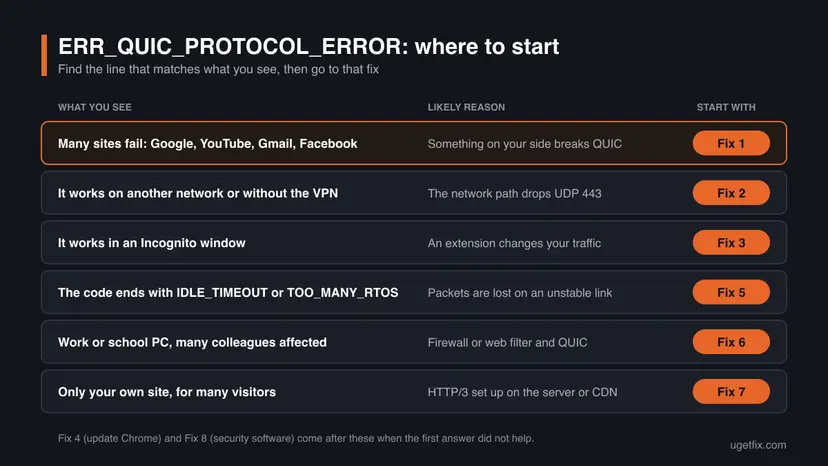
Fix 1 is the test that proves QUIC is the problem and gets you browsing again. Fixes 2 to 5 find and remove the cause on your PC or network. Fix 6 is for administrators, Fix 7 is for site owners, and Fix 8 is a single test for the few cases that remain.
| What you see or have | Start with |
|---|---|
| The error on many sites, such as Google, YouTube, Gmail or Facebook. | Fix 1 |
| The error only with a VPN or proxy on, or only on one network. | Fix 2 |
| The page opens in an Incognito window. | Fix 3 |
| Stalled downloads, or Chrome has not been restarted for a long time. | Fix 4 |
| A code that ends with QUIC_NETWORK_IDLE_TIMEOUT or QUIC_TOO_MANY_RTOS. | Fix 5 |
| A work or school PC, or you manage the firewall (FortiGate and similar). | Fix 6 |
| Visitors of your own website report the error. | Fix 7 |
| Only this PC is affected and it runs a third-party antivirus. | Fix 8 |
Fix 1. Turn off QUIC in Chrome's flags to confirm the cause
2 minutesNo riskYou see the error on several sites, or you need the page to open right now.
With the flag set to Disabled, Chrome stops using QUIC and loads the same sites with HTTP/2 over TCP. If the error stops, the fault is in how QUIC travels between your PC and the site, not in the site's content. Chromium keeps this flag permanently for this kind of test.
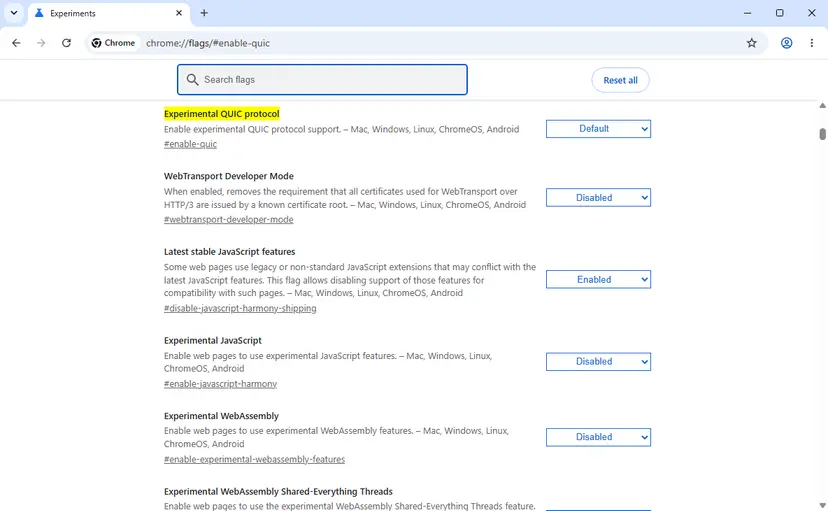
- Type
chrome://flags/#enable-quicin Chrome's address bar and press Enter. - The Experiments page opens with Experimental QUIC protocol as the first entry, marked in yellow. If you do not see it, type
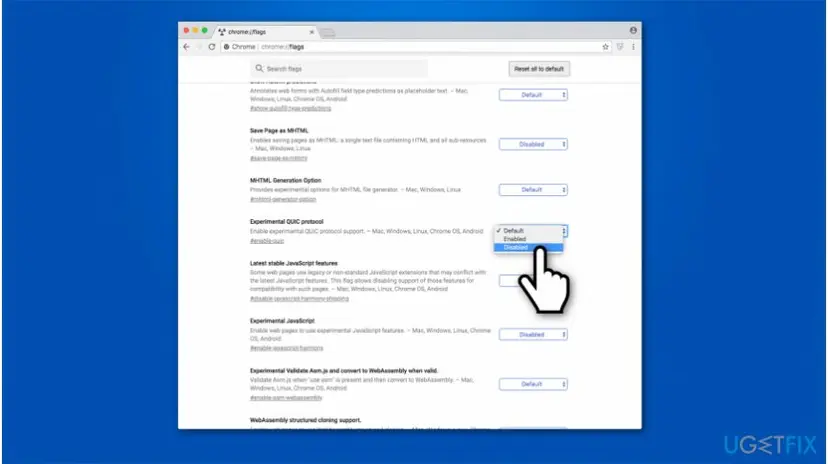
QUICin the Search flags box at the top. - Open the menu to the right of the entry. It shows Default. Select Disabled.
- Select Relaunch at the bottom of the window. Chrome closes and opens again with your tabs.
- Open the site that failed.
- Microsoft Edge: the address is
edge://flags/#enable-quicand the entry is also called Experimental QUIC protocol. Microsoft's own documentation gives these steps. - Android: The entry itself names its systems as Mac, Windows, Linux, ChromeOS and Android, so the same address works in Chrome on an Android phone.
- To undo: open the same address, select Default and then Relaunch.
With QUIC off, pages still load over HTTPS. What you give up is HTTP/3, which Cloudflare describes as faster mainly on connections that lose packets. You can leave the flag on Disabled for as long as you need. The cause is still there, though, and it may affect other programs and other people on the same network.
It worked if: The page that failed opens, and the error does not come back while the menu shows Disabled.
If not: If the same code still appears, check that Chrome really restarted and that the flag still shows Disabled. If you now get a different error, QUIC was not the only problem: go to Fix 5.
Fix 2. Test without the VPN or proxy, and on another network
10 minutesNo riskFix 1 helped and you want to find the cause, or the error appears only on one network or only with a VPN.
QUIC travels as UDP, and many VPNs, proxies and filtered networks treat UDP differently from the TCP that older HTTP uses. Microsoft, for example, states that its Global Secure Access client cannot tunnel traffic to UDP ports 80 and 443 for Internet Access. Comparing two paths shows which one breaks QUIC.
- Set the flag from Fix 1 back to Default and select Relaunch, so that Chrome uses QUIC again during the test.
- Disconnect your VPN, close its app and open the failing site.
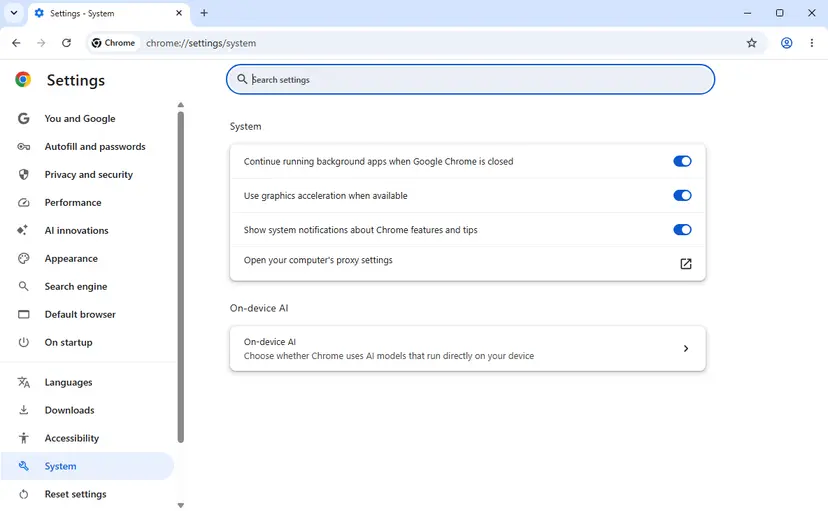
- In Chrome, select More (the three dots) > Settings > System > Open your computer's proxy settings.
- Windows opens Network & internet > Proxy. Check whether Use setup script or Use a proxy server is turned on.
- On your own PC, if a proxy is on that you did not set up, select Set up next to it, turn it off and select Save. On a work PC, change nothing and go to Fix 6.
- Connect the PC to another network, for example the hotspot of your phone, and open the site again.
- Note on which path the error appeared, then read the table below.

| Result | Meaning | Next |
|---|---|---|
| It fails only with the VPN on. | The VPN does not carry QUIC well. | Keep QUIC off (Fix 1) while you use the VPN, and ask the VPN provider whether it supports UDP 443. |
| It fails on one network and works on the hotspot. | That network's router, firewall or filter is the cause. | At home: Fix 5. At work or school: Fix 6. |
| It fails on every network, on this PC only. | Something on the PC is the cause. | Fix 3, Fix 4, then Fix 8. |
| One site fails on every device and network. | The website is the cause. | Tell the site's owner. Fix 7 is written for them. |
On Windows 10 the proxy page is in the same place, under Settings > Network & Internet > Proxy. Under System, Chrome may show a line that it is using proxy settings from an extension. In that case go straight to Fix 3.
It worked if: You can name the path on which the error appears: the VPN, one network, this PC or one website.
If not: If the error appears at random on every path, go on to Fix 3 and Fix 4, then record a log as described under "If the error is still there".
Fix 3. Turn off extensions that route or filter your traffic
5 minutesNo riskThe site opens in an Incognito window but not in a normal one, as in the reader's question above.
An extension works in Incognito only after you turn on Allow in incognito for it, so a page that opens there points at an extension. Google's own steps for connection errors follow the same order: Incognito first, then extensions. VPN, proxy and blocker extensions sit in the path of every request.
- Select More (the three dots) > New Incognito window, or press Ctrl + Shift + N, and open the failing site there.
- If it opens, go back to a normal window and select More > Extensions > Manage extensions.
- Turn off every extension with its switch.
- Reload the failing site in the normal window.
- Turn the extensions on again one at a time, and reload the site after each one, until the error returns.
- On the extension that brings the error back, select Remove and confirm with Remove. You can also just leave it turned off.
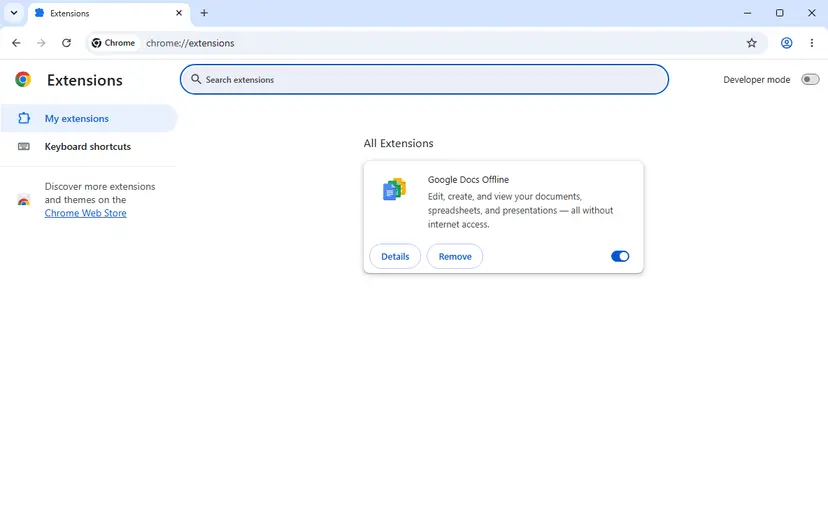
Start with extensions that change where your traffic goes: VPN and proxy extensions, ad and tracker blockers, and the browser add-ons of security programs. Google notes that extensions which change low-level network access through VPN or proxy settings are not limited by the site permissions you give them.
It worked if: With one extension off or removed, the site opens in a normal window while the QUIC flag is on Default.
If not: If the site fails in Incognito as well, or with all extensions off, extensions are not the cause. Go to Fix 4.
Fix 4. Update Chrome and restart it
3 minutesNo riskChrome has not been restarted for days, or the error comes with stalled downloads on sites that use HTTP/3.
Chrome's QUIC code is part of the browser and changes with its releases. Cloudflare's documentation names a known Chrome issue in which an HTTP/3 connection stops making progress and Chrome reports this error. An update that was downloaded in the background is applied only when Chrome restarts.
- In Chrome, select More (the three dots) > Help > About Google Chrome.
- Wait while Chrome checks for updates. The page is titled About Chrome, and the version number is under the heading "Google Chrome".
- Select Relaunch if the button is offered. If the page says Chrome is up to date instead, you are on the latest version.
- Open the failing site again with the QUIC flag on Default.
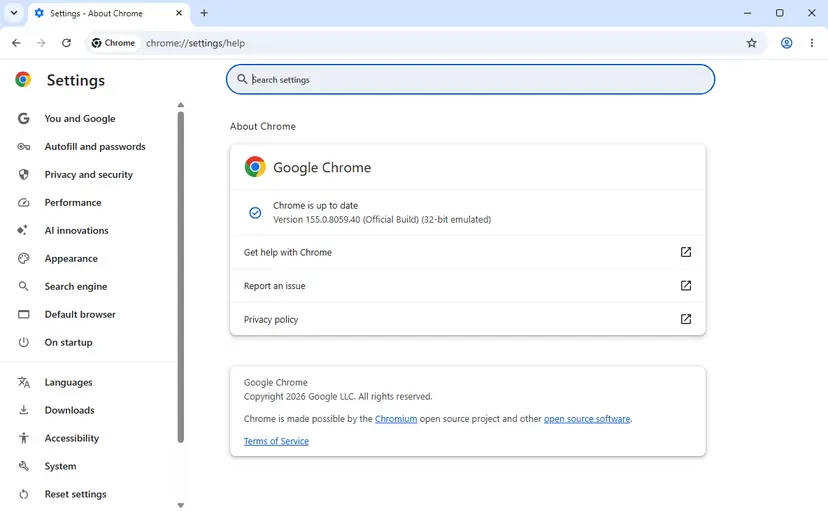
- The stable version for Windows was Chrome 156 when we checked, in October 2026. Our screenshots were taken on version 155.0.8059.40, where the flag and the menus are the same.
- Google lists Windows 10 and up for PCs with Intel processors and Windows 11 and up for ARM processors. Microsoft ended support for Windows 10 on 14 October 2025, but Chrome still runs on it.
- We could not confirm in which Chrome version, if any, the issue that Cloudflare names (crbug.com/41161335) was fixed. If the error stays after the update, keep QUIC off as in Fix 1.
It worked if: The page About Chrome says Chrome is up to date, and the site opens.
If not: If Chrome is current and the error stays, the cause is on the network or on the site's side. Go to Fix 5, or to Fix 6 on a work PC.
Fix 5. Restart the router and reset the Windows network settings
15 minutesLow riskThe code ends with QUIC_NETWORK_IDLE_TIMEOUT or QUIC_TOO_MANY_RTOS, other sites are slow too, or the error appears on your home network only.
Both endings are timeouts: Chrome sent packets and no answer came back in time. That points at packets lost between the PC and the internet, not at Chrome. Restarting the modem and router and resetting the Windows network stack are the standard steps for such a connection.
- Unplug the power cable of the router, then of the modem, and wait at least 30 seconds.
- Plug the modem back in, wait until its lights stop blinking, then plug in the router.
- Open the failing site again. If it works, stop here.
- If not, right-click Start, select Terminal (Admin) and select Yes.
- Run the three commands below, one after the other.
- Restart the PC and open the site again.
Flush the DNS cache, then reset Winsock and TCP/IP
ipconfig /flushdns
netsh winsock reset
netsh int ip reset
If you entered an IP address or a DNS server by hand, write it down first. The TCP/IP reset can remove it and you may need to enter it again.
More checks for a connection that drops, with the ping tests: How to check your internet connection in Windows The full reset, including the Network reset button in Settings and the Windows 10 path: Reset the network and flush DNS
It worked if: Pages load at normal speed and the error does not return with the QUIC flag on Default.
If not: If every device on your network has trouble, the router or the internet provider is the cause: call the provider. If only Chrome on this PC fails, go to Fix 8.
Fix 6. On managed PCs, turn QUIC off by policy or block it cleanly at the firewall
15 minutesLow riskYou manage the PCs or the firewall, or you use a work or school PC and need to tell the administrator what to change.
A firewall that inspects HTTPS often cannot inspect QUIC. Fortinet's documentation tells administrators to block UDP 443 so that browsers fall back to TCP. That fallback is clean only when the block is complete or when the browser never tries QUIC, and the QuicAllowed policy does the second for every managed browser.
Steps 3 and 4 write to the registry. A wrong key there can change how Chrome or Windows behaves. Export the key before you change it, and run the commands exactly as written. How to make the backup: Back up the registry before editing it
- In Chrome, open
chrome://policyand look for QuicAllowed. If it is listed as false, QUIC is already off on this PC and is not your cause. - With Chrome's policy templates installed, open Computer Configuration > Administrative Templates > Google > Google Chrome in the Group Policy editor. Open Allow QUIC protocol, select Disabled and then OK.
- Without the templates, open Terminal (Admin) and run the first command below. It creates the value
QuicAllowedwith the data 0. - For Microsoft Edge, run the second command. In Group Policy the setting is Allow QUIC protocol under Administrative Templates > Microsoft Edge.
- Close and reopen the browser. This policy is not refreshed while the browser runs.
- On the firewall, choose one clear rule for UDP 443: allow it fully, or deny it fully. Do not let QUIC sessions start and then inspect, limit or drop them.
Turn QUIC off by policy in Chrome and in Edge (administrator)
reg add "HKLM\Software\Policies\Google\Chrome" /v QuicAllowed /t REG_DWORD /d 0 /f
reg add "HKLM\SOFTWARE\Policies\Microsoft\Edge" /v QuicAllowed /t REG_DWORD /d 0 /f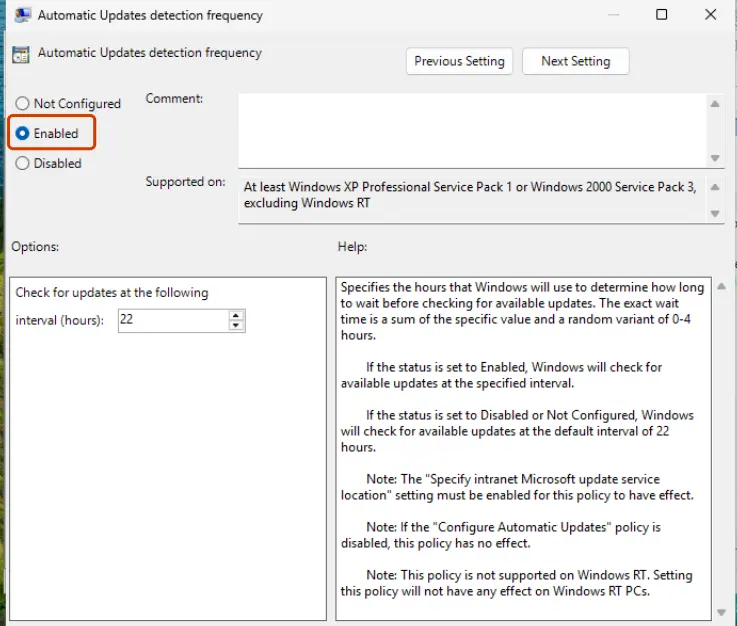
- FortiGate: Fortinet's knowledge base lists three ways on the firewall. Deny a custom service for UDP ports 80 and 443 in a firewall policy. Add QUIC with the action Block under Application and Filter Overrides in the Application Control profile. From FortiOS 7.4, use
set quic blockin a custom SSL inspection profile. - Since FortiOS 7.2: Fortinet removed the old allow or block switch for QUIC from Application Control, so a rule that worked on an older version may no longer apply after an upgrade.
- To undo the policy: set Allow QUIC protocol to Not Configured, or delete the value with
reg delete "HKLM\Software\Policies\Google\Chrome" /v QuicAllowed /f. - Opening the editor: Open the Local Group Policy Editor
It worked if: The page chrome://policy lists QuicAllowed as false, and the error no longer appears on the managed PCs.
If not: If the policy is applied and users still see the code, the browser is not managed by this policy or another app is affected. Record a NetLog on one PC as described under "If the error is still there".
Fix 7. If it is your website, test it with HTTP/3 turned off
20 minutesLow riskVisitors report the error on your site, on different networks and devices.
Cloudflare's troubleshooting page says that this error does "not necessarily indicate a protocol-level issue". Its method is to repeat the request over an older HTTP version first and to look at HTTP/3 only if the problem is gone there. Turning HTTP/3 off for a test makes that comparison possible.
- Open your site in Chrome with DevTools open on the Network panel. Right-click the header of the requests table and turn on Protocol. Requests marked
h3use HTTP/3. - On Cloudflare, go to Speed > Settings > Protocol Optimization and switch HTTP/3 off for the zone.
- Test the same request again. It should now show
h2in the Protocol column. - If the error is gone, capture a NetLog with HTTP/3 on (see below) and keep HTTP/3 off until you know the reason.
- For one hostname only, Cloudflare suggests a rule instead: Rules > Overview > Create rule > Response Header Transform Rule, match the hostname, and under Modify response header select Remove for
Alt-Svc. - On your own server, check that the UDP port named in your
Alt-Svcheader is open in the server's firewall and reaches the web server.
Cloudflare's example of the matching expression for the rule
(http.host eq "example.com")- Known Chrome issue: Cloudflare lists these signs: large downloads stall, pages with many requests at once hang for one to three minutes and then fail, and Firefox and Safari are not affected. It states that its own QUIC implementation is not the cause.
- Caching: after you change
Alt-Svc, browsers may keep the old advertisement for up to 24 hours, according to Cloudflare. Proxied hostnames can also advertise HTTP/3 through HTTPS DNS records, so turning HTTP/3 off for the zone is the more reliable test. - nginx: QUIC and HTTP/3 are supported from version 1.25.0 with the
quicparameter of thelistendirective. The nginx documentation advises a test with a console client first, and a debug log, in which every related line carries the prefix "quic". - The port: RFC 9114 lets a server use any UDP port for HTTP/3, and the
Alt-Svcheader always names the port. A header that names a port your firewall does not pass sends every Chrome visitor to a dead end.
It worked if: With HTTP/3 off, the requests show h2, and visitors no longer report the error.
If not: If the error is reported with HTTP/3 off as well, it does not come from your site. Affected visitors should work through Fixes 1 to 5.
Fix 8. Pause your security program's web scanning for one test
5 minutesLow riskOnly this PC is affected, it runs a third-party antivirus with web or HTTPS scanning, and the fixes above did not help.
Some security programs scan QUIC traffic themselves. AVG's Web Shield, for example, has a setting named Enable QUIC/HTTP3 scanning. A scanner that sits inside the connection can break it, and one short test shows whether yours does.
- Open your security program and find the settings of its web protection. In AVG it is called Web Shield.
- If there is an option for QUIC or HTTP/3 scanning, turn off only that option. If there is none, pause the web protection for the shortest time offered.
- Reload the failing site in Chrome, with the QUIC flag on Default.
- Turn the option or the protection back on, whatever the result.
Do this for one page load only and open no other sites meanwhile. Never leave protection off as the fix. If the test shows that the scanner breaks QUIC, the safer permanent choice is the other way round: keep the scanner on and keep QUIC off in Chrome (Fix 1).
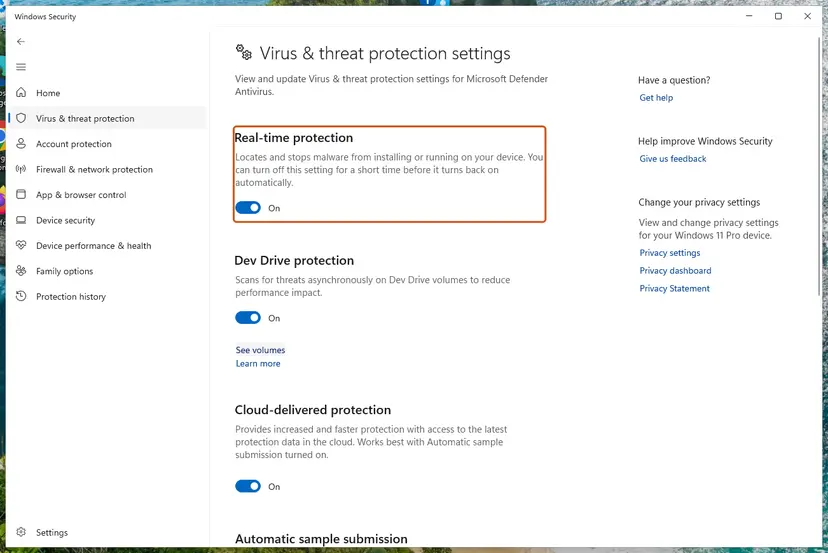
We found no Microsoft page that names Microsoft Defender as a cause of this error, so test it last. The steps for Defender: Turn off Microsoft Defender protection for a moment
It worked if: The site opens while the scanning option is off and fails again when you turn it on, which shows the scanner is the cause.
If not: Turn the protection back on. The cause is elsewhere: record a NetLog as described below and send it to whoever runs the network or the site.
If the error is still there: record a NetLog and read the QUIC reason
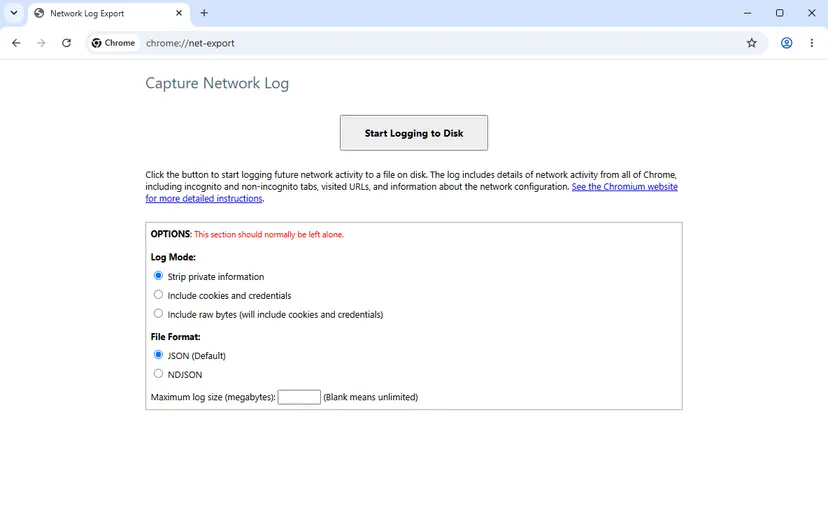
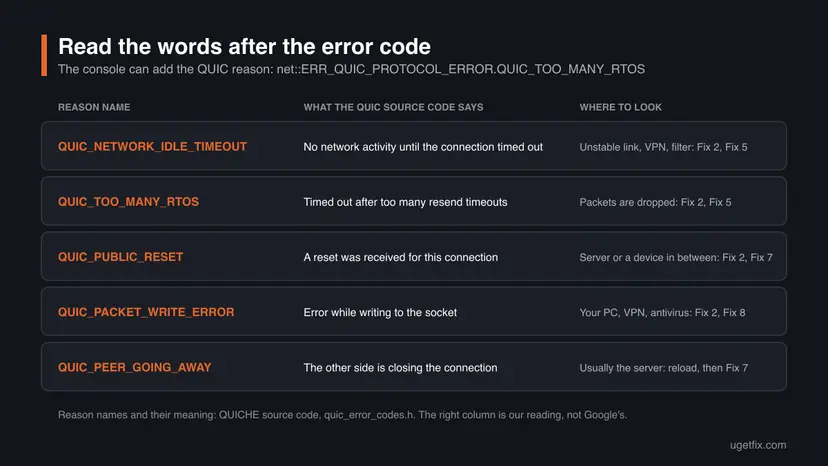
The error page shows only the general code. Chrome knows more: the reason why the QUIC connection was closed. You can see it in two places. The DevTools console may print it after the code, separated by a dot. A NetLog file holds the whole story of the connection, and it is what Chromium's developers and Cloudflare's documentation ask for.
- Open a new tab and go to
chrome://net-export/. - Select Start Logging to Disk.
- Reproduce the error in a different tab. Keep the
chrome://net-export/tab open, or the logging stops. - Go back and select Stop Logging.
- Open the file in a text editor, or in Chromium's NetLog viewer, and search for
ERR_QUIC_PROTOCOL_ERROR. Look near it for the QUIC reason, a name that starts withQUIC_. We could not test this step on a failing connection.
| Reason after the code | Meaning in the source code | Where to look |
|---|---|---|
QUIC_NETWORK_IDLE_TIMEOUT | "The connection timed out due to no network activity." | An unstable link, a VPN or a filter that stopped passing packets: Fix 2, Fix 5. |
QUIC_TOO_MANY_RTOS | "QUIC timed out after too many RTOs." An RTO is a retransmission timeout. | Packets are being dropped on the way: Fix 2, Fix 5, and Fix 6 on a filtered network. |
QUIC_PUBLIC_RESET | "Received public reset for this connection." | The server or a device in between ended the connection: Fix 2, Fix 7. |
QUIC_PACKET_WRITE_ERROR | "There was an error while writing to the socket." | The PC could not send: VPN client or security program. Fix 2, Fix 8. |
QUIC_PEER_GOING_AWAY | "The peer is going away." | Usually the server is closing connections. Reload the page. If it repeats, the site's owner needs Fix 7. |
- What to send: the time of the error, the address of the page, the reason name, the network you were on (home, work, VPN) and the NetLog file. Send it to the network administrator, the VPN provider or the site's owner, depending on what Fix 2 showed.
- Privacy: the page itself says that the log covers all of Chrome, Incognito tabs included, with the addresses you visited. Leave Strip private information selected. Chromium warns that its bug reports are public by default, so send the file by email, not to a public forum.
- When it is the network hardware or the provider: every device on your network gets errors, and Chrome also shows other codes such as ERR_CONNECTION_RESET or ERR_NETWORK_CHANGED. No browser setting repairs that.
- For administrators of tunnels: RFC 9000 says QUIC must not be used on a path that cannot carry UDP datagrams of at least 1,200 bytes. A tunnel with a smaller usable packet size is a reason to turn QUIC off by policy (Fix 6).
If Chrome itself freezes or stops responding, that is a different problem from this network error and it is not covered here. The same goes for desktop apps that print net::ERR_QUIC_PROTOCOL_ERROR in their own windows: they are built on Chromium's network code, but they have no flags page, so only Fixes 2, 5 and 6 apply to them.
How to keep ERR_QUIC_PROTOCOL_ERROR from coming back
- Restart Chrome when it offers an update, so that fixes to its QUIC code are applied.
- On a managed network, decide once: allow UDP 443 fully, or turn QUIC off with the
QuicAllowedpolicy. - Keep the flag on Disabled while you use a VPN or network that you know breaks QUIC, and set it back to Default elsewhere.
- As a site owner, watch for reports after you turn on HTTP/3, and check that the UDP port in
Alt-Svcis open.
- Do not turn off the Windows firewall or your antivirus to make the error go away. Neither is needed for any fix on this page.
- Do not set the flag to Enabled. That does not repair QUIC. Default is the normal setting.
- Do not install "repair" extensions or change other flags that a forum post suggests. The warning on the flags page says they can cost you data or security.
- Do not limit or inspect QUIC traffic halfway on a firewall. A half-open path is what causes the error.
One more thing explains why the error seems to come and go. When a request fails over QUIC and then succeeds over TCP, Chromium marks that site's HTTP/3 route as broken and stops using it for a while. In the source code the first pause is 300 seconds, and it doubles each time the route fails again. So the page works for some minutes, Chrome tries QUIC once more, and the error is back until the real cause is removed.
Frequently asked questions
What does ERR_QUIC_PROTOCOL_ERROR mean?
It means that Chrome was talking to a website over QUIC, the UDP based transport of HTTP/3, and that connection failed after it had been set up. In plain words: the fast new road between your browser and the site was open and then got cut. Chromium's source code gives the error the number -356 and the description "There is a QUIC protocol error." The page you were opening is usually fine. The fault is most often a firewall, filter, VPN, security program or extension that mishandles UDP port 443. Turning QUIC off in chrome://flags makes Chrome use the older road, TCP.
How do I disable the QUIC protocol in Chrome?
Type chrome://flags/#enable-quic in the address bar and press Enter. Open the menu next to Experimental QUIC protocol, select Disabled, then select Relaunch at the bottom of the window. Chrome restarts with your tabs and no longer uses QUIC. To turn it on again, choose Default in the same menu. The name of the flag has not changed for years: it is the same in Chrome 156 as in the 2018 picture on this page. Administrators can do the same for all PCs with the QuicAllowed policy, which Chrome has supported since version 43.
How do I disable QUIC in Microsoft Edge, and what does the error mean there?
The error means the same in Edge as in Chrome, because Edge is built on Chromium and uses the same network code. Microsoft's documentation gives these steps: open Edge, paste edge://flags/#enable-quic in the address bar and set the Experimental QUIC protocol menu to Disabled. Restart Edge afterwards so that the change applies. For managed PCs, Edge has the policy QuicAllowed, shown in Group Policy as Allow QUIC protocol, with the registry path SOFTWARE\Policies\Microsoft\Edge. It is supported on Windows and macOS from Edge 77 and needs a browser restart to take effect.
Is it safe to leave QUIC disabled in Chrome?
Yes. With QUIC off, Chrome reaches the same sites with HTTP/2 over TCP and the same HTTPS encryption, which is how every site worked before HTTP/3. RFC 9308 names TLS over TCP as the normal fallback for HTTP when QUIC is not available. What you lose is speed in some situations, mainly on connections that drop packets, where Cloudflare says HTTP/3 can perform better. Companies turn QUIC off for all their PCs by policy for exactly this reason. Still, treat it as a workaround at home and look for the cause with Fix 2 and Fix 3.
Why do I get ERR_QUIC_PROTOCOL_ERROR on Google, YouTube, Gmail or Facebook but not on other sites?
Because the error can only appear on sites that offer HTTP/3, and the largest sites were the first to do so. Fortinet's knowledge base notes that Google and YouTube have offered QUIC since 2015. A site that offers only HTTP/2 never makes Chrome open a QUIC connection, so nothing can break there. That is why the same PC opens a small site without trouble and fails on Google pages. It does not mean that Google or Facebook is down. Check with Fix 1: if the pages open with QUIC off, the cause is on your side.
Is the fix different on Windows 11 and Windows 10?
No. The error comes from Chrome, not from Windows, so the flag, the policy and the extension steps are the same on Windows 11, Windows 10, macOS and Linux. Only two places differ by Windows version: the look of the Settings app, where the proxy page is under Network & internet > Proxy on both, and the Network reset button, which is described in the linked procedure. Microsoft ended support for Windows 10 on 14 October 2025. Chrome still supports Windows 10, so that alone does not cause this error.
How do I fix ERR_QUIC_PROTOCOL_ERROR on Android or iPhone?
On Android, use the same flag. Chromium lists Experimental QUIC protocol for every operating system Chrome runs on, Android included: type chrome://flags/#enable-quic in Chrome's address bar, choose Disabled and restart the app. Then compare Wi-Fi with mobile data, which is the phone version of Fix 2. If the error appears only on one Wi-Fi network, that network is the cause. For Chrome on iPhone and iPad we found no QUIC entry in the list of flags in Chromium's source code, so we cannot give a flag for iOS. There, test another network and update the app.
What do QUIC_TOO_MANY_RTOS and QUIC_NETWORK_IDLE_TIMEOUT after the error code mean?
They are the reasons the QUIC library gives for closing the connection, and both are timeouts. The source code describes QUIC_NETWORK_IDLE_TIMEOUT as "The connection timed out due to no network activity" and QUIC_TOO_MANY_RTOS as "QUIC timed out after too many RTOs", where an RTO is a retransmission timeout. In both cases Chrome sent packets and no answer arrived in time. That points at packets lost or dropped on the way: an unstable Wi-Fi link, a VPN, or a firewall that stopped passing the connection. Start with Fix 2 and Fix 5. Developers who see it for one resource should test with HTTP/3 off (Fix 7).
Users behind a FortiGate or another filtering firewall get this error. What should the administrator change?
Make the firewall's treatment of QUIC complete, or stop browsers from using QUIC. Fortinet documents both. On the browser side it names the Experimental QUIC protocol flag. On the firewall it lists a deny policy for UDP ports 80 and 443, a Block override for QUIC in Application Control, and from FortiOS 7.4 set quic block in an SSL inspection profile. For many PCs the QuicAllowed policy is the cleaner way. The same reasoning applies to other products that alter traffic, including tools made to get around network blocking, such as zapret: this page does not cover them, so test with the tool off.
Why does the error come and go?
Because Chrome stops using QUIC for a site after a failure and tries again later. When a request fails over QUIC and works over TCP, Chromium marks that HTTP/3 route as broken. In the source code the first pause is 300 seconds and it doubles after each new failure. During the pause the site works. Then Chrome tries QUIC again and, if the cause is still there, the error returns. Cloudflare adds that browsers may remember a site's HTTP/3 advertisement for up to 24 hours. A steady result needs the cause removed, or QUIC turned off as in Fix 1.
Sources
- Chromium source: net_error_list.h (QUIC_PROTOCOL_ERROR, -356, and QUIC_HANDSHAKE_FAILED) (github.com)
- Chromium source: flag-metadata.json and about_flags.cc (enable-quic, Experimental QUIC protocol) (github.com)
- Chromium source: http_network_transaction.cc (retry of requests after QUIC errors) (github.com)
Did this fix work?
One click, no account. It tells the next reader which guides are worth their time.
Questions and experiences: fix ERR_QUIC_PROTOCOL_ERROR on Google Chrome
Still broken, or found a fix we did not cover? Ask here: members and our editors answer. Reading is open; writing needs a free account.
…