
How to fix ERR_PROXY_CONNECTION_FAILED error?

Prefer to fix it yourself? The manual steps follow.
- 8methods
- 2 to 30 minutes
- Easy
Applies to Google Chrome and other Chromium browsers (Microsoft Edge, Brave, Opera) on Windows 11 and Windows 10, plus Chrome on Android phones and tablets; short notes for macOS and Chromebooks
8 methods in this guide
- What the error means
- Why it appears
- The fixes
- 1. Turn off the Windows proxy
- 2. Turn off the proxy extension
- 3. Check a proxy you need
- 4. Stop the proxy coming back
- 5. Check the registry values
- 6. Fix it on Android
- 7. Reset Chrome settings
- 8. Reset the network
- Still broken: read the log
- Keep it from coming back
- FAQ
I can't use Chrome as it continuously gives me the ERR_PROXY_CONNECTION_FAILED error, which says "There is no Internet connection. There is something wrong with the proxy server, or the address is incorrect." Please help me resolve the issue.
ERR_PROXY_CONNECTION_FAILED means Chrome, Edge or another Chromium browser was told to send every page through a proxy server and could not reach that proxy at all. On a home PC the proxy is usually one you never meant to use, left behind by a VPN, an extension or a program. Turn it off in Windows proxy settings first.
Your internet works, but the browser is sending traffic to a proxy that does not answer. On Windows 11 or 10 open Settings > Network & internet > Proxy, turn off Use a proxy server and Use setup script, then restart Chrome (Fix 1). If Chrome's System settings say a proxy comes from an extension, turn that VPN or proxy extension off (Fix 2). On Android, set the Wi-Fi network's Proxy to None (Fix 6).
| Error | ERR_PROXY_CONNECTION_FAILED, Chrome network error -130. Chromium describes it as: "Could not create a connection to the proxy server. An error occurred either in resolving its name, or in connecting a socket to it." |
|---|---|
| Where it appears | On the browser's error page headed No internet, with the line "There is something wrong with the proxy server, or the address is incorrect." In developer tools and in apps built on Chromium it reads net::ERR_PROXY_CONNECTION_FAILED. |
| Main cause | A proxy is set in Windows, in a browser extension or by a policy, and the proxy server is switched off, gone or mistyped. Most often a VPN, proxy or filtering program set it and then quit or was removed. |
| Fastest fix | Turn off Use a proxy server and Use setup script in Settings > Network & internet > Proxy, then restart the browser (Fix 1). |
| Also written as | net::ERR_PROXY_CONNECTION_FAILED, "err proxy connection failed", "error proxy connection failed", "proxy connection failed", and in logs PROXY_CONNECTION_FAILED with the number -130. |
| Affects | Chrome, Microsoft Edge, Brave, Opera and other Chromium browsers on Windows 11 and Windows 10, Chrome on Android, macOS and ChromeOS. Checked against Chrome 155, the stable version in October 2026. |
| Google's status | Not a bug. The code is Chrome reporting a proxy it cannot reach. The error page text and the code are unchanged in Chromium's current source. |
| Time to fix | 2 minutes for Fix 1 or Fix 2. Finding a program or policy that keeps setting the proxy again takes 15 to 30 minutes. |
| Where the cause is logged | chrome://settings/system says whether an extension or your administrator controls the proxy. A NetLog from chrome://net-export/ shows the exact proxy address that failed. |
Facts checked on 14 October 2026. Steps written for Chrome 155 on Windows 11 (screenshots); Windows 11 and Windows 10 22H2 proxy paths from Microsoft Support; Android paths from Google Pixel Help and a Samsung Galaxy guide; error text read from the Chromium source.
What ERR_PROXY_CONNECTION_FAILED means and what the page says
A proxy server is a middle stop: instead of going to a website directly, the browser hands each request to the proxy, and the proxy fetches the page. When a proxy is set, Chrome does not even try the direct route. If it cannot look up the proxy's name or cannot open a connection to its address and port, every page fails with the same code, Google's own pages included.
In Chromium's list of network errors the code is -130, PROXY_CONNECTION_FAILED. The comment in the source adds one detail that matters for fixing it: the code does not cover a proxy that answers and then refuses a site. That case has its own code, -111. So -130 means the proxy itself is unreachable: switched off, removed, mistyped, or blocked.
- Heading
- No internet
- Text
- There is something wrong with the proxy server, or the address is incorrect.
- Try list
- Contacting the system admin. Checking the proxy address. Running Windows Network Diagnostics (on Windows).
- Code line
- ERR_PROXY_CONNECTION_FAILED
- Help text behind Checking the proxy address
- Chrome tells you to open Settings > System > Open your computer's proxy settings, then Network & internet > Proxy, and to deselect Automatically detect settings if you do not think you should use a proxy.
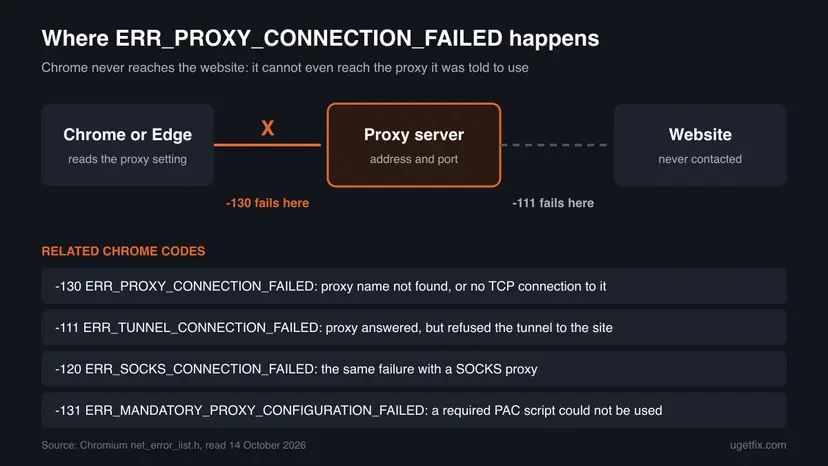
Chrome reuses the No internet heading for this code. Other apps on the same PC, such as a game launcher or Windows Update, often still connect, because many of them ignore the browser's proxy. That difference is the strongest sign that the proxy setting, not the line, is the problem.
- Persian, Arabic or other language searches for a translation: the code translates as "proxy connection failed". It is a browser message, not a message from the website.
proxy_connection_failed , -130: this is how the code appears in NetLog files, crash logs and app consoles. Same error, same fixes.- Edge: Microsoft Edge is built on Chromium and shows the same code. Edge has no proxy box of its own and opens the same Windows proxy page, so Fix 1 is the same.
Why the proxy connection fails, ranked from most to least common
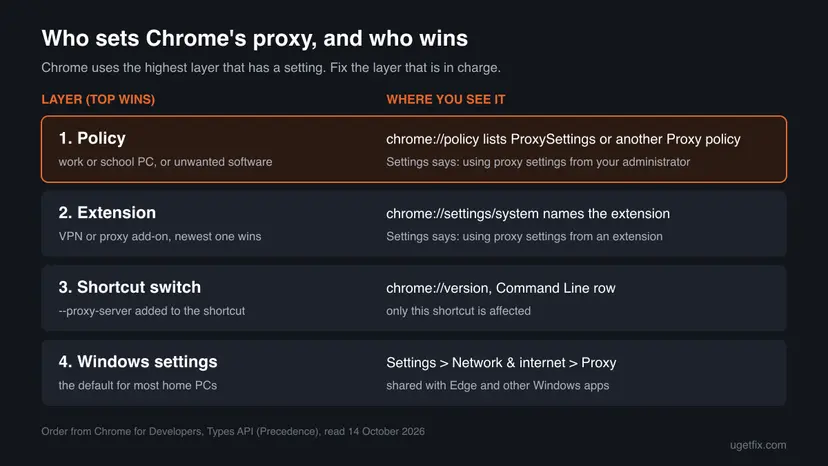
Chrome reads its proxy from four layers, and only the top layer that has a value counts. Each cause below sits in one of those layers, which is why the fix depends on where the proxy came from, not on the network.
| Cause | How common | Typical sign | Fix |
|---|---|---|---|
A proxy in Windows settings that nothing answers, often 127.0.0.1 or localhost left by a VPN, ad blocker, download tool or traffic inspector that closed or was uninstalled | Most often | Chrome and Edge both fail, other apps work | Fix 1 |
| A VPN or proxy extension in Chrome whose server is down, or which lost its sign-in | Often | Only one browser fails; the extension shows "Connection failed. Cannot establish proxy connection." | Fix 2 |
| You do need a proxy (work, school, a paid proxy) and its address, port or server is wrong or down | Often at work | It worked yesterday on the same network | Fix 3 |
| A policy, shortcut switch or unwanted program that sets the proxy again after you remove it | Less often | The proxy is back after a restart | Fix 4 and Fix 5 |
| An Android Wi-Fi network or mobile APN with a proxy filled in | Phones only | The error in Chrome on one Wi-Fi network or on mobile data | Fix 6 |
| Automatic proxy detection (WPAD) finds an old setup script on the network | Rarely at home | Automatically detect settings is on and nothing else is set | Fix 1 |
| A damaged Windows network configuration | Rarely | No proxy is set anywhere and the error stays | Fix 8 |
Usually not. A proxy pointed at 127.0.0.1 is most often left by a legitimate program that quit. A proxy that returns after every reboot, points to an address you do not recognise, or comes with a policy you never set is worth a malware scan (Fix 4).
How to fix ERR_PROXY_CONNECTION_FAILED
Fixes 1 and 2 remove an unwanted proxy and solve most home cases in a few minutes. Fix 3 is for people who need a proxy. Fixes 4 and 5 stop a proxy that keeps coming back. Fix 6 is for Android. Fixes 7 and 8 are last tests.
| What you see or have | Start with |
|---|---|
| A Windows PC, and you never set up a proxy on purpose. | Fix 1 |
chrome://settings/system says Chrome is using proxy settings from an extension, or you use a VPN extension. | Fix 2 |
| A work, school or paid proxy that you must use. | Fix 3 |
| The proxy comes back after you turn it off, or Settings says your administrator controls it. | Fix 4 |
| The Windows proxy page will not save, or shows nothing while the error stays. | Fix 5 |
| Chrome on an Android phone or tablet. | Fix 6 |
| You cannot find which extension or setting is to blame. | Fix 7 |
| No proxy is set anywhere, and the error is still there. | Fix 8 |
Fix 1. Turn off the proxy in Windows settings
3 minutesLow riskYou use Chrome or Edge on Windows 11 or 10 and did not set up a proxy on purpose.
Chrome and Edge use the Windows proxy settings unless an extension or a policy overrides them. A program that sets a local proxy and then quits leaves those settings pointing at nothing, and every page fails with -130 until they are cleared.
- In Chrome, type
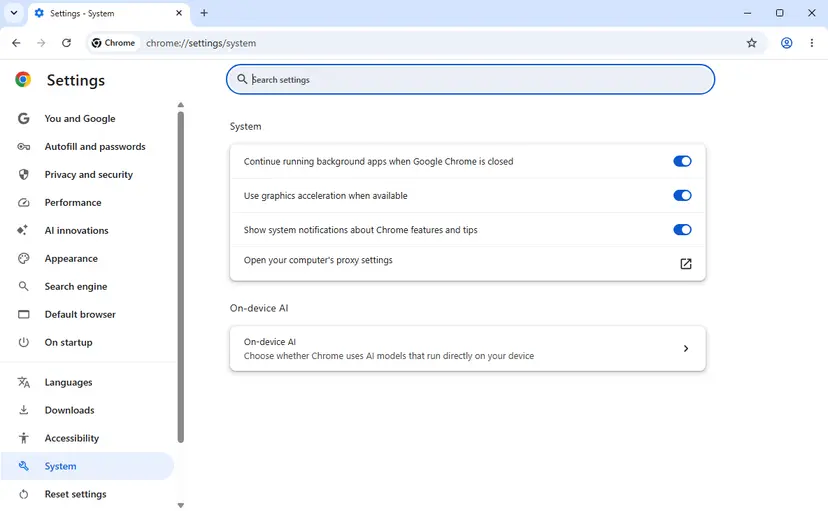
chrome://settings/systemin the address bar and press Enter. Select Open your computer's proxy settings. Windows opens Settings > Network & internet > Proxy. You can also open that page from Start > Settings. - Before you change anything, write down what is filled in: the address under Use a proxy server and the script address under Use setup script. If it reads
127.0.0.1orlocalhost, a program on this PC set it. - Next to Use a proxy server, select Set up. In Edit proxy server, turn Use a proxy server off and select Save.
- Next to Use setup script, select Set up. Turn Use setup script off and select Save.
- Under Automatic proxy setup, turn Automatically detect settings off. Chrome's own help text for this error suggests it. At home it changes nothing you need.
- Close Chrome completely with More (the three dots) > Exit, open it again and load a page.
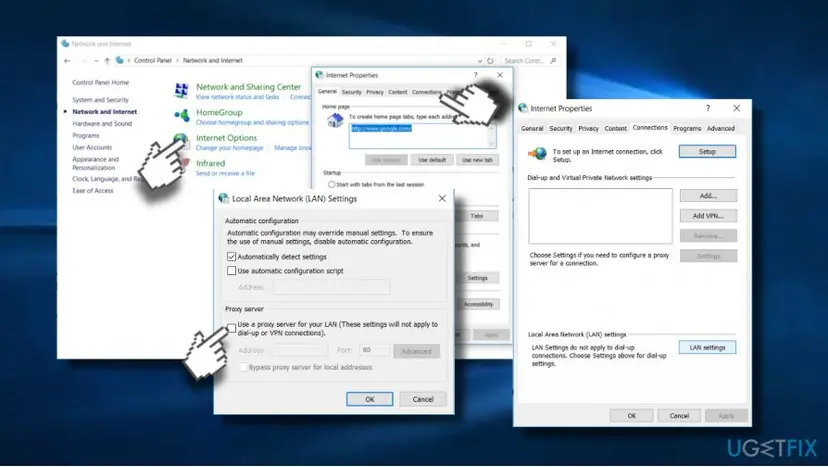
The same settings are in the classic Internet Options window, which some people find quicker. Press Win + R, type inetcpl.cpl and press Enter. On the Connections tab select LAN settings, clear Use a proxy server for your LAN and Use automatic configuration script, then select OK twice.
- Microsoft Edge: Settings > System and performance > Open your computer's proxy settings opens the same Windows page. One change fixes both browsers.
- Windows 10: Microsoft gives the same Network & internet > Proxy path for Windows 10 and Windows 11. Windows 10 stopped getting security updates on 14 October 2025.
- The address was 127.0.0.1 with a port such as 8080 or 8888: that port belonged to a local program. If you still use it, start it again instead, and the proxy will answer.
It worked if: Pages open again in Chrome and Edge, and the Proxy page shows Use a proxy server and Use setup script as off.
If not: If the page opens nowhere, check chrome://settings/system again. If it now names an extension or your administrator, go to Fix 2 or Fix 4.
Fix 2. Turn off the VPN or proxy extension that controls Chrome's proxy
3 minutesLow riskYou use a VPN or proxy extension in Chrome, or only Chrome fails while Edge works.
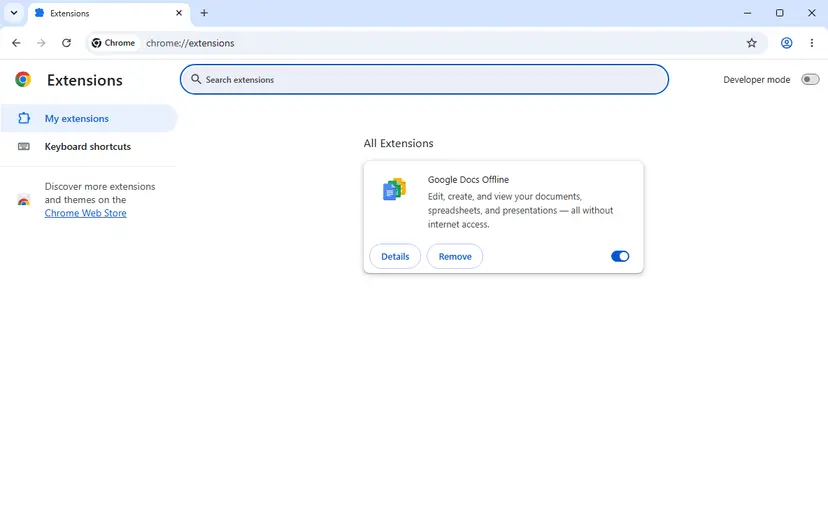
An extension with the proxy permission overrides the Windows setting for Chrome only. When its server is down or its sign-in has expired, Chrome still sends every request to it, so the Windows page looks clean while Chrome fails.
- Open
chrome://settings/system. Look at the last row of the System box. - If it reads Chrome is using proxy settings from an extension, the extension's name is shown in that row. Turn it off from there, or note its name.
- Open
chrome://extensionsand turn off the switch on every VPN, proxy, unblocker or privacy extension, not only the one named. If two extensions set a proxy, the one installed last wins, and the other takes over when you turn it off. - Close Chrome with More > Exit and open it again.
- Load a page. If it opens, turn the extensions back on one at a time to find the one that breaks it, and reconnect it or choose another server in its own menu.
| Message from an extension | What it means | What to do |
|---|---|---|
| Connection failed. Cannot establish proxy connection. | Users report it from VPN extensions such as VeePN. The extension's own server did not answer. | Pick another server or location in the extension, sign in again, or turn the extension off. |
| Connection failed. Browser proxy is not controllable. | Chrome's extension documentation lists not_controllable as a proxy that no extension may change. A policy is in charge. We could not confirm which extensions show this exact text. | Go to Fix 4 and look at chrome://policy. |
A VPN app installed on Windows (not an extension) works differently: it usually changes the network adapter, not the browser proxy. If such an app is running, disconnect it and test once. If pages then open, reconnect to another server or update the app.
It worked if: The System box no longer mentions an extension, it reads Open your computer's proxy settings, and pages load.
If not: If the row says your administrator controls the proxy, go to Fix 4. If it never named an extension and Fix 1 did not help, go to Fix 3 or Fix 5.
Fix 3. If you need the proxy, check the address, the port and the server
10 minutesNo riskYour workplace, school or a paid service requires a proxy, so turning it off is not an option.
Here the setting is wanted but one part of it is wrong: the name does not resolve, the port is wrong, or the proxy server is down. Chrome also marks a failed proxy as bad for 5 minutes when a backup route exists, which can keep a fixed proxy looking broken.
- Compare the address and port in Settings > Network & internet > Proxy with the details your IT team or proxy provider gave you. A missing digit in the port is enough for -130.
- If your organisation uses a setup script, open the address shown under Use setup script in the browser. If it does not load, the script server is down, which is a job for IT.
- Test from another device on the same network with the same proxy. If it also fails, the proxy server is down, not your PC.
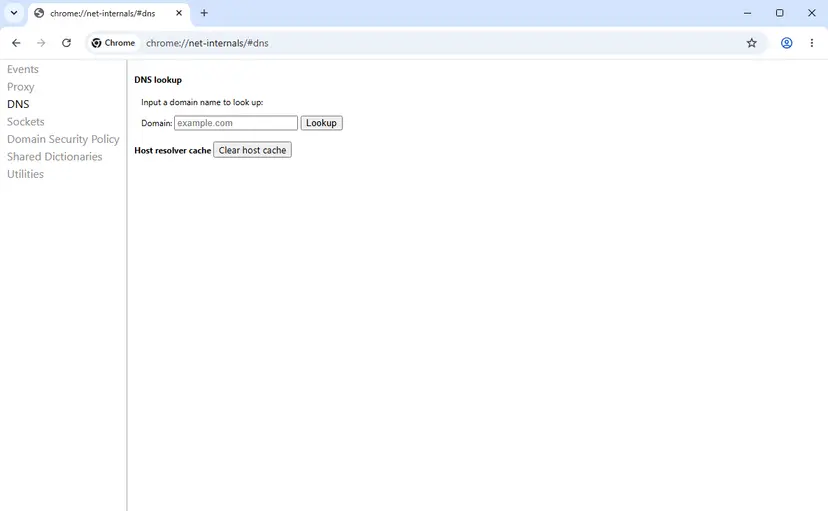
- In Chrome, open
chrome://net-internals/#proxy. Select Re-apply settings, then Clear bad proxies. The page shows no message when it is done. - Close Chrome with More > Exit, open it again and load a page.
- Proxy that needs a sign-in: a wrong password brings a sign-in prompt or a different code, because Chromium has separate codes for proxy authentication, such as -127. Code -130 means the proxy could not be reached at all.
- SOCKS proxy: the same failure with a SOCKS proxy shows ERR_SOCKS_CONNECTION_FAILED (-120). The checks are the same.
- Proxy works but some sites fail: that is ERR_TUNNEL_CONNECTION_FAILED (-111). The proxy answered and refused the site, which only the proxy's owner can change.
It worked if: Pages load through the proxy, and other devices on the same proxy work too.
If not: If the address and port are right and other devices also fail, the proxy is down: send IT the time, the address and the code. If only your PC fails, go to Fix 4.
Fix 4. Find what sets the proxy again: policy, shortcut or unwanted program
15 minutesLow riskThe proxy returns after a restart, or Chrome says your administrator controls the proxy.
A policy outranks every other proxy setting in Chrome, and a program that starts with Windows can write the proxy back each time. Until the source is found, Fixes 1 and 2 only last until the next restart.
- Open
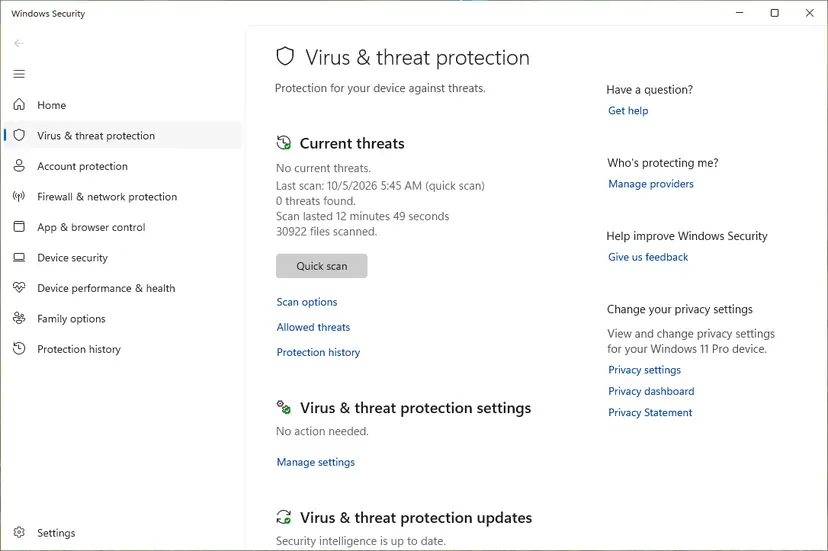
chrome://policyand select Reload policies. Look for a policy whose name starts with Proxy, such as ProxySettings. The Source column says whether it comes from the platform (Windows) or the cloud. - On a work or school PC, a proxy policy is normal: do not remove it. Send the code and the time to IT.
- On your own PC, a proxy policy you never set is a warning sign. Run a full scan with Microsoft Defender: How to scan for malware with Microsoft Defender
- Open
chrome://versionand read the Command Line row. If it contains--proxy-server=, the shortcut you start Chrome from adds a proxy. Right-click the shortcut, select Properties, and delete that part from Target, or start Chrome from the Start menu instead. - Open Task Manager with Ctrl + Shift + Esc, go to its startup list and turn off proxy tools, traffic inspectors and VPN clients you no longer use. Step by step: Stop apps from opening at startup
- Restart Windows and check the Proxy page and
chrome://settings/systemagain.
Do not delete policy keys in the registry on a PC that belongs to your employer or school. The policy is how the network is meant to work, and removing it can break access to internal sites or break the rules you agreed to.
It worked if: After a restart, chrome://policy lists no proxy policy (on a home PC), the Command Line row has no proxy switch, and the Windows proxy stays off.
If not: If the Windows proxy page still turns itself back on, check the values directly in Fix 5.
Fix 5. Check the proxy values in the registry
10 minutesRead the warningThe Windows Proxy page will not save, looks empty while the error stays, or a program keeps filling it.
The Proxy page in Settings and the Internet Options window both store their values under one registry key for your account. Reading the key shows a leftover address or script that a page may not display, and lets you clear it in one place.
A wrong change in the registry can break network settings for your account. Export the key first, as shown in Back up the registry before editing it, so you can restore it with a double-click. Change only the three values named below.
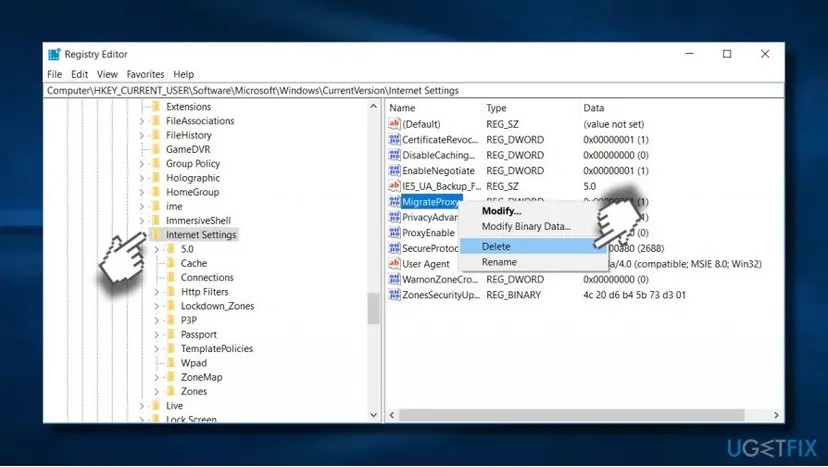
- Press Win + R, type
regeditand press Enter. Select Yes in the permission prompt. - Paste this path into the address bar of Registry Editor and press Enter:
HKEY_CURRENT_USER\Software\Microsoft\Windows\CurrentVersion\Internet Settings - Right-click Internet Settings in the left pane and select Export to save a backup file.
- Double-click ProxyEnable, set Value data to
0and select OK.1means a manual proxy is on. - Look at ProxyServer. If it holds an address you do not use, right-click it, select Delete and confirm.
- Look for AutoConfigURL. This is the setup script address. If you did not set it, delete it the same way.
- Leave ProxyOverride as it is: it is only the list of addresses that skip the proxy. Close Registry Editor and restart Chrome.

It worked if: ProxyEnable stays 0 after a restart, ProxyServer and AutoConfigURL stay gone, and Chrome loads pages.
If not: If the values return within minutes, a running program writes them: repeat the startup and malware checks in Fix 4. If they stay clean and Chrome still fails, go to Fix 7.
Fix 6. Set the proxy to None on an Android phone
5 minutesLow riskYou see the error in Chrome on an Android phone or tablet, on Wi-Fi or on mobile data.
Chrome on Android uses the proxy saved with each Wi-Fi network and with the mobile data access point. A proxy saved for one network, often by a work setup, a hotspot guide or an app, breaks Chrome only on that network.
- Pixel and most Android phones: open Settings > Network & internet > Internet and tap the Wi-Fi network you are on.
- Tap Edit (the pencil), then Advanced options. Under Proxy, choose None and tap Save.
- Samsung Galaxy: open Settings > Connections > Wi-Fi, tap the gear next to your network, tap View more, then Proxy, and choose None.
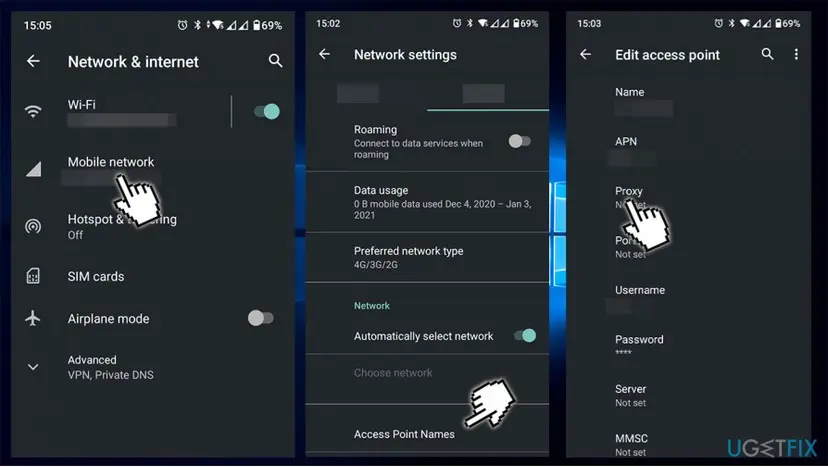
- On mobile data: on a Pixel open Settings > Network & internet > SIMs, choose your SIM, open Access point names and tap the active entry. The Proxy and Port fields should read Not set.
- If the APN Proxy field holds an address, take a screenshot of the whole entry first, then clear the field and save from the menu. Your carrier's own APN settings must otherwise stay as they are.
- Disconnect any VPN, ad-blocking or proxy app, then reopen Chrome and load a page.
- Work profile or a phone from your employer: the proxy may be pushed by the company's device management. You cannot remove it yourself: ask IT.
- Only one Wi-Fi network fails: the proxy is saved with that network only. Fixing it there is enough; other networks are not affected.
- The menus differ: Google notes that the steps can vary by device. Look for the network's details page and an advanced or more section.
It worked if: Chrome loads pages on that Wi-Fi network or on mobile data, and the network's Proxy reads None.
If not: If the proxy field was already empty, restart the phone and test on another network. If the error follows the phone everywhere, check the VPN and filtering apps again or reset Chrome's site settings.
Fix 7. Reset Chrome settings to turn off every extension at once
5 minutesRead the warningYou cannot tell which extension or setting sets the proxy, and Fixes 1 to 5 did not help.
A reset turns off all extensions in one step, including one that sets a proxy and hides itself. It does not touch the Windows proxy, so it separates a Chrome-side cause from a Windows-side cause.
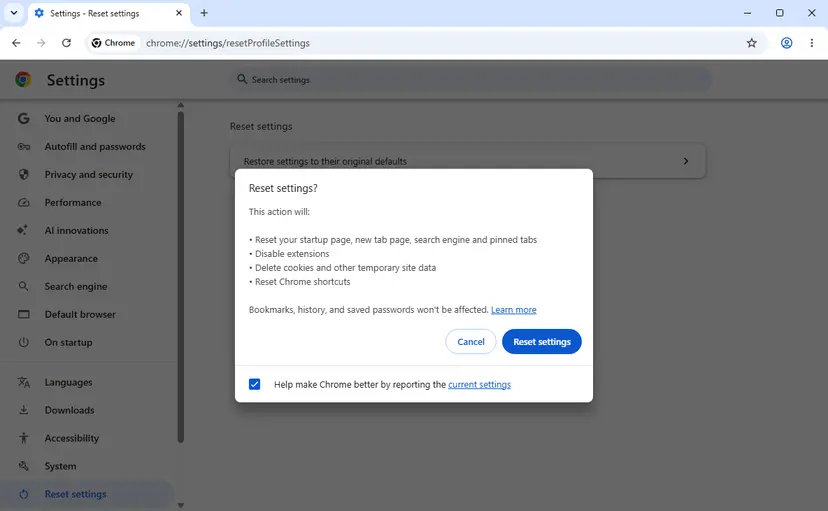
The reset deletes cookies and temporary site data, so you are signed out of most websites. It also resets your startup page, new tab page, search engine and pinned tabs. Bookmarks, history and saved passwords are kept. Make sure you know your important passwords first.
- Type
chrome://settings/resetProfileSettingsin the address bar and press Enter. The Reset settings? dialog opens over Settings > Reset settings. - Read the list in the dialog. Disable extensions is the line that matters here.
- Select Reset settings.
- Close Chrome with More > Exit, open it again and load a page.
- Turn extensions back on one at a time at
chrome://extensions, and leave off the one after which the error returns.
It worked if: Pages load after the reset, and chrome://settings/system shows Open your computer's proxy settings with no extension named.
If not: If the error stays with every extension off, the proxy comes from Windows or a policy: recheck Fix 1 and Fix 4, then try Fix 8.
Fix 8. Reset the Windows network settings
10 minutes plus a restartRead the warningNo proxy is set anywhere, chrome://policy is clean, and the error still appears.
This is the last generic step. It rebuilds the Windows network stack and adapters, which helps when a broken network component or a leftover filter driver from an old VPN interferes. It rarely solves this code on its own.
A full network reset removes saved Wi-Fi networks and installed VPN adapters. Write down your Wi-Fi password and VPN details first. The commands in steps 1 to 3 do not remove them; only Network reset does.
- Type
cmdin the search box, right-click Command Prompt and select Run as administrator. Select Yes in the permission prompt. - Run these commands one at a time and press Enter after each:
netsh winsock reset netsh int ip reset ipconfig /flushdns - Restart Windows and test Chrome.
- If the error stays, open Settings > Network & internet > Advanced network settings > Network reset, select Reset now and confirm. Windows restarts. Full steps: Reset the network and flush DNS

It worked if: After the restart, Chrome opens pages and the Windows proxy page is still empty.
If not: Record a NetLog as shown under "Still broken" below and send it to whoever runs your network or proxy.
Still broken: record a NetLog and read which proxy failed
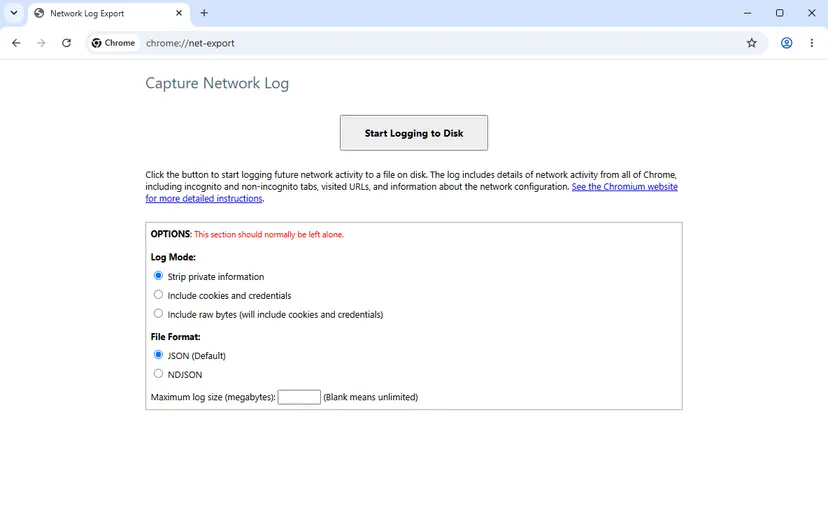
The error page never shows the proxy address. Chrome's NetLog does. Chromium's proxy documentation says its Proxy tab shows where the proxy settings came from (policy, command line, extension or system) and which proxies were marked as bad. The Events tab shows each proxy attempt.
- Open a new tab and go to
chrome://net-export/. - Leave Strip private information selected and select Start Logging to Disk. Choose where to save the file.
- Reproduce the error in a different tab. Keep the
chrome://net-export/tab open, or the logging stops. - Go back and select Stop Logging.
- Open the file in the NetLog viewer that Chromium links to, or in a text editor, and search for
PROXY_CONNECTION_FAILEDand for the wordproxy. The lines around it name the proxy that failed.
- What to send IT or the proxy provider: the time of the error, the proxy address from the log, your network (office, home, VPN), your Chrome version from Help > About Google Chrome, and the NetLog file.
- Privacy: the log lists the addresses Chrome visited. Send it by email to the person who asked for it. Chromium warns that its own bug reports are public by default.
- When it is not your PC: if every device that uses the same proxy fails, the proxy server is down. No setting on your PC changes that.
- Firefox works but Chrome does not: Firefox can keep its own proxy choice (No proxy, auto-detect, system settings or manual), so it may skip the broken Windows proxy. That points to Fix 1 or Fix 2.
How to keep ERR_PROXY_CONNECTION_FAILED from coming back
- Close VPN, proxy and traffic inspection programs from their own menu, so they can remove the proxy they set.
- Keep one VPN or proxy extension at a time. With two, the newest one wins and the other surprises you later.
- Write down a work proxy's address, port and setup script, so you can restore it after a test.
- Check
chrome://settings/systemafter installing any free VPN, unblocker or download helper.
- Do not install proxy lists or free proxy tools from unknown sites. A proxy sees every page you open over plain HTTP.
- Do not remove a work or school proxy policy to make the error go away. Ask IT instead.
- Do not delete random values under Internet Settings. Only ProxyEnable, ProxyServer and AutoConfigURL hold the proxy.
When you uninstall a VPN or proxy program, open Settings > Network & internet > Proxy right afterwards. If an address such as 127.0.0.1 is still there, turn it off before the next browser restart, and the error never appears.
Frequently asked questions
What does ERR_PROXY_CONNECTION_FAILED mean in plain English?
It means "connection to the proxy server failed". Your browser was set to send every page through a proxy, a middle server, and it could not find or reach that server. The website itself was never contacted. That is why all sites fail at once while other apps on the PC may still work. The message comes from the browser, not from the website you tried to open. The fix is to remove a proxy you do not need, or to repair the one you do need.
What is proxy_connection_failed -130?
It is the same error in Chrome's internal form. Chromium numbers its network errors, and -130 is PROXY_CONNECTION_FAILED. You see the number in NetLog files, in app logs and in the developer console of apps built on Chromium, such as chat clients and launchers. The meaning does not change: the proxy server could not be reached because its name did not resolve or no connection could be opened. Apps built on Chromium usually take the Windows proxy too, so Fix 1 applies to them.
How do I fix ERR_PROXY_CONNECTION_FAILED on Windows 11?
Open Settings, then Network & internet, then Proxy. Turn off Use a proxy server and Use setup script with their Set up buttons, turn off Automatically detect settings, and restart Chrome. That is Fix 1 and solves most home cases. If Chrome's System settings page says an extension controls the proxy, turn that extension off instead. Windows 10 22H2 uses the same Settings path, according to Microsoft, though it no longer receives security updates.
Why do I get ERR_PROXY_CONNECTION_FAILED on my Android phone when I never set a proxy?
A proxy can be saved with a single Wi-Fi network or with the mobile data access point (APN) without you noticing. Work setups, hotspot instructions and some apps fill it in. Chrome on Android then uses it for that network only. Open the Wi-Fi network's advanced options and set Proxy to None. On mobile data, check that the APN's Proxy field reads Not set. If the phone is managed by an employer, IT may have set the proxy on purpose.
What does "Connection failed. Cannot establish proxy connection." mean?
That message comes from a VPN or proxy extension, not from Chrome itself. Users report it from VPN extensions such as VeePN when the extension's server does not answer. While the extension is on, Chrome sends every page to that server, so Chrome also shows ERR_PROXY_CONNECTION_FAILED. Pick another server in the extension, sign in to it again, or turn it off at chrome://extensions. If you pay for the service, its support team can tell you whether its servers are down.
Is ERR_PROXY_CONNECTION_FAILED caused by a virus?
Usually not. Most often a legitimate VPN, ad blocker or download tool set a local proxy and then quit or was removed. Unwanted software can set a proxy to watch or redirect traffic, though. Be suspicious if the proxy comes back after every restart, points to an address you do not recognise, or appears together with a proxy policy in chrome://policy on a home PC. In that case run a full Microsoft Defender scan before you clear the settings again.
Why does Edge show the same error as Chrome?
Microsoft Edge is built on Chromium and uses the same network code and error codes. Like Chrome, it has no proxy field of its own: its System and performance settings open the Windows proxy page. A wrong Windows proxy therefore breaks both browsers at once, and one change in Windows fixes both. If only Chrome fails, the cause is inside Chrome, most often an extension (Fix 2). If only Edge fails, check Edge's own extensions in the same way.
How do I fix ERR_PROXY_CONNECTION_FAILED on a Mac?
Chrome on a Mac also uses the system proxy. Chrome's own error help for macOS says to open System Settings, then Network, select the active network, click Details, and deselect any proxies that are selected. Then quit Chrome completely and open it again. Fix 2 about extensions applies on a Mac without changes, and so does the NetLog check under Still broken. The Windows registry and network reset steps do not apply to macOS.
What is ERR_MANDATORY_PROXY_CONFIGURATION_FAILED on a Chromebook?
It is a related code, -131. It means a proxy setup script (PAC file) was marked as required and could not be downloaded, read or run. Because the script is required, Chrome is not allowed to fall back to a direct connection, so every page fails. On a school or work Chromebook the script comes from the administrator, who has to fix it. On your own Chromebook, open the network's proxy settings in ChromeOS settings and turn the proxy off.
Is it safe to turn off the proxy?
On a home PC, yes. Home connections do not need a proxy, and turning it off only makes the browser go to websites directly. On a work or school network a proxy may be required to reach the internet or internal sites, so write down the settings before you change them and ask IT first. A VPN is not the same thing: Microsoft notes that a VPN gives a more secure connection than a proxy, and it is set up separately.
Sources
- Chromium source: net_error_list.h (PROXY_CONNECTION_FAILED -130, TUNNEL_CONNECTION_FAILED -111, SOCKS_CONNECTION_FAILED -120, MANDATORY_PROXY_CONFIGURATION_FAILED -131) (github.com)
- Chromium source: localized_error.cc and error_page_strings.grdp (No internet heading, error text and suggestions) (github.com)
- Chromium source: components_google_chrome_strings.grd (Windows and macOS instructions for turning off a proxy) (github.com)
Did this fix work?
One click, no account. It tells the next reader which guides are worth their time.
Questions and experiences: fix ERR_PROXY_CONNECTION_FAILED error
Still broken, or found a fix we did not cover? Ask here: members and our editors answer. Reading is open; writing needs a free account.
…