
How to Fix Error 0x80070522: A required privilege is not held by the client?

Prefer to fix it yourself? The manual steps follow.
- 7methods
- 2 to 20 minutes
- Easy to intermediate
Applies to Windows 11 and Windows 10 when you save, paste, copy, create or extract a file, make a symbolic link, or run a backup agent
7 methods in this guide
Could you please tell me why I can neither save, copy-paste nor delete files and documents on my C: drive? Each time I try to perform any of these actions, I receive this message: Error 0x80070522: A required privilege is not held by the client. Is it difficult to fix this issue? Please help me if you can.
Error 0x80070522, "A required privilege is not held by the client", means the program you use runs with standard rights, and the place you write to needs administrator rights. Most often that place is the root of drive C. Save the file in a folder instead, or run the program as administrator for that one task.
The file is going into a place that only an elevated program may write to, usually the root of C (C:\), C:\Windows or C:\Program Files. Save or paste it into a folder such as Documents or a new folder like C:\Work instead (Fix 1). If it really must go there, run the program as administrator for that task (Fix 2). Keep User Account Control on: lowering it is not a fix.
| Error | "Error 0x80070522: A required privilege is not held by the client." In File Explorer it often starts with "An unexpected error is keeping you from copying the file." |
|---|---|
| Where it appears | File Explorer when you paste, move or create a file, the Save As dialog of Word, Notepad or another app, zip extraction, mklink in Command Prompt, and backup agents such as Acronis. |
| Main cause | The program runs with your standard rights, and the target (the root of C:\, C:\Windows, C:\Program Files, or a drive root with changed permissions) needs administrator rights. |
| Fastest fix | Save the file into a folder, not the drive root, for example Documents or C:\Work (Fix 1). It takes a minute and changes no setting. |
| Also written as | 0x80070522, 80070522, error code 1314, ERROR_PRIVILEGE_NOT_HELD, "A required privilege is not held by client". |
| Affects | Windows 11 (25H2 and 26H2) and Windows 10 22H2, Home and Pro. It has looked the same since Windows Vista added User Account Control. |
| Vendor status | Not a bug. Microsoft lists 1314 (0x522) as a standard Windows error, and a Microsoft Q&A advisor calls it expected behavior for files in a drive root. |
| Time to fix | 1 to 5 minutes for Fixes 1 to 3. Up to 20 minutes when permissions or a background program are the cause. |
Facts checked on 15 October 2026. Steps written for Windows 11 (25H2 and 26H2) and Windows 10 22H2.
What error 0x80070522 "A required privilege is not held by the client" means
In Microsoft's list of Windows system error codes, 1314 (0x522) is ERROR_PRIVILEGE_NOT_HELD, with the text "A required privilege is not held by the client". The 0x8007 in front only says that a Windows (Win32) error was wrapped into a longer code. The "client" is the program you are using, not you as a person and not a network client.
In File Explorer the dialog usually reads like this:
The message in File Explorer
An unexpected error is keeping you from copying the file.
Error 0x80070522: A required privilege is not held by the client.- Your account can be an administrator and still get it. Since Windows Vista an administrator works with two sets of rights. Programs start with the standard set, and only Run as administrator or the User Account Control prompt gives them the full set.
- Folders work, files do not. Many readers notice they can make a new folder in
C:\but cannot save a file next to it. That is how Windows protects the drive root by default. - It is not a virus warning. The old idea that the code means "your activity can harm the system" goes too far. It means a right is missing for this one write.
- Other spellings. People search
80070522,error code 0x80070522, "a required privilege is not held by client" and the same text in other languages. They are all the same error.
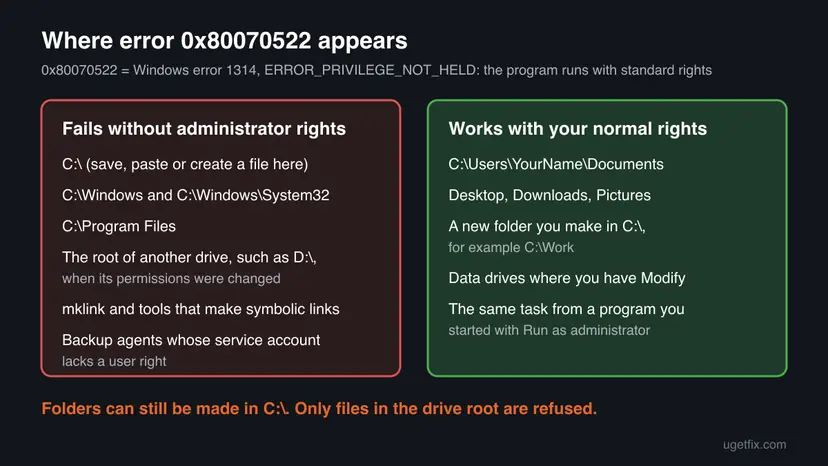
Why "A required privilege is not held by the client" appears: causes in order
Most often a file is saved, pasted or extracted straight into C:\ from a program that is not elevated. Less often a file must go into Program Files or Windows, a data drive lost its normal permissions, or a tool tries to make a symbolic link. Rarely a background program or malware blocks the write.
| Cause | How often | How to tell | Fix |
|---|---|---|---|
A file goes into the root of C:\ from a normal program | Most often | The same file saves fine into Documents or a new folder. | Fix 1 |
A file must go into C:\Program Files, C:\Windows or System32 | Often | A game mod, a plugin or a driver file must sit next to the program or in Windows. | Fix 2, Fix 3 |
| A data drive (D:, E:) root with changed or broken permissions | Sometimes | Only that drive's root fails. The drive came from another PC or its rights were edited. | Fix 4 |
| Making a symbolic link without the Create symbolic links right | Sometimes | mklink, a developer tool or a mod manager fails, normal copies work. | Fix 5 |
| A backup agent or service account without the needed user right | Sometimes, on business PCs | Only the backup job fails, with the code in its log. | Fix 5, see the FAQ |
| A background program blocks the write | Rarely | The same copy works in Safe Mode. | Fix 6 |
| Malware changed permissions or rights | Rarely | It started suddenly, in folders you always used. | Fix 7 |
How to fix error 0x80070522 "A required privilege is not held by the client"
Fix 1 solves it for most readers and changes nothing on the PC. Fixes 2 and 3 are for files that really must go into a protected folder. Fix 4 is for data drives, Fix 5 for symbolic links, Fixes 6 and 7 for the rare cases when it appears everywhere.
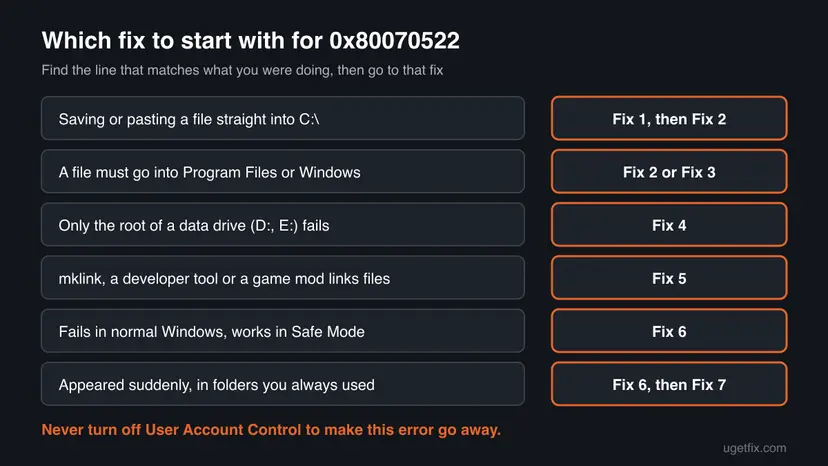
| What you see or what you were doing | Start with |
|---|---|
Saving, pasting or extracting a file straight into C:\. | Fix 1, then Fix 2 |
| A file must go into Program Files, Windows or System32. | Fix 2 or Fix 3 |
Only the root of a data drive such as D:\ fails. | Fix 4 |
mklink, a developer tool or a mod manager makes links. | Fix 5 |
| It fails in normal Windows but works in Safe Mode. | Fix 6 |
| It appeared suddenly in folders you always used. | Fix 6, then Fix 7 |
Fix 1. Save or paste the file into a folder, not the drive root
1 minuteNo riskEveryone who sees the error when saving, pasting, downloading or extracting into C:\ itself.
Your own folders and any new folder you make in C:\ are open to your normal rights. The drive root, by default, is not. Moving the target one level down removes the need for a privilege.
- In the Save As dialog or File Explorer, open Documents, Desktop or Downloads instead of Local Disk (C:).
- If you want the file near the top of the drive, open
C:\, right-click an empty area and select New > Folder. - Name the folder, for example
C:\Work, and press Enter. - Save, paste or extract the file into that folder.
- If a program insists on a path in the root, point it to the new folder in its settings.
When you extract a zip archive, choose a folder in Downloads or Documents as the target. Setup programs that need Program Files ask for administrator rights on their own, so they rarely show this error.
It worked if: The file saves or pastes without a message, and you can open it from the new folder.
If not: If the file truly must be in the root or in a system folder, go to Fix 2. If even Documents fails, go to Fix 6.
Fix 2. Run the program as administrator for this one task
2 minutesLow riskA file must go into C:\, Program Files or Windows, for example a plugin, a game mod or a config file.
The error says the program lacks a right. Started with Run as administrator, it gets your full administrator rights, so the same save works.
- Close the program, for example Notepad or Word.
- Select Start and type the program name.
- Right-click the program in the results and select Run as administrator.
- Select Yes in the User Account Control prompt, or type an administrator password.
- Open the file and save it to the protected folder again.
- Close the program when you are done, and start it normally next time.
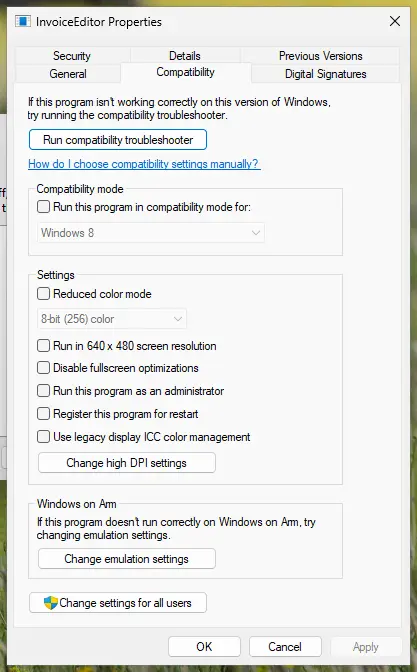
More on elevation and on undoing a permanent setting: How to run a program as administrator or in compatibility mode. Do not tick Run this program as an administrator for good just for one save.
It worked if: The program saves the file into the protected folder without the 0x80070522 message.
If not: If you need to copy files with File Explorer rather than an app, use Fix 3. If there is no Yes button, your account is a standard user: ask the PC's administrator.
Fix 3. Copy the file with an elevated Terminal
3 minutesLow riskYou must paste a file into a protected folder with File Explorer, which cannot be started as administrator in the usual way.
File Explorer runs with standard rights. A command window opened with Run as administrator has the right that Explorer lacks, so the same copy goes through.
- Right-click Start and select Terminal (Admin) in Windows 11 or Windows PowerShell (Admin) in Windows 10.
- Select Yes in the User Account Control prompt.
- In File Explorer, right-click the file and select Copy as path to get its full path. In Windows 10, hold Shift while you right-click.
- Type the command below with your own paths and press Enter.
- Check in File Explorer that the file is in the target folder.
Copy one file into the root of C (works in Terminal, PowerShell and Command Prompt):
copy "C:\Users\YourName\Downloads\settings.ini" "C:\"Copy a whole folder into Program Files, keeping its subfolders:
robocopy "C:\Users\YourName\Downloads\Plugin" "C:\Program Files\MyApp\Plugins" /EIt worked if: The command reports one file copied, or robocopy shows the files in its Copied column.
If not: If you see "Access is denied" instead, the folder belongs to another account or a background program blocks it: try Fix 6.
Fix 4. Give your account Modify rights on a data drive
5 to 15 minutesRead the warningOnly the root of a second drive, such as D:\ or E:\, fails, while C:\ and other drives behave as usual. Not for drive C.
A drive that came from another PC, or whose permissions were edited, can keep a rule that lets you make folders but not files in its root. Giving your account Modify rights on that one data drive removes the limit.
Wrong permissions can lock you or programs out of the drive. Never change the permissions of drive C or of its Windows, Program Files or Users folders. Write down the current list on the Security tab, or take a screenshot of it, before you change anything.
- Open File Explorer, right-click the data drive, for example D:, and select Properties.
- Open the Security tab and select Edit.
- Select your user name in the list. If it is missing, select Add, type your user name and select OK.
- Tick Modify under Allow and select OK.
- Wait until Windows has applied the change to all files, then try the save again.
A reader on Microsoft's Q&A forum gave himself full control and ownership of his D: drive and still got the error, but only in normal Windows, not in Safe Mode. When that matches your case, permissions are not the cause: go to Fix 6.
It worked if: You can save, paste and create files in the root of the data drive.
If not: If it still fails, start Windows in Safe Mode and try the same copy. If it works there, use Fix 6.
Fix 5. Give the right to create symbolic links, or run the tool elevated
5 minutes plus a sign-outLow riskmklink, a developer tool, a mod manager or a sync tool reports 0x80070522 or "A required privilege is not held by the client" while making links.
Making a symbolic link needs the user right Create symbolic links (SeCreateSymbolicLinkPrivilege). Microsoft documents that by default only members of the Administrators group hold it, and a non-elevated program does not use it.
The quickest way is to run the tool once from Terminal (Admin), as in Fix 3. If a tool must make links all the time, give the right to your account:
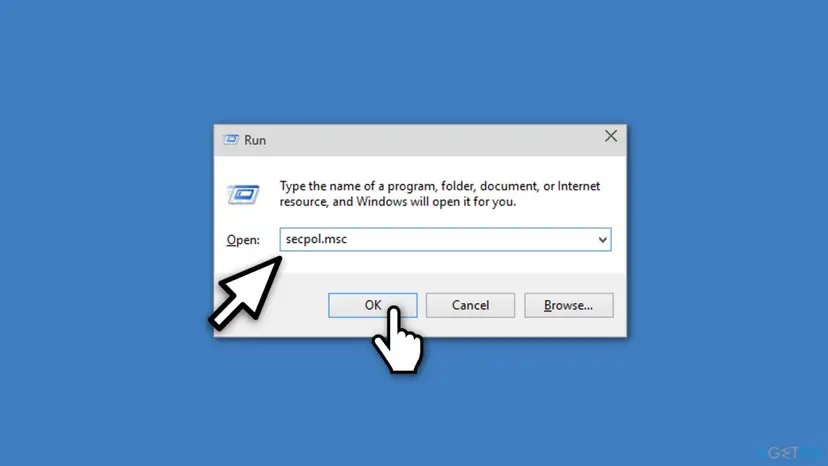
- Press Win + R, type
secpol.mscand press Enter. - Open Local Policies > User Rights Assignment.
- Double-click Create symbolic links and select Add User or Group.
- Type your user name, select Check Names, then OK and OK again.
- Sign out and sign in again. Microsoft notes that a change to user rights takes effect at the next sign-in, with no restart needed.
Local Security Policy is not part of every Windows edition, and Home editions usually lack it. On such a PC run the tool from Terminal (Admin) instead. On a work PC, Group Policy may set this right: ask your administrator.
It worked if: The link is created, and mklink reports "symbolic link created".
If not: If the right is listed but the tool still fails, sign out once more or restart. If the policy is greyed out, the PC is managed: ask the administrator.
Fix 6. Find a background program that blocks the write
15 to 30 minutesLow riskThe error appears in normal Windows but not in Safe Mode, or even in folders such as Documents.
Antivirus folder protection, backup and sync tools and disk utilities can sit between programs and the disk. If one of them refuses a write, Windows can report it as a missing privilege. A clean boot starts Windows without them so you can tell.
- Open System Configuration. Select Search on the taskbar, type msconfig and select System Configuration from the results.
- Hide Microsoft services. On the Services tab, select the Hide all Microsoft services check box. Only services from other companies stay in the list.
- Disable the remaining services. Select Disable all, then select Apply.
- Open Task Manager. On the Startup tab of System Configuration, select Open Task Manager.
- Disable the startup apps. On the Startup apps tab in Task Manager, select each item whose status is Enabled and select Disable. Write down or take a screenshot of the items you disable: you need the list to turn them back on.
- Confirm the changes. Close Task Manager. On the Startup tab of System Configuration, select OK.
- Restart and test. Restart the PC. Windows now starts in a clean boot environment: try again the thing that failed (run the app, install the update, uninstall the program).
These steps were written for Windows 11 25H2 and 26H2. The full page with the other versions and what each result means: How to perform a clean boot in Windows

If the copy works in a clean boot, turn the services back on in halves until the error returns. Then update that program, change its folder protection settings, or ask its maker. Return to normal startup when you finish.
It worked if: In the clean boot the file saves without the message, and you find the one program that causes it.
If not: If the error stays in a clean boot too, go to Fix 7.
Fix 7. Scan for malware with Microsoft Defender
10 minutes for a quick scan, longer for a full oneLow riskThe error appeared suddenly, together with other strange behavior, or settings you did not change are different.
Malware can change permissions and policies so that files can no longer be written. It is a rare cause of this error, but a scan rules it out.
- Open Windows Security. Select Start, type Windows Security and open the app.
- Open Virus & threat protection. Select Virus & threat protection. Under Current threats you see when the last scan ran, how long it took and how many files it checked.
- Run a quick scan. Select Quick scan. If Windows Security thinks a deeper scan is needed, it tells you when the quick scan is done.
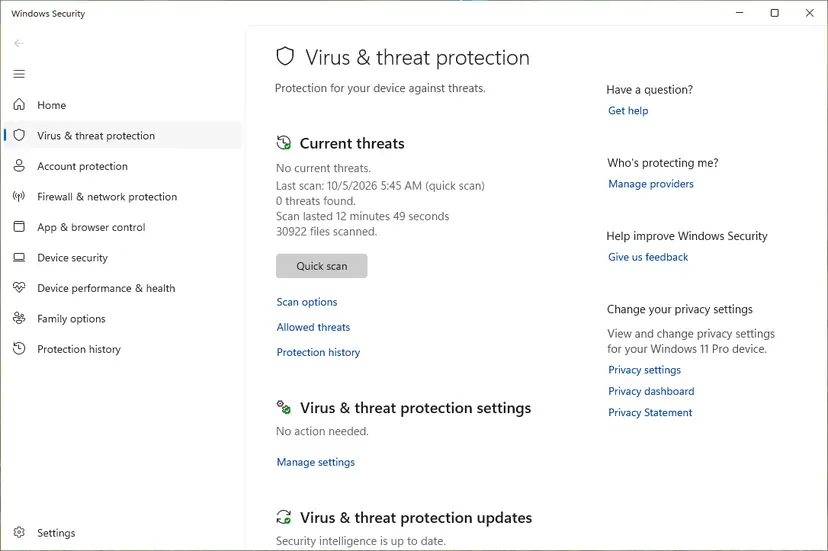
Quick scan and Scan options sit under Current threats. Screenshot: Windows 11 26H2. - Open Scan options. If the quick scan finds nothing and you still suspect an infection, select Scan options under Current threats.
- Run a full scan. Select Full scan and start it. It checks every file and program on the device, so it takes much longer than a quick scan. Leave the PC on until it ends.
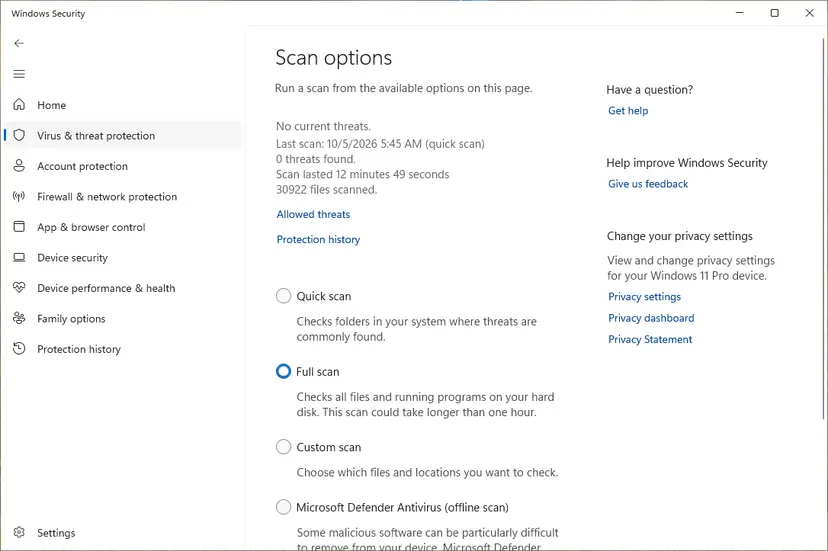
Scan options: Quick scan, Full scan, Custom scan and the offline scan. Screenshot: Windows 11 26H2. - Or scan one folder. To check only a download or a USB drive, select Custom scan in Scan options and choose the folder. You can also right-click a file or folder in File Explorer and select Scan with Microsoft Defender. On Windows 11 you may have to select Show more options first.
- Read Protection history. Go back to the first page of Windows Security and select Protection history. Select a card to expand it and see the details.
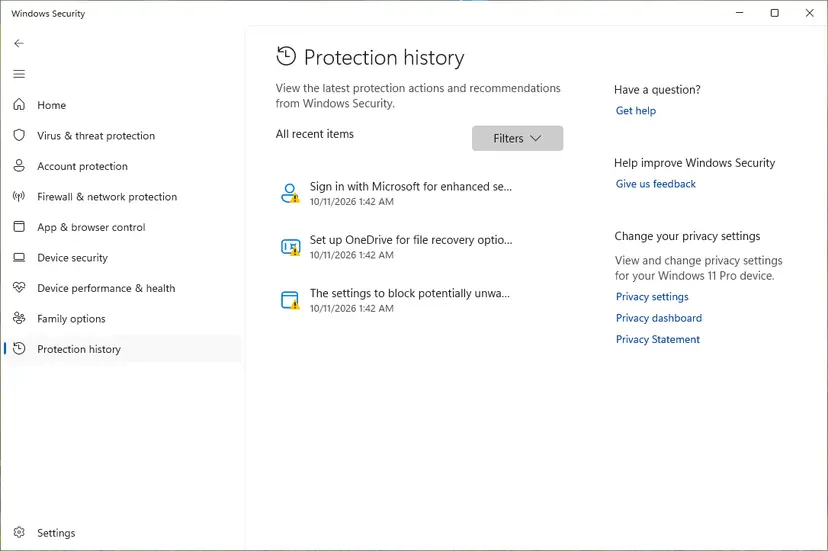
Protection history lists what Defender found and did. Screenshot: Windows 11 26H2.
These steps were written for Windows 11 25H2 and 26H2, Windows 10 22H2. The full page with the other versions and what each result means: How to scan for malware with Microsoft Defender
If another antivirus program is installed, scan with that one instead: Microsoft Defender turns itself off while another antivirus is active.
It worked if: The scan finds no threats, or removes them and the save works again.
If not: Read "Still not working" below and collect the facts listed there.
If "A required privilege is not held by the client" is still there
Collect these facts before you ask for help on a forum, from the PC's administrator or from the maker of the tool.
- The full path you were writing to, and whether a folder can be created there while a file cannot.
- Whether Run as administrator (Fix 2) and the elevated copy (Fix 3) worked.
- Your account type: Settings > Accounts > Your info shows Administrator or Standard user.
- Your Windows version: press Win + R and type
winver. - For
mklinkor a backup agent: the account the tool runs as, and whether it holds the right from Fix 5. - The output of
icacls D:\(with your drive letter) from Terminal (Admin), which lists who may write to that root.
This error is about rights, not hardware. If the disk also shows read errors, disappears, or File Explorer freezes on it, check the drive with Check a disk for errors (chkdsk) before anything else.
How to avoid error 0x80070522 in the future
- Keep your own files in Documents, Desktop or a folder such as
C:\Work. - Use Run as administrator for single tasks that touch Program Files or Windows.
- Give tools that need symbolic links the Create symbolic links right, not full administrator rights.
- Keep User Account Control on its default level.
- Keep Windows updated. Windows 10 left support on 14 October 2025.
- Lower User Account Control or set Admin Approval Mode to Disabled to make the error go away.
- Change the permissions of drive C, Windows or Program Files.
- Set every program to always run as administrator.
- Save personal files in the root of drive C.
Frequently asked questions
What does error 0x80070522 mean?
It is Windows system error 1314, ERROR_PRIVILEGE_NOT_HELD, with the text "A required privilege is not held by the client". The program that tried to save, copy, create or link a file runs with standard rights, and that action needs a right only an elevated program holds. Most often the file was going into the root of drive C, into Windows or into Program Files. Saving into a folder such as Documents, or running the program as administrator for that task, fixes it.
Why can I create a folder in C:\ but not a file?
Because that is how Windows protects the root of the system drive. A Microsoft Q&A advisor explains that creating a file in a drive root requires administrator rights by default, and that programs run with standard rights unless you start them with Run as administrator. Making a folder in the root is allowed, and inside your new folder you can save files with your normal rights. That is why Fix 1 works: make C:\Work and save there.
I am an administrator. Why do I still get "A required privilege is not held by the client"?
Since Windows Vista, an administrator account has two sets of rights, and programs start with the standard set. Only Run as administrator, or a Yes in the User Account Control prompt, gives a program the full set. File Explorer and apps such as Notepad or Word run with the standard set by default. So the account is an administrator, but the program that writes the file is not elevated. Fix 2 and Fix 3 give it the missing rights for one task.
Should I switch Admin Approval Mode or User Account Control to off to fix 0x80070522?
No. Old guides, including an earlier version of this one, told readers to set "Run all administrators in Admin Approval Mode" to Disabled in Local Security Policy. That removes User Account Control protection from every program, not only for one save. Malware then gets full rights as easily as your apps do. Saving into a folder, or running one program as administrator for one task, solves the same problem without weakening the PC.
How do I fix 0x80070522 when copying files to a D: or E: drive?
If only the root of a data drive fails, its permissions are usually the cause, often after the drive came from another PC. Open the drive's Properties, then the Security tab, and give your account Modify rights (Fix 4). Never do this on drive C. If you already have full control and it still fails in normal Windows but works in Safe Mode, a background program blocks the write. A clean boot finds it (Fix 6).
Why does mklink say "A required privilege is not held by the client"?
Making a symbolic link needs the user right Create symbolic links. Microsoft documents that only the Administrators group holds it by default, and only an elevated program uses it. Run mklink from Terminal (Admin), or add your account under Local Policies, User Rights Assignment, Create symbolic links in secpol.msc. Sign out and in again afterwards, because user rights apply at the next sign-in. Developer tools, mod managers and sync tools that make links need the same right.
Why does my backup fail with error 0x80070522?
A backup agent runs as a Windows service, under its own account. If that account lacks a right it needs, for example to read the disk structure or system data, the job stops with 0x80070522. Acronis describes this case in its knowledge base: the service account of the Acronis agent does not have the proper rights. Check which account the backup service runs as in the Services console, and follow the backup maker's list of rights for it.
Is error 0x80070522 different on Windows 11 and Windows 10?
No. The code, the message and the causes are the same on Windows 11 (25H2 and 26H2) and Windows 10 22H2, and all the fixes on this page work on both. The only differences are names: Windows 11 shows Terminal (Admin) when you right-click Start, while Windows 10 shows Windows PowerShell (Admin). Windows 10 left support on 14 October 2025, so it gets no more security updates.
I searched in another language, for example "errore 0x80070522" or "erro 0x80070522". Is it the same error?
Yes. Windows translates the text of the message into the display language, but the code 0x80070522 stays the same everywhere: errore in Italian, erreur in French, erro in Portuguese. A Microsoft Q&A reader even saw the message in Japanese while his display language was English, because of an installed language pack. The meaning and the fixes on this page are the same in every language.
What is error 0x80070542?
It is a different but related Windows error: 1346, "Either a required impersonation level was not provided, or the provided impersonation level is invalid". It is about a program acting on behalf of another account. The two codes are easy to confuse because they differ in one digit, but 0x80070542 is not about where a file is saved, so moving the file to another folder does not fix it. This page covers 0x80070522 only.
Sources
- Microsoft Learn: System Error Codes (1300-1699) (learn.microsoft.com)
- Microsoft Learn: Create symbolic links (security policy setting) (learn.microsoft.com)
- Microsoft Q&A: A required privilege is not held by the client Error 0x80070522 (learn.microsoft.com)
Did this fix work?
One click, no account. It tells the next reader which guides are worth their time.
Questions and experiences: Fix Error 0x80070522: A required privilege is not held by the client
Still broken, or found a fix we did not cover? Ask here: members and our editors answer. Reading is open; writing needs a free account.
…