
How to fix error 0x80070659 in Windows?

Prefer to fix it yourself? The manual steps follow.
- 6methods
- 5 to 20 minutes
- Intermediate
Applies to Windows 11 and Windows 10: any setup that uses Windows Installer (.msi), including the Python installer, .NET and runtime setups, and company software
6 methods in this guide
Hello. I was installing .NET Framework 4 on my computer, but the error 0x80070659 appears. This error indication is about the forbidden installation due to system policies. I also wanted to install some updates, but the error code occurs again, with a full message about it. The code is the same. I found a few friends that have a problem with a particular Windows 10 upgrade. So I am not the only one, but I have no idea how to fix this. Can you help?
Error 0x80070659 is Windows Installer error 1625: "This installation is forbidden by system policy." A policy on the PC blocks .msi packages, so nothing is broken. Run the installer as administrator first, then check the Windows Installer policy.
0x80070659 means a system policy blocks Windows Installer, so the setup is refused before it starts. It is not damage. Right-click the installer and select Run as administrator first (Fix 1), because the most common policy setting blocks only installs without admin rights. On a work or school PC, ask IT (Fix 3). On your own PC, set Turn off Windows Installer back to Not Configured (Fix 4 or Fix 5).
| Error | 0x80070659: Windows Installer error 1625, ERROR_INSTALL_PACKAGE_REJECTED, "This installation is forbidden by system policy. Contact your system administrator." |
|---|---|
| Where it appears | The setup window of a program that installs an .msi package, the Python installer's Setup failed window and its log ("Error 0x80070659: Failed to install MSI package."), and msiexec logs. |
| Main cause | The DisableMSI policy (Turn off Windows Installer) is set, by a company, a school, a tweak tool or an old setting. |
| Fastest fix | Right-click the installer and select Run as administrator (Fix 1). If the policy blocks every install, change it (Fix 4 or 5) or ask IT (Fix 3). |
| Also written as | 0x80070659, 80070659, error 1625, -2147023271, "This installation is forbidden by system policy". |
| Affects | Windows 11 and Windows 10, every edition. Windows 10 left support on 14 October 2025, the policy works the same. |
| Policy location | HKEY_LOCAL_MACHINE\Software\Policies\Microsoft\Windows\Installer, value DisableMSI (REG_DWORD): 1 blocks installs without admin rights, 2 blocks all installs. |
| Microsoft's status | Not a bug. Microsoft documents 1625 as an intended policy block (read 15 October 2026). |
| Not the cause | Windows Update cache, damaged system files or malware. Old guides blamed these. |
| Time to fix | 2 minutes for Fix 1. 10 to 20 minutes to find and change the policy. |
Facts checked on 15 October 2026. Steps written for Windows 11 (25H2 and 26H2) and Windows 10 22H2.
What error 0x80070659 means in Windows
0x80070659 is a Windows Installer error in the eight digit form that setup programs print. 0x8007 marks a Win32 error wrapped for programs, and 0659 is 1625 in hexadecimal. Microsoft's list of Windows Installer errors names 1625 ERROR_INSTALL_PACKAGE_REJECTED, with the text "This installation is forbidden by system policy. Contact your system administrator."
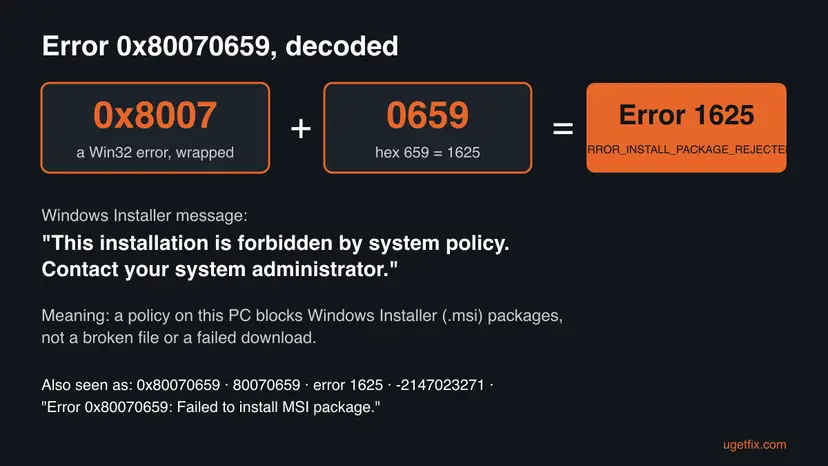
So the error does not say that the download is bad or that Windows is damaged. Windows Installer, the service that runs .msi packages, checked its policy and refused. The fix is to find which policy and either satisfy it or change it.
| What you see | Where |
|---|---|
| "This installation is forbidden by system policy. Contact your system administrator." | A Windows Installer dialog when you open an .msi file or a setup that runs one |
| Setup failed with 0x80070659 and the same text | The Python installer, and other setups that bundle several .msi packages |
| "Error 0x80070659: Failed to install MSI package." | The setup log in your %TEMP% folder, for example the Python setup log |
| Return code 1625 | Logs of msiexec, Intune, Configuration Manager and other deployment tools |
Microsoft lists two close relatives: 1643 (0x8007066B), "The patch package isn't permitted by system policy", and 1644 (0x8007066C), "One or more customizations aren't permitted by system policy". They come from the same Windows Installer policies, so the checks below help with them too.
Why error 0x80070659 happens, from most to least likely
Every cause is a policy, because that is what 1625 means. The ranking follows Microsoft's description of the DisableMSI policy and where readers of this page meet the code. Each cause points to its fix.
| Cause | How often | How to tell | Fix |
|---|---|---|---|
| DisableMSI = 1: Windows Installer blocks installs that run without admin rights. | Most often | Per-user setups fail, the same setup works with Run as administrator. | Fix 1, Fix 2 |
| A company or school manages the PC and blocks installs on purpose. | Often, on work PCs | Settings > Accounts > Access work or school lists an account. | Fix 3 |
| Turn off Windows Installer is set in Local Group Policy. | Sometimes | Pro, Enterprise or Education. The policy shows Enabled. | Fix 4 |
| DisableMSI = 2 in the registry, left by a tweak tool, an old management agent or a past setting. | Sometimes | Every .msi install fails, even as administrator. | Fix 5 |
| A Software Restriction Policy blocks the package. | Rarely | DisableMSI is not set, yet the code stays. | Fix 6 |
The Windows Update troubleshooter, deleting the SoftwareDistribution folder and running SFC are common advice for this code. None of them touches a Windows Installer policy, so they do not clear 1625. Windows 10 and 11 cumulative updates do not install as .msi packages either.
How to fix error 0x80070659 in Windows
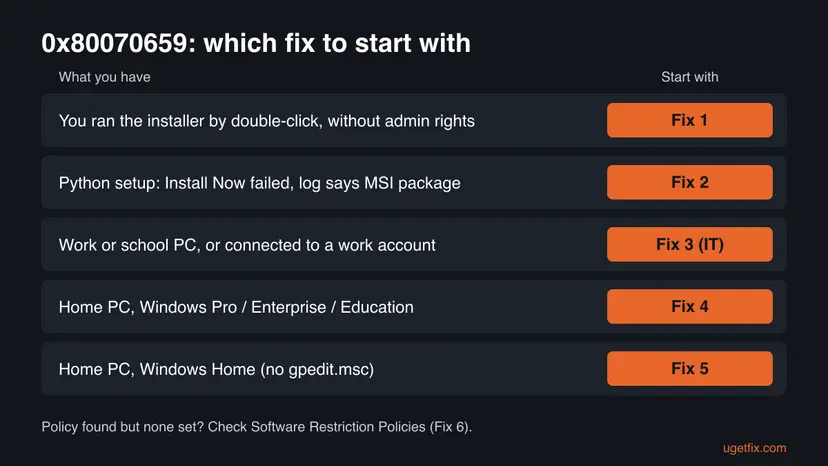
Fix 1 takes two minutes and changes nothing, so everybody starts there. Fix 2 is for the Python installer. Fix 3 is for PCs a company or school manages: there, the policy is intended and only IT should change it. Fixes 4 to 6 find and remove the policy on your own PC.
| What you see or have | Start with |
|---|---|
| You started the setup with a double-click. | Fix 1 |
| The Python installer says Setup failed with 0x80070659. | Fix 2 |
| It is a work or school PC, or it lists a work account. | Fix 3 |
| Your own PC with Windows Pro, Enterprise or Education. | Fix 4 |
| Your own PC with Windows Home. | Fix 5 |
| DisableMSI is not set and the code stays. | Fix 6 |
Fix 1. Run the installer as administrator
2 minutesNo riskAlways first, above all when you started the setup with a double-click.
Microsoft writes that with DisableMSI set to 1, "Non-elevated per-user installations are blocked. Per-user elevated and per-machine installs are allowed." A setup started with admin rights is elevated, so the same policy lets it through.
- Close the failed setup window.
- Open the folder with the installer, usually Downloads.
- Right-click the installer (
.exeor.msi) and select Run as administrator. On Windows 11, an.msifile may need Show more options first. - Select Yes when User Account Control asks. Enter an administrator password if Windows asks for one.
- If the setup offers Install for all users or a similar choice, select it.
- Finish the setup.
If Windows hides Run as administrator for an .msi file, start it from an elevated prompt instead. Right-click Start, select Terminal (Admin), and run the line below with your own path. On Windows 10, search for cmd and select Run as administrator.
msiexec /i "%USERPROFILE%\Downloads\setup.msi" /l*v "%TEMP%\msi-install.log"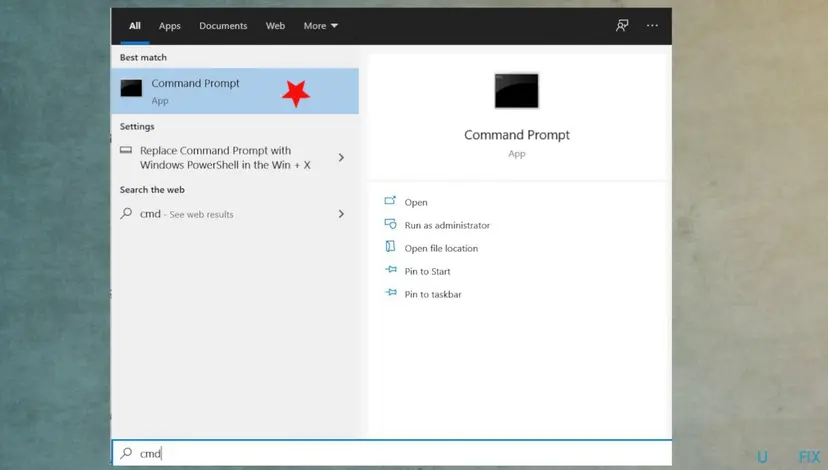
The /l*v part writes a full log. If the install fails again, that log shows 1625 near the end, which proves the block is a policy and not the package. Steps for elevated programs: How to run a program as administrator or in compatibility mode.
It worked if: The setup runs to the end and the program appears in Settings > Apps > Installed apps.
If not: If it fails again with 0x80070659 even as administrator, the policy blocks all installs (DisableMSI 2) or a company manages it. Check Fix 3, then Fix 4 or Fix 5.
Fix 2. Fix "Error 0x80070659: Failed to install MSI package" in the Python installer
5 minutesNo riskThe Python installer for Windows shows Setup failed with 0x80070659, or its log has "Error 0x80070659: Failed to install MSI package."
The classic Python installer is a bundle of several .msi packages. Install Now installs for your user only and without admin rights, which is exactly what DisableMSI 1 blocks. An install for all users is elevated and allowed.
- In the Setup failed window, open the log file link and look for
0x80070659to confirm it is this error. The log sits in your%TEMP%folder. - Close the window. Right-click the Python installer and select Run as administrator.
- Select Customize installation, not Install Now, then Next.
- Under Advanced Options, tick Install Python for all users. The install folder changes to
C:\Program Files\Python3xx. - Select Install and confirm the User Account Control prompt.
- When it finishes, open a new terminal and run
python --versionto check it.
Python is also published in the Microsoft Store as an app package, and app packages do not use Windows Installer, so the DisableMSI policy does not apply to them. On a work PC the Store may be blocked too. Then ask IT for Python, as in Fix 3.
It worked if: Setup shows Setup was successful and python --version prints the version you installed.
If not: If the all users install fails with the same code, the policy blocks every install. Go to Fix 3 on a work PC, or Fix 4 or 5 on your own.
Fix 3. On a work or school PC, ask IT to allow or deploy the program
5 minutes, then IT's timeNo riskThe PC belongs to a company or school, or Access work or school lists an account.
Organizations set DisableMSI or similar rules on purpose so that only approved software is installed. The message itself says "Contact your system administrator." A local change is overwritten at the next policy refresh, and it may break your company's rules.
- Open Settings > Accounts > Access work or school.
- If an account is listed with Connected to a company or school, the PC is managed.
- Check your company's software portal first. On many PCs it is Company Portal or Software Center in the Start menu.
- If the program is not there, send IT the program name, its version, the exact message and the code 0x80070659 (error 1625).
- Do not edit the policy or the registry yourself on a managed PC.
It worked if: IT installs the program for you, adds it to the portal or tells you why it is not allowed.
If not: If no work account is listed and the PC is yours, the policy was set locally. Use Fix 4 on Pro and higher, Fix 5 on Home.
Fix 4. Set "Turn off Windows Installer" to Not Configured in Group Policy
10 minutesLow riskYour own PC with Windows 11 or 10 Pro, Enterprise or Education, and Fix 1 did not help.
Turn off Windows Installer is the Group Policy that writes the DisableMSI value. If it is Enabled, every new install meets the block. Setting it to Not Configured removes the value and Windows Installer works normally again.
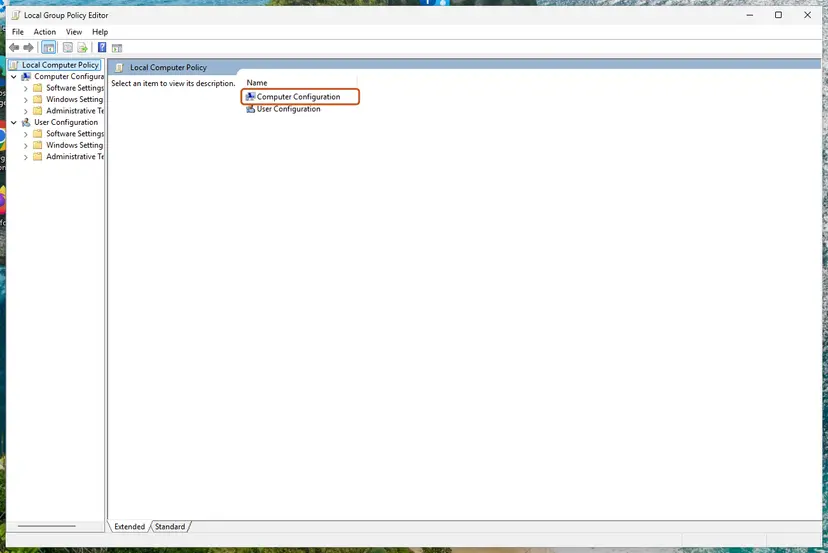
- Press Win + R, type
gpedit.mscand select OK. Full steps: Open the Local Group Policy Editor. - Go to Computer Configuration > Administrative Templates > Windows Components > Windows Installer.
- Double-click Turn off Windows Installer and note its current state.
- Select Not Configured, then OK.
- Check Prohibit User Installs in the same folder. Set it to Not Configured too if it is Enabled.
- Right-click Start, select Terminal (Admin) and apply the change.
gpupdate /force - Run the installer again.
It worked if: Turn off Windows Installer shows Not Configured and the setup runs without the code.
If not: If the policy was already Not Configured, the value may sit in the registry without a matching policy. Check it with Fix 5.
Fix 5. Remove the DisableMSI value in the registry
10 minutesRead the warningWindows Home, which has no Group Policy Editor, or a Pro PC where Fix 4 showed nothing.
Microsoft documents the policy at HKEY_LOCAL_MACHINE\Software\Policies\Microsoft\Windows\Installer, value DisableMSI. A value of 2 blocks all installs, including repairs and reinstalls. Tweak tools and old management agents can leave it there with no Group Policy to show it.
A wrong registry change can stop programs or Windows from working. Export the Installer key before you change it: Back up the registry before editing it. Do not do this on a work or school PC.
- Right-click Start, select Terminal (Admin) and read the value.
reg query "HKLM\SOFTWARE\Policies\Microsoft\Windows\Installer" - If you see
DisableMSIwith0x1or0x2, a policy blocks installs. If the key or value is missing, this is not your cause: go to Fix 6. - Export the key as a backup.
reg export "HKLM\SOFTWARE\Policies\Microsoft\Windows\Installer" "%USERPROFILE%\Desktop\Installer-policy-backup.reg" - Delete the DisableMSI value.
reg delete "HKLM\SOFTWARE\Policies\Microsoft\Windows\Installer" /v DisableMSI /f - Restart with Start > Power > Restart, then run the installer again.
| Value | Effect |
|---|---|
| Not present or 0 | Windows Installer is enabled for all applications. All installs are allowed. |
| 1 | Installs for unmanaged applications that run without admin rights are blocked. Elevated and per-machine installs work. |
| 2 | Windows Installer is disabled for all applications. No installs, repairs, reinstalls or on-demand installs. |

It worked if: reg query no longer lists DisableMSI, and the setup finishes.
If not: If the value comes back after a restart, a management agent or a program writes it. Check Fix 3 again, and see the section after the fixes.
Fix 6. Check Software Restriction Policies for a rule that blocks the package
10 minutesLow riskDisableMSI is not set and the code stays, on Windows Pro, Enterprise or Education.
Software Restriction Policies can also refuse a package that Windows Installer is asked to run. If a rule exists on a home PC, it was set by a tool or by hand, and Windows Installer reports the block as a policy.
- Press Win + R, type
secpol.mscand select OK. - Select Software Restriction Policies in the left pane.
- If the right pane says No Software Restriction Policies Defined, nothing here blocks you. Stop and read the section after the fixes.
- If rules exist, open Additional Rules and look for a rule that names the installer, its folder or
.msifiles with the level Disallowed. - On your own PC, delete that one rule. Do not create new policies.
- Restart and run the installer again.
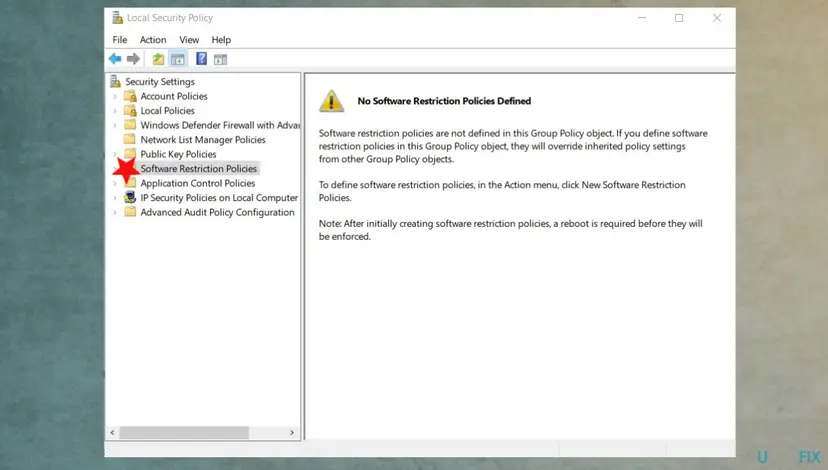
It worked if: The rule is gone and the setup runs, or you have confirmed that no rule exists.
If not: If no rule exists and DisableMSI is not set, read the log as the next section describes.
If error 0x80070659 is still there: what to check and send
Error 1625 is always a policy decision, so the question is which policy. A full Windows Installer log names the step where the block happened.
| Check | Where | What it tells you |
|---|---|---|
| Full install log | msiexec /i <file> /l*v "%TEMP%\msi-install.log" from Fix 1 | Look for 1625 and the lines just above it. |
| Event Viewer | Event Viewer > Windows Logs > Application, source MsiInstaller | The product name and the 1625 result at the time of the attempt. |
| Policy value | reg query from Fix 5 | Whether DisableMSI is 1, 2 or missing. |
| Managed or not | Settings > Accounts > Access work or school | Whether IT owns the decision. |
- On a work PC: send the log lines with
1625, the program name and the version to IT. Do not try to bypass the block. - If DisableMSI comes back: a management agent, a parental control tool or a tweak tool writes it. Remove or reconfigure that tool, then repeat Fix 5.
- It is never hardware: 1625 is a refusal by policy. A disk or memory fault shows other codes.
- A related install error: if a setup stops with a different code, such as an NVIDIA installer error, see our guide to NVIDIA installer error 0xE6000000.
How to keep 0x80070659 from coming back
- Install programs with Run as administrator or choose for all users when a setup offers it.
- Avoid tweak and privacy tools that change policies in bulk. Note what each one changes before you apply it.
- Keep a note of any Group Policy you change, so you can set it back.
- On a work PC, install software from the company portal only.
Windows 10 and Windows 11 already include .NET Framework 4.8 or newer. An old .NET Framework 4 setup is not needed there. If an app asks for .NET Framework 3.5, turn it on in Windows Features instead of running a setup.
Frequently asked questions
What is error 0x80070659?
It is Windows Installer error 1625 in the eight digit form that setup programs print. Microsoft names it ERROR_INSTALL_PACKAGE_REJECTED with the text "This installation is forbidden by system policy. Contact your system administrator." It means a policy on the PC, usually DisableMSI, refused to run the .msi package. Nothing is damaged. Run the installer as administrator first, then check the policy with Fix 4 or Fix 5.
What does "this installation is forbidden by system policy" mean?
It is the text of the same error, 0x80070659 or 1625. Windows Installer checked its policies and found one that does not allow this install. Most often the policy blocks installs that run without administrator rights, so the same setup works when you start it with Run as administrator. If even that fails, the policy blocks all installs, and on a work PC only IT should change it.
How do I fix 0x80070659 when installing Python?
Run the Python installer as administrator, select Customize installation and tick Install Python for all users under Advanced Options. The default Install Now installs for your user only without admin rights, which the DisableMSI 1 policy blocks. The log then says "Error 0x80070659: Failed to install MSI package." If you cannot get admin rights, the Microsoft Store version of Python does not use Windows Installer. Fix 2 has the steps.
What does "Error 0x80070659: Failed to install MSI package" in a log mean?
It is the line a setup bundle writes when one of its .msi packages was refused by Windows Installer policy. Python's installer and many other setups that bundle several packages write it to a log in your %TEMP% folder. The line says which package failed, but the reason is always the same policy block. Start the setup with admin rights (Fix 1) and check DisableMSI (Fix 5).
Can I fix 0x80070659 without admin rights?
Usually not. The policy exists to stop installs by standard users, and getting around it is what it is meant to prevent. Ask someone with an administrator account to run the installer for you, or ask IT on a work PC. Some programs are also offered as Microsoft Store apps, which do not use Windows Installer. Whether the Store is allowed depends on the same organization's rules.
Is 0x80070659 a Windows Update error?
Rarely. Windows 10 and 11 cumulative updates do not install as .msi packages, so the Windows Update troubleshooter and resetting the update cache do not touch this code. An update that is delivered as a Windows Installer patch, such as some program updates, is refused with the related code 1643 when policy forbids patches. The policy checks in Fix 4 and Fix 5 apply to both.
Is 0x80070659 caused by a virus?
We know of no Microsoft source that ties it to malware. The code is a policy refusal. A policy you did not set can come from a tweak tool, an old management agent or a parental control program. If you find a DisableMSI value you cannot explain, remove it with Fix 5, and run a scan with Microsoft Defender to be sure: How to scan for malware with Microsoft Defender.
Does error 0x80070659 happen on Windows 11 and Windows 10?
Yes, on both, in every edition. The DisableMSI policy and its registry location are the same on Windows 11 25H2 and 26H2 and on Windows 10 22H2. Windows 10 left support on 14 October 2025, but the fixes work the same. The only difference is the edition: Windows Home has no Group Policy Editor, so use the registry steps in Fix 5.
I see this page in a search in another language. Does it help?
Yes, if your screen shows 0x80070659. The code and its meaning are the same in every Windows language. The message is translated, for example in Chinese it says that system policy forbids this installation and you should contact the system administrator. The steps on this page are in English, but the menu paths have the same order in other languages.
Sources
- Microsoft Learn: MsiExec.exe and InstMsi.exe error messages, error 1625 ERROR_INSTALL_PACKAGE_REJECTED (learn.microsoft.com)
- Microsoft Learn: DisableMSI system policy for Windows Installer (learn.microsoft.com)
Did this fix work?
One click, no account. It tells the next reader which guides are worth their time.
Questions and experiences: fix error 0x80070659 in Windows
Still broken, or found a fix we did not cover? Ask here: members and our editors answer. Reading is open; writing needs a free account.
…