
How to fix "Error 1628: Failed to complete installation" error in Windows?

Prefer to fix it yourself? The manual steps follow.
- 7methods
- 5 to 30 minutes
- Medium
Applies to Windows 11, Windows 10; any desktop program whose setup is built with InstallShield (games, drivers, business and engineering software)
7 methods in this guide
Hello. I can't uninstall apps from Microsoft Store. It gives the error saying "1628: Failed to complete installation." I don't understand, why is it saying "installation" when I'm trying to uninstall it?
Error 1628 comes from programs whose setup is built with InstallShield, not from Windows itself. It usually appears when you uninstall, repair or update a program, because the setup engine cannot run its script. End the leftover installer process in Task Manager first, then try again.
Error 1628 means an InstallShield setup could not finish its script, most often while uninstalling, repairing or patching a program. Open Task Manager, end IDriver.exe or ISSetup.exe if either is running, and try again (Fix 1). If it fails, move the program's damaged uninstall log (Fix 2) and empty your TEMP folder (Fix 3).
| Error | 1628: Failed to complete installation. Older setups word it as Failed to complete script based install. |
|---|---|
| Where it appears | In a small InstallShield Wizard box, usually right after you select Uninstall, Repair or run an update of a program. |
| Main cause | A leftover InstallShield engine process (IDriver.exe or ISSetup.exe) or a damaged uninstall log file (.ilg) of that program. |
| Fastest fix | End IDriver.exe or ISSetup.exe in Task Manager and run the uninstall again (Fix 1). |
| Also written as | error 1628, installshield error 1628, installshield 1628, "Error 1628: Failed to complete script based install", "1628: Failed to complete scripted install". German: "Skriptbasierte Installation konnte nicht abgeschlossen werden". |
| Who shows it | InstallShield, a setup builder made by Flexera, whose installer business now trades as Revenera. Many programs use it, so the error is not tied to one app. |
| Affects | Windows 11 and Windows 10. Windows 10 left support on 14 October 2025, but the cause and the fixes are the same there. |
| Vendor status | Not a Windows bug. The InstallShield maker documents 1628 as a run time error with several known causes and says to contact the program's maker if its fixes fail. |
| Time to fix | About 5 minutes for Fix 1 and Fix 2. Up to 30 minutes if you need to reinstall the program or edit the registry. |
Facts checked on 15 October 2026. Steps written for Windows 11 (25H2 and 26H2) and Windows 10 22H2.
What "Error 1628: Failed to complete installation" means
Many desktop programs are installed and removed by an InstallShield setup engine. When you uninstall such a program, Windows starts that engine, and it runs a script that reads the program's own uninstall log. The InstallShield maker says error 1628 appears at run time, normally during uninstallation, repair, or when applying a patch.
That is why the box says "installation" even though you asked to remove the program. The same engine does both jobs, and the message names the engine's task, not yours. A typical box has the program's name and "InstallShield Wizard" in the title bar and reads: 1628: Failed to complete installation.
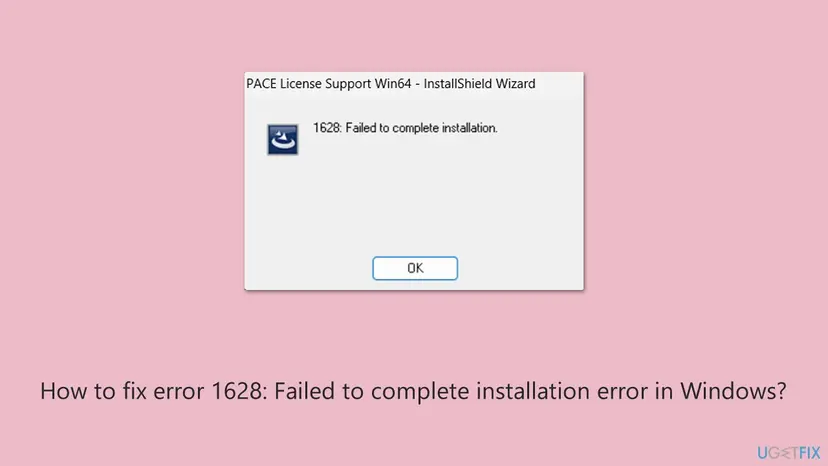
- 1628: Failed to complete installation. The usual wording on Windows 11 and Windows 10.
- Error 1628: Failed to complete script based install. The older wording that the InstallShield maker's own articles quote.
- 1628: Failed to complete scripted install. Another variant one software maker's support page reports for its own product.
The box you see comes from the InstallShield setup of one program. Nothing is wrong with Windows as a whole. The fixes below clean up what that one setup left behind.
Why the 1628 error failed to complete installation
Most often an earlier run of the setup engine did not close, so IDriver.exe or ISSetup.exe still runs, and the uninstall log can be damaged. Less often a leftover file in the TEMP folder clashes with the files the setup unpacks. Rarely the Windows Installer service or old registry data blocks the script.
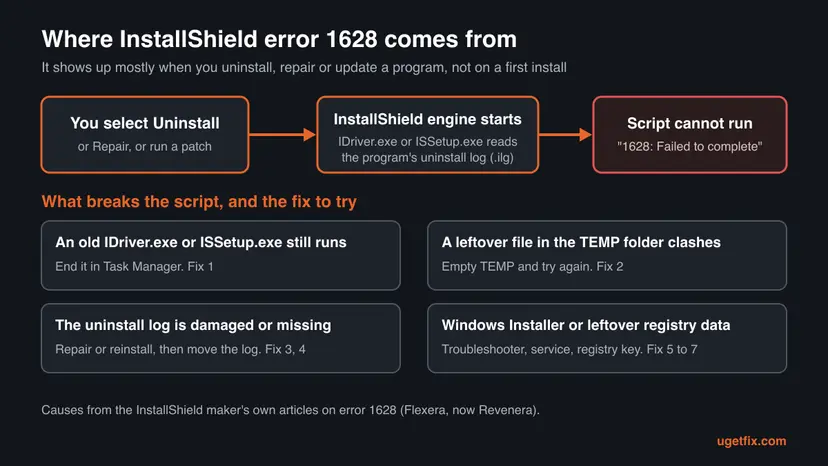
| Cause | How often | How to tell | Fix |
|---|---|---|---|
| IDriver.exe or ISSetup.exe from an earlier run is still active. | Most often | Task Manager shows one of them while no setup window is open. | Fix 1 |
| The program's uninstall log (.ilg) is damaged. | Often | The error comes back on every uninstall try, even after a restart. | Fix 2 |
| A file in the TEMP folder conflicts with the setup's files. | Sometimes | Other InstallShield setups also fail, or TEMP holds months of old files. | Fix 3 |
| The installation itself is incomplete or the base version is missing. | Sometimes | The error appears when you install an update or patch, or the program never worked fully. | Fix 4 |
| Windows Installer or its registry data is in a bad state. | Rarely | Other programs also fail to install or uninstall. | Fix 5, Fix 6 |
| Old InstallShield uninstall data stays in the registry after the log was deleted. | Rarely | A setup log shows "Failed to open cab". | Fix 7 |
The causes come from two InstallShield maker articles on error 1628. Some causes they list, such as duplicate features or a wrong MSI engine setting, are mistakes in how a program's setup was built. Only the program's maker can fix those, so they are not methods on this page.
How to fix error 1628 failed to complete installation
Fixes 1 to 3 follow the InstallShield maker's own resolution and solve most cases. Fix 4 rebuilds the program's setup data. Fixes 5 to 7 are for the cases that remain. Try the uninstall, repair or update again after each fix.
| What you see or have | Start with |
|---|---|
| The error came right after another setup or uninstall that froze or was cancelled. | Fix 1 |
| The error comes back every time you try to uninstall one program. | Fix 1, then Fix 2 |
| More than one InstallShield program fails to install or uninstall. | Fix 3 |
| The error appears when you install an update or patch for a program. | Fix 4 |
| You only want the program gone and nothing above worked. | Fix 5 |
| Programs from many makers fail to install or uninstall. | Fix 6 |
Fix 1. End IDriver.exe or ISSetup.exe in Task Manager
3 minutesNo riskEveryone, first. Especially if an earlier setup or uninstall froze, crashed or was cancelled.
The InstallShield maker says error 1628 is often caused by IDriver.exe, called ISSetup.exe in InstallShield 12 and later, not closing at the end of a previous run. The stuck engine keeps the uninstall log busy, so the new run cannot read it.
- Close the error box and every setup or uninstall window.
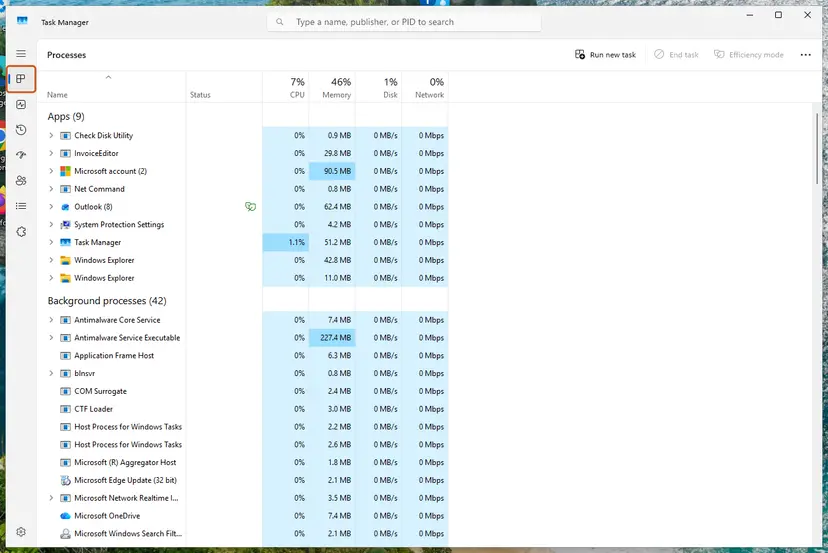
- Press Ctrl + Shift + Esc to open Task Manager. Select More details if you see only a short list.
- Open the Details page and sort by Name.
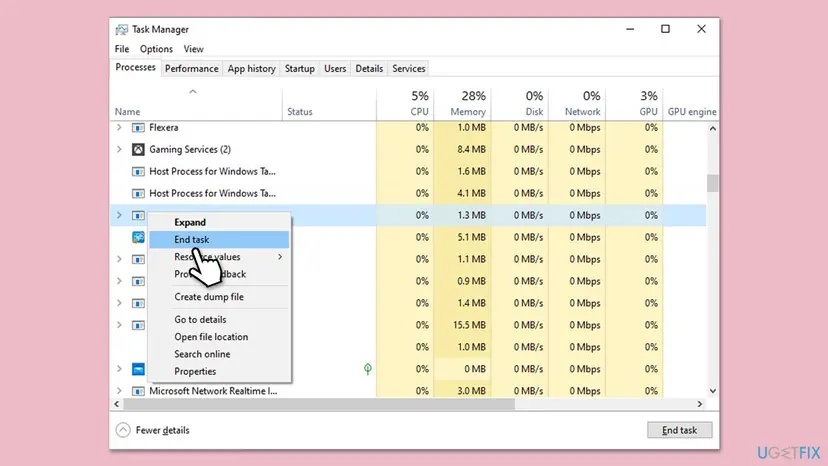
- Look for IDriver.exe or ISSetup.exe. Select each one you find and select End task.
- Open Start > Settings > Apps > Installed apps, select the three dots next to the program and select Uninstall again.
If neither name is in the list, restart the PC once, which closes every leftover process, and try the uninstall again before you go on.
It worked if: The uninstaller runs through and the program disappears from Installed apps.
If not: If the error box comes back, the uninstall log itself is probably damaged. Go to Fix 2.
Fix 2. Move the program's damaged uninstall log out of the way
10 minutesLow riskThe error comes back every time you uninstall one program, even after Fix 1 and a restart.
The InstallShield maker's resolution for a corrupted uninstall log is to end the engine and delete the .ilg file from the program's folder under InstallShield Installation Information. We move it instead, so you can put it back if the program's maker asks for it.
- Do Fix 1 first, so no IDriver.exe or ISSetup.exe is running.
- Press Win + E to open File Explorer.
- On Windows 11 select View > Show > Hidden items. On Windows 10 open the View tab and tick Hidden items.
- Open the folder below. For a 64 bit program, look in the same folder under
C:\Program Filesinstead. - Each subfolder is named after a program's product code in braces. Open the one whose Date modified matches the day you installed the program.
- Find the file that ends in .ilg, cut it with Ctrl + X and paste it on your desktop.
- Try the uninstall again.
Where InstallShield keeps uninstall logs of 32 bit programs
C:\Program Files (x86)\InstallShield Installation InformationIf several folders share the same date, open each one. Many contain a setup file or setup.ini with the program's name inside. Leave the folders of other programs alone, because their uninstallers need them.
Some guides tell you to rename or delete InstallShield folders under Common Files or Program Files. That breaks the uninstallers of every other InstallShield program on the PC. Touch only the .ilg file of the one program that shows error 1628.
It worked if: The uninstaller starts, removes the program, or at least gets past the 1628 box.
If not: If the uninstaller now says it cannot find its log, put the .ilg file back and go to Fix 4. If error 1628 stays, go to Fix 3.
Fix 3. Empty the TEMP folder and run the setup again
5 minutesLow riskMore than one InstallShield program fails, or Fix 1 and Fix 2 did not help.
The InstallShield maker lists a file in the TEMP folder that conflicts with the files the setup extracts or uses as a cause of error 1628. Its fix is to delete the contents of that folder and run the setup again.
- Close every open program, so none of them is using a temporary file.
- Press Win + R, type
%temp%and press Enter. - Press Ctrl + A to select everything in the folder, then press Delete.
- If Windows says a file is in use, tick Do this for all current items and select Skip.
- Restart the PC and try the uninstall, repair or update again.
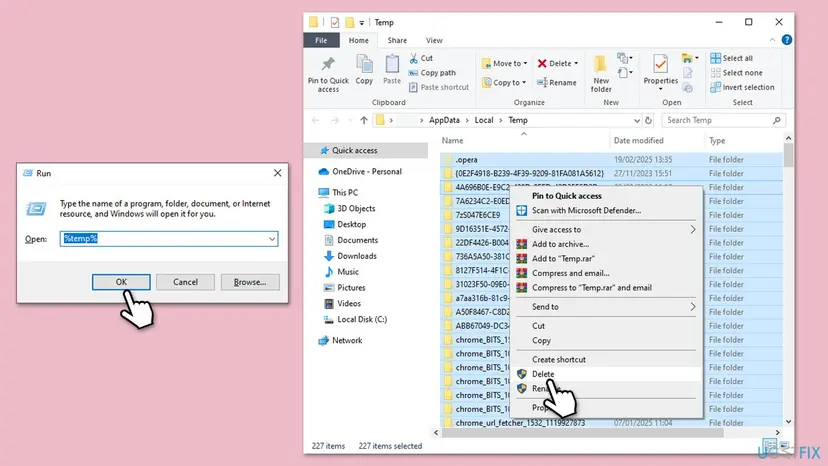
Files that are in use stay behind, and that is fine. To clear more temporary files with Settings instead: Free up disk space and delete temporary files
It worked if: The TEMP folder holds only a few files that were in use, and the setup runs without error 1628.
If not: If the error stays, go to Fix 4.
Fix 4. Repair the program, or reinstall the same version over it
15 minutesLow riskThe error appears when you install a patch or update, or Fix 2 left the uninstaller without a log.
The InstallShield maker says a patch fails with 1628 when the base installation is not on the PC, and that the error is often caused by the installation itself. Repairing or reinstalling writes a fresh uninstall log, which the next uninstall can read.
- Open Start > Settings > Apps > Installed apps and find the program.
- Select the three dots next to it. If Modify or Advanced options is there, open it and choose Repair.
- If there is no repair option, download the same version of the program from its maker's own site.
- Run that setup and install the program over the existing copy, in the same folder.
- Restart the PC, then uninstall the program again or install the update you wanted.
Repair and reset in Settings, with screenshots: How to repair or reset an app in Windows. Not every desktop program offers repair. Microsoft notes the same in its own help page on blocked installs.
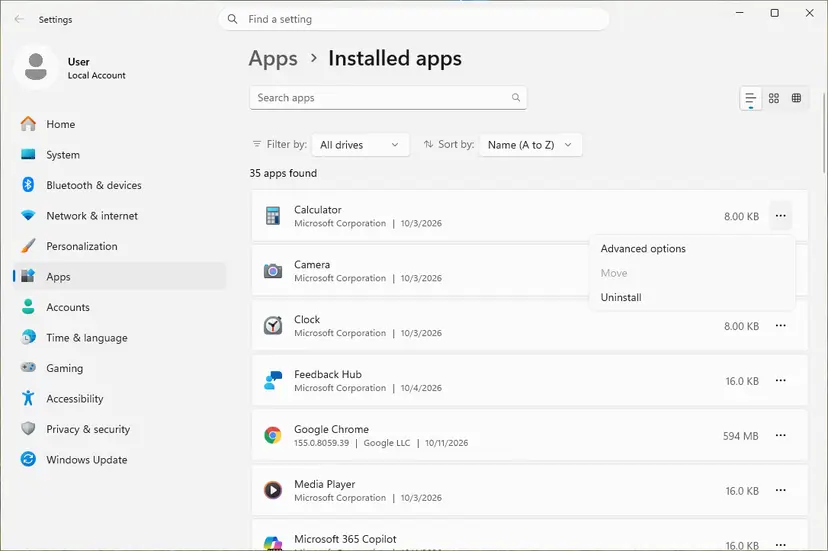
It worked if: The program works again, the update installs, or the next uninstall runs through.
If not: If the setup itself fails with 1628 before it can repair anything, go to Fix 5.
Fix 5. Run Microsoft's Program Install and Uninstall troubleshooter
10 minutesLow riskYou only want the program gone, and the program's own uninstaller keeps failing.
Microsoft says this troubleshooter fixes corrupt registry keys and problems that block a program from being completely uninstalled. It can remove the program's Windows Installer records without running the broken InstallShield script.
- Open Microsoft's support page Fix problems that block programs from being installed or removed and switch to its Windows 10 tab.
- Select Download troubleshooter and open the downloaded MicrosoftProgram_Install_and_Uninstall.meta.diagcab file.
- Select Next, then Uninstalling.
- Pick the program from the list and select Next.
- Follow the prompts to remove the program and wait for the tool to finish.
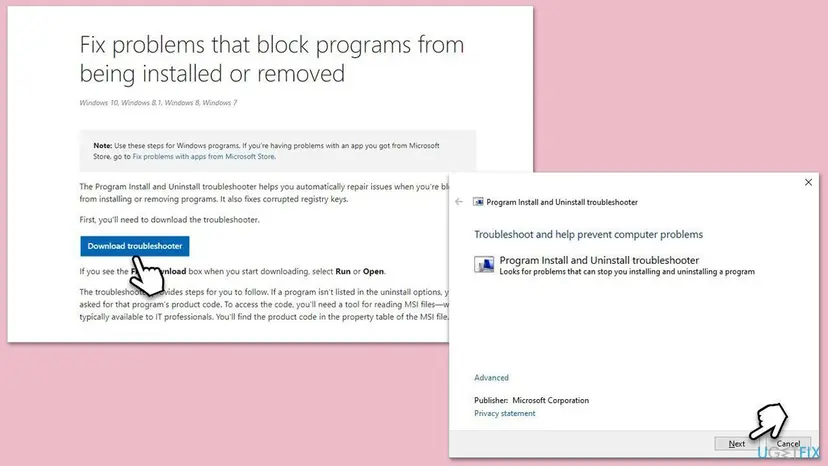
In 2026 Microsoft offers the download only on the Windows 10 tab of its page. The Windows 11 tab points to repair, reset and uninstall in Settings instead. We could not confirm that Microsoft still supports the tool on Windows 11. If a program is missing from its list, the tool asks for an MSI product code, which most home users do not have.
It worked if: The tool reports the problem as fixed, and the program is gone from Installed apps.
If not: If the program is still listed or other installers fail too, go to Fix 6.
Fix 6. Restart the Windows Installer service
5 minutesNo riskPrograms from different makers fail to install or uninstall, not only one.
The InstallShield maker says error 1628 can occur when the Windows Installer service is not properly configured. InstallScript MSI setups hand part of their work to that service, so a hung service stops them.
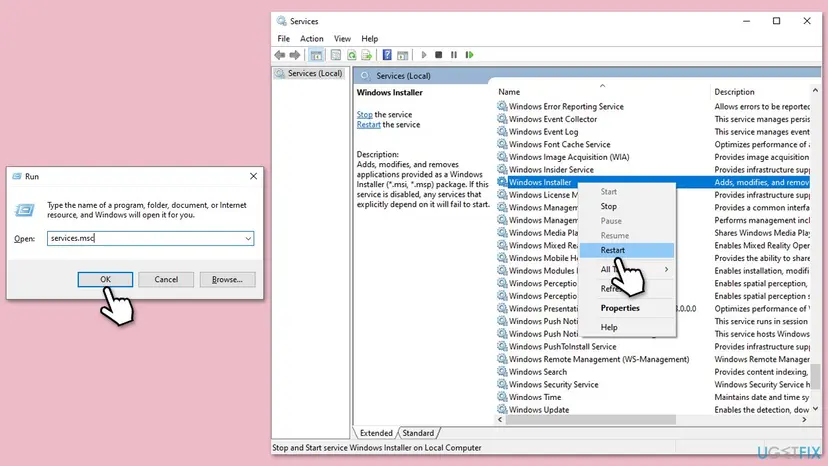
- Open Services. Press Windows+R, type the command below and press Enter. You can also type Services in the search box on the taskbar and open the app.
services.msc - Find the service. The list is sorted by Name. Click any row and type the first letter of the service to jump to it. Check the Status column (Running or empty) and the Startup Type column.
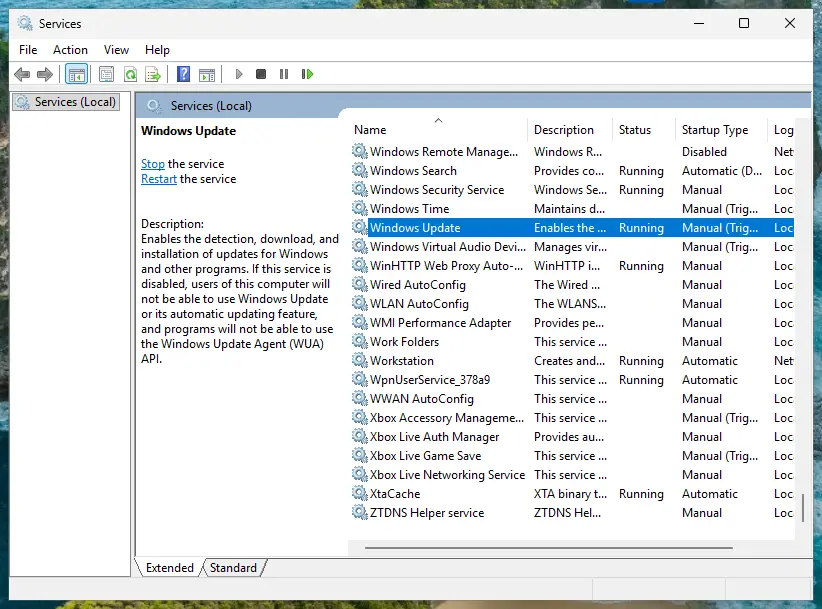
Status and Startup Type of each service are shown in the list. Screenshot: Windows 11 26H2. - Restart the service. Right-click the service and select Restart. If the service is not running, select Start instead. Wait until the progress window closes.

Right-click a service to start, stop or restart it. Screenshot: Windows 11 26H2.
These steps were written for Windows 11 and Windows 10 (the steps are the same). The full page with the other versions and what each result means: Check and restart Windows services
In the list, the service is called Windows Installer. Its normal startup type is Manual: Windows starts it when a setup needs it. Leave it on Manual; there is no need to set it to Automatic.
It worked if: Windows Installer shows Running after the restart, and the setup gets past the 1628 box.
If not: If Restart is greyed out, the service is not running, which is normal. Run the setup once, then go to Fix 7 if it still fails.
Fix 7. Remove the program's leftover InstallShield registry key
15 minutesRead the warningAdvanced users only, after Fixes 1 to 6, when the program's uninstall log was deleted and the program cannot be reinstalled.
The InstallShield maker says error 1628 can be caused by the uninstall log being deleted from the system, and that a setup log then shows "Failed to open cab". Its fix is to delete the program's InstallShield uninstall key in the registry.
A wrong deletion in the registry can break other programs. Export the key first, as described in Back up the registry before editing it, and delete only the one key that carries the failing program's product code.
- Press Win + R, type
regeditand press Enter. Select Yes in the permission prompt. - Go to the key below. For a 32 bit program on 64 bit Windows, look also under
HKEY_LOCAL_MACHINE\SOFTWARE\WOW6432Node\Microsoft\Windows\CurrentVersion\Uninstall. - Select each subkey whose name starts with InstallShield_ and read DisplayName on the right until you find the failing program.
- Right-click that key, select Export and save the .reg file on your desktop.
- Right-click the key again, select Delete and confirm.
- Restart the PC and install the program again from its maker, or check that it is gone from Installed apps.
Where Windows lists uninstall entries
HKEY_LOCAL_MACHINE\SOFTWARE\Microsoft\Windows\CurrentVersion\UninstallThe InstallShield maker gives the key as InstallShield_UninstallInformation followed by the product GUID. The exact name can differ, so match the key by DisplayName, not by its spelling.
It worked if: The program installs fresh without error 1628, or it no longer appears in Installed apps.
If not: Double-click the .reg file on your desktop to restore the key, and read the next section.
If error 1628 is still there: what to check and send
The InstallShield maker says that if its fixes fail, you need to contact the vendor of the program. Only that vendor knows how its setup was built, and some causes of 1628 are mistakes in the setup itself.
- Event Viewer. Press Win + R, type
eventvwr.msc, open Windows Logs > Application and look for MsiInstaller or Error entries at the time of the failure. - A screenshot of the error box, including its title bar, which names the program.
- The program's name and version from Installed apps, and whether you were uninstalling, repairing or updating.
- Your Windows version from
winver, and whether a Windows update was installed just before the error started. - Send it to the program's maker, not to Microsoft or to InstallShield.
Error 1628 is not a sign of failing hardware. If File Explorer also reports read errors or the PC freezes when it copies files, check the drive separately with Check a disk for errors (chkdsk) and back up your files first.
How to avoid error 1628 next time
- Let every setup or uninstall finish, and restart when it asks you to.
- Uninstall programs from Settings or Control Panel, not by deleting their folders.
- Install updates and patches only over the version they were made for.
- Keep the original setup file of programs you paid for, so you can repair them.
- Do not delete InstallShield folders under Program Files or Common Files.
- Do not end setup processes while a setup window is still working.
- Do not run registry cleaners that remove uninstall entries.
Frequently asked questions
What is error 1628?
Error 1628 is an InstallShield run time error. InstallShield is the setup builder that many programs use to install and uninstall themselves. The box reads "1628: Failed to complete installation" or, in older setups, "Failed to complete script based install". The InstallShield maker says it normally occurs during uninstallation, repair or when applying a patch. Its most common causes are a leftover IDriver.exe or ISSetup.exe process and a damaged uninstall log, which Fix 1 and Fix 2 deal with.
Why does it say "installation" when I am trying to uninstall?
Because the same InstallShield engine runs both jobs. When you select Uninstall, Windows starts the program's own setup engine, and it runs an install script in uninstall mode. If that script cannot finish, the engine reports that it failed to complete the installation, meaning its own task. Your program is usually still installed and working. End the leftover setup process (Fix 1) and try the uninstall again.
Can I get error 1628 on an app from Microsoft Store?
Not from the Store app itself. Store apps install and uninstall through Windows, not through InstallShield, and Microsoft points to a separate help page for Store app problems. Some games and programs, though, are listed in Installed apps and run their own InstallShield uninstaller, even if you found them through the Store. If the box says "InstallShield Wizard" in its title bar, the fixes on this page apply. If it does not, see Reset the Microsoft Store.
What does "failed to complete installation 1628" mean on a game or driver?
The same thing as on any other program. Games, drivers and licence tools often ship with InstallShield setups, so the error box shows the game's or driver's name in its title bar. The cause is in that one setup, not in the game itself. End IDriver.exe or ISSetup.exe in Task Manager (Fix 1), move the damaged uninstall log (Fix 2), then contact the game's or driver's maker if the error stays.
Is "1628 failed to complete installation" different on Windows 11?
No. The error comes from the program's InstallShield setup, so it looks and behaves the same on Windows 11 and Windows 10. Only some menus differ: on Windows 11 you uninstall from Settings > Apps > Installed apps and show hidden files with View > Show > Hidden items. Microsoft's Program Install and Uninstall troubleshooter is offered only on the Windows 10 tab of its support page, so on Windows 11 use repair, reset or uninstall in Settings first.
What does "1628 Skriptbasierte Installation konnte nicht abgeschlossen werden" mean on Windows 10?
It is the German wording of the same error: "failed to complete script based install". The fixes on this page apply on a German Windows 10 or Windows 11 as well. In Task Manager, look on the Details page (German: Details) for IDriver.exe or ISSetup.exe. Uninstall from Einstellungen > Apps. The InstallShield Installation Information folder keeps its English name on German Windows too.
Can a Windows update cause error 1628?
Sometimes. The InstallShield maker says changes from recent updates can make setups created before the update fail. It suggests uninstalling the recent update, running the setup, and installing the update again, but warns you to check with the vendor first. On Windows 11 and 10, skipping security updates is a risk, so try Fixes 1 to 6 first. If you do remove one, use How to uninstall a Windows update and install it again straight after.
Should I re-register Windows Installer with msiexec /unregister and /regserver?
We do not recommend it as a fix for 1628. It was in an older version of this guide, but neither the InstallShield maker nor Microsoft lists it for this error. The InstallShield maker says the Windows Installer service must be properly configured, and restarting the service (Fix 6) covers that safely. If programs from many makers fail to install, a system file check is the better next step: Run DISM and SFC to repair Windows system files.
Does Safe Mode help with error 1628?
It is not a fix the InstallShield maker or Microsoft gives for this error, so we removed it from this guide. Safe Mode starts Windows with a minimal set of drivers and services, and many setups need services that are not running there. Ending the leftover setup process (Fix 1) gives the same clean start for the uninstaller without leaving normal Windows.
Sources
- Revenera (InstallShield): Error 1628 (community.revenera.com)
- Flexera (InstallShield): Error 1628 Failed To Complete Script Based Install (community.flexera.com)
- Microsoft Support: Fix problems that block programs from being installed or removed (support.microsoft.com)
Did this fix work?
One click, no account. It tells the next reader which guides are worth their time.
Questions and experiences: fix "Error 1628: Failed to complete installation" error in Windows
Still broken, or found a fix we did not cover? Ask here: members and our editors answer. Reading is open; writing needs a free account.
…