
How to fix error 740 "Elevated permissions are required to run DISM" in Windows?

Prefer to fix it yourself? The manual steps follow.
- 7methods
- 1 minute for most readers, 10 minutes when the account type must change
- Beginner
Applies to DISM.exe and sfc.exe in Command Prompt, PowerShell and Windows Terminal on Windows 11 and Windows 10
7 methods in this guide
I had some problems with my PC, so I was advised to run DISM commands in Command Prompt. However, when I tried, I received this error: "Error 740: Elevated permissions are required to run DISM. Use an elevated command prompt to complete these tasks." I thought my account was set to administrator. I am very confused.
Error 740 means DISM was started in a window without administrator rights. Being signed in as an administrator is not enough: Windows runs every window with reduced rights until you approve it. Close the window, open Terminal (Admin) or Command Prompt with Run as administrator, select Yes, and type the DISM command again.
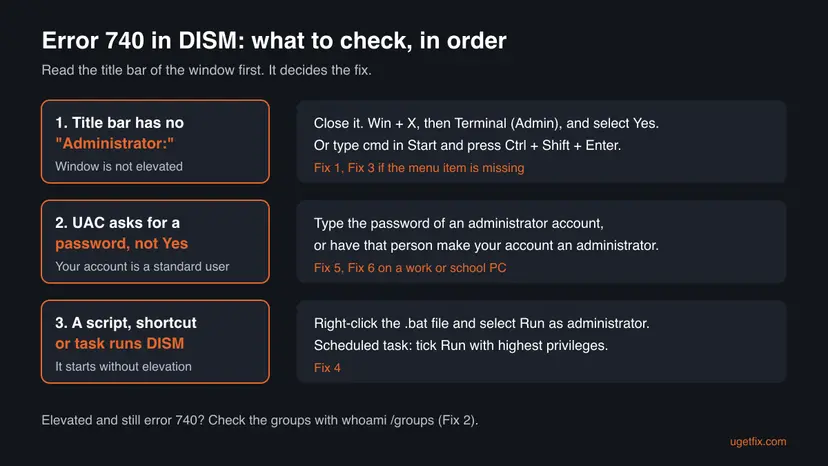
Your window is not elevated. Close it, press Win + X and select Terminal (Admin) (on Windows 10: Windows PowerShell (Admin)), then select Yes in the User Account Control prompt. The title bar must start with Administrator:. Run the DISM command there (Fix 1). If Windows asks for a password instead of Yes, your account is a standard user and you need an administrator's password (Fix 5).
| Error | Error: 740 followed by "Elevated permissions are required to run DISM. Use an elevated command prompt to complete these tasks." |
|---|---|
| Where it appears | In Command Prompt, PowerShell or Windows Terminal, right after you press Enter on any DISM /Online command, most often /Cleanup-Image /RestoreHealth. |
| Main cause | The window runs with the standard user token. Microsoft: all apps run as a standard user until you give consent or credentials. |
| Fastest fix | Open Terminal (Admin) or Command Prompt > Run as administrator, select Yes, run DISM again (Fix 1). |
| Also written as | dism error 740, error 740 command prompt, cmd error 740, error740, ERROR_ELEVATION_REQUIRED, 0x2E4, "The requested operation requires elevation", in Spanish "Se requieren permisos elevados para ejecutar DISM". |
| Affects | Every Windows version with User Account Control, including Windows 11 25H2 and 26H2 and Windows 10 22H2. Windows 10 left support on 14 October 2025. |
| Microsoft's status | Not a bug. 740 is Windows' own error code ERROR_ELEVATION_REQUIRED, value 0x2E4, documented as "The requested operation requires elevation." |
| SFC's version of it | "You must be an administrator running a console session in order to use the sfc utility." Same cause, same fix. |
| Time to fix | 1 minute with an administrator account. About 10 minutes when another administrator must change your account type. |
Facts checked on 15 October 2026. Steps written for Windows 11 (25H2 and 26H2) and Windows 10 22H2.
What "Error: 740 Elevated permissions are required to run DISM" means
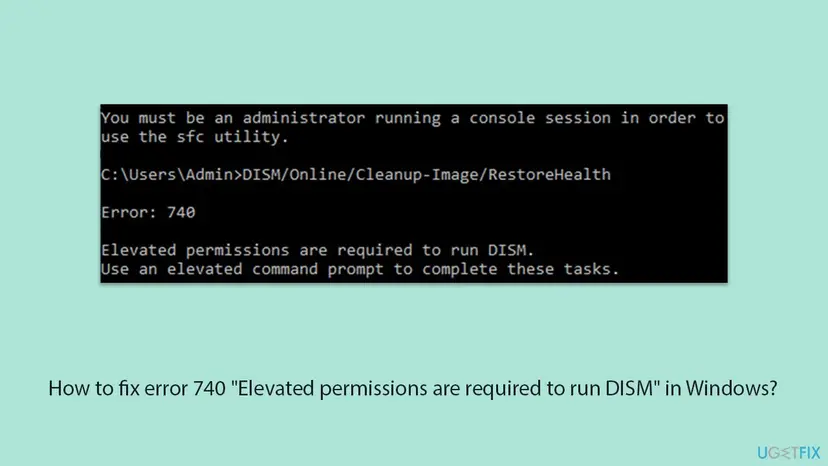
DISM (Deployment Image Servicing and Management) repairs and changes Windows itself, so it refuses to run in a window that has only standard rights. When you type DISM /Online /Cleanup-Image /RestoreHealth in such a window, it stops at once and prints this:
What Command Prompt shows
Error: 740

Elevated permissions are required to run DISM.
Use an elevated command prompt to complete these tasks.
The number is not DISM's own. Microsoft's list of Windows system error codes defines 740 as ERROR_ELEVATION_REQUIRED, hex 0x2E4. Its text is "The requested operation requires elevation." Any program can return it, which is why you also see error 740 when a printer driver, an installer or runas lacks rights. On this page it always means the same thing: the window was not elevated.
Why it happens even on an administrator account: Microsoft explains that when an administrator signs in, Windows creates two access tokens. The standard one, with the administrative rights removed, starts the desktop and every app. "As a result, all apps run as a standard user unless a user provides consent or credentials." The Yes in the User Account Control prompt is that consent.
| What you see | What it means |
|---|---|
| Title bar: Command Prompt or Windows PowerShell | Not elevated. DISM gives error 740. |
| Title bar: Administrator: Command Prompt or Administrator: Windows PowerShell | Elevated. DISM runs. |
Prompt path C:\Users\YourName> | Usually a normal window. An elevated Command Prompt starts in C:\Windows\System32>. |
| UAC prompt with Yes and No | You are an administrator. Select Yes. |
| UAC prompt asking for a user name and password | You are a standard user. You need an administrator's password (Fix 5). |
Why DISM says elevated permissions are required, from most to least common
- Most often: the window was opened the normal way. Typing
cmdand pressing Enter, clicking Command Prompt in Start, or opening Windows Terminal from the taskbar all start it without elevation. Fix 1. - Often: you think the window is elevated, but it is not. A second tab or a new window in Terminal, or a window opened from File Explorer, inherits the normal rights. Fix 2 shows how to check in five seconds.
- Less often: the Run as administrator item is missing or does nothing. A damaged Start menu or search can hide it. Fix 3 uses Task Manager or a key combination instead.
- Less often: a script, shortcut or scheduled task starts DISM. A
.batfile double-clicked or a task left on default settings runs without elevation. Fix 4. - Sometimes: your account is a standard user. Then UAC asks for a password, not for Yes. Fix 5.
- Rarely: the PC is managed by work or school. IT may remove administrator rights or use privilege management software. Fix 6.
How to fix error 740 "Elevated permissions are required to run DISM"
Fix 1 solves this for nearly everyone who has an administrator account. Fix 2 checks the window when you are unsure. Fixes 3 and 4 cover a missing menu item and scripts. Fixes 5 and 6 are for standard accounts and managed PCs. Fix 7 runs the repair you came for.
| What you see or have | Start with |
|---|---|
You opened Command Prompt or Terminal by clicking it or typing cmd | Fix 1 |
| The title bar says Administrator: and DISM still gives error 740 | Fix 2 |
| Run as administrator is missing, greyed out or does nothing | Fix 3 |
A .bat file, a shortcut or a scheduled task runs DISM | Fix 4 |
| UAC asks for a user name and password instead of Yes | Fix 5 |
| A work or school PC, or a message that your organization manages the device | Fix 6 |
| The window is elevated and you want to finish the repair | Fix 7 |
Fix 1. Open Terminal (Admin) or Command Prompt as administrator
1 minuteNo riskEveryone who signs in with an administrator account. This is the fix in almost every case.
DISM checks the rights of the window it runs in, not of your account. A window you approve in the User Account Control prompt gets the full administrator token, and DISM then runs.
- Close the window that showed error 740. Elevation cannot be added to a window that is already open.
- Windows 11: right-click Start (or press Win + X) and select Terminal (Admin). Windows 10: select Windows PowerShell (Admin) in the same menu.
- Or type
cmdin the Start search box, right-click Command Prompt and select Run as administrator. - Select Yes in the User Account Control prompt.
- Check the title bar. It must start with Administrator:.
- Type or paste the DISM command again and press Enter.
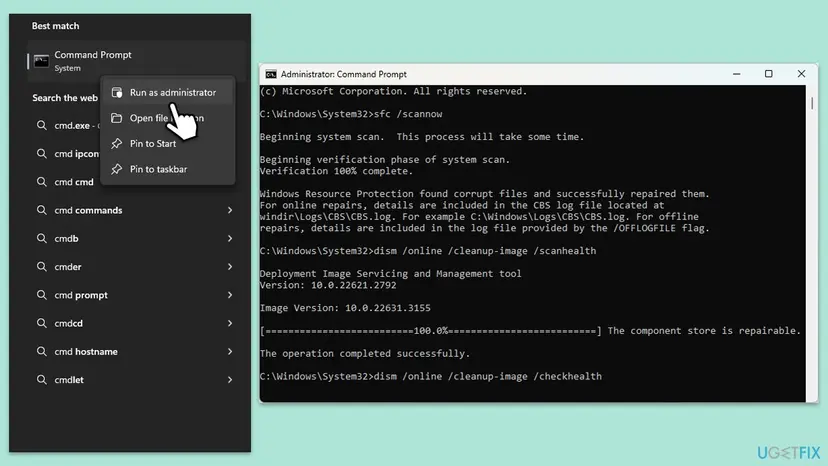
Type cmd in Start or in the Run box (Win + R) and press Ctrl + Shift + Enter instead of Enter. Windows opens it as administrator after the UAC prompt.
A volunteer on Microsoft Q&A gave exactly this answer to a Windows 10 user who saw the message, and the user reported that it got them past the error. Step by step with screenshots: How to run a program as administrator or in compatibility mode.
It worked if: The title bar reads Administrator: Windows PowerShell or Administrator: Command Prompt, and DISM prints its version and Image Version lines instead of Error: 740.
If not: If the title bar is right and you still get error 740, go to Fix 2. If Windows asked for a password, go to Fix 5.
Fix 2. Check that the window really has administrator rights
2 minutesNo riskYou believe the window is elevated, or you use tabs in Windows Terminal and are not sure which one is.
Windows marks every process with an integrity level. An elevated window runs at High Mandatory Level, a normal one at Medium Mandatory Level. This one line answers whether DISM will run there.
- In the window where DISM failed, run the command below.
- Read the line that starts with Mandatory Label. High Mandatory Level means elevated. Medium Mandatory Level means not elevated.
- In Windows Terminal, check each tab. A new tab opened from a normal Terminal window is not elevated, even if another window is.
- If it says Medium, close the window and use Fix 1 or Fix 3.
Command Prompt or PowerShell: is this window elevated?
whoami /groups | findstr /i "Mandatory"A second quick test is net session. In a normal window it ends with "System error 5 has occurred. Access is denied." In an elevated one it prints a list or "There are no entries in the list."
In Windows Terminal, open Settings, select a profile such as Command Prompt and turn on Run this profile as Administrator. That profile then always asks for UAC approval. Leave the default profile as it is if you mainly do everyday work in Terminal.
It worked if: whoami prints Mandatory Label\High Mandatory Level, and DISM runs in that window.
If not: If you get High and DISM still prints error 740, copy both outputs and see the last section. If you never manage to get High, go to Fix 5.
Fix 3. Open an elevated window when Run as administrator is missing
2 minutesNo riskRight-clicking Start or Command Prompt shows no Run as administrator, the item is greyed out, or nothing happens when you select it.
Task Manager starts programs on its own, with a checkbox that requests the administrator token. It does not depend on the Start menu or search, which are often what is broken when the item is missing.
- Press Ctrl + Shift + Esc to open Task Manager. If it opens small, select More details.
- Windows 11: select Run new task at the top. Windows 10: select File > Run new task.
- Type
cmd(orpowershell). - Select Create this task with administrative privileges.
- Select OK, then check that the title bar starts with Administrator:.
If the checkbox is missing or the window still opens without Administrator:, your account cannot elevate at all. That points to a standard account or a managed PC: go to Fix 5 or Fix 6.
It worked if: An Administrator: Command Prompt window opens without using Start, and DISM runs in it.
If not: Go to Fix 5 to check your account type.
Fix 4. Elevate the script, shortcut or scheduled task that runs DISM
5 minutesLow riskDISM runs from a .bat or .cmd file, a desktop shortcut, a scheduled task or a maintenance script, and error 740 appears in its output or log.
A script inherits the rights of whatever starts it. Double-clicking it or a task on default settings gives it the standard token, so DISM refuses exactly as it does in a normal window.
- Batch file: right-click the
.bator.cmdfile and select Run as administrator, then Yes. - Shortcut: right-click it, select Properties, open the Shortcut tab, select Advanced and tick Run as administrator. Select OK twice.
- Scheduled task: open Task Scheduler, right-click the task and select Properties.
- On the General tab, tick Run with highest privileges and select OK. The task's account must be an administrator for this to work.
- Run the task once with Run and read its output or log for error 740.
Anything set to run as administrator can change all of Windows. Do this only for scripts you wrote or fully read. Never tick these boxes for a file downloaded from a forum.
It worked if: The script prints DISM's version and image lines and ends with The operation completed successfully, or with a real DISM result instead of error 740.
If not: If the task's account is not an administrator, fix the account first with Fix 5.
Fix 5. Make your account an administrator
10 minutesLow riskUAC asks for a user name and password instead of showing Yes, or Fix 2 never reaches High.
Microsoft: a standard user who tries an administrative task gets the credential prompt, which needs an administrator's password. Only an existing administrator can make your account one, so this needs that person or their password once.
- Check your account type. In any window, run
net user %username%and read Local Group Memberships. If you see only*Users, you are a standard user. - Sign in with an administrator account, or ask its owner to do so.
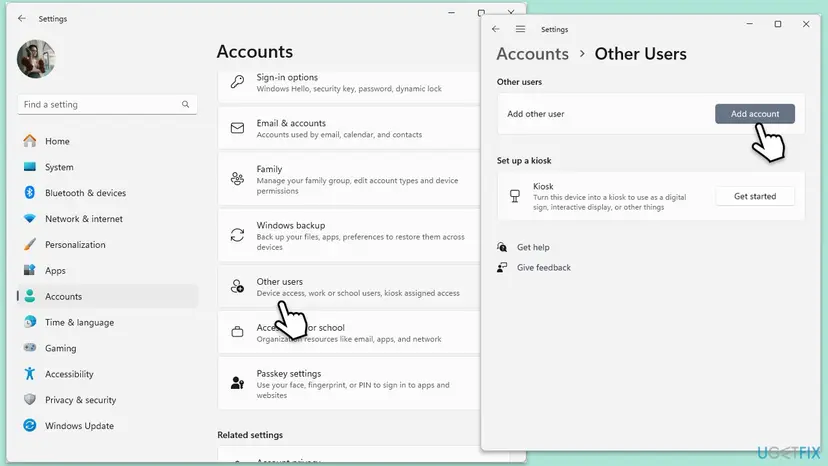
- Windows 11: open Settings > Accounts > Other users. Windows 10: Settings > Accounts > Family & other users.
- Select your account, then Change account type.
- Under Account type, select Administrator and select OK.
- Sign out and sign in to your own account again. The new rights apply only from the next sign-in.
- Run Fix 1 again. UAC now shows Yes.
Short of the password? When you do have it, you can also type the administrator's name and password straight into the UAC prompt in Fix 1. DISM then runs in that elevated window, and your own account stays standard.
If you own the PC and lost the administrator's password, reset it first. A Microsoft account password is reset online at account.live.com/password/reset. A local account offers Reset password on the sign-in screen after a wrong password, when security questions were set.
It worked if: net user %username% lists *Administrators, UAC shows Yes, and the elevated window runs DISM.
If not: If you cannot reach any administrator account, or the device belongs to an employer or school, go to Fix 6.
Fix 6. On a work or school PC, ask IT to run the repair
15 minutes to prepareNo riskThe PC is joined to a company or school, Settings > Accounts > Access work or school lists an organization, or a privilege tool asks for a reason before elevating.
Organizations often remove local administrator rights on purpose or route elevation through privilege management software. Error 740 is then the policy working, not a fault, and there is no safe way around it.
- Send IT the exact message, the command you ran and the output of
whoami /groupsfrom Fix 2. - Say why you need DISM, for example that
sfc /scannowfound files it could not repair or Windows Update fails. - Ask whether they run the repair remotely or give you time-limited rights. Many tools offer an approved elevation for one program.
- Do not try to enable hidden accounts or use exploit tools. That breaks company policy and can lock the device.
It worked if: IT runs DISM for you or grants a one-time elevation, and the repair completes.
If not: Nothing more is possible from a standard account on a managed PC.
Fix 7. Run DISM and SFC in the elevated window
15 to 30 minutesLow riskThe title bar shows Administrator: and you are ready to repair Windows.
Once the rights are right, the error is gone and the repair you wanted can start. DISM first repairs the component store, then SFC replaces damaged system files from it.
Elevated Command Prompt or Terminal: repair the image, then the files
DISM /Online /Cleanup-Image /RestoreHealth
sfc /scannow- Run DISM first. Type the command below and press Enter. DISM downloads clean copies of damaged components from Windows Update, so it can take several minutes. Wait until it says The operation completed successfully.
DISM.exe /Online /Cleanup-Image /RestoreHealth
DISM /RestoreHealth running. Screenshot: Windows 11 26H2. - Run System File Checker. In the same window, type the command below and press Enter. Do not close the window until the verification reaches 100%.
sfc /scannow
sfc /scannow at 100%. Screenshot: Windows 11 26H2. - Read the result and restart. Compare the last message with the table below this guide, then restart the PC so that repaired files are loaded.

The result line tells you what SFC did. Screenshot: Windows 11 26H2.
These steps were written for Windows 11 24H2 and 25H2. The full page with the other versions and what each result means: Run DISM and SFC to repair Windows system files
Keep a space before every slash. DISM/Online/Cleanup-Image/RestoreHealth written together may give a different error once you are elevated. If DISM later holds at one percentage for a long time, see how to tell a working RestoreHealth from a stuck one.
It worked if: DISM ends with The restore operation completed successfully, and SFC reports its result at Verification 100% complete.
If not: A DISM error with another code, such as 0x800f081f, is a different problem from 740. Read the last section for the logs.
If error 740 still appears: what to check and what to send
Error 740 is decided before DISM starts any work, so the DISM log rarely helps here. The proof is the state of the window and the account. Collect these four outputs from the window where DISM failed:
whoami /groups | findstr /i "Mandatory": High or Medium Mandatory Level.net user %username%: whether Local Group Memberships includes*Administrators.winver(a window opens): your Windows version and build.- Settings > Accounts > Access work or school: whether an organization manages the PC.
| Result | What it means | Next step |
|---|---|---|
| Medium, account is in Administrators | The window was not approved | Fix 1 or Fix 3 |
| Medium, account only in Users | Standard account | Fix 5 |
| Cannot get High, organization listed | Managed PC | Fix 6 |
| High, DISM still says 740 | Unusual. We could not confirm a documented cause | Post all four outputs on Microsoft Q&A |
Once DISM runs, its own results are in C:\Windows\Logs\DISM\dism.log and C:\Windows\Logs\CBS\CBS.log. Error 740 is never a hardware problem: no drive, memory or driver fault causes it.
How to avoid error 740 next time
- Start repair tools from Win + X > Terminal (Admin), and check for Administrator: in the title bar before you type.
- Use Ctrl + Shift + Enter in Start search or the Run box when you want any command window elevated.
- Keep one administrator account you know the password of, plus your everyday account.
- Set Run with highest privileges on scheduled maintenance tasks that call DISM.
- Switch User Account Control off to get rid of the prompt. It weakens Windows for every program, and DISM still needs the administrator token.
- Enable the hidden built-in Administrator account for everyday work.
- Set every shortcut to always run as administrator. Elevate only the tools that need it.
Frequently asked questions
What does error 740 mean in Command Prompt?
It means the command needs administrator rights and the window does not have them. Microsoft's list of Windows system error codes defines 740 as ERROR_ELEVATION_REQUIRED, hex 0x2E4. Its text is "The requested operation requires elevation." DISM prints it as "Elevated permissions are required to run DISM. Use an elevated command prompt to complete these tasks." Close the window, open Terminal (Admin) or Command Prompt with Run as administrator, select Yes in the User Account Control prompt and run the command again.
Why do I get error 740 when my account is an administrator?
Because Windows does not give your windows full rights by default. Microsoft explains that an administrator gets two tokens at sign-in, and the standard one starts the desktop and every app. All apps run as a standard user until you approve elevation in the User Account Control prompt. A Command Prompt opened by clicking it or typing cmd uses that standard token. Opening it with Run as administrator and selecting Yes gives it the full token, and DISM then runs.
How do I get elevated permissions to run DISM?
Right-click Start and select Terminal (Admin) on Windows 11, or Windows PowerShell (Admin) on Windows 10. Select Yes when User Account Control asks. Another way is to type cmd in Start search and press Ctrl + Shift + Enter. The title bar of the new window starts with Administrator:, and DISM /Online /Cleanup-Image /RestoreHealth works there. If Windows asks for a user name and password instead of Yes, you need an administrator account's password, as Fix 5 explains.
Does DISM error 740 look different on Windows 11 and Windows 10?
No. The message and the fix are the same on Windows 11 25H2 and 26H2 and on Windows 10 22H2. Only the menu item differs. Windows 11 shows Terminal (Admin) when you right-click Start, while Windows 10 shows Windows PowerShell (Admin) in the same place. Command Prompt with Run as administrator works on both. Windows 10 left support on 14 October 2025, so a Windows 10 PC no longer gets the security fixes that DISM would otherwise download.
Should I run SFC or DISM first?
Our step-by-step procedure runs DISM /Online /Cleanup-Image /RestoreHealth first, then sfc /scannow, because SFC repairs files from the component store that DISM fixes. Both need the same elevated window. SFC's refusal in a normal window reads "You must be an administrator running a console session in order to use the sfc utility." If you see that, the fix is the same as for error 740: open the window as administrator.
What does Error 87 "The cleanup-image option is unknown" mean after I fixed error 740?
It is a different error from 740. Once the window is elevated, DISM reads the command, and error 87 means it did not understand an option. The usual reason is a typing mistake: a missing space before a slash, a wrong option name, or a letter missing in Cleanup-Image. Type it exactly as DISM /Online /Cleanup-Image /RestoreHealth, with a space before every slash. Copying the command from a web page can also bring in odd dashes that DISM rejects.
Is it safe to switch User Account Control off to stop error 740?
No, and it is not needed. Switching UAC off removes the protection for every program, not only for DISM, and Microsoft designs Windows to run with it on. Elevation for one window is enough: Terminal (Admin) or Run as administrator, then Yes. The prompt appears only when you start something that needs full rights, which is exactly the moment you should see it. Keep UAC at its default level.
Can I fix error 740 without an administrator password?
Not on a standard account. Windows asks for an administrator's credentials before any elevated task, and there is no supported way around that prompt. Ask the person who owns the administrator account to type the password into the prompt or to change your account type. On your own PC with a lost password, reset it: a Microsoft account online, a local account through the security questions on the sign-in screen. On a work PC, ask IT.
What does "Se requieren permisos elevados para ejecutar DISM" mean?
It is the same message in Spanish Windows: elevated permissions are required to run DISM, error 740. The fix is identical. Right-click Start, select Terminal (Administrador) or open Símbolo del sistema with Ejecutar como administrador, select Sí in the User Account Control prompt and run the command again. This page is written for English Windows, so menu names elsewhere here are in English.
I get error 740 when installing a printer or a program, not in DISM. Is it the same?
The code is the same, ERROR_ELEVATION_REQUIRED, but the program is different. It means that installer or tool needs administrator rights and was started without them. Right-click its setup file and select Run as administrator, or run it from an elevated window. This page covers DISM. If a printer or a game installer keeps returning 740 when started as administrator, search for that program's own guide.
Sources
- Microsoft Learn: System Error Codes (500-999), ERROR_ELEVATION_REQUIRED 740 (learn.microsoft.com)
- Microsoft Learn: How User Account Control works (learn.microsoft.com)
- Microsoft Q&A: Elevated permissions (DISM RestoreHealth on Windows 10) (learn.microsoft.com)
Did this fix work?
One click, no account. It tells the next reader which guides are worth their time.
Questions and experiences: fix error 740 "Elevated permissions are required to run DISM" in Windows
Still broken, or found a fix we did not cover? Ask here: members and our editors answer. Reading is open; writing needs a free account.
…