
How to fix Event 4502 "Windows Recovery Environment servicing failed" error in Windows?

Prefer to fix it yourself? The manual steps follow.
- 7methods
- 5 minutes to read the event, 20 to 30 minutes to resize the recovery partition
- Advanced
Applies to Windows 11, Windows 10
7 methods in this guide
Hello. I tried installing Windows updates, but it did not work and now I get the "Windows Recovery Environment servicing failed" Event 4502 error. Is there any way to fix this?
Event 4502 from WinREAgent means a Windows update could not update the Windows Recovery Environment (WinRE), while Windows itself keeps working. Microsoft says the usual cause is a recovery partition that is too small, shown as ErrorPhase 2. Check for a newer event 4501 first, then enlarge the recovery partition by 250 MB if needed.
Event 4502 means the monthly update could not refresh the recovery tools (WinRE), not that Windows is broken. Open the event and check whether a newer 4501 "Servicing succeeded" follows it (Fix 1). If not, and the event shows ErrorPhase 2, the recovery partition lacks free space: back up, then add 250 MB to it with Microsoft's steps from KB5028997 (Fix 5).
| Error | Event ID 4502, source WinREAgent, level Critical, in the System log: "Windows Recovery Environment servicing failed." |
|---|---|
| Where it appears | In Event Viewer under Windows Logs > System, at the time a cumulative update installs. The log file is C:\Windows\System32\winevt\logs\system.evtx. |
| Main cause | Too little free space in the recovery partition. Microsoft says 4502 with ErrorPhase 2 is likely this. |
| Fastest fix | Check for a newer event 4501 (Fix 1). If none, and ErrorPhase is 2, enlarge the recovery partition by 250 MB (Fix 5). |
| Also written as | Event 4502, event id 4502, WinREAgent 4502, WinREAgent error 4502, WinREAgent critical error, error 4502. |
| Success event | Event 4501: "Servicing succeeded. The Windows Recovery Environment version is now:" followed by the version. |
| Affects | PCs that get WinRE through Windows Update or WSUS. The change started on 27 June 2023 with the Windows 11 22H2 cumulative update. |
| Microsoft's status | Documented in KB5028997. The WinRE update needs 250 MB of free space in the recovery partition (KB5042320, which replaced KB5034441 on Windows 10). |
| Time to fix | Nothing when a later 4501 exists. 20 to 30 minutes for the partition resize. |
Facts checked on 15 October 2026. Steps written for Windows 11 (25H2 and 26H2) and Windows 10 22H2, from Microsoft's WinRE update documentation.
What Event 4502 "Windows Recovery Environment servicing failed" means
The Windows Recovery Environment, or WinRE, is the small separate system that starts when Windows cannot: Startup Repair, Reset this PC, System Restore from the boot menu and the command prompt there. It lives in its own recovery partition, usually at the end of the disk. Since 27 June 2023 Microsoft updates WinRE through the monthly cumulative update.
WinREAgent is the Windows component that does this servicing and logs the result. Event 4501 says "Servicing succeeded" with the new WinRE version. Event 4502 is its opposite: "Windows Recovery Environment servicing failed." The update of Windows itself usually installs fine. Only the copy of the recovery tools stayed old.
Event 4502 is Critical in Event Viewer, but it does not stop Windows, delete files or cause crashes. The risk is quieter: the recovery tools miss their fixes, and on Windows 10 the WinRE security update stays uninstalled until there is room for it.
- Other spellings. Event 4502, event id 4502, event viewer 4502, WinREAgent 4502, WinREAgent error 4502, error 4502 and "WinREAgent critical error" all mean this one event.
- ErrorPhase. The event details carry an ErrorPhase number. Microsoft documents only ErrorPhase 2: insufficient space in the recovery partition.
- ResetEng. Some pages quote a ResetEng event with the text "Attempt to restore the system to original condition has failed." ResetEng is a different source, named after the reset engine. We could not find Microsoft documentation that links it to 4502.
- Not this page. A search for "p17103coll13/id/4502" points to an item in an online library collection, not to this Windows event.
Why Event 4502 appears: the causes, ranked
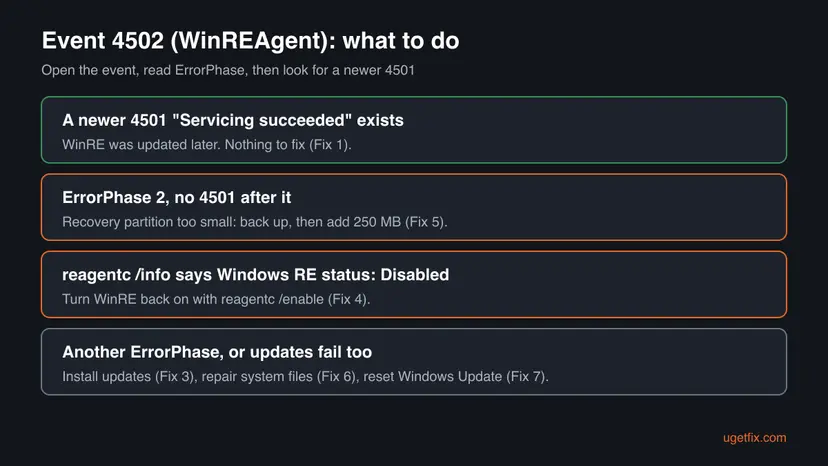
Most often the recovery partition is too small. Many PCs were set up with a recovery partition that had little spare room, and each new WinRE image grows. Microsoft's WinRE update needs 250 MB free in that partition. Less often WinRE is turned off, so there is nothing to service. Rarely the update itself or the system files are damaged.
| Cause | How you recognise it | Fix |
|---|---|---|
| A one-off failure that a later update fixed. | A newer event 4501 "Servicing succeeded" follows the 4502. | Fix 1 |
| The recovery partition has too little free space (most common). | ErrorPhase 2 in the event, and 4502 comes back with each monthly update. | Fix 2, then Fix 5 |
| The update is still pending or only partly installed. | Windows Update shows pending updates or a restart. | Fix 3 |
| WinRE is disabled. | reagentc /info shows Windows RE status: Disabled. | Fix 4 |
| Damaged system files or update components. | Another ErrorPhase, and updates also fail with their own error codes. | Fix 6, Fix 7 |
Users on Reddit report finding 4502 while they look for the cause of random shutdowns. Microsoft ties no shutdown to this event. It is logged during an update, so it shows up near other events, but a crash has its own events, such as Kernel-Power 41.
How to fix Event 4502 in Windows 11 and 10
Fix 1 takes five minutes and tells you whether anything is wrong at all. Fixes 2 to 4 are checks and small commands. Fix 5 is Microsoft's own repair for ErrorPhase 2 and the one that ends repeated 4502 events, but it changes partitions, so back up first. Fixes 6 and 7 are generic repairs for the rare other cases.
| What you see or have | Start with |
|---|---|
| You found 4502 once and do not know if it still matters. | Fix 1 |
| 4502 comes back after every monthly update. | Fix 2, then Fix 5 |
| Windows Update shows pending updates or asks for a restart. | Fix 3 |
reagentc /info says Windows RE status: Disabled. | Fix 4 |
| The event shows ErrorPhase 2 and no 4501 follows it. | Fix 5 |
| Updates fail with their own error code as well. | Fix 6, then Fix 7 |
Fix 1. Read the 4502 event and look for a newer 4501 "Servicing succeeded"
5 minutesNo riskEveryone who found 4502. It decides whether there is anything to fix.
WinRE is serviced again with each cumulative update. If a later 4501 exists, the newer update succeeded and the old 4502 is history. If not, the ErrorPhase number in the event tells you the cause.
- Right-click Start and select Event Viewer.
- Expand Windows Logs and select System.
- In the right pane, under Actions, select Find, type
WinREAgentand select Find Next. - Select Cancel and read the General tab: "Servicing succeeded" (4501) or "Windows Recovery Environment servicing failed." (4502).
- Keep pressing F3 to find the next WinREAgent event, and compare the dates.
- On a 4502, open the Details tab and note the ErrorPhase value.
The PowerShell command below does the same in one go. It lists the newest WinREAgent events and prints every data field of each, ErrorPhase among them.
PowerShell (as administrator): WinREAgent events 4501 and 4502, newest first
Get-WinEvent -FilterHashtable @{ LogName='System'; Id=4501,4502 } -MaxEvents 10 |
  Where-Object ProviderName -like '*WinRE*' |
ForEach-Object { $_.TimeCreated, $_.Id, $_.Message; ([xml]$_.ToXml()).Event.EventData.Data | Format-Table Name, '#text' }- The newest WinREAgent event is 4501: WinRE is up to date. You can ignore older 4502 events.
- The newest is 4502 with ErrorPhase 2: the recovery partition is short of space. Go to Fix 2 and Fix 5.
- The newest is 4502 with another ErrorPhase: Microsoft does not document it. Go to Fix 3, then Fix 6.
It worked if: Either a 4501 newer than the last 4502, which means you are done, or the ErrorPhase that points to the next fix.
If not: If you find no WinREAgent event at all, WinRE may be off. Go to Fix 2.
Fix 2. Check the WinRE status, location and version with reagentc
5 minutesNo riskThe newest WinREAgent event is a 4502, or there is no WinREAgent event at all.
The resize in Fix 5 needs to know where WinRE lives, and it works only when the recovery partition comes right after the Windows partition. reagentc /info shows the status and the disk and partition numbers.
- Type
cmdin the search box, right-click Command Prompt and select Run as administrator. - Run
reagentc /info. - Read Windows RE status: Enabled or Disabled.
- Read Windows RE location, for example
\\?\GLOBALROOT\device\harddisk0\partition4\Recovery\WindowsRE. The numbers after harddisk and partition are the disk and partition of WinRE. - Optional: run the DISM command below with your own location to read the WinRE version.
Command Prompt (as administrator): status, then the WinRE image version
reagentc /info
Dism /Get-ImageInfo /ImageFile:\\?\GLOBALROOT\device\harddisk0\partition4\Recovery\WindowsRE\winre.wim /index:1
Microsoft's page for the Windows 10 WinRE update (KB5042320) says the update is done when the WinRE version is 10.0.19041.3920 or later. On Windows 11 compare the version with the one in your latest 4501 event, if you have one.
It worked if: You know whether WinRE is enabled, on which disk and partition it lives, and which version it has.
If not: If the status is Disabled, go to Fix 4. If it is Enabled and the events show ErrorPhase 2, go to Fix 5.
Fix 3. Install every pending update and restart
15 to 40 minutesLow riskWindows Update shows pending updates, a restart, or a failed update.
WinRE is serviced as part of the monthly cumulative update. A half-installed update can leave a 4502 that the completed one, or next month's, replaces with a 4501.
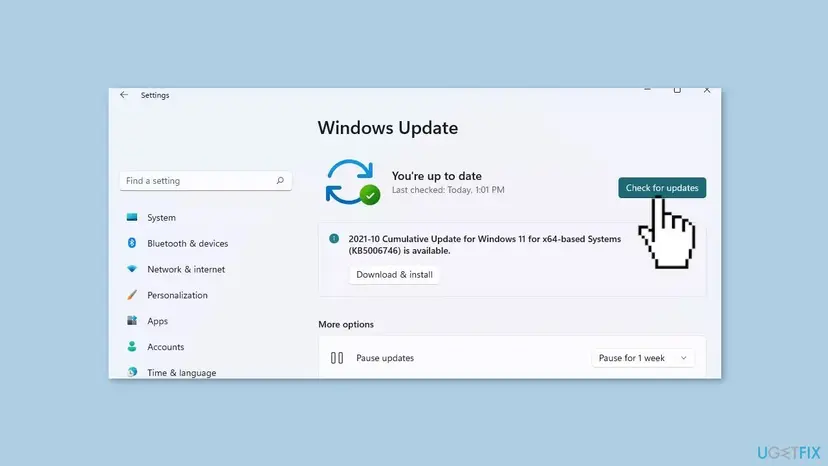
- Press Win + I and open Windows Update.
- Select Check for updates and let every update download and install.
- Restart when asked, then check again until no update is left.
- Run the command from Fix 1 again and look for a new 4501.
Windows 10 left support on 14 October 2025. Without Extended Security Updates a Windows 10 22H2 PC no longer gets new cumulative updates, so no new WinRE servicing attempt follows. An old 4502 then simply stays the last word.
If an update fails with its own error, fix that first. Step by step: Run the Windows Update troubleshooter.
It worked if: Windows Update says you are up to date, and a new 4501 appears.
If not: If 4502 with ErrorPhase 2 appears again with the new update, the space problem remains. Go to Fix 5.
Fix 4. Turn WinRE back on with reagentc /enable
2 minutesLow riskreagentc /info shows Windows RE status: Disabled.
Microsoft's WinRE update pages use reagentc /info to check that WinRE is enabled. A disabled WinRE cannot be serviced, and a resize that stopped halfway leaves it disabled too.
- Open Command Prompt as administrator.
- Run
reagentc /enable. - Run
reagentc /infoand check that the status now reads Enabled and a Windows RE location is listed. - Install the next updates (Fix 3) and look for a 4501.
Command Prompt (as administrator)
reagentc /enable
reagentc /info
It worked if: Windows RE status: Enabled, with a location on the recovery partition.
If not: If reagentc /enable fails, or the next update logs 4502 with ErrorPhase 2, go to Fix 5.
Fix 5. Enlarge the recovery partition by 250 MB with Microsoft's steps
20 to 30 minutesRead the warningThe event shows ErrorPhase 2, no 4501 follows, and the recovery partition sits right after the Windows partition on the same disk.
Microsoft's KB5028997 says a 4502 with ErrorPhase 2 is likely due to insufficient space on the recovery partition, and gives these steps. You take 250 MB from C:, delete the old recovery partition and create a bigger one in its place.
A wrong partition number in diskpart can delete your data or the wrong partition. Back up your files first with Back up your files (Windows Backup, File History, Time Machine). If BitLocker is on, have the recovery key ready: a Microsoft account keeps it at aka.ms/myrecoverykey. Check the numbers twice before each select and delete.
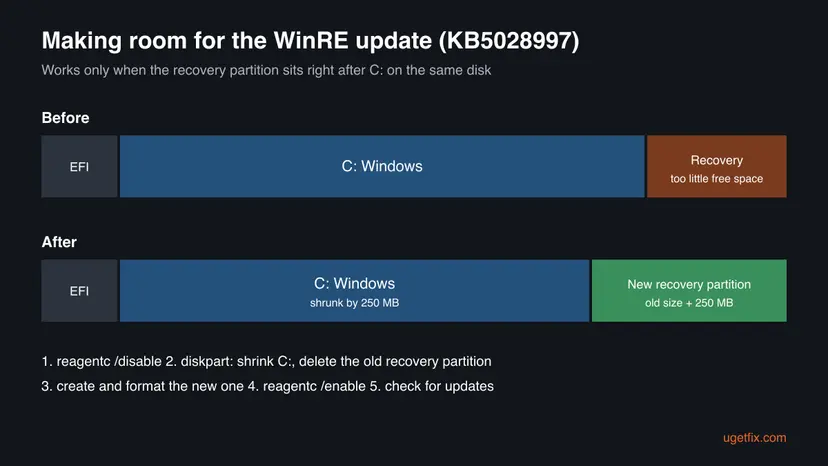
- Open Command Prompt as administrator and run
reagentc /info. Note the disk and partition numbers of WinRE (Fix 2). - Run
reagentc /disable. - Run
diskpart, thenlist disk, thensel disk 0with the disk number of WinRE. - Run
list part. Check that the recovery partition comes right after the Windows partition. If not, stop and runexit, thenreagentc /enable. - Run
sel part 3with the number of the Windows partition, thenshrink desired=250 minimum=250. - Run
sel part 4with the number of the recovery partition, thendelete partition override.
- Run
list diskagain. An asterisk in the Gpt column means a GPT disk, no asterisk means MBR. - On a GPT disk, run the two GPT commands below. On an MBR disk, run
create partition primary id=27. - Run
format quick fs=ntfs label="Windows RE tools". On an MBR disk also runset id=27. - Run
list volto see the new partition, thenexit. - Run
reagentc /enable, thenreagentc /infoto confirm the new location. - Open Windows Update and select Check for updates.
diskpart, GPT disk only: create the recovery partition (Microsoft KB5028997)
create partition primary id=de94bba4-06d1-4d40-a16a-bfd50179d6ac
gpt attributes=0x8000000000000001
format quick fs=ntfs label="Windows RE tools"
Microsoft's page lists Windows 10 and Windows 11 up to 23H2. We found no separate page for 24H2 or 25H2. The tools, reagentc and diskpart, are the same there. If anything fails halfway, run reagentc /enable so WinRE is on again, as Microsoft's note says.
It worked if: reagentc /info shows Enabled on the new partition, and the next servicing logs event 4501 "Servicing succeeded".
If not: If the recovery partition is not after C:, the resize does not apply. Read the section on what to do if 4502 continues.
Fix 6. Repair Windows system files with DISM and SFC
15 to 30 minutesLow riskThe ErrorPhase is not 2, or updates also fail, and the partition has room.
The servicing uses Windows' own component store. If that store is damaged, DISM repairs it from Windows Update, and SFC then fixes the files Windows runs from.
Run DISM first, then SFC, and restart. Step by step:
- Open an elevated command window. Right-click Start and select Terminal (Admin), or type cmd in the search box, right-click Command Prompt and select Run as administrator. Select Yes when Windows asks for permission.

Search for cmd and choose Run as administrator. Screenshot: Windows 11 26H2. - Run DISM first. Type the command below and press Enter. DISM downloads clean copies of damaged components from Windows Update, so it can take several minutes. Wait until it says The operation completed successfully.
DISM.exe /Online /Cleanup-Image /RestoreHealth
DISM /RestoreHealth running. Screenshot: Windows 11 26H2. - Run System File Checker. In the same window, type the command below and press Enter. Do not close the window until the verification reaches 100%.
sfc /scannow
sfc /scannow at 100%. Screenshot: Windows 11 26H2. - Read the result and restart. Compare the last message with the table below this guide, then restart the PC so that repaired files are loaded.

The result line tells you what SFC did. Screenshot: Windows 11 26H2.
These steps were written for Windows 11 24H2 and 25H2. The full page with the other versions and what each result means: Run DISM and SFC to repair Windows system files
It worked if: DISM reports the restore operation completed, SFC finds no violations or repairs them, and the next update logs 4501.
If not: If updates keep failing with an error code, go to Fix 7.
Fix 7. Reset the Windows Update components
10 minutesLow riskCumulative updates themselves fail to install, so the WinRE servicing never gets a clean run.
WinRE is serviced only through the cumulative update. If Windows Update is stuck, a reset of its services and cache lets the update and its WinRE part run again.
This stops the update services, renames the download cache and starts them again. Step by step:
- Open Command Prompt as administrator. Type cmd in the search box, right-click Command Prompt and select Run as administrator. Select Yes when Windows asks for permission.
- Stop the update services. Type the commands below and press Enter after each one. If Windows says that other services depend on Cryptographic Services, it stops them too. A message that a service is not started is fine.
net stop wuauserv
net stop bits
net stop cryptsvc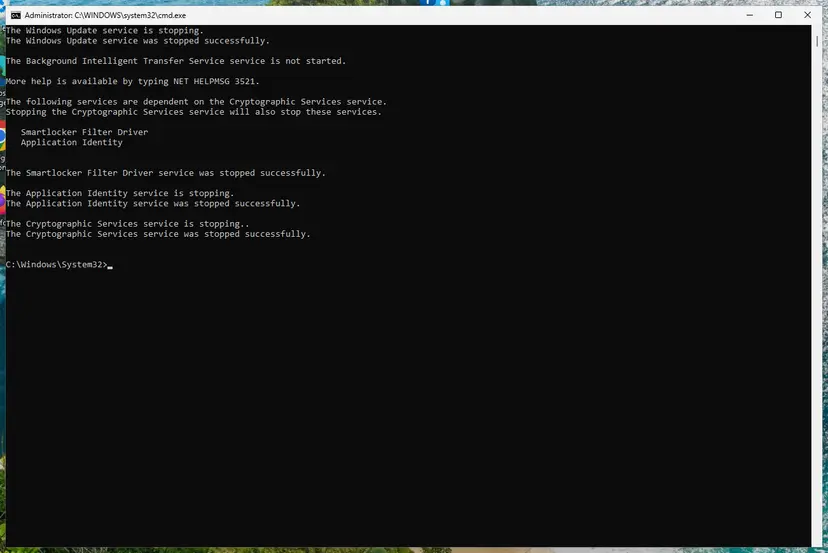
The update services are stopped. Screenshot: Windows 11 26H2. - Delete the download queue files. This clears the list of downloads that the Background Intelligent Transfer Service keeps. If Windows says it cannot find the files, continue.
del "%ALLUSERSPROFILE%\Application Data\Microsoft\Network\Downloader\qmgr*.dat" - Rename the update cache folders. Renaming keeps a copy in case you need it; Windows creates new, empty folders when the services start again. If you get Access is denied, a service is still running: repeat the previous step.
ren %systemroot%\SoftwareDistribution SoftwareDistribution.old
ren %systemroot%\System32\catroot2 catroot2.old
Both folders now end in .old. Screenshot: Windows 11 26H2. - Start the services again. Type the commands below and press Enter after each one. The requested service has already been started is fine: Windows started it on its own.
net start cryptsvc
net start bits
net start wuauserv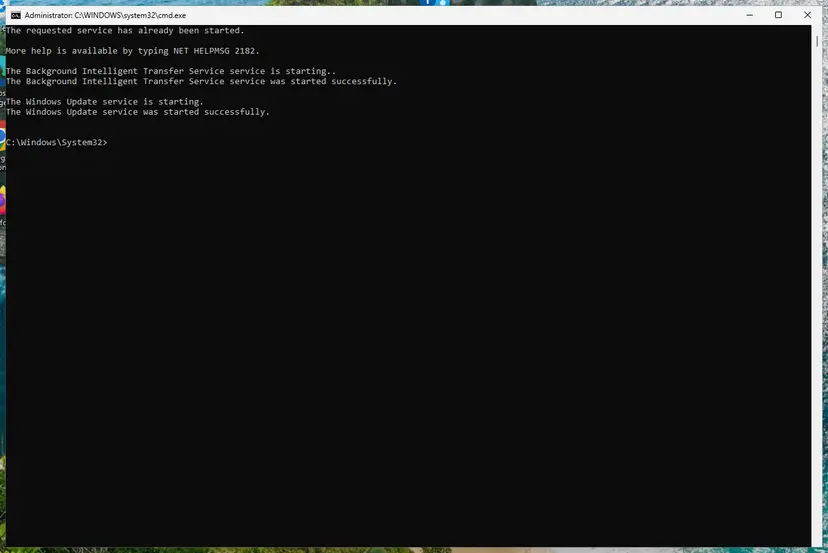
BITS and Windows Update are running again. Screenshot: Windows 11 26H2. - Restart and check for updates. Restart the PC. Then select Start > Settings > Windows Update > Check for updates. The first check can take longer than usual because everything is downloaded again.
These steps were written for Windows 11 and Windows 10 (the steps are the same). The full page with the other versions and what each result means: Reset Windows Update components
It worked if: The next cumulative update installs, and a 4501 follows it.
If not: Read the section below on what to collect and when to leave it as it is.
If Event 4502 continues: what to check and when to leave it
When 4502 keeps coming back, the partition layout is usually the reason. Microsoft's resize needs the recovery partition right after the Windows partition. On some PCs it sits before C:, or on another disk, and then there is no simple fix. Collect these facts for support or a forum post:
- The full event with its date, the ErrorPhase and the other data fields from the command in Fix 1.
- The output of
reagentc /info: status and location. - The output of diskpart's
list diskandlist part, so the layout and partition sizes are visible. - The Windows version from Settings > System > About.
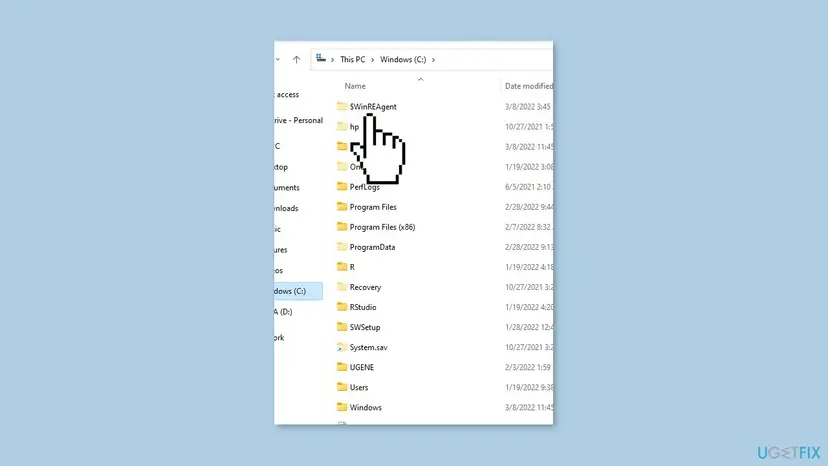
Old advice tells you to delete the $WinREAgent folder. No Microsoft page we read gives that as a fix, and the folder is on C:, so it cannot add space to the recovery partition. Leave it in place.
If you decide not to resize, Windows keeps running and the recovery tools work in the version they have. Users in Microsoft's Q&A forum report the same: the PC updates and runs fine with 4502 in the log. The cost is that WinRE misses its fixes.
How to keep Event 4502 from coming back
- Keep 250 MB or more free in the recovery partition, as Microsoft's WinRE update requires.
- Install cumulative updates every month and restart when asked.
- Check
reagentc /infoafter any disk cloning or partition change. - Keep your BitLocker recovery key outside the PC.
- Do not delete the recovery partition to save space.
- Do not delete $WinREAgent or rename files in WinSxS to stop the event.
- Do not leave WinRE disabled after a failed resize: run
reagentc /enable. - Do not use partition tools you do not know well on the system disk without a backup.
After a successful resize, each monthly update should log 4501 with a newer WinRE version. Older 4502 events stay in the log until it rolls over, but they no longer mean anything.
Frequently asked questions
What is Event ID 4502 "Windows Recovery Environment servicing failed"?
It is a Critical event from the source WinREAgent in the System log. Windows logs it when a cumulative update tries to update the Windows Recovery Environment and fails. Since June 2023 Microsoft updates WinRE through the monthly update. Microsoft's KB5028997 says that 4502 with ErrorPhase 2 is likely caused by too little space in the recovery partition. The opposite event, 4501, says servicing succeeded.
Is Event 4502 dangerous? Can I ignore it?
It is not dangerous by itself. Windows starts and runs as before, and your files are safe. You can ignore an old 4502 when a newer 4501 follows it. When 4502 returns with every monthly update, the recovery tools stay old and miss their fixes. That matters if you ever need Startup Repair or Reset this PC. Fix it with the resize when ErrorPhase is 2.
What does ErrorPhase 2 mean in event 4502?
Microsoft says a 4502 with ErrorPhase 2 is likely an error due to insufficient space on the recovery partition that holds WinRE. The WinRE update needs 250 MB of free space there. The fix is Microsoft's KB5028997 procedure: shrink C: by 250 MB, delete the old recovery partition and create a bigger one (Fix 5). Microsoft does not document the other ErrorPhase numbers.
Does the WinREAgent 4502 error happen on Windows 11?
Yes. The servicing of WinRE through cumulative updates started with the Windows 11 22H2 update of 27 June 2023, and the event is the same on Windows 11 and Windows 10. Microsoft's resize page lists Windows 11 up to 23H2 and Windows 10. On 24H2 and 25H2 the same reagentc and diskpart tools are used, but we found no separate Microsoft page for them.
Is event 4502 related to KB5034441 and error 0x80070643?
KB5034441 was the WinRE update for Windows 10 in January 2024. Microsoft retired it and replaced it with KB5042320, which needs 250 MB free in the recovery partition. The space problem behind both is the same as behind 4502 with ErrorPhase 2. We did not confirm the 0x80070643 code in the pages we read, so check the code in your own update history.
Should I delete the $WinREAgent folder?
Not as a fix. The $WinREAgent folder on C: belongs to the WinRE servicing. No Microsoft page we read tells you to delete it for 4502, and it cannot add space to the recovery partition, which is a separate partition. Deleting it does not change the cause. Use Fix 1 to read the ErrorPhase and Fix 5 to give the partition room.
What is ResetEng and does it have an event 4502?
ResetEng is the event source named after the reset engine that Reset this PC uses. Some websites quote a ResetEng event with the text "Attempt to restore the system to original condition has failed" next to 4502. We could not find Microsoft documentation of that event or of a link between the two. The event you see in Event Viewer as WinREAgent 4502 is the WinRE servicing failure described here.
Can Event 4502 cause my PC to shut down or crash?
Microsoft ties no shutdown or crash to it. The event is written once during an update, when the WinRE copy could not be refreshed. Users report finding 4502 while searching for the cause of random shutdowns, because it is Critical and stands out. Look for Kernel-Power event 41 and event 1001 with a stop code at the times of the shutdowns instead.
Can I undo the partition resize?
Not easily, and you do not need to. The new recovery partition simply holds WinRE with more room, and C: is 250 MB smaller. Microsoft also says the Windows 10 WinRE update cannot be removed once it is applied. If the resize fails halfway, run reagentc /enable so WinRE is turned on again, as Microsoft's note says, and restore from your backup only if C: itself was damaged.
I searched for "4502" in another language. Is this the right page?
Yes, if you see event 4502 from WinREAgent in Event Viewer. Searches like "что за ошибка", "que significa este error" or "bị lỗi gì" ask what the error means: it is a failed update of the Windows recovery tools, not damage to Windows. A Japanese search about a reset that does not work is a different problem, but WinRE must be enabled for Reset this PC to start from the recovery menu.
Sources
- Microsoft Support: KB5028997, Instructions to manually resize your partition to install the WinRE update (support.microsoft.com)
- Microsoft Support: KB5042320, Windows Recovery Environment update for Windows 10, version 21H2 and 22H2 (support.microsoft.com)
- Microsoft Q&A: Event 4502 WinREAgent after Windows Update (user reports) (learn.microsoft.com)
Did this fix work?
One click, no account. It tells the next reader which guides are worth their time.
Questions and experiences: fix Event 4502 "Windows Recovery Environment servicing failed" error in Windows
Still broken, or found a fix we did not cover? Ask here: members and our editors answer. Reading is open; writing needs a free account.
…