
How to fix Exception error code 0xc000027b in Windows?

Prefer to fix it yourself? The manual steps follow.
- 8methods
- 5 minutes to find the app, 5 to 20 minutes for the fix
- Easy to medium
Applies to Windows 11, Windows 10, Microsoft Store apps (Store, Xbox, Settings, Photos and others)
8 methods in this guide
- What the code means
- Causes, most common first
- If Task Scheduler shows it
- The fixes
- 1. Find the crashing app
- 2. Repair or reset the app
- 3. Clear the Store cache
- 4. Re-register the app
- 5. Install app updates
- 6. Test a new user account
- 7. Restore app permissions
- 8. Repair system files
- If it still appears
- Keep it from returning
- FAQ
I tried opening the Microsoft Store on my Windows 11 PC to download an app, but it crashed. I then checked the logs and saw it's Exception code: 0xc000027b. Does it tell you anything? Can you help me with this? I've noticed this is happening with the Xbox app too.
Exception code 0xc000027b means a Windows app hit an internal error it could not handle and closed, usually right as it started. It shows up in Event Viewer, not on screen. Find which app crashed, then repair or reset that app first.
0xc000027b is the crash code of a Microsoft Store app, such as the Store itself, Xbox or Settings, that failed during start. Find the app's name in Event Viewer (Fix 1), then repair and, if needed, reset it in Settings (Fix 2). If many apps, Start and Search fail together, Microsoft links the code to missing ALL APPLICATION PACKAGES permissions (Fix 7).
| Error | Exception code: 0xc000027b, logged as Event ID 1000 (Application Error) when a Microsoft Store app crashes. |
|---|---|
| Where it appears | Not on screen. The app opens and closes, or never opens, and the code is written to Event Viewer > Windows Logs > Application. It can also show as a task's Last Run Result in Task Scheduler. |
| Main cause | The app hits an internal exception during start. Microsoft names one documented cause: an access denied error because the ALL APPLICATION PACKAGES group lost read rights to registry keys or folders. |
| Fastest fix | Repair, then reset the app that crashed in Settings > Apps > Installed apps (Fix 2). |
| Code meaning | Microsoft's text for it: "An application-internal exception has occurred." Developers know it as STATUS_STOWED_EXCEPTION, an error that a modern (UWP or XAML) app stored and could not handle. |
| Also written as | 0xc000027b, 0xC000027B, c000027b, Exception code: 0xc000027b. Decimal form: 3221226107. |
| Affects | Windows 11 and Windows 10. Windows 10 left support on 14 October 2025, so its Store apps get fewer fixes. |
| Microsoft's status | Documented in KB 2798317 (Microsoft Store Apps fail to start if default registry or file permissions modified), updated in February 2026. No update that fixes it for all PCs. |
| Time to fix | 5 minutes to find the app. 5 minutes for a repair or reset, up to 30 minutes for permissions and system file repair. |
Facts checked on 15 October 2026. Steps written for Windows 11 (25H2 and 26H2) and Windows 10 22H2.
What exception code 0xc000027b means in Windows
Exception code 0xc000027b is a crash code, not an error message. Windows writes it when an app built on the modern app platform (a Microsoft Store app, also called a UWP or packaged app) meets an error inside its own code and stops. Microsoft's own wording in its support article is short: "0xc000027b: An application-internal exception has occurred."
That is why many readers find it only by accident. The Store, Xbox or Settings window flashes and disappears, and no box with a code appears. Microsoft says the same: the app begins to start, Windows returns to the desktop or Start, and no on-screen error is displayed.
- STATUS_STOWED_EXCEPTION is the name developers see. A stowed exception is an error the app saved for later and then could not handle, so Windows ends the app. The "status application internal error" some people search for is the same code, described in other words.
- c000027b without the 0x is how debuggers and some crash reports write it.
- 3221226107 is the same number in decimal. You may see it as an exit code, for example in developer tools or scripts.
- It is not a virus warning and not a hardware alarm. It tells you that one app crashed, not why.
- dlnest appears in some searches next to this code. We found no source that links that name to 0xc000027b.
The same code comes from Microsoft Store, Xbox, Settings, Photos, Start and Search, and from apps you write yourself. The faulting application name in the same Event Viewer entry tells you which fix below applies to you.
Why apps crash with exception code 0xc000027b
Microsoft has documented one cause for this code in detail, and the rest of the order below follows what each fix touches. A damaged app package is the most common thing a home reader can fix in minutes, so it comes first.
| How often | Cause | Signs | Fix |
|---|---|---|---|
| Most often | The app's own data or package is damaged, for example after an interrupted update. | One app crashes; other Store apps open. | Fix 2, Fix 4 |
| Often | Microsoft Store's cache or an outdated app framework. | The Store or apps it installed crash, often after a Windows upgrade. | Fix 3, Fix 5 |
| Less often | The ALL APPLICATION PACKAGES group lost read rights to registry keys or folders, so the app gets access denied at start. | Many Store apps, Start and Search fail at once. Common on managed work PCs. | Fix 6, Fix 7 |
| Rarely | Damaged Windows system files. | Built-in apps fail and nothing above helps. | Fix 8 |
Many guides for this code tell you to update graphics drivers or set the clock. We found no source that ties either to this crash. A wrong clock stops the Store from connecting, which gives other errors, not 0xc000027b. Use them only if Event Viewer points that way.
0xc000027b in Task Scheduler: what the Last Run Result means
Task Scheduler shows the exit code of the program a task started in the Last Run Result column. When that column says 0xC000027B, the task itself ran, but the program it launched crashed with this exception. The fix belongs to that program, not to Task Scheduler.
- Press Win + R, type
taskschd.mscand select OK. - Select Task Scheduler Library and find the task with (0xC000027B) in Last Run Result.
- Open the Actions tab of that task and note the program it starts.
- Look up the same program in Event Viewer (Fix 1) and use the fix for that app.
If the task belongs to an app you removed, or to a tool you no longer use, select it and choose Disable. Do not delete tasks whose author is Microsoft. If the Task Scheduler window itself closes when you open it, the crashing program is mmc.exe, and Fix 8 is the place to start. We could not find a Microsoft document about that case.
How to fix exception code 0xc000027b
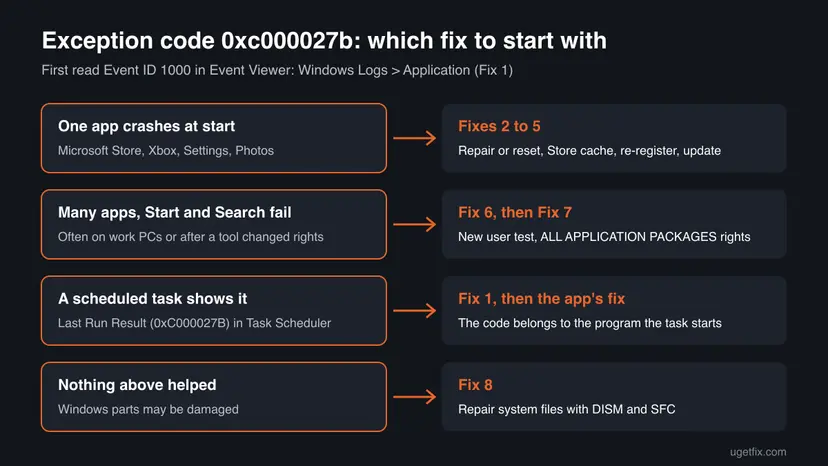
Fix 1 tells you which app crashed. Fixes 2 to 5 repair one app and solve most cases. Fixes 6 and 7 are for many failing apps at once. Fix 8 repairs Windows files. Test the app after each fix.
| What you see or have | Start with |
|---|---|
| You only know the code, not the app | Fix 1 |
| One app crashes: Store, Xbox, Settings, Photos | Fix 2 |
| Microsoft Store crashes or apps fail to install | Fix 3 |
| Repair and Reset are missing or did not help | Fix 4 |
| Apps broke after a Windows upgrade | Fix 5 |
| Many apps, Start and Search fail together | Fix 6, then Fix 7 |
| Task Scheduler shows (0xC000027B) for a task | Fix 1 |
| Nothing above helped | Fix 8 |
Fix 1. Find the app that crashed in Event Viewer
5 minutesNo riskEveryone. The rest of the page depends on the app's name.
The code is the same for every app, but the Event ID 1000 entry names the faulting application and module. Microsoft's article uses exactly this entry to tell the permissions problem apart from a single broken app.
- Right-click Start and select Event Viewer.
- Open Windows Logs > Application.
- In the right pane select Filter Current Log, type
1000in the Event IDs box and select OK. - Open the newest Application Error entry from the time the app crashed.
- Read Faulting application name, Faulting module name and the line Exception code: 0xc000027b.
- Optional: open Applications and Services Logs > Microsoft > Windows > Apps > Microsoft-Windows-TWinUI/Operational and look for Event ID 5961. It names the app that did not start.
Log Name:      Application
Source:        Application Error
Event ID:      1000
Faulting application name: <app>.exe
Faulting module name: <module>.dll
Exception code: 0xc000027bIf every entry names the same app, use Fixes 2 to 5. If the entries name several apps, Start (StartMenuExperienceHost.exe) or Search, go to Fix 6. Users often report Windows.UI.Xaml.dll as the faulting module; that is the shared part that draws the app's window, not the cause.
It worked if: You know which app crashes, and whether it is one app or many.
If not: If you find no entry with 0xc000027b, open the app again, wait for it to close and refresh the log. Then go to Fix 2.
Fix 2. Repair, then reset the app that crashes
5 minutesLow riskOne app crashes, such as Microsoft Store, Xbox, Photos or Settings.
Repair checks and fixes the app's installed files and keeps its data. Reset deletes the app's local data, the usual place where a bad setting or cache makes the app throw the same exception at every start.
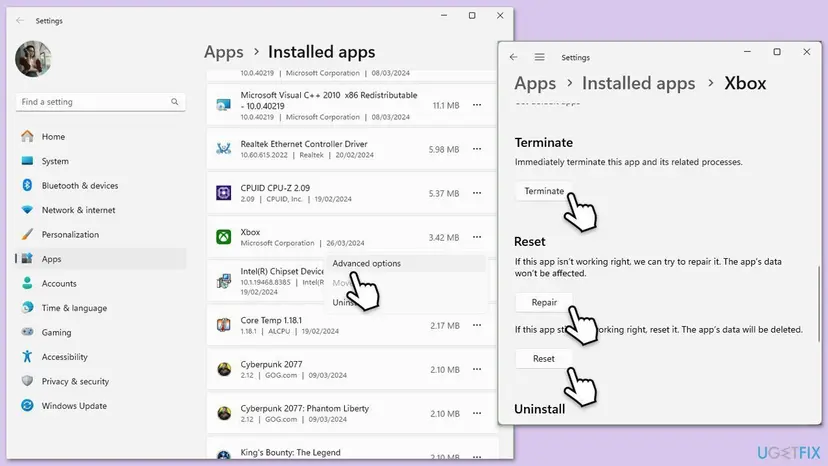
- Open Installed apps. Select Start > Settings > Apps > Installed apps.
- Open the app's advanced options. Find the app in the list, select the three dots next to it and select Advanced options. Some apps do not have this option: for those, see the section about desktop programs below.
- Repair first. On the page that opens, select Repair if it is there. The app's data stays. Open the app and check whether it works.
- Reset if Repair did not help. Select Reset. This deletes the app's data on this PC, including sign-in details and settings. Open the app and set it up again.
These steps were written for Windows 11 25H2 and 26H2. The full page with the other versions and what each result means: How to repair or reset an app in Windows
Built-in parts such as Settings and, on newer Windows 11 builds, Microsoft Store are listed under Settings > System > System components instead. Select the three dots next to the app, then Advanced options. If Settings itself will not open, type Settings in Search, right-click the result and select App settings.
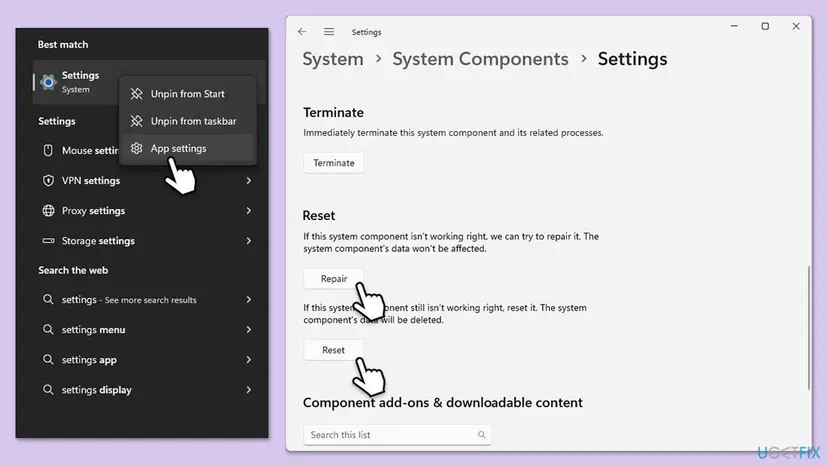
Reset removes the app's local data on this PC: sign-in, settings and offline content. Purchases and cloud saves stay in your Microsoft account. Try Repair first, and Reset only if Repair did not help.
It worked if: The app opens and stays open, and no new Event ID 1000 entry with 0xc000027b appears.
If not: If the Store crashes, go to Fix 3. If there is no Repair or Reset button, or both did not help, go to Fix 4.
Fix 3. Clear the Microsoft Store cache with wsreset
2 minutesLow riskMicrosoft Store crashes, or apps fail when the Store installs or updates them.
The Store keeps a cache of its pages and downloads. If that cache is damaged, the Store can crash with this exception as soon as it loads it. wsreset clears the cache without touching installed apps or your account.
- Clear the Store cache. Press Windows + R, type wsreset.exe and select OK. A blank Command Prompt window opens; after a short while it closes and Microsoft Store opens by itself.

After wsreset, the Store opens and loads again. Screenshot: Windows 11 26H2. - Open System components. If the problem stays, select Start > Settings > System > System components. Next to Microsoft Store, select the three dots and Advanced options. If Microsoft Store is not listed there, look for it in Settings > Apps > Installed apps.
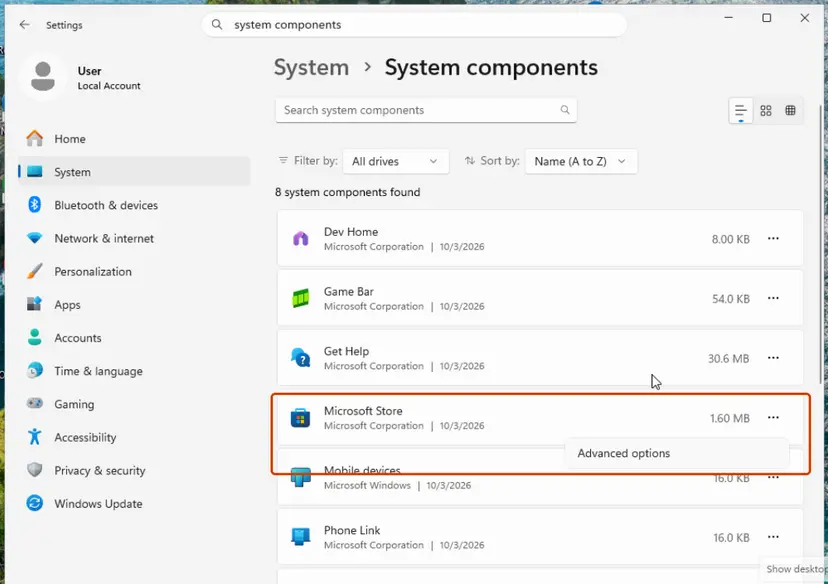
Microsoft Store is listed under System components. Screenshot: Windows 11 26H2. - Repair first. Scroll to Reset and select Repair. Repair keeps the app's data. Open the Store and check whether it works.
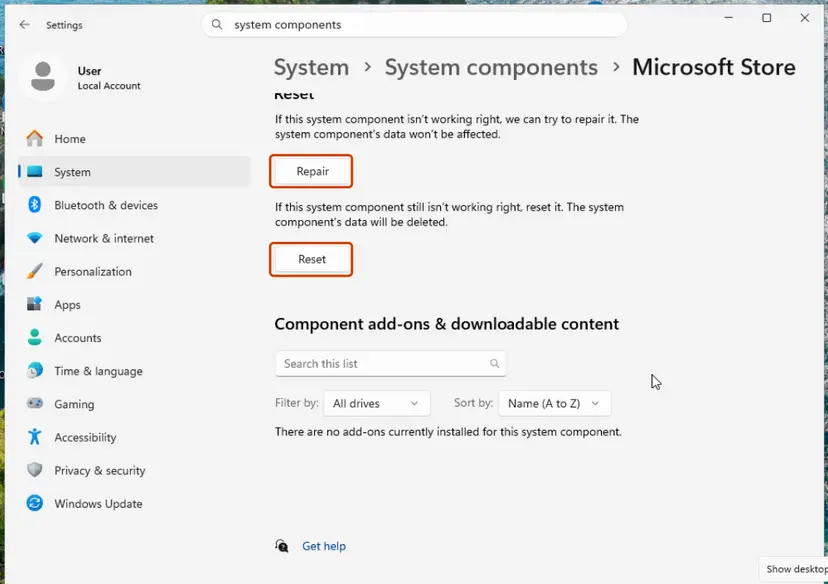
Repair keeps the app's data; Reset deletes it. Screenshot: Windows 11 26H2. - Reset if Repair did not help. Select Reset and confirm. This deletes the Store app's data on this PC; your purchases stay in your Microsoft account. Open the Store and sign in again.
These steps were written for Windows 11 26H2 (build 26300). The full page with the other versions and what each result means: Reset the Microsoft Store
The blank window that opens after wsreset is normal: do not close it. It closes by itself and the Store opens. Stop after step 1 if the Store now works. On Windows 10 the Store is under Apps & features: Reset the Microsoft Store.
It worked if: Microsoft Store opens on its Home page and lets you download.
If not: If the Store still closes, re-register it in Fix 4.
Fix 4. Re-register the app with PowerShell
5 minutesLow riskRepair and Reset are missing, greyed out or did not help.
Re-registering reads the app's manifest again and rebuilds its registration for your user. It fixes an app whose files are fine but whose registration is broken, which Repair does not always reach.
- Open PowerShell. Select Start, type PowerShell and select Windows PowerShell. Open it the normal way, not as administrator: in an administrator window the app is registered to the administrator account instead of yours.
- Find the app's package. Type the command below with a part of the app's name between the asterisks and press Enter. If the app is installed, PowerShell prints its details, including Name and InstallLocation. If nothing is printed, the app is not installed for your account: see the section below.
Get-AppxPackage -Name '*WindowsCalculator*'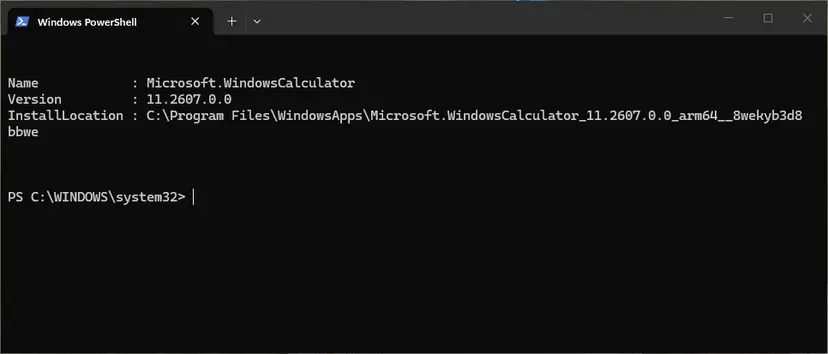
Get-AppxPackage shows the package name and where it is installed. Screenshot: Windows 11 26H2. - Re-register the app. Paste the three commands below, with the same name between the asterisks, and press Enter. They read the folder the app is installed in and register its manifest again. If no red text appears, it worked.
$InstallLocation = Get-AppxPackage -Name '*WindowsCalculator*' | Select-Object -ExpandProperty InstallLocation $ManifestPath = $InstallLocation + '\Appxmanifest.xml' Add-AppxPackage -Path $ManifestPath -Register -DisableDevelopmentMode - Open the app. Close PowerShell and start the app from Start. If it still fails, restart the PC and try once more.
These steps were written for Windows 11 25H2 and 26H2, Windows 10 22H2. The full page with the other versions and what each result means: How to re-register Microsoft Store apps with PowerShell
Use the package name of your app between the asterisks. For Microsoft Store it is *Microsoft.WindowsStore*, for the Xbox app *Microsoft.GamingApp*, and for Settings *windows.immersivecontrolpanel*. For Settings, run this in PowerShell:
Get-AppxPackage *windows.immersivecontrolpanel* | Foreach {Add-AppxPackage -DisableDevelopmentMode -Register "$($_.InstallLocation)\AppXManifest.xml"}It worked if: PowerShell returns to the prompt without red text, and the app starts.
If not: If PowerShell prints an error that the package is in use, close the app and run the command again. If the app still crashes, go to Fix 5.
Fix 5. Install app and Windows updates
10 to 20 minutesLow riskApps started crashing after a Windows upgrade, or Microsoft Store shows pending updates.
Store apps load shared parts such as the XAML framework and system components that update through Microsoft Store. An app that expects a newer version of those parts than the PC has can crash at start.
- Open Microsoft Store and select Library at the bottom left.
- Select Get updates, or Update all if updates are listed.
- Wait until the list shows no pending updates, including System Components entries.
- Open Settings > Windows Update and select Check for updates. Install what it offers and restart.
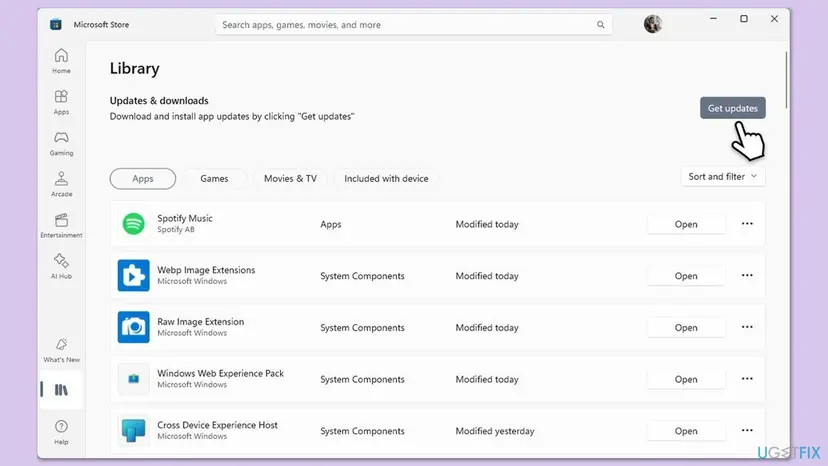
If the Store itself crashes, you cannot use this step. Install Windows updates first, then come back to the Store.
It worked if: Library shows all apps up to date, and the app opens after the restart.
If not: If the crash continues and several apps fail, go to Fix 6.
Fix 6. Test the apps in a new user account
10 minutesLow riskMany Store apps, Start or Search fail, and you want to know whether the problem is in your user profile.
In a call4cloud case study, broken rights on keys in the user's own registry (HKEY_CURRENT_USER) caused 0xc000027b, and a new profile fixed it. If apps work for a new user, the damage is in your profile, not in Windows.
- Create a second local account on the PC. Step by step: Create a new user account to test a problem.
- Sign out and sign in with the new account.
- Open the apps that crashed, such as Microsoft Store and Settings, and click Start.
- Sign out and back into your own account when you have your answer.
Apps work in the new account: your profile's permissions are damaged, so Fix 7 (the current user keys) applies. Apps fail in the new account too: the machine-wide keys or folders, or Windows files, are the cause, so do Fix 7 for those paths and then Fix 8.
It worked if: You know whether only your profile or the whole PC is affected.
If not: If you cannot create an account on a work PC, ask your IT department and go to Fix 7.
Fix 7. Restore the ALL APPLICATION PACKAGES permissions
20 to 30 minutesRead the warningMany Store apps, Start and Search fail together, especially on a PC managed by an IT department or after a security or tuning tool changed permissions.
Microsoft's KB 2798317 says 0xc000027b is logged when the read permission of the ALL APPLICATION PACKAGES group is missing on registry keys or folders. Store apps run in a sandbox and need that group's rights to read anything at start.
Wrong permission changes can break more of Windows, and Microsoft says broad changes cannot be rolled back. Make a restore point and a registry backup first: Back up the registry before editing it. Only add the Read right described here; do not remove anything.
- On a work PC, open Command Prompt as administrator and run
gpresult /h %USERPROFILE%\gpreport.html. If the report shows File System or Registry under Security Settings, Group Policy sets these rights: ask IT, because it will undo your change. - Press Win + R, type
regeditand select OK. - Right-click HKEY_USERS, select Permissions and check that ALL APPLICATION PACKAGES has Read. If it is missing, select Add, type
ALL APPLICATION PACKAGES, select OK and tick Read. - Repeat for HKEY_CLASSES_ROOT and, under HKEY_LOCAL_MACHINE, for HARDWARE, SAM, SOFTWARE and SYSTEM.
- If only your profile is affected (Fix 6), check the same right on
HKEY_CURRENT_USER\Software\Microsoft\Windows\CurrentVersion\Explorerand its User Shell Folders key. - In File Explorer, check that
C:\Program FilesandC:\Windowsgive ALL APPLICATION PACKAGES Read & execute, List folder contents and Read under Properties > Security. - Restart the PC and open the apps again.
If apps still fail after the rights are back, re-register all Store apps for all users in PowerShell opened as administrator, as the case study did after its permission fix:
Get-AppXPackage -AllUsers | Foreach {Add-AppxPackage -DisableDevelopmentMode -Register "$($_.InstallLocation)\AppXManifest.xml"}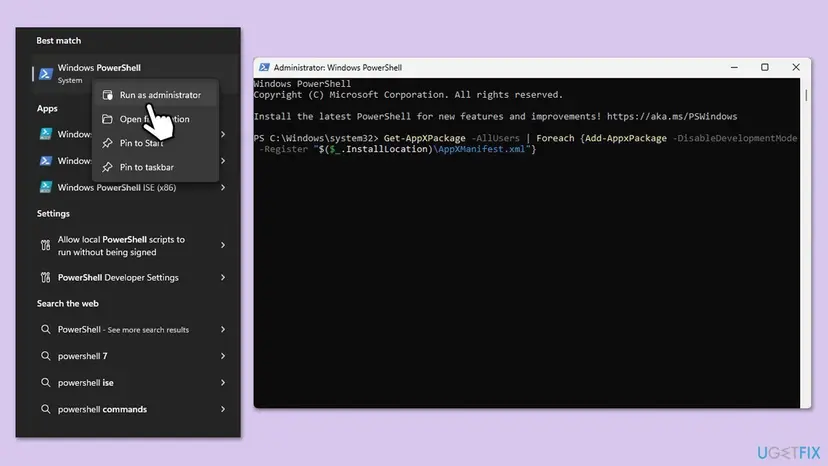
Some red errors for packages that are in use are normal; let the command finish. In the case study, a meeting room app had removed these rights, and fixing the rights solved about 75% of the affected devices.
It worked if: Start, Search and Store apps open again after the restart.
If not: If apps still fail, or Microsoft says the rights were never changed on your PC, go to Fix 8.
Fix 8. Repair Windows system files with DISM and SFC
20 to 30 minutesNo riskBuilt-in apps still crash and nothing above helped.
Store apps load Windows components such as the XAML framework at start. If those system files are damaged, no app repair can fix them. DISM repairs the Windows image and SFC replaces damaged files from it.
- Open an elevated command window. Right-click Start and select Terminal (Admin), or type cmd in the search box, right-click Command Prompt and select Run as administrator. Select Yes when Windows asks for permission.

Search for cmd and choose Run as administrator. Screenshot: Windows 11 26H2. - Run DISM first. Type the command below and press Enter. DISM downloads clean copies of damaged components from Windows Update, so it can take several minutes. Wait until it says The operation completed successfully.
DISM.exe /Online /Cleanup-Image /RestoreHealth
DISM /RestoreHealth running. Screenshot: Windows 11 26H2. - Run System File Checker. In the same window, type the command below and press Enter. Do not close the window until the verification reaches 100%.
sfc /scannow
sfc /scannow at 100%. Screenshot: Windows 11 26H2. - Read the result and restart. Compare the last message with the table below this guide, then restart the PC so that repaired files are loaded.

The result line tells you what SFC did. Screenshot: Windows 11 26H2.
These steps were written for Windows 11 24H2 and 25H2. The full page with the other versions and what each result means: Run DISM and SFC to repair Windows system files
It worked if: SFC reports that it repaired damaged files or found no integrity violations. Restart and test the app.
If not: If the error remains, read "If 0xc000027b still appears" below.
If 0xc000027b still appears
When one app keeps crashing after Fixes 2 to 5, the problem is likely in that app's current version, and only its maker can fix it. When many apps still fail after Fix 7, the permissions on your PC may be changed in more places than the main keys. Collect the facts before you ask for help.
- In Event Viewer, copy the newest Event ID 1000 entry: faulting application, faulting module and their versions.
- Copy any Event ID 5961 entry from the TWinUI/Operational log.
- Run
winverand note the Windows version and OS build. - Send these to Microsoft Support, to the app's maker or, on a work PC, to your IT department.
- On a managed PC, a Group Policy may keep resetting the rights. Only an administrator can change that policy.
- If you are a developer and your own UWP or WinUI app ends with 0xc000027b, the stowed exception holds the real error. Open the crash dump in a debugger to read it; the code itself is only the wrapper.
- As a last resort, Microsoft says broad permission damage can only be undone fully by reinstalling Windows. An in-place repair keeps your files: Reinstall Windows without losing files.
How to keep 0xc000027b from coming back
Most cases come from a damaged app or from rights that a tool changed. You can avoid the second one completely and make the first one rare.
- Keep Store apps and system components updated in the Store Library.
- Let app updates finish before you shut down the PC.
- Make a restore point before you run tuning or hardening tools.
- Check new meeting room, security or tuning apps after install by opening Start and the Store.
- Run tools that reset registry or folder permissions across the whole disk.
- Remove ALL APPLICATION PACKAGES from any folder or key.
- Delete scheduled tasks you do not recognise without checking who made them.
- Reinstall Windows because of one crashing app.
Frequently asked questions
What does exception code 0xc000027b mean?
It means a Windows app ended because of an error inside its own code that it could not handle. Microsoft describes it as "An application-internal exception has occurred." Developers know the code as STATUS_STOWED_EXCEPTION, which modern Store and XAML apps raise when a saved error is never handled. The code does not say what went wrong, so look at the faulting application name in the same Event Viewer entry. That name decides the fix.
Is 0xc000027b STATUS_STOWED_EXCEPTION in Microsoft documentation?
Microsoft's support article KB 2798317 lists the code with the text "An application-internal exception has occurred" and explains one cause: missing read rights for the ALL APPLICATION PACKAGES group. The name STATUS_STOWED_EXCEPTION comes from Windows' developer headers and debuggers. The public NTSTATUS list we checked on Microsoft Learn did not include this row, so the support article is the best Microsoft page for it today.
What is status_application_internal_error 0xc000027b?
It is the same code described in other words. There is no separate Windows status with that name. People build it from the message text, "An application-internal exception has occurred." The official developer name is STATUS_STOWED_EXCEPTION. Whatever you call it, the fixes are the same: find the app that crashed in Event Viewer, then repair, reset or re-register it, and check the permissions if many apps fail.
Why does Task Scheduler show 0xc000027b?
Task Scheduler's Last Run Result shows the exit code of the program a task started. A value of 0xC000027B means that program crashed with this exception, not that Task Scheduler is broken. Open the task's Actions tab, note the program, and fix that program with the methods on this page. If the task belongs to software you removed, disable the task instead of deleting it.
Why do Microsoft Store and the Xbox app crash with the same code?
Both are Store apps built on the same app platform and run in the same sandbox. When the sandbox group ALL APPLICATION PACKAGES loses rights, or shared parts such as the XAML framework are out of date, several of these apps fail together with one code. If only one of them crashes, repair or reset that app first. If both crash, check updates in Fix 5 and the rights in Fix 7.
What is Windows.UI.Xaml.dll with error 0xc000027b?
Windows.UI.Xaml.dll is the Windows part that builds the window and controls of many Store apps. It often appears as the faulting module next to 0xc000027b because it is where the stored error finally surfaced. It is rarely the file that is broken. Fix the app first, as in Fixes 2 to 5. Repair the DLL with DISM and SFC only if built-in apps keep failing.
Is 0xc000027b the same on Windows 11 and Windows 10?
Yes. The code, its meaning and Microsoft's support article apply to both. The difference is where you find the buttons: on Windows 11 some built-in apps sit under System components, while Windows 10 lists them in Apps & features. Windows 10 left support on 14 October 2025, so if a Store app depends on a newer framework, it may stop getting fixes on Windows 10.
Should I download a file to fix 0xc000027b?
No. There is no download for this code, and sites that offer a 0xc000027b fix tool or DLL file are not a fix. The parts involved are Windows components and Store apps, which Windows repairs itself through Repair, Reset, re-registering, Microsoft Store updates and DISM. A file from an unknown site can bring malware instead of a fix.
Can a virus cause 0xc000027b?
The code itself is a normal crash code, not a sign of infection. Software that changes permissions on many folders and keys, including some security, tuning and management tools, can cause it, and Microsoft's article describes exactly that. If you notice unknown programs or tasks next to the crashes, run a full scan: How to scan for malware with Microsoft Defender.
Sources
- Microsoft Learn: Microsoft Store Apps fail to start if default registry or file permissions modified (KB 2798317, Event ID 1000 with exception code 0xc000027b, Event ID 5961) (learn.microsoft.com)
- Microsoft Learn: [MS-ERREF] NTSTATUS Values (sister codes 0xC0000005 and 0xC0000022; 0xC000027B is not listed) (learn.microsoft.com)
- call4cloud: Start menu not responding, broken Store apps, 0xc000027b (case study: registry rights and re-registering apps) (call4cloud.nl)
Did this fix work?
One click, no account. It tells the next reader which guides are worth their time.
Questions and experiences: fix Exception error code 0xc000027b in Windows
Still broken, or found a fix we did not cover? Ask here: members and our editors answer. Reading is open; writing needs a free account.
…