
How to fix "Extracting files to the temporary location" error 1152 in Windows?

Prefer to fix it yourself? The manual steps follow.
- 8methods
- 5 to 30 minutes
- Easy
Applies to Windows 11, Windows 10; any program whose setup.exe is built with InstallShield (tax, accounting, engineering and driver installers)
8 methods in this guide
Hello. When I try to install a particular program in Windows, I get the "Extracting files to the temporary location" message with a 1152 error. How do I fix it?
Error 1152, "Error extracting to the temporary location", comes from installers built with InstallShield. The setup file tried to unpack itself into your TEMP folder and at least one file failed. Most often the download is incomplete, so get a fresh copy of the installer and run it from your own disk first.
Error 1152 means the setup could not unpack its files into the Windows TEMP folder. Download the installer again from the program's maker, save it to a local folder such as Downloads and run it from there (Fix 1 and Fix 2). If it still fails, check that your TEMP folder exists and is writable (Fix 3) and that the drive has free space (Fix 5).
| Error | 1152: Error extracting <file name> to the temporary location. The file name changes with the program, for example an .msi file or Setup.INI. |
|---|---|
| Where it appears | In a small box right after you double-click a setup.exe, before the installation wizard shows its first page. |
| Main cause | One or more files packed inside the setup.exe could not be written to the TEMP folder: a damaged download, a TEMP folder that cannot be written, or a full drive. |
| Fastest fix | Download the installer again from the program's maker and run it from a local folder (Fix 1 and Fix 2). |
| Also written as | 1152 error extracting, error 1152, 1152 error, error code 1152, "Error extracting files to the temporary location". Spanish: "1152 error al extraer a la ubicación temporal". |
| Who shows it | InstallShield, a setup builder made by Flexera (its installer business now trades as Revenera). Many programs use it, so the error is not tied to one app. |
| Affects | Windows 11 and Windows 10. Windows 10 left support on 14 October 2025, but the cause and the fixes are the same there. |
| Vendor status | Not a Windows bug. The InstallShield maker documents it as a run time error with three causes: TEMP not writable, too little disk space, corrupted files. |
| Time to fix | About 5 minutes for a new download. Up to 30 minutes when you have to check the TEMP folder and free up space. |
Facts checked on 15 October 2026. Steps written for Windows 11 (25H2 and 26H2) and Windows 10 22H2.
What "1152: Error extracting to the temporary location" means
Many programs ship as one compressed setup.exe. When you start it, the file first unpacks its contents into the Windows TEMP folder and only then runs the real installer from there. The InstallShield maker describes error 1152 as the case where "one or more files cannot be extracted" during that first step.
The message names the file that failed. A real example from one software maker's help page reads: "1152: Error extracting Diamonds 2017.msi to the temporary location". On your PC the file name will be different, and that is fine. The number 1152 and the words "to the temporary location" are what identify this error.
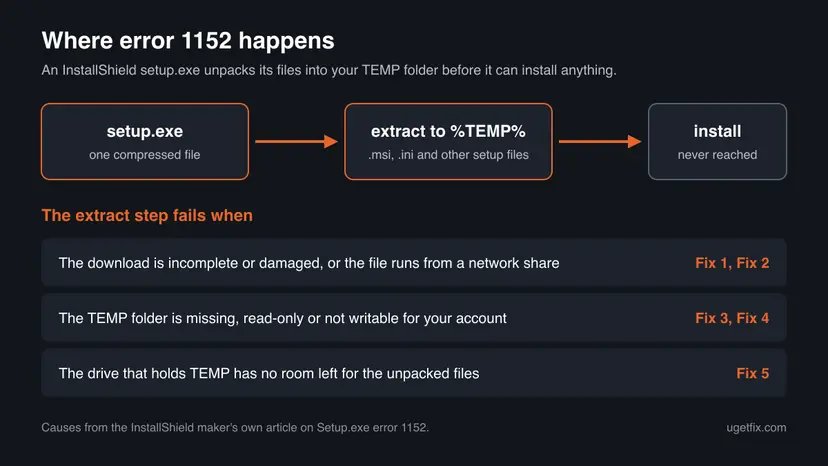
Error 1152 happens before the setup checks your Windows version or hardware. Nothing has been installed yet, so there is nothing to clean up afterwards. The fault is in the setup file itself or in the folder it writes to.
Why the setup cannot extract its files
Most often the setup.exe is incomplete or damaged, usually because the download broke off. Less often the TEMP folder cannot be written to, or the drive that holds it is full. Rarely, security software holds the unpacked files while it scans them.
| Cause | How often | How to tell | Fix |
|---|---|---|---|
| The downloaded setup.exe is incomplete or damaged. | Most often | The file is smaller than the size given on the download page, or the error comes back at once on every try. | Fix 1 |
| The setup runs from a network drive, a USB stick or inside a ZIP file. | Often | The path of the setup file starts with two backslashes, a drive letter other than C, or a ZIP name. | Fix 2 |
| The TEMP folder is missing, read-only or not writable for your account. | Sometimes | Every InstallShield setup fails, not only one program. | Fix 3, Fix 4 |
| The drive that holds TEMP has too little free space. | Sometimes | Settings shows the C drive almost full. | Fix 5 |
| Your account lacks the right to write where the setup needs to. | Sometimes | A standard account, or a work PC. | Fix 6 |
| Antivirus or another background program locks the unpacked files. | Rarely | The error appears only on one PC and only with security software other than Microsoft Defender running. | Fix 7, Fix 8 |
The three main causes come from the InstallShield maker's own article on Setup.exe error 1152. The antivirus cause is not in that article. We list it because a Microsoft support answer for error 1152 recommends a clean boot, which rules out background programs.
How to fix error 1152 extracting to the temporary location
Fixes 1 and 2 deal with the setup file and solve most cases. Fixes 3 to 5 make sure the TEMP folder can take the unpacked files. Fixes 6 to 8 are general checks for what is left.
| What you see or have | Start with |
|---|---|
| Only one program fails, and you downloaded its installer. | Fix 1 |
| The installer sits on a network drive, a USB stick, a DVD or inside a ZIP file. | Fix 2 |
| Every setup.exe you try shows error 1152. | Fix 3, then Fix 4 |
| The C drive has only a few GB free. | Fix 5 |
| A standard user account, or a PC managed by work or school. | Fix 6 |
| All of the above checked, and you use antivirus other than Microsoft Defender. | Fix 7, then Fix 8 |
Fix 1. Download the installer again from the program's maker
5 minutesNo riskYou downloaded the setup file, and only this one program shows error 1152.
The InstallShield maker names corrupted files as a cause and tells you to download and run the installation again. One software maker's own help page says the same about its 1152 error: the downloaded .exe file is not complete.
- Delete the setup file you already have, so you do not run the old copy by mistake.
- Open the download page on the program maker's own website. Avoid mirror and download portal sites.
- Download the installer again and wait until the browser says the download is complete.
- Right-click the new file, select Properties and compare Size with the size on the download page, if the page gives one.
- Double-click the file and select Yes if Windows asks for permission.
If the maker offers a second download link or a full offline installer, use it. One software maker tells its customers with this error to contact support for an alternative download link.
It worked if: The setup unpacks its files without a message and the installation wizard opens.
If not: If the new copy fails in the same way, the file is probably fine. Go on to Fix 2.
Fix 2. Copy the setup to a local folder and run it from there
5 minutesNo riskThe installer is on a network drive, a USB stick, a DVD, or you opened it inside a ZIP file.
The InstallShield maker says that if the installation runs from a network location, you should try running it locally. A file read over a slow or broken connection can fail halfway through the extraction.
- Create a short folder on the C drive, for example
C:\Install. - Copy the setup file, and every file that came with it, into that folder.
- If the installer came in a ZIP file, right-click the ZIP, select Extract All and extract it into
C:\Install. - Open
C:\Installand double-click the setup file there.
Keep the folder name short and without special characters. A path such as C:\Install\setup.exe leaves nothing for the setup to trip over.
It worked if: The setup starts from C:\Install and the wizard opens.
If not: If the error stays, the file is not the problem. Check the TEMP folder in Fix 3.
Fix 3. Check that your TEMP folder exists and can be written to
10 minutesNo riskEvery InstallShield setup fails, or Fix 1 and Fix 2 did not help.
This is the first fix in the InstallShield maker's article: verify that the TEMP folder is writable. If TEMP points to a folder that is gone, read-only or locked for your account, the setup has nowhere to unpack its files.
- Press Win + R, type
cmdand press Enter. - Type
set Tand press Enter. The lines TEMP= and TMP= show the folder your setup uses. - Press Win + R, type
%TEMP%and press Enter. If File Explorer cannot find the folder, it is missing. - In File Explorer, go one level up, right-click the Temp folder and select Properties.
- On the General tab, check that Read-only is not ticked.
- Open the Security tab, select your user name and check that Write has a tick under Allow.
The usual TEMP folder for your account
C:\Users\<your user name>\AppData\Local\Temp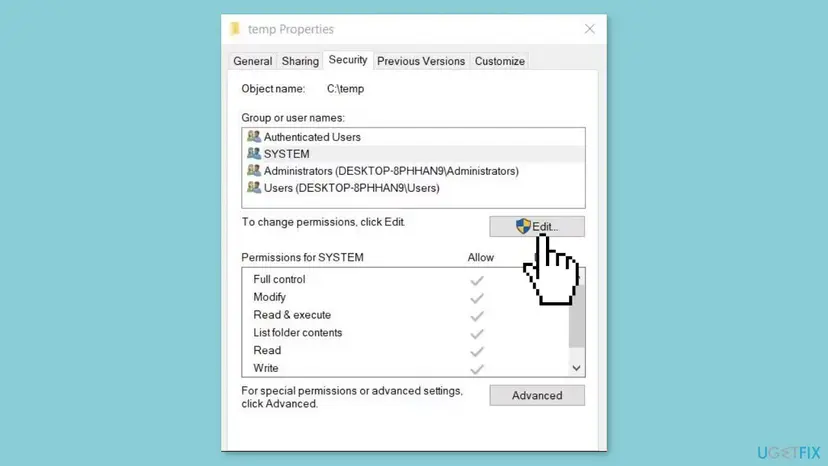
Some guides tell you to add the Everyone group with Full control to C:\Windows\Temp. That lets any program or account change files in a system folder, and the InstallShield maker does not ask for it. Your own account needs Write on your own TEMP folder, nothing more.
On folders, the Read-only box often shows a filled square instead of a tick. Windows labels it as applying only to files in the folder, so it does not block the setup. If Write is missing for your account, use Fix 4 instead of changing the permissions.
It worked if: The TEMP folder opens, Read-only is not ticked and your account has Write.
If not: If the folder is missing or you cannot write to it, Fix 4 gives the setup a new one. If all looks right, go to Fix 5.
Fix 4. Give the setup a fresh TEMP folder for one run
5 minutesNo riskFix 3 showed a missing or locked TEMP folder, or TEMP points to a long or unusual path.
The setup unpacks into whatever folder the TEMP variable names. Setting TEMP inside one Command Prompt window changes it for programs started from that window only, so you can test a clean, empty folder without touching Windows settings.
- Copy the setup file to
C:\Installas in Fix 2. - Press Win + R, type
cmdand press Enter. - Type the four lines below one by one and press Enter after each. The last line starts the setup.
- Let the setup finish, then close the Command Prompt window.
- Delete the folder
C:\Setup1152when the program is installed.
Run in one Command Prompt window
mkdir C:\Setup1152
set TEMP=C:\Setup1152
set TMP=C:\Setup1152
"C:\Install\setup.exe"
Replace setup.exe with the real name of your installer. When the window closes, TEMP goes back to its normal value by itself. Nothing is changed for other programs or other accounts.
It worked if: The setup unpacks into C:\Setup1152 and the wizard opens.
If not: If this works but normal starts fail, your own TEMP folder is the problem: clear it with Fix 5. If this fails too, go to Fix 5 and then Fix 6.
Fix 5. Free up disk space and clear the temporary files
10 minutesLow riskThe C drive is nearly full, or the TEMP folder holds a lot of old files.
The InstallShield maker lists too little disk space as the second cause and tells you to clean the default TEMP folder and free as much space as possible on that drive. A setup can need several times its own size while it unpacks.
- Select Start > Settings > System > Storage and read how much space is free on the C drive.
- Select Temporary files and wait for Windows to list what it can remove.
- Tick the types you do not need. Leave Downloads unticked unless you have checked that folder, because it may hold the installer itself.
- Select Remove files and run the setup again.
Storage Sense and Disk Cleanup, with screenshots for Windows 11 and Windows 10: Free up disk space and delete temporary files
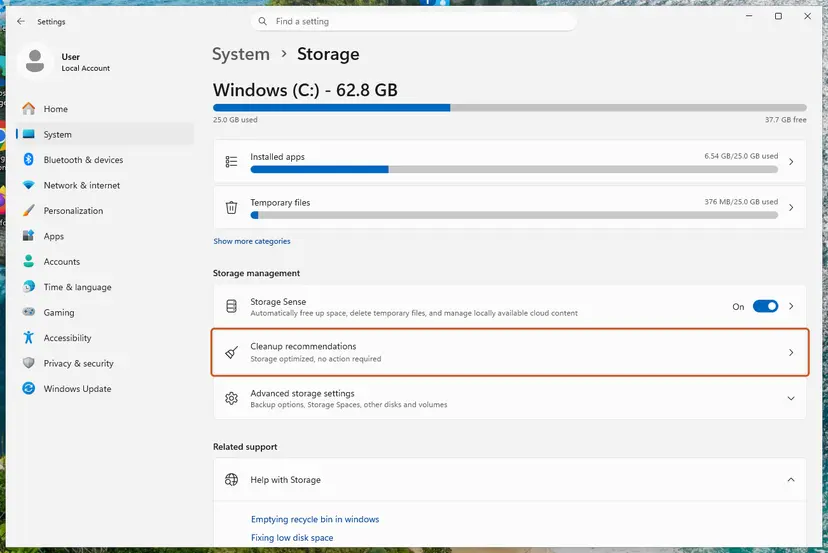
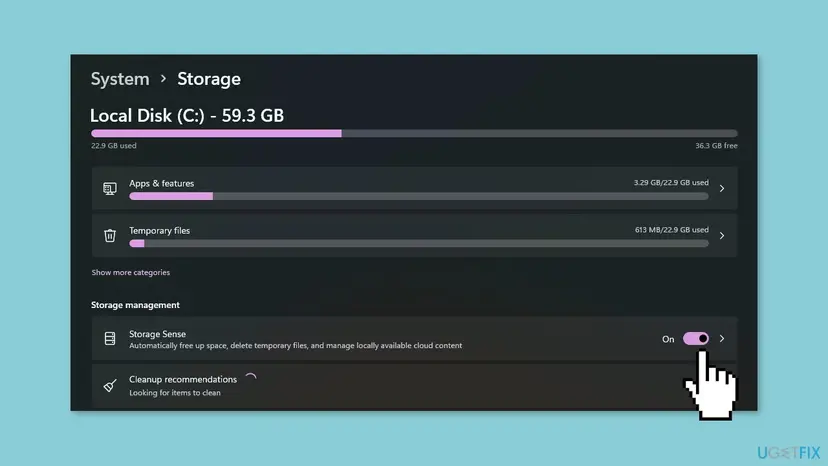
It worked if: The C drive has several GB free and the setup runs without error 1152.
If not: If space was not the issue, go to Fix 6.
Fix 6. Run the setup as administrator
2 minutesNo riskYou use a standard account, or the setup is for a program that installs for all users.
The InstallShield maker says the user running the setup must have permission to write to the TEMP folder. Starting the setup as administrator gives it the rights to write where it needs to.
- Right-click the setup file in
C:\Install. - Select Run as administrator.
- Select Yes, or enter an administrator password if Windows asks for it.
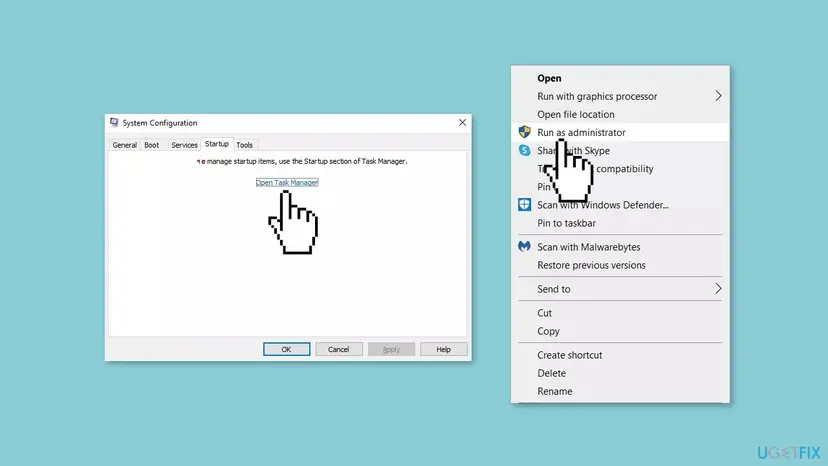
On Windows 11 the short right-click menu may hide some commands behind Show more options. Run as administrator is usually in the short menu. More: How to run a program as administrator or in compatibility mode
It worked if: The setup unpacks and opens its wizard.
If not: On a work or school PC, ask the administrator to install the program. Otherwise go on to Fix 7.
Fix 7. Try the setup in a clean boot
15 minutesLow riskAll fixes above failed and the PC runs many background programs.
A Microsoft support answer for error 1152 suggests a clean boot. With only Microsoft services running, no background program can hold the files the setup is unpacking.
- Open System Configuration. Select Search on the taskbar, type msconfig and select System Configuration from the results.
- Hide Microsoft services. On the Services tab, select the Hide all Microsoft services check box. Only services from other companies stay in the list.

With Hide all Microsoft services ticked, only third-party services stay in the list. Screenshot: Windows 11 26H2. - Disable the remaining services. Select Disable all, then select Apply.
- Open Task Manager. On the Startup tab of System Configuration, select Open Task Manager.
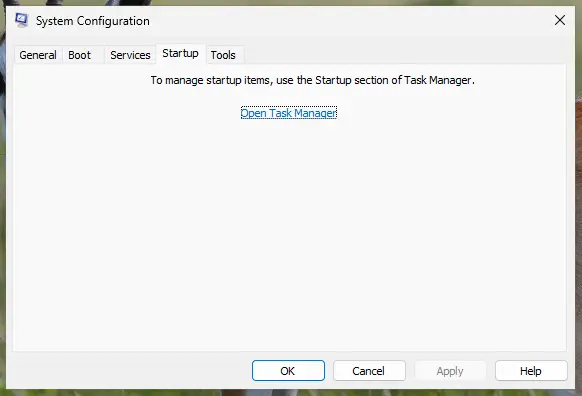
The Startup tab only links to Task Manager. Screenshot: Windows 11 26H2. - Disable the startup apps. On the Startup apps tab in Task Manager, select each item whose status is Enabled and select Disable. Write down or take a screenshot of the items you disable: you need the list to turn them back on.
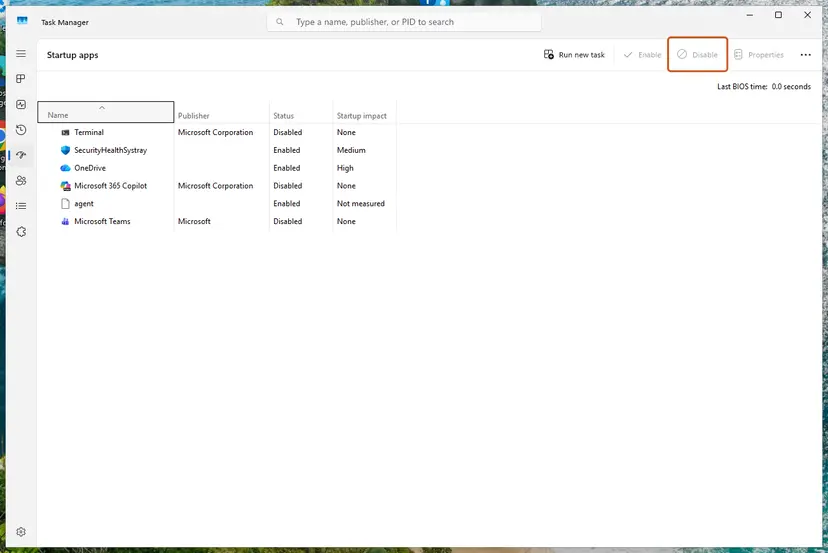
Select an app, then Disable. Screenshot: Windows 11 26H2. - Confirm the changes. Close Task Manager. On the Startup tab of System Configuration, select OK.
- Restart and test. Restart the PC. Windows now starts in a clean boot environment: try again the thing that failed (run the app, install the update, uninstall the program).
These steps were written for Windows 11 25H2 and 26H2. The full page with the other versions and what each result means: How to perform a clean boot in Windows
Run the setup while the PC is in the clean boot state. When the program is installed, undo the clean boot as the procedure describes, so your other programs start again.
It worked if: The setup runs through in the clean boot state.
If not: If it fails in a clean boot too, background programs are not the cause. Try Fix 8 once, then read the section below.
Fix 8. Pause third-party antivirus for one attempt
5 minutesLow riskYou use security software other than Microsoft Defender and every fix above has failed.
Real-time scanning opens each file as it is written. If it holds an unpacked file for too long, the setup cannot finish writing it. Do this only with an installer from the maker's own site.
- Pause real-time protection in your antivirus for the shortest time it offers.
- Run the setup from
C:\Install. - Turn protection back on as soon as the setup has unpacked, even if it worked.
How to pause and restart protection safely: Turn off Microsoft Defender protection for a moment
It worked if: The setup unpacks and the wizard opens. Protection is on again.
If not: Turn protection back on and read the next section.
If error 1152 is still there: what to check and send
The message itself is the most useful clue. It names the one file that failed to unpack. If it is always the same file, the setup.exe is the likely problem. If every installer fails, look at your PC.
- Event Viewer. Press Win + R, type
eventvwr.msc, open Windows Logs > Application and look for red Error entries at the time you ran the setup. - A screenshot of the message with the file name, the setup file's name and size, and where you downloaded it.
- Your Windows version from
winver, and whether the account is an administrator. - Send it to the program's maker, not to Microsoft. Only the maker can give you a new installer or a different download link.
If even copying large files to the C drive fails, or File Explorer reports read errors, the drive itself may be failing. Check it for errors with Check a disk for errors (chkdsk) and back up your files before you do anything else.
Setup files offered on forums or download portals as working versions may not come from the maker. Ask the maker for a new link instead.
How to avoid error 1152 next time
- Download installers from the maker's own site and wait for the download to finish.
- Run setup files from a local folder such as
C:\Install, not from a network drive or inside a ZIP file. - Keep several GB free on the C drive, and let Storage Sense clean temporary files.
- Keep the old setup file only until the program is installed and working.
- Do not give the Everyone group full control of Windows folders.
- Do not leave antivirus switched off after an install.
- Do not move or delete the TEMP folder by hand.
Frequently asked questions
What is error 1152?
Error 1152 is an InstallShield run time error. It appears when a compressed setup.exe tries to unpack its files into the Windows TEMP folder and at least one file cannot be extracted. The message reads "1152: Error extracting" followed by a file name and "to the temporary location". The InstallShield maker names three causes: the TEMP folder cannot be written to, the drive has too little free space, or the files are corrupted, often because the download broke off. It is not a Windows error code, so Windows Update does not fix it.
Is error 1152 a problem with Windows or with the program?
Usually with the setup file of the program. InstallShield is a tool that software makers use to build installers, so the same error shows up with tax, accounting, engineering and driver installers. If only one program fails, download its installer again (Fix 1). If every InstallShield setup on your PC fails, the cause is on your PC, most often the TEMP folder or a full drive (Fix 3 to Fix 5).
What does "1152 error al extraer a la ubicación temporal" mean, for example with SUA?
It is the same error in Spanish: the setup could not extract a file to the temporary location. Readers who search for it often install SUA, the employer contribution program of Mexico's social security institute IMSS. We could not confirm a cause specific to SUA, so the fixes on this page apply. Download the SUA installer again from IMSS's own site, copy it to C:\Install, run it from there as administrator, and check the TEMP folder and free space if it still fails.
What does "terjadi error (1152)" mean, and is it the same in other languages?
"Terjadi error (1152)" is Indonesian for "an error (1152) occurred". People also search for it as помилка (1152) in Ukrainian, ошибка 1152 in Russian, 1152錯誤 or 錯誤1152 in Chinese and ข้อผิดพลาด 1152 in Thai. If the message appears while a setup.exe starts and mentions a temporary location, it is the same InstallShield error and the fixes here apply. We could not confirm the exact translated wording of each message, so compare the number and the moment it appears.
Should I give the Everyone group full control of C:\Windows\Temp?
No. That advice is common, including in an older version of this guide, but the InstallShield maker does not ask for it. It only says that the user running the setup needs write permission to the TEMP folder. Full control for Everyone on a system folder lets any program change files there. Check your own account's Write permission (Fix 3), or give the setup a new empty folder for one run (Fix 4). Both solve the same problem without opening up Windows.
Does clearing the TEMP folder fix error 1152?
Sometimes. Clearing temporary files helps when the drive is nearly full, which the InstallShield maker lists as a cause. It does not help when the setup file itself is incomplete, and one reader on Microsoft's forum reported that deleting the temp folder contents changed nothing. Start with a fresh download (Fix 1). Clear temporary files with Storage Sense or Disk Cleanup if the C drive has little space left (Fix 5).
Why does error 1152 appear with every program I try to install?
When every setup fails, the shared part is the TEMP folder. Open a Command Prompt and type set T to see where TEMP points. If that folder is missing, read-only or not writable for your account, every InstallShield setup fails at the same step. Fix 3 shows how to check it, and Fix 4 runs one setup with a new, empty TEMP folder. If both look fine, free up space on the drive (Fix 5).
Can a damaged download cause error 1152 even if the file opens?
Yes. A setup.exe can start and show its first box even when the end of the file is missing, because the packed files come after the part that runs. The error then appears when the setup reaches the missing part. One software maker's help page names an incomplete download as the cause of its own 1152 error. Download the file again and compare its size with the size on the download page (Fix 1).
Does error 1152 mean my hard drive is failing?
Rarely. In most cases the drive is fine and the cause is the setup file, the TEMP folder or free space. Suspect the drive only when other copy jobs also fail, File Explorer reports read errors, or the PC freezes when it opens large files. Then back up your files first and check the drive for errors as described under "If error 1152 is still there".
Sources
- Flexera (InstallShield): Setup.exe Error 1152 (flexerasoftware.my.site.com)
- BuildSoft Support: 1152: Error extracting Diamonds 2017.msi to the temporary location (support.buildsoft.eu)
- Microsoft Q&A: Error 1152 when installing programs can't extract files to the location (learn.microsoft.com)
Did this fix work?
One click, no account. It tells the next reader which guides are worth their time.
Questions and experiences: fix "Extracting files to the temporary location" error 1152 in Windows
Still broken, or found a fix we did not cover? Ask here: members and our editors answer. Reading is open; writing needs a free account.
…