
How to fix "GameLaunchHelper.exe missing" error in Windows?

Prefer to fix it yourself? The manual steps follow.
- 8methods
- 5 to 60 minutes
- Easy
Applies to Windows 11 and Windows 10; PC games installed through the Xbox app, PC Game Pass or Microsoft Store, such as Forza Horizon 5, Microsoft Flight Simulator, Minecraft and Call of Duty
8 methods in this guide
Hello. I reinstalled Forza Horizon 5 and started to receive this error message when I attempt to launch the game: "Windows cannot find 'C:\Program Files\WindowsApps\Microsoft.624F8B84B80_3.410.860.0_x64__8we(rest of the folder name)\GameLaunchHelper.exe'. Make sure you typed the name correctly, and then try again." How can I fix this?
GameLaunchHelper.exe is not a Windows file. It sits inside the folder of a game installed through the Xbox app or Microsoft Store, and the game starts through it. When Windows cannot find it, start the game from the Xbox app signed in with the right account, update the Xbox apps, then verify and repair the game.
GameLaunchHelper.exe is part of a game installed through the Xbox app or Microsoft Store, not part of Windows, so never download it from a file site. The error means the game's package is incomplete or its licence check failed. Start the game from the Xbox app with the account that owns it or pays for Game Pass (Fix 1), install updates from Microsoft Store > Library (Fix 2), then use Verify and repair (Fix 3).
| Error | "Windows cannot find 'C:\Program Files\WindowsApps\<game folder>\GameLaunchHelper.exe'. Make sure you typed the name correctly, and then try again." A second form: "GameLaunchHelper.exe - This app did not start because your trial license has expired." |
|---|---|
| Where it appears | When you start a PC game from the Xbox app, the Start menu or a desktop shortcut, often right after a reinstall, an update or a move to another drive. |
| Main cause | The game's package folder under C:\Program Files\WindowsApps (or X:\WindowsApps on another drive) is incomplete, or the Xbox licence check for your account failed. |
| Fastest fix | Start the game from the Xbox app with the right account (Fix 1), then Microsoft Store > Library > Get updates (Fix 2), then Manage > Files > Verify and repair (Fix 3). |
| Also written as | gamelaunchhelper.exe, GameLaunchHelper, game launch helper, gamelauncherhelper, "GameLaunchHelper.exe missing". |
| Affects | Games from the Xbox app, PC Game Pass and Microsoft Store on Windows 11 and Windows 10. Xbox Support says some Xbox app features need Windows 10 22H2 or newer. |
| Vendor status | No Microsoft page names this message as a bug. Xbox Support's list for games that will not launch covers the same ground: account, Game Pass status, Gaming Services Repair Tool, antivirus, update and repair, reinstall. |
| Not covered | Copies of Xbox games that did not come from the Xbox app or Microsoft Store. They are not a Windows fault and we do not help with them. |
| Time to fix | 5 minutes for the account and updates. Up to an hour when a large game has to download again. |
Facts checked on 15 October 2026. Steps written for Windows 11 (25H2 and 26H2) and Windows 10 22H2.
What the GameLaunchHelper.exe error means
Games from the Xbox app, PC Game Pass and Microsoft Store are installed as app packages. Each game gets its own folder under C:\Program Files\WindowsApps, or under WindowsApps on the drive you chose. The folder name holds the package name and its version number, as in the reader's question above: Microsoft.624F8B84B80_3.410.860.0_x64__8we, cut short in the message.
GameLaunchHelper.exe lives inside that game folder, and the game starts through it. It is not a Windows system file and it is not the same file for every game. That is why the message names a long path in WindowsApps: Windows was told to run the helper of that one game and found nothing there, or found it but would not start it.
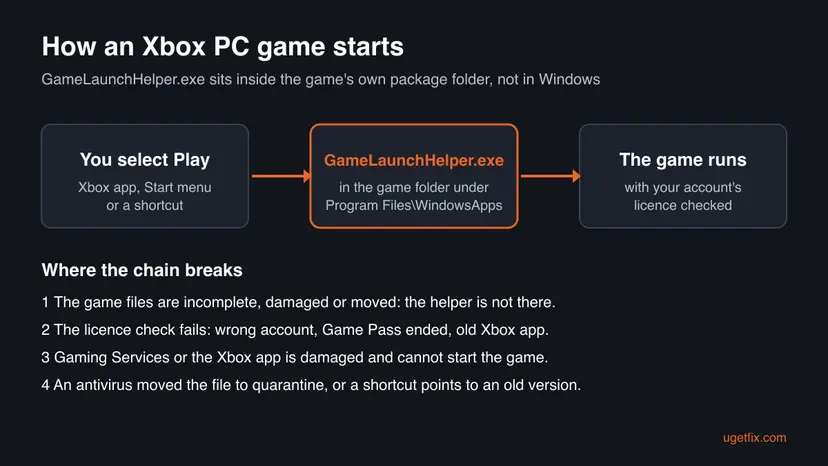
Windows cannot find 'C:\Program Files\WindowsApps\<game folder>\GameLaunchHelper.exe'. Make sure you typed the name correctly, and then try again.
- Message 1
- Windows cannot find the file: the helper is not in the game folder, or the shortcut points to a folder that no longer exists.
- Message 2
- This app did not start because your trial license has expired. The file is there, but the licence check for your account failed.
- Where the file is
C:\Program Files\WindowsApps\<game package>\GameLaunchHelper.exe, orX:\WindowsApps\<game folder>when the game is on drive X. The folder is protected, so you normally cannot open it.- Is it a virus?
- Not when it sits in a WindowsApps game folder and came with a game from the Xbox app. A copy anywhere else, or one you downloaded on its own, is a different matter: scan it.
Why Windows cannot find GameLaunchHelper.exe: the causes, most common first
The causes below are ordered by how often they come up in Microsoft's community answers and in Xbox Support's list for games that will not launch. Each one points to the fix that removes it.
| Cause | How you can tell | Fix |
|---|---|---|
| The game's install is incomplete or damaged | The message says Windows cannot find the file, often after a reinstall, an interrupted update or a full drive | Fix 3, then Fix 7 |
| The licence check failed | The "trial license has expired" message, a new PC, another account in the Store, Game Pass ended | Fix 1, then Fix 2 |
| The Xbox app or Gaming Services is out of date or damaged | Several Xbox PC games fail the same way | Fix 2, Fix 5, Fix 6 |
| An antivirus put the file in quarantine | It started after an antivirus alert, or Protection history lists the file | Fix 4 |
| A shortcut or a mod tool points to an old version folder | The Xbox app starts the game, the desktop shortcut does not | Fix 1 |
| Microsoft Store or Windows cannot finish downloads | Updates and installs stay at Pending or stop | Fix 8 |
How to fix the GameLaunchHelper.exe error in Windows 11 and Windows 10
Fixes 1 to 3 solve most cases and take a few minutes. Fixes 4 to 6 are for an antivirus or a broken Xbox app, Fix 7 downloads the game again, and Fix 8 is for a Store or Windows that cannot finish downloads. Paths are given for Windows 11 and Windows 10 where they differ.
| What you see or have | Start with |
|---|---|
| "Windows cannot find" GameLaunchHelper.exe from a desktop shortcut or a mod tool | Fix 1 |
| "This app did not start because your trial license has expired" | Fix 1, then Fix 2 |
| "Windows cannot find" when you start the game from the Xbox app | Fix 3 |
| The problem began after an antivirus alert | Fix 4 |
| Every Xbox PC game fails the same way | Fix 5, then Fix 6 |
| Verify and repair is grey, or the code comes back after it | Fix 7 |
| Downloads in the Xbox app or the Store do not finish | Fix 8 |
Fix 1. Start the game from the Xbox app with the right account and check Game Pass
5 minutesNo riskEveryone first, and especially when you see the trial licence message or you started the game from a desktop shortcut or a mod tool.
The helper starts the game only after the licence for your account checks out. A different account in the Xbox app and Microsoft Store, an ended Game Pass, or a shortcut to an old version folder all end in this message. Xbox Support's own list for games that will not launch starts with the account and the Game Pass status.
- Open the Xbox app and select your profile picture. Check that it is the account that owns the game or pays for Game Pass.
- Open Microsoft Store, select your profile picture and check that it is the same account. If not, sign out and sign in with that account.
- Check your Game Pass at account.microsoft.com/services. An ended or paused plan stops Game Pass games from starting.
- Check that Xbox services are up at support.xbox.com/xbox-live-status.
- Restart the PC with Start > Power > Restart.
- Start the game from My Library in the Xbox app, not from an old desktop shortcut.
- If it starts, delete the old shortcut and make a new one from the Xbox app or the Start menu.
Why the shortcut matters: the package folder name holds the version number. After an update the game moves to a folder with a new number, and a shortcut or a mod tool that still points to the old folder asks Windows for a file that is no longer there.
It worked if: The game starts from the Xbox app, and the trial licence message is gone.
If not: Go to Fix 2 and update the Xbox app, Gaming Services and the game.
Fix 2. Update the Xbox app, Gaming Services and the game from Microsoft Store
5 to 10 minutesLow riskThe Xbox app has not updated for a while, you see the trial licence message, or the game just got an update.
A Microsoft Q&A thread covers the message that the trial license has expired. Its accepted answer: open Microsoft Store > Library > Get updates, let the Xbox app update and sign in with the right account. An old Xbox app or Gaming Services can fail the licence check of a newer game.
- Open Microsoft Store and select Library at the bottom left.
- Select Get updates and let every update install, including Xbox and Gaming Services.
- Close the Xbox app completely and open it again.
- Check that you are signed in with the right account, as in Fix 1.
- Select the game, then More actions (three dots) > Manage > Files > Check for updates.
- Start the game from the Xbox app.
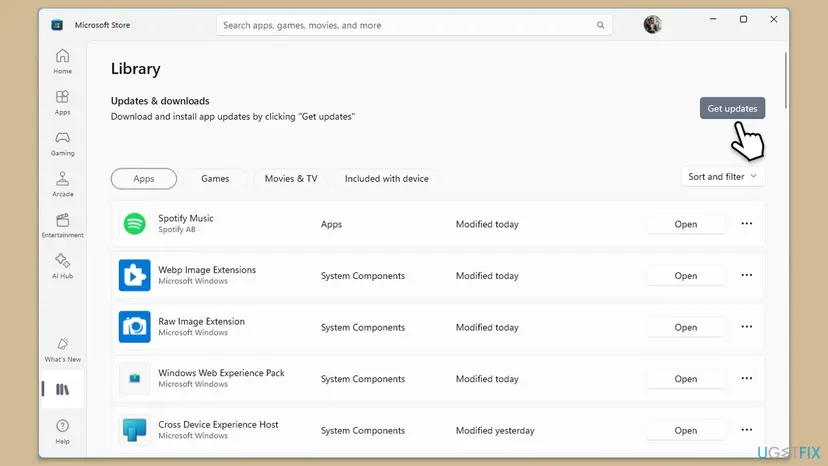
It worked if: Library shows no pending updates, and the game starts without the message.
If not: Go to Fix 3 and repair the game's files.
Fix 3. Verify and repair the game's files in the Xbox app
5 to 15 minutesLow riskWindows cannot find GameLaunchHelper.exe even when you start the game from the Xbox app.
A missing helper means the game folder is not complete. Verify and repair compares the installed files with the official copy and downloads only what is missing or damaged, which is faster than a full reinstall. Xbox Support lists updating and repairing the game among its steps for games that will not launch.
- Close the game and open the Xbox app.
- Select My Library on the left, or Installed if your version shows it.
- Select the game, then the More actions button (three dots).
- Select Manage, then the Files tab.
- Select Verify and repair and wait until the app reports that it is done.
- Start the game from the Xbox app.
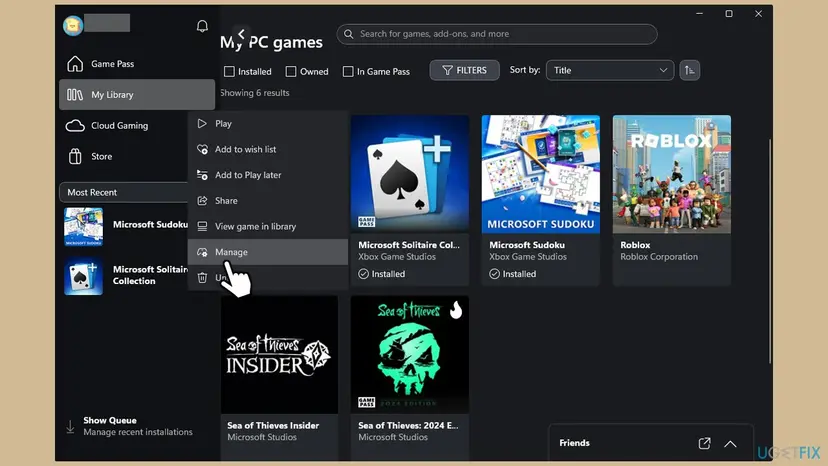
The same check for Steam, Epic and other launchers: How to verify game files in Steam, Epic Games, Xbox app, EA app, Battle.net and GOG Galaxy. A Steam copy of a game does not use the Xbox helper, so if a mod tool on a Steam copy asks for GameLaunchHelper.exe, the tool is set up for the Game Pass version.
It worked if: The Files page reports the repair as done, and the game starts.
If not: If Verify and repair is grey or the message comes back at once, go to Fix 7. If you had an antivirus alert, try Fix 4 first.
Fix 4. Check whether your antivirus moved GameLaunchHelper.exe to quarantine
5 minutesLow riskThe game stopped starting after an antivirus alert, or you use a third-party antivirus.
Xbox Support names antivirus settings among the reasons a PC game will not launch. When a security program removes the helper from the game folder, Windows has nothing to start. Restoring the file, or repairing the game, puts it back without turning your protection off.
- Select Start, type Windows Security and open it.
- Select Virus & threat protection > Protection history.
- Look for an entry that names GameLaunchHelper.exe in a
WindowsAppsfolder. - If the path is the game folder from the Xbox app, select the entry, then Actions > Restore.
- With a third-party antivirus, open its quarantine or history list and restore the file the same way.
- Run Fix 3 (Verify and repair) afterwards, so every game file matches the official copy again.
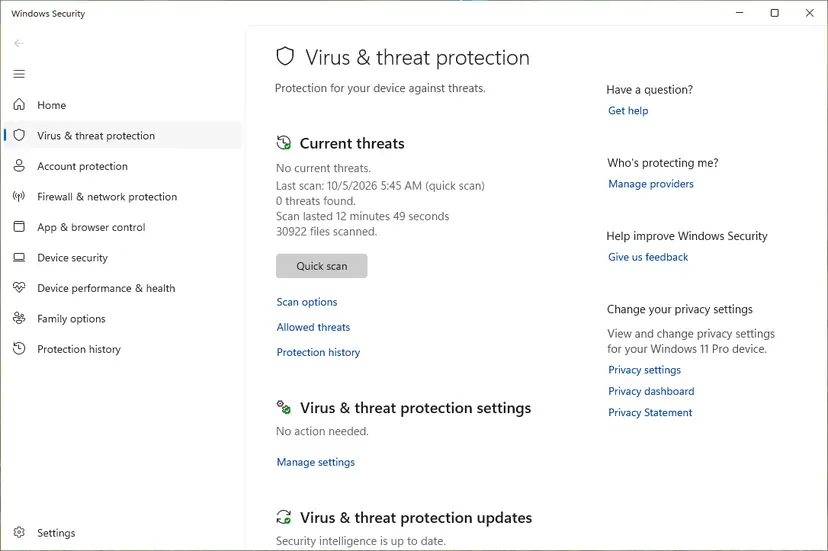
Restore the file only when its path is a WindowsApps game folder and the game came from the Xbox app or Microsoft Store. A GameLaunchHelper.exe anywhere else, or one downloaded on its own, stays in quarantine. Never turn the antivirus off for good to start a game.
It worked if: The file is restored or repaired, and the game starts without a new alert.
If not: If no antivirus entry names the file, go to Fix 5.
Fix 5. Run the Gaming Services Repair Tool, then reinstall Gaming Services
10 to 20 minutesLow riskSeveral Xbox PC games fail, or Fixes 1 to 3 did not help.
Gaming Services is the Windows component that installs and starts Xbox PC games. Xbox Support offers its repair tool for games that will not install or launch, and the tool sits inside the Xbox app.
- Open the Xbox app, select your profile picture and then Support.
- Select Gaming Services Repair Tool, then Start Troubleshooting, and follow what it reports.
- Restart the PC and try the game.
- If it still fails, close the Xbox app and Microsoft Store.
- Right-click Start and select Terminal (Admin). On Windows 10 select Windows PowerShell (Admin). Select Yes.
- Run the command below. It removes Gaming Services for all users.
- Install it again from the Gaming Services page in Microsoft Store, then restart the PC.
Terminal (Admin): remove Gaming Services
Get-AppxPackage -AllUsers Microsoft.GamingServices | Remove-AppxPackage -AllUsers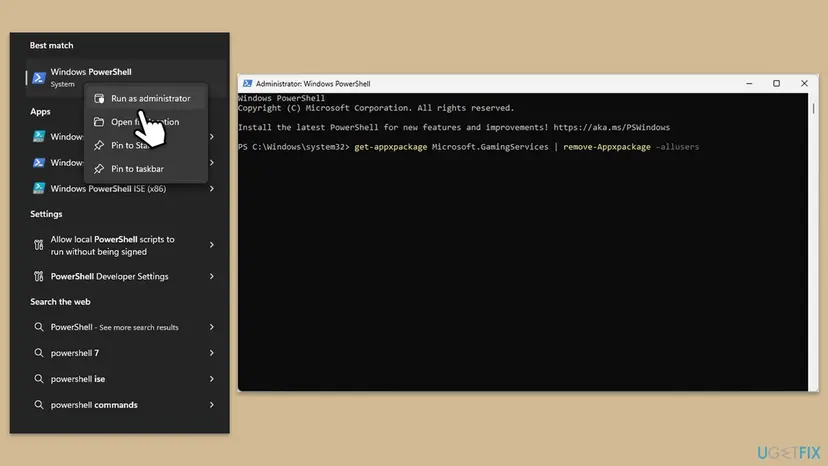
Your games stay installed while Gaming Services is gone, but none of them will start until it is back.
It worked if: The repair tool reports no problem, or Gaming Services installs again, and the game starts.
If not: Go to Fix 6 and repair the Xbox app itself.
Fix 6. Repair or reset the Xbox app
5 minutesLow riskThe Xbox app itself misbehaves: it crashes, shows no games, or the Manage page does not open.
The Xbox app hands the start of the game to the helper. When the app's own files or settings are damaged, Repair rebuilds them without touching your games, and Reset starts the app clean.
- Close the Xbox app.
- Press Win + I and open Apps > Installed apps. On Windows 10 open Apps > Apps & features.
- Find Xbox, select the three dots and then Advanced options.
- Select Terminate, then Repair.
- Try the game. If it still fails, come back and select Reset, then sign in to the Xbox app again.
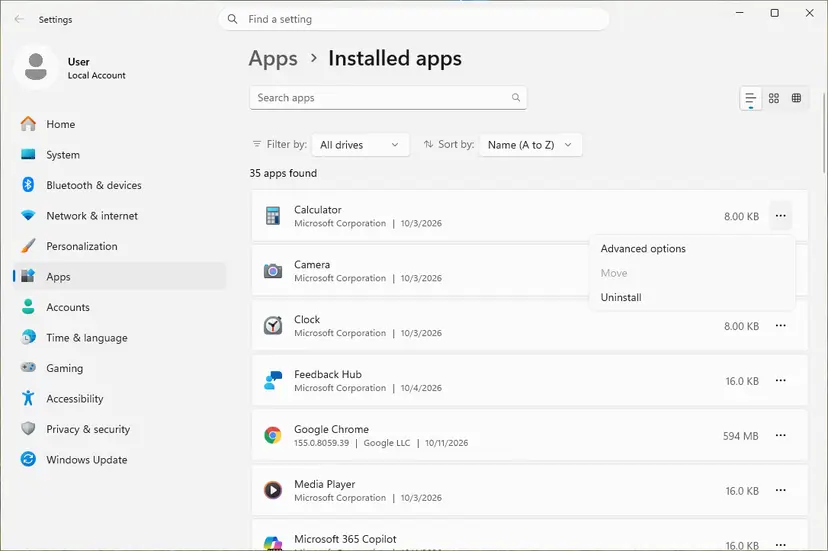
Reset signs you out of the Xbox app on this PC. Your games and Game Pass stay with your account. Every screen: How to repair or reset an app in Windows
It worked if: The Xbox app opens normally and starts the game.
If not: Go to Fix 7 and install the game again.
Fix 7. Uninstall the game and install it again from the Xbox app
15 to 60 minutes, depending on the game's size and your connectionRead the warningVerify and repair is grey or did not help, or the game was moved to another drive or the drive was replaced.
When the package folder is badly damaged, or the game sits on a drive Windows no longer finds, a repair has nothing sound to start from. In the Microsoft Q&A thread, the person who asked confirmed that uninstalling and reinstalling the games made them run again.
Most Xbox PC games keep saves in the cloud with your Xbox account, but not all of them. If the game keeps local saves or mods, copy that folder before you uninstall: Back up your files (Windows Backup, File History, Time Machine)
- Open the Xbox app and select My Library.
- Select the game, then More actions > Uninstall. Confirm.
- Restart the PC.
- Open the Xbox app, select the game and select Install.
- Choose an internal drive with enough free space, not a drive that is often disconnected.
- Leave the PC on and awake until the install is done, then start the game from the Xbox app.
It worked if: The download finishes with no error and the game starts.
If not: If the download stops or stays at Pending, go to Fix 8.
Fix 8. Reset the Microsoft Store cache and install pending Windows updates
10 to 30 minutesLow riskDownloads in the Xbox app or Microsoft Store do not finish, or Windows has pending updates.
Xbox PC games download through the same system as Microsoft Store, and that system is part of Windows. A stuck Store cache or an outdated Windows can leave a game half installed, which is when the helper goes missing. Xbox Support lists updating Windows among its steps.
- Press Win + R, type
wsreset.exeand select OK. A blank window opens, closes by itself, and Microsoft Store opens. - Press Win + I and open Windows Update. On Windows 10 open Update & Security > Windows Update.
- Select Check for updates, install everything that is offered and restart the PC.
- Open the Xbox app and install or repair the game again.
Store repair and reset, every screen: Reset the Microsoft Store. Windows 10 left support on 14 October 2025: the Xbox app still runs there, but Xbox Support asks for Windows 10 22H2 or newer for some features.
It worked if: Store downloads finish, Windows is up to date, and the game installs and starts.
If not: Read "If the error is still there" below.
If the GameLaunchHelper.exe error is still there
Write down the exact message and the full path it shows. The path names the game package, which tells support which game and which version Windows tried to start.
- Install log: Event Viewer keeps app package installs under Applications and Services Logs > Microsoft > Windows > AppXDeployment-Server > Microsoft-Windows-AppXDeploymentServer/Operational. Open it with
eventvwr.mscand look for errors that name the game around the time of the last install or update. - What to send to Xbox Support: the message and path, the Windows version from Settings > System > About, the drive the game is on, and which fixes you tried. Xbox Support has a chat on its game troubleshooting page.
- One game only: the game's publisher may know of a broken update. Check its support page or news before you reinstall again.
- It is not a hardware fault in most cases. A drive that keeps dropping out is the exception: if games on an external or second drive go missing again and again, move them to an internal drive.
- Still not working after every fix? Reinstall the Xbox app itself from Microsoft Store, then the game, and contact Xbox Support with the details above.
How to keep GameLaunchHelper.exe from going missing again
- Start Xbox PC games from the Xbox app or the Start menu, and make new shortcuts after big updates.
- Keep the Xbox app, Gaming Services and Microsoft Store on the same account.
- Let updates finish before you shut down or put the PC to sleep.
- Keep games on an internal drive with free space to spare.
- Never copy a GameLaunchHelper.exe from another PC or a download site into a game folder.
Frequently asked questions
What is GameLaunchHelper.exe?
It is a small program that comes with each game installed through the Xbox app, PC Game Pass or Microsoft Store. It sits in the game's package folder under C:\Program Files\WindowsApps, or in WindowsApps on the drive you picked, and the game starts through it. It is not part of Windows, and every game has its own copy. When it is missing or will not start, the game will not start either. The fixes on this page bring the game's own copy back or let it pass the licence check.
Can I download GameLaunchHelper.exe and put it in the game folder?
No. The file belongs to one game's package and version, and the WindowsApps folder is protected, so a copy from another place does not fit and may not even be the real file. Sites that offer single exe or dll files are not a safe source. The only clean way to get it back is from Microsoft: Verify and repair in the Xbox app (Fix 3) or a fresh install of the game (Fix 7). If you already downloaded such a file, scan it with Microsoft Defender: How to scan for malware with Microsoft Defender. The same goes for a game config helper dll or any other single file from such sites.
Is GameLaunchHelper.exe a virus?
Not when it sits in a WindowsApps game folder and came with a game from the Xbox app or Microsoft Store. That copy is part of the game. Be careful with a GameLaunchHelper.exe that runs from another folder, such as Downloads or AppData, or that appeared without an Xbox game. Malware often borrows the names of real files. Check the file's location in Task Manager with Open file location, and scan anything outside WindowsApps with Microsoft Defender.
Why does it say "This app did not start because your trial license has expired"?
Because the licence check for the game failed, not because the file is missing. Windows thinks your account has only a trial of the game. Common reasons are a different account in Microsoft Store than in the Xbox app, an ended or paused Game Pass, or an Xbox app that is out of date. In the Microsoft Q&A thread about this message, the accepted fix was Microsoft Store > Library > Get updates and signing in with the right account. Follow Fix 1 and Fix 2.
How do I fix the game launch helper error in Minecraft?
The same way as for any Xbox PC game, because the Minecraft Launcher from the Xbox app and Microsoft Store starts through the same kind of package. Open the Xbox app or the Minecraft Launcher with the account that owns Minecraft (Fix 1), then update the launcher, the Xbox app and Gaming Services from Microsoft Store > Library (Fix 2). If it still fails, repair the launcher in Settings > Apps > Installed apps > Minecraft Launcher > Advanced options, as in Fix 6, or reinstall it (Fix 7).
A trainer or mod tool says it cannot find the main program exe. Is that the same problem?
Often, yes. Tools like trainers, script extenders and mod managers look for the game's exe, and on the Game Pass version the start goes through GameLaunchHelper.exe in a protected, version-numbered folder. After every game update that folder changes, so the tool's saved path breaks. Start the game once from the Xbox app to check that the game itself works (Fix 1). Then point the tool to the current folder, or use the tool's own instructions for the Game Pass version. We do not cover cheats for online games. Third-party shells such as GameLauncherShell are not Microsoft tools and are not covered here.
I downloaded the game from another site, not the Xbox app. Can I fix it?
This page is about games installed through the Xbox app, PC Game Pass or Microsoft Store. A copy of an Xbox game from an unofficial download site is not a Windows fault, and we do not help to make such copies run. They often lack the helper or the licence it checks, and they are a common way for malware to reach a PC. Scan the PC with Microsoft Defender, remove that copy, and install the game from the Xbox app or Microsoft Store.
What does "error code: game_missing" mean?
We could not find a Microsoft page that defines a game_missing code, so we cannot say which launcher shows it. In launchers that use such wording, it usually means the launcher cannot find the game's files where it expects them. If you see it in an Xbox game, the fixes on this page apply: start the game from the Xbox app (Fix 1), verify and repair it (Fix 3) or reinstall it (Fix 7). For other launchers, use their own verify option: How to verify game files in Steam, Epic Games, Xbox app, EA app, Battle.net and GOG Galaxy.
Will Verify and repair or a reinstall delete my saves?
Verify and repair does not touch your saves. It only compares and replaces the game's own files. A reinstall removes the game folder, and most Xbox PC games keep saves in the cloud with your Xbox account, so they come back after you sign in. Some games also keep local saves or mods in your user folder. Before you uninstall, let the cloud sync finish by starting the game once if it opens, and copy any local save or mod folder: Back up your files (Windows Backup, File History, Time Machine).
Why can I not open the WindowsApps folder to look for the file?
Windows protects the WindowsApps folder so that game and app packages cannot be changed by hand. That is on purpose: a changed file breaks the package's signature, and the game would refuse to start. You do not need to open the folder to fix this error. The Xbox app's Verify and repair (Fix 3) checks every file in it for you, and a reinstall (Fix 7) writes it again. Do not take ownership of the folder to look inside, because that can break other apps.
Sources
Did this fix work?
One click, no account. It tells the next reader which guides are worth their time.
Questions and experiences: fix "GameLaunchHelper.exe missing" error in Windows
Still broken, or found a fix we did not cover? Ask here: members and our editors answer. Reading is open; writing needs a free account.
…