
How to fix GeForce Now error 0x800b1004 in Windows?

Prefer to fix it yourself? The manual steps follow.
- 9methods
- 10 to 40 minutes
- Intermediate
Applies to GeForce NOW app on Windows 11 (25H2, 26H2) and Windows 10 22H2
9 methods in this guide
Hello. I can't use the GeForce Now app because I get the "There was a problem connecting to GeForce Now" error. How can I fix this?
GeForce Now error 0x800b1004 appears with "There was a problem connecting to GeForce Now" when the app cannot reach NVIDIA's streaming servers. NVIDIA has not published a description of the code itself, so the fixes below remove what usually blocks that connection. Start with NVIDIA's own network test, then turn off any VPN.
The code means the app could not set up a connection to NVIDIA's servers, and NVIDIA has published no more detail than that. Run the network test in the app (Fix 1), turn off any VPN or proxy (Fix 2), and use Ethernet or a 5 GHz Wi-Fi band (Fix 3). If that does not help, check the firewall ports and the server location (Fixes 5 and 6).
| Error | GeForce Now error 0x800b1004, shown by the GeForce NOW app as "There was a problem connecting to GeForce Now". |
|---|---|
| Where it appears | In the GeForce NOW app for Windows, when you select Play or sign in and the app tries to connect to a streaming server. |
| Main cause | Something between your PC and NVIDIA's servers: a VPN or proxy, a weak Wi-Fi link, a firewall or router rule, or a server location that does not suit your network. |
| Fastest fix | Run TEST NETWORK in the app, then turn off any VPN or proxy (Fixes 1 and 2). |
| Also written as | "GeForce Now error code 0x800b1004", "GFN error code 0x800b1004", "0x800B1004 GeForce Now", "geforce error 0x800b1004". |
| Code meaning | No official description. In Windows the number is in the certificate facility (FACILITY_CERT), but NVIDIA does not say it is a certificate problem. |
| Affects | The GeForce NOW app on Windows 11 (25H2, 26H2) and Windows 10 22H2. Windows 10 has had no security updates since 14 October 2025. |
| Vendor status | Not a Windows bug. Your game runs on NVIDIA's computer, so only the connection to it is in play. |
| Time to fix | 10 to 40 minutes, depending on how many fixes you need. |
Facts checked on 16 October 2026. Steps written for Steps checked against NVIDIA Support articles on the network test, server location and firewall ports for GeForce NOW (read 2026-10-16).
What GeForce Now error 0x800b1004 means
GeForce NOW runs your game on a computer in an NVIDIA data centre and streams the picture to you. Error 0x800b1004 appears at the moment the app tries to connect to that remote session. Your own graphics card does not render the game, so it plays no part in the connection error.
NVIDIA does not publish a description of this code. Windows places the number in the certificate facility, but that only tells you which block of numbers it belongs to. Users on NVIDIA's forum describe it as a connectivity error, and replies there say that something blocking the connection is the usual cause. Treat that as a pointer, not a confirmed meaning.
- What you see: the message "There was a problem connecting to GeForce Now" with the code 0x800b1004.
- Where it happens: in the Windows app. NVIDIA says its firewall port notes do not apply to the browser version at play.geforcenow.com, which is why Fix 4 tests it.
- Spelling variants: "0x800B1004", "geforce error 0x800b1004" and "gfn error code 0x800b1004" are the same error.
- Not this error: codes such as 0xC192000C or 0xC0080105 have their own causes; see the related guides at the end.
Why GeForce NOW cannot connect to its servers
Because the session is set up over your network, the likely causes are all on the path between your PC and NVIDIA. They are listed from the most likely to the least, each with the fix that removes it. The causes are what NVIDIA's articles and user reports point to, not a confirmed description of this code.
| Cause | How often | Typical sign | Fix |
|---|---|---|---|
| A weak or unstable connection: 2.4 GHz Wi-Fi, high packet loss or jitter | Often | The TEST NETWORK screen shows a warning, or other streaming apps also stutter | Fixes 1 and 3 |
| A VPN or proxy hides your real location | Often | A VPN client is running or Windows has a proxy set | Fix 2 |
| The browser version works but the app does not | Common clue | play.geforcenow.com connects normally | Fix 4 |
| A server location that does not suit your network | Sometimes | Server Location is set to a far region | Fix 5 |
| Windows Firewall, router or office firewall blocks the streaming ports | Sometimes | Works at another place or on a phone hotspot | Fix 6 |
| Stale DNS entries or a damaged app install | Less often | The error began after a network change or an update | Fixes 7 and 8 |
| Security software or an ad blocker filters the traffic | Less often | The error began after installing or updating such a tool | Fix 9 |
If GeForce NOW connects when your PC uses a phone hotspot, the cause is your home or office network, and Fixes 3 and 6 are the ones to focus on. If it fails there too, look at the VPN, the app and the account.
How to fix GeForce Now error 0x800b1004
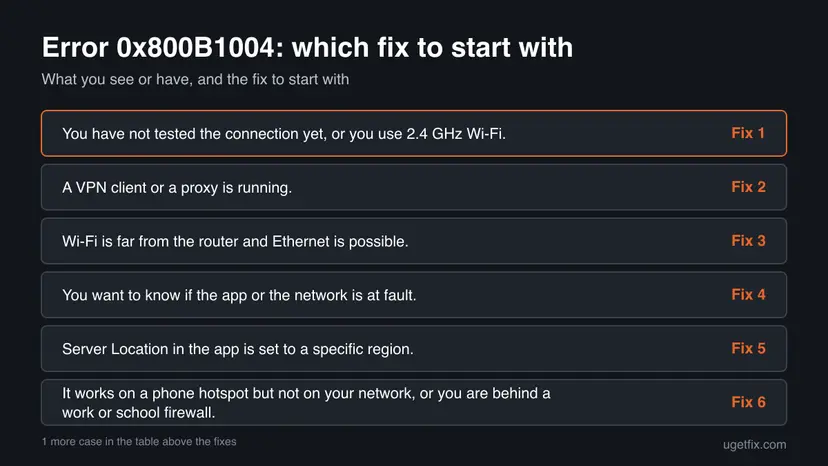
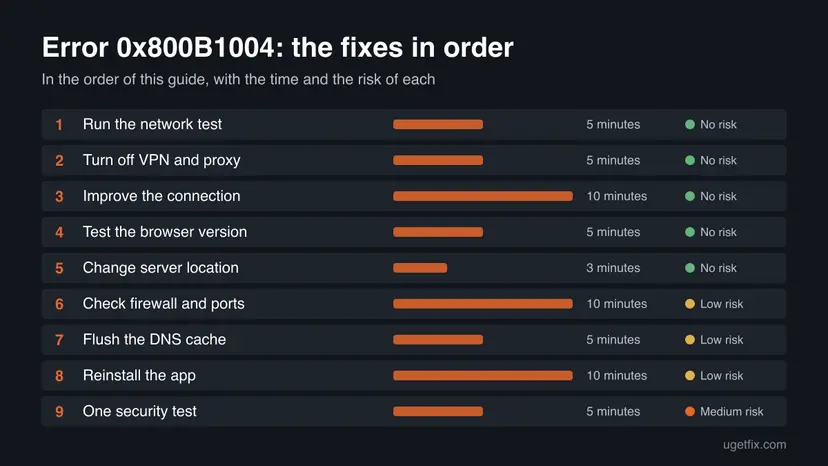
Fixes 1 to 3 test and improve the connection and solve most cases. Fixes 4 to 6 find out whether the app, the server region or a firewall rule is in the way. Fixes 7 and 8 repair the PC side, and Fix 9 is a single test, never a permanent setting.
| What you see or have | Start with |
|---|---|
| You have not tested the connection yet, or you use 2.4 GHz Wi-Fi. | Fix 1 |
| A VPN client or a proxy is running. | Fix 2 |
| Wi-Fi is far from the router and Ethernet is possible. | Fix 3 |
| You want to know if the app or the network is at fault. | Fix 4 |
| Server Location in the app is set to a specific region. | Fix 5 |
| It works on a phone hotspot but not on your network, or you are behind a work or school firewall. | Fix 6 |
| The error began after a network change or an app update. | Fix 7 |
Fix 1. Run the GeForce NOW network test
5 minutesNo riskEveryone, first. It shows whether your connection meets what the service needs and names the problem when it does not.
NVIDIA's app tests bandwidth, packet loss, jitter and ping against the nearest data centre and warns you about 2.4 GHz Wi-Fi and active VPNs. Those are the same conditions that stop a session from connecting.
- Open the GeForce NOW app and select the menu in the top left corner.
- Select Settings.
- Make sure SERVER LOCATION is set to Auto, then select TEST NETWORK.
- Read the result. Warnings such as 2.4 GHz Wi-Fi or an active VPN appear on this screen. Select Show details if the app offers it, to see bandwidth, packet loss, jitter and ping.
NVIDIA describes a good network as one with no packet loss, low jitter and a low ping. A high percentage of lost packets or large jitter is a reason to fix the connection (Fix 3) before anything else.
It worked if: The test finishes with a pass, or it names the problem, such as a VPN or a 2.4 GHz network.
If not: If the test passes and the error stays, the connection is good enough and something is blocking it. Go to Fix 2.
Fix 2. Turn off any VPN and proxy
5 minutesNo riskA VPN app runs on the PC, or the PC uses a proxy from work, school or a privacy tool.
NVIDIA's articles say it is best to turn off any VPN when you use GeForce NOW, so the app can find the best data centre from your real location. A VPN or proxy can also send the traffic along a path that blocks the streaming connection.
- Disconnect the VPN in its own app and close the app.
- Open Settings > Network & internet > VPN and check that no connection shows Connected. Select Disconnect if one does.
- Open Settings > Network & internet > Proxy and turn Use a proxy server off, unless your employer or school set it. Do not bypass a proxy that someone else manages.
- Close and reopen the GeForce NOW app and select Play again.
It worked if: The app connects and the game starts.
If not: If no VPN or proxy was in use, or the error stays, check the network itself. Go to Fix 3.
Fix 3. Use Ethernet or 5 GHz Wi-Fi and restart the router
10 minutesNo riskThe network test warned about Wi-Fi or packet loss, or the PC is far from the router.
NVIDIA's network test warns about 2.4 GHz Wi-Fi networks, and the service recommends a wired connection or a router with a 5 GHz band. A router that has run for weeks can also hold broken sessions, and a restart clears them.
- If you can, connect the PC to the router with an Ethernet cable and turn Wi-Fi off for the test.
- If you must use Wi-Fi, connect to the 5 GHz network name and move closer to the router.
- Turn the router and modem off, wait one minute, and turn them on again. This disconnects everyone on your network for a few minutes.
- Run TEST NETWORK in the GeForce NOW app again and then select Play.
If you want to look further at the Windows side of the connection, the library procedure How to check your internet connection in Windows covers the status page, the network troubleshooter and the ping tests.
It worked if: The test shows no warnings and low packet loss, and the game connects.
If not: A good test and the same error means the connection is not the weak point. Go to Fix 4.
Fix 4. Try the browser version to split the app from the network
5 minutesNo riskThe network test passes and you want to know whether the app or your network is at fault.
NVIDIA says its note on fixed streaming ports applies to the native apps and not to streaming in a web browser. If play.geforcenow.com works while the app does not, the app or a port rule is the cause, not your internet.
- Open
https://play.geforcenow.comin Google Chrome or Microsoft Edge. - Sign in with the same NVIDIA account and start the same game.
- If the game starts, the problem sits in the app or in a rule that blocks its ports. Go to Fix 5, Fix 6 or Fix 8.
- If it fails too, the cause is the account, the service or the whole network. Check Fix 2 and Fix 7, then contact NVIDIA.
It worked if: You know whether the fault is in the app or in your network.
If not: Browser fails and app fails: use the phone hotspot test from the causes section, then go to Fix 7.
Fix 5. Change the server location
3 minutesNo riskThe app is set to a fixed region, or the connection works only on some days or at some hours.
Server Location is set to Auto by default and the app picks the data centre with the lowest latency. A fixed region far from you, or a busy one, can fail to connect, and NVIDIA says you can pick another one in the drop-down.
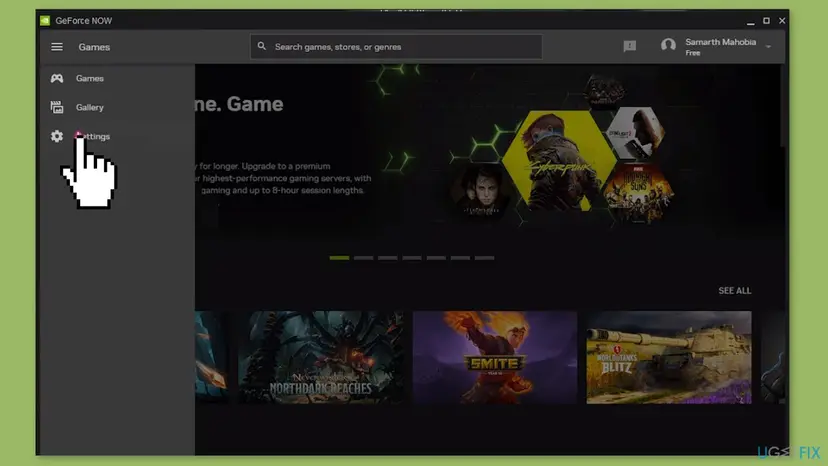
- Open the GeForce NOW app and select the menu in the top left corner.
- Select Settings.
- In the SERVER LOCATION section, select Auto from the drop-down menu.
- If Auto already failed, pick the nearest other region from the list and run TEST NETWORK for it.
- Select Play again.
It worked if: The test for the chosen region passes and the game connects.
If not: If no region connects, a firewall or router rule is the next suspect. Go to Fix 6.
Fix 6. Allow GeForce NOW through the firewall and the router
10 minutesLow riskIt works on a phone hotspot or in the browser but not in the app, or the PC is behind a work or school firewall.
NVIDIA's firewall article says the native app uses fixed ports for streaming and that a firewall blocking them can cause an error when you launch a game. Allowing the app is safer than switching the firewall off.
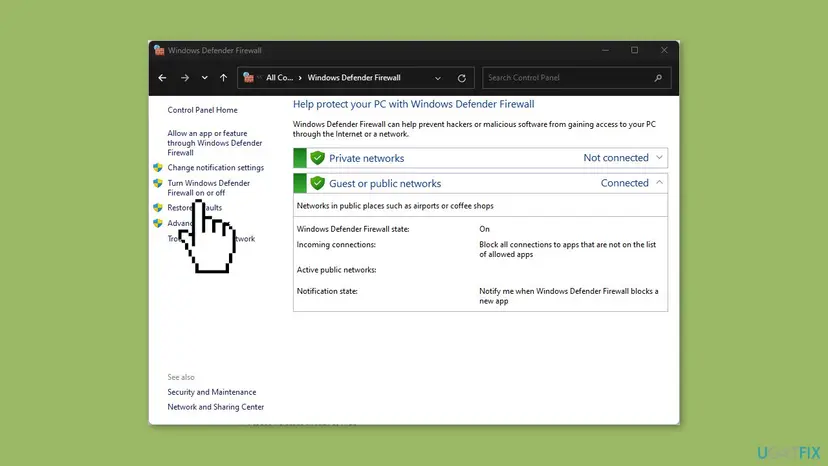
- Open Settings > Privacy & security > Windows Security > Firewall & network protection.
- Select Allow an app through firewall, then Change settings.
- Find GeForce NOW in the list and tick Private and Public. If it is not listed, select Allow another app and add it from its install folder.
- If you use a third party firewall, allow the GeForce NOW app there in the same way.
- Reconnect and select Play in the app.
| Port | Protocol and direction | Use |
|---|---|---|
| 49003 | UDP inbound | Audio |
| 49004 | UDP outbound | Audio |
| 49005 | UDP inbound | Video |
| 49006 | TCP and UDP, outbound and inbound | Remote input |
NVIDIA says such a firewall should allow traffic to and from GeForce NOW servers that starts from UDP port 5004 and uses ports 10000 to 20000. Ask the network administrator; do not change these rules on a network you do not manage. For a home router, NVIDIA lists the ports above for its QoS settings, not as a required port forward.
It worked if: GeForce NOW is allowed through the firewall and the app connects.
If not: If it still fails, the DNS cache or the app files may be at fault. Go to Fix 7.
Fix 7. Flush the DNS cache
5 minutesLow riskThe error began after a network change, a router swap or a switch of internet provider.
Windows keeps a cache of the addresses it looked up. An old entry can point to a server that no longer answers, and clearing the cache forces Windows to ask again. The command does not change any setting or file.
- Press the Windows key, type Command Prompt, right-click it and select Run as administrator.
- Type the command below and press Enter.
- Close Command Prompt and restart the PC.
- Open GeForce NOW and select Play.
Clears the DNS resolver cache
ipconfig /flushdns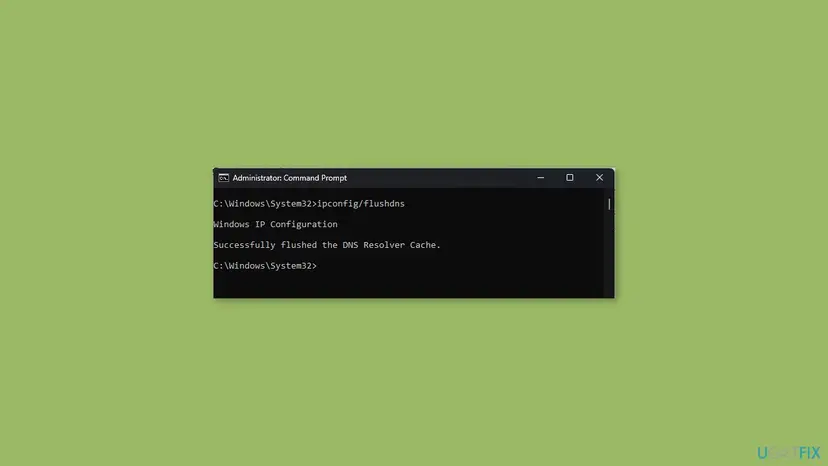
If the flush does not help, the full sequence in Reset the network and flush DNS also resets Winsock and TCP/IP. A full network reset removes saved Wi-Fi networks and VPN adapters, so use it last.
It worked if: The command reports that the DNS Resolver Cache was flushed, and the app connects after the restart.
If not: If the error remains, reinstall the app. Go to Fix 8.
Fix 8. Reinstall the GeForce NOW app
10 minutesLow riskThe browser version works, the firewall and server location are fine, and the app still shows the error.
A damaged or outdated install can fail to connect while the service itself is fine. Installing the current version from NVIDIA replaces the app files and keeps your account and library, which are stored with NVIDIA.
- Open Settings > Apps > Installed apps, find NVIDIA GeForce NOW and select Uninstall.
- Restart the PC.
- Download the installer from NVIDIA's own GeForce NOW page at
https://www.nvidia.com/en-us/geforce-now/and run it. - Sign in with your NVIDIA account and select Play.
The general steps for removing an app are in Uninstall a program or app in Windows. Download only from nvidia.com, never from other sites.
It worked if: The fresh install opens, signs in and connects to a game.
If not: If the same code appears on a clean install and on the browser version, contact NVIDIA. See the section after the fixes.
Fix 9. Pause security software for one test
5 minutesRead the warningThe error began after you installed or updated a firewall suite, web shield or ad blocker, and Fixes 1 to 8 did not help.
NVIDIA forum replies say that router settings, anti-virus or malware software and ad blockers can block the connection. Pausing the protection once shows whether it is the cause, so you can then add an allow rule instead of leaving it off.
While protection is paused, your PC is not guarded. Stay off risky sites, run the test and turn it back on at once. Never leave it off to play.
- Pause the protection for a short time as described in Turn off Microsoft Defender protection for a moment. Turn off any browser ad blocker or DNS filter too.
- Open GeForce NOW and select Play.
- Turn the protection back on straight away, whatever the result.
- If the game connected while it was paused, add GeForce NOW to the exceptions of that tool instead of leaving it off.
It worked if: The app connects while paused and you know which tool to adjust.
If not: If it fails with protection paused, security software is not the cause. Go to the section after the fixes.
If the error is still there: what to send to NVIDIA
When the network test passes, no VPN is on, the firewall allows the app and a clean reinstall shows the same code, the cause is likely on NVIDIA's side or in your account. Only NVIDIA can see why the server refused the connection. Forum replies note that this code can come with a service issue on NVIDIA's end, so wait a while and try again before you contact support.
- Same code on another device or network: the account or the service, not this PC. Say so at once.
- Browser works, app fails after a clean install: tell NVIDIA that, with the Windows version and the app version.
- Everything fails only on one network: ask that network's administrator or your internet provider about the streaming ports in Fix 6.
- Not a hardware fault: the game runs on NVIDIA's computer, so the only part of your PC that can matter is the network.
- Write down the time of the error, the game, your server location and the result of TEST NETWORK.
- Open NVIDIA's support site at
https://www.nvidia.com/en-us/support/, start a chat or a request and attach those notes.
How to keep error 0x800b1004 from coming back
- Turn off the VPN before you open GeForce NOW.
- Use Ethernet or the 5 GHz Wi-Fi band for streaming.
- Run TEST NETWORK when the connection feels worse than usual.
- Keep Server Location on Auto unless you have a reason to change it.
- Allow GeForce NOW in your firewall instead of switching the firewall off.
- Do not turn Windows Firewall or your antivirus off to play.
- Do not download GeForce NOW from sites other than nvidia.com.
- Do not reinstall Windows or update graphics drivers for this code; the game does not run on your graphics card.
- Do not bypass a proxy or firewall set by your employer or school.
Most connection errors clear once the cause on the network path is removed. The steps above make sure your side is not the reason when the error returns.
Frequently asked questions
What does GeForce Now error code 0x800b1004 mean?
NVIDIA has not published a description of this code. The message "There was a problem connecting to GeForce Now" shows that the app could not set up a connection to NVIDIA's servers. Replies on NVIDIA's forum say that something blocking the connection is the usual cause, such as a router setting, anti-virus software or an ad blocker. Windows files the number under the certificate facility, but NVIDIA does not say it is a certificate problem. Start with the network test in Fix 1.
Is 0x800b1004 a problem with my PC or with NVIDIA?
Most often neither: it is the connection between them. GeForce NOW runs the game on NVIDIA's computer, so your graphics card and game files play no part in this error. Use the test in Fix 4 to find out: if play.geforcenow.com connects but the app does not, the fault is in the app or a port rule. If both fail on every network, the account or the service is more likely, and NVIDIA support is the next step.
Does a VPN cause GeForce Now error 0x800b1004?
It can. NVIDIA's articles say it is best to turn off any VPN when you use GeForce NOW so the app can pick the best data centre from your real location. The network test also warns when a VPN is active. Disconnect the VPN in its app and in Settings, close it, restart GeForce NOW and try again. If you need the VPN for other tasks, turn it back on after you finish playing.
Which ports does GeForce NOW use?
NVIDIA's support article lists four ports for the native app: 49003 for inbound UDP audio, 49004 for outbound UDP audio, 49005 for inbound UDP video and 49006 for TCP and UDP remote input. It also says a corporate or school firewall should allow traffic from UDP port 5004 and between ports 10000 and 20000. NVIDIA lists the four ports for router QoS settings, not as a required port forward. These notes do not apply to the browser version.
Should I turn off Windows Firewall to fix this error?
No. Switching the firewall off leaves the PC unprotected and is rarely needed. Allow the GeForce NOW app through the firewall instead, as in Fix 6, and add it to the exceptions of any other security software. If you must test with protection off, do it once, for a few minutes, as in Fix 9, and turn it on again straight away.
Does updating my graphics driver fix 0x800b1004?
There is no sign that it does. The game is rendered on NVIDIA's computer and only the video is streamed to you, so the error comes from the network connection and not from your graphics card. Older guides suggest driver updates for this code, but no official source backs that. Spend the time on the network test, the VPN, the server location and the firewall instead.
Why does GeForce NOW work on a phone hotspot but not on my Wi-Fi?
It points to your home or office network. A router rule, a firewall, 2.4 GHz Wi-Fi with packet loss or an internet provider filter can block the streaming traffic while a mobile network passes it. Run TEST NETWORK on your Wi-Fi, switch to Ethernet or the 5 GHz band, restart the router and check the ports in Fix 6. If you are on a work or school network, ask the administrator.
What if the error appears for every game?
Then the game is not the cause. Check Fixes 1 to 3 first: the test, the VPN and the connection. Then try the browser version. If the browser connects, reinstall the app and check the firewall. If it fails too, change the server location, flush the DNS cache and wait, since replies on NVIDIA's forum say the code can also come with a service issue. After that, contact NVIDIA with the notes from the still-broken section.
How do I fix "geforce now error code" messages that are not 0x800b1004?
Each GeForce NOW code has its own cause, so match the number. For 0xC192000C, see our guide on the session start problem, and for 0xC0080105 the NVIDIA article on game launch errors. The general steps here, a network test, no VPN and a good server location, help with many connection problems, but a different code can need a different fix, so read the guide for that number.
Sources
- NVIDIA Support: How can I adjust my network firewall to work with GeForce NOW? (article 5482) (nvidia.custhelp.com)
- NVIDIA Support: How do I test my network for GeForce NOW? (article 5224) (nvidia.custhelp.com)
- NVIDIA Support: How do I change the GeForce NOW service region I connect and play from? (article 5283) (nvidia.custhelp.com)
Did this fix work?
One click, no account. It tells the next reader which guides are worth their time.
Questions and experiences: fix GeForce Now error 0x800b1004 in Windows
Still broken, or found a fix we did not cover? Ask here: members and our editors answer. Reading is open; writing needs a free account.
…