
How to fix "Get the newer version of Windows to stay up to date" error?

Prefer to fix it yourself? The manual steps follow.
- 7methods
- 10 minutes to 2 hours
- Easy
Applies to Windows 11 Home, Pro and Pro Education on version 24H2 or older, and Windows 10 PCs that Windows Update marks as out of service
7 methods in this guide
I need help with my Windows laptop. I just got it a few weeks ago, and updated it at that time. Since then, I've been getting a message "Get the newer version of Windows to stay up to date. Your version of Windows has reached the end of service." I don't understand this because I did update it. What else can I do?
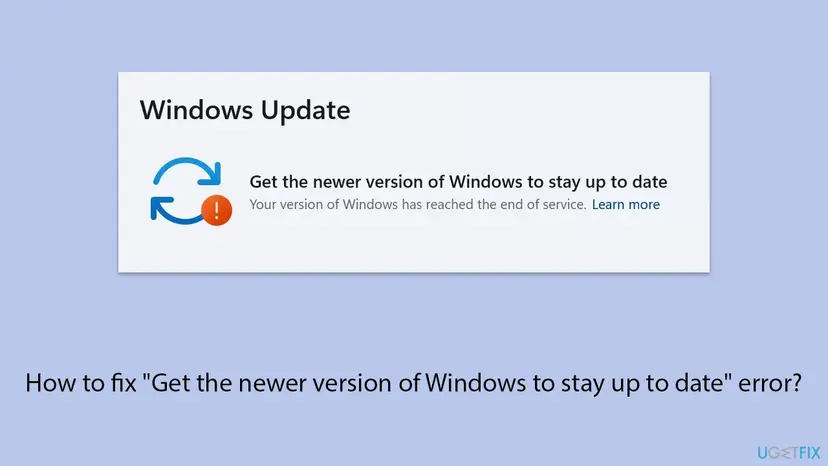
"Get the newer version of Windows to stay up to date" is not a fault: Windows Update tells you that your version of Windows no longer gets security updates. Since 13 October 2026 this includes Windows 11 24H2 Home and Pro. Open Settings > Windows Update, install the offered feature update, and the message goes away.
Monthly updates keep your current version patched, but they never move you to a newer version. The message means that version itself reached its end date. Press Win + R, type winver and check the version. Then open Settings > Windows Update, select Check for updates and install the feature update to Windows 11, version 25H2 or 26H2 (Fix 1). Your files and apps stay.
| Error | Get the newer version of Windows to stay up to date with the line Your version of Windows has reached the end of service. and a Learn more link. |
|---|---|
| Where it appears | At the top of Settings > Windows Update, in place of You're up to date. Often after a Windows 11 PC is reset or bought with an old factory image. |
| Main cause | The installed feature version is past its end of updates date. Windows 11 Home and Pro versions get 24 months of updates. 24H2 Home and Pro ended on 13 October 2026, 23H2 and older ended before. |
| Fastest fix | Install the feature update that Windows Update offers (Fix 1). On 24H2 it is a small enablement package and one restart. |
| Also written as | Get newer version of Windows to stay up to date, get a newer version of Windows, your version of Windows is out of date, this version of Windows is out of date. |
| Affects | Windows 11 Home, Pro, Pro Education and Pro for Workstations on 24H2, 23H2, 22H2 and 21H2. Enterprise and Education editions get 36 months, so 24H2 Enterprise is supported until 12 October 2027. |
| Supported versions | Windows 11 25H2 (build 26200) until 12 October 2027 and 26H2 (build 26300) until 10 October 2028 for Home and Pro. |
| Microsoft's status | Expected behavior, not a bug. Microsoft's release information marks 24H2 and 23H2 Home and Pro as End of updates. |
| Time to fix | About 10 minutes for the 24H2 to 25H2 enablement package. 1 to 2 hours for a full upgrade from 23H2 or older. |
Facts checked on 15 October 2026. Steps written for Windows 11 23H2, 24H2, 25H2 and 26H2, and Windows 10 22H2.
What "Get the newer version of Windows to stay up to date" means
Windows 11 has two kinds of updates. Monthly quality updates arrive on the second Tuesday of each month and patch the version you have. A feature update, released once a year, moves you to the next version, such as from 24H2 to 25H2. Each version gets updates only for a fixed time.
When that time is over, Windows Update stops showing You're up to date and shows this message instead. It is a status, not an error code, and nothing is broken. People search for it as get newer version of Windows to stay up to date, get the newer version of Windows to stay update, get the new version of Windows to stay up to date, or just "the newer version".
| Windows 11 version | Build | Home and Pro updates end | Enterprise and Education updates end |
|---|---|---|---|
| 26H2 | 26300 | 10 October 2028 | 9 October 2029 |
| 25H2 | 26200 | 12 October 2027 | 10 October 2028 |
| 24H2 | 26100 | Ended on 13 October 2026 | 12 October 2027 |
| 23H2 | 22631 | Ended | 10 November 2026 |
| 22H2 and 21H2 | 22621, 22000 | Ended | Ended |
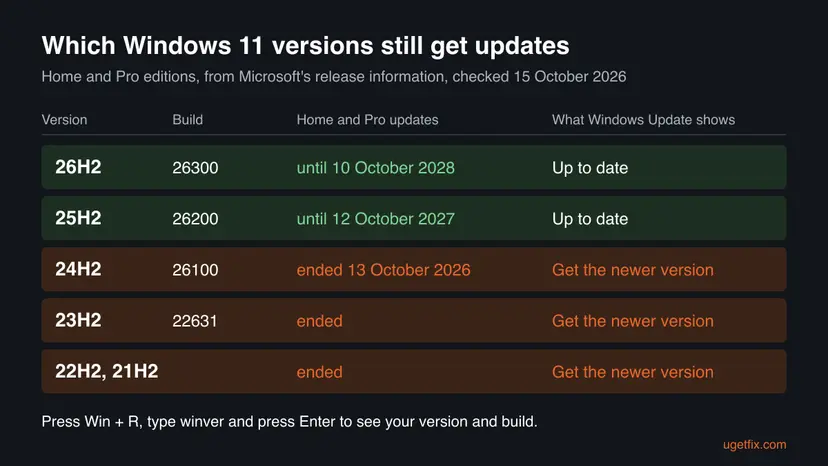
Microsoft lists a version 26H1 as well. It ships only on new devices sold from early 2026 and is not offered as an update from 24H2 or 25H2. Do not look for it in Windows Update.
Why Windows 11 says to get the newer version to stay up to date
The reader's question above is the most common case: the laptop was updated, yet the message stays. Monthly updates do not count, because they never change the version number. The ranking below ties each cause to a fix.
| Cause | How often | How to tell | Fix |
|---|---|---|---|
| The version reached its end date and the feature update was never installed. | Most often | winver shows 24H2, 23H2 or older. Windows Update offers Feature update to Windows 11, version 25H2 with a Download and install link. | Fix 1 |
| The feature update is not offered because a required update is missing. | Often, mostly after a reset to an old factory image | Check for updates finds nothing, or only monthly updates, and the message stays. | Fix 2 |
| Updates are paused, or the PC is managed by work or school. | Sometimes | Pause updates shows a resume date, or the page says Some settings are managed by your organization. | Fix 1 |
| Windows Update itself is damaged or has no space for the download. | Less often | Downloads stop with an error code, or drive C has only a few GB free. | Fix 3, Fix 5, Fix 6, Fix 7 |
| The hardware does not meet the newer version's requirements. | Rarely on Windows 11, often on Windows 10 | The Installation Assistant or PC Health Check says the PC does not meet the requirements. | Section on hardware below |
PCs leave the factory with the version that was current when the image was made, and a reset returns to that image. In a Microsoft Q&A thread on this message, one user reports exactly that: after a reset to a 22H2 image, Windows Update stayed on 22H2 until the missing package was installed.
How to fix "Get the newer version of Windows to stay up to date"
Fix 1 solves most cases in a few clicks. Fix 2 is for PCs where Windows Update offers nothing. Fix 3 and Fix 4 upgrade with Microsoft's own tools when Windows Update will not. Fix 5 to Fix 7 repair what blocks the download.
| What you see or have | Start with |
|---|---|
| Windows Update shows Feature update to Windows 11, version 25H2 or 26H2 with Download and install. | Fix 1 |
| Updates are paused, or Some settings are managed by your organization is shown. | Fix 1 |
| Get the newer version of Windows to stay up to date but no updates are offered. | Fix 2 |
| Windows 11 23H2, 22H2 or 21H2, or Fix 2 did not bring the offer. | Fix 3 |
| The Installation Assistant fails or you prefer an ISO file. | Fix 4 |
| The download stops with a code, or drive C is almost full. | Fix 5 |
| Windows Update repeats the same error after every try. | Fix 6, then Fix 7 |
Fix 1. Check your version and install the feature update in Windows Update
10 minutes to 1 hourLow riskEveryone who sees the message, on any edition of Windows 11.
The message goes away only when the version changes. Windows Update lists the feature update separately from the monthly updates, so it is easy to miss. From 24H2 the move to 25H2 is an enablement package, which Microsoft describes as a small switch that needs a single restart.
- Press Win + R, type
winverand press Enter. Note the version, such as Version 24H2 (OS Build 26100.9711). - Press Win + I and select Windows Update.
- If Pause updates shows Resume updates, select it.
- Select Check for updates and wait until the search ends.
- Look for Feature update to Windows 11, version 25H2 or version 26H2 and select Download and install.
- When the download finishes, select Restart now. Keep a laptop plugged in.
- Run
winveragain to confirm the new version.
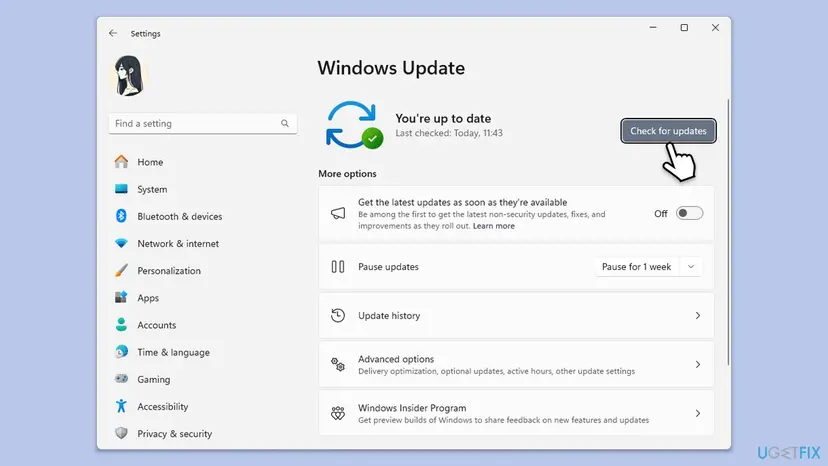
If the page says Some settings are managed by your organization, the version is chosen by your IT department. Ask them before you upgrade. Enterprise and Education editions of 24H2 still get updates until 12 October 2027.
It worked if: Windows Update shows You're up to date and winver shows version 25H2 or 26H2.
If not: If no feature update is offered, or the message stays after the restart, go to Fix 2.
Fix 2. Install the latest cumulative update so Windows Update offers the newer version
20 to 40 minutesLow riskCheck for updates finds no feature update, especially after a reset or on a new PC.
The enablement package only works on top of a recent monthly update. Microsoft lists KB5064081 of 29 August 2025 (build 26100.5074) or a later cumulative update as a prerequisite for 25H2. A PC stuck on an old build never sees the offer.
- Run
winver. On 24H2, a build lower than 26100.5074 is too old for the 25H2 package. - In Settings > Windows Update, install every monthly update offered and restart, then check again.
- If Windows Update fails or offers nothing, open Update history and note which cumulative update failed.
- Download the newest cumulative update for your version from the Microsoft Update Catalog and install it. Step by step: Install an update from the Microsoft Update Catalog.
- Restart, open Windows Update and select Check for updates again. The feature update should now appear, as in Fix 1.
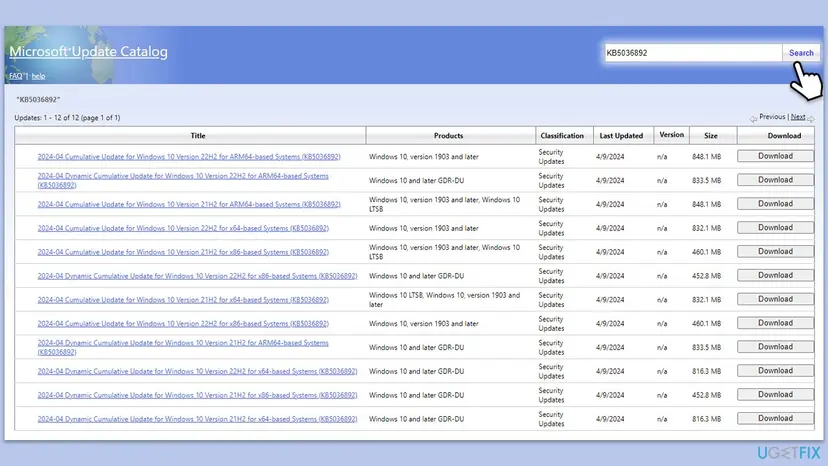
- The 25H2 enablement package itself, KB5054156, is not offered in the Update Catalog. Microsoft gives it through Windows Update and WSUS only.
- On Windows 11 22H2, the move to 23H2 used another enablement package, KB5027397. A user in Microsoft Q&A reports that installing it made Windows Update offer 23H2 at once. 23H2 is out of support too, so continue with Fix 3.
It worked if: After the cumulative update, Windows Update lists Feature update to Windows 11, version 25H2 and Fix 1 completes.
If not: If the offer still does not appear, or the cumulative update fails, upgrade with Fix 3.
Fix 3. Upgrade with the Windows 11 Installation Assistant
1 to 2 hoursLow riskWindows 11 23H2 or older, or a 24H2 PC where Fix 1 and Fix 2 gave no offer.
The Installation Assistant downloads the current version and installs it over the old one, without waiting for Windows Update to offer it. It keeps your files and apps. It also checks the hardware first and says plainly if the PC cannot run the newer version.
- Back up the files you cannot lose: Back up your files (Windows Backup, File History, Time Machine).
- Open Microsoft's Download Windows 11 page and select Download Now under Windows 11 Installation Assistant.
- Run the downloaded file and select Yes when Windows asks for permission.
- Select Accept and install and leave the PC on. It restarts several times.
- When the desktop is back, run
winverand check the version.
Users in the same Microsoft Q&A thread report two outcomes worth knowing. On one PC the assistant finished and the version stayed 22H2; installing the missing package from Fix 2 solved it. On another, the assistant pointed to PC Health Check, which said the PC does not meet the requirements.
It worked if: The PC starts on the newer version, winver shows 25H2 or 26H2, and Windows Update shows You're up to date.
If not: If the assistant stops with an error, try Fix 4. If it says the PC does not meet the requirements, read the section on hardware below.
Fix 4. Upgrade from a Windows 11 ISO and keep your files
1 to 2 hoursLow riskThe Installation Assistant failed, or you want a copy of the setup files to reuse.
Running setup.exe from Microsoft's ISO is a full in-place upgrade. It replaces the system files and moves the PC to the version on the disc image while you choose to keep files and apps.
- On Microsoft's Download Windows 11 page, under Download Windows 11 Disk Image (ISO), choose the edition and language and download the x64 ISO.
- Right-click the ISO file and select Mount. It opens as a new drive in File Explorer.
- Double-click
setup.exeand select Yes. - Accept the license terms. When Setup asks what to keep, select Keep personal files and apps.
- Select Install and wait. The PC restarts several times.
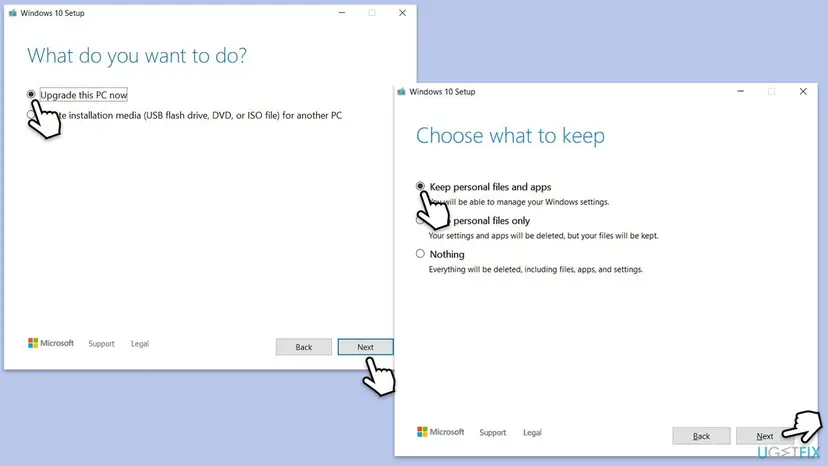
It worked if: Setup ends at the sign in screen, your files and apps are in place, and winver shows the newer version.
If not: If Setup reports there is not enough space, go to Fix 5. If it stops with an error code, go to Fix 6.
Fix 5. Free up space on drive C for the feature update
10 to 20 minutesLow riskDrive C is nearly full, or the download or Setup reports too little space.
A full upgrade from 23H2 or older downloads the whole new version and keeps the old one for a while so you can go back. On a small or full drive there is no room, and the update stops or never starts.
Clean up with Storage settings and Disk Cleanup, including Windows Update Cleanup and Delivery Optimization Files. Step by step: Free up disk space and delete temporary files.
- Type disk cleanup in the search box and open Disk Cleanup. Choose drive C: and select OK.
- Select Clean up system files, choose C: again and select OK.
- Check Windows Update Cleanup, Temporary files and Delivery Optimization Files, select OK, then Delete files.
- Run Fix 1 again.
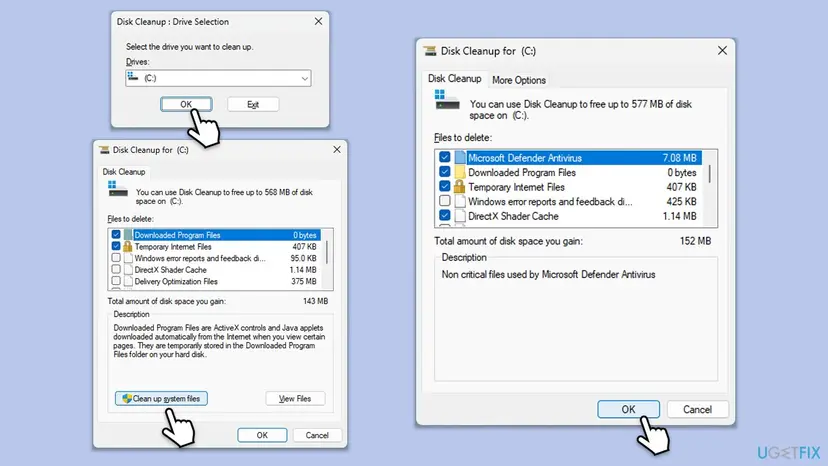
It worked if: Drive C shows more free space and the feature update downloads without a space warning.
If not: If space is fine but the download still fails, go to Fix 6.
Fix 6. Run the Windows Update troubleshooter
5 minutesNo riskCheck for updates hangs, or a download fails with an error code.
The troubleshooter restarts the update services and checks their settings. It cannot change your version, but it can clear a stuck state that keeps Fix 1 from finding the feature update.
- Open Troubleshoot settings. Select Start > Settings > System > Troubleshoot.
- Open the list of troubleshooters. Select Other troubleshooters.
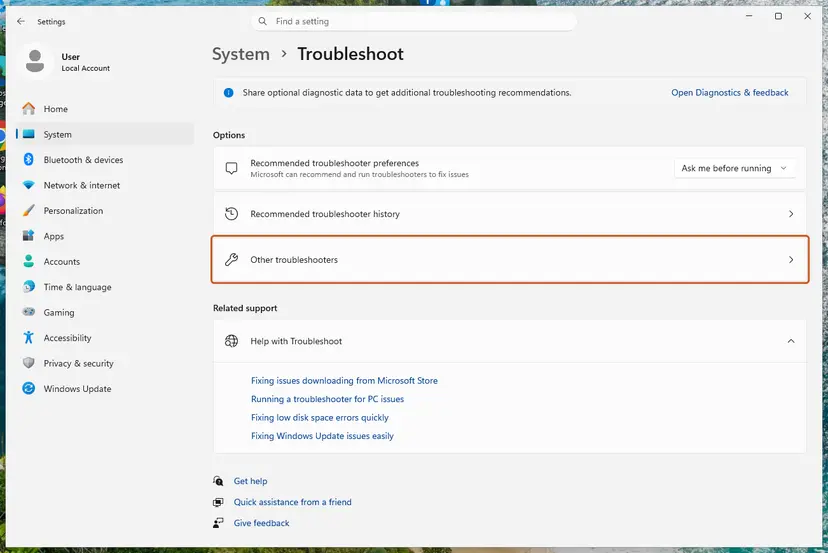
Settings, System, Troubleshoot: select Other troubleshooters. Screenshot: Windows 11 26H2. - Run the Windows Update troubleshooter. Under Most frequent, select Run next to Windows Update. The Get Help app opens and starts the checks.
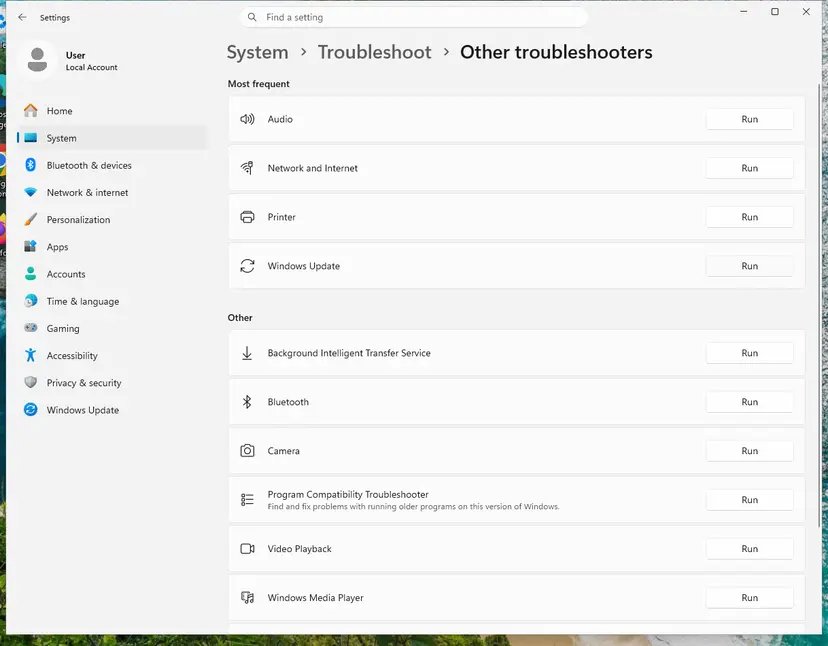
Windows Update is in the Most frequent group; select Run on its row. Screenshot: Windows 11 26H2. - Read the result. Wait until Get Help finishes. If it found and fixed a problem, it says so and asks whether this solved the problem. Answer the question so it can offer the next step.
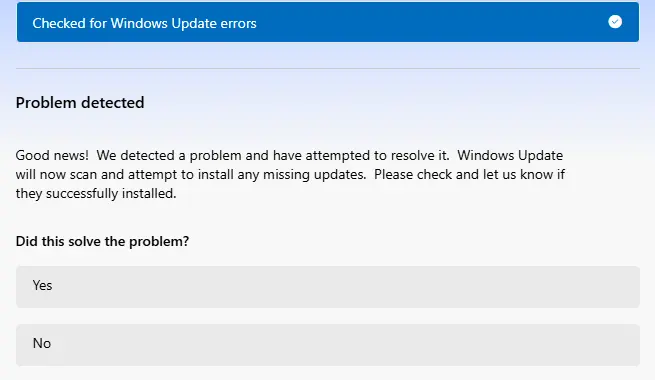
Get Help reports what it found and asks if the problem is solved. Screenshot: Windows 11 26H2. - Restart the PC. Restart when the troubleshooter finishes, even if it does not ask you to.
- Check for updates again. Select Start > Settings > Windows Update > Check for updates, and install the updates it finds.
These steps were written for Windows 11 (screenshots: 26H2). The full page with the other versions and what each result means: Run the Windows Update troubleshooter
It worked if: The troubleshooter reports that it fixed a problem, and Check for updates finds the feature update.
If not: If it finds nothing or the same error comes back, reset the update components in Fix 7.
Fix 7. Reset the Windows Update components
10 minutesLow riskUpdates fail again and again with the same code, and the troubleshooter did not help.
A damaged download cache in SoftwareDistribution or catroot2 can stop every update, the feature update included. Renaming both folders makes Windows build a fresh cache and download the update again.
You stop the update services, rename C:\Windows\SoftwareDistribution and C:\Windows\System32\catroot2, and start the services again. Step by step with all commands: Reset Windows Update components.
The two folders, renamed in an administrator Command Prompt after the services are stopped:
ren C:\Windows\SoftwareDistribution SoftwareDistribution.old
ren C:\Windows\System32\catroot2 catroot2.old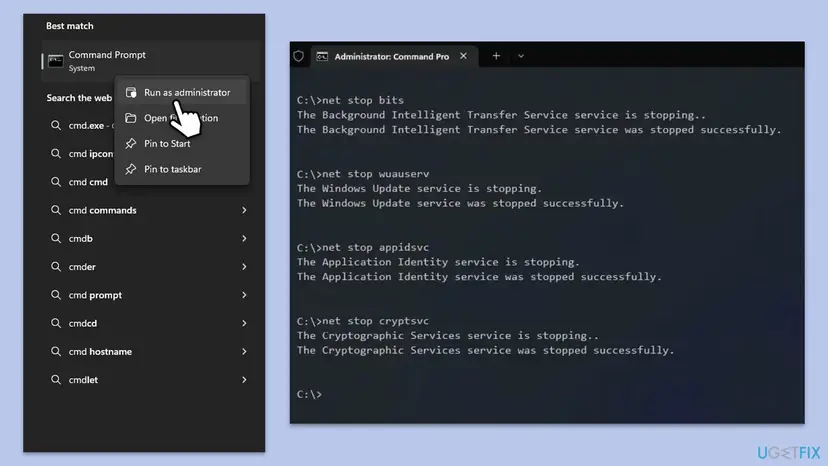
It worked if: After a restart, Check for updates runs a longer first scan and then offers the feature update.
If not: If Windows Update still fails, use Fix 4, which does not depend on Windows Update at all.
If the message stays, or the PC cannot get the newer version
Check the version first. If winver already shows 25H2 or 26H2 and the message stays, open Windows Update and select Check for updates once more. The status is refreshed by a new scan.
| What you find | What it means and what to do |
|---|---|
| The Installation Assistant or PC Health Check says the PC does not meet the requirements | The hardware is the limit, not a fault. Newer versions will not install the normal way. Do banking and other sensitive tasks on a supported device, and plan a replacement. |
| Windows 10, any version | Windows 10 left support on 14 October 2025. The newer version for that PC is Windows 11, if the hardware passes the check. We did not check the current Extended Security Updates terms for this page. |
| Some settings are managed by your organization | Your IT department holds the version back on purpose. Ask them. |
| An upgrade that rolls back with an error code | Note the code from Update history. It names the cause and has its own fixes. |
| Upgrade works, but monthly updates fail later | That is a separate problem with its own error code. |
- What to send to support: the
winvertext, the edition from Settings > System > About, and what Windows Update shows after Check for updates. - Add the error code from Update history if a download or install failed.
- If a monthly update fails with 0x800f0993 after the upgrade, read our guide to Windows update error 0x800f0993.
Nothing stops working on the day support ends. The PC simply gets no more security fixes, so every new hole found in that version stays open. That is why we do not suggest ignoring the message.
How to keep the message from coming back
Every Windows 11 version gets 24 months of updates on Home and Pro, so the message returns every two years if you never install a feature update. 25H2 ends on 12 October 2027 and 26H2 on 10 October 2028.
- Install the yearly feature update within a few months of its release, when Windows Update offers it.
- Run
winverafter a PC reset, because a reset can return the PC to an old version. - Keep at least the free space the upgrade asks for on drive C.
- Turn on Get the latest updates as soon as they're available only if you want new features early.
- Do not pause updates for months. Resume them when the pause ends.
- Do not install ISO files from sites other than Microsoft.
- Do not treat monthly updates as proof that the version is current.
- Do not look for Windows 11 26H1: it is for new devices only.
Frequently asked questions
Why does Windows say to get the newer version when I just updated?
Because the updates you installed were monthly quality updates, and they keep the same version. The message is about the version itself. Each Windows 11 version gets 24 months of updates on Home and Pro, and 24H2 reached its end on 13 October 2026. A new laptop or a reset PC can also start on an older version from its factory image. Run winver, then install the feature update to 25H2 or 26H2 from Windows Update.
Is "Get the newer version of Windows to stay up to date" a virus or a scam?
No, not when it appears on the Windows Update page in Settings. It is Windows' own status for a version that is out of service, and its Learn more link opens Microsoft's site. Be careful only with the same words in a browser pop-up or an email that asks you to download a file or call a number. Windows never asks for that. Open Settings yourself and check there.
Will installing the newer version delete my files?
No. Fix 1 to Fix 4 all keep your personal files and apps. The move from 24H2 to 25H2 is an enablement package that only switches on features already present, with one restart. A full upgrade from 23H2 or older replaces Windows but keeps files and apps when you choose Keep personal files and apps. A backup before any upgrade is still wise.
Is the upgrade to Windows 11 25H2 or 26H2 free?
Yes. Feature updates for Windows 11 are free for any PC with a genuine Windows 11 licence, through Windows Update, the Installation Assistant or Microsoft's ISO. No new product key is needed, and the edition stays the same. Any site or pop-up that asks for payment to fix this message is not from Microsoft. Only the upgrade from Windows 10 depends on whether the hardware meets Windows 11's requirements.
Why does Windows Update say to get the newer version but offer no updates?
Usually a prerequisite is missing. The 25H2 enablement package needs KB5064081 or a later cumulative update, build 26100.5074 or higher. A PC on an older build gets no offer. Install the newest cumulative update, from Windows Update or the Update Catalog, then check again (Fix 2). If nothing appears, upgrade with the Installation Assistant (Fix 3). Paused updates and work or school policies also hide the offer.
What happens if I ignore the message?
The PC keeps working, but it stops getting security fixes for that version. New security holes found after the end date stay open on your PC. Apps and drivers will also stop supporting the old version over time. Nothing is deleted or locked. The message itself stays on the Windows Update page until you install a supported version, so it is best handled soon.
I see this on Windows 10. What should I do?
Windows 10 left support on 14 October 2025, and 22H2 is its last version, so there is no newer Windows 10 to install. The newer version for that PC is Windows 11. Run the Windows 11 Installation Assistant or PC Health Check to see whether the hardware qualifies. If it does, upgrade and keep your files. If it does not, the PC cannot get the newer version the normal way.
How do I find which version of Windows I have?
Press Win + R, type winver and press Enter. The window shows the version, such as 24H2, and the OS build, such as 26100.9711. You can also open Settings, then System, then About, and read Version and OS build under Windows specifications. Build 26100 is 24H2, 26200 is 25H2 and 26300 is 26H2. If yours is 24H2 or older on Home or Pro, it is out of service.
What does the German or French version of this message mean?
It is the same message. "Die neuere Version von Windows abrufen, um auf dem neuesten Stand zu bleiben" in German and "Obtenir la version la plus récente de Windows pour rester à jour" in French both mean that your Windows version reached the end of service. The menu names in this guide are in English, but the fixes are the same in every language: check the version with winver and install the feature update.
Can I stay on Windows 11 24H2 for longer?
Only on Enterprise, Education and IoT Enterprise editions, which Microsoft supports until 12 October 2027. Home, Pro, Pro Education and Pro for Workstations on 24H2 reached the end of updates on 13 October 2026. Moving to 25H2 is the smallest step: the two versions share the same system files, and the enablement package needs a single restart, so there is little reason to wait.
Sources
- Microsoft Learn: Windows 11 release information (versions, builds, end of updates dates) (learn.microsoft.com)
- Microsoft Support: KB5054156, feature update to Windows 11, version 25H2 by using an enablement package (support.microsoft.com)
- Microsoft Q&A: Windows Update says "Get the newer version of Windows to stay up to date" (user reports) (learn.microsoft.com)
Did this fix work?
One click, no account. It tells the next reader which guides are worth their time.
Questions and experiences: fix "Get the newer version of Windows to stay up to date" error
Still broken, or found a fix we did not cover? Ask here: members and our editors answer. Reading is open; writing needs a free account.
…