
How to fix Google Classroom stuck at loading screen?

Prefer to fix it yourself? The manual steps follow.
- 8methods
- 2 to 20 minutes
- Easy
Applies to Google Classroom on the web in Chrome, Edge, Firefox and Safari; the Google Classroom app for Android and iPhone; school, personal and Google Workspace accounts
8 methods in this guide
- What the endless loading means
- Causes, ranked
- When Google is the cause
- The fixes
- 1. Check Google's status page
- 2. Use only your school account
- 3. Incognito and extensions
- 4. Clear cookies and cache
- 5. Update or switch browser
- 6. Turn off graphics acceleration
- 7. Check the network
- 8. Fix the phone app
- Still loading: what to send
- Prevent it
- FAQ
Hello. I tried to access Google Classroom, but it only keeps loading. I tried to open it multiple times. What should I do?
Google Classroom stays on the loading screen when the browser cannot finish loading your classes: a second Google account, an extension, damaged site data or the network stops it. Sometimes Google's own servers have an incident. Check the status page first, then open Classroom with only your school account signed in.
First open the Google Workspace Status Dashboard and look at the Classroom row: if Google reports an incident, only waiting helps (Fix 1). If Classroom is fine there, sign out of every Google account in your browser and sign in with your school account only (Fix 2). If it still spins, test an Incognito window and turn off your extensions (Fix 3), then clear Classroom's cookies and cache (Fix 4).
| Error | No error code. Classroom shows its loading bar or spinner and never displays your classes, the Stream, the To-do list or the Calendar. Some readers see a blank or black page instead. |
|---|---|
| Where it appears | At classroom.google.com in a browser, most often right after sign-in or when you open a class. In the Classroom app on Android and iPhone it shows as a screen that never fills or an app that closes. |
| Main cause | Something in the browser profile: two or more Google accounts signed in at once, an extension such as an ad blocker, or stored cookies and cached files that no longer match the site. |
| Fastest fix | Check the status page (Fix 1), then sign out of all Google accounts and sign in with the school account only (Fix 2). Together about 3 minutes. |
| Also written as | Google Classroom not loading, won't load, infinite loading, keeps loading, stuck on the loading screen, crashing, black screen. |
| Affects | Students, teachers and school admins on Windows, macOS, ChromeOS, Android and iPhone. The problem sits in the browser, the account or the network, not in Windows. |
| Vendor status | Google lists Classroom outages on its status page. In 2026 there were two: on 29 April (an internal migration, rolled back) and from 13 to 18 August (the new web homepage, fixed). |
| Browser rules | Google supports the latest Chrome and the current and previous versions of Firefox, Safari and Edge. Cookies and JavaScript must be on. |
| Time to fix | 2 minutes for the status check, 5 to 10 minutes for the browser fixes, longer only when the school's admin or network has to change something. |
Facts checked on 14 October 2026. Steps written for classroom.google.com in Chrome 155 on Windows 11 (25H2 and 26H2) and Windows 10 22H2; the Classroom app on Android and iPhone.
What it means when Google Classroom is not loading
Classroom is a web app. When you open classroom.google.com, the page first checks which Google account you are using, then fetches your classes, posts and files from Google's servers. The loading bar you see is the wait between those two steps. If any part of that chain fails quietly, the bar keeps running and no error appears.
That is why the problem has so many names. People search for Google Classroom not loading, won't load, infinite loading or crashing, and the reason behind each one can be different. The page does not tell you which one you have, so this guide gives you three short tests that do.
| What you see | Where | What it points to |
|---|---|---|
| The loading bar or spinner runs and no class cards ever appear | classroom.google.com in a browser | The browser profile (accounts, extensions, site data) or a Google incident |
| Home stays empty, but a class opens from the left menu | The Classroom homepage on the web | A homepage fault. Google had exactly this in August 2026. |
| Text loads, but pictures or attached files stay blank | Inside a class or an assignment | Classroom uses a different signed-in account than the one that owns the files |
| A blank or black page where Classroom should be | A browser on a PC | Often the browser's graphics acceleration, sometimes an extension |
| You can't use Classroom with this account. | After sign-in, on the web or in the app | You are signed in with an account that Classroom does not accept for you |
| The app opens and closes, or shows an empty screen | The Classroom app on Android or iPhone | An old or damaged copy of the app |
Nothing on this page needs a system repair, a driver update or a registry change. Classroom runs inside the browser and on Google's servers. The fixes below work on the browser, the account and the network, in that order.
Why Google Classroom won't load, from most to least common
Most often the browser holds more than one Google account, or an extension or old site data gets in the way. Less often Google itself has an incident, or the network blocks part of Classroom. Rarely the account is not set up for Classroom at all. The volunteer Product Experts in Google's Classroom forum give the same first steps again and again: sign out of every account, clear cookies and cache, try Incognito, turn off extensions.
| Cause | How often | How to tell | Fix |
|---|---|---|---|
| Two or more Google accounts are signed in, and Classroom opens with the wrong one | Most often | The address shows /u/1/ or a higher number, or the profile picture at the top right is not your school account | Fix 2 |
| An extension, often an ad or script blocker, stops part of the page | Often | Classroom works in an Incognito window, where extensions are off by default | Fix 3 |
| Cookies or cached files for Google's sites are out of date or damaged | Often | Incognito works, and turning off extensions alone does not help | Fix 4 |
| Google's servers have an incident | Sometimes | The whole class has the same problem at the same time, and the status page shows Classroom in colour | Fix 1 |
| An old or unsupported browser, or cookies or JavaScript turned off | Sometimes | Another, up-to-date browser opens Classroom on the same PC | Fix 5 |
| Graphics acceleration in the browser does not work well with the graphics driver | Rarely | A blank or black page, often with flicker, in one browser only | Fix 6 |
| A weak connection or a school, home or security filter | Sometimes | Classroom loads on phone data but not on this Wi-Fi | Fix 7 |
| An outdated or damaged Classroom app | Phones only | The website works in the phone's browser, the app does not | Fix 8 |
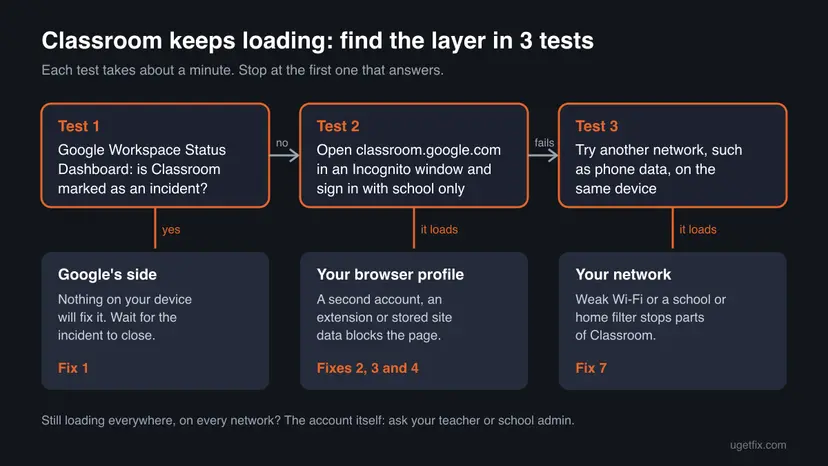
Google does not publish a list of causes for the endless loading screen. The ranking above comes from Google's own help pages, its status history and the steps its forum Product Experts give. How often each cause occurs is our estimate, not a Google figure.
When Google Classroom itself is down: the 2026 incidents
Google posts problems with its school and business services on the Google Workspace Status Dashboard. Classroom has its own row there, next to Google Sign In, Google Drive and Chrome Browser. The history on that page shows that Classroom outages are real but short and rare. We read it on 14 October 2026.
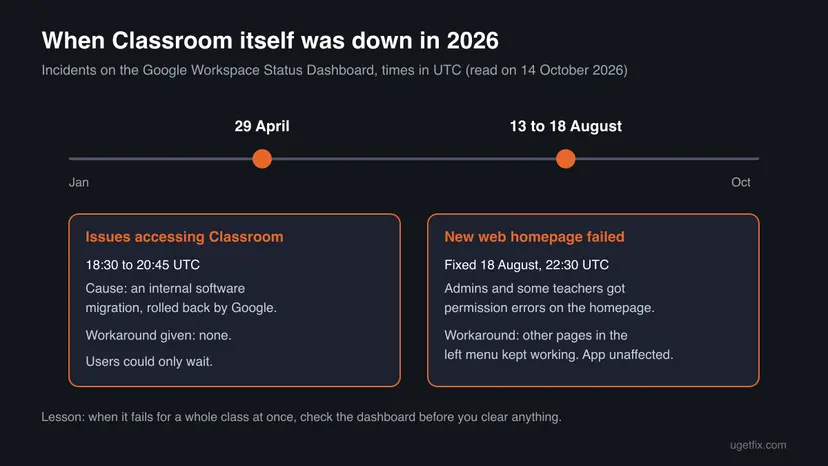
- 29 April 2026, 18:30 to 20:45 UTC. Google wrote that affected users may experience issues accessing Classroom and that no workaround was available. The cause was an internal software migration, which Google rolled back.
- 13 to 18 August 2026. Admins and some teachers got permission errors on Classroom's new web homepage. Google's workaround was to open other views from the left-hand menu. The mobile app was not affected. The fix was complete at 22:30 UTC on 18 August.
During an incident, clearing the cache, reinstalling the browser or resetting the PC changes nothing, and it signs you out of everything. Two minutes on the status page can save half an hour of work. That is why it is Fix 1.
How to fix Google Classroom not loading
Start with Fix 1 and Fix 2: together they take about three minutes and solve the problem for many readers. Fixes 3 to 6 repair the browser. Fix 7 is for the network, and Fix 8 is for the Classroom app on a phone.
| What you see or have | Start with |
|---|---|
| Your classmates or your whole class have the same problem right now. | Fix 1 |
| You use a personal Gmail account and a school account in the same browser. | Fix 2 |
| Pictures or files inside Classroom stay blank, the rest loads. | Fix 2 |
| Classroom opens in an Incognito window but not in a normal one. | Fix 3, then Fix 4 |
| You use an ad blocker, a privacy add-on or a school monitoring extension. | Fix 3 |
| Another browser works, yours does not. | Fix 5 |
| The page is blank or black, or it flickers. | Fix 6 |
| It works on phone data but not on the home or school Wi-Fi. | Fix 7 |
| The Classroom app on Android or iPhone stays empty or keeps closing. | Fix 8 |
Fix 1. Check whether Google Classroom is down for everyone
2 minutesNo riskBefore you change anything, and always when classmates report the same problem.
Google posts Classroom incidents on the Google Workspace Status Dashboard. If Classroom is marked there, the fault is on Google's servers and nothing on your device will change it.
- Open
https://www.google.com/appsstatus/dashboard/in any browser or on your phone. - At the top, read the line under the introduction. No incidents means Google has nothing open for any service.
- Find the Classroom row in the table. The columns are the last eight days, and the last column is today.
- Compare the icon in today's column with the legend above the table: Available, Service information, Service disruption or Service outage.
- Check the rows Google Sign In and Google Drive too. Classroom needs both to show your classes and files.
- If any of them is marked, select it and read Google's text: the symptoms, a workaround if there is one, and the time of the next update.
Times on the dashboard are in UTC. The page also has View incident history, where you can see whether the problem was fixed, and an RSS feed if you want to be told about new incidents.
Google writes on the page that a problem not listed there should be reported to support. For a school account, tell your teacher, who can pass it to the school's Google Workspace admin.
It worked if: The Classroom row shows Available for today, so you know the cause is on your side and the next fixes apply.
If not: If Classroom is marked, wait for Google's next update and try again after it. If it is clear, go to Fix 2.
Fix 2. Sign out of every Google account and open Classroom with your school account only
3 minutesLow riskYou are signed in to more than one Google account in the same browser, for example a personal Gmail and a school account.
Google says that when several accounts are signed in it sometimes cannot tell which one you are using, and in many cases the default is the account you signed in with first. Classroom, Drive files and pictures can then load with the wrong account and stall.
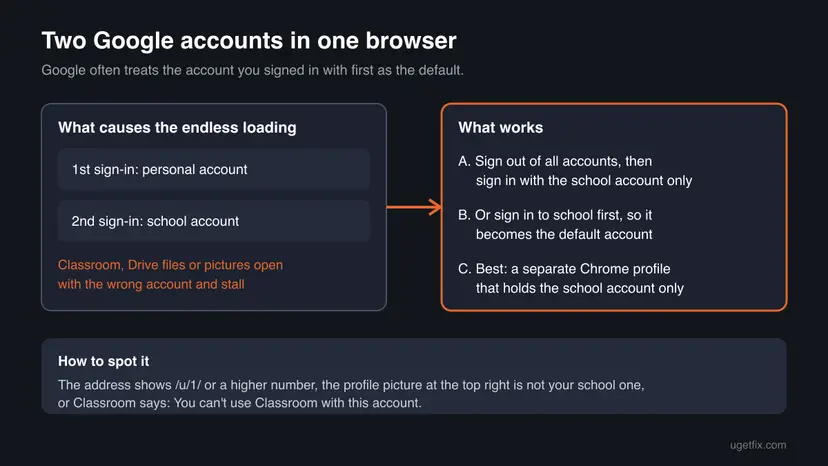
- Make sure you know the password of every account, because you will sign in again. Google advises having backup verification methods set up before you sign out.
- Go to
https://www.google.comand select your profile picture or initial at the top right. - Select Sign out of all accounts.
- Open
https://classroom.google.comand select Go to Classroom if you see it. - Sign in with your school email address, the one that looks like *[email protected]*, and its password. Do not add a second account yet.
- Wait for the class cards to appear. Then check the profile picture at the top right: it should be your school account.
Need your personal account in the same browser later? Add it after the school account, so that the school account stays the default. Better still, give the school account its own Chrome profile with the steps below: then the two accounts never meet.
- In Chrome, select Profile (your picture at the top right of the window).
- Select Add Chrome profile.
- Sign in with your school account when Chrome asks, or continue without an account and sign in to Classroom inside the new window.
- Choose a name and a colour, for example "School", so you can tell the windows apart.
- From now on, open Classroom only in this profile. You switch profiles with the same Profile button.
When several accounts are signed in, Classroom addresses carry a number such as /u/0/ or /u/1/. Users in Google's forum report that pictures in student work did not load when the school account was the second one (/u/1/), and loaded when it was the only or the first account.
- You see "You can't use Classroom with this account." Google says you signed in with an account Classroom does not accept for you. Sign out and sign in with the school account or a personal Google Account.
- You see "Your administrator hasn't activated Classroom" or "This service has been disabled by your admin." Classroom is not turned on for your school account. Only the school's IT admin can change that, so tell your teacher.
It worked if: Classroom loads your class cards, and the profile picture at the top right shows your school account.
If not: If it still spins with only the school account signed in, test the browser itself with Fix 3.
Fix 3. Test Classroom in an Incognito window, then turn off extensions
5 to 10 minutesLow riskClassroom still keeps loading with only your school account signed in.
An Incognito window starts without your cookies and, by default, without extensions. If Classroom loads there, the cause sits in your normal profile, and an extension is the most common one. A forum user reported that Adblock Plus stopped Classroom on a Windows 11 PC.
- In Chrome press Ctrl + Shift + N, or select More and then New Incognito window. In Edge or Firefox open a private window from the browser's menu.
- Open
https://classroom.google.comin the private window and sign in with your school account. - If Classroom loads, close the private window and go back to a normal one.
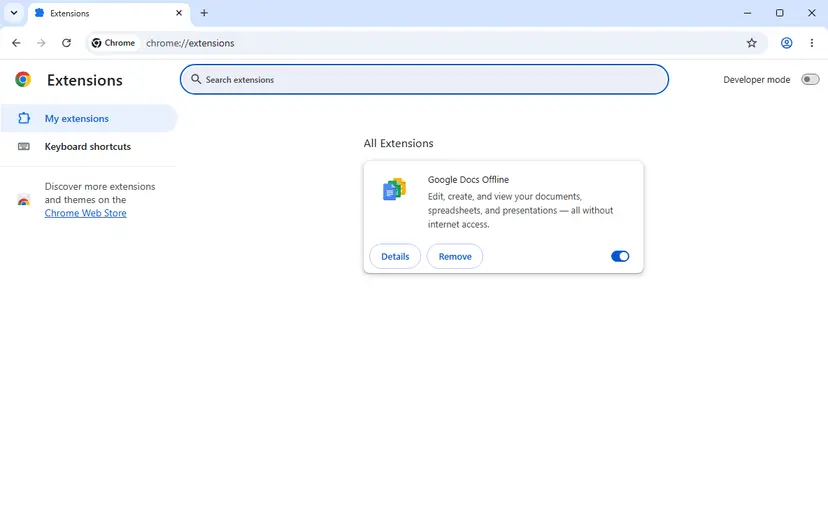
- In Chrome, select More (the three dots), then Extensions, then Manage extensions. You can also type
chrome://extensionsin the address bar. - Turn every extension off with its switch.
- Reload Classroom. If it loads, turn the extensions on again one at a time and reload after each one.
- When Classroom stops loading again, the last extension you turned on is the cause. Leave it off, select Remove, or allow
classroom.google.comin its own settings.
On a school Chromebook or a school-managed browser, some extensions are installed by the admin and cannot be turned off. If you suspect one of them, tell your teacher which extension it is. Do not try to get around the school's settings.
- Classroom does not load in Incognito either: your profile is not the cause. Skip Fix 4 and go to Fix 5, or check the network with Fix 7.
- It loads in Incognito, but turning off all extensions does not help: stored cookies or cached files are left as the suspect. Go to Fix 4.
It worked if: Classroom loads in a normal window once the extension that blocked it is off or removed.
If not: If no extension makes a difference, clear Classroom's cookies and cached files with Fix 4.
Fix 4. Clear cookies and cached files in your browser
5 minutesLow riskClassroom works in an Incognito window but not in a normal one, and the extensions are not to blame.
Your browser keeps sign-in cookies and copies of Classroom's files. When they no longer match what Google's servers send, the page can stop halfway. Google's Product Experts list this step in almost every Classroom loading thread.
Deleting cookies signs you out of most websites, including all Google accounts. Bookmarks and saved passwords stay. In Chrome 155 the dialog has a separate line for passwords under Manage other Google data, so they are not touched by these steps.
- Open Delete browsing data. Press Ctrl + Shift + Delete. Or select More (the three dots at the top right) > Delete browsing data.
- Choose how far back to delete. Select a time range at the top, such as Last hour. To clear everything, open More next to the ranges and choose All time.
- Choose what to delete. Check Cached images and files. Check Cookies and other site data too if a site will not sign you in. Uncheck anything you want to keep.
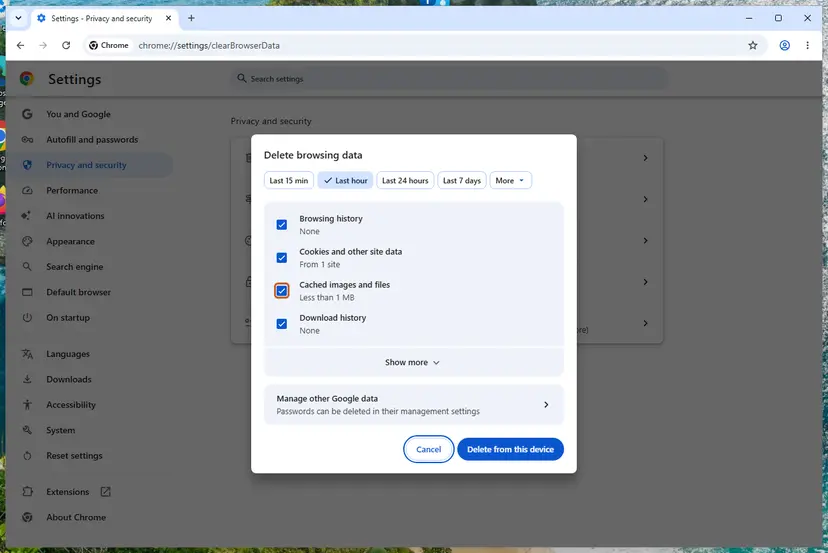
Chrome: Delete browsing data, with the time ranges at the top. Screenshot: Windows 11 26H2. - Delete the data. Select Delete from this device.
These steps were written for Chrome for Windows (screenshot: Windows 11 26H2). The full page with the other versions and what each result means: Clear the browser cache and cookies
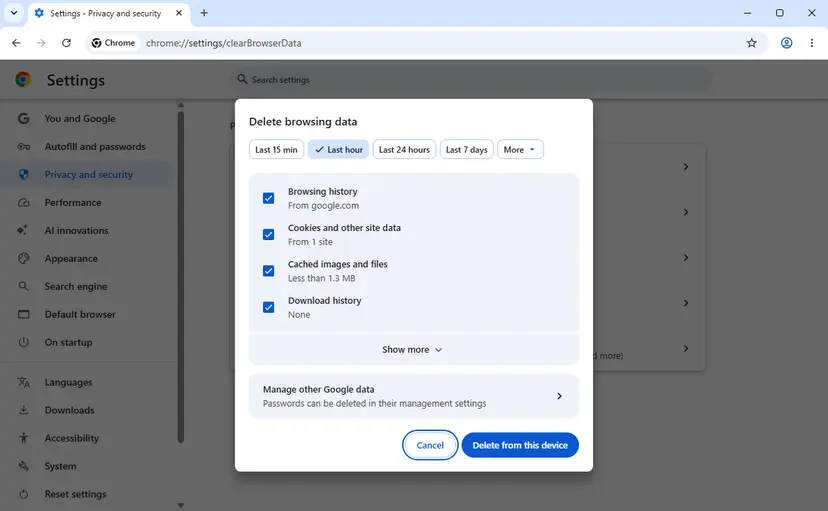
Edge and Firefox have the same two boxes under other names. The full steps for both are in Clear the browser cache and cookies. After the deletion, close every browser window, open the browser again and sign in to Classroom with your school account only.
It worked if: After you sign in again, Classroom shows your class cards instead of the loading bar.
If not: If Classroom still hangs in this browser but works in another one, go to Fix 5.
Fix 5. Update the browser and make sure it is one Google supports
5 minutesNo riskClassroom works in another browser or on another device, but not in this one.
Google writes that on an older or unsupported browser some features might not work or an application might not open. It supports the latest Chrome and the current and previous versions of Firefox, Safari and Edge, with cookies and JavaScript turned on.
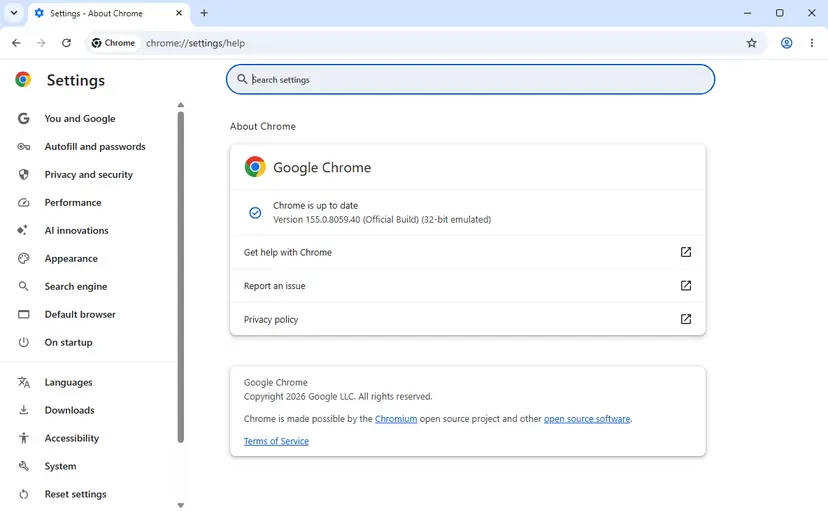
- In Chrome, select More, then Help, then About Google Chrome.
- Chrome checks for updates on this page. With nothing waiting it says Chrome is up to date and shows the version number.
- If you see Relaunch, select it. Your tabs come back after the restart.
- Edge and Firefox also check for updates on their own About page, which you find in each browser's menu under Help.
- Open Classroom again in the updated browser.
| Browser | Supported versions | Note from Google |
|---|---|---|
| Chrome | The latest version | Supports all Google Workspace features |
| Microsoft Edge | The current and the previous version | Works well with Google Workspace |
| Firefox | The current and the previous version | Works well, but without offline access to Gmail, Calendar and Docs |
| Safari | The current and the previous version | Works well, but without offline access and Gmail desktop notifications |
Google also says that browsers in virtual environments such as Citrix and VMware might not support all Workspace functions. If your school gives you a remote desktop, try Classroom in a browser on your own computer. A PC that cannot run a current browser any more cannot be made to run Classroom reliably.
If one browser keeps failing after all of this, use another supported browser for Classroom. Google's own advice in its Chrome help is to uninstall Chrome with its browsing data and install it again when the profile itself is damaged. Removing a program in Windows is shown here: Uninstall a program or app in Windows
It worked if: The browser is on a supported version and Classroom loads, or it loads in the second browser you tried.
If not: If the page now shows up blank or black instead of spinning, go to Fix 6. If every browser fails on this network, go to Fix 7.
Fix 6. Turn off graphics acceleration when the page is blank or black
3 minutesLow riskClassroom shows a blank, black or flickering page in one browser on a PC, while other devices are fine.
Google's Chrome help names hardware acceleration as one cause of pages that will not work: there could be a problem with how your computer's hardware works with Chrome. Turning it off makes the browser draw pages without the graphics card.
- In Chrome, select More, then Settings.
- Select System at the bottom of the left menu, or type
chrome://settings/systemin the address bar. - Turn off Use graphics acceleration when available.
- Close Chrome and open it again, as Google's help advises.
- Open Classroom again.
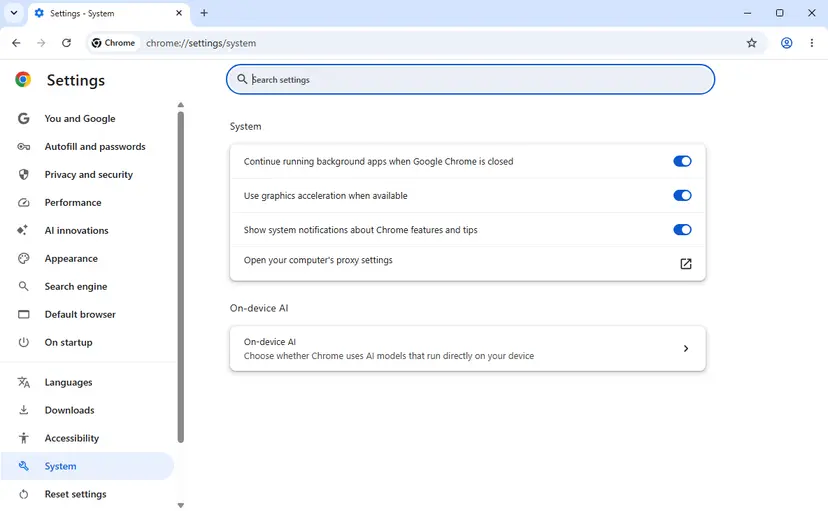
In Microsoft Edge the switch has the same name. Open Settings, then System and performance, then System, or go to edge://settings/system, and turn off Use graphics acceleration when available.
Without graphics acceleration, videos and Google Meet calls can use more processor time. If Classroom stays blank with the switch off, turn it back on: the cause is somewhere else, most often an extension (Fix 3).
It worked if: Classroom draws its pages normally after the restart, without the blank or black area.
If not: Turn the switch back on and check the network with Fix 7.
Fix 7. Check the connection and any network filter
5 to 15 minutesNo riskClassroom does not load in any browser on this device, or only on one Wi-Fi network.
Google's sign-in help says you must have an active internet connection, and Classroom fetches classes, Drive files and videos from several Google addresses. A weak signal or a filter that blocks one of them leaves the page half loaded.
- Open another site, such as
https://www.google.com, to see whether the connection works at all. - Turn on your phone's mobile data, turn off its Wi-Fi, and open Classroom on the phone. Or connect the PC to the phone's hotspot for one test.
- If Classroom loads on the other network, the problem belongs to the first network, not to your device or account.
- Restart the modem and the router: unplug them, wait at least 30 seconds and plug them back in.
- On a school network, tell your teacher or the school's IT team the time and what you saw. Only they can change the school's filter.
- At home, check parental controls, a security suite's web filter or a VPN. Pause the filter for one test only and turn it back on afterwards.
If no site loads on the PC, the problem is the connection itself. The full check for Windows 11 and Windows 10, with the network troubleshooter and the ping test, is here: How to check your internet connection in Windows
A web filter that blocks Classroom should get an exception for Google's sites, not be turned off. If you pause it to test, turn it back on right after. A school filter is not yours to bypass: report the problem instead.
It worked if: Classroom loads on the network you tested, and you know whether the router, a filter or the school network has to change.
If not: If Classroom fails on every network and every device, the account is the likely cause. Read the section below on what to send to your teacher.
Fix 8. Fix the Classroom app on Android or iPhone
5 minutesLow riskThe Google Classroom app keeps loading, shows an empty screen or closes, while the website works in the phone's browser.
The app keeps its own copy of your classes and files on the phone. An old version or damaged app data can stop it, and Google notes that only current systems get the latest app: Android 5.0 Lollipop or later, iOS 11 or later.
- Update the app first: open Play Store or App Store, search for Google Classroom and select Update if you see it.
- On Android, open Settings, then Apps, then Classroom, and select Force stop.
- On the same screen, select Storage & cache, then Clear cache. Google says this deletes temporary data and the app may be slow the next time you open it.
- Open Classroom again. If it still fails, return to Storage & cache and select Clear storage. This removes the app's data on the phone, so you sign in again and offline files are gone.
- On iPhone, touch and hold the Classroom icon, select Remove App, then Delete App and Delete. Install Google Classroom again from the App Store.
- Sign in with your school account. If the app asks to add another account, choose the school one.
The Android menu names above are Google's own for Pixel phones. On other phones the same buttons can sit under slightly different names, such as Storage instead of Storage & cache. The work on Google's servers is not deleted by any of these steps.
Google also says that all features of the app need Google Docs, Sheets and Slides on the phone. If attachments do not open from Classroom, install those apps from the same store. When the app still fails, use classroom.google.com in the phone's browser until it is fixed.
It worked if: The app opens to your classes, and the Stream and Classwork pages fill in.
If not: If the app fails on a school-owned phone or tablet, the school's admin controls it. Tell your teacher.
If Google Classroom is still not loading: what to check and what to send
When Classroom fails in every browser, on every network and on more than one device, the problem is almost certainly the account or Google's side. Neither can be fixed on your PC. What helps now is a clear report to the person who can act on it.
- Students: tell your teacher. Google's help says that if you cannot sign in with the correct account, the school may not have activated Classroom for new users, and only the admin can change that.
- Teachers: ask the school's Google Workspace admin. If you signed in as a student by mistake, the admin can change your role to teacher.
- Admins: check the Classroom row on the status dashboard, then open a support case from the Admin console. A Google Product Expert gave this exact advice to an admin whose Classroom homepage would not load.
| Detail | Where to find it |
|---|---|
| The account you use | The profile picture at the top right of Classroom |
| The exact text on the screen, or that there is none | A screenshot with Win + Shift + S on Windows |
| Browser and version | More, then Help, then About Google Chrome |
| What you already tried | Fix numbers from this page |
| Whether others have the problem | Ask one classmate or colleague |
Inside Classroom on a computer you can also report a problem to Google: select Help in the bottom-left corner, then Send feedback. In the Android app it is Menu, then Help, then Send feedback. On iPhone it is Menu, then Send Google feedback.
How to stop Google Classroom from getting stuck again
- Keep the school account in its own Chrome profile, so it is always the only and default account there.
- Let the browser and the Classroom app update. Google supports only current browser versions.
- Allow
classroom.google.comand Google's other sites in your ad blocker or privacy extension. - Bookmark the Google Workspace Status Dashboard and look at it first when Classroom fails for several people.
- Keep the Classroom app, Google Docs, Sheets and Slides installed together on phones.
- Do not sign in to a personal account first and the school account second in the same window.
- Do not turn off cookies or JavaScript for Google's sites. Workspace needs both.
- Do not reinstall Windows or the browser before you have checked the status page and Incognito.
- Do not bypass a school's network filter or remove extensions the school installed.
- Do not keep graphics acceleration off if it did not change anything.
One habit saves the most time: when Classroom fails, open it once in an Incognito window with the school account. If it works there, your profile needs Fix 2 to Fix 4. If it does not, look at Google's status page and the network instead.
Frequently asked questions
Why is my Google Classroom not loading?
Most often because the browser holds more than one Google account and Classroom opens with the wrong one, or because an extension or old cookies stop part of the page. Less often Google itself has an incident, which you can see on the Google Workspace Status Dashboard. Check the status page first, then sign out of every Google account and sign in with your school account only. If it still spins, try an Incognito window and turn off your extensions. These three steps cover most cases and take under ten minutes.
Is Google Classroom down right now?
Open the Google Workspace Status Dashboard at google.com/appsstatus/dashboard and find the Classroom row. The last column is today, and the legend shows Available, Service information, Service disruption or Service outage. Google lists real Classroom incidents there, such as the one on 29 April 2026, when users had issues accessing Classroom for about two hours. Sites that count user reports can show a spike too, but they do not know the cause. If the dashboard is clear and only you have the problem, the cause is on your side.
Why does Google Classroom keep loading forever on my Chromebook?
The same causes apply as on a PC: a second account, an extension or the network. Google says you do not need an app on a Chromebook, you use Classroom in the browser. Make sure you signed in to the Chromebook with your school account, open classroom.google.com and check the profile picture. School Chromebooks are managed by the school, so extensions and network filters may be set by the admin. If the problem is on every school Chromebook at once, it is a question for the school's IT team, not for you.
Why is Google Classroom crashing on my phone?
Usually because the app is out of date or its stored data is damaged. Update Google Classroom in the Play Store or App Store first. On Android, force stop the app and clear its cache under Settings, Apps, Classroom, Storage & cache. On iPhone, delete the app and install it again. Google says the latest app needs Android 5.0 or iOS 11 or later, and that Docs, Sheets and Slides are needed for all features. If the website works in the phone's browser, use it while you fix the app.
Will clearing my cache delete my Google Classroom work?
No. Your classes, posts and assignments are stored on Google's servers and in Google Drive, not in the browser cache. Clearing cookies and cached files only removes local copies and signs you out, so you sign in again afterwards. On an Android phone, Clear storage for the Classroom app also removes files you downloaded for offline use, but not the work you turned in. Saved passwords and bookmarks in Chrome are not touched when you leave their boxes unticked.
Why does Classroom load but pictures and files stay blank?
This is a typical sign of two signed-in accounts. Classroom may use one account while the files in Drive belong to another, so the pictures cannot load. Users in Google's forum describe exactly this: images in student work failed when the school account was the second signed-in account, at an address with /u/1/, and worked when it was the only or the first account. Sign out of all accounts and sign in with the school account only, or give the school account its own Chrome profile.
Why does Google Classroom say I can't use it with this account?
Google says this message means you signed in with an account Classroom does not accept for you, for example a work Google Workspace account. Sign out and sign in again with your school account or a personal Google Account. In the mobile app you are asked to add another account: choose the school one. If you see that your administrator has not activated Classroom, or that the service has been disabled by your admin, only the school's IT admin can turn Classroom on for your account.
Which browser works best with Google Classroom?
Google says Chrome supports all Google Workspace features, and it supports the latest Chrome version. Firefox, Safari and Microsoft Edge also work well, and Google supports their current and previous versions. Firefox and Safari lack offline access to Gmail, Calendar and Docs, which Classroom does not need for loading. Whatever you use, cookies and JavaScript must be turned on. If one browser hangs and another loads Classroom at once, the first one has a profile problem: see Fix 3 and Fix 4.
The Turn in button does nothing in Google Classroom. What can I do?
This is a different problem from the loading screen, and readers also search for it in other languages, such as the Hungarian nem adja be. Google's student help says to tell your teacher if Turn in shows an error. If an attachment cannot be turned in, copy your work into a blank document, remove the attachment, choose Make a copy, paste the work and select Turn in. For teachers with a personal account, Google adds that a full Google Drive can stop students from turning in work.
Can I get help with Google Classroom in another language?
This page is in English and covers the loading problem. Classroom itself follows the language of your Google Account: Google's help says you change it in your Google Account language settings, on the web or on your phone. The Classroom Help Center and its community forum are available in many languages, and you can choose yours at the bottom of each help page. Google's help pages are offered in Spanish too, while this page adds the checks Google spreads over several articles.
Sources
- Google Workspace Status Dashboard (Classroom row and incident history) (google.com)
- Google Workspace Status Dashboard: incident history in JSON (Classroom incidents of 29 April and 13 to 18 August 2026) (google.com)
- Classroom Help: Fix a problem while using Classroom (for students) (support.google.com)
- Classroom Help: Fix a problem while using Classroom (for teachers) (support.google.com)
- Classroom Help: How do I sign in to Classroom? (support.google.com)
- Classroom Help: Get the Classroom app (support.google.com)
- Google Workspace Help: Supported browsers for Google Workspace (knowledge.workspace.google.com)
- Google Account Help: Sign in to multiple accounts at once (support.google.com)
- Google Chrome Help: Manage Chrome with multiple profiles (support.google.com)
- Google Chrome Help: Fix Chrome if it crashes or won't open (hardware acceleration, extensions, another browser) (support.google.com)
- Microsoft Learn: Edge policy HardwareAccelerationModeEnabled (Use graphics acceleration when available) (learn.microsoft.com)
- Pixel Phone Help: Free up space (Storage & cache, Clear cache, Clear storage) (support.google.com)
- Apple Support: Remove or delete apps from iPhone (support.apple.com)
- Google Classroom Community: Product Expert troubleshooting steps for a crashing Classroom (user report of Adblock Plus) (support.google.com)
- Google Classroom Community: images not loading with more than one Google account signed in (user report) (support.google.com)
Did this fix work?
One click, no account. It tells the next reader which guides are worth their time.
Questions and experiences: fix Google Classroom stuck at loading screen
Still broken, or found a fix we did not cover? Ask here: members and our editors answer. Reading is open; writing needs a free account.
…