
How to fix HRESULT: 0x8002802B error in Microsoft Word or Excel?

Prefer to fix it yourself? The manual steps follow.
- 5methods
- 5 to 45 minutes
- Intermediate
Applies to Excel and Word automation (VBA, .NET Interop, PowerShell, other programs) in Microsoft 365 and Office 2016 to 2024 for Windows, and Windows Update Agent scripts on Windows 11
5 methods in this guide
Can you help me with the following error please: "Element not found. (Exception from HRESULT: 0x8002802B (TYPE_E_ELEMENTNOTFOUND))." This happens when I try to open an Excel workbook with an automated command on it.
0x8002802B (TYPE_E_ELEMENTNOTFOUND) appears when a macro, add-in or program tries to drive Excel or Word and Windows cannot find the Office part it asks for. Most often a leftover registry entry from an older or newer Office is to blame. Run Quick Repair on Office first.
The error means a program asked Windows for an Excel or Word type library entry that is missing or points to an Office version you no longer have. Repair Office from Installed apps > Modify, with Quick Repair first and Online Repair second (Fix 1). If it returns, delete the stale version key under the Excel or Word type library in the registry (Fix 2). Scripts that search for Windows updates need Fix 5 instead.
| Error | Element not found. (Exception from HRESULT: 0x8002802B (TYPE_E_ELEMENTNOTFOUND)), often inside a longer message that starts with Unable to cast COM object of type 'Microsoft.Office.Interop.Excel.ApplicationClass'. |
|---|---|
| Where it appears | In the program, macro or script that opens Excel or Word for you: a C# or VB.NET app, an export to Excel from business software, a test tool, an Access or VBA macro. Excel or Word opened by hand usually works. |
| Main cause | Broken COM registration of Office after one Office version was removed and another installed. A leftover type library version key points to files that are gone. |
| Fastest fix | Quick Repair of Office (Fix 1). Users in Microsoft's Q&A thread report that Quick Repair or Online Repair alone cleared it. |
| Also written as | 0x8002802b, HRESULT 0x8002802B, TYPE_E_ELEMENTNOTFOUND, Element not found, Exception from HRESULT: 0x8002802B. |
| Affects | Excel and Word automation in Microsoft 365 and Office 2016 to 2024 on Windows 11 and Windows 10. Separately, Windows Update Agent scripts on Windows 11 22H2 and 23H2 after KB5039302. |
| Microsoft's status | No Office bug of one build. A Microsoft moderator names wrong COM Interop settings in the registry as the usual cause. The Windows Update case was a confirmed KB5039302 issue, resolved with a Known Issue Rollback. |
| Time to fix | 5 to 10 minutes for Quick Repair or the registry key. 30 to 45 minutes for Online Repair or a clean reinstall. |
Facts checked on 15 October 2026. Steps written for Microsoft 365, Office 2024, 2021, 2019 and 2016 on Windows 11 (25H2 and 26H2) and Windows 10 22H2, read against Microsoft's answers and release notes.
What HRESULT 0x8002802B (TYPE_E_ELEMENTNOTFOUND) means
0x8002802B is a Windows COM error code, and TYPE_E_ELEMENTNOTFOUND is its name. Windows shows it as Element not found. It does not come from a document. It comes from the moment a program asks Windows to describe Excel or Word through their type library, the registered list of everything Office can be told to do.
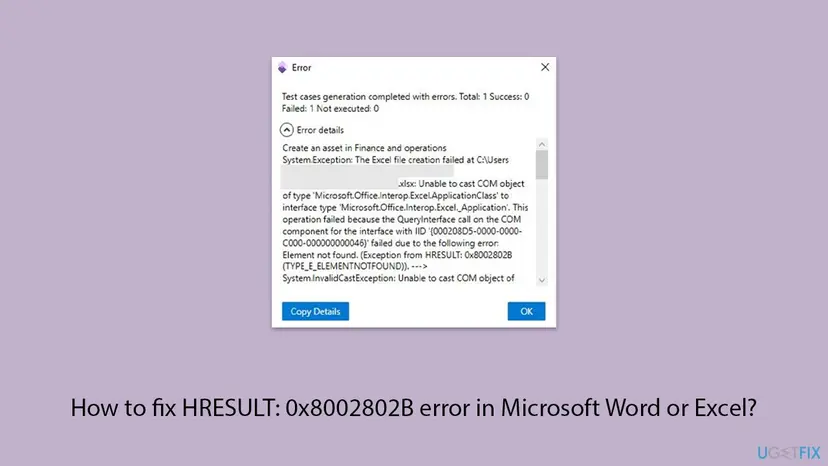
The full text usually looks like this. The part before it names the Office object the program wanted, here Excel's _Application interface with the ID {000208D5-0000-0000-C000-000000000046}.
Unable to cast COM object of type 'Microsoft.Office.Interop.Excel.ApplicationClass' to interface type 'Microsoft.Office.Interop.Excel._Application'.
Element not found. (Exception from HRESULT: 0x8002802B (TYPE_E_ELEMENTNOTFOUND))| Part of the message | What it tells you |
|---|---|
| Microsoft.Office.Interop.Excel or .Word | The program uses Excel or Word through COM automation. The fault is in how Office is registered, not in your file. |
| Unable to cast COM object | Windows found Excel or Word, but not the description of the interface the program asked for. |
| 0x8002802B / TYPE_E_ELEMENTNOTFOUND | The type library entry the request leads to is missing or points to an Office version that is gone. |
| IUpdate, IUpdateCollection, a Windows Update script | Not an Office problem at all: the Windows Update Agent API case of KB5039302 (Fix 5). |
What causes 0x8002802B in Word or Excel, from the most common to the rare
A Microsoft moderator on Microsoft Q&A says the problem is mostly caused by incorrect COM Interop settings in the Windows registry. The typical way to get them is to install a newer Office, remove it and install an older one, or the other way round. Another user adds that it appears when Office is removed and a new version is installed before a restart.
| How often | Cause | Typical sign | Fix |
|---|---|---|---|
| Most often | Office registration left damaged after an Office change | It began after moving from Office 2016 to Microsoft 365, or from 2013 to 2021, or after any reinstall. | Fix 1 |
| Often | A stale type library version key that repair does not remove | Repair helped for a while, or did not help at all, and two version keys sit under the Excel type library. | Fix 2 |
| Less often | Two Office installs mixed together, or remains of a removed one | Programs and Features lists more than one Office, or repair fails. | Fix 3 |
| Less often | An old Office build that the program was not built for | Office has not updated for months. | Fix 4 |
| Rarely, and not Office | KB5039302 bug in the Windows Update Agent API | A PowerShell or VBScript that searches for updates fails on Windows 11 22H2 or 23H2. | Fix 5 |
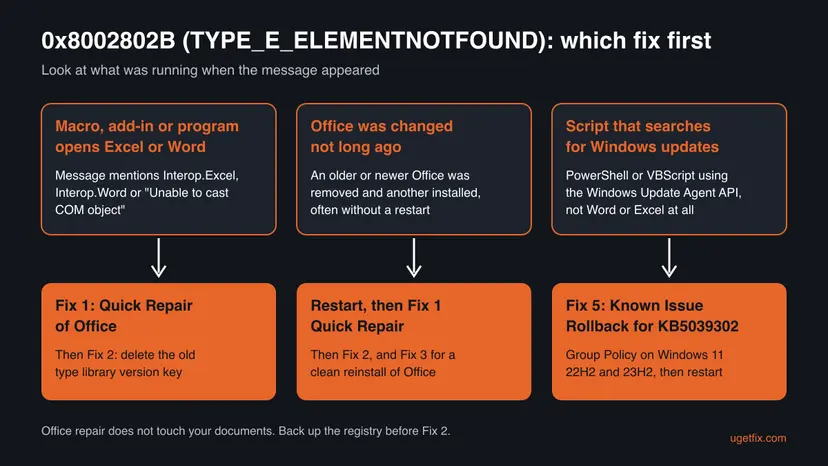
Older guides suggest a malware scan, a system file check and removing Windows updates for this code. We found no source that ties any of them to 0x8002802B in Office, so they are not fixes here.
How to fix 0x8002802B (TYPE_E_ELEMENTNOTFOUND) in Excel and Word
Fixes 1 to 4 are for macros, add-ins and programs that open Excel or Word. Fix 5 is only for scripts that search for Windows updates. After each fix, run the same macro, export or program again: when the file opens or is created without the message, you are done.
| Your case | Start with | Then |
|---|---|---|
| A program or macro that opens Excel or Word fails, you do not know why | Fix 1 | Fix 2 |
| You recently swapped Office versions (2013, 2016, 2021, Microsoft 365) | Restart, then Fix 1 | Fix 2, Fix 3 |
| Repair finished but the message is back | Fix 2 | Fix 3 |
| Programs and Features shows two Office installs | Fix 3 | Fix 2 |
| A PowerShell or VBScript that searches for Windows updates fails | Fix 5 | Still broken section |
Fix 1. Repair Office: Quick Repair first, Online Repair second
5 to 30 minutesLow riskEveryone whose macro, add-in or program fails while it opens Excel or Word. Above all after an Office version change.
Repair registers Office's COM parts again, including the Excel and Word type libraries that 0x8002802B fails to read. In Microsoft's Q&A thread on this exact error, many users report that Quick Repair or Online Repair alone fixed it, with no change to their program.
Restart the PC first if you removed or installed an Office version without restarting. Then repair: How to repair Microsoft 365 or Office.
- Close Excel, Word and the program that shows the error.
- Press Win + I and open Apps > Installed apps. On Windows 10 open Apps > Apps & features.
- Find Microsoft 365 or Microsoft Office, select ... next to it and choose Modify.
- Select Quick Repair and then Repair.
- When it finishes, run your macro or program again.
- If the message returns, repeat the steps with Online Repair. It needs an internet connection the whole time.
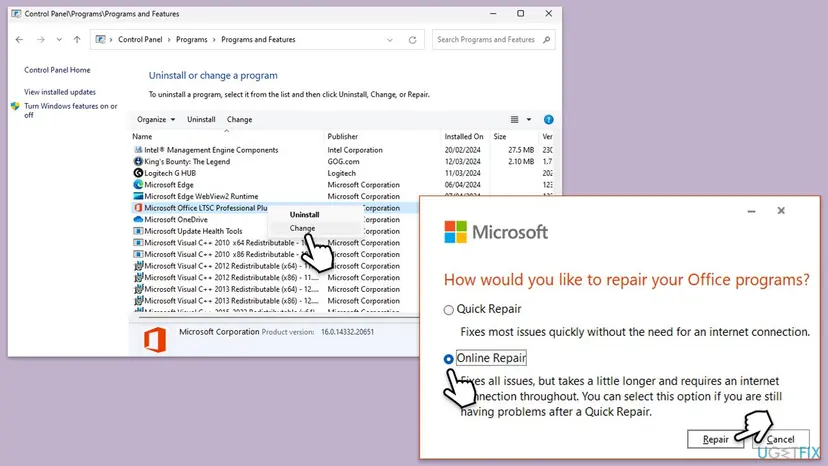
Quick Repair and Online Repair replace Office program files and registrations. They do not touch your Excel or Word files, and you do not need to rebuild your program afterwards. One user in the Microsoft thread notes that the app worked again without rebuilding it in Visual Studio.
It worked if: The repair window reports that it finished, and the macro or program opens Excel or Word without the message.
If not: If the message returns after Online Repair, remove the stale type library key with Fix 2.
Fix 2. Delete the stale Excel or Word type library version key in the registry
10 minutesRead the warningRepair did not help, or the error came back. You use one Office version now but had another before.
The Microsoft moderator's first step for this error is to delete the extra version key under the Excel type library {00020813-0000-0000-C000-000000000046}. A removed Office can leave its version key behind, and programs then follow it to files that no longer exist.
Deleting the wrong key can break Office automation for other programs. Export the whole type library key first, as the steps say, so a double-click puts it back. A wrong deletion elsewhere can break Windows: Back up the registry before editing it.
- Close Excel, Word and the program that shows the error.
- Press Win + R, type
regeditand press Enter. Select Yes in the User Account Control prompt. - For Excel, go to this key:
HKEY_CLASSES_ROOT\TypeLib\{00020813-0000-0000-C000-000000000046} - Right-click the key, select Export and save it to the desktop as
excel-typelib.reg. - Expand the key. You see one or more version keys such as 1.7, 1.8 or 1.9.
- Open each version key down to 0 > win32 and read the path in (Default). The key you need points to a folder that holds your current EXCEL.EXE.
- Right-click the version key whose path leads to a file that no longer exists and select Delete. Leave the one that matches your Office.
- Close Registry Editor, restart the PC and run your macro or program again.
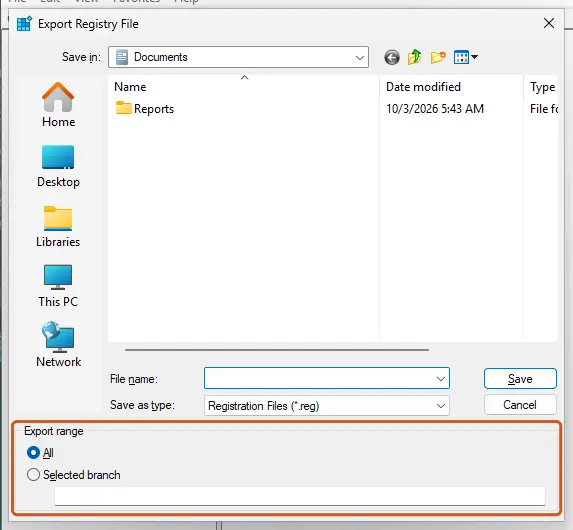
Word has its own type library key under HKEY_CLASSES_ROOT\TypeLib. To find it, select TypeLib, press Ctrl + F, search for Microsoft Word with Data checked, and check the version keys the same way. We give the Excel key exactly because Microsoft's moderator names it; for Word, search instead of typing an ID.
In Microsoft's thread, the moderator suggests deleting 1.8 or 1.7, and a user with a working Office 2013 deleted 1.9 instead. So do not go by the number alone. The win32 path tells you which key belongs to the Office you really have.
It worked if: Only one version key is left under the type library, and the macro or program runs without 0x8002802B.
If not: Double-click excel-typelib.reg on the desktop to restore the key, then run Online Repair from Fix 1 once more. If it still fails, go to Fix 3.
Fix 3. Remove every Office version, restart, and install one Office again
30 to 45 minutesLow riskTwo Office versions are installed, repair fails, or Fix 1 and Fix 2 did not hold.
The Microsoft moderator's last step for this error is to uninstall Office completely, restart and reinstall. One user explains that the error appears when a new Office goes on before the restart that finishes removing the old one, so the restart in the middle matters.
- Note the Microsoft account or work account that holds your Office licence, or find your product key for Office 2016 to 2024.
- Uninstall every Office entry in Installed apps, including older versions: Uninstall a program or app in Windows.
- Restart the PC. Do not skip this step.
- Sign in at office.com with your account, or use your installer, and install one Office version.
- Open Excel and Word once by hand so they finish their first start.
- Run your macro or program again.
If your program was built for a specific Office, install the same bitness as before. You see it in Excel under File > Account > About Excel. We could not confirm a Microsoft rule that ties 0x8002802B to bitness, so treat this as a precaution only.
It worked if: Programs and Features lists one Office, and your automation runs.
If not: If a clean Office still gives the error, check whether the program itself was built for another Office version. See the still broken section.
Fix 4. Update Office and Windows
10 to 20 minutesLow riskOffice or Windows has not updated for a while, or your organisation delays updates.
Updates install new Office builds and register their components again, which can replace damaged registrations. It is a cheap step after a repair, not a cure on its own for this error.
- Open Excel and select File > Account.
- Under Product Information select Update Options > Update Now and wait until Office says it is up to date.
- Press Win + I, open Windows Update and select Check for updates.
- Install what is offered and restart the PC.
- Run your macro or program again.
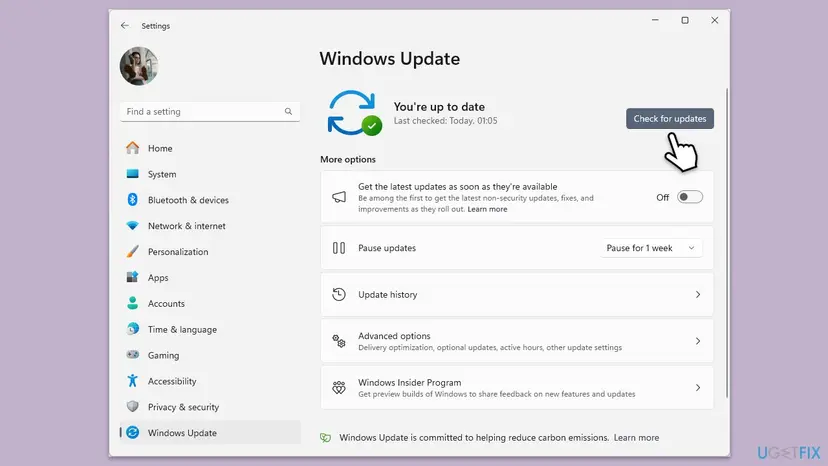
It worked if: Office and Windows report that they are up to date, and the program works after the restart.
If not: If nothing changed, go back to Fix 2 or read the still broken section.
Fix 5. Windows Update scripts on Windows 11: apply the KB5039302 Known Issue Rollback
15 minutesLow riskOnly if a PowerShell or VBScript that uses the Windows Update Agent API fails with 0x8002802B on Windows 11 22H2 or 23H2. Word and Excel are not involved.
Microsoft confirmed that after the June 2024 preview update KB5039302, such scripts can get empty properties of IUpdate objects and 0x8002802B. It resolved the issue with a Known Issue Rollback Group Policy, which turns the faulty change off.
- Download the policy installer named Windows 11 22H2 KB5039302 240711_20301 Known Issue Rollback from Microsoft's Windows 11 release health page.
- Run the .msi to add the policy template to the PC.
- Open the Local Group Policy Editor: Open the Local Group Policy Editor.
- Go to Computer Configuration > Administrative Templates and open the folder of the KB5039302 rollback policy.
- Open the policy, set it as Microsoft's note describes for the rollback and select OK.
- Restart the PC and run the script again.
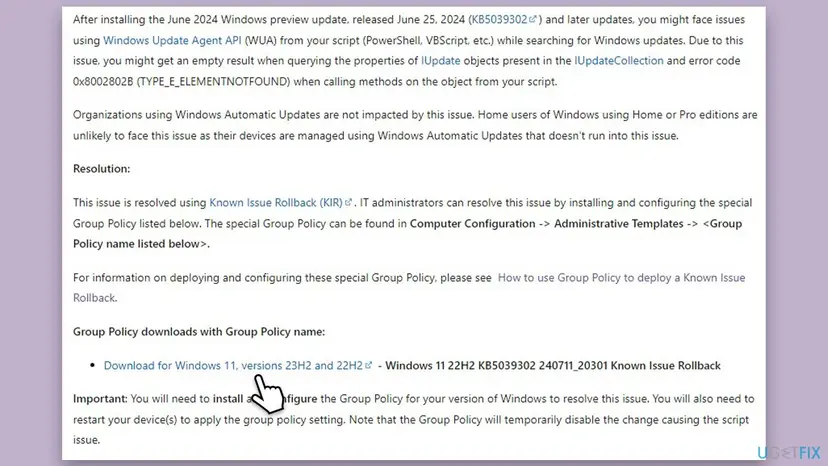
Microsoft says that organisations using Windows Automatic Updates are not affected, and that home users on Home or Pro are unlikely to see it. Server editions were not affected. Windows 11 22H2 and 23H2 have since left Home and Pro support, so moving to 25H2 is the lasting answer.
It worked if: The script lists updates with their properties and no longer throws 0x8002802B.
If not: We could not confirm in which later update Microsoft made the fix permanent. On Windows 11 24H2 or later, report the failing script to Microsoft with the details from the still broken section.
If 0x8002802B is still there: what to check next
When a clean Office and a single type library version key still give the error, the cause is usually in the program that calls Office, not in Office itself. These checks narrow it down before you contact the program's maker or your IT team.
- Copy the full error text. Most error windows have Copy Details. The interface ID in the text, such as
{000208D5-...}for Excel, shows which Office object failed. - Test a second Windows account. If the program works there, the problem is in your user profile: Create a new user account to test a problem.
- Ask the program's maker which Office it supports. An old program may have been built for one Office version only. Business software that exports to Excel often lists supported Office versions.
- Check Event Viewer. Open Event Viewer > Windows Logs > Application and look for an Error at the time of the failure that names the program or EXCEL.EXE.
Do not edit the registry or reinstall Office on a managed PC yourself. Send IT the full error text, the Office version from File > Account, and whether Office was changed recently.
How to keep 0x8002802B from coming back
Almost every case starts with an Office version change. Changing versions in the right order avoids the stale registration that causes the error.
- Restart between uninstalling one Office and installing another. It lets Windows finish removing the old registration.
- Keep one Office version on the PC. Two installs share the same type library keys.
- Run Quick Repair after any Office change if you use macros or programs that drive Excel or Word.
- Keep Windows updated. Windows 10 left support on 14 October 2025, so Windows 10 PCs no longer get fixes. Windows 11 25H2 and 26H2 do.
- Keep the exported .reg file from Fix 2 until you are sure everything works, then delete it.
Frequently asked questions
What is TYPE_E_ELEMENTNOTFOUND?
It is the name of the Windows COM error 0x8002802B, shown as Element not found. It means a program asked a type library for an element, such as an interface of Excel or Word, and the library could not supply it. With Office this almost always means a broken or stale registration, often from an older or newer Office that was removed. Repair Office first (Fix 1), then remove the stale type library version key (Fix 2).
Is my Excel workbook or Word document damaged?
No. The error appears before the program even reaches your file. It is about how Office is registered in Windows, so the same workbook usually opens normally when you double-click it. That is also why repairing Office or deleting a registry key fixes it without any change to the file. If one file fails while others work through the same program, the file may be a separate problem, but that is not what 0x8002802B means.
Why does Excel open by hand but not from my program?
When you open Excel by hand, Windows starts EXCEL.EXE directly. When a program or macro opens it, it goes through COM and reads the Excel type library from the registry first. If that registration points to an Office version that is gone, the automated start fails with 0x8002802B while the manual start still works. Fixes 1 and 2 repair exactly that path.
Do I need to rebuild or change my C# or VBA code?
Usually not. In Microsoft's Q&A thread on this error, users report that an Office repair or deleting the stale registry key fixed their programs, and one notes that they did not have to rebuild the Visual Studio application. Change the code only if the program was written for a specific Office version that you no longer have and the maker or developer confirms that it needs an update.
Is it safe to delete the TypeLib version key?
It is safe when you delete only the version key that points to Office files that no longer exist and you exported the whole key first. Microsoft's moderator gives that step for this error. Do not delete the version key that points to your current EXCEL.EXE, and do not delete the whole {00020813-...} key. If anything goes wrong, double-click the exported .reg file to restore it, then run Online Repair.
I get 0x8002802B in a PowerShell script for Windows Update. Is that the same error?
Same code, different cause. Microsoft confirmed that after KB5039302 on Windows 11 22H2 and 23H2, scripts that use the Windows Update Agent API could get empty results and 0x8002802B. It has nothing to do with Word or Excel. Microsoft resolved it with a Known Issue Rollback Group Policy, which Fix 5 explains. Home and Pro users with automatic updates are unlikely to see it.
Should I uninstall the latest Windows update or scan for malware?
Not for the Office case. Older guides list these, but we found no source that ties 0x8002802B in Excel or Word to malware or to a Windows update. The only update linked to this code is KB5039302, and only for Windows Update scripts, where Microsoft's answer is the Known Issue Rollback in Fix 5 rather than removing the update. A Defender scan is still a good habit, just not a fix here.
Does this error happen on a Mac?
Not in this form. 0x8002802B is a Windows COM error, and Office for Mac does not use COM type libraries in the Windows registry. If a Mac shows a message with this code, it most likely comes from a Windows program running in a virtual machine or from a remote Windows session. Fix it inside that Windows, with the same steps on this page.
I searched in another language (apareceu o mesmo erro, kaise sahi kare, опять ошибка, แก้ไขยังไง). Does this page apply?
Yes. These searches mean the same error appeared again (Portuguese and Russian) or how to fix it (Hindi and Thai). The error code 0x8002802B and the name TYPE_E_ELEMENTNOTFOUND are the same in every language of Windows and Office. Only the menu names differ. The registry path, regedit and the repair options work the same way, so follow Fix 1 and Fix 2 here.
Sources
- Microsoft Q&A: Unable to cast COM object of type 'Microsoft.Office.Interop.Excel.ApplicationClass' (moderator answer and user reports) (learn.microsoft.com)
- Neowin: Microsoft confirms Windows Update API 0x8002802B issues in KB5039302, offers a workaround (quotes Microsoft's release health note) (neowin.net)
Did this fix work?
One click, no account. It tells the next reader which guides are worth their time.
Questions and experiences: fix HRESULT: 0x8002802B error in Microsoft Word or Excel
Still broken, or found a fix we did not cover? Ask here: members and our editors answer. Reading is open; writing needs a free account.
…