
How to fix INET_E_DOWNLOAD_FAILURE on IE and Edge?

Prefer to fix it yourself? The manual steps follow.
- 8methods
- 1 to 20 minutes
- Easy
Applies to Microsoft Edge in Internet Explorer mode on Windows 11 and Windows 10 22H2, Internet Explorer 11 on older Windows 10 and Windows Server, and apps that embed the IE browser engine
8 methods in this guide
Hello. I am using MS Edge and I can't access some websites, YouTube being among them. Instead, I receive the INET_E_DOWNLOAD_FAILURE error. I am not sure what it means, but I hope you'll be able to help me with this. Thanks.
INET_E_DOWNLOAD_FAILURE is an Internet Explorer engine error: the download of the page failed because the connection was interrupted. In 2026 you see it almost only in Microsoft Edge tabs running in IE mode, or in Internet Explorer on an old PC. First open the page in a normal Edge tab, then check the TLS settings in Internet Options.
The code comes from the old Internet Explorer engine, not from modern Edge. If the page shows an IE icon next to the address, open it in a normal Edge tab (Fix 1): most sites, YouTube included, do not need IE mode. If the site must run in IE mode, press Win + R, run inetcpl.cpl, and on the Advanced tab tick Use TLS 1.2 and Use TLS 1.3 (Fix 2).
| Error | INET_E_DOWNLOAD_FAILURE, URL moniker error 0x800C0008. Microsoft describes it as: "The download has failed (the connection was interrupted)." |
|---|---|
| Where it appears | On the error page of a Microsoft Edge tab in Internet Explorer mode, in Internet Explorer 11 on old Windows 10 and Windows Server PCs, and in the old (pre-2021) Edge as "The connection to the website was reset. Error Code: INET_E_DOWNLOAD_FAILURE". |
| Main cause | The secure connection between the IE engine and the site breaks off: a TLS version the site needs is turned off in Internet Options, a firewall or proxy cuts the connection, or a changed advanced setting blocks the download. |
| Fastest fix | Open the page in a normal Edge tab (Fix 1). If it must stay in IE mode, tick Use TLS 1.2 and Use TLS 1.3 in Internet Options > Advanced (Fix 2). |
| Also written as | "inet e download failure", "Error Code: INET_E_DOWNLOAD_FAILURE", 0x800C0008, and translated pages such as "Código de error: INET_E_DOWNLOAD_FAILURE" or "Код ошибки: INET_E_DOWNLOAD_FAILURE". The code itself is never translated. |
| Affects | Microsoft Edge IE mode on Windows 11 (25H2, 26H2) and Windows 10 22H2, Internet Explorer 11 where it is still installed, and programs with a built-in IE browser window. Normal Edge tabs use Chromium and show ERR_ codes instead. |
| Microsoft's status | Not a bug with a patch. The code is a generic "connection interrupted" result of the IE engine. Microsoft retired the Internet Explorer 11 app; IE mode in Edge is the supported way to open old sites. |
| Time to fix | 1 minute for Fix 1, 5 to 15 minutes for the Internet Options fixes, longer when a firewall on a work network is to blame. |
Facts checked on 15 October 2026. Steps written for Windows 11 26H2 screenshots of Edge and Command Prompt from our procedure library; Internet Options pictures from Windows 10 (the same dialog in Windows 11); the error code and its meaning read from Microsoft Learn.
What INET_E_DOWNLOAD_FAILURE means and where it appears
Codes that start with INET_E_ belong to URL monikers, the download layer of the Internet Explorer engine. Microsoft's list gives INET_E_DOWNLOAD_FAILURE the value 0x800C0008 and one line of meaning: the download has failed because the connection was interrupted. "Download" here means the web page itself, not only a file you save.
So the browser did reach the site, or at least started to, and then the connection broke off before the page arrived. That is different from INET_E_RESOURCE_NOT_FOUND (0x800C0005), where the server or proxy was never found, and from INET_E_CONNECTION_TIMEOUT (0x800C000B), where it simply took too long.
- Code
- INET_E_DOWNLOAD_FAILURE, 0x800C0008
- Microsoft's text
- The download has failed (the connection was interrupted).
- Old Edge page
- The connection to the website was reset. Error Code: INET_E_DOWNLOAD_FAILURE
- Engine
- Trident (MSHTML), the Internet Explorer 11 engine that Edge uses for IE mode tabs
- Settings it reads
- Internet Options (
inetcpl.cpl): TLS versions, proxy, security zones, the IE cache
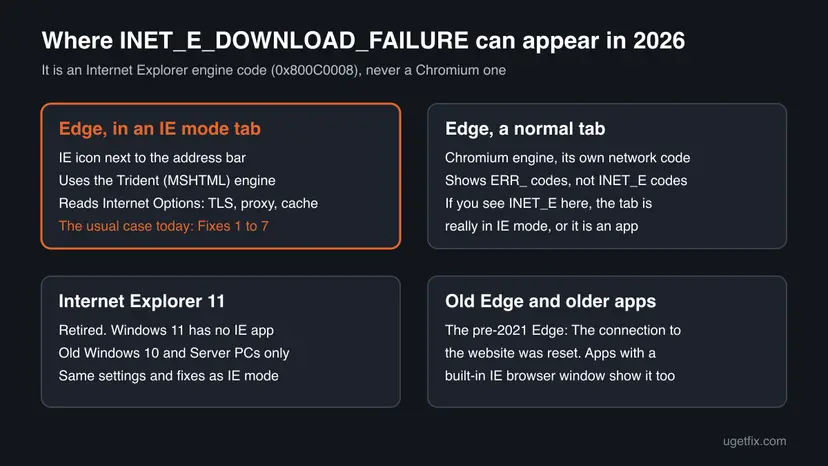
Microsoft Learn says IE mode uses the Chromium engine for modern sites and the Trident MSHTML engine from Internet Explorer 11 for legacy sites. Only the Trident side reports INET_E_ codes. If you see the code in Edge, the tab is in IE mode, even if you did not turn it on yourself: a company site list or a setting can do that.
- "inet_e_download_failure edge ie mode": this is the case the guide is mainly about. The IE logo sits at the left of the address bar.
- "inet_e_download_failure internet explorer": the same engine, the same settings, the same fixes. Windows 11 has no Internet Explorer app, so this is an old Windows 10 or Windows Server PC.
- "inet_e_download_failure windows 11": on Windows 11 the error can only come from Edge IE mode or from an app that embeds the IE engine. Windows 10 stopped getting security updates on 14 October 2025.
Why INET_E_DOWNLOAD_FAILURE appears, ranked by how often
The error page never names the cause, and a staff reply on Microsoft Q&A says as much: it is hard to find the cause from the error message alone. The ranking below follows what fixed the reported cases, most common first.
| Cause | How common | Typical sign | Fix |
|---|---|---|---|
| The page is open in IE mode although it does not need it (a setting, a site list or an old shortcut put it there) | Most often at home | Popular sites such as YouTube fail, an IE icon is next to the address | Fix 1 |
| TLS 1.2 or TLS 1.3 is unticked in Internet Options, or the site dropped old TLS versions | Often | Only HTTPS sites in IE mode fail, at once, and the same site works in a normal tab | Fix 2 |
| Changed advanced settings, often Do not save encrypted pages to disk | Sometimes | Pages load but downloads or parts of pages from HTTPS sites fail | Fix 3 |
| A damaged IE cache or cookie for that site | Sometimes | One site fails, others in IE mode load | Fix 4 |
| A firewall, proxy or filtering program cuts the connection | Often at work | One PC fails and an identical PC on the same network works | Fix 5 |
| Security zones or add-on settings changed by a program | Rarely | Many IE mode sites fail after installing software | Fix 6 |
| A broken network stack or damaged system files | Rarely | Other apps also lose connections | Fix 7 and Fix 8 |
A Microsoft Q&A case shows how far the cause can be from the browser. The error appeared immediately on one Azure server in IE mode only, and the asker later found that a firewall rule in Azure blocked the target site for that server. The same account on a twin server worked.
How to fix INET_E_DOWNLOAD_FAILURE
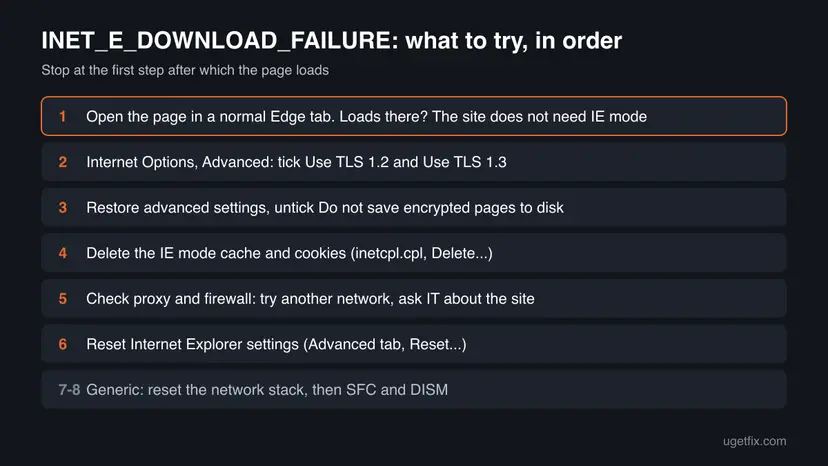
Fix 1 solves most home cases in a minute because the site never needed IE mode. Fixes 2 to 4 repair the Internet Options settings that IE mode reads. Fix 5 is for work networks. Fixes 6 to 8 are broader resets.
| What you see or have | Start with |
|---|---|
| An ordinary site (YouTube, a shop, a news site) fails in Edge, and an IE icon is next to the address. | Fix 1 |
| A work or government site that must run in IE mode fails at once. | Fix 2 |
| The site opens in IE mode, but file downloads or parts of the page fail. | Fix 3 |
| Only one site fails, and it worked last week. | Fix 4 |
| The same site works on a colleague's PC or on another network. | Fix 5 |
| Every IE mode site fails after you installed or removed a program. | Fix 6 |
| Other apps also drop connections. | Fix 7 |
Fix 1. Open the page in a normal Edge tab instead of IE mode
1 minuteLow riskYou use Edge at home or on your own PC, and the failing site is an ordinary modern site.
INET_E_DOWNLOAD_FAILURE only comes from the IE engine. Modern sites are built for Chromium and often refuse the old engine's connection, so the same page usually loads at once in a normal tab.
- Look at the left end of the address bar. An Internet Explorer logo there means the tab is in IE mode.
- Select Settings and more (the three dots) and look for the IE mode item. If it offers to leave or exit Internet Explorer mode, select it.
- If you cannot find it, copy the address, open a new tab with Ctrl + T, paste it and press Enter.
- To stop Edge from opening sites in IE mode on its own, type
edge://settings/defaultBrowserin the address bar and press Enter. - Under Allow sites to be reloaded in Internet Explorer mode, choose Don't allow if you do not need IE mode, and remove any pages listed under Internet Explorer mode pages.
- Restart Edge and load the site again.
On a work PC the IE mode list often comes from your organisation, and you cannot change it. Then the site really needs IE mode: go to Fix 2 and tell IT if it still fails.
It worked if: The site loads in a normal tab with no IE logo, and no error code appears.
If not: If the site does not work outside IE mode, or it is a work site that must use IE mode, go to Fix 2.
Fix 2. Turn on TLS 1.2 and TLS 1.3 in Internet Options
5 minutesLow riskA site that must run in IE mode fails at once, often an HTTPS site that updated its server.
IE mode does not use Edge's own security settings. It takes its TLS versions from Internet Options. When the site only accepts TLS 1.2 or 1.3 and those boxes are unticked, the secure connection is cut off and the IE engine reports a failed download.
- Press Win + R, type
inetcpl.cpland press Enter. Internet Properties opens. - Select the Advanced tab and scroll to the Security group at the bottom of the list.
- Tick Use TLS 1.2 and Use TLS 1.3. Leave Use SSL 3.0 unticked.
- Select Apply and OK.
- Close every Edge window, open Edge again and reload the site.
Some forum answers suggest ticking SSL 3.0 or setting registry values such as AllowInsecureRenegoServers or EnableInsecureTlsFallback. Those turn on insecure protocols for the whole PC. In the Microsoft Q&A case where they were suggested, the asker reported that they did not help. If only an old protocol works, the site's server needs updating.
It worked if: The site opens in IE mode without the error page.
If not: If the boxes were already ticked, go to Fix 3.
Fix 3. Restore the advanced Internet Options and allow encrypted pages to be saved
5 minutesLow riskThe site opens in IE mode, but file downloads or parts of HTTPS pages fail, or a program changed advanced settings.
The IE engine saves HTTPS content to its cache while it downloads it. With Do not save encrypted pages to disk ticked, some HTTPS downloads cannot be stored and stop. Restore advanced settings also undoes other changed boxes, the TLS ones included.
- Press Win + R, type
inetcpl.cpland press Enter. - On the Advanced tab select Restore advanced settings. This resets only the list on this tab.
- Scroll to the Security group and untick Do not save encrypted pages to disk if it is ticked.
- Check that Use TLS 1.2 and Use TLS 1.3 are still ticked.
- Select Apply and OK, then restart Edge.
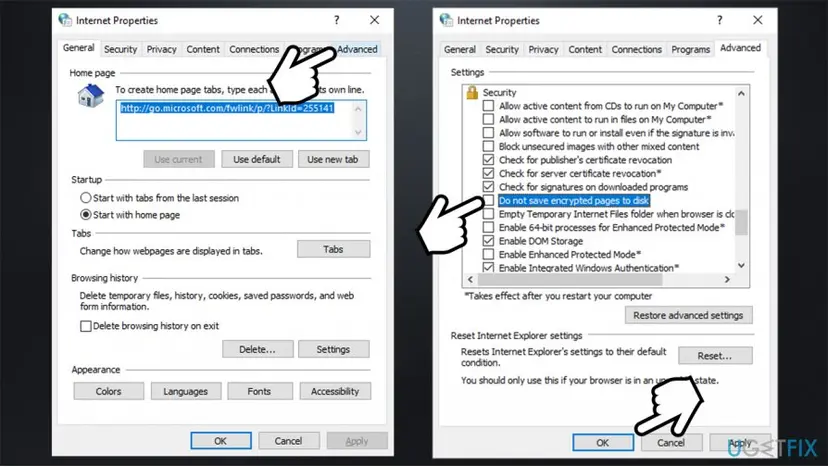
We could not confirm a Microsoft statement that ties this box to INET_E_DOWNLOAD_FAILURE by name. It is in our old guide and in user reports, and it costs nothing to check.
It worked if: Downloads and pages from the HTTPS site complete in IE mode.
If not: Go to Fix 4 to clear what the IE engine has stored for the site.
Fix 4. Delete the IE mode cache and cookies, and the Edge cache
5 minutesLow riskOne site fails while other IE mode sites load, or the site worked recently.
IE mode keeps its own temporary files and cookies in the Internet Explorer store, separate from Edge's Chromium cache. A damaged copy of the site's files or a stale cookie can break the download, and clearing only Edge's data does not touch it.
- Press Win + R, type
inetcpl.cpland press Enter. - On the General tab, under Browsing history, select Delete.
- Untick Preserve Favorites website data, so the site you want to fix is cleared too.
- Tick Temporary Internet files and website files and Cookies and website data. Leave Passwords and Form data unticked if you want to keep them.
- Select Delete and wait until the bar at the bottom says the deletion is finished.
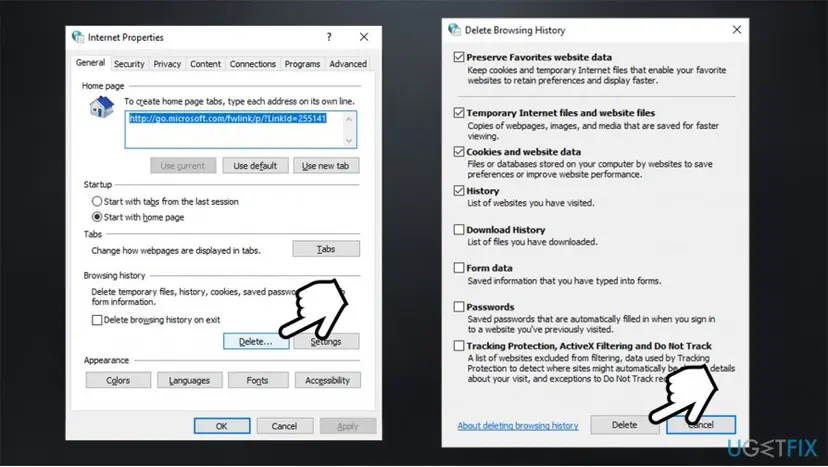
Then clear Edge's own cache too, because a site can switch between a normal tab and IE mode. In Edge press Ctrl + Shift + Delete, tick Cached images and files and Cookies and other site data, and select Clear now. Step by step for every browser: Clear the browser cache and cookies
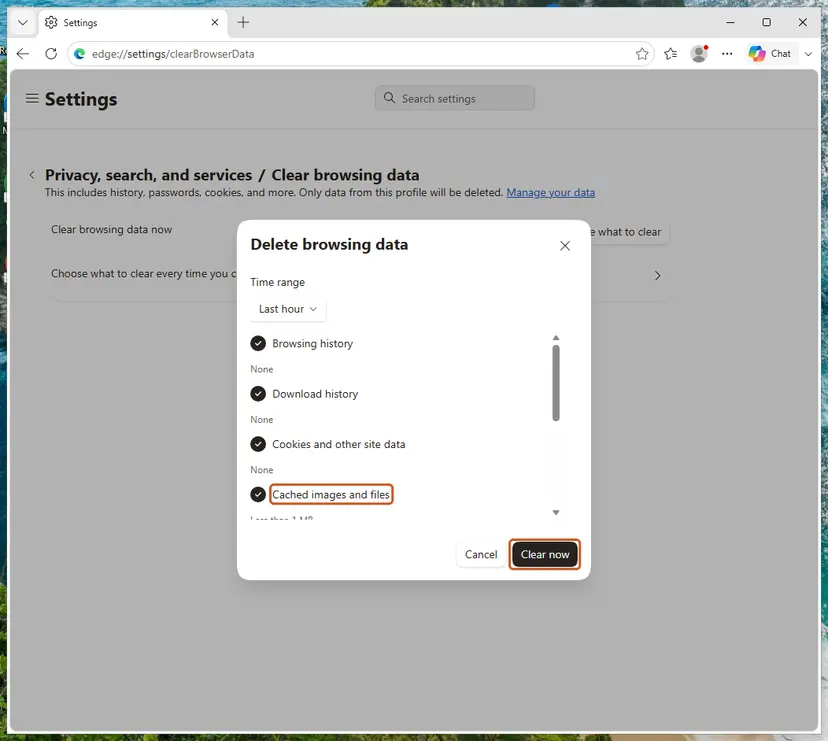
It worked if: After signing in again, the site loads in IE mode.
If not: If a twin PC or another network works, go to Fix 5.
Fix 5. Check the proxy, the firewall and the network path to the site
10 minutesLow riskYou are on a work, school or cloud network, or the same site works on another PC or connection.
The code says the connection was interrupted, and a network device that drops it produces exactly that. In the Microsoft Q&A case the cause was a firewall rule that blocked one server's traffic to the site.
- Press Win + R, type
inetcpl.cpland press Enter, then open the Connections tab and select LAN settings. - Note what is set. On a home PC, clear Use a proxy server for your LAN and Use automatic configuration script if you did not set them, then select OK twice.
- Test the site on another connection, for example a phone hotspot. If it loads there, the original network blocks or breaks it.
- If you use a VPN, web filter or third-party firewall, pause it for one test with Turn off Microsoft Defender protection for a moment and turn it back on right after.
- On a work network, send IT the site address, the time of the error, your PC name and the code
INET_E_DOWNLOAD_FAILURE (0x800C0008), and ask whether a firewall or proxy rule covers that site.
A proxy that does not answer at all usually gives a different code. If the site also fails in normal Edge tabs with ERR_PROXY_CONNECTION_FAILED, see our guide to ERR_PROXY_CONNECTION_FAILED.
It worked if: The site loads once the proxy is cleared, or IT confirms and changes the rule.
If not: If every IE mode site fails on any network, go to Fix 6.
Fix 6. Reset the Internet Explorer settings
5 minutes plus a restartRead the warningEvery IE mode site fails, often after a program changed browser settings, and Fixes 2 to 4 did not help.
The reset returns security zones, privacy settings, add-on settings and advanced options of the IE engine to their defaults in one go, which undoes changes that are hard to find one by one.
The reset removes custom security zone settings, trusted sites and add-on settings that IE mode uses. On a work PC those may be needed for company sites, so ask IT first. Write down the sites in Security > Trusted sites > Sites before you start.
- Close all Edge windows.
- Press Win + R, type
inetcpl.cpland press Enter. - On the Advanced tab, under Reset Internet Explorer settings, select Reset.
- Tick Delete personal settings only if you also want the IE history and saved data gone, then select Reset.
- Select Close, restart Windows and test the site in Edge.
It worked if: IE mode sites load again with default settings. Re-enter trusted sites if a work site needs them.
If not: If other apps also lose connections, or nothing changed, go to Fix 7.
Fix 7. Flush DNS, renew the IP address and reset Winsock
10 minutes plus a restartLow riskOther apps also drop connections, or you changed VPN or network software recently.
This is a generic repair. It clears stale address lookups and rebuilds the Windows sockets layer, which helps when a leftover network filter breaks connections for every program, the IE engine included.
- Type
cmdin the search box, right-click Command Prompt and select Run as administrator. - Run these commands one at a time and press Enter after each:
ipconfig /flushdns ipconfig /release ipconfig /renew netsh winsock reset - Restart Windows and test the site. The full network reset, which also removes saved Wi-Fi networks, is in Reset the network and flush DNS.

It worked if: After the restart, connections in Edge and other apps are stable.
If not: If the connection is stable but IE mode still fails, go to Fix 8.
Fix 8. Repair Windows system files with SFC and DISM
20 to 40 minutesLow riskNothing above helped and IE mode fails for every site, or Windows shows other odd errors.
IE mode runs on Windows components (the MSHTML and URL moniker files). If one of them is damaged, SFC and DISM replace it with a good copy. It rarely fixes this code alone, so it comes last.
- Open an elevated command window. Right-click Start and select Terminal (Admin), or type cmd in the search box, right-click Command Prompt and select Run as administrator. Select Yes when Windows asks for permission.

Search for cmd and choose Run as administrator. Screenshot: Windows 11 26H2. - Run DISM first. Type the command below and press Enter. DISM downloads clean copies of damaged components from Windows Update, so it can take several minutes. Wait until it says The operation completed successfully.
DISM.exe /Online /Cleanup-Image /RestoreHealth
DISM /RestoreHealth running. Screenshot: Windows 11 26H2. - Run System File Checker. In the same window, type the command below and press Enter. Do not close the window until the verification reaches 100%.
sfc /scannow
sfc /scannow at 100%. Screenshot: Windows 11 26H2. - Read the result and restart. Compare the last message with the table below this guide, then restart the PC so that repaired files are loaded.

The result line tells you what SFC did. Screenshot: Windows 11 26H2.
These steps were written for Windows 11 24H2 and 25H2. The full page with the other versions and what each result means: Run DISM and SFC to repair Windows system files
It worked if: SFC reports that it found and repaired files, or found no integrity violations, and IE mode works after a restart.
If not: Read the Still broken section below and send IT or the site owner the details it lists.
Still broken: find what interrupts the connection
The IE engine logs no detailed reason for this code on the error page. The quickest way to narrow it down is to compare: the same site in a normal tab, on another network, and on another PC with the same settings.
- Works on another PC on the same network: compare Internet Options on both PCs, tab by tab, and ask IT whether a firewall rule treats the two PCs differently. That was the answer in the Microsoft Q&A case.
- Fails everywhere, even on a hotspot: the site's server likely closes old-engine connections. Ask the site owner whether it still supports Internet Explorer mode.
- What to send IT or the site owner: the address, the time, your Windows version from Settings > System > About, your Edge version from
edge://settings/help, and the full codeINET_E_DOWNLOAD_FAILURE (0x800C0008). - Try a new Windows user profile: a Microsoft Q&A answer suggests it when one machine fails and its twin does not, because Internet Options are stored per user.
- Not hardware: this code is about a network connection and settings. A failing disk or memory shows other errors first.
How to keep INET_E_DOWNLOAD_FAILURE from coming back
- Use IE mode only for the sites that really need it.
- Keep Use TLS 1.2 and Use TLS 1.3 ticked in Internet Options.
- Keep Windows and Edge updated, so the IE engine gets the same security fixes as the rest of Windows.
- Ask the owner of an old site to move it off Internet Explorer.
- Turn on SSL 3.0 or insecure TLS fallback in the registry to reach a site.
- Leave Edge set to reload every site in IE mode.
- Tick Do not save encrypted pages to disk unless your company requires it.
Frequently asked questions
What does INET_E_DOWNLOAD_FAILURE mean?
It means the Internet Explorer engine started to download a web page and the connection was interrupted before it finished. Microsoft lists it as URL moniker error 0x800C0008 with the text "The download has failed (the connection was interrupted)." The page itself counts as a download here, so you can see the code on a site you only tried to open. The usual reasons are an IE mode tab that a modern site rejects, missing TLS 1.2 or 1.3, or a firewall that cuts the connection.
Why does Edge show INET_E_DOWNLOAD_FAILURE if Internet Explorer is gone?
Because Edge still contains the Internet Explorer engine for IE mode. Microsoft Learn says IE mode uses the Trident MSHTML engine from Internet Explorer 11 for legacy sites. A tab in IE mode reads Internet Options and reports errors with IE's INET_E_ codes. Normal Edge tabs use Chromium and show ERR_ codes instead. Look for the IE logo next to the address to tell which one you are in, then follow Fix 1.
How do I fix "The connection to the website was reset. Error Code: INET_E_DOWNLOAD_FAILURE"?
That exact wording comes from the old Edge that Microsoft replaced with the Chromium version in 2021, and the same message can appear in IE mode. On a current PC, update to the current Edge and open the page in a normal tab first (Fix 1). If the site must run in IE mode, tick Use TLS 1.2 and Use TLS 1.3 in Internet Options (Fix 2), then restore the advanced settings (Fix 3) and clear the IE mode cache (Fix 4).
Can I get INET_E_DOWNLOAD_FAILURE on Windows 11?
Yes, but only in two places. Windows 11 has no Internet Explorer app, so the code comes from Microsoft Edge in IE mode or from a program that embeds the IE browser engine, such as some older business or installer windows. The fixes are the same as on Windows 10, because both read Internet Options. For an app, also check whether a newer version uses a modern engine; the app's maker can tell you.
Will clearing Edge's cache fix INET_E_DOWNLOAD_FAILURE?
Sometimes, but usually not on its own. IE mode keeps its temporary files and cookies in the Internet Explorer store, not in Edge's Chromium cache. Clearing Edge with Ctrl + Shift + Delete leaves that store as it is. Delete it in Internet Options with the Delete button under Browsing history, and untick Preserve Favorites website data first, as Fix 4 shows. Clearing both is safe; you only have to sign in to sites again.
Is INET_E_DOWNLOAD_FAILURE caused by a virus?
Not usually. The code describes a broken connection, and the common reasons are settings, IE mode and firewalls. Adware that installs a local proxy or changes browser settings can cause connection errors, though. If the proxy settings in Fix 5 show an address you did not set, or the settings come back after you remove them, run a full scan with Microsoft Defender and remove programs you do not recognise.
Should I change the registry to fix INET_E_DOWNLOAD_FAILURE?
We do not recommend it. The registry changes that circulate for this error, AllowInsecureRenegoServers, AllowInsecureRenegoClients and EnableInsecureTlsFallback, allow insecure TLS behaviour for every program on the PC. In the Microsoft Q&A thread where they were suggested, the asker reported that they did not help, and the real cause was a firewall rule. Use Fixes 2 to 5 instead. If an old site only works with insecure TLS, its server needs updating.
Why does INET_E_DOWNLOAD_FAILURE happen on YouTube?
YouTube is a modern site that does not support Internet Explorer. If Edge opens it in IE mode, because of a setting or an old IE mode page entry, the old engine cannot complete the connection, and you get this code. Open YouTube in a normal Edge tab and remove it from the IE mode pages list at edge://settings/defaultBrowser, as Fix 1 shows. YouTube should then load normally.
What does "Código de error: INET_E_DOWNLOAD_FAILURE" or "Код ошибки: INET_E_DOWNLOAD_FAILURE" mean?
It is the same error on a Spanish, Russian, Chinese or Japanese copy of Windows. Only the words "Error Code" are translated (código de error, код ошибки, 錯誤碼, エラー コード); the code INET_E_DOWNLOAD_FAILURE stays in English. It means the page download failed because the connection was interrupted. The menu names differ by language, but the fixes on this page are the same, starting with opening the site in a normal Edge tab.
Sources
- Microsoft Learn: URL Moniker Error Codes (INET_E_DOWNLOAD_FAILURE 0x800C0008 and related INET_E codes) (learn.microsoft.com)
- Microsoft Learn: What is Internet Explorer (IE) mode? (Chromium engine for modern sites, Trident MSHTML for legacy sites) (learn.microsoft.com)
- Microsoft Q&A: INET_E_DOWNLOAD_FAILURE error Edge browser in IE mode (staff replies and the asker's resolved cause) (learn.microsoft.com)
Did this fix work?
One click, no account. It tells the next reader which guides are worth their time.
Questions and experiences: fix INET_E_DOWNLOAD_FAILURE on IE and Edge
Still broken, or found a fix we did not cover? Ask here: members and our editors answer. Reading is open; writing needs a free account.
…