
How to fix "Installation has failed" error in Microsoft Teams?

Prefer to fix it yourself? The manual steps follow.
- 8methods
- 5 to 30 minutes
- Intermediate
Applies to Microsoft Teams for work, school and home on Windows 11 and Windows 10 version 2004 (build 19041) or later; not Windows 10 LTSC
8 methods in this guide
- What the error means
- Read the setup log
- Causes, ranked
- Microsoft's status
- The fixes
- 1. Fresh installer, run once
- 2. Remove old Teams
- 3. Remove stuck package
- 4. Use the Teams bootstrapper
- 5. Check package policies
- 6. Update and repair Windows
- 7. Pause antivirus once
- 8. Try another account
- Still failing: next steps
- Prevent it
- FAQ
I want to install Teams on my Windows 11 PC, but it just keeps failing with the error message "Installation has failed. There was an error while installing the application. Check the setup log for more information and contact the author."
Installation has failed is the generic error window of the Teams setup file, so the real reason is written in its setup log. Most often an old or half-installed Teams, a second running setup or an outdated installer blocks the new Teams package. Close every setup, delete the SquirrelTemp folder and run one fresh installer from Microsoft (Fix 1).
The window comes from the setup engine that MSTeamsSetup.exe uses, not from Teams, and it hides the cause in SquirrelSetup.log. Close all setups and Teams, delete %LocalAppData%\SquirrelTemp, download a new installer from Microsoft and run it once (Fix 1). If the log shows a registration error such as 0x80070003, remove the old Teams package first (Fix 2 and Fix 3).
| Error | Installation has failed with the text "There was an error while installing the application. Check the setup log for more information and contact the author." and the buttons Open Setup Log and Close. |
|---|---|
| Where it appears | Seconds after you start the Teams setup file. The window title is the file name, for example MSTeamsSetup.exe, MSTeamsSetup_c_l_.exe or, for the retired classic Teams, Teams_windows_x64.exe. |
| Main cause | The setup downloads the new Teams package but Windows cannot register it, most often because an older or half-installed Teams is still on the PC. |
| Fastest fix | Close every setup and Teams, delete %LocalAppData%\SquirrelTemp, then run one freshly downloaded installer (Fix 1). |
| Where the cause is written | %LocalAppData%\SquirrelTemp\SquirrelSetup.log. The Open Setup Log button opens the same file. |
| Also written as | Teams installation failed, MSTeamsSetup installation has failed, "there was an error while installing the application", "error al instalar Teams". Discord and GitHub Desktop show the same window because they use the same setup engine. |
| Affects | New Teams on Windows 11 and Windows 10 build 19041 or later. Teams does not support any Windows LTSC edition. |
| Microsoft's status | No fix for this window as such. Microsoft documents the package policy and WebView2 blocks for new Teams. Classic Teams has not been available since 1 July 2025. |
| Time to fix | 5 minutes for Fix 1. Up to 30 minutes when you need the PowerShell and policy fixes. |
Facts checked on 15 October 2026. Steps written for the new Microsoft Teams (MSIX package) installed with MSTeamsSetup.exe and teamsbootstrapper.exe on Windows 11 (25H2 and 26H2) and Windows 10 22H2, read against Microsoft's documentation.
What "Installation has failed" means in Microsoft Teams
You double-click the Teams setup file, a small splash appears for a few seconds, and then a window with a red cross says Installation has failed. Under it: There was an error while installing the application. Check the setup log for more information and contact the author.
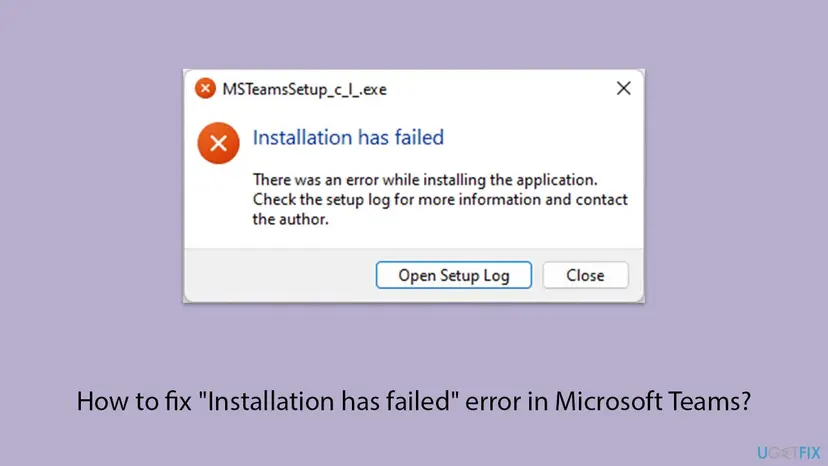
The wording is not Microsoft's. It is the stock failure message of Squirrel, an installer framework for desktop apps. Classic Teams used it, and the current MSTeamsSetup.exe still starts it: the first log line reads "Starting Squirrel Updater: --install . --exeName=MSTeamsSetup.exe --bootstrapperMode". That is why the same window appears for Discord and GitHub Desktop.
| What the setup does | Where it can stop |
|---|---|
| Checks the Windows build in the registry | An unsupported Windows. Teams needs build 19041 or later and no LTSC edition. |
Asks teams.live.com for the current installer and downloads the Teams MSIX package | A blocked or broken download. |
| Stages the package with the Windows PackageManager | Disk space, security software, a damaged app deployment service. |
| Registers the package for your account, three attempts | The most common stop: leftovers of an earlier Teams, a policy, another copy of the setup. |
Teams installation has failed, MS Teams setup installation has failed, MSTeamsSetup.exe installation has failed and "there was an error while installing the application" are all this window. Two other Teams install messages look different and have their own causes: "Due to org policy, you can't install the new Teams" (Fix 5) and "We've run into an issue" on Windows 10 (WebView2, see the causes table).
Check the setup log: where the real cause of the Teams error is written
The message tells you to check the setup log, and that advice is right. Select Open Setup Log in the error window, or open the file yourself. It is plain text and opens in Notepad.
- Press Win + R, paste this path and press Enter:
%LocalAppData%\SquirrelTemp - Open SquirrelSetup.log. The newest attempt is at the bottom.
- Press Ctrl + F and search for
error, then forexception. - Compare the line you find with the picture below and start with the fix it names.
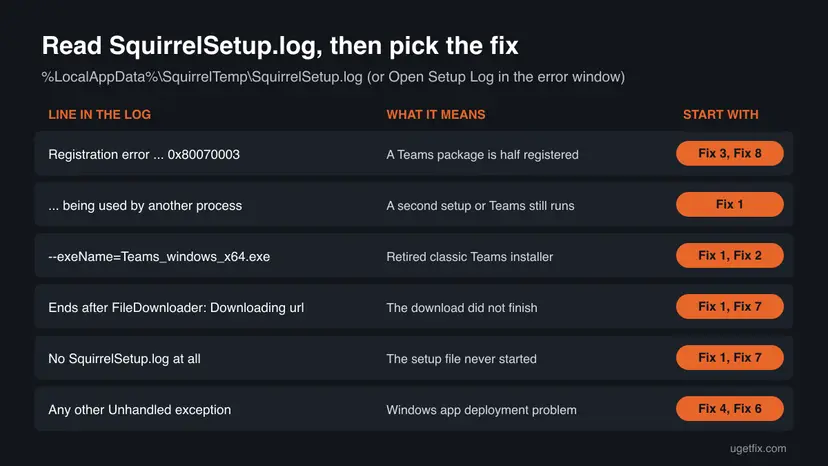
| Line in SquirrelSetup.log | What it means | Start with |
|---|---|---|
Registration error: ... Package could not be opened. error 0x80070003 | Staging finished but Windows could not register the package. In a July 2026 Q&A case a Teams install in another Windows profile caused it. | Fix 3, Fix 8 |
process cannot access the file ... because it is being used by another process | Two setups run at once, or Teams is still open. The Squirrel project documents this. | Fix 1 |
--exeName=Teams_windows_x64.exe in the first line | The installer of classic Teams, which Microsoft retired. | Fix 1, Fix 2 |
The log ends after FileDownloader: Downloading url | The package download did not complete. | Fix 1, Fix 7 |
| No SquirrelSetup.log, or an old date on it | The setup file never started properly. | Fix 1, Fix 7 |
Any other Unhandled exception | A problem in the Windows app deployment parts. | Fix 4, Fix 6 |
When the log says the registration failed, Windows writes the detailed reason to Event Viewer: Applications and Services Logs > Microsoft > Windows > AppxDeployment-Server > Operational. Look for errors at the time of your attempt. Microsoft staff ask for this log in Q&A threads.
What causes the Teams Installation has failed error, ranked
Microsoft does not rank these causes. The order below is our reading of the setup logs posted on Microsoft Q&A and of what Microsoft documents about installing new Teams. It is not a statistic.
| How often | Cause | Typical sign | Fix |
|---|---|---|---|
| Most often | Leftovers of an earlier Teams: classic Teams, the Teams Machine-Wide Installer, or a half-registered MSTeams package | Registration error in the log. Teams was on this PC before, or on another account of it. | Fix 2, Fix 3 |
| Often | An old or interrupted installer, or two setups running at the same time | "being used by another process", a setup file from months ago, or several copies named MSTeamsSetup (2).exe and (3).exe | Fix 1 |
| Less often | App package policies on a work or school PC | The PC is managed by IT. Sometimes the org policy message appears instead. | Fix 5, Fix 4 |
| Less often | Damaged Windows app deployment or missing updates | Other Store apps also fail to install or update. | Fix 6 |
| Rarely | Security software that blocks the download or the package files | The log stops at the download, or the setup works with protection paused. | Fix 7 |
| Rarely | Unsupported Windows: older than build 19041, or any LTSC edition | winver shows an old version or LTSC. | Teams on the web, see the status section |
On Windows 10, Microsoft documents a different message, We've run into an issue, when the new Teams cannot start its web engine. The fix is to install the WebView2 Runtime from Microsoft and start Teams again.
Microsoft's status: classic Teams retired, new Teams and Windows 10
- Classic Teams is gone. Microsoft ended support for classic Teams on 1 July 2024 and its availability on 1 July 2025. An old
Teams_windows_x64.exeinstaller saved on your PC is not a way back. - New Teams is a Windows app package. It installs as the MSIX package
MSTeamsand keeps its data under%LocalAppData%\Packages\MSTeams_8wekyb3d8bbwe. That is why package policies and package registration matter. - Two installers. Microsoft's download page gives you
MSTeamsSetup.exe, which installs the new Teams for your account. Administrators can useteamsbootstrapper.exefor the whole PC (Fix 4). - Windows 10 is still listed. Teams' system requirements, read on 15 October 2026, ask for Windows 10 version 10.0.19041 or higher, excluding LTSC. Windows 10 itself left support on 14 October 2025, so keep in mind that future Teams versions may drop it.
- Minimum hardware. 4 GB of RAM, 3 GB of free disk space and a two-core 1.1 GHz processor.
To see your Windows version, press Win + R, type winver and press Enter. Windows 10 version 2004 or later and every Windows 11 version meet the build requirement. If you cannot install Teams at all, Teams on the web at teams.microsoft.com works in current Edge, Chrome and Firefox.
How to fix Installation has failed in Microsoft Teams
Read the setup log first if you can, then start with the fix it points to. Without a log, go in order and run the installer again after each fix. Success looks the same every time: the setup closes on its own and Teams opens its sign-in window.
| Your case | Start with | Then |
|---|---|---|
| You do not know the cause yet, or ran the setup several times | Fix 1 | Fix 2 |
| The log shows Registration error or 0x80070003 | Fix 3 | Fix 8 |
| Classic Teams or the Teams Machine-Wide Installer is listed in your apps | Fix 2 | Fix 3 |
| Work or school PC managed by IT, or the org policy message | Fix 5 | Fix 4 |
| Other Store apps fail too | Fix 6 | Fix 4 |
| The log stops at the download, or there is no log | Fix 1 | Fix 7 |
| Teams installs for other accounts but not for yours | Fix 8 | Fix 3 |
Fix 1. Close every setup, clear SquirrelTemp and run one fresh installer
5 minutesNo riskEveryone, first. Above all when you started the setup more than once or saved the file a while ago.
The setup engine breaks when two copies run at once and leaves its files in SquirrelTemp. A freshly downloaded installer also asks Microsoft for the current Teams package instead of an outdated one.
- Close every error window. Right-click the Teams icon in the taskbar corner, if there is one, and select Quit.
- Press Ctrl + Shift + Esc, and under Processes end every MSTeamsSetup, Teams or Update.exe entry that is left.
- Press Win + R, paste this path and press Enter. Delete everything in the folder:
%LocalAppData%\SquirrelTemp - Delete all old Teams setup files in Downloads, including copies named MSTeamsSetup (2).exe or similar.
- Download the installer again from Microsoft's page:
https://www.microsoft.com/microsoft-teams/download-app. - Right-click the new file, select Properties and, if you see it, tick Unblock and select OK.
- Double-click the file once and wait. Do not start it again while the splash screen is visible.
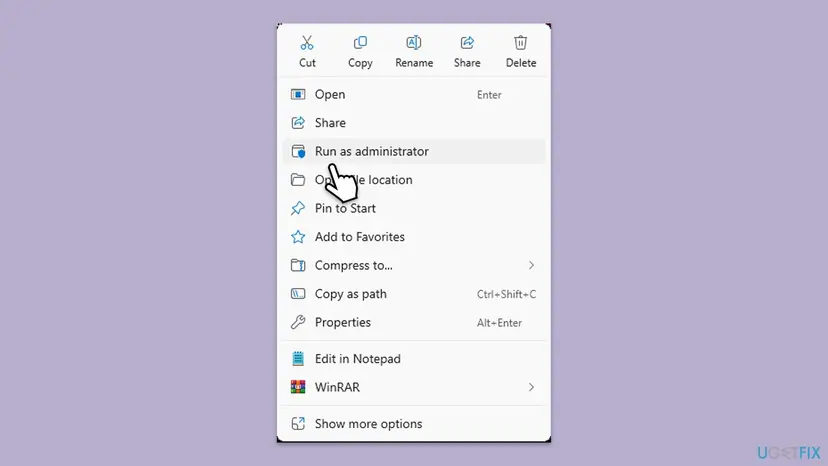
If it fails again, try once with Run as administrator from the same menu, as Microsoft staff suggest. Expect little from it: the new Teams installs per user, and one posted log shows the setup restarting itself with the flag --rerunningWithoutUAC.
It worked if: The splash screen closes on its own and Teams opens with its sign-in window.
If not: Open SquirrelSetup.log. A registration error leads to Fix 2 and Fix 3.
Fix 2. Uninstall classic Teams and the Teams Machine-Wide Installer
10 minutesLow riskClassic Teams, the Teams Machine-Wide Installer or an older Microsoft Teams entry is still in your list of apps.
Microsoft staff name remnants of a previous Teams installation as a cause of the registration failure. Classic Teams also left a per-user folder that the new setup does not clean up.
- Quit Teams from the taskbar corner.
- Open Settings > Apps > Installed apps and type
Teamsin the search box. - Uninstall Microsoft Teams classic, Teams Machine-Wide Installer and any Microsoft Teams entry with a version that starts with 1. Keep Microsoft Teams (work or school) only if it opens.
- Press Win + R, open this folder and delete it if it exists:
%AppData%\Microsoft\Teams - Do the same with the second folder:
%LocalAppData%\Microsoft\Teams - Restart the PC and run the installer as in Fix 1.

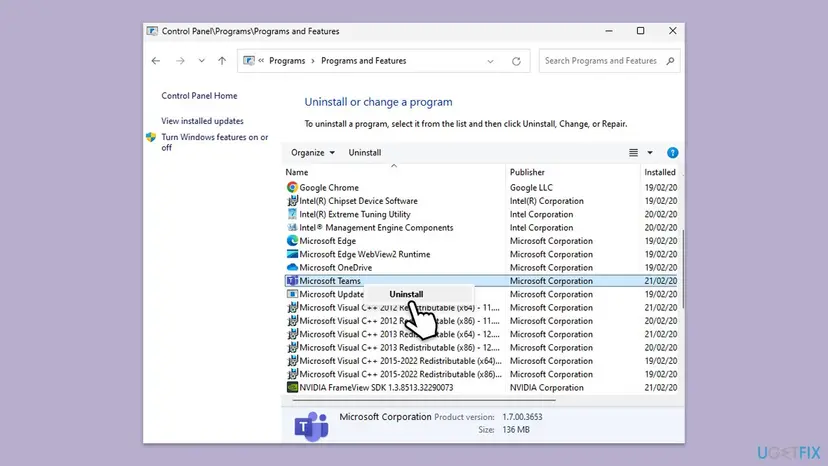
Every uninstall route, with the Windows 10 screens: Uninstall a program or app in Windows. The two folders hold the old app and its cache. Microsoft's cache article lists %appdata%\Microsoft\Teams as the classic Teams cache, so deleting it loses nothing that the new Teams uses.
It worked if: No Teams entry with version 1.x is left, and the next setup run finishes.
If not: If the log still shows a registration error, remove the new Teams package itself with Fix 3.
Fix 3. Remove a stuck MSTeams package with PowerShell
10 minutesLow riskSquirrelSetup.log shows Registration error, Registration failed or 0x80070003, or Teams is half installed and will not open.
The setup stages the package and then registers it. When an earlier MSTeams package is half registered, for you or another account, registration fails three times and the window appears. Microsoft's uninstall article gives the commands that remove it.
- Quit Teams and close any setup window.
- Right-click Start and open Terminal or Windows PowerShell.
- List the Teams packages for your account:
Get-AppxPackage *MSTeams* - Remove them for your account:
Get-AppxPackage *MSTeams* | Remove-AppxPackage - Close the window. Right-click Start again and open Terminal (Admin). Select Yes in the User Account Control prompt.
- List the package for every account on the PC. A result here that you did not see before belongs to another account:
Get-AppxPackage *MSTeams* -AllUsers - If you share the PC and nobody else needs that copy now, remove it for all accounts:
Get-AppxPackage *MSTeams* -AllUsers | Remove-AppxPackage -AllUsers - Restart the PC and run a fresh installer as in Fix 1.
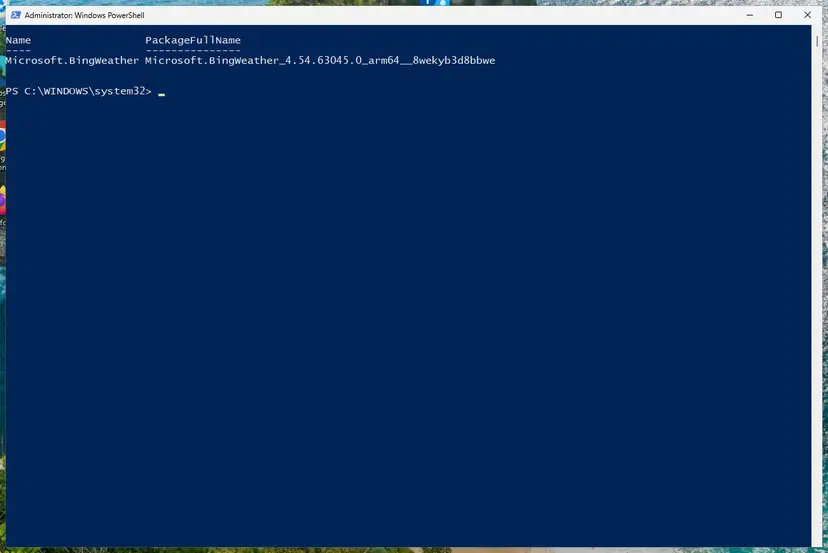
Chats, files and meetings stay in the cloud. The other accounts lose their local Teams app and its settings and get it back with the next install. In the July 2026 case the user fixed the error by deleting a second Windows profile that held Teams files, which this command does without deleting the profile.
It worked if: The list commands return nothing, and the next setup run registers the package and opens Teams.
If not: If removal fails with an error of its own, install for the whole PC with the Teams bootstrapper in Fix 4.
Fix 4. Install Teams for the whole PC with teamsbootstrapper.exe
10 minutesLow riskMSTeamsSetup.exe keeps failing, you have an administrator account, or you manage several PCs.
This is Microsoft's own command-line installer for the new Teams. It provisions the MSIX package for every account on the PC, replaces other Teams versions and prints a clear success or error code instead of the generic window.
- Download teamsbootstrapper.exe from Microsoft:
https://go.microsoft.com/fwlink/?linkid=2243204. - Right-click Start and open Terminal (Admin), then select Yes.
- Go to the Downloads folder:
cd "$env:USERPROFILE\Downloads" - Provision Teams for all users:
.\teamsbootstrapper.exe -p - Read the result. A success line means Teams is installed: start it from the Start menu.
- If you get an error code instead, look it up in Microsoft's list of common HRESULT values or send it to IT.
Microsoft also offers an offline route. Download the Teams MSIX for x64 from https://go.microsoft.com/fwlink/?linkid=2196106 and run .\teamsbootstrapper.exe -p -o "C:\path\to\teams.msix" with your real path. Microsoft says to use the latest bootstrapper: check Properties > Details > Product version of an older copy.
It worked if: The command reports success and Teams appears in the Start menu for every account.
If not: If the code points to a policy or access problem, check the app package policies with Fix 5.
Fix 5. Check the app package policies that block new Teams
10 minutesLow riskA work or school PC, the message "Due to org policy, you can't install the new Teams", or an administrator suspects a policy. Editions with Group Policy only.
New Teams is an MSIX package, and Microsoft names two Group Policy settings that can block such packages. If Allow all trusted apps to install is disabled on an older build, the installation fails.
Your organisation may have set these policies on purpose, and a domain policy returns at the next refresh anyway. Send IT this section instead of changing it. On your own PC with Windows Pro, Education or Enterprise you can check it yourself.
- Press Win + R, type
gpedit.mscand press Enter. - Go to Computer Configuration > Administrative Templates > Windows Components > App Package Deployment.
- Open Prevent non-admin users from installing packaged Windows apps and make sure it is Not configured.
- Open Allow all trusted apps to install and make sure it is Not configured.
- Select OK, restart the PC and run the installer again.
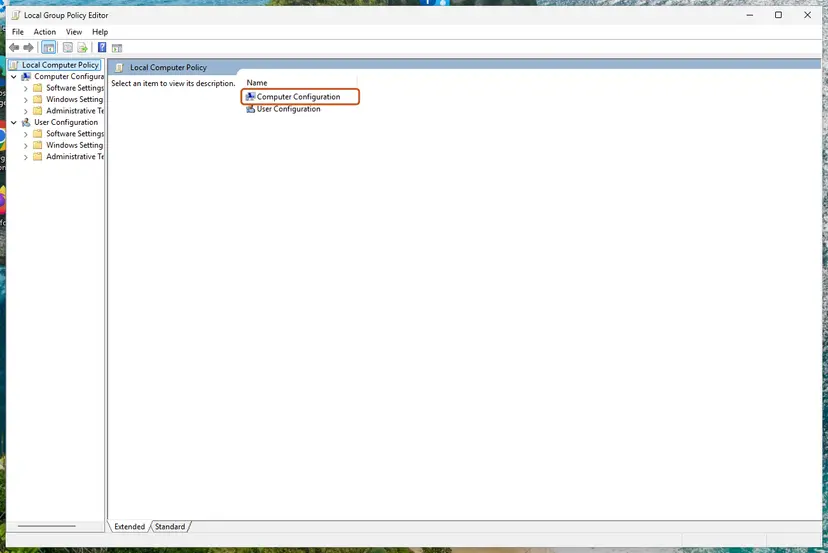
More about the editor: Open the Local Group Policy Editor. Microsoft lists the registry values behind these policies, BlockNonAdminUserInstall, AllowAllTrustedApps and AllowDevelopmentWithoutDevLicense, under HKEY_LOCAL_MACHINE\SOFTWARE\Microsoft\Windows\CurrentVersion\AppModelUnlock and HKEY_LOCAL_MACHINE\SOFTWARE\Policies\Microsoft\Windows\Appx. Look at them only; if you must change one, first Back up the registry before editing it.
It worked if: Both policies read Not configured and the setup gets past the registration step.
If not: If the policies were already clear, update and repair Windows with Fix 6.
Fix 6. Install Windows updates and repair system files
20 to 30 minutesNo riskOther Store apps fail to install too, Windows has pending updates, or the log shows an exception that none of the earlier fixes explain.
Microsoft fixed one known block of the Teams package in the October 2023 updates KB5031455 for Windows 11 and KB5031445 for Windows 10, and its troubleshooting page says to install pending updates first. Microsoft staff also suggest DISM and SFC when package registration fails.
- Open Settings > Windows Update and select Check for updates. Install everything, including security updates, and restart.
- Open Terminal (Admin) and run DISM, then SFC, as the procedure below shows.
- Restart the PC and run the Teams installer as in Fix 1.
- Open an elevated command window. Right-click Start and select Terminal (Admin), or type cmd in the search box, right-click Command Prompt and select Run as administrator. Select Yes when Windows asks for permission.
- Run DISM first. Type the command below and press Enter. DISM downloads clean copies of damaged components from Windows Update, so it can take several minutes. Wait until it says The operation completed successfully.
DISM.exe /Online /Cleanup-Image /RestoreHealth - Run System File Checker. In the same window, type the command below and press Enter. Do not close the window until the verification reaches 100%.
sfc /scannow - Read the result and restart. Compare the last message with the table below this guide, then restart the PC so that repaired files are loaded.
These steps were written for Windows 11 24H2 and 25H2. The full page with the other versions and what each result means: Run DISM and SFC to repair Windows system files
It worked if: SFC reports no integrity violations or that it repaired them, and the installer finishes.
If not: If it still fails, test the install with the antivirus paused (Fix 7).
Fix 7. Pause third-party security software for one install
5 minutesLow riskThe log stops at the download, or no SquirrelSetup.log appears at all, and other fixes did not help.
In the most upvoted answer of a 2022 Q&A thread a user ended the error by stopping the antivirus services, installing Teams and turning them back on. That is a user report, not a Microsoft finding, so use it as a test only.
- Pause the protection of your security program for a few minutes from its own icon. For Microsoft Defender use Turn off Microsoft Defender protection for a moment.
- Run the freshly downloaded installer right away.
- Turn the protection back on as soon as Teams opens, or after 10 minutes at the latest.
- If this was the cause, add the Teams installer to your security program's allow list instead of pausing it next time.
Pause protection only for an installer you downloaded yourself from microsoft.com a minute ago. Never run a Teams setup from an email attachment or another site with protection off.
It worked if: Teams installs with the protection paused, and the protection is back on afterwards.
If not: If it fails the same way, the security program was not the cause. Test another Windows account with Fix 8.
Fix 8. Test the install in another Windows account
15 minutesNo riskThe setup fails only for you, other accounts on the PC have Teams, or every fix above failed.
Teams installs per user, so a damaged user profile or a package held by another profile breaks only some accounts. In the July 2026 Q&A case the error ended once a second Windows profile with Teams files was removed.
- Create a new local test account with administrator rights, as Create a new user account to test a problem shows.
- Sign out and sign in to the test account.
- Download the installer from Microsoft and run it once.
- If Teams installs there, the problem is tied to your own profile. Go back to Fix 3 and remove the package for all users, then try your own account again.
- Delete the test account when you are done, in Settings > Accounts > Other users.
It worked if: Teams installs in the test account, which proves Windows itself is fine.
If not: If it fails in a new account too, the cause is the PC, not your profile. Collect the logs in the next section.
If Teams still will not install: what to collect and who can help
If all eight fixes failed, stop changing the PC and collect the evidence. Microsoft support or your IT department can read it in minutes, and you can keep working in Teams on the web meanwhile.
- SquirrelSetup.log from
%LocalAppData%\SquirrelTemp, from the latest attempt. - AppxDeployment-Server errors from Event Viewer at the same time, exported or as a screenshot.
- The output of
Get-AppxPackage *MSTeams* -AllUsersin an admin terminal. Microsoft staff ask for it before anything is removed. - Your Windows version from
winver, and whether the PC is managed by an employer or school. - For administrators: Microsoft's Teams preinstallation check script at
https://aka.ms/NewTeamsReadinessChecklists what blocks the install and suggests a solution.
| What you see | Likely reason | Who can fix it |
|---|---|---|
| Fails in every account, even a new one | Damaged Windows app deployment | Repair install of Windows: Reinstall Windows without losing files |
winver shows LTSC or a build below 19041 | Teams does not support this Windows | Teams on the web, or a Windows upgrade |
| Org policy message, or the bootstrapper reports a policy | A policy set by the organisation | IT only |
| Teams installs but sign-in fails | Not an install problem any more | See error tag 7ita9 |
How to keep Teams from failing to install again
- Download the installer from Microsoft each time you install, and start it once.
- Uninstall Teams for an account before you delete that Windows profile, or remove its package with Fix 3.
- Keep Windows updated, so the app deployment parts that Teams relies on stay current.
- On managed PCs, let IT deploy Teams with teamsbootstrapper.exe.
- Keep an old Teams setup file and reuse it months later.
- Use a classic Teams installer. Classic Teams has been unavailable since 1 July 2025.
- Delete folders under
C:\Program Files\WindowsAppsby hand. Windows manages that folder and the packages in it. - Clear the Teams cache for chat or channel problems. Microsoft warns it deletes the logs support needs.
Frequently asked questions
What does "Installation has failed. There was an error while installing the application" mean in Teams?
It means the Teams setup file could not finish installing, and that the window itself does not know why. The message is the stock text of Squirrel, the installer framework that MSTeamsSetup.exe still starts before it installs the new Teams package. The reason is written in SquirrelSetup.log in %LocalAppData%\SquirrelTemp. Most often the package was downloaded but Windows could not register it, because an older or half-installed Teams is still on the PC.
Where is the Teams setup log?
In %LocalAppData%\SquirrelTemp\SquirrelSetup.log. Press Win + R, paste %LocalAppData%\SquirrelTemp and press Enter, then open the file in Notepad. The Open Setup Log button in the error window opens the same file. The newest attempt is at the bottom. Search it for error and exception. If the log names a registration problem, Event Viewer holds more under Applications and Services Logs, Microsoft, Windows, AppxDeployment-Server, Operational.
Why is Microsoft Teams not installing on Windows 11?
Windows 11 meets every Teams requirement, so the cause is almost always on the PC itself. The usual reasons are leftovers of an earlier Teams, a second copy of the setup running, an old installer file, a package policy on a work PC, or damaged app deployment parts. Start with Fix 1 on this page: close everything, delete the SquirrelTemp folder and run one fresh installer from Microsoft. Then follow the line in SquirrelSetup.log.
Can I still install Teams on Windows 10?
Yes, on Windows 10 version 2004 (build 19041) or later. Microsoft's Teams system requirements, read on 15 October 2026, still list Windows 10 10.0.19041 or higher, except LTSC editions. Windows 10 itself left support on 14 October 2025, so later Teams versions may drop it. On Windows 10, the message "We've run into an issue" is a separate problem: Microsoft says to install the WebView2 Runtime and start Teams again.
What does error 0x80070003 in the Teams setup log mean?
0x80070003 is the Windows error "The system cannot find the path specified". In SquirrelSetup.log it appears as "Package could not be opened" with AppxManifest.xml, after the package was staged. Windows could not register the Teams package for your account. Microsoft staff tied it to remnants of a previous Teams or to the Windows app deployment parts. Remove the MSTeams package for all users with Fix 3, then install again.
Can I still download classic Teams instead?
No. Microsoft ended support for classic Teams on 1 July 2024 and ended its availability on 1 July 2025. An old Teams_windows_x64.exe or a classic Teams entry with a version starting with 1 should be removed, not reinstalled. The current installer from Microsoft's download page installs the new Teams. If the new Teams cannot run on your PC, use Teams on the web.
How do I repair a Teams installation that half worked?
If Teams appears in Installed apps, open its three dots menu, select Advanced options and try Repair, then Reset. Microsoft notes that Reset deletes the app data, including your Teams settings. If Teams does not start at all or the setup keeps failing, remove the package with Get-AppxPackage *MSTeams* | Remove-AppxPackage, as in Fix 3, and install again from Microsoft's page. Chats and files are stored in the cloud and come back after sign-in.
Do I need administrator rights to install Teams?
Not for MSTeamsSetup.exe: the new Teams installs per user, and one posted log shows the setup restarting itself without elevation. Running it as administrator rarely changes the result. You do need administrator rights for teamsbootstrapper.exe, which installs Teams for every account on the PC, for removing a package for all users and for the policy checks. On a work PC without those rights, ask IT.
Is turning off the antivirus a good fix for this error?
Only as a short test. In a 2022 Q&A thread a user ended the error by stopping the antivirus services during the install and turning them back on afterwards. Microsoft does not name security software as a common cause. Pause protection for one install of a file you just downloaded from microsoft.com, turn it back on right after, and add the installer to the allow list if that was the cause.
Why does the same Installation has failed window appear for Discord or other apps?
Because Discord, GitHub Desktop and other desktop apps use the same Squirrel installer framework that the Teams setup starts. The window and its text are the framework's, so they look the same everywhere. The causes are similar too: two setups running at once, leftovers in SquirrelTemp or a blocked download. This page covers Teams, but Fix 1 and the log check work the same way for those apps. This error has the same text in every language edition of Windows.
Sources
- Microsoft Learn: Resolve the new Teams client installation issues (package policies, WebView2, KB5031455) (learn.microsoft.com)
- Microsoft Learn: Bulk deploy the Microsoft Teams client (teamsbootstrapper.exe, offline MSIX) (learn.microsoft.com)
- Microsoft Learn: How to uninstall the Teams client (Remove-AppxPackage commands) (learn.microsoft.com)
Did this fix work?
One click, no account. It tells the next reader which guides are worth their time.
Questions and experiences: fix "Installation has failed" error in Microsoft Teams
Still broken, or found a fix we did not cover? Ask here: members and our editors answer. Reading is open; writing needs a free account.
…