
How to fix IP Helper service (iphlpsvc) high CPU usage?

Prefer to fix it yourself? The manual steps follow.
- 9methods
- 2 minutes to restart the service, 5 to 15 minutes for the Port Proxy, Teredo and disabling fixes
- Intermediate
Applies to The IP Helper service (iphlpsvc) on Windows 11 and Windows 10, and Intel's ipf_helper.exe
9 methods in this guide
Yesterday I was analyzing my GPU usage while playing a game, and I spotted something unusual: the IP Helper service (iphlpsvc) was using 20 to 25% of the CPU. Windows services usually sit idle most of the time. I thought it was just a spike, but when I checked again in the evening, it still used the same amount. What is IP Helper, and is it OK to disable it?
IP Helper (iphlpsvc) is the Windows service that runs IPv6 tunnels, IP-HTTPS and Port Proxy, and it should sit near 0% CPU. Steady load usually comes from a Teredo tunnel or Port Proxy rules, so restart the service first and check those two. Microsoft says it is OK to disable, and ipf_helper.exe is a different, Intel program.
Yes, on a home PC you can disable IP Helper: Microsoft lists it as OK to disable, and you only lose IPv6 tunnels, IP-HTTPS and Port Proxy forwarding. Before that, check that the busy line really is Service Host: IP Helper and not Intel's ipf_helper.exe (Fix 1), restart the service (Fix 2), and look for leftover Port Proxy rules (Fix 3) and a Teredo tunnel (Fix 4).
| Error | No error message. Task Manager shows Service Host: IP Helper high in the CPU column, often 10 to 25% for minutes or hours, when it should stay near 0%. |
|---|---|
| Where it appears | Task Manager on Windows 11 and Windows 10. The Services tab names it iphlpsvc; it runs inside C:\Windows\System32\svchost.exe -k NetSvcs -p. |
| Main cause | One of the jobs the service does keeps it busy: an IPv6 tunnel such as Teredo that keeps trying to connect, or Port Proxy rules that forward traffic. Less often damaged system files, another program or malware. |
| Fastest fix | Restart the service in services.msc (Fix 2). If it comes back, clear Port Proxy rules (Fix 3) or turn off Teredo (Fix 4). |
| Also written as | iphlpsvc, iphlpsvc service, IP Helper service, Windows IP Helper service, Service Host: IP Helper, Internet Protocol Helper. Not the same as ipf_helper.exe, which belongs to Intel. |
| Default startup type | Automatic (Microsoft Learn), so it starts with Windows on every PC. |
| Safe to disable? | Yes for most home PCs. Microsoft marks it OK to disable and says only that the PC then loses the "enhanced connectivity benefits" of IPv6 transition technologies and IP-HTTPS. Keep it on with a work VPN or DirectAccess. |
| Microsoft's status | No known issue or fix for iphlpsvc high CPU is published. The service is part of Windows, so any change to it comes through Windows Update. |
| Time to fix | 2 minutes for a restart, 5 to 15 minutes for the other fixes. |
Facts checked on 15 October 2026. Steps written for Windows 11 (25H2 and 26H2) and Windows 10 22H2, with the service description, default startup type and disabling guidance read from Microsoft Learn's system services table.
What IP Helper (iphlpsvc) is and why it should be idle
IP Helper is a built-in Windows service. Microsoft describes it like this: it "provides tunnel connectivity using IPv6 transition technologies (6to4, ISATAP, Port Proxy, and Teredo), and IP-HTTPS. If this service is stopped, the computer doesn't have the enhanced connectivity benefits that these technologies offer". Its service name is iphlpsvc, its default startup type is Automatic, and it runs inside a shared Service Host (svchost.exe) process from C:\Windows\System32.
In plain words, it lets a PC reach IPv6 addresses over an IPv4 network through a tunnel, carries IP-HTTPS for remote access such as DirectAccess, and forwards ports when a Port Proxy rule tells it to. Most home PCs use none of this most of the time, so the service should show 0% CPU nearly always.
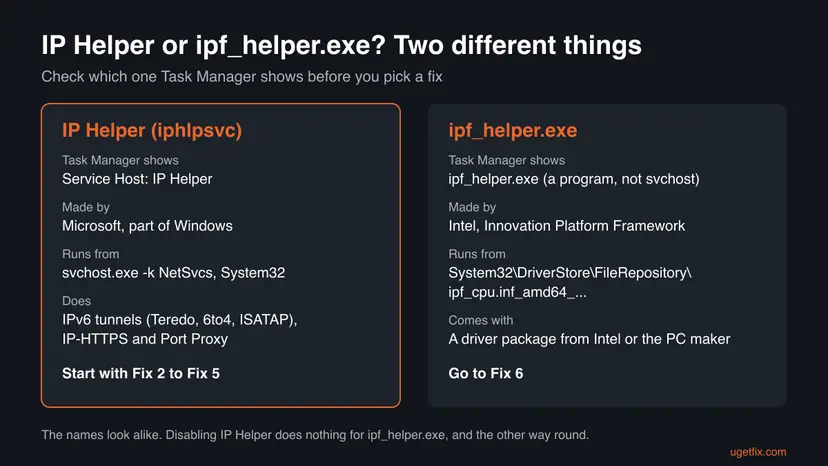
| What you see | Where | What it is |
|---|---|---|
| Service Host: IP Helper | Task Manager, Processes tab | The svchost.exe process that hosts IP Helper. This is the CPU figure you are worried about. |
iphlpsvc | Task Manager Services tab, services.msc | The short service name. Default startup type: Automatic. |
IP Translation Configuration Service (IpxlatCfgSvc) | services.msc | A neighbour that translates between IPv4 and IPv6. Manual by default, also OK to disable per Microsoft. |
| ipf_helper.exe | Task Manager Processes or Details tab | Not IP Helper at all. A helper of Intel's Innovation Platform Framework that runs from C:\Windows\System32\DriverStore\FileRepository\ipf_cpu.inf_amd64_.... |
IP Helper API (iphlpapi.dll) | Developer documentation | A programming interface with a similar name. Searches for "service host ip helper" often land on it, but it is not the service. |
When the PC joins a network, a VPN connects or an app opens a forwarded port, IP Helper may work for a few seconds. Load that stays for minutes while you game or browse, as in the reader's question above, is not normal.
Why IP Helper uses so much CPU, from most to least common
Most often one of the service's own jobs keeps it busy: a tunnel that keeps trying, or Port Proxy rules that carry a lot of traffic. Less often the service is stuck after sleep or a network change. Rarely the cause is damaged system files, another program, or malware hiding behind a svchost.exe name. Microsoft publishes no statistics, so this order comes from what the service does and from the reports we read.
| Cause | How often | How to tell | Fix |
|---|---|---|---|
| You are looking at Intel's ipf_helper.exe, not IP Helper. | Often | The busy process is named ipf_helper.exe, not Service Host. | Fix 1, then Fix 6 |
| The service is stuck after sleep or a network change. | Often | A reboot clears the load for a while. | Fix 2 |
| Port Proxy rules forward traffic through the service, or old rules point at ports nothing listens on. | Sometimes | netsh interface portproxy show all lists rules. | Fix 3 |
| Teredo or another IPv6 tunnel keeps trying to connect. | Sometimes | netsh interface teredo show state shows Teredo active, and the load follows certain networks. | Fix 4 |
| You do not need any of the service's jobs at all. | Common on home PCs | No work VPN, no DirectAccess, no Port Proxy rules. | Fix 5 |
| Malware using the svchost.exe name, damaged system files or another program hooking into networking. | Rarely | svchost.exe is not in C:\Windows\System32, or the load disappears in a clean boot. | Fix 7 to Fix 9 |
Microsoft has not published a cause or a fix for iphlpsvc high CPU. The older version of this page named the Conficker worm as a cause; we found no current source tying it to IP Helper load and left it out. The tunnel and Port Proxy causes follow from the jobs Microsoft lists for the service.
How to fix IP Helper (iphlpsvc) high CPU usage
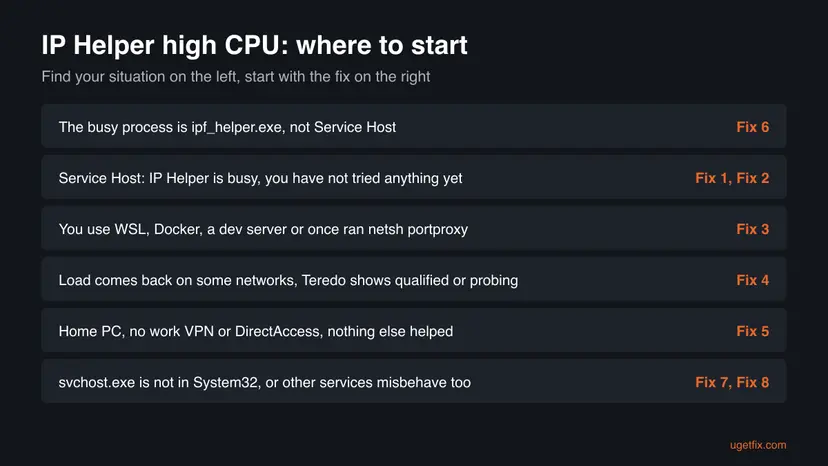
Fix 1 takes two minutes and tells you which process is really busy. Fix 2 to Fix 4 deal with the service's own jobs and solve most cases. Fix 5 disables the service, which Microsoft allows. Fix 6 is only for ipf_helper.exe. Fix 7 to Fix 9 are the general repairs.
| What you see or have | Start with |
|---|---|
| The busy process is ipf_helper.exe, not Service Host. | Fix 6 |
| Service Host: IP Helper is busy and you have not tried anything yet. | Fix 1, then Fix 2 |
You use WSL, Docker or a local dev server, or once ran a netsh interface portproxy command. | Fix 3 |
| The load starts on some networks only, or Teredo shows as active. | Fix 4 |
| Home PC, no work VPN or DirectAccess, and the load keeps coming back. | Fix 5 |
| svchost.exe is not in System32, or other services misbehave too. | Fix 7, then Fix 8 and Fix 9 |
Fix 1. Confirm the busy process is Service Host: IP Helper and not ipf_helper.exe
2 minutesNo riskEveryone who sees high CPU in Task Manager, before changing anything, because two processes with similar names need different fixes.
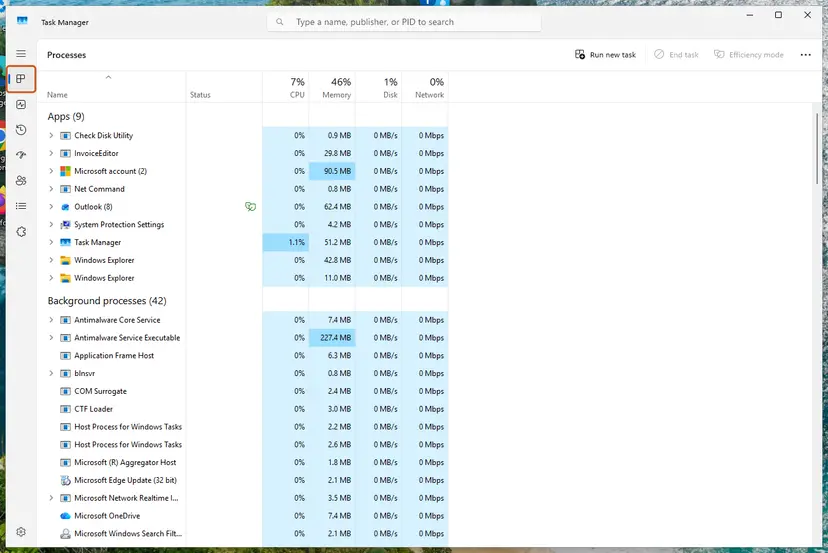
Two unrelated things have almost the same name. IP Helper is a Windows service inside svchost.exe; ipf_helper.exe is an Intel program. Each needs a different fix, and disabling one does nothing for the other.
- Press Ctrl + Shift + Esc to open Task Manager. On Windows 10, select More details if you see a short list.
- On the Processes tab, select the CPU column header so the busiest process is on top.
- Read the name of the busy line. If it is ipf_helper.exe, go straight to Fix 6.
- If it is Service Host: IP Helper, expand it and check that the service inside is IP Helper.
- Open the Services tab, find
iphlpsvc, right-click it and select Go to details. - Right-click the highlighted svchost.exe, select Open file location and check that File Explorer opens
C:\Windows\System32.
| What you see | Go to |
|---|---|
| ipf_helper.exe is busy | Fix 6 |
| Service Host: IP Helper is busy, svchost.exe is in System32 | Fix 2 |
| svchost.exe opens from any other folder | Fix 7 |
It worked if: You know which of the two is busy and that the svchost.exe behind IP Helper is the real Windows file.
If not: If neither name is busy, the load is in another Service Host line. Note the service name inside it and search for that one.
Fix 2. Restart the IP Helper service
2 minutesLow riskService Host: IP Helper is busy and a reboot normally clears it for a while.
A restart ends a session of the service that got stuck while a tunnel or a forwarded port kept retrying, without a full reboot. Port Proxy forwarding and tunnels pause for a few seconds and come back.
- Close apps that use a VPN or a forwarded port, such as a remote desktop session.
- Press Win + R, type
services.mscand press Enter. - Find IP Helper in the list.
- Right-click it and select Restart.
- Leave Startup type on Automatic for now.
- Open Task Manager and watch the CPU column for two minutes.
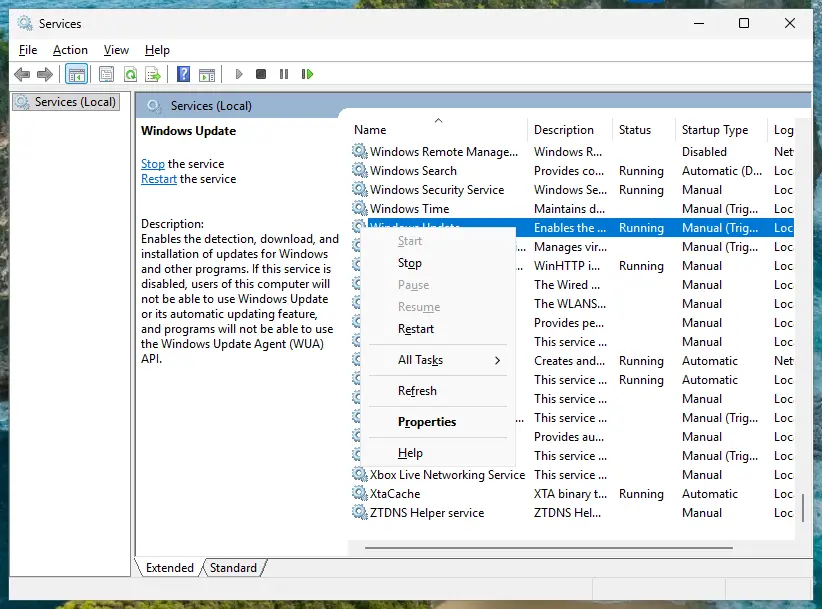
Step by step for any service, with the startup type settings: Check and restart Windows services.
It worked if: Service Host: IP Helper drops to near 0% CPU within a minute and stays there.
If not: If the load comes back within hours, something keeps giving the service work. Check Port Proxy rules in Fix 3 and Teredo in Fix 4.
Fix 3. Check and remove leftover Port Proxy rules
5 minutesLow riskYou use WSL, Docker, a local web server or remote access tools, or you once followed a guide that ran netsh interface portproxy.
Port Proxy is one of the jobs Microsoft lists for IP Helper: every rule makes the service listen on a port and pass traffic on. Many rules, or rules pointing at an address that no longer answers, keep the service working.
- Type cmd in Start, right-click Command Prompt and select Run as administrator. Select Yes in User Account Control.
- Type
netsh interface portproxy show alland press Enter. - If nothing is listed, you have no rules: go to Fix 4.
- Write down every rule you see, with its listen address, listen port, connect address and connect port.
- For a rule you do not recognise or no longer need, type
netsh interface portproxy delete v4tov4 listenport=8080 listenaddress=0.0.0.0, using the port and address from your list. Usev4tov6,v6tov4orv6tov6if the rule is listed under that heading. - Run
netsh interface portproxy show allagain to check, then watch Task Manager for a few minutes.
netsh interface portproxy show all
netsh interface portproxy delete v4tov4 listenport=8080 listenaddress=0.0.0.0If a tool you use (for example a WSL or remote access setup) added a rule, it may add it again when it starts. Update that tool, or keep the rule and live with the load only while the tool runs.
It worked if: The list shows only rules you know, and IP Helper stays quiet when nothing uses them.
If not: If you had no rules, or removing them did not help, check Teredo in Fix 4.
Fix 4. Check Teredo and turn it off as a test
5 minutesLow riskThere are no Port Proxy rules, and the load starts on some networks or after the PC joins Wi-Fi.
Teredo is one of the IPv6 tunnels IP Helper runs. When a network blocks it, the tunnel can keep trying to qualify, and each try is work for the service. Turning Teredo off removes that work and is easy to undo.
- Open Command Prompt as administrator, as in Fix 3.
- Type
netsh interface teredo show stateand press Enter. Note the State line. - If the state is anything other than offline or disabled, type
netsh interface teredo set state disabledand press Enter. - Restart IP Helper as in Fix 2 and watch Task Manager for ten minutes.
- To undo later, type
netsh interface teredo set state type=default.
netsh interface teredo show state
netsh interface teredo set state disabled
rem undo:
netsh interface teredo set state type=defaultSome games and peer-to-peer apps use Teredo to reach other players over IPv6. If online play or voice chat in a game stops working after this fix, run the undo command.
It worked if: Teredo shows as disabled, and IP Helper stays near 0% on the networks where it was busy.
If not: If the load stays with Teredo off, turn it back on with the undo command and disable the whole service in Fix 5.
Fix 5. Disable the IP Helper service
3 minutesLow riskA home PC with no work VPN, no DirectAccess and no Port Proxy rules you need, and Fix 2 to Fix 4 did not stop the load.
Microsoft's table of system services marks IP Helper OK to disable: the PC only loses IPv6 transition tunnels, IP-HTTPS and Port Proxy. A stopped service cannot use CPU, so this ends the problem even when the cause stays unknown.
- Press Win + R, type
services.mscand press Enter. - Double-click IP Helper.
- Open the Startup type list and select Disabled.
- Select Stop, then Apply and OK.
- Restart the PC and check that websites, games and your usual apps work.
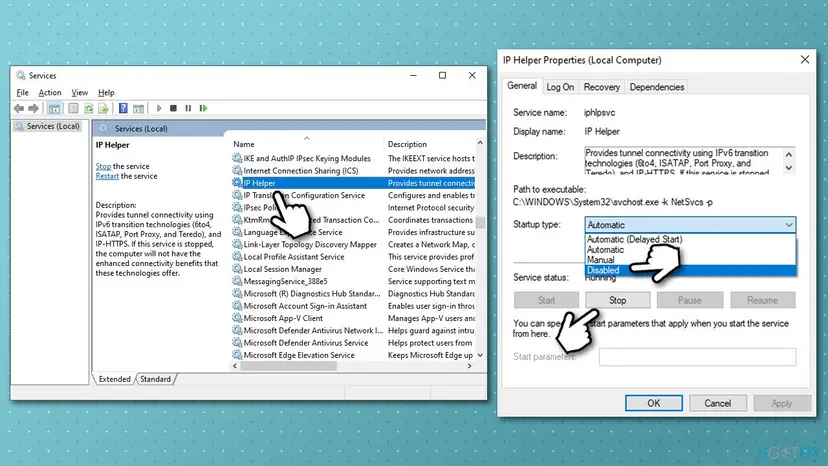
The same from an administrator Command Prompt, in one line each. The space after start= is required.
sc stop iphlpsvc
sc config iphlpsvc start= disabled
rem undo:
sc config iphlpsvc start= auto
sc start iphlpsvcKeep IP Helper running on a work laptop that connects through DirectAccess or another remote access system that uses IP-HTTPS, and on a PC where WSL, Docker or a remote tool depends on Port Proxy rules. If something stops working after this fix, run the undo commands.
It worked if: Service Host: IP Helper is gone from Task Manager, the CPU is quiet, and your internet works as before.
If not: If a VPN, game or developer tool breaks, turn the service back on with the undo commands and try Fix 7 to Fix 9 instead.
Fix 6. If it is ipf_helper.exe: update or reinstall the Intel Innovation Platform Framework driver
15 minutesLow riskFix 1 showed that the busy process is ipf_helper.exe, or it crashes with an Application Error.
ipf_helper.exe is not a Windows service. It is installed with Intel's Innovation Platform Framework driver package (ipf_cpu.inf), which PC makers ship for power and thermal tuning. Its load or crashes go away with a newer or freshly installed copy of that driver, not with anything in services.msc.
- Note your exact PC model from the sticker or from Settings > System > About.
- Open the PC maker's support page for that model and look for a driver whose name contains Innovation Platform Framework or Intel IPF. Download the newest one.
- Right-click Start, select Device Manager and expand System devices.
- Find the entry with Innovation Platform Framework in its name. Right-click it and select Update driver, or uninstall it and run the downloaded installer.
- Restart the PC and watch Task Manager.
- Open Device Manager. Right-click Start and select Device Manager.
- Open the device's Driver tab. Expand the category (for example Display adapters), right-click the device, select Properties and open the Driver tab. Driver Date and Driver Version show what is installed now.
- Update the driver. Select Update Driver and let Windows search automatically. To use a driver you downloaded from the device maker, select Browse my computer for drivers instead and point to the unpacked folder.
These steps were written for Windows 11 24H2 and later. The full page with the other versions and what each result means: Update, roll back or reinstall a driver
ipf_helper.exe sits in the Windows driver store. Deleting it by hand can leave the driver half installed and the PC maker's power settings broken. Update or reinstall the driver package instead.
It worked if: ipf_helper.exe uses little or no CPU and stops crashing after the restart.
If not: If the newest driver from the PC maker does not help, contact the PC maker's support with the model and the driver version. We could not confirm an Intel fix for ipf_helper.exe load.
Fix 7. Scan for malware with Microsoft Defender
15 to 60 minutesNo risksvchost.exe behind IP Helper opened from a folder other than C:\Windows\System32 in Fix 1, or the load stays with the service stopped.
Malware sometimes runs under the svchost.exe name to blend in with real services. A full scan, and if it finds something an offline scan, shows whether the CPU load is really IP Helper at all.
- Open Windows Security. Select Start, type Windows Security and open the app.
- Open Virus & threat protection. Select Virus & threat protection. Under Current threats you see when the last scan ran, how long it took and how many files it checked.
- Run a quick scan. Select Quick scan. If Windows Security thinks a deeper scan is needed, it tells you when the quick scan is done.
- Open Scan options. If the quick scan finds nothing and you still suspect an infection, select Scan options under Current threats.
- Run a full scan. Select Full scan and start it. It checks every file and program on the device, so it takes much longer than a quick scan. Leave the PC on until it ends.
- Or scan one folder. To check only a download or a USB drive, select Custom scan in Scan options and choose the folder. You can also right-click a file or folder in File Explorer and select Scan with Microsoft Defender. On Windows 11 you may have to select Show more options first.
- Read Protection history. Go back to the first page of Windows Security and select Protection history. Select a card to expand it and see the details.
These steps were written for Windows 11 25H2 and 26H2, Windows 10 22H2. The full page with the other versions and what each result means: How to scan for malware with Microsoft Defender
It worked if: Microsoft Defender reports no current threats, or removes what it found and the load is gone.
If not: If the scan is clean and the load stays, find a conflicting program with Fix 8.
Fix 8. Find a conflicting program with a clean boot
15 minutesLow riskPort Proxy is empty, Teredo is off, and IP Helper still gets busy.
VPN clients, network monitors and security suites can open tunnels or forwarded ports that end up in IP Helper. A clean boot starts Windows with only Microsoft services, so you can see whether one of them is the trigger.
- Open System Configuration. Select Search on the taskbar, type msconfig and select System Configuration from the results.
- Hide Microsoft services. On the Services tab, select the Hide all Microsoft services check box. Only services from other companies stay in the list.
- Disable the remaining services. Select Disable all, then select Apply.
- Open Task Manager. On the Startup tab of System Configuration, select Open Task Manager.
- Disable the startup apps. On the Startup apps tab in Task Manager, select each item whose status is Enabled and select Disable. Write down or take a screenshot of the items you disable: you need the list to turn them back on.
- Confirm the changes. Close Task Manager. On the Startup tab of System Configuration, select OK.
- Restart and test. Restart the PC. Windows now starts in a clean boot environment: try again the thing that failed (run the app, install the update, uninstall the program).
These steps were written for Windows 11 25H2 and 26H2. The full page with the other versions and what each result means: How to perform a clean boot in Windows
It worked if: In the clean boot IP Helper stays at 0%, which proves another program caused the load. Turn services back on in halves until it returns, then update or remove that program with Uninstall a program or app in Windows.
If not: If IP Helper is busy even in a clean boot, repair the system files in Fix 9.
Fix 9. Repair Windows system files with SFC and DISM
20 minutesNo riskNothing above helped, or other Windows services misbehave too.
IP Helper is part of Windows. If its files or the component store are damaged, the service can fail and restart in a loop, which shows as steady CPU use. SFC and DISM replace damaged system files with good copies.
- Open an elevated command window. Right-click Start and select Terminal (Admin), or type cmd in the search box, right-click Command Prompt and select Run as administrator. Select Yes when Windows asks for permission.
- Run DISM first. Type the command below and press Enter. DISM downloads clean copies of damaged components from Windows Update, so it can take several minutes. Wait until it says The operation completed successfully.
DISM.exe /Online /Cleanup-Image /RestoreHealth - Run System File Checker. In the same window, type the command below and press Enter. Do not close the window until the verification reaches 100%.
sfc /scannow - Read the result and restart. Compare the last message with the table below this guide, then restart the PC so that repaired files are loaded.
These steps were written for Windows 11 24H2 and 25H2. The full page with the other versions and what each result means: Run DISM and SFC to repair Windows system files
It worked if: SFC reports that it repaired corrupt files, or found no integrity violations, and IP Helper settles after a restart.
If not: If the load stays, disable the service as in Fix 5 and read the next section.
IP Helper still uses high CPU: what to check next
If the service is busy even after a restart, with no Port Proxy rules, Teredo off and a clean boot, collect evidence before you reinstall anything. Microsoft has not documented a log of its own for this service, so use what Windows records around it.
- Event Viewer: press Win + R, type
eventvwr.msc, open Windows Logs > System and filter for Service Control Manager. A line such as "A timeout (30000 milliseconds) was reached while waiting for a transaction response from the iphlpsvc service" shows the service hanging rather than working. People also search the Russian and Spanish versions of this line; it means the same. - Application log: for ipf_helper.exe, look under Windows Logs > Application for Application Error entries naming
ipf_helper.exeand note the version shown there for the PC maker's support. - Reliability Monitor: type reliability in Start and open View reliability history. A red cross on the day the load began often names the update or app behind it.
- Feedback Hub: press Win + F and report it under Network and Internet, with the build number from
winver. - Repair install: as a last step, reinstall Windows over itself and keep your files and apps: Reinstall Windows without losing files.
Because Microsoft marks IP Helper as OK to disable, leaving it disabled (Fix 5) is an acceptable result on a home PC if nothing else helped. Write the undo commands down in case a VPN or game needs it later.
How to keep IP Helper from flaring up again
- Remove Port Proxy rules when you stop using the tool that needed them, and check
netsh interface portproxy show allafter following any networking guide. - Uninstall VPN clients and remote access tools you no longer use, so they do not leave tunnels behind.
- Install Intel and chipset drivers from your PC maker's support page, which keeps ipf_helper.exe current.
- Keep Windows Update on and install the monthly update. Windows 10 left support on 14 October 2025, so only PCs in Extended Security Updates still get fixes there.
- Do not turn off neighbouring services such as Network Store Interface Service to save resources; unlike IP Helper, Windows needs them for basic networking.
Frequently asked questions
What is iphlpsvc?
iphlpsvc is the service name of IP Helper, a built-in Windows service. Microsoft describes it as the service that provides tunnel connectivity using IPv6 transition technologies (6to4, ISATAP, Port Proxy and Teredo) and IP-HTTPS. It starts automatically with Windows and runs inside a shared svchost.exe process with the NetSvcs group. On a typical home PC it has little to do, so it should show close to 0% CPU in Task Manager. It is not a virus and not a third-party program.
Is the IP Helper service needed?
On most home PCs, no. Microsoft's guidance on system services marks IP Helper as OK to disable and says only that a PC without it loses the enhanced connectivity of IPv6 transition technologies and IP-HTTPS. You need it if you connect to work through DirectAccess or another system that uses IP-HTTPS, if you use Port Proxy rules (some WSL, Docker and remote access setups do), or if a game relies on Teredo. If you are unsure, disable it as in Fix 5 and turn it back on if something stops working.
What is ipf_helper.exe?
ipf_helper.exe is a helper program of Intel's Innovation Platform Framework, a driver package that PC makers install for power and thermal management on Intel-based laptops and desktops. It runs from C:\Windows\System32\DriverStore\FileRepository in a folder starting with ipf_cpu.inf_amd64, which shows it came with a driver. It has nothing to do with the IP Helper service despite the similar name. If it uses CPU or crashes, update or reinstall that Intel driver from your PC maker as in Fix 6.
Why does Intel Innovation Platform Framework use high CPU?
We could not find an explanation from Intel. Users on Intel's community forum report ipf_helper.exe crashing with an Application Error and an access violation code, which points to a faulty or mismatched driver version rather than a setting you can change. The practical fix is the newest Innovation Platform Framework driver for your exact PC model from the PC maker, or a fresh install of it, as in Fix 6. Do not delete ipf_helper.exe by hand, because it is part of a driver package in the Windows driver store.
Is ipf_helper.exe a virus?
Normally not. The real file sits in C:\Windows\System32\DriverStore\FileRepository inside a folder whose name starts with ipf_cpu.inf_amd64, and it comes with an Intel driver. To check yours, right-click it in Task Manager and select Open file location. If it opens anywhere else, such as a user or temp folder, treat it as suspicious and run a full scan with Microsoft Defender as in Fix 7. A file in the right place that uses CPU needs a driver update, not a virus scan.
What does "Service Host: IP Helper" mean in Task Manager?
It is the Task Manager name of the svchost.exe process that runs the IP Helper service. Windows runs many services inside shared Service Host processes, and Task Manager labels each one by the service inside. Expand the line to see IP Helper listed under it. The CPU figure on that line is the load of IP Helper. Searches for service host ip helper also bring up the IP Helper API for developers and network switch settings called ip helper address; both are unrelated to this service.
IP Helper service is not running. How do I start it?
Open services.msc, double-click IP Helper, set Startup type to Automatic, select Apply, then Start. From an administrator Command Prompt you can run sc config iphlpsvc start= auto and then sc start iphlpsvc. If you disabled it earlier with Fix 5, these commands undo that. If it fails to start, look in Event Viewer under Windows Logs > System for a Service Control Manager entry about iphlpsvc, then run SFC and DISM as in Fix 9.
What does "services tuning iphlpsvc" mean?
It looks like a line from a tweaking or debloating tool that lists Windows services and suggests which to turn off. We could not confirm which tool shows the words services tuning or the value undefined next to iphlpsvc. Whatever the tool, the facts are the same: Microsoft marks IP Helper as OK to disable, so setting it to Disabled is safe on most home PCs. Keep it on if you use a work VPN with DirectAccess, Port Proxy rules or Teredo for games.
Is it safe to disable IP Helper with the registry, as some guides say?
It works, but it is not needed. The older version of this page set the Start value under HKEY_LOCAL_MACHINE\SYSTEM\CurrentControlSet\Services\iphlpsvc to 4. The Services window or the sc config command in Fix 5 change the same setting without opening the registry, and they are easier to undo. If you edit the registry anyway, back it up first with Back up the registry before editing it.
Sources
Did this fix work?
One click, no account. It tells the next reader which guides are worth their time.
Questions and experiences: fix IP Helper service (iphlpsvc) high CPU usage
Still broken, or found a fix we did not cover? Ask here: members and our editors answer. Reading is open; writing needs a free account.
…