
How to fix KB5015807 fails to install on Windows 10?
Prefer to fix it yourself? The manual steps follow.
6 methods in this guide
Hi, I tried to install the newest update, KB5015807, on my Windows 10, but it keeps failing. I have tried waiting and restarting, and none of these solutions help. Any ideas why this is happening and how could I resolve this easily? Thanks.
Microsoft has operated Windows as a service for many years now - this means that all users with a valid software license are eligible for regular updates, including the feature, quality, cumulative, security, or out-of-band updates. These include various improvements to the operating system, be it security vulnerability patches, new UI iterations, or new features being implemented to improve the quality of Windows users' experience.
All the updates are shipped by Microsoft on the so-called Patch Tuesday, which occurs on the second Tuesday of each month, although out-of-band updates can be delivered at any time. Each of the updates uses a numbering system which is marked as "KB" - KB5015807 is one of the most recent updates that was shipped to Windows 10 users globally on July 12, 2022 (versions 20H2, 20H1, and 21H2 only).
The update is packed with various security issues and bug fixes and addresses extremely serious PowerShell logging issues, Snip and Sketch app failing to capture screenshots, and others. For those who succeeded in installing the update, it is not always good news either, as people reported the update ruined some of the features and created more issues than it has fixed in the process. If that's the case, the KB5015807 update should be immediately uninstalled.
Like with other updates (including KB5007651, KB5014668, KB5014666, and many others), this one may also fail to install, and many people were already complaining on Microsoft forums and other IT boards. Users said they might be presented with several different error codes (0x800f0922, 0x80073712) along with more detailed descriptions of PSFX_E_MATCHING_BINARY_MISSING or ERROR_SXS_COMPONENT_STORE_CORRUPT.
In this article, we will provide several solutions to help you resolve the issue with KB5015807 not installing.
Solution 1. Run SFC and DISM scans
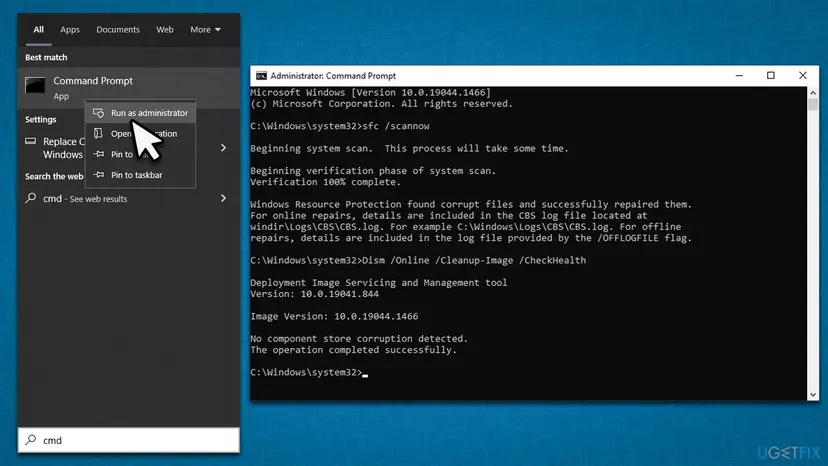
Some of the error codes users were facing when KB5015807 failed to install hinted at the fact that some of the Windows' components were corrupt. In order to address this, we recommend running SFC, and DISM scans via elevated Command Prompt as follows:
- Type cmd in Windows search
- Right-click on Command Prompt result and select Run as administrator
- Paste the following command into the new window:
sfc /scannow - Press Enter and wait till the scan is finished
- Once done, run this set of commands, pressing Enter after each:
DISM /Online /Cleanup-Image /CheckHealth
DISM /Online /Cleanup-Image /ScanHealth
DISM /Online /Cleanup-Image /RestoreHealth - Restart your PC.
How to fix kb5015807 fails to install on windows 10 run sfc dism
Solution 2. Run the troubleshooter
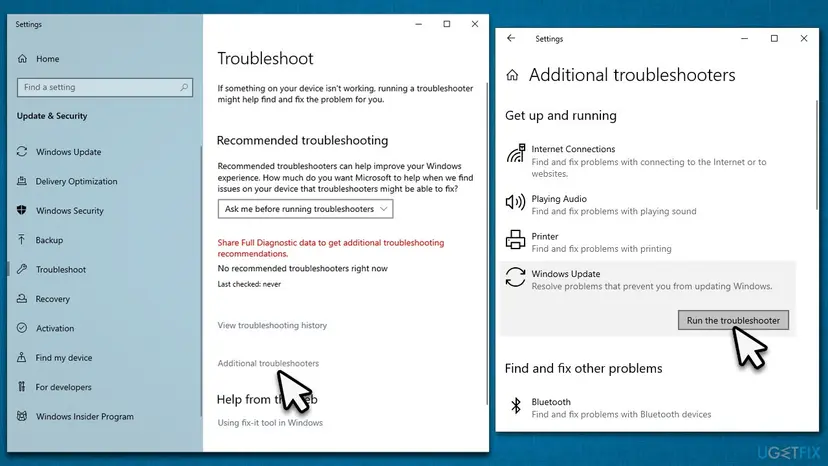
- Type Troubleshoot in Windows search
- Select Additional troubleshooters
- Find Windows Update from the list
- Click it and select Run the troubleshooter
How to fix kb5015807 fails to install on windows 10 run troubleshooter - Apply the suggested fixes and restart your computer.
Solution 3. (Re)start relevant services
You should pay attention to the services responsible for the smooth update process - Background Intelligent Transfer (BITS) and Windows update. If the services are already running, you should restart them.
- Type in Services in Windows search and press Enter
- Locate Background Intelligent Transfer Service (BITS)
- If it is already running, right-click and select Restart
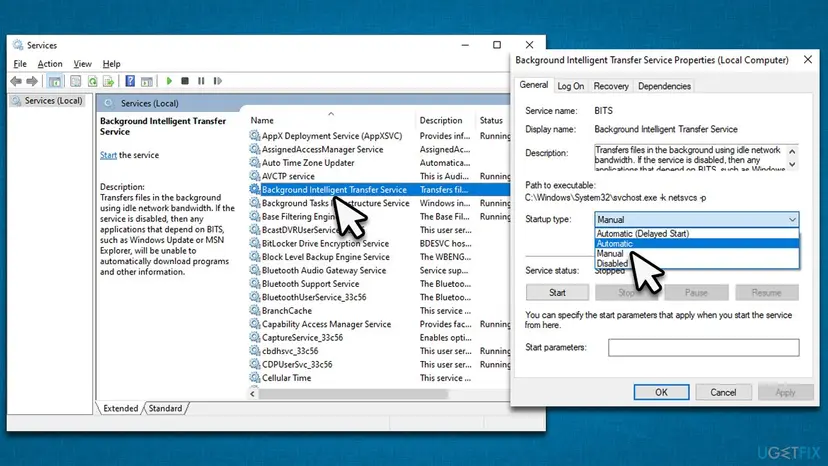
How to fix kb5015807 fails to install on windows 10 restart services - if the service is not running, double-click it, select Automatic under the Startup type from the drop-down menu
- Click Start, Apply, and OK
- Perform the same steps with the Windows Update service.
Solution 4. Install the update manually
If the automatic update process is failing, you could attempt to install it manually.
- Open your browser and go to Microsoft Update Catalog
- Within the search bar, type in KB5015807 and click Search
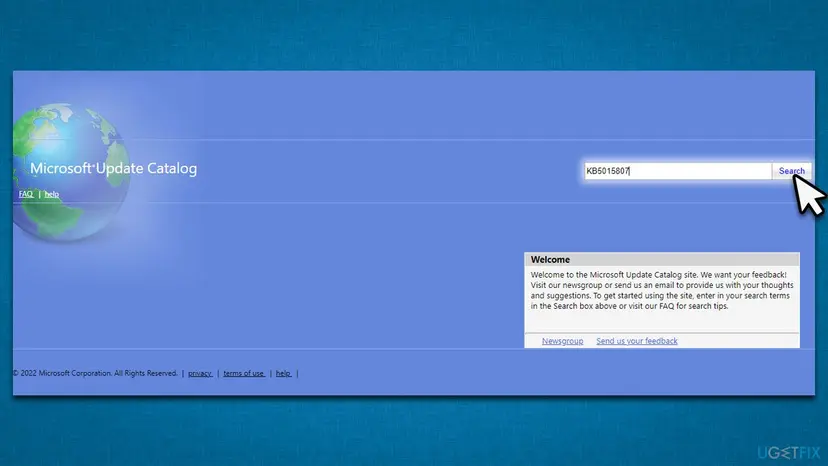
How to fix kb5015807 fails to install on windows 10 install manually - Find the correct update for your OS version (you can check it by right-clicking Start and picking System - System type is what you are looking for) and click Download
- Use on-screen guidelines to finish the installation process and restart your device.
Solution 5. Reset Windows Update components
- Open Command Promot as administrator as explained above
- Copy and paste each of these commands, pressing Enter after each:
net stop bits
net stop wuauserv
net stop appidsvc
net stop cryptsvc
Del “%ALLUSERSPROFILE%\Application Data\Microsoft\Network\Downloader\*.*”
rmdir %systemroot%\SoftwareDistribution /S /Q
rmdir %systemroot%\system32\catroot2 /S /Q
regsvr32.exe /s atl.dll
regsvr32.exe /s urlmon.dll
regsvr32.exe /s mshtml.dll
netsh winsock reset
netsh winsock reset proxy
net start bits
net start wuauserv
net start appidsvc
net start cryptsvc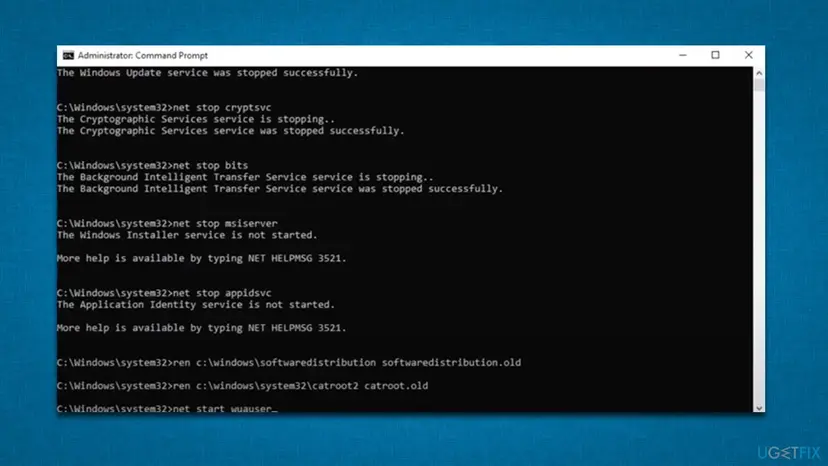
How to fix kb5015807 fails to install on windows 10 reset windows update components - Restart your machine.
Solution 6. Use Media Creation Tool
Before you proceed, please uninstall any third-party antivirus you may be using and disconnect all unnecessary peripherals such as scanners, cameras, printers, etc. Also, make a copy of your personal files just in case (you will get an option to keep them regardless).
- Visit the official Microsoft website and download Windows 10 installation media (Windows 11 version)
- Double-click the installer and select Yes when UAC shows up
- Agree to terms
- Pick Create installation media (USB flash drive, DVD or ISO file) for another PC option and click Next
- Select the Use Recommended options for this PC checkbox and click Next
- Choose the ISO file and click Next
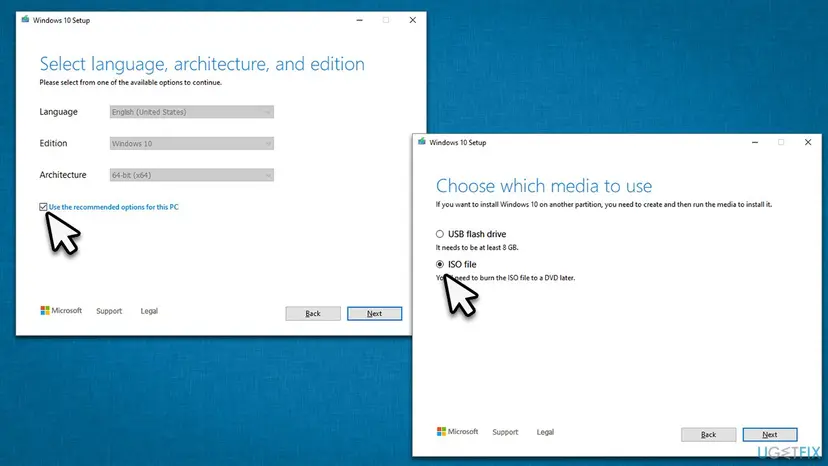
How to fix kb5015807 fails to install on windows 10 use media creation tool - Once you have prepared the ISO, put it into the malfunctioning PC
- Restart your machine and rapidly press F8, F10, F12, Del, or another button that would let you load into BIOS
- Here, go to the Boot section and set the boot priority to Flash drive
- Restart your system, and then proceed with on-screen instructions to reinstall Windows.
Did this fix work?
One click, no account. It tells the next reader which guides are worth their time.
Questions and experiences: fix KB5015807 fails to install on Windows 10
Still broken, or found a fix we did not cover? Ask here: members and our editors answer. Reading is open; writing needs a free account.
…