
Laptop battery stuck at 0% in Windows 11 and 10: how to fix it

Prefer to fix it yourself? The manual steps follow.
- 8methods
- 5 to 45 minutes
- Easy
Applies to Windows laptops and 2-in-1 tablets with a built-in or removable battery
8 methods in this guide
Hello. My laptop battery is always showing 0% and it's not getting higher even though it is constantly plugged in. Is there a way to fix this?
A laptop battery stuck at 0% means either Windows reads the battery wrongly or the battery really takes no charge. Unplug the charger for a few seconds: if the laptop keeps running, the reading is wrong and a driver reinstall or a power reset usually fixes it. If it turns off at once, check the charger first, then the battery's health.
Check the charger, the outlet and the port first (Fix 1). Then open Device Manager, expand Batteries, uninstall Microsoft ACPI-Compliant Control Method Battery, select Action > Scan for hardware changes and restart (Fix 2), as Microsoft advises. If it still reads 0%, drain residual power with a hard reset (Fix 3) and run powercfg /batteryreport to see if the battery is worn out (Fix 5).
| Error | No error code: the battery icon shows 0% available (plugged in, charging) or Plugged in, not charging and the level never rises |
|---|---|
| Where it appears | The battery icon on the taskbar, Settings > System > Power & battery on Windows 11 and Settings > System > Battery on Windows 10 |
| Main cause | A stuck battery driver or controller reading, a charger that gives too little power, or a battery that is worn out or disconnected |
| Fastest fix | Check the charger and port (Fix 1), then reinstall the Microsoft ACPI-Compliant Control Method Battery device and restart (Fix 2) |
| Also written as | Laptop battery always at 0, laptop stuck on 0 battery, battery 0 percent plugged in, laptop battery at 0 but still running |
| Affects | Laptops of every brand (Dell, HP, Lenovo, ASUS, Acer, Surface) on Windows 11 (25H2, 26H2) and Windows 10 22H2 |
| Vendor status | Not a known Windows bug. Microsoft's own fix for a Surface that will not charge is to uninstall the battery device and scan for hardware changes; Dell lists charge limits, adapter wattage and BIOS updates |
| Time to fix | 5 minutes for the charger and driver checks, up to 45 minutes with a BIOS update |
| When it is hardware | The laptop turns off as soon as you unplug it, the icon shows a red X, or the battery report shows a full charge capacity near zero |
Facts checked on 15 October 2026. Steps written for Windows 11 (25H2 and 26H2) and Windows 10 22H2.
What it means when a laptop battery is stuck at 0%
Windows does not measure the battery itself. The battery's own controller reports its charge to the firmware, and Windows reads it through a device called Microsoft ACPI-Compliant Control Method Battery (on a Surface: Surface Battery). A 0% that never moves means one link in that chain is wrong: the battery, the charger, the firmware or that driver.
The quickest way to tell which one is to unplug the charger for a few seconds. A laptop that keeps running on battery with 0% on screen has charge in it, so the reading is wrong. A laptop that turns off at once has a battery that is empty, worn out, disconnected or not charging at all.
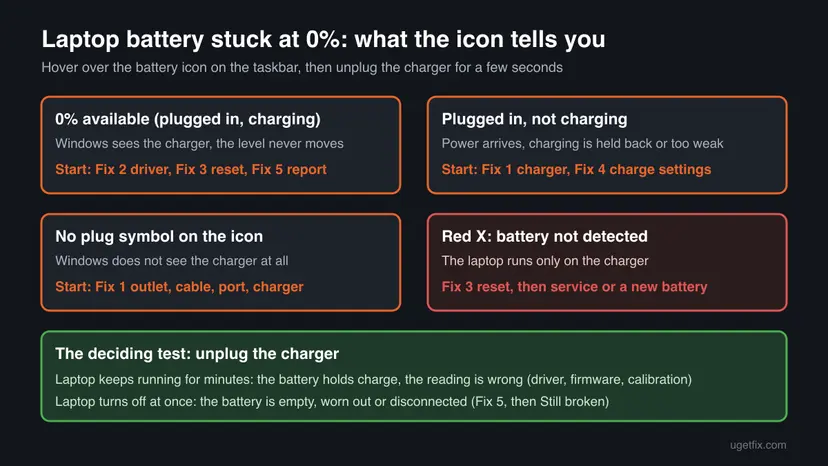
- 0% available (plugged in, charging)
- Windows sees the charger and tries to charge, but the level stays at zero
- Plugged in, not charging
- Power arrives, but charging is blocked by a charge limit, a weak adapter or the battery
- No plug symbol on the icon
- Windows does not see the charger at all, Microsoft notes
- Red X over the battery
- The power supply is detected but the battery is not; Microsoft sends such a Surface to service
Why a laptop battery stays at 0%, from most to least common
Most often the charger or its connection is the problem: a different, weaker adapter, a loose plug or a damaged port. Next comes a battery device in Windows that holds on to a bad reading, which a driver reinstall clears. Less often a charge limit in the BIOS or the maker's app stops charging, or the firmware needs an update. A worn out or disconnected battery is the cause when the laptop dies the moment you unplug it.
| Cause | How common | What you see | Fix |
|---|---|---|---|
| Charger too weak, wrong model, outlet, cable or port fault | Most common | No plug symbol, or Plugged in, not charging | Fix 1 |
| Battery device in Windows stuck on a wrong reading | Common | 0% but the laptop runs for a while unplugged | Fix 2 |
| Battery controller or embedded controller stuck | Common after a full drain or a long time in storage | 0% that does not move even after the driver reinstall | Fix 3 |
| Charge limit or AC adapter not recognized in BIOS | Less common | Charging stops at a set level, or the BIOS shows the adapter as unknown | Fix 4 |
| Battery worn out or failed | Common on laptops a few years old | Turns off when unplugged; low full charge capacity in the report | Fix 5, then Still broken |
| Old BIOS, chipset or Intel Management Engine driver | Less common | Started on an older laptop, or the maker lists a battery fix | Fix 6 |
| Damaged power plans or a recent Windows update | Rare | Started right after an update or a power settings change | Fix 7 and Fix 8 |
How to fix a laptop battery stuck at 0% in Windows
Fix 1 and Fix 2 take five minutes and solve most cases. Fix 3 and Fix 4 reset the hardware and the charge settings. Fix 5 tells you if the battery itself is worn out, so do it before you spend time on Fixes 6 to 8.
| What you see | Start with |
|---|---|
| No plug symbol on the battery icon while the charger is connected | Fix 1 |
| 0% available (plugged in, charging) and the laptop runs when unplugged | Fix 2, then Fix 3 |
| Plugged in, not charging with the right charger | Fix 4, then Fix 2 |
| The laptop turns off as soon as you unplug it | Fix 5, then Still broken |
| A red X over the battery icon | Fix 3, then Still broken |
| It started right after a Windows update | Fix 8 |
Fix 1. Check the charger, the outlet, the cable and the charging port
5 minutesNo riskEveryone, and first of all readers whose battery icon has no plug symbol or says Plugged in, not charging.
A laptop can run on a charger that is too weak to also charge the battery. Dell notes that an underpowered or unrecognized adapter may power the system without charging it, and Microsoft's first checks for a Surface that will not charge are the outlet, the connections and the right power supply.
- Plug the charger into a different wall outlet, not a power strip or a monitor's USB port.
- Check that both ends of the cable are fully in, and look for bent pins, a frayed cable or a loose charging port.
- Compare the wattage on the charger's label with the one in your laptop's manual. A USB-C phone or tablet charger is often too weak.
- Unplug power-hungry accessories such as external drives, a dock or a second screen, as Microsoft suggests.
- Hover over the battery icon on the taskbar and read what it says.
- If you have the original charger, or a second one of the same wattage, try it for 30 minutes.
A case that bulges, a touchpad that lifts or a battery that gets hot while charging are signs of a damaged battery. Unplug the laptop, shut it down and contact the maker. Do not keep charging it.
It worked if: The icon shows a plug symbol and the level starts to rise within 10 to 30 minutes.
If not: If the charger is fine and the level still sits at 0%, reinstall the battery device in Fix 2.
Fix 2. Reinstall the Microsoft ACPI-Compliant Control Method Battery device
5 minutesLow riskReaders whose laptop runs for a while unplugged even though Windows says 0%, or whose icon says plugged in but the level never moves.
This device is how Windows reads the charge level from the firmware. Uninstalling it and scanning for hardware changes makes Windows read the battery again from scratch, which is Microsoft's own fix when a Surface is plugged in and not charging.
- Keep the charger plugged in.
- Right-click Start and select Device Manager, or press Win + R, type
devmgmt.mscand press Enter. - Select the arrow next to Batteries.
- Right-click Microsoft ACPI-Compliant Control Method Battery and select Uninstall device, then confirm. On a Surface the entry may be called Surface Battery.
- Select the computer name at the top of the list, open the Action menu and select Scan for hardware changes.
- Select Start > Power > Restart.
- After the restart, wait 10 minutes on the charger and check the level.
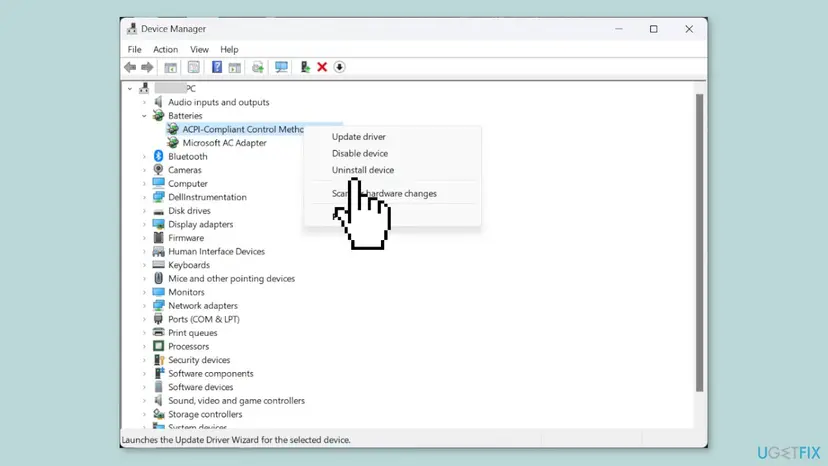
Under Batteries you will also see Microsoft AC Adapter. Only the battery entry needs to be reinstalled. Microsoft warns that on a Surface Pro X the drivers must not be uninstalled, because only a full reset brings them back.
It worked if: After the restart the battery appears again under Batteries and the level shows a real number that rises.
If not: If the battery is missing from Batteries after the restart, or the level stays at 0%, do the hard reset in Fix 3.
Fix 3. Do a hard reset to drain residual power
5 minutesNo riskReaders whose battery was fully drained or stored for a long time, or whose icon shows a red X or a 0% that the driver reinstall did not change.
The battery and the laptop's embedded controller can hang on to a bad state. Holding the power button with everything disconnected drains what is left in the circuits so they start fresh. Microsoft and Dell both list this step for a laptop that will not charge.
- Save your work and select Start > Power > Shut down.
- Unplug the charger and every accessory: USB drives, dock, mouse, screen.
- If the battery is removable, take it out.
- Press and hold the power button for 20 to 30 seconds, then release it.
- Put the battery back if you removed it, and plug in only the charger.
- Turn the laptop on and leave it on the charger for 30 minutes.
On a laptop with a built-in battery, Dell's steps differ: shut down, keep the charger plugged in, disconnect all other devices and hold the power button for 30 seconds until the power light blinks 3 times. Microsoft's steps for a Surface are to shut down and then hold the power button for 20 seconds. Some laptops also have a small battery reset hole on the bottom; check your manual before using it.
It worked if: The laptop starts normally and the battery level moves above 0% while it charges.
If not: If nothing changes, check the charge settings in the BIOS in Fix 4.
Fix 4. Check the charge limit and the AC adapter in the BIOS and the maker's app
10 minutesLow riskReaders whose icon says Plugged in, not charging, or whose charging stops at a fixed level.
Many laptops can hold the battery at a set level to make it last longer. Dell notes that a low custom threshold or a mode for mostly plugged-in use can make the battery look stuck at a low percentage, and that the BIOS shows whether the charger is recognized.
- Shut down the laptop, press the power button and press the setup key at once, several times. On Dell it is F2; on other brands it is often F2, F10, F1 or Del.
- Open the Overview, Main or Information page and look at the battery and AC Adapter lines.
- If the adapter shows as unknown or with the wrong wattage, the charger or the port is the problem: go back to Fix 1 with another charger.
- Open the Power or Battery section and look for a setting such as Primary Battery Charge Configuration.
- If it is set to a mostly AC mode or a custom limit, change it to Standard (or your brand's full charge option).
- Select Apply or Save, then Exit.
- In Windows, open the laptop maker's own app and turn off any battery care or charge limit option there too.
The BIOS also holds boot and security settings. Change nothing else, and if you are not sure what an option does, leave it as it is and select Exit without saving.
A charge limit does not usually stop charging at 0%, but on some laptops it shows as Plugged in, not charging at whatever level the battery has. The names of these settings differ between brands and models, and we could not confirm one path that works on every laptop.
It worked if: The BIOS shows the battery and the correct adapter wattage, and after the restart the icon says charging and the level rises.
If not: If the BIOS shows no battery or the level still does not move, read the battery report in Fix 5.
Fix 5. Create a battery report to see if the battery is worn out
5 minutesNo riskReaders whose laptop turns off when unplugged, and anyone with an older laptop before spending more time on software fixes.
Microsoft's powercfg /batteryreport writes an HTML report of the battery's use over the life of the system. The capacity lines show how much charge the battery can still hold compared with when it was new, which tells you whether the 0% is real.
- Select Start, type
cmd, right-click Command Prompt and select Run as administrator. - Type the command below and press Enter.
- Open File Explorer, go to your Desktop and double-click battery-report.html.
- Under Installed batteries, compare Design capacity with Full charge capacity.
- Scroll to Battery life estimates and compare the times At full charge with At design capacity.
powercfg /batteryreport /output "%USERPROFILE%\Desktop\battery-report.html"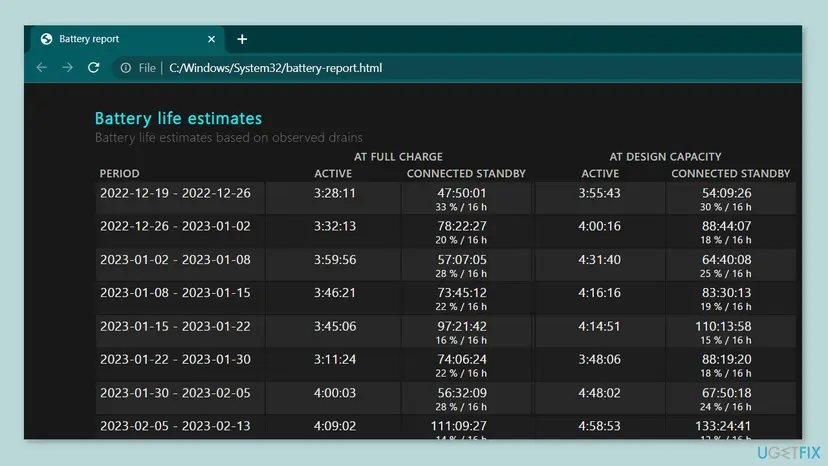
| What the report shows | What it means |
|---|---|
| Full charge capacity close to design capacity | The battery is healthy; the 0% is a reading or charging problem (Fixes 2, 3, 4, 6) |
| Full charge capacity a small part of design capacity | The battery is worn out and should be replaced |
| Full charge capacity of 0 or close to 0 | The battery holds no charge or is not communicating; see Still broken |
| No battery under Installed batteries | Windows does not see the battery; do Fix 3, then contact the maker |
Without the /output part, the report is saved in the folder the command runs in. In a Command Prompt run as administrator, that is C:\Windows\System32, which is where the file in the old screenshot was opened from.
It worked if: The report opens and shows the battery's design and full charge capacity, so you know whether to keep fixing or replace the battery.
If not: If the battery looks healthy but still reads 0%, update the firmware and drivers in Fix 6.
Fix 6. Update the BIOS, chipset and Intel Management Engine drivers from the laptop maker
30 minutesRead the warningReaders whose battery report looks healthy, and owners of laptops with old firmware.
The firmware controls charging and reports the level to Windows. Dell names outdated BIOS and system drivers as a common cause of charging problems, and an outdated Intel Management Engine Interface driver on Intel laptops as another.
- Press Win + R, type
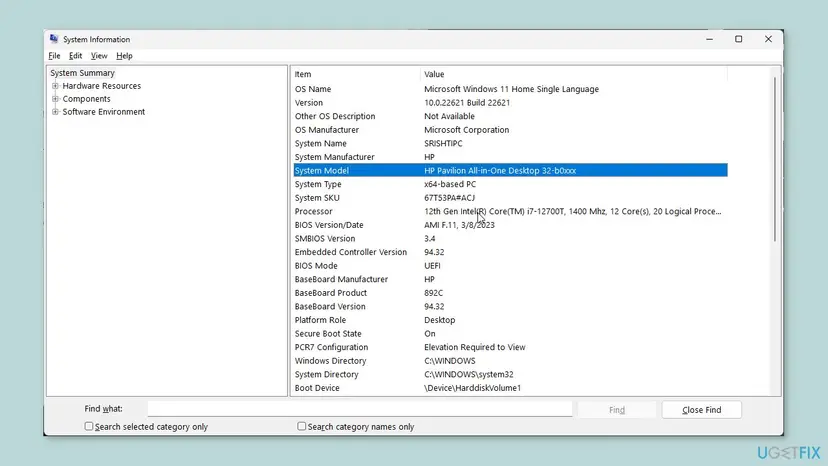
msinfo32and press Enter. - Note the System Manufacturer, System Model and BIOS Version/Date.
- Open the support page for that exact model on the maker's website, or use the maker's update app.
- If a newer BIOS is listed, read its notes, then download and install it with the charger plugged in.
- Install the newest chipset driver and, on Intel laptops, the Intel Management Engine Interface driver from the same page.
- Restart and check the battery level after 30 minutes on the charger.
Keep the charger plugged in for the whole update and do not turn the laptop off. A cut in power during a BIOS update can leave the laptop unable to start. Back up important files first with Back up your files (Windows Backup, File History, Time Machine), and if a BitLocker recovery key exists for the PC, make sure you know where it is.
Some BIOS updaters refuse to run when the battery is at a low level, even with the charger connected. If yours does, leave the update for later and finish Fix 7 and Fix 8 first. Driver steps with screenshots: Update, roll back or reinstall a driver.

It worked if: After the update and restart, the battery shows a real level that rises on the charger.
If not: If the level is the same, reset the power plans in Fix 7.
Fix 7. Reset the Windows power plans to their defaults
5 minutesLow riskReaders who changed power settings, used a tuning tool, or see odd charging behaviour after a settings change.
Dell notes that damaged power settings can interfere with charging and that resetting them makes Windows build its power files again with defaults. It is a quick test that changes nothing but your custom power plan choices.
- Select Start, type
cmd, right-click Command Prompt and select Run as administrator. - Run the three commands below one at a time, pressing Enter after each.
- Close the window and restart the laptop.
powercfg -restoredefaultschemes
powercfg -h off
powercfg -h on
The first command puts all power plans back to their defaults; the other two turn hibernation off and on again. Any custom power plan you made is removed, so set your screen and sleep times again afterwards.
It worked if: After the restart the battery icon shows a level that changes while the charger is connected.
If not: If it started after a Windows update, try Fix 8.
Fix 8. Uninstall the latest Windows update if the problem started right after it
15 minutesLow riskReaders whose battery worked one day and showed 0% right after Windows installed updates.
An update can bring new firmware or drivers that change how the battery is read. Removing it for a test shows whether it is the cause. This is rare for battery problems, so try it last.
- Open Windows Update. Select Start > Settings > Windows Update.
- Open the update history. Under More options, select Update history. Note the KB number and the date of the update you suspect.
- Open the list of removable updates. Scroll down to Related settings and select Uninstall updates.
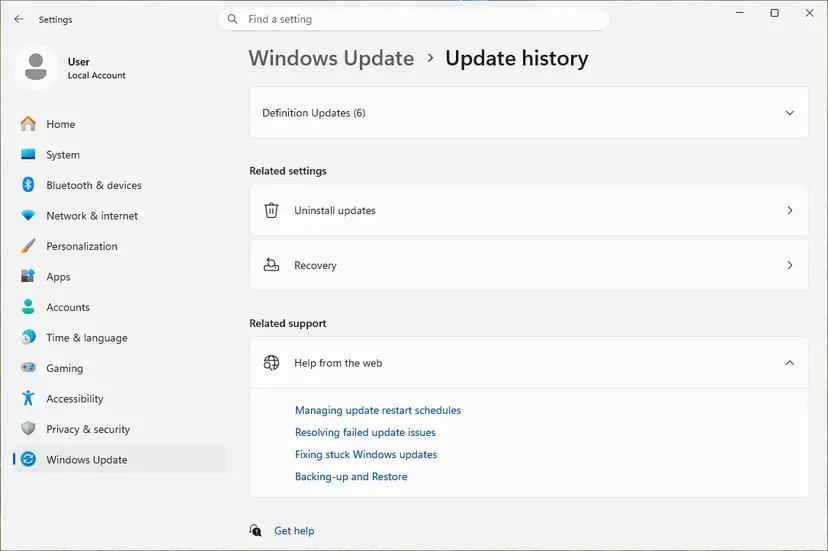
Uninstall updates is under Related settings. Screenshot: Windows 11 26H2. - Uninstall the update. Find the update in the list and select Uninstall next to it. If the update is not in the list, Windows does not allow it to be removed this way.
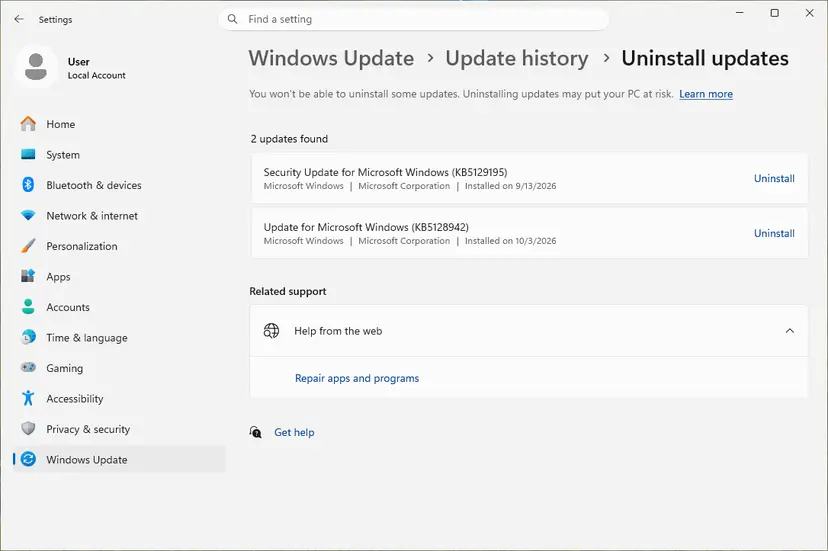
Each removable update has its own Uninstall link. Screenshot: Windows 11 26H2. - Pause updates. Go back to Settings > Windows Update and select Pick a date on the Pause updates control. If your PC shows a list there instead, select the pause length you prefer. Without a pause Windows downloads the same update again.
These steps were written for Windows 11 25H2 and 26H2. The full page with the other versions and what each result means: How to uninstall a Windows update
Removing an update also removes its security fixes, so treat it as a test. If the battery works without it, check the laptop maker's site for a new BIOS or driver before you let the update install again.
It worked if: After the restart the battery level is read correctly again.
If not: If removing the update changes nothing, reinstall it and see Still broken below.
Laptop battery still stuck at 0%: when it is the battery or the charger
When none of the fixes moves the level, the problem is almost always hardware. The battery report from Fix 5 and the unplug test tell you which part.
- The laptop turns off as soon as you unplug it: the battery is worn out, failed or disconnected inside. It needs a new battery.
- Full charge capacity is a small part of design capacity: the battery is worn. Dell suggests replacing a battery that has lost half its capacity or more, or that shows Fair or Poor health.
- The BIOS shows the adapter as unknown, or no charging light comes on: the charger, its cable or the laptop's charging port is at fault. Try another charger of the right wattage.
- A red X stays on the battery icon: Windows sees the charger but not the battery. Microsoft sends such a Surface to service, and the same goes for other brands.
- The laptop's maker has a battery test: many have one in the BIOS or their support app. Run it and note any error code.
Give the laptop model and serial number, what the battery icon says, whether it turns off when unplugged, the charger's wattage, the Design capacity and Full charge capacity from the battery report, and any error code from the maker's battery test.
How to keep a laptop battery from getting stuck at 0% again
- Use the charger that came with the laptop, or one with the same wattage from the maker.
- Charge a laptop before you store it, and top it up every few months if it sits unused.
- Keep the BIOS and the maker's drivers up to date from its support page.
- Run
powercfg /batteryreportonce a year to see how the capacity changes.
- Leave the laptop drained to 0% for weeks.
- Charge with a weak USB-C phone charger and expect the battery to fill.
- Install battery or driver tools from download sites or video descriptions.
- Keep using a battery that is swollen or gets hot.
Windows 10 left support on 14 October 2025. Every fix here still works on Windows 10 22H2, but a laptop that stays on it gets no new driver fixes through Windows Update.
Frequently asked questions
Why is my laptop battery stuck at 0%?
Because Windows is reading no charge, either correctly or wrongly. Most often the charger is too weak, the wrong model or badly connected. Next most often the battery device in Windows holds a bad reading, which a reinstall of Microsoft ACPI-Compliant Control Method Battery clears (Fix 2). Less often a charge limit in the BIOS blocks charging, the firmware is old, or the battery is worn out. Unplug the charger for a few seconds: if the laptop keeps running, the reading is wrong; if it turns off, the battery is not holding charge.
Why is my laptop at 0% but still running?
When it is plugged in, the laptop runs on the charger, not the battery, so it works even when the battery is empty or dead. If it keeps running for several minutes after you unplug it, the battery does hold charge and only the reading is wrong. Reinstall the battery device (Fix 2) and do a hard reset (Fix 3). If it turns off as soon as you unplug, the battery itself is empty, worn out or disconnected; run the battery report in Fix 5.
Why is my laptop battery always at 0 even when plugged in?
Check what the battery icon says. Plugged in, not charging means power arrives but charging is held back. A charge limit, a weak adapter or the battery is the usual reason (Fix 1 and Fix 4). The message 0% available (plugged in, charging) means Windows tries to charge but the level never moves, which usually points to the battery driver, a stuck controller or a failed battery (Fix 2, Fix 3 and Fix 5). No plug symbol at all means Windows does not see the charger.
How do I fix a laptop stuck at 0 percent?
Work in this order. Try another outlet and the original charger, and check the cable and port (Fix 1). Reinstall Microsoft ACPI-Compliant Control Method Battery in Device Manager and restart (Fix 2). Shut down, unplug everything and hold the power button for 20 to 30 seconds (Fix 3). Check the BIOS for a charge limit (Fix 4). Then run powercfg /batteryreport to see whether the battery is worn out (Fix 5) before updating the BIOS (Fix 6).
Is my laptop battery dead if it shows 0%?
Not always. A dead battery is likely when the laptop turns off as soon as you unplug it, when the icon shows a red X, or when the battery report lists a full charge capacity near zero. If the laptop runs on battery for a while despite showing 0%, the battery is alive and the reading is wrong. A battery that is swollen or gets hot must be replaced and should not be charged.
How do I force my laptop battery to charge?
There is no setting that forces charging, but you can remove what blocks it. Use the original charger of the right wattage, turn off charge limits in the BIOS and the maker's app (Fix 4), reinstall the battery device (Fix 2) and drain residual power with a hard reset (Fix 3). If the battery still does not charge after these steps, it is most likely worn out or failed and needs replacing.
Can a Windows update cause a laptop battery to show 0%?
It is possible but rare. An update can install new drivers or firmware that change how the battery is read. If the problem started right after an update, uninstall it as a test (Fix 8) and check the laptop maker's site for a newer BIOS. Most cases have nothing to do with updates, so do Fixes 1 to 5 first.
Does reinstalling the battery driver delete anything?
No. Uninstalling Microsoft ACPI-Compliant Control Method Battery removes only the device entry, and Windows installs it again when you scan for hardware changes or restart. Your files and power settings stay. Do not uninstall Microsoft AC Adapter or other devices you see near it, and on a Surface Pro X do not uninstall drivers at all, because Microsoft says only a full reset restores them.
Why is my battery stuck at 0% in Windows 11?
The causes are the same as on Windows 10: the charger, the battery device in Windows, the firmware or the battery itself. Windows 11 shows the level under Settings > System > Power & battery, and every fix in this guide works there. The paths are given for both versions where they differ.
Kenapa baterai laptop 0 terus?
This page is in English. The question asks why a laptop battery stays at 0 all the time. The answer is the same as above. Check the charger and port (Fix 1) and reinstall the battery device in Device Manager (Fix 2). Then do a hard reset (Fix 3) and run powercfg /batteryreport to see if the battery is worn out (Fix 5). The steps work on Windows 10 and Windows 11 in any language.
Sources
- Microsoft Support: Surface battery won't charge or Surface won't run on battery (support.microsoft.com)
- Microsoft Learn: Powercfg command-line options (learn.microsoft.com)
- Dell Support: How to Troubleshoot Dell Laptop Battery Issues (dell.com)
Did this fix work?
One click, no account. It tells the next reader which guides are worth their time.
Questions and experiences: Laptop battery stuck at 0% in Windows 11 and 10: how to fix it
Still broken, or found a fix we did not cover? Ask here: members and our editors answer. Reading is open; writing needs a free account.
…