
How to fix LiveKernelEvent 124 error in Windows?

Prefer to fix it yourself? The manual steps follow.
- 7methods
- 30 minutes to read the report and reset settings; several days to confirm the fix
- Intermediate
Applies to Windows 11 and Windows 10 desktops and laptops with Intel or AMD processors and any graphics card
7 methods in this guide
Hello. I have been experiencing crashes on my Windows 10 computer repeatedly. I receive the LiveKernelEvent 124 error every time that happens. What could be the problem?
LiveKernelEvent 124 is the entry Windows writes when its hardware error system (WHEA) reports a fault that it survived, usually from the processor, memory, graphics card or a PCI Express slot. It is almost never a Windows bug. Read Parameter 1 in Reliability Monitor first, then remove every overclock and memory profile and update the BIOS.
Code 124 is Microsoft's WHEA_UNCORRECTABLE_ERROR: a part of the PC reported a hardware error. Open perfmon /rel, select the red Hardware error entry and read Parameter 1 and the Bucket ID (Fix 1). Then load the BIOS defaults, which turns off XMP, EXPO and every overclock (Fix 2), and install the newest BIOS (Fix 3). If it still happens at stock settings, the part is likely failing.
| Error | LiveKernelEvent, Code 124, shown in Reliability Monitor as Hardware error with the text "A problem with your hardware caused Windows to stop working correctly." |
|---|---|
| Where it appears | In Reliability Monitor (perfmon /rel), under View technical details, after a freeze, a black screen, a game crash or a sudden restart. There is often no blue screen at all. |
| Main cause | A hardware fault reported through WHEA: an unstable or failing processor, memory, graphics card or PCI Express link. Overclocks, XMP or EXPO memory profiles and old BIOS firmware make it more likely. |
| Fastest fix | Load the optimized defaults in the BIOS so the processor, memory and graphics card run at their rated settings (Fix 2), then update the BIOS (Fix 3). |
| Also written as | live kernel event 124, LiveKernelEvent code: 124, livekernalevent 124, live kernal event 124, hardware error 124, stop code 0x124, WHEA_UNCORRECTABLE_ERROR. |
| Microsoft's description | Bug check 0x124 "indicates that a fatal hardware error has occurred". Microsoft lists 0x124 among the codes that can be used for a live dump or to stop the PC with a blue screen. |
| Affects | Windows 11 and Windows 10 alike. Recent reports we read come from Windows 11 build 26200 on Intel and AMD systems with NVIDIA, AMD and Intel Arc graphics cards. |
| Vendor status | No Windows patch exists, because the error comes from hardware. Intel asks owners of 13th and 14th Gen Core desktop processors to run a BIOS with microcode 0x12F or later and Intel Default Settings. |
| Where the details are | Reliability Monitor, Event Viewer (System log, source WHEA-Logger), live dumps in C:\Windows\LiveKernelReports and, after a real blue screen, C:\Windows\Minidump. |
| Time to fix | 30 minutes for Fixes 1 to 3. Each change needs a few days of normal use before you know it worked. |
Facts checked on 14 October 2026. Steps written for Windows 11 (25H2 and 26H2) and Windows 10 22H2.
What LiveKernelEvent 124 means
A LiveKernelEvent is a report Windows Error Reporting files when the kernel captured a memory snapshot, called a live dump, but did not crash. Microsoft describes live dumps as a way to collect data for "non-fatal but high-impact failures and hangs" while the operating system keeps running. The Code field is the stop code that triggered the snapshot, written in hexadecimal without the 0x.
Code 124 therefore means stop code 0x124, WHEA_UNCORRECTABLE_ERROR. Microsoft's reference says this code "indicates that a fatal hardware error has occurred" and that it uses error data from the Windows Hardware Error Architecture (WHEA). In its list of live dump codes, Microsoft places 0x124 among the few codes that "can be used for live dumps or to bug check the device". So the same fault can end in a silent report one day and a blue screen the next.
- Problem Event Name
- LiveKernelEvent
- Code
- 124 (stop code 0x00000124, WHEA_UNCORRECTABLE_ERROR)
- Summary in Reliability Monitor
- Hardware error
- Description
- A problem with your hardware caused Windows to stop working correctly.
- Parameter 1
- The type of error source that reported the fault (see the picture below)
- Bucket ID
- Starts with
LKD_0x124_, the live kernel dump of code 0x124, followed by Parameter 1 and the processor maker
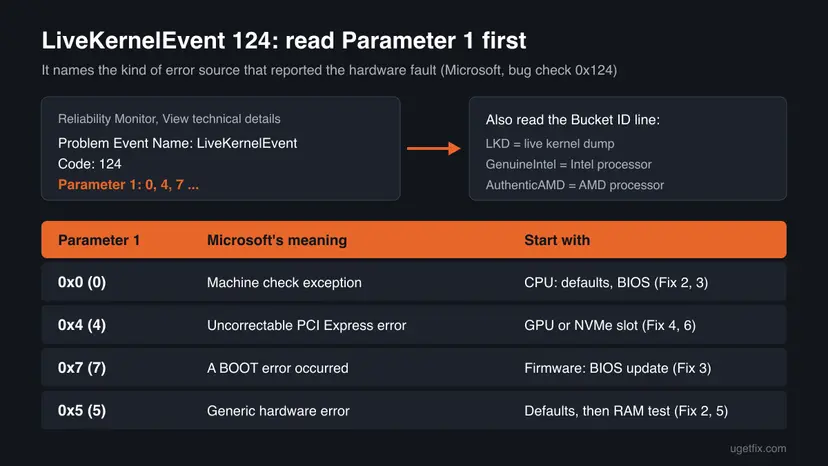
People search for this report under many spellings: live kernel event 124, livekernalevent 124, live kernal event 124, live kernel 124 and LiveKernelEvent code: 124. All of them are the same entry. The full line in the report reads Problem Event Name: LiveKernelEvent followed by Code: 124.
Event Viewer can also show Event ID 124 from the source Kernel-Boot, with the text "The virtualization-based security enablement policy check at phase 6 failed". That is a startup event about virtualization-based security, not a hardware crash. It is covered in the FAQ at the end of this page.
Why LiveKernelEvent 124 happens: causes ranked
Microsoft's own cause list for 0x124 is short: the error "is typically related to physical hardware failures", it "can be heat related", it can come from defective memory or "a processor that's beginning to fail", and overclocking should be turned off. A driver is named last: "It's less likely, but possible." The table below orders those causes by what we see most in the reports we read, and ties each one to a fix.
| Cause | How often | How to tell | Fix |
|---|---|---|---|
| Settings above the rated speed: XMP or EXPO memory profile, processor overclock or undervolt, Precision Boost Overdrive, a tuned graphics card. | Most often | You turned on a memory profile or a boost option, or the PC came from a builder with them on. Parameter 1 is often 0. | Fix 2 |
| Old BIOS or processor microcode, including Intel 13th and 14th Gen desktop processors without microcode 0x12F. | Often | The BIOS date is older than your processor or your last Windows feature update. Intel Core i5, i7 or i9 13th or 14th Gen desktop chip. | Fix 3 |
| Graphics card driver or firmware that leaves the card in a bad state under load. | Sometimes | It happens only in games or video, and a driver update or rollback changed how often it happens. | Fix 4 |
| Faulty or badly seated memory. | Sometimes | Random freezes at any load. WHEA-Logger names memory or cache, or the memory test finds errors. | Fix 5 |
| Heat, a weak power supply, a loose power cable or a card not fully in its slot. | Sometimes | Crashes after 10 to 30 minutes of load, or Parameter 1 is 4 (PCI Express). | Fix 6 |
| A processor, graphics card or motherboard that is failing. | Less often, but real | The error stays at full BIOS defaults with the newest firmware and a clean driver. | Still broken section |
| Damaged Windows files. | Rarely | Other Windows errors appear too. A repair alone does not fix a hardware error. | Fix 7 |
Windows does not invent a WHEA error. The processor, the chipset or the firmware reports it, and Windows only records it. Running SFC or reinstalling Windows can help with a different error, but it does not change how the hardware behaves. That is why this page starts with settings and firmware.
LiveKernelEvent 124 compared with the blue screen WHEA_UNCORRECTABLE_ERROR
Both come from the same stop code. The difference is whether Windows could recover. Microsoft explains that a live dump is taken when the system can return to a known good state, for example after resetting a subsystem such as the display, and that live dumps are throttled so they do not slow the PC.
| LiveKernelEvent 124 | Blue screen 0x124 | |
|---|---|---|
| What you see | A freeze, a black screen for a few seconds, a game that closes, or nothing at all | A blue screen with the stop code WHEA_UNCORRECTABLE_ERROR, then a restart |
| Where it is listed | Reliability Monitor as Hardware error | Reliability Monitor as a critical event after the restart, with the stop code in its technical details |
| Dump file | C:\Windows\LiveKernelReports (full dumps) or a subfolder named after the component (minidumps) | C:\Windows\Minidump (small dumps) and, if set, C:\Windows\MEMORY.DMP |
| How many are kept | Windows keeps one full live dump by default and limits how often a component can create one | One small dump per crash |
| What it tells you | The same hardware error, caught before it crashed the PC | The same hardware error, after it crashed the PC |
The fixes are the same in both cases. A live report is the earlier warning: treat it as a reason to act before the PC starts to restart on its own.
How to fix LiveKernelEvent 124
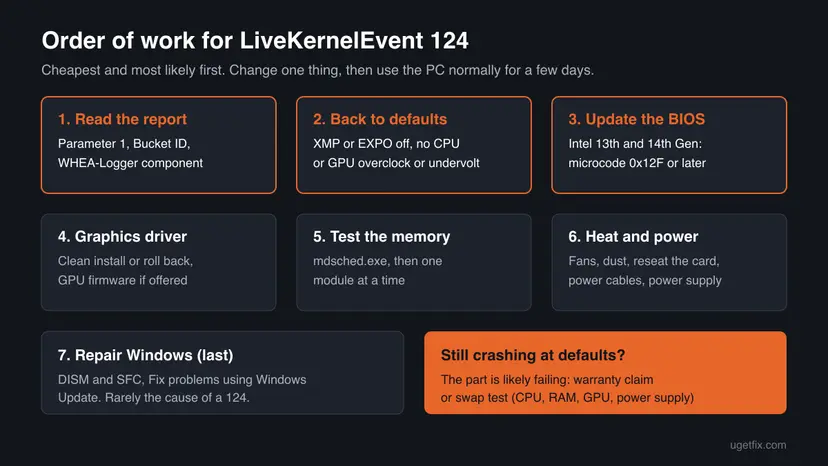
Fix 1 tells you which part reported the error. Fixes 2 and 3 solve most cases and cost nothing. Fixes 4 to 6 test the graphics card, memory, cooling and power one by one. Fix 7 is the Windows repair, last because it rarely matters for a hardware error. Change one thing at a time and use the PC normally for a few days before the next step.
| What you see or have | Start with |
|---|---|
| You do not know what the report says yet. | Fix 1 |
| XMP, EXPO, an overclock, an undervolt or a boost option is turned on, or a shop built the PC. | Fix 2 |
| Intel Core i5, i7 or i9 13th or 14th Gen desktop processor, or a BIOS older than a year. | Fix 3, then Fix 2 |
| It happens only in games or videos, or started after a graphics driver update. | Fix 4 |
| Parameter 1 is 4, or the PC crashes after some minutes of heavy load. | Fix 6, then Fix 4 |
| Random freezes at light load, or WHEA-Logger names cache or memory. | Fix 5 |
| Everything is at defaults and up to date, and it still happens. | The still broken section |
Fix 1. Read the LiveKernelEvent 124 report: Parameter 1, Bucket ID and WHEA-Logger
5 minutesNo riskEveryone, before changing anything: it takes five minutes and points to the part.
Microsoft's reference says Parameter 1 "identifies the type of error source that reported the error". Together with the Bucket ID and the WHEA-Logger entry it tells you whether to look at the processor, a PCI Express device or the firmware first.
- Press Win + R, type
perfmon /reland press Enter. You can also search for reliability and open View reliability history. - In the chart, select the day with a red X. Under Critical events, find the line with Hardware error.
- Select View technical details next to it. You now see
Problem Event Name: LiveKernelEvent,Code: 124and four parameters. - Write down Parameter 1 and the Bucket ID line under Extra information about the problem. Compare Parameter 1 with the picture in the first section of this page.
- Press Win + R, type
eventvwrand press Enter. Expand Windows Logs and select System. - Select Filter Current Log on the right. In Event sources, tick WHEA-Logger and select OK.
- Open the entries from the same date and time. Write down the lines Reported by component and Error Source, for example "Processor Core" and "Machine Check Exception".
| What you read | What it points to | Go to |
|---|---|---|
| Parameter 1 = 0, WHEA-Logger "Processor Core" or "Machine Check Exception" | The processor, its voltage or its settings, or memory reached through the processor | Fix 2, Fix 3 |
| Parameter 1 = 4, or WHEA-Logger names a PCI Express device | The link to the graphics card or an NVMe drive | Fix 6, Fix 4 |
| Parameter 1 = 7 and "FIRMWARE" in the Bucket ID | Microsoft calls 0x7 a boot error. We could not confirm more than that, so start with the firmware | Fix 3, Fix 2 |
| Bucket ID with GenuineIntel or AuthenticAMD | Only the processor maker. It does not prove the processor is broken | Fix 2, Fix 3 |
| Several reports on the same day, then nothing | Windows throttles live dumps, so one entry can stand for more freezes | Fix 2 |
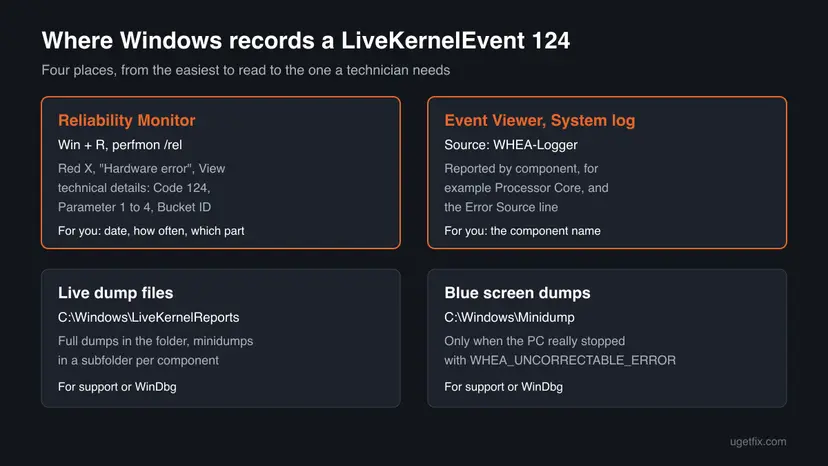
Make a small log: date, time, what you were doing, Parameter 1. After each fix below, add a line. Without it, a crash that comes once a week makes every change look like it worked.
It worked if: You know Parameter 1, the processor maker from the Bucket ID and the component WHEA-Logger names, and you know which fix to start with.
If not: If there is no Hardware error entry, the crash was something else: check for a BlueScreen or another LiveKernelEvent code. If the entry is there but WHEA-Logger is empty, go on with Fix 2.
Fix 2. Put the processor, memory and graphics card back to their rated settings
15 minutesLow riskAny PC with XMP, EXPO, an overclock, an undervolt, a boost option or a graphics tuning tool, and every self-built or shop-built PC.
Microsoft's first advice for 0x124 is to turn overclocking off: "If over-clocking has been enabled, try disabling it". XMP and EXPO memory profiles are overclocking too: AMD's own name for EXPO is Extended Profiles for Overclocking, and AMD says running memory outside its published specifications is not covered by its warranty.
- Close any tuning tool that starts with Windows, such as a graphics card overclocking utility or the motherboard maker's tuning app, and reset its profile to default.
- Open the firmware setup. On Windows 11, open Settings > System > Recovery and select Restart now next to Advanced startup. On Windows 10 the path is Settings > Update & Security > Recovery.
- Select Troubleshoot > Advanced options > UEFI Firmware Settings > Restart. The PC starts in the BIOS setup.
- Find the option to load the defaults. Its name depends on the board maker, for example Load Optimized Defaults. Often it is also on a function key shown at the bottom of the screen.
- Check that the memory profile (XMP, EXPO or DOCP) is now off, and that no processor ratio, voltage offset or Precision Boost Overdrive setting is changed.
- On an Intel 13th or 14th Gen desktop processor, choose the Intel Default Settings profile if your BIOS offers it. Intel recommends this profile for these processors.
- Save and exit. Use the PC as you normally do for a few days and note any new Hardware error entry.
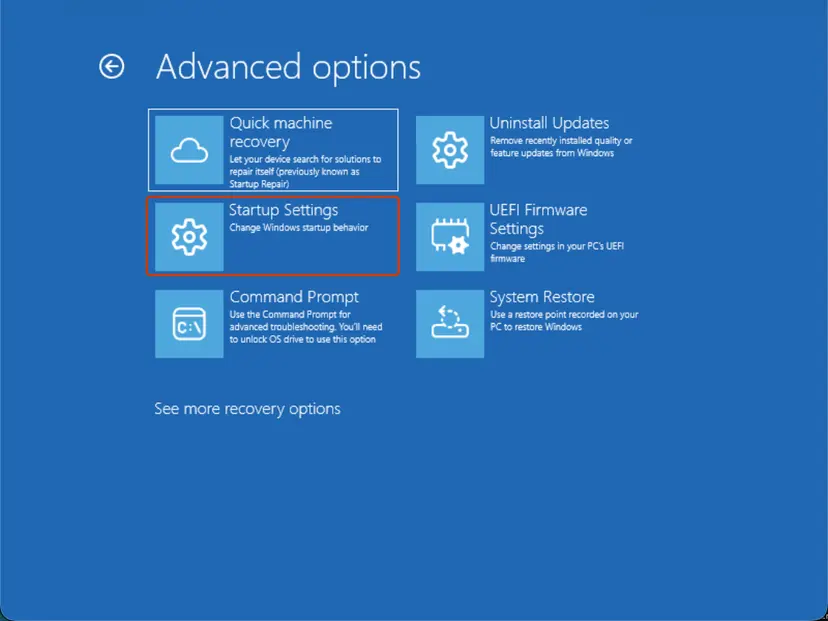
Loading defaults can also change the boot order, Secure Boot, TPM, RAID or fan settings on some boards. Take a photo of each BIOS page before you load defaults, then set back only what Windows needs to start, such as the boot drive or the storage mode.
If the PC is stable for a week at defaults, you can turn the memory profile back on and watch for a new report. If 124 returns, leave it off, or lower the memory speed one step at a time. Running memory at its rated JEDEC speed costs a little performance in games, but a stable PC is worth more.
It worked if: No new Hardware error entry in Reliability Monitor after several days of the same use that caused it before.
If not: Keep the defaults and go to Fix 3. A fault that stays at stock settings is a stronger sign of old firmware or a failing part.
Fix 3. Update the BIOS and the chipset driver
20 minutesRead the warningBIOS older than about a year, any Intel 13th or 14th Gen Core desktop processor, or Parameter 1 = 7 with FIRMWARE in the Bucket ID.
The firmware sets processor voltages and memory training, so an update can remove the cause of a WHEA error. Intel names a specific case: affected 13th and 14th Gen desktop processors need a BIOS that contains microcode 0x12F or later, which Intel says improves conditions that "can potentially contribute to Vmin Shift Instability".
A BIOS update that is cut off by a power loss can leave the PC unable to start. Use a laptop on its charger, do not update during a storm, and save your files first: Back up your files (Windows Backup, File History, Time Machine). The update also resets BIOS settings to defaults, so note anything you changed on purpose.
- Press Win + R, type
msinfo32and press Enter. Read BIOS Version/Date, BaseBoard Manufacturer and BaseBoard Product (on a laptop, System Model). - Open the support page of that motherboard or laptop on the maker's own site and find the BIOS downloads.
- Compare the dates. For an Intel 13th or 14th Gen desktop processor, look for a release note that mentions microcode 0x12F or a later one.
- Read the maker's update instructions. Most boards update from a USB stick inside the BIOS setup; many laptops update from a Windows file.
- Run the update and wait until the PC restarts on its own. Do not switch it off.
- From the same support page, install the newest chipset driver for your processor platform.
- Load the defaults again as in Fix 2 and use the PC normally.
Intel says it found the root cause of the Vmin Shift Instability issue on some Core 13th and 14th Gen desktop processors. It asks users to run the latest BIOS with microcode 0x12F or later and the Intel Default Settings, and it extended the warranty of eligible processors to five years from purchase. Intel says the 13th and 14th Gen mobile processors are not affected. Microcode cannot repair a processor that has already degraded.
It worked if: msinfo32 shows the new BIOS date, and the Hardware error entries stop or become much rarer.
If not: If 124 still appears on the new BIOS at defaults, test the graphics driver (Fix 4). On an affected Intel processor that still fails at Intel Default Settings, contact Intel or the seller about the warranty.
Fix 4. Reinstall or roll back the graphics card driver
20 minutesLow riskThe report appears only while gaming or playing video, or it changed after a graphics driver update.
Microsoft calls a driver the less likely cause of 0x124, but a graphics card under load is the device most often active when a live report is taken. In one case we read, an Intel support technician pointed to the graphics driver and firmware because rolling back the driver had helped for a while.
Device Manager can roll back to the previous driver or remove the current one. The full steps with screenshots: Update, roll back or reinstall a driver. For this error, follow them in this order:
- Right-click Start, select Device Manager, expand Display adapters, right-click the graphics card and select Properties. Open the Driver tab and write down the Driver Version.
- If the 124 reports started after a driver update, select Roll Back Driver and confirm. Use the PC for a few days.
- If there is nothing to roll back, or it did not help, download the current driver for your card from NVIDIA, AMD or Intel first, so you have it offline.
- Open Settings > Apps > Installed apps (Windows 10: Apps & features), find the graphics driver package and select Uninstall. Restart.
- Run the downloaded installer. If it offers a clean installation or a factory reset of settings, choose it.
- Open the card maker's app (NVIDIA app, AMD Software or Intel Graphics Software) and install a graphics card firmware update if one is offered.
- Turn off any overclock or undervolt profile in that app. Use the PC as before.
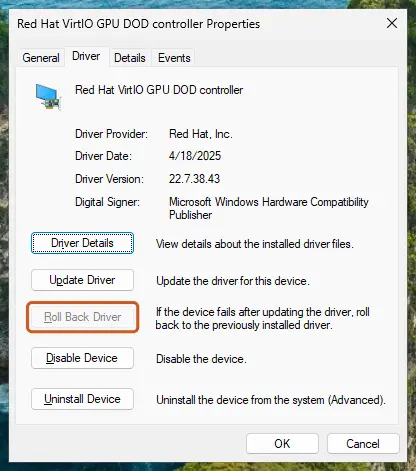
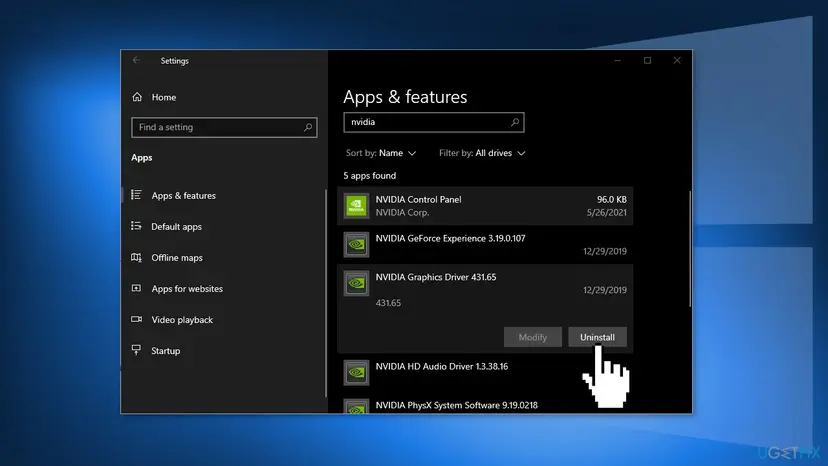
It worked if: Games and videos run without the freezes, and no new Hardware error entry appears in the days after.
If not: If a clean driver changed nothing, the card itself, its power or its slot may be the issue: go to Fix 6. If the freezes are not linked to games, go to Fix 5.
Fix 5. Test the memory, then each memory module on its own
30 minutes to several hoursNo riskRandom freezes at light load, WHEA-Logger names cache or memory, or Fix 2 helped only partly.
Microsoft's guidance for 0x124 is to "run system diagnostics to confirm that the system memory isn't defective". A memory fault can surface as a processor error, because the processor is the part that reports it.
Windows Memory Diagnostic (mdsched.exe) restarts the PC and tests the memory before Windows loads. Steps and how to read the result: How to test your RAM with Windows Memory Diagnostic.
- Run Windows Memory Diagnostic with Restart now and check for problems (recommended). When the blue test screen appears, press F1, choose Extended and press F10.
- After Windows starts, read the result in Event Viewer: search the System log for MemoryDiagnostics-Results.
- If errors are found, switch the PC off, unplug it and leave one memory module in the first slot your motherboard manual names.
- Use the PC normally with that one module for a few days, or run the test again. Then swap to the next module.
- If one module fails and the others pass, replace that module. If every module fails in one slot only, the slot or the board is suspect.
A clean result does not clear the memory completely: faults that show up only when the module is warm can pass a short test. If the extended test passes and Fix 2 had already turned off XMP or EXPO, memory is less likely to be the cause.
It worked if: The extended test reports no errors and the PC stays free of new 124 reports, or you have found the one module that fails.
If not: If the memory passes, look at heat and power next (Fix 6). On a laptop with soldered memory, a failing test is a repair for the maker.
Fix 6. Check temperatures, seating and power
30 minutesLow riskCrashes after some minutes of gaming or rendering, Parameter 1 = 4, a recent hardware change, or an older power supply.
Microsoft says the error "can be heat related" and asks you to "confirm that any cooling systems such as fans are functional". Parameter 1 = 4 means an uncorrectable PCI Express error, the link that carries the graphics card and most NVMe drives.
- Watch temperatures while you repeat what causes the crash. Use the hardware monitor page of the BIOS for the processor, and the overlay or monitor of your graphics card app for the card.
- Shut down and unplug the PC. Clean dust from the processor cooler, the graphics card fans and the case filters, and check that every fan spins.
- Press the graphics card firmly into its slot and check that the latch is closed. Reconnect each power cable to the card fully, with no adapter left half in.
- Reseat the NVMe drive and the memory modules if you can reach them.
- Check that the power supply is strong enough for the graphics card. The card maker states a recommended power supply size on the product page.
- If Parameter 1 was 4, open the BIOS and set the PCI Express slot of the graphics card to the generation it supports instead of Auto, if your board offers that option. Write down the old value.
On a laptop, the steps you can do are fewer: keep the vents clear, use the maker's power adapter, and run its own hardware diagnostics if it has them. Do not open a laptop that is still under warranty.
It worked if: Temperatures stay below the limits your processor and card makers state, and the crash does not come back under the same load.
If not: If the temperatures are fine and everything is seated, the next step is a swap test of the graphics card or the power supply, described in the still broken section.
Fix 7. Repair Windows system files
30 to 60 minutesLow riskOther Windows errors appear too, or you have done Fixes 2 to 6 and want to exclude Windows.
This is last on purpose: a WHEA error comes from the hardware, and a repair only rules out damaged system files. It is still worth doing before you send a part back, so support cannot point to Windows.
DISM repairs the Windows image and SFC then checks the system files. Steps: Run DISM and SFC to repair Windows system files.
- Run DISM and SFC as the procedure shows and restart.
- On Windows 11, if errors remain, open Settings > System > Recovery and select Reinstall now next to Fix problems using Windows Update. It keeps your files and apps. Steps: Reinstall Windows without losing files.
- Use the PC normally and check Reliability Monitor again.
It worked if: SFC reports no integrity violations, or that it repaired them, and Windows has no other errors in Reliability Monitor.
If not: If 124 still appears after a repaired Windows at BIOS defaults, the cause is the hardware. Follow the still broken section below.
If LiveKernelEvent 124 keeps coming back: find the failing part
At this point the PC runs at defaults, with the newest BIOS, a clean graphics driver, tested memory and a repaired Windows. A WHEA error that remains is a hardware fault. Microsoft's own wording is that it can be "a processor that's beginning to fail or has failed".
- Swap test. Try another graphics card, power supply or memory kit if you can borrow one. The part whose swap stops the reports is the faulty one.
- Remove extras. Disconnect extra drives, PCI Express cards and USB hubs, and test with only what Windows needs.
- Warranty. Contact the PC maker or the seller with your log. For an Intel 13th or 14th Gen desktop processor, ask about Intel's extended five-year warranty for the Vmin Shift Instability issue.
- Give support the files. Zip the dump files from
C:\Windows\LiveKernelReportsand its subfolders, plusC:\Windows\Minidumpif a blue screen also happened. Export the WHEA-Logger entries from Event Viewer with Save Filtered Log File As.
A technician can open the dumps with WinDbg and run !analyze -v. Microsoft's documentation adds that !errrec shows the WHEA error record from Parameter 2, which names the exact error source. This is not a home step, but it is the evidence a warranty desk can act on.
A system that reports hardware errors can also damage files as they are written. Back up your files now, before more troubleshooting: Back up your files (Windows Backup, File History, Time Machine).
How to keep LiveKernelEvent 124 from coming back
- Keep the BIOS current, especially on Intel 13th and 14th Gen desktop processors.
- Turn on XMP or EXPO only after the PC has been stable at defaults, and only at a speed your memory kit and motherboard list.
- Clean dust from coolers and filters every few months.
- Check Reliability Monitor once a month: a new Hardware error is an early warning.
- Keep a backup that is not on the same PC.
- Do not stack tuning tools: one overclock in the BIOS and another in Windows is hard to undo.
- Do not ignore a single report because the PC did not crash: live dumps are throttled, so one entry can hide several events.
- Do not reinstall Windows to fix a WHEA error before Fixes 2 to 6.
- Do not delete the LiveKernelReports folder while you still need the evidence for a warranty claim.
Frequently asked questions
What does LiveKernelEvent 124 mean?
It means Windows recorded stop code 0x124, WHEA_UNCORRECTABLE_ERROR, as a live kernel event instead of a blue screen. Microsoft describes 0x124 as a fatal hardware error reported through the Windows Hardware Error Architecture. In Reliability Monitor it shows as Hardware error with the text "A problem with your hardware caused Windows to stop working correctly". The cause is usually an unstable or failing processor, memory, graphics card or PCI Express link, often made worse by overclocks, memory profiles or old firmware. Parameter 1 tells you which kind of error source reported it.
Is LiveKernelEvent 124 a blue screen?
Not by itself. A live kernel event means Windows took a memory snapshot and kept running. You may see a short freeze, a black screen or a game that closes, or nothing at all. The same stop code can also stop the PC with a blue screen named WHEA_UNCORRECTABLE_ERROR, because Microsoft lists 0x124 among the codes used for both. If you see both on the same PC, they are the same problem at two levels, and the fixes on this page apply to both.
Is LiveKernelEvent 124 always a hardware problem?
Nearly always the hardware or its settings. Microsoft says the error "is typically related to physical hardware failures" and calls a driver "less likely, but possible". In practice, hardware here includes settings: a memory profile or an overclock makes healthy parts run outside their rated limits, and old firmware can set wrong voltages. That is why loading the BIOS defaults and updating the BIOS fix many cases without any part being replaced. If the error stays at full defaults, treat it as a failing part.
Why do I get LiveKernelEvent 124 on Windows 11?
Not because of Windows 11 itself. The code is the same on Windows 10, and the recent reports we read come from Windows 11 build 26200 simply because that is what most new PCs run. We found no Microsoft known issue that links a Windows 11 update to code 124. If the reports started right after a big update, the update may have installed a new graphics or chipset driver: roll it back as in Fix 4. Windows 10 left support on 14 October 2025, so keep the BIOS and drivers current on either system.
Are livekernalevent 124 and live kernal event 124 the same error?
Yes. LiveKernelEvent is written as one word in the report, and many people type it as livekernalevent, live kernal event, live kernel 124 or LiveKernelEvent code: 124. All of them refer to the same Reliability Monitor entry with Problem Event Name LiveKernelEvent and Code 124. Searches for kernel 124, hardware error 124 or error code 124 usually mean the same report too, unless the source in Event Viewer is Kernel-Boot, which is a different event.
What is Kernel-Boot event ID 124?
It is a different event with the same number. Event Viewer shows Event ID 124, source Kernel-Boot, with a text such as "The virtualization-based security enablement policy check at phase 6 failed with status" followed by a code. It is logged at startup and concerns virtualization-based security, not a hardware crash. Reports we read link it to a Secure Boot revocation list update or to security software that uses DRTM. We found no Microsoft article that explains how to clear it. If the PC starts and runs normally, it is not the cause of your crashes.
Can a graphics driver cause LiveKernelEvent 124?
It can, but less often than the hardware. Microsoft names a driver as the less likely cause of 0x124. A graphics card is still the most common place to look after the BIOS settings, because it works hardest when the error happens and its driver and firmware control how it talks over PCI Express. If the reports appear only in games or videos, or began after a driver update, roll the driver back or do a clean install as in Fix 4. If that changes nothing, check the card's power and slot.
Will Intel or AMD replace my processor for LiveKernelEvent 124?
Only through their normal warranty process, and the code alone is not proof of a faulty processor. Intel extended the warranty of eligible Core 13th and 14th Gen desktop processors affected by the Vmin Shift Instability issue to five years from purchase. AMD states that running its processors or memory outside published specifications voids its warranty, so test at defaults first. In both cases, bring your log of reports, the BIOS version and the WHEA-Logger entries. The seller or PC maker is usually the first contact for a boxed system.
Where are the LiveKernelEvent 124 dump files?
Microsoft stores live dumps in C:\Windows\LiveKernelReports by default. Full dumps are in that folder, and minidumps go into subfolders named after the component that created them. Windows keeps one full live dump by default and limits how often a component may create one, so older dumps are replaced. If the PC also crashed with a blue screen, small memory dumps are in C:\Windows\Minidump. Send these files to support only from your own account and never post them publicly, because a full dump can hold data from memory.
Sources
- Microsoft Learn: Bug Check 0x124 WHEA_UNCORRECTABLE_ERROR (learn.microsoft.com)
- Microsoft Learn: Kernel Live Dump Code Reference (learn.microsoft.com)
- Microsoft Learn: WER Settings (Live Kernel Reports settings) (learn.microsoft.com)
Did this fix work?
One click, no account. It tells the next reader which guides are worth their time.
Questions and experiences: fix LiveKernelEvent 124 error in Windows
Still broken, or found a fix we did not cover? Ask here: members and our editors answer. Reading is open; writing needs a free account.
…