
How to fix Media Feature Pack not showing up in Feature list in Windows?

Prefer to fix it yourself? The manual steps follow.
- 6methods
- 2 minutes to check the edition, 10 to 20 minutes to install the pack
- Easy to intermediate
Applies to Windows 11 and Windows 10, N and KN editions (Home N, Pro N, Education N, Enterprise N), and anyone told to install the pack on a regular edition
6 methods in this guide
It seems like the Media Feature Pack does not appear in the Windows features list. It only shows language packs when I try to install optional features. How can I get the Media Feature Pack when it is not showing up in the Optional features menu?
The Media Feature Pack only shows up in Optional features on N and KN editions of Windows, because only those editions ship without Windows Media Player and its media technologies. On any other edition it is already built in, so there is nothing to add. Check your edition first, then install the pack from Settings or with DISM.
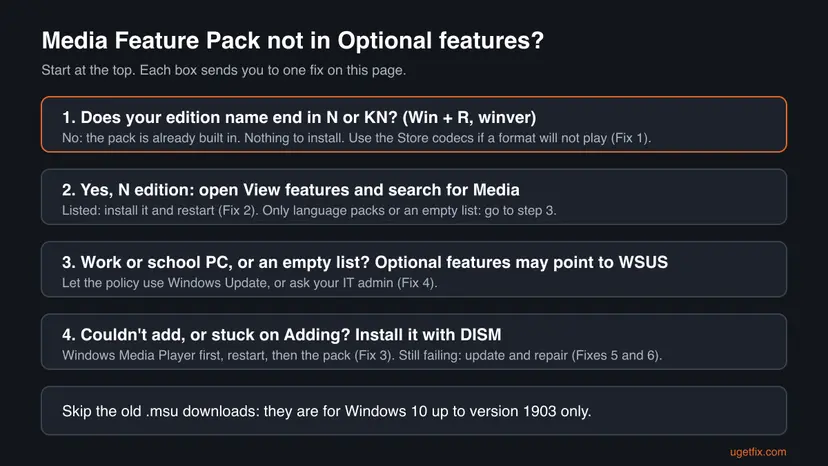
The Media Feature Pack is listed only on N and KN editions of Windows. Press Win + R, type winver and read the edition: if it does not end in N, your media components are already installed and the pack will never appear (Fix 1). On an N edition, open View features, search for Media and install it (Fix 2), or add it with DISM when Settings fails (Fix 3).
| Error | No error code. Media Feature Pack is not in the list under Add an optional feature, the list shows only language packs, or the install ends with Couldn't add. |
|---|---|
| Where it appears | Windows 11: Settings > Apps > Optional features > View features. Windows 10: Settings > Apps > Apps & features > Optional features > Add a feature. |
| Main cause | The PC does not run an N edition. Microsoft makes the Media Feature Pack only for N editions, which ship without Windows Media Player and related media technologies. |
| Fastest fix | Check the edition with winver (Fix 1). On an N edition, search Media in View features and install it (Fix 2). |
| Also written as | media feature pack windows 11 not showing, media feature pack not in optional features, missing media feature pack windows 11, media feature pack couldn't add. |
| Affects | Windows 11 N and Windows 10 N, all versions since Windows 10 version 1909. Windows 10 left support on 14 October 2025. |
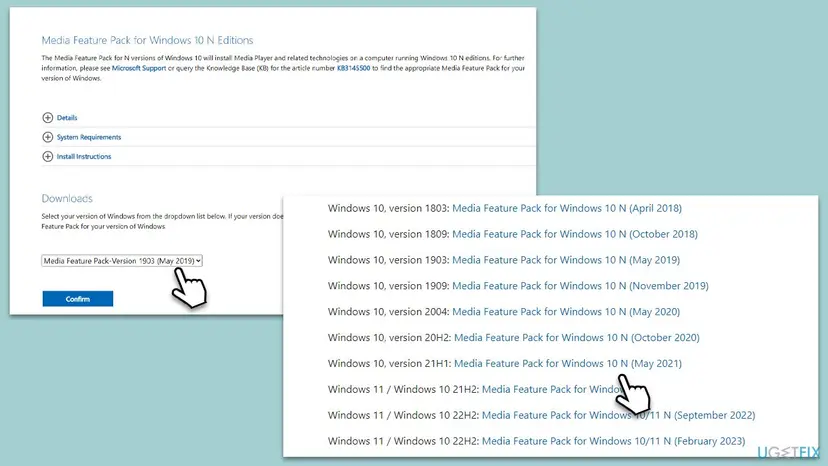
| Microsoft's status | Since Windows 10 version 1909 the pack is available only as an Optional Feature. The separate downloads exist for early Windows 10 versions only. |
| Pack name for DISM | Media.MediaFeaturePack~~~~0.0.1.0. Confirm the exact name on your PC with DISM /Online /Get-Capabilities. |
| Logs to read | C:\Windows\Logs\DISM\dism.log and C:\Windows\Logs\CBS\CBS.log. |
| Time to fix | 2 minutes for Fix 1, 10 to 20 minutes for Fixes 2 and 3, up to an hour for a store repair. |
Facts checked on 15 October 2026. Steps written for Windows 11 (25H2 and 26H2) and Windows 10 22H2.
What it means when the Media Feature Pack is not showing in Windows 11 or Windows 10
Microsoft sells N editions of Windows (and KN editions in Korea) to meet regulatory requirements in some markets. Microsoft says they include the same functionality as other editions, except for media related technologies, Windows Media Player and certain preinstalled media apps. The Media Feature Pack puts exactly those parts back.
So the pack is not a general add-on that every PC needs. Windows offers it in Optional features only where it is missing. On Windows 11 Home, Pro or Enterprise without the N, the same codecs, Media Foundation and Windows Media Player are already part of the system, and the list simply has nothing to offer.
| What you see | What it means |
|---|---|
| Edition without N, no Media Feature Pack in the list | Normal. The media parts are already installed (Fix 1). |
| N edition, the pack is in the list after you search Media | Normal. Install it (Fix 2). |
| N edition, the list shows only language packs or nothing | Optional features cannot reach its source, often a WSUS policy (Fix 4). |
| N edition, install ends with Couldn't add or stays on adding | The download or the component store fails (Fixes 3, 5 and 6). |
| A downloaded .msu says it does not apply or is already installed | That file is for an old Windows 10 version. Use Fix 2 or 3 instead. |
On an N edition without the pack, Microsoft lists many things that stop working: the webcam, Windows Hello, Live captions, voice typing, audio and video calls in Microsoft Teams, video in Photos and OneDrive, and Game DVR in Xbox. That is why apps such as the Camera or the Snipping Tool's screen recorder ask for media features.
Why the Media Feature Pack is not in Optional features, from most to least common
- Most often: the PC is not an N edition. The pack is built for N and KN editions only. Fix 1.
- Often: you look in the wrong list. On Windows 11 the installed features are shown first. The pack appears only after View features next to Add an optional feature. Fix 2.
- Less often: a policy sends Optional features to WSUS. Work and school PCs, and PCs once joined to a company network, can be told to get optional components from a WSUS server that does not hold them. Fix 4.
- Less often: the install fails. Users report that installing Windows Media Player first and restarting lets the pack install with DISM. Fix 3.
- Rarely: Windows is out of date or the component store is damaged. A pending update or damaged store records block every optional component. Fixes 5 and 6.
| Cause | Sign | Start with |
|---|---|---|
| Not an N edition | winver shows Windows 11 Pro, not Windows 11 Pro N | Fix 1 |
| Wrong list | You see only installed features and language packs | Fix 2 |
| Install fails | Couldn't add or the progress bar never ends | Fix 3 |
| WSUS policy | Work PC, or the list of available features is empty | Fix 4 |
| Update or store problem | Other optional features fail too, DISM errors | Fixes 5 and 6 |
How to fix Media Feature Pack not showing up in Optional features
Fix 1 takes two minutes and ends the search for most readers. Fixes 2 and 3 install the pack on an N edition, from Settings or from a terminal. Fixes 4 to 6 are for an N edition where nothing installs at all.
| What you see or have | Start with |
|---|---|
| You are not sure which edition you have | Fix 1 |
| N edition, you have never installed the pack | Fix 2 |
| Couldn't add or stuck while adding | Fix 3 |
| Work or school PC, or the list is empty | Fix 4 |
| Windows Update has pending updates or a restart | Fix 5 |
| DISM itself fails with an error code | Fix 6 |
Fix 1. Check your Windows edition: the pack exists only for N and KN editions
2 minutesLow riskYou were told to install the Media Feature Pack, or an app asks for media features, and you do not know if your edition is N.
Windows lists the Media Feature Pack only where its parts are missing. If your edition has no N at the end, the pack is not hidden, it simply does not apply to your PC.
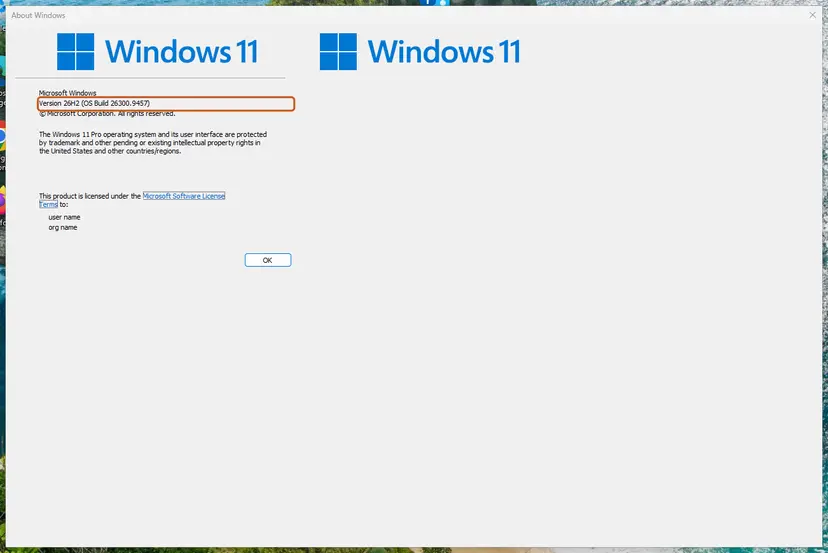
- Press Win + R, type the command and press Enter.
winver - Read the edition line, for example Windows 11 Pro or Windows 11 Pro N.
- You can also open Settings > System > About and read Edition under Windows specifications.
- If the edition ends in N or KN, go to Fix 2.
- If it does not, nothing is missing. If one video or image format will not play, install its free codec from the Microsoft Store: HEVC Video Extensions, VP9 Video Extensions, Web Media Extensions or HEIF Image Extensions.
On a regular edition, a media app that will not open needs a repair, not the pack: How to repair or reset an app in Windows. The Media Feature Pack is not offered there and will not fix it.
It worked if: You know your edition. On an edition without N the search ends here: your PC already has every media component.
If not: On an N or KN edition, install the pack with Fix 2.
Fix 2. Install the Media Feature Pack from View features in Settings
10 minutes plus a restartLow riskYou run an N edition and have not yet found the pack in Settings.
Since Windows 10 version 1909, Microsoft offers the pack only as an Optional Feature. On Windows 11 the first page shows installed features, so the pack appears only in the separate View features list.
- Sign in with an administrator account. Adding a feature asks for an administrator's approval.
- Press Win + R, paste this and press Enter to open Optional features directly.
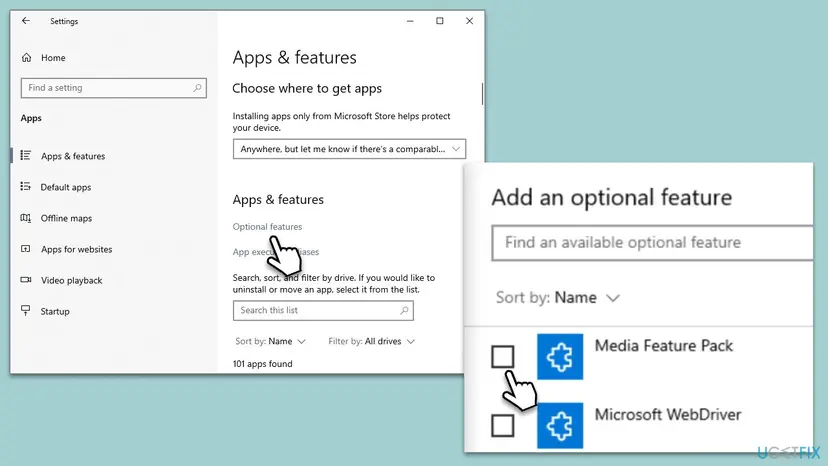
ms-settings:optionalfeatures - On Windows 11, select View features next to Add an optional feature. On Windows 10, select Add a feature.
- Type Media in the search box. Do not scroll the list: it is long and mostly language packs.
- Tick Media Feature Pack, select Next, then Add (Windows 11) or Install (Windows 10).
- Wait until the status below Recent actions shows Installed, then restart the PC.
Microsoft notes that some features need their hardware drivers reinstalled after the pack is in place. If the webcam still does not work after the restart, reinstall its driver: Update, roll back or reinstall a driver.
It worked if: Media Feature Pack shows as installed under Optional features, and after the restart the Camera, Voice Recorder and video playback work.
If not: If the pack is listed but ends with Couldn't add, use Fix 3. If it is not listed at all on an N edition, go to Fix 4.
Fix 3. Add the Media Feature Pack with DISM, Windows Media Player first
15 minutes plus two restartsLow riskThe pack is listed but the install ends with Couldn't add, or stays on adding for a long time.
DISM installs the same capability that Settings does and prints an error code when it fails. On Microsoft Q&A a Windows 11 Pro N user reports the pack installed only after Windows Media Player was added first and the PC was restarted in between.
- Right-click Start and select Terminal (Admin) on Windows 11, or Windows PowerShell (Admin) on Windows 10. Select Yes.
- List the media capabilities and their state. Note the exact names.
DISM /Online /Get-Capabilities | findstr /i media - Add Windows Media Player first, using the name from the list.
DISM /Online /Add-Capability /CapabilityName:Media.WindowsMediaPlayer~~~~0.0.12.0 - Restart the PC. Do not skip this restart.
- Open the admin terminal again and add the pack.
DISM /Online /Add-Capability /CapabilityName:Media.MediaFeaturePack~~~~0.0.1.0 - Wait for The operation completed successfully and restart again.
The same check in PowerShell
Get-WindowsCapability -Online -Name *Media*
Add-WindowsCapability -Online -Name Media.MediaFeaturePack~~~~0.0.1.0The version part after the four tildes can differ between Windows builds. If DISM says the name is not found, copy the exact name from the Get-Capabilities list. State : Installed in that list means the pack is already there.
It worked if: DISM ends with The operation completed successfully, and Get-Capabilities shows Media.MediaFeaturePack with State : Installed.
If not: If DISM ends with an error code, note it. Source and download errors point to Fix 4, damaged store errors to Fix 6.
Fix 4. Let optional features download from Windows Update instead of WSUS
5 minutes plus a restartLow riskA work or school PC, a PC that was once in a company domain, or an N edition whose list of available features is empty.
Optional features are downloaded on demand. When a policy points Windows at a WSUS server that does not carry them, the list stays empty or the install fails. One Group Policy setting tells Windows to go to Windows Update directly.
- Press Win + R, type the command and press Enter. Local Group Policy Editor is in Pro, Enterprise and Education editions.
gpedit.msc - Go to Computer Configuration > Administrative Templates > System.
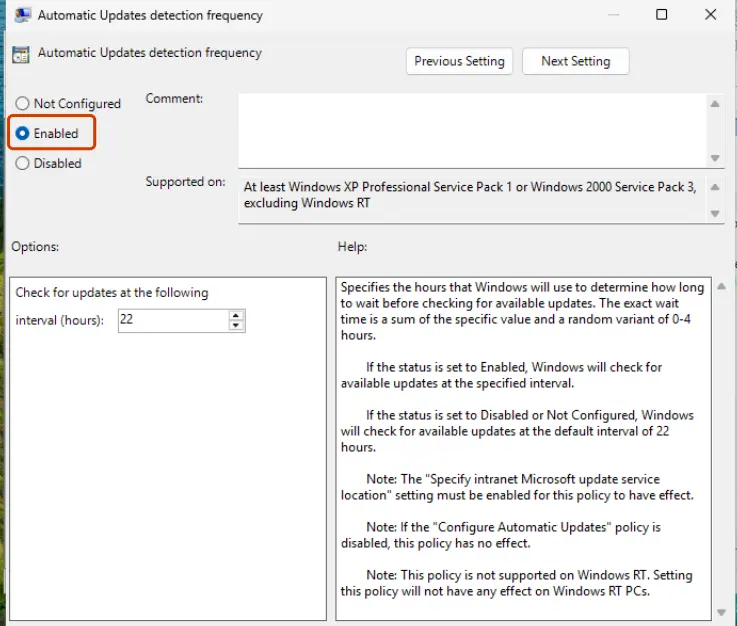
- Double-click Specify settings for optional component installation and component repair.
- Select Enabled and tick the box that tells Windows to contact Windows Update directly instead of Windows Server Update Services (WSUS). Its wording differs slightly between Windows versions.
- Select OK and restart the PC. Then try Fix 2 or Fix 3 again.
If your organisation manages the PC, the policy can come back with the next sync. Ask your IT admin to allow the Media Feature Pack. On Home N there is no Group Policy Editor, and this policy is rarely set.
It worked if: After the restart, View features lists Media Feature Pack and other optional features again.
If not: If the list is still empty, install every pending update with Fix 5.
Fix 5. Install pending Windows updates and restart
15 to 30 minutesLow riskWindows Update shows Restart required, pending updates or failed updates.
Optional features install against the current cumulative and servicing stack updates. A pending restart or a half-installed update keeps the servicing stack busy, and optional features then fail too.
- Open Settings > Windows Update and select Check for updates.
- Install everything offered, including the servicing stack and cumulative updates.
- Restart even if Windows does not ask, then check once more until nothing is pending.
- Try Fix 2 again.
If an update itself keeps failing, reset the update components first: Reset Windows Update components.
It worked if: Windows Update says You're up to date, and the Media Feature Pack installs from View features.
If not: If updates install but the pack still fails, repair the component store with Fix 6.
Fix 6. Repair the component store with DISM RestoreHealth and SFC
20 to 60 minutesLow riskDISM fails with an error code, or other optional features fail to install too.
Optional features are installed into the component store. Damaged store records make every capability install fail. RestoreHealth repairs the store from Windows Update, and SFC then repairs system files from it.
- Open an elevated command window. Right-click Start and select Terminal (Admin), or type cmd in the search box, right-click Command Prompt and select Run as administrator. Select Yes when Windows asks for permission.

Search for cmd and choose Run as administrator. Screenshot: Windows 11 26H2. - Run DISM first. Type the command below and press Enter. DISM downloads clean copies of damaged components from Windows Update, so it can take several minutes. Wait until it says The operation completed successfully.
DISM.exe /Online /Cleanup-Image /RestoreHealth
DISM /RestoreHealth running. Screenshot: Windows 11 26H2. - Run System File Checker. In the same window, type the command below and press Enter. Do not close the window until the verification reaches 100%.
sfc /scannow
sfc /scannow at 100%. Screenshot: Windows 11 26H2. - Read the result and restart. Compare the last message with the table below this guide, then restart the PC so that repaired files are loaded.

The result line tells you what SFC did. Screenshot: Windows 11 26H2.
These steps were written for Windows 11 24H2 and 25H2. The full page with the other versions and what each result means: Run DISM and SFC to repair Windows system files
Run Fix 3 again after both scans end without errors and you have restarted.
It worked if: RestoreHealth ends with The restore operation completed successfully, and the pack then installs.
If not: Read the logs in the next section and take the error code to Microsoft Q&A or support.
If the Media Feature Pack still will not install: logs, support and limits
- Copy
C:\Windows\Logs\DISM\dism.logandC:\Windows\Logs\CBS\CBS.logto your Desktop. Work on the copies. - Run Fix 3 once more and note the time and the error code DISM prints.
- In dism.log, search for MediaFeaturePack and for Error near that time.
- For help on Microsoft Q&A or from support, send your edition and build from
winver, the DISM output and those two logs.
This is not a hardware fault. One limit is worth knowing. The old standalone .msu downloads are for early Windows 10 versions only: on Windows 11 or Windows 10 22H2 they report that they do not apply.
How to keep media features working on an N edition
- Check
winverbefore you follow any guide that tells you to install the pack. - Install the pack right after setting up an N edition, then restart.
- Reinstall the webcam driver if the camera still fails after the pack is in place.
- Add the Store codecs (HEVC, VP9, Web Media, HEIF) you need for your files.
- Download Media Feature Pack installers from third-party sites.
- Run an old .msu meant for an earlier Windows 10 version.
- Force the PC off while it says it is adding a feature or installing updates.
- Expect the pack to appear on an edition without N.
If the Camera or video playback breaks after a large update, open Optional features and check that the pack is still listed as installed. If not, add it again with Fix 2.
Frequently asked questions
Why is the Media Feature Pack not showing in Optional features on Windows 11?
Most often because your Windows 11 is not an N edition. Microsoft makes the Media Feature Pack only for N and KN editions, which ship without Windows Media Player and media technologies. On Home, Pro or Enterprise without the N, those parts are already installed, so the pack is never offered. On an N edition, make sure you open View features and search for Media. If the list is empty there, a WSUS policy is the usual reason.
How do I know if I have an N edition of Windows?
Press Win + R, type winver and press Enter. The window names your edition, for example Windows 11 Pro N. You can also open Settings > System > About and read Edition. If the name has no N or KN at the end, you do not need the Media Feature Pack. Your missing feature then has another cause, such as a missing Store codec or an app that needs a repair.
What does Couldn't add mean for the Media Feature Pack?
It means Windows tried to download and install the pack and failed. The usual reasons are a pending update or restart, a policy that sends optional features to a WSUS server, or damaged component store records. Restart and install pending updates first. Then add Windows Media Player and the pack with DISM, restarting in between, as Fix 3 shows. DISM prints an error code that tells you which of the causes it is.
What does lack of media framework mean on Windows 11?
Apps say this when the Windows media framework, Media Foundation and its codecs, is not present. On Windows 11 that almost always means an N edition without the Media Feature Pack. Media players and recorders built on Media Foundation cannot start without it. Check the edition with winver, then install the pack from Optional features. On a regular edition, repair or reinstall the app that shows the message instead.
Why does screen recording say it is unavailable because of missing media features?
The Snipping Tool records the screen with the Windows media components. On an N edition without the Media Feature Pack, those components are missing, so the recorder is switched off. Installing the pack from Optional features and restarting brings recording back. Microsoft lists many other features with the same dependency, such as the webcam, Live captions, voice typing and Teams calls. On a regular edition, repair the Snipping Tool app instead.
Can I download the Media Feature Pack for Windows 11 as a file?
No current standalone file exists. Microsoft states that from Windows 10 version 1909 on, the pack is available only as an Optional Feature. The separate downloads on Microsoft's site are for early Windows 10 versions, and on newer Windows they say they do not apply. Use Settings or DISM, which download the right version for your build from Windows Update. Avoid installers from other sites.
Why is Optional features stuck on adding?
The feature is downloaded from Windows Update first, so a slow or blocked download looks like a stuck progress bar. Microsoft gives no time for it. If nothing changes after a long wait, restart, install pending updates and try again. For the Media Feature Pack, the DISM commands in Fix 3 show progress as a percentage and end with a clear result or error code, which is easier to follow than the Settings list.
Why are optional features missing from Windows 11 entirely?
If View features shows an empty list, or only language packs, Windows usually cannot reach the source of optional features. On work and school PCs a policy often points Windows to a WSUS server. Fix 4 shows the Group Policy setting that tells Windows to use Windows Update instead. On a managed PC ask your IT admin, because the policy may be set again. On a personal PC, install pending updates and repair the component store.
Is this page about MediaFire or other messages that say something appears to be missing?
No. This page is about the Windows Media Feature Pack, the add-on that restores media components on N editions of Windows. A download site saying something appears to be missing, or a social network hiding content you chose not to see, are separate problems with their own causes. If an app on your PC says media features are missing, though, the checks on this page apply: start with your edition in Fix 1.
Sources
- Microsoft Support: Media Feature Pack list for Windows N editions (support.microsoft.com)
- Microsoft Support: Media Feature Pack for Windows N (support.microsoft.com)
- Microsoft Q&A: Unable to install Media Feature Pack on Computer with Windows 11 Pro N (learn.microsoft.com)
Did this fix work?
One click, no account. It tells the next reader which guides are worth their time.
Questions and experiences: fix Media Feature Pack not showing up in Feature list in Windows
Still broken, or found a fix we did not cover? Ask here: members and our editors answer. Reading is open; writing needs a free account.
…