
How to fix Microsoft login error code 50058 in Windows?

Prefer to fix it yourself? The manual steps follow.
- 7methods
- 2 to 30 minutes
- Easy
Applies to Work, school and personal Microsoft accounts in Teams, Outlook, Word, Microsoft 365 on the web and apps that sign in with Microsoft Entra ID, on Windows 11 and Windows 10
7 methods in this guide
Hey, I was wondering if you could help me with error code 50058 in Office. It happens every time I try to log into any Microsoft apps, such as Teams.
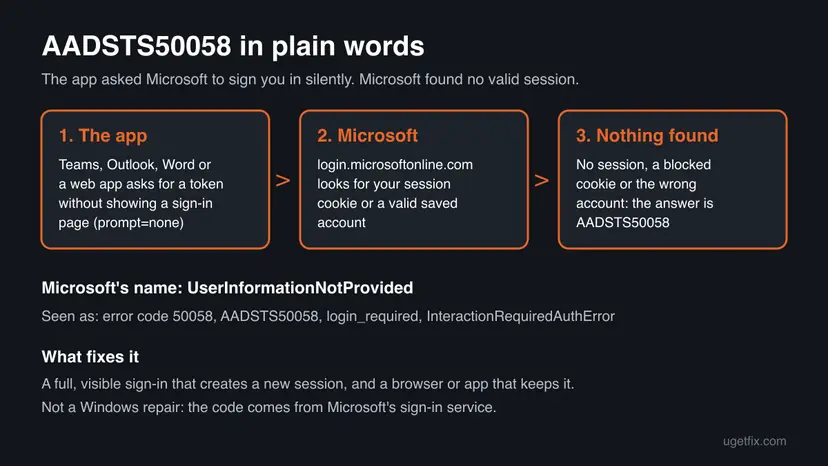
Error code 50058, in full AADSTS50058, comes from Microsoft's sign-in service: an app tried to sign you in silently and found no valid session. Nothing on Windows is broken. Sign out, sign in again on a visible sign-in page and let the browser keep Microsoft's cookies.
Error code 50058 (AADSTS50058) means Microsoft received a silent sign-in request but found no signed-in user or no valid session. Sign out of the app, sign in again with your full address and password, and answer Yes to stay signed in (Fix 1). If it returns, allow cookies for login.microsoftonline.com (Fix 2), clear the old session (Fix 3), then clear stored credentials in the desktop app (Fix 5).
| Error | AADSTS50058: A silent sign-in request was sent but no user is signed in. Apps often show only error code 50058 or Error code: 50058. |
|---|---|
| Where it appears | On a Microsoft sign-in page in the browser, or in the sign-in window of Teams, Outlook, Word and other apps that use your work, school or Microsoft account, usually at start or when a session refreshes. |
| Main cause | The app asked Microsoft for a token without showing a sign-in page, and Microsoft found no session cookie or a session that is no longer valid. Microsoft names it UserInformationNotProvided. |
| Fastest fix | Sign out and sign in again on a visible sign-in page, and select Yes on Stay signed in? (Fix 1). |
| Also written as | AADSTS50058, aadsts50058, error 50058, 50058, login_required, InteractionRequiredAuthError, and the mistyped ai50058. |
| Affects | Any app that signs in through login.microsoftonline.com: Teams, Outlook, Word, Excel, OneDrive, Power Apps, Power Automate and company web apps, on Windows, Mac, Android and iPhone. |
| Microsoft's status | Microsoft calls it a common error that is expected when a user has not signed in yet. It is not a bug and no update is announced to remove it. |
| Time to fix | 2 minutes for a new sign-in. Up to 30 minutes if browser cookies, stored credentials or an Office repair are involved. |
Facts checked on 15 October 2026. Steps written for Microsoft 365 Apps (Teams, Outlook, Word), Microsoft Edge and Google Chrome on Windows 11 (25H2 and 26H2) and Windows 10 22H2, read against Microsoft's documentation.
What Microsoft error code 50058 means
Error code 50058 is a code of Microsoft Entra ID, the sign-in service behind work and school accounts and many Microsoft 365 apps. The full code is AADSTS50058. AADSTS stands for the Azure AD security token service, the old name of the same service. When an app shows only Error code: 50058, it is the same error.
Microsoft's error reference names it UserInformationNotProvided and explains it this way: session information is not enough for single sign-on, which means the user is not signed in. If you had signed in before, the session was not found or was not valid. Apps that ask silently, with the prompt=none setting, get this answer instead of a sign-in page.
| What you may see | Where | What it tells you |
|---|---|---|
| AADSTS50058: A silent sign-in request was sent but no user is signed in. | Microsoft sign-in page in a browser, Teams or Outlook sign-in window | Microsoft found no signed-in user for this app. |
| A silent sign-in request was sent but none of the currently signed in user(s) match the requested login hint | Power Apps, Dynamics and other web apps | A user is signed in, but not the account the app asked for. See Fix 4. |
InteractionRequiredAuthError: login_required: AADSTS50058 and The cookies used to represent the user's session were not sent in the request to Azure AD | Browser console of web apps | The browser did not send Microsoft's session cookie. See Fix 2. |
| Error code: 50058 or error code 50058 | Short error windows in Teams, Outlook or Word | The same AADSTS50058 error, shortened by the app. |
The code comes from Microsoft's sign-in service, not from Windows. That is why system file checks, driver updates and a new Windows user profile do not touch it. What fixes it is a new sign-in and a browser or app that keeps the session.
AADSTS50058 and the sign-in codes it is confused with
Several AADSTS codes also end a session. They appear in the same apps and need slightly different action, so read the number on your screen before you start.
| Code | Microsoft's meaning | What you do |
|---|---|---|
AADSTS50058 | No signed-in user or no valid session for single sign-on. | Sign in again on a visible page (this guide). |
AADSTS50133 | The session is not valid because the password expired or was changed recently. | Sign in with the new password (Fix 1). |
AADSTS50055 | The password is expired. | Reset it on the sign-in page or ask your admin. |
AADSTS50173 | The grant was revoked, often after a password change or reset. | Sign out and sign in again (Fix 1, Fix 5). |
AADSTS700082 | The refresh token expired because the app was not used for a long time. | Sign in again (Fix 1). |
AADSTS50076, AADSTS50079 | Multifactor authentication is required or must be set up. | Complete the extra check or register it; this guide does not cover it. |
What causes error code 50058, ranked
The order below is our reading of Microsoft's reference and of the cases Microsoft staff answered on Microsoft Q&A. It is not a statistic. Each cause points at the fix that tests it.
| How often | Cause | Typical sign | Fix |
|---|---|---|---|
| Most often | The session ended: you signed out elsewhere, changed the password, or did not use the app for a long time | It worked yesterday. One sign-in fixes it for a while. | Fix 1 |
| Often | The browser blocks Microsoft's session cookie: third-party cookies off, a private window, or a cookie blocking extension | Fails in Chrome or in incognito, works in another browser. | Fix 2 |
| Often | An old or broken session cookie stays in the browser | The error loops even after a new sign-in. | Fix 3 |
| Less often | Several Microsoft accounts are signed in at once, and the app asks for another one | The login hint message, or the wrong account's name on the page. | Fix 4 |
| Less often | Stale accounts stored by Windows for Teams, Outlook or Word | Only the desktop app fails. The web version works. | Fix 5 |
| Rarely | A damaged or old Office installation | Every account fails in every Office app. | Fix 6, Fix 7 |
Some guides tell you to delete everything in C:\Users\<name>\AppData\Local\Packages. That folder holds the data of every Store app on the PC, including Teams, Outlook and the sign-in broker itself. Deleting it removes far more than a session, so this page does not use it.
How to fix Microsoft login error code 50058 in Windows
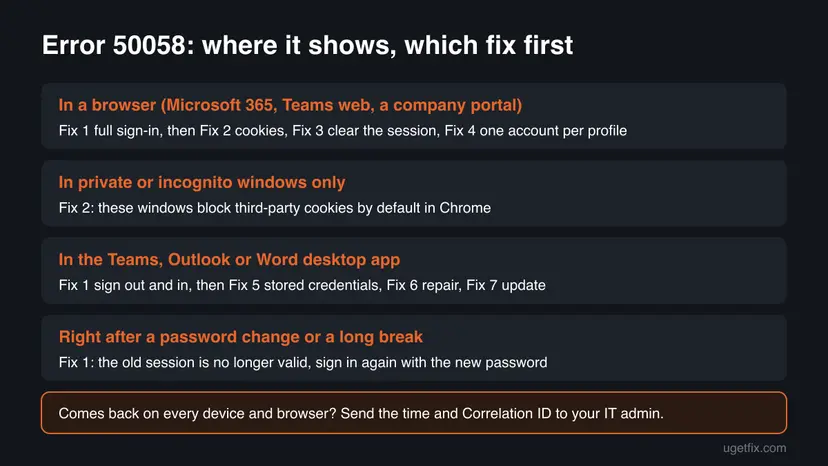
Start with Fix 1. It costs two minutes and clears most cases, because error 50058 simply means Microsoft wants you to sign in again. Then follow the chooser below for where the error appears. Success looks the same every time: you reach your mailbox, chat or document instead of the error.
| Your case | Start with | Then |
|---|---|---|
| It worked before, and the error came after a password change or a long break | Fix 1 | Fix 5 |
| It fails in Chrome or a private window, but works in another browser | Fix 2 | Fix 3 |
| You sign in, and the same error returns at once | Fix 3 | Fix 2 |
| Several Microsoft accounts are signed in, or the message mentions a login hint | Fix 4 | Fix 1 |
| Only the Teams, Outlook or Word desktop app fails, the web version works | Fix 5 | Fix 6 |
| Every account fails in every Office app | Fix 6 | Fix 7 |
Fix 1. Sign out and sign in again on a visible sign-in page
2 minutesNo riskEveryone, first. Most of all when the error came after a password change, a long break or a sign-out on another device.
Microsoft describes AADSTS50058 as an error that is expected when no user is signed in or the session was not found. A full sign-in creates a new session, and the next silent request finds it.
- In the app that shows the error, select your picture or initials at the top and select Sign out. In a browser, sign out on the Microsoft 365 page.
- Close every window of the app. For Teams and Outlook, also check the hidden icons next to the clock and quit them there.
- Open the app again, or go to
https://www.office.comin Microsoft Edge. - Type your full work, school or Microsoft account address and your current password. Complete the second check if it asks.
- When Stay signed in? appears, select Yes on your own PC.
- Use the app for a minute and open the part that failed before.
Microsoft staff on Microsoft Q&A point out that the Stay signed in choice keeps a longer session, so you get the error less often. On a shared PC, select No and accept that you will sign in more often.
It worked if: Your mailbox, chat or document opens, and the error does not come back when the app refreshes.
If not: If the error returns at once in a browser, allow cookies with Fix 2. If only the desktop app fails, go to Fix 5.
Fix 2. Allow cookies for login.microsoftonline.com in your browser
5 minutesLow riskThe error appears in Chrome, Edge or Firefox, in a private or incognito window, or after you installed a privacy or cookie blocking extension.
Microsoft's own text for this error says the cookies that represent your session were not sent to the sign-in service. Microsoft staff name blocked third-party cookies and cookie blocking extensions as causes, and Chrome blocks third-party cookies in incognito windows by default.
- Close any private, InPrivate or incognito window and open a normal window of the same browser.
- In Chrome, type
chrome://settings/cookiesin the address bar. In Edge, typeedge://settings/content/cookies. - Find the list of sites that are always allowed to use cookies and select Add.
- Add Microsoft's sign-in address:
[*.]microsoftonline.com - If you use a privacy or ad blocking extension, open its settings and allow
login.microsoftonline.comin the same way. - Reload the page or the web app and sign in.
Menu labels change between browser versions. If you do not see an Add button for allowed sites, look for Sites allowed to use third-party cookies or Allow on the same page.
Users on Microsoft Q&A report cases where Chrome still showed the error after this change, while Edge with the same address worked. If that is your case, use Edge for this app, or clear the session with Fix 3.
It worked if: The sign-in finishes in a normal window, and the web app keeps you signed in after a reload.
If not: If the error loops even with cookies allowed, clear the old session with Fix 3.
Fix 3. Clear the broken Microsoft session from the browser
5 minutesLow riskYou sign in, and the error returns at once, or a page keeps sending you back to the sign-in screen.
Microsoft's reference says that when you had signed in before, error 50058 means the session was not found or was not valid. An old or damaged session cookie keeps the browser in that state until it is removed.
Deleting all cookies signs you out of most websites. Know your passwords first, or delete only the cookies of Microsoft's sign-in sites as in step 4.
- Close every tab of Microsoft 365, Teams, Outlook on the web and the app that showed the error.
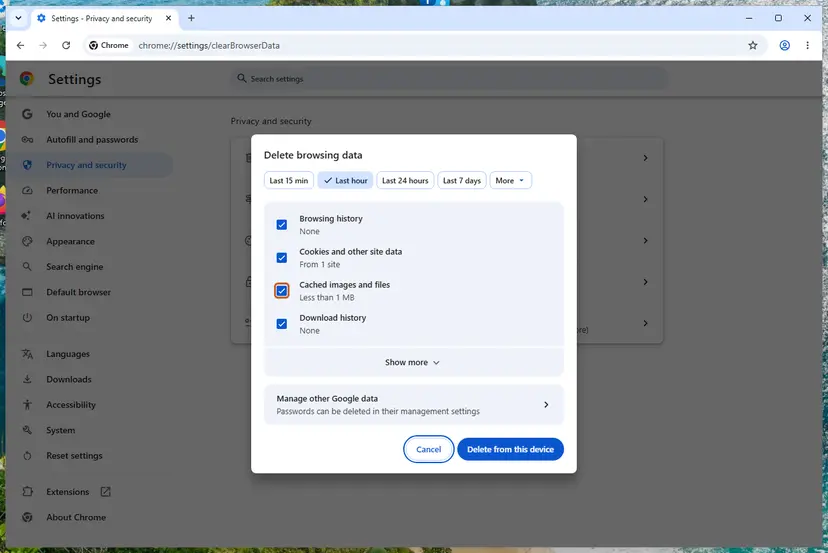
- Press Ctrl + Shift + Delete in Chrome or Edge.
- Pick a time range such as Last 7 days, check Cookies and other site data and Cached images and files, and confirm. Full steps: Clear the browser cache and cookies.
- To remove only Microsoft's cookies instead, open the cookie settings from Fix 2, search the stored site data for
microsoftonlineand delete those entries. - Open a new window and sign in as in Fix 1.
It worked if: After the new sign-in, the app opens and stays open after a reload.
If not: If more than one Microsoft account is signed in, separate them with Fix 4.
Fix 4. Use one Microsoft account per browser profile
5 minutesNo riskYou use a work and a personal account, or two work accounts, in the same browser, or the message mentions a login hint.
A variant of the error says none of the signed-in users match the login hint. The app asked Microsoft for one account by name, and the browser session belongs to another, so the silent request fails.
- Go to
https://www.office.comand select your picture at the top right. Note which account is signed in. - If it is not the account the app needs, select Sign out for every account listed.
- In Edge or Chrome, select the profile icon at the top and add a new profile for the second account.
- In the new profile, sign in only with the account the app needs and open the app there.
- Keep each account in its own profile from now on.
It worked if: The app opens with the right account, and the login hint message is gone.
If not: If only a desktop app still fails, clear its stored accounts with Fix 5.
Fix 5. Clear stored credentials for Teams, Outlook and Office and reconnect the account
10 minutesLow riskOnly the Teams, Outlook or Word desktop app shows error 50058, while the same account works in the browser.
Windows keeps saved credentials and a work account link for the desktop apps. When they belong to an ended session, every silent sign-in from the app fails. Removing them makes the app ask for a fresh sign-in.
Disconnecting an account under Access work or school can remove the organisation's setup from the PC. On a managed laptop, only clear Credential Manager and leave Disconnect to IT.
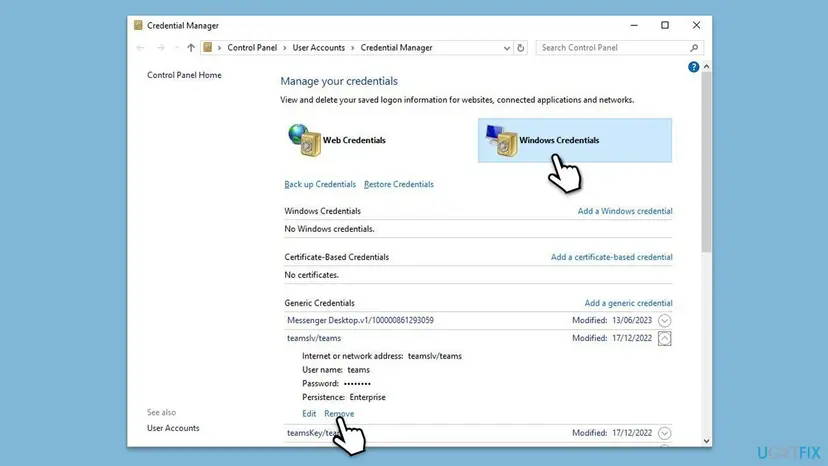
- Close Teams, Outlook, Word, Excel and OneDrive, also from the hidden icons next to the clock.
- Select Start, type
credential managerand open Credential Manager. Select Windows Credentials. - Under Generic Credentials, expand each entry that starts with MicrosoftOffice, msteams or teams, and select Remove, then Yes.
- Open Settings > Accounts > Access work or school. If the account is listed and you do not sign in to Windows with it, select it and select Disconnect.
- Restart the PC.
- Back in Access work or school, select Connect and sign in with the account, or simply open Outlook or Teams and sign in there.
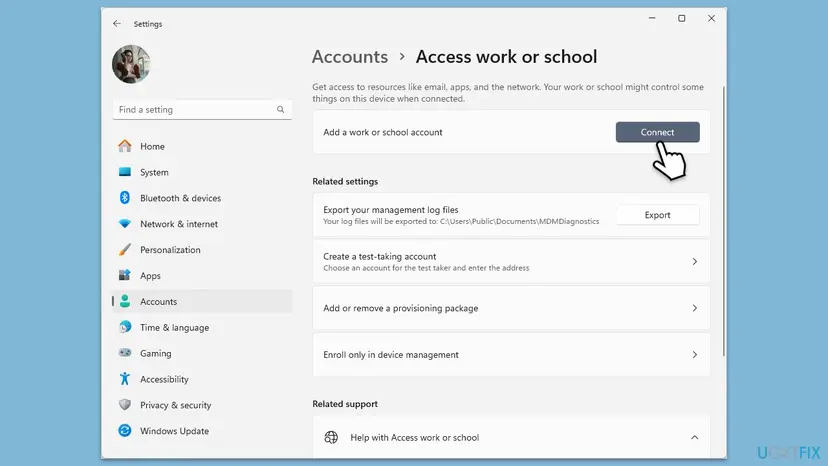
It worked if: Outlook or Teams asks for the account as on a new PC, and after the sign-in the error does not return.
If not: If every Office app still fails with every account, repair Office with Fix 6.
Fix 6. Repair Office with Quick Repair, then Online Repair
10 to 30 minutesLow riskThe error stays in all Office apps after Fix 1 and Fix 5, and the web versions work.
If the Office sign-in components are damaged, they cannot hand a fresh session to the apps. A repair replaces the program files and keeps your documents and mail.
- Open Installed apps. Right-click the Start button and select Installed apps.
- Find Microsoft 365 or Office. Find your Microsoft 365 or Office product in the list. If you have a standalone app such as Visio or Project, search for it by its own name.
- Open the repair window. Select the three dots next to the product and select Modify.
- Start with Quick Repair. In the repair window, select Quick Repair, then Repair. It is the faster option: it finds damaged files and replaces them.
- Finish and test. Follow the instructions on the screen until the repair is done. Restart the PC if you are asked to, then open the app that had the problem.
- Run Online Repair if the problem is still there. Open the same repair window again and select Online Repair, then Repair. Microsoft recommends this option to make sure everything gets fixed. It takes longer than Quick Repair.
These steps were written for Windows 11 25H2 and 26H2. The full page with the other versions and what each result means: How to repair Microsoft 365 or Office
Full steps for Windows 11 and Windows 10: How to repair Microsoft 365 or Office. Online Repair downloads Office again, so start it on a working connection. The new Teams app is not part of the Office repair; for it, use How to repair or reset an app in Windows.
It worked if: The repair finishes, Office starts and the sign-in reaches your mailbox or documents.
If not: If error 50058 still returns, update Office and Windows with Fix 7.
Fix 7. Update Office and Windows and run Microsoft's sign-in troubleshooter
15 to 30 minutesLow riskOffice or Windows has not updated for weeks, or every other fix failed.
The desktop apps sign in through Windows and Office components that get fixes with updates. Microsoft's sign-in troubleshooter checks the common Office sign-in problems in one run.
- Open Word and select File > Account > Update Options > Update Now.
- Select Start, type
check for updates, install everything offered and restart. - Open the Microsoft 365 Sign-in troubleshooter from Microsoft's link
https://aka.ms/SaRA-OfficeSignIn-sarahomeand follow it. - Sign in to the app once more.
Windows 10 left support on 14 October 2025. A Windows 10 PC without Extended Security Updates no longer gets fixes for the Windows sign-in components.
It worked if: Office and Windows report that they are up to date, and the app signs in.
If not: If error 50058 stays, stop changing the PC and collect the details in the next section for IT.
If error code 50058 is still there: what to send to IT
When the error comes back on every browser and every device, the cause is no longer your PC. It can sit in the organisation's sign-in settings or in the app that sends the silent request. Only an administrator can see the sign-in logs that name it.
- On the error page, select More details or Troubleshooting details if they are shown.
- Copy the Request Id, the Correlation Id and the Timestamp.
- Note the app, the account and whether the browser or the desktop app failed.
- Send this to your IT help desk. They can look up the sign-in in the Microsoft Entra sign-in logs.
| What you see | Likely reason | Who can fix it |
|---|---|---|
| Error 50058 in one company web app only, on every PC | The app sends silent requests and does not fall back to a sign-in page. | The app's developer or IT. |
| Error 50058 in all apps after a password change, and the new password fails | The account is locked, expired or blocked. | IT, or the password reset on the sign-in page. |
| Error 50058 together with AADSTS50076 or AADSTS50079 | Multifactor authentication is required. | You, by completing or registering the extra check. |
Microsoft's guidance for apps is to catch AADSTS50058 or login_required from a silent request and then start an interactive sign-in. An app that never does this keeps showing the error to users.
How to keep error 50058 from coming back
Once a valid session exists and the browser keeps it, the silent sign-in works again. The error returns when the session ends or the cookie is lost.
- Select Yes on Stay signed in on your own PC, so the session lasts longer.
- Allow Microsoft's sign-in cookies in every browser and extension you use for work:
[*.]microsoftonline.com. - Keep work apps out of private windows. They drop cookies when you close them.
- Use one account per browser profile when you have a work and a personal account.
- Sign in again after a password change in every app, before the old session runs out.
Frequently asked questions
What does error code 50058 mean?
It means Microsoft's sign-in service got a silent sign-in request and found no signed-in user. The full code is AADSTS50058, and Microsoft names it UserInformationNotProvided. Microsoft calls it a common, expected error when you have not signed in yet, or when your earlier session was not found or is no longer valid. Your PC is not damaged. Sign in again on a visible page, as in Fix 1, and let the browser or app keep the session.
How do I fix error code 50058 in Teams?
Sign out of Teams, quit it from the hidden icons next to the clock, open it again and sign in with your full address and password. If the error returns, remove the stored Teams and MicrosoftOffice entries in Credential Manager as in Fix 5 and restart. If Teams works on the web but not in the desktop app, the stored credentials are the cause. If it fails on the web too, allow cookies for login.microsoftonline.com with Fix 2.
How do I fix error code 50058 in Outlook?
Close Outlook completely, open it again and sign in when it asks. If the prompt does not appear or fails at once, clear the MicrosoftOffice entries in Credential Manager and reconnect the work account under Access work or school (Fix 5). Check that Outlook on the web opens with the same account. If it does, the desktop app needs a fresh sign-in or an Office repair (Fix 6), not a new password.
Is AADSTS50058 the same as error code 50058?
Yes. AADSTS50058 is the full code from Microsoft's sign-in service, and many apps shorten it to error code 50058 or Error code: 50058. Searches for ai50058 are almost always the same code typed from a screenshot. Developers see it as login_required or InteractionRequiredAuthError in the browser console. All of them mean that no valid session was found for a silent sign-in.
Why do I get error 50058 in incognito or InPrivate windows?
Because private windows often block the cookies that carry your Microsoft session. Chrome blocks third-party cookies in incognito by default, and a user on Microsoft Q&A fixed the error by allowing them. A private window also forgets the session when you close it. Use a normal window for work apps, or allow cookies for [*.]microsoftonline.com as in Fix 2.
Did my password expire if I see error 50058?
Not necessarily. Error 50058 only says that no valid session was found. A password change can end a session, and then you see this error or its neighbour AADSTS50133. An expired password has its own code, AADSTS50055, and the sign-in page asks you to change it. If your password still works on office.com, nothing needs resetting. Sign in again in the app as in Fix 1.
Do I need to reinstall Office or create a new Windows user to fix error 50058?
Almost never. The error comes from Microsoft's sign-in service, so a new Windows user profile or a full reinstall does not address it. A new sign-in, allowed cookies and cleared stored credentials fix most cases. If every Office app fails with every account, run Online Repair as in Fix 6. It reinstalls Office with Microsoft's tool and keeps your files, without deleting folders or registry keys by hand.
I see error code 50058 on Android. Does this page apply?
Partly. The code means the same on Android: the app found no valid Microsoft session. The Windows steps do not apply, but the idea does. Sign out of Outlook or Teams on the phone, sign in again, and update the app. If your company uses Microsoft Authenticator or Company Portal on the phone, open it and check that your work account is still listed and signed in.
Is error 50058 related to YouTube or other non-Microsoft sites?
No. Searches such as youtube50058 reach this page, but AADSTS50058 belongs to Microsoft's sign-in service only. It can appear on a non-Microsoft site only when that site uses your work or school Microsoft account to sign you in. A YouTube error with a similar number is a different error, and this page does not cover it.
Who is my administrator, and when do I need one?
For a work or school account, the administrator is your IT help desk or the person who manages Microsoft 365 for your organisation. You need them when the error returns on every device and browser, when one company app always fails, or when your account is locked. Send them the Request Id, Correlation Id and time from the error page. For a personal Microsoft account there is no administrator.
Sources
- Microsoft Learn: Microsoft Entra authentication and authorization error codes (AADSTS50058 and related codes) (learn.microsoft.com)
- Microsoft Learn: Single sign-on with MSAL.js (AADSTS50058 login_required message) (learn.microsoft.com)
- Microsoft Q&A: AADSTS50058 a silent sign-in request was sent but no user is signed in (answer by Microsoft staff, user reports) (learn.microsoft.com)
Did this fix work?
One click, no account. It tells the next reader which guides are worth their time.
Questions and experiences: fix Microsoft login error code 50058 in Windows
Still broken, or found a fix we did not cover? Ask here: members and our editors answer. Reading is open; writing needs a free account.
…