
How to fix Microsoft Office error 30204-44 in Windows?

Prefer to fix it yourself? The manual steps follow.
- 6methods
- 15 to 60 minutes
- Intermediate
Applies to Microsoft 365, Office 2024, 2021, 2019 and 2016, Visio and Project installed with Click-to-Run on Windows 11 and Windows 10
6 methods in this guide
How can I fix error code 30204-44 when installing Office 2021? It pops up every time I try and I can't use Excel, which I desperately need for my work.
Error Code: 30204-44 is an Office setup failure that, in almost every report, comes from a clash with Office products already on the PC. Typical cases are an older Visio or Project added after a newer Office, a 32-bit and 64-bit mix, or a preinstalled Microsoft 365. Find out what is installed, then install the products again in the right order.
Check what Office is already on the PC (see the section on what is installed). If a newer Office is there and you are adding an older Visio or Project, uninstall the newer suite, restart, install the older product first and then the newer one (Fix 1). Keep every product 32-bit or every product 64-bit (Fix 2). On a new PC with Microsoft 365 preinstalled, remove it or activate it instead (Fix 3).
| Error | Something went wrong. Sorry, we ran into a problem. with Go online for additional help and Error Code: 30204-44 in the Microsoft setup window. |
|---|---|
| Where it appears | When you run the installer of Office, Visio or Project on a PC that already has another Office product. Most reports name Visio 2016 or 2019 and Project 2019 next to Office 2021 or Microsoft 365. |
| Main cause | A combination of Office products that Microsoft does not allow on one PC, or the right products installed in the wrong order. |
| Fastest fix | Remove the newer Office, restart, install the older Visio or Project, then install the newer Office again with the same bitness (Fix 1 and Fix 2). |
| Also written as | 30204-44, error 30204 44, error code 30204 office, код ошибки 30204-44, codigo de error 30204-44, code erreur 30204-44. 3024-44 is a typing slip of the same code. |
| Affects | Click-to-Run products of version 16.0: Microsoft 365, Office 2024, 2021, 2019 and 2016, and the standalone Visio, Project, Word or Excel of those years. Windows 11 and Windows 10. |
| Microsoft's status | No support article for 30204-44. Microsoft's list of installation errors does not include it (checked 14 October 2026). The rules it breaks are documented, see the section on what can share a PC. |
| Not the cause | Your internet connection or Windows Update. No report we read was solved by them. |
| Time to fix | 15 minutes when only the bitness or the order is wrong. Up to an hour when Office has to be removed and installed again. |
Facts checked on 14 October 2026. Steps written for Click-to-Run versions of Microsoft 365, Office 2016 to 2024, Visio and Project on Windows 11 (25H2 and 26H2) and Windows 10 22H2, read against Microsoft's documentation.
What error code 30204-44 means in Office, Visio and Project setup
Every current desktop Office, from Office 2016 to Office 2024 and Microsoft 365, is installed by Click-to-Run. The same engine installs the standalone Visio, Project and single apps such as Word. When the setup cannot go on, it shows a short window with two numbers. The code 30204-44 is one of them.
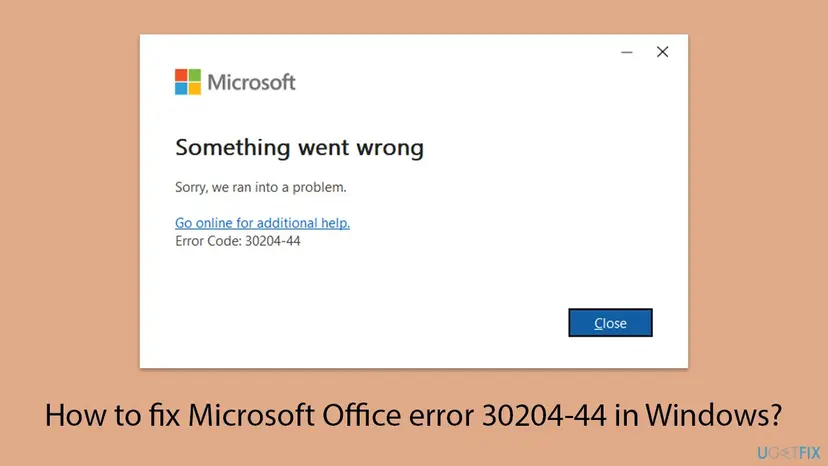
Microsoft does not explain either number, and the window gives no reason. What the reports have in common is the situation: another Office product is already on the PC, and the new one is an older year, the other bitness, or a second suite. That is why the fix almost never lies in the network or in Windows. It lies in what is installed and in which order.
Error 30204-44, error code 30204-44, Error Code: 30204-44, 30204 44 and the translated windows (код ошибки 30204-44 in Russian, codigo de error 30204-44 in Spanish, code erreur 30204-44 in French) are the same error. The number is never translated. A few people search for 3024-44, which is a typing slip. 30206-44 is a different code that we found no Microsoft page for, but the same checks below are a fair start for it.
- The code does not come from Word or Excel themselves. It is shown by the Office installer. If you meet it while trying to get Word or Excel working, as the reader's question above does, the installation is what failed.
- Other codes that end in -44 exist, such as 30033-44 and 30182-44. Microsoft documents none of them, and the answers given for them differ. Do not assume that the -44 alone tells you the cause.
Which Office, Visio and Project products can share one PC
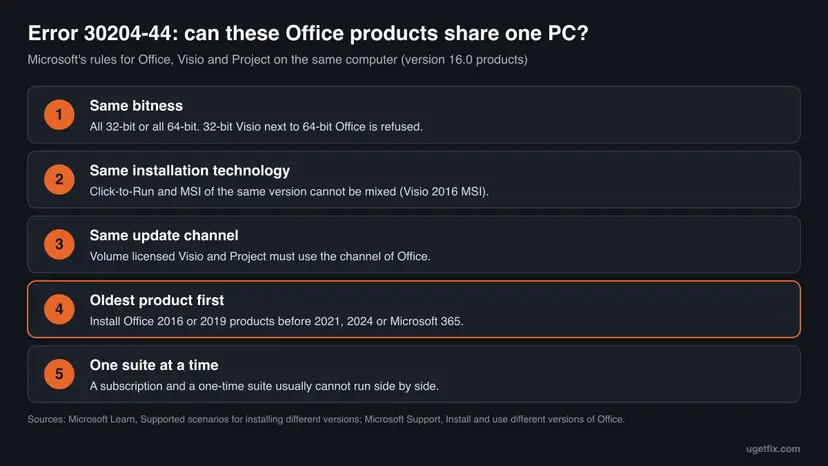
Microsoft publishes the rules for putting several Office products on one computer. Microsoft 365, Office LTSC 2024, Office 2021, Office 2019 and Office 2016 all carry the same version number, 16.0. Two products of the same version cannot use different installation technologies, Click-to-Run and Windows Installer (MSI). Every product must also have the same bitness and, for volume licensed Visio and Project, the same update channel.
| What you want on the PC | Allowed? | What Microsoft says |
|---|---|---|
| Microsoft 365 Apps and Visio or Project 2024 | Yes | Needs Microsoft 365 Apps Version 2408 or later. |
| Microsoft 365 Apps and Visio or Project 2021 | Yes | Needs Microsoft 365 Apps Version 2108 or later. |
| Microsoft 365 Apps and Visio or Project 2019 | Yes | Needs Microsoft 365 Apps Version 1808 or later. |
| Office 2019 or Microsoft 365 (Click-to-Run) and volume licensed Visio or Project 2016 (MSI) | No, alternative available | Same version, different technology. Install the Click-to-Run edition of Visio or Project 2016 with the Office Deployment Tool (Fix 5). |
| 64-bit Office and 32-bit Visio or Project, or the other way round | No | You can't mix 64-bit and 32-bit versions. Remove one and install the matching bitness (Fix 2). |
| A Microsoft 365 subscription and a one-time suite such as Office Home and Business 2021 | In most cases no | Microsoft: in most cases you can't run these versions together on the same computer (Fix 3). |
| Office 2021 and an older Visio 2019 or Project 2019 | Yes, in the right order | Install earlier versions first. If you don't, you may have to repair the later versions afterwards (Fix 1, Fix 6). |
Microsoft's advice is to install Office 2016 before Office 2019 or 2021, and says this also applies to Visio, Project, Access Runtime, language packs and proofing tools. Two Microsoft Q&A answers to 30204-44 give the same instruction: the error went away when the older product went on first.
What causes error code 30204-44, from the most common to the rare
Microsoft names no cause for this code. The ranking below is our reading of the reports on Microsoft Q&A and of the forum answers of Microsoft staff, checked against Microsoft's rules above. It is an order of likelihood, not a statistic.
| How often | Cause | Typical sign | Fix |
|---|---|---|---|
| Most often | An older Visio, Project or Office is installed after a newer Office | Office 2021 or Microsoft 365 is on the PC and Visio 2016, Visio 2019 or Project 2019 fails. A Microsoft moderator named exactly this case for Project 2019. | Fix 1 |
| Often | 32-bit and 64-bit products mixed | The new product was downloaded with default settings, and About Word says the other bitness. | Fix 2 |
| Often | Microsoft 365 came preinstalled on a new PC and you install a one-time Office from a disc or an image | Word opens with a Let's get started screen offering to try, buy or activate. One user met 30204-44 with an Office 2016 CD on such a PC. | Fix 3 |
| Less often | Leftovers or a half-installed Office that a normal uninstall did not remove | Settings shows no other Office, yet the code stays. | Fix 4 |
| Less often | Volume licensed products with another channel, or an MSI Visio or Project 2016 | Work or school PC, product installed by IT with the Office Deployment Tool. | Fix 5 |
| Rarely | A licence problem, such as a volume licence key sold for home use | Event Viewer shows a failed volume licence activation. One user with Office Pro 2021 saw this next to 30204-44. | Still there, below |
Several websites blame damaged Windows system files, missing Windows updates or the antivirus for 30204-44. No Microsoft page and no solved report we read ties any of them to this code. One user reported 30204-44 when installing Office 2019 Pro from an image file on a new PC, while a burned DVD of the same product installed. We found no explanation for that case.
Before you fix it: find out which Office products and bitness are installed
Every fix below depends on three facts: which Office products are on the PC, whether they are 32-bit or 64-bit, and whether they are Click-to-Run or MSI. Two minutes here save you from removing the wrong product.
- Press Win + I and open Apps > Installed apps (Windows 10: Apps > Apps & features). Type
office, thenvisio, thenprojectin the search box and write down every entry with its year. - If an Office app opens, start Word and go to File > Account. Under Product Information you see the product name. If Update Options is shown there, the product is Click-to-Run. If it is missing, it is an MSI installation.
- On the same page select About Word. The first line ends with 32-bit or 64-bit.
- If no Office app opens, right-click Start, select Terminal and run the command below. It only reads the registry and changes nothing.
Read the Click-to-Run configuration in PowerShell or Terminal
Get-ItemProperty -Path HKLM:\SOFTWARE\Microsoft\Office\ClickToRun\Configuration | Select-Object ProductReleaseIds, Platform, VersionToReport| Value | What it tells you | Example |
|---|---|---|
ProductReleaseIds | Every Click-to-Run product installed, separated by commas | O365HomePremRetail, ProPlus2021Retail,VisioPro2021Retail |
Platform | The bitness: x86 is 32-bit, x64 is 64-bit | x64 |
VersionToReport | The build number of the installed Office | 16.0. followed by the build |
If the command returns an error that the path does not exist, no Click-to-Run Office is installed. Then either nothing is there, or an MSI edition such as a volume licensed Office or Visio 2016 is, which Installed apps will show.
How to fix error code 30204-44 when you install Office, Visio or Project
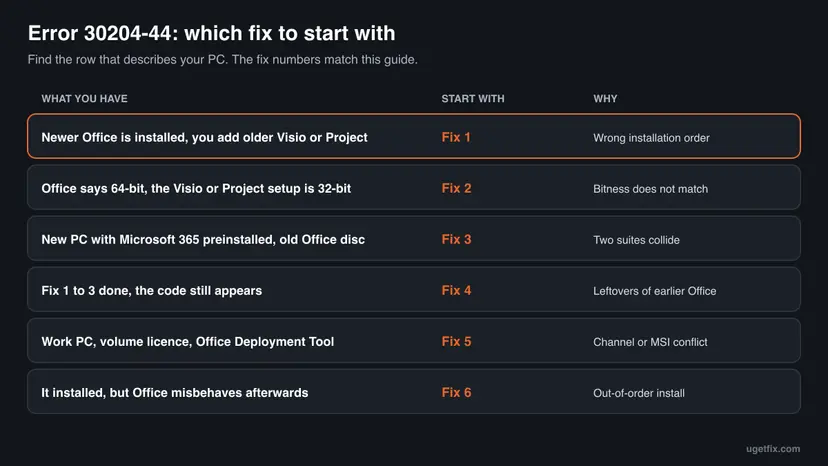
Fix 1 to Fix 3 match the three situations behind most reports, so pick the one that fits what you found above. Fix 4 removes leftovers when the first three are not enough. Fix 5 is for IT administrators with volume licences. Fix 6 follows any out-of-order installation.
| What you found | Start with |
|---|---|
| Office 2021, 2024 or Microsoft 365 is installed and an older Visio, Project or Office fails | Fix 1 |
| Office is 64-bit and the new product is 32-bit, or the other way round | Fix 2 |
| New PC, Microsoft 365 came with it, and you install your own Office 2016, 2019 or 2021 | Fix 3 |
| Nothing else seems to be installed, but the code keeps coming | Fix 4 |
| Work PC with volume licensed Office, Visio or Project | Fix 5 |
| Everything installed at last, but Office opens files wrongly or crashes | Fix 6 |
Fix 1. Install the older product first, then the newer Office
30 to 60 minutesRead the warningA newer Office is on the PC and you are adding an older Visio, Project or Office.
Microsoft tells you to install earlier versions first and says this applies to Visio and Project too. In the Microsoft Q&A threads about 30204-44 with Visio 2016, Visio 2019 and Project 2019, removing the newer suite and installing in that order is the answer that worked.
Uninstalling Office removes the apps, not your documents, workbooks or diagrams. What you can lose is the way back: before you start, make sure you can sign in at account.microsoft.com and see both products there, or that you have both product keys. Copy custom templates and Outlook signatures if you would miss them: Back up your files (Windows Backup, File History, Time Machine).
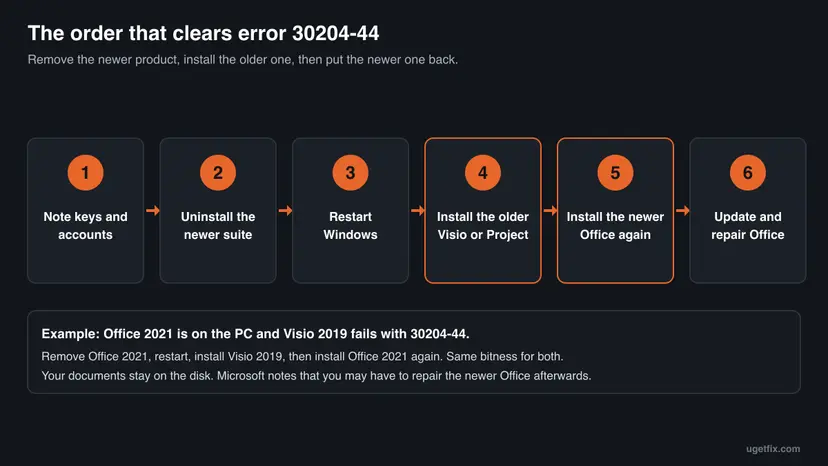
- Close all Office apps, including Outlook and Teams.
- Press Win + I, open Apps > Installed apps, select the three dots next to the newer suite, for example Microsoft Office Professional 2021 or Microsoft 365, and select Uninstall. On Windows 10 open Apps & features, select the entry and Uninstall. Every screen: Uninstall a program or app in Windows.
- Restart the PC with Start > Power > Restart.
- Install the older product. For a one-time Visio or Project bought for home, sign in at
microsoft365.com, select Install Office, open Subscriptions in the account portal, find the product and select Install. - Before you select Install, open Other options and choose the same bitness the newer Office will use, normally 64-bit.
- Run the downloaded file, select Yes at the User Account Control prompt and wait for You're all set!
- Install the newer Office the same way, with the same bitness.
- Open Word, go to File > Account and select Update Options > Update Now.

- With Microsoft 365 you may not need to remove anything. Microsoft supports Microsoft 365 Apps next to Visio and Project 2019, 2021 and 2024, as long as Microsoft 365 is new enough: Version 1808, 2108 or 2408 or later. Run Update Now first, then try the Visio or Project installer once more before you uninstall.
- Visio is never part of a Microsoft 365 suite, Microsoft says. It is always a separate installation, so the order rule always applies to it.
- If Uninstall itself fails, or shows another error code, go to Fix 4 and remove Office with Microsoft's tool.
It worked if: The older product installs and ends with You're all set!, and the newer Office installs after it without 30204-44. Both appear in Installed apps.
If not: If the code appears again on the older product, check the bitness with Fix 2. If it appears on the newer Office, run Fix 4 and then repeat this order on a clean PC.
Fix 2. Install every product with the same bitness, 32-bit or 64-bit
15 to 40 minutesLow riskAbout Word shows one bitness and the Visio, Project or Office you are installing is the other.
Microsoft states that all products on one computer must have the same bitness, and that you can't install a 32-bit Visio with a 64-bit Office. The reports of 30204-44 that name a bitness all name 64-bit Office, while installers for older Visio and Project often hand out 32-bit by default.
- Read the bitness of the installed Office in File > Account > About Word, or the
Platformvalue from the command in the section on what is installed. - Remove the failed product if it left an entry in Installed apps.
- Start the download of the product again from your account and select Other options.
- Choose the language and the bitness that matches Office, then select Install.
- If you install from an image file or a disc, open its Office folder and run
Setup64.exefor 64-bit orSetup32.exefor 32-bit, instead ofSetup.exe. - Wait for You're all set! and open the new app once.
| Your situation | What to do |
|---|---|
| Office is 64-bit, Visio or Project came as 32-bit | Download Visio or Project again as 64-bit. Nothing else changes. |
| Office is 32-bit and you need 64-bit Visio or Project | Microsoft's order: uninstall Office, then install Office again as 64-bit, then Visio or Project as 64-bit. |
| You only have a 32-bit disc of the older product | Office must go to 32-bit too, or you need a 64-bit download of the older product from your account. |
When no Office is installed, the Office Deployment Tool picks 64-bit by itself, and 32-bit only on 32-bit Windows or with less than 4 GB of RAM, according to Microsoft Learn. Choose 32-bit only if an add-in or macro you depend on needs it.
It worked if: The installer for the matching bitness runs to You're all set! and the new app opens next to Office.
If not: If the bitness already matched, the order is the next suspect: go to Fix 1. On a new PC with Microsoft 365 preinstalled, go to Fix 3.
Fix 3. Deal with the Microsoft 365 that came preinstalled on a new PC
15 to 30 minutesLow riskThe PC is new, Word opened with Let's get started, and you install your own one-time Office.
New Windows PCs often come with Microsoft 365 installed as a one-month trial of Microsoft 365 Family. Microsoft says a subscription and a one-time version such as Office 2021 usually cannot run on the same computer. Your older Office then trips over the trial during setup.
- Open Word. Microsoft explains that a Let's get started screen with options to try, buy or activate means Microsoft 365 is installed as a trial.
- If you bought a one-time Office, go to
office.com/setup, sign in with your Microsoft account and enter the product key. Microsoft notes that the key is then linked to your account and you can install fromaccount.microsoft.comat any time. - Open Settings > Apps > Installed apps, search for
365andoffice, and uninstall the preinstalled Microsoft 365 entries. - Restart the PC.
- Install your own Office from the account page, with the bitness you want, as in Fix 1 steps 4 to 6.
- Open Word and accept the licence terms to activate.
On Microsoft Q&A a user with 30204-44 from an Office 2016 CD on a PC with Microsoft 365 preinstalled did not install anything. He opened one of his documents, chose to enter a product key instead of the trial, and the preinstalled apps accepted the Office 2016 key and updated themselves. Microsoft does not document this route, so treat it as a report you can try first.
- If you paid for Office with the PC, Microsoft says the licence comes as a digital key that arrives when Windows activates. Then keep the preinstalled Office and activate it instead of installing anything.
- Office 2016 and Office 2019 reached the end of support on 14 October 2025. They still install and run, but get no more security updates. If you are reinstalling from an old disc anyway, the preinstalled Microsoft 365 or a current one-time version may be the better choice.
It worked if: Only one Office suite is listed in Installed apps, Word opens without the Let's get started screen, and File > Account shows your product as activated.
If not: If the trial will not uninstall, or the code returns on a PC that shows no other Office, remove everything with Fix 4.
Fix 4. Remove every Office product with Microsoft's uninstall troubleshooter
20 to 45 minutesRead the warningFix 1 to Fix 3 did not help, or Installed apps shows no conflict and the code still appears.
When an earlier Office was removed only in part, setup still finds its traces and refuses as if the product were there. A user in the French forum report wrote that the code seemed to say the software was already installed. Microsoft's uninstall tool clears all versions so that you can install again in the right order.
This removes every Microsoft 365, Office, Visio and Project product on the PC, not only the one that fails. Your documents stay, but you have to install and activate each product again, so check your keys and accounts first. Custom templates and signatures: Back up your files (Windows Backup, File History, Time Machine).
- Sign in to Windows with an administrator account.
- Open Microsoft's page Uninstall Microsoft 365 or Office from a PC and keep the Click-to-Run tab selected.
- Select the Uninstall button under the uninstall troubleshooter, and Open when the browser asks to open Get Help.
- Follow the prompts. When it asks which versions to remove, select all of them.
- Restart the PC when you are told to, and check that Installed apps shows no Office, Visio or Project.
- Install your products again, the oldest first and all with the same bitness, as in Fix 1.
| Limit | What it means for you |
|---|---|
| The troubleshooter can't uninstall Office 2024 | Remove Office 2024 in Installed apps, or with the Office Deployment Tool and the Remove element shown below. |
| It needs Windows 10 or later | Windows 10 left support on 14 October 2025, but the tool still runs there. |
| Microsoft Support and Recovery Assistant is gone | Old guides still point to SetupProd_OffScrub.exe. Its job now runs in the Get Help app. |
remove.xml for the Office Deployment Tool: run setup.exe /configure remove.xml in an elevated Command Prompt
<Configuration>
  <Remove All="TRUE" />
</Configuration>
If the troubleshooter itself fails, the manual removal of the service, the folders and the registry keys is described step by step in our guide to error 30015-25. It uses the same Click-to-Run parts and the same Microsoft instructions.
It worked if: Installed apps lists no Office, Visio or Project, and the products then install one after the other without 30204-44.
If not: If a clean PC still shows the code on the very first product, read the setup log as described under Still there, and check the licence.
Fix 5. Add volume licensed Visio or Project with the Office Deployment Tool
15 to 30 minutesLow riskIT administrators with Office LTSC, Visio LTSC or Project LTSC, or with volume licensed Visio or Project 2016.
Microsoft requires volume licensed Visio and Project to use the same update channel and bitness as the installed Office, and refuses MSI and Click-to-Run of the same version side by side. The Office Deployment Tool lets you state the channel, the bitness and the version, so the new product fits the installed one.
- Download the Office Deployment Tool from the Microsoft Download Center and extract it to a folder such as
C:\ODT. - Read the installed product, channel and bitness with the command in the section on what is installed.
- Create a configuration file like the one below in the same folder. Use the product ID of your Visio or Project and the channel of your Office.
- Open Command Prompt as administrator and type
cd /d C:\ODT. - Run
setup.exe /configure visio.xmland wait until the command prompt returns. - Open Visio or Project and check File > Account.
visio.xml: Visio LTSC Professional 2021 added to an installed 64-bit Office LTSC Professional Plus 2021
<Configuration>
  <Add OfficeClientEdition="64" Channel="PerpetualVL2021" Version="MatchInstalled">
    <Product ID="VisioPro2021Volume">
      <Language ID="MatchInstalled" TargetProduct="ProPlus2021Volume" />
    </Product>
  </Add>
</Configuration>| Attribute | Why it is there |
|---|---|
OfficeClientEdition | Must match the installed Office. Microsoft says that otherwise the installation fails, since mixed architectures aren't supported. |
Channel | PerpetualVL2024, PerpetualVL2021 or PerpetualVL2019 for the LTSC and 2019 volume editions. For Microsoft 365 Apps, the channel it uses, such as Current or MonthlyEnterprise. |
Version="MatchInstalled" | Installs the build that is already on the PC instead of a newer one. Microsoft requires Channel with it. |
Language ID="MatchInstalled" | Gives Visio the languages of the product named in TargetProduct. |
- Volume licensed Visio or Project 2016 next to Click-to-Run Office cannot be installed from the MSI media. Microsoft's alternative is to install the Click-to-Run edition of Visio or Project 2016 with the Office Deployment Tool.
- Microsoft recommends building the file with the Office Customization Tool at
config.office.com: leave the Office suite field empty and choose your version in the Visio or Project list.
It worked if: The command returns without a message, Visio or Project appears in Installed apps, and File > Account in Visio shows the same channel as Office.
If not: If setup.exe stops at once with a window about the configuration file, check the XML for a typing mistake. If 30204-44 appears, compare product IDs and channels again, or remove all products with Fix 4 and deploy them in one file.
Fix 6. Repair the newer Office after an out-of-order installation
15 to 30 minutesLow riskEverything is installed at last, but Office crashes, files open in the wrong app or updates fail.
Microsoft warns that if you don't install the products from oldest to newest, you may have to repair the later versions afterwards. It also says that after removing an earlier version, the remaining one may need a repair for file associations to work.
- Close every Office app.
- Open Settings > Apps > Installed apps (Windows 10: Apps & features), find the newer Office and select Modify.
- In How would you like to repair your Office programs? select Quick Repair and Repair.
- Open Word and Visio or Project and test the problem that sent you here.
- If it is still there, repeat the steps with Online Repair, which needs the internet throughout.
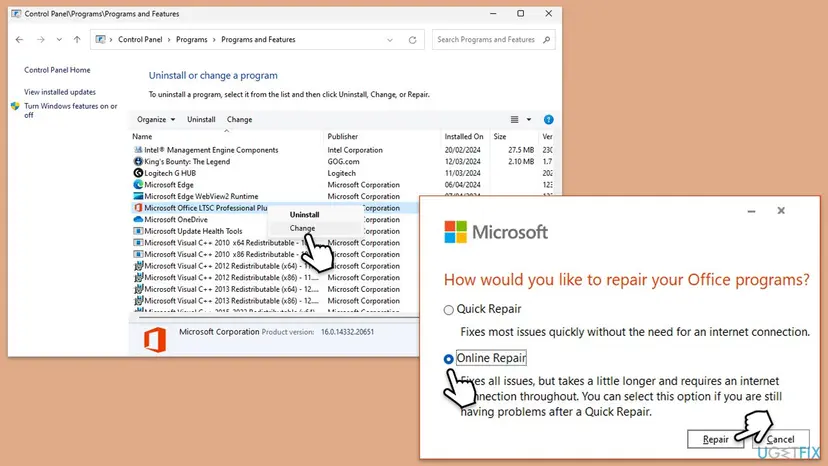
The repair covers the whole suite. All screens for Windows 11 and Windows 10 are in the library procedure: How to repair Microsoft 365 or Office.
It worked if: Word, Excel and the added Visio or Project open without errors, and files open in the right app when you double-click them.
If not: If the repair fails or the problem returns, remove all products with Fix 4 and install them again in the right order.
If 30204-44 is still there: read the setup log and check the licence
The setup window says nothing about the product it collided with. Click-to-Run writes that to its log files. Microsoft's enterprise logging page points to the %temp% folder of the user who ran setup, and to %windir%\Temp for the system account that does the installing.
- Run the failing installer once more and note the time.
- Press Win + R, type
%temp%and press Enter. Switch to Details and sort by Date modified, newest first. - Open the newest
.logfile whose name begins with the name of your PC. It opens in Notepad. - Press Ctrl + F and search for
30204, then forerror. Read the lines just before the first hit and look for product names or IDs such asVisioPro2019RetailorO365HomePremRetail. - Repeat it in
%windir%\Temp.
We could not confirm from Microsoft which exact log line accompanies 30204-44, so read it as a hint. A product ID that you did not expect usually names the product that has to go first or has to match.
Turn on verbose setup logging (elevated Command Prompt), then restart the Microsoft Office Click-to-Run service
reg add HKLM\SOFTWARE\Microsoft\ClickToRun\OverRide /v LogLevel /t REG_DWORD /d 3
reg add HKLM\SOFTWARE\Microsoft\ClickToRun\OverRide /v PipelineLogging /t REG_DWORD /d 1These two values only make the log longer, but export the registry before you add them: Back up the registry before editing it. Microsoft says to turn verbose logging off once you have the log, because the files grow large. Remove them with reg delete and the same key and value names.
- Check the licence when the product was cheap. A user with Office Pro 2021 and 30204-44 found a Security-SPP warning in Event Viewer that a volume licence activation had failed. A volunteer moderator pointed to a key sold online at a very low price. A volume key for home use is a matter for the seller, not for any fix on this page.
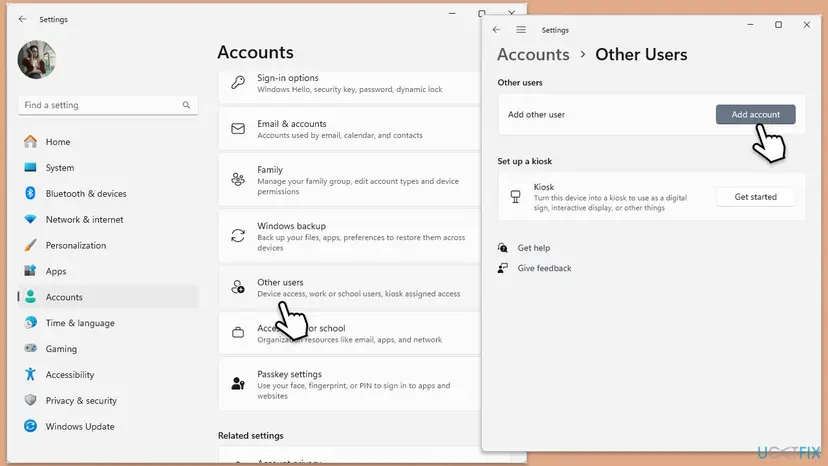
- Test with a new administrator account. If the code appears for one Windows user only, create a local administrator account, sign in to it and run the installer there: Create a new user account to test a problem. We found no report that ties 30204-44 to a damaged profile, so this is a test, not a likely cause.
- What to send to Microsoft support or your IT department: the full code, the product and year you install, and the products already on the PC with their bitness. Add the Windows version from Settings > System > About, and the newest log from both folders.
A managed work PC may block your own installations, and only IT can add Visio or Project there. A product that does not appear in your Microsoft account cannot be installed from it, which is a question for the seller or Microsoft support. And some combinations, such as a subscription suite next to a one-time suite, Microsoft does not support at all.
How to avoid error 30204-44 when you add Office products later
Almost every report of this code starts with a second Office product added to a PC that already had one. Plan the combination before you buy or install, and keep every product on the same bitness and the same kind of licence.
- Install the oldest product first: Visio or Project 2019 before Office 2021, Office 2016 before Office 2019.
- Choose the same bitness every time with Other options on the download page.
- Update Microsoft 365 with Update Now before you add Visio or Project 2021 or 2024.
- Buy Visio or Project of the same year as your Office when you can, or the subscription version next to Microsoft 365.
- Keep your product keys linked to one Microsoft account, so you can reinstall in any order.
- Install a one-time Office on a new PC before you decide what to do with the preinstalled Microsoft 365.
- Mix the MSI edition of Visio or Project 2016 with a Click-to-Run Office.
- Run
Setup.exefrom an old disc without checking whether it installs 32-bit. - Remove Office by deleting folders, or with cleaning tools.
- Buy a volume licence key sold for home use.
Frequently asked questions
What does error code 30204-44 mean?
It means that the Office installer refused to finish, and in nearly every report the reason is a product that is already on the PC. Microsoft does not explain the two numbers and has no support article for this code. The cases we found follow Microsoft's rules for side by side installations: an older Visio or Project after a newer Office, 32-bit next to 64-bit, a second suite, or MSI next to Click-to-Run. Start by listing what is installed, then follow Fix 1, Fix 2 or Fix 3.
Why do I get 30204-44 when I install Visio or Project?
Because Visio and Project are separate installations that must fit the Office already on the PC. Microsoft says Visio is never part of a Microsoft 365 suite. When Office 2021 or Microsoft 365 is installed first and you add Visio 2016, Visio 2019 or Project 2019, setup often stops with 30204-44. A Microsoft moderator named this case for Project 2019, and users with Visio confirmed that installing the older product first worked. Check the bitness too, because 32-bit Visio next to 64-bit Office is never allowed.
Can I install Visio 2019 or Project 2019 next to Office 2021?
Yes, if both are Click-to-Run, both have the same bitness and you install them in the right order. Microsoft's advice is to install the earlier version first, so Visio or Project 2019 goes on before Office 2021. If Office 2021 is already there, uninstall it, restart, install the 2019 product and install Office 2021 again (Fix 1). Next to Microsoft 365 the rule is easier: Microsoft supports Visio and Project 2019 with Microsoft 365 Apps from Version 1808, so updating Microsoft 365 may be enough.
Do I have to uninstall Office to fix error 30204-44?
Often, but not always. With Microsoft 365, update it first, because Microsoft supports Visio and Project 2019, 2021 and 2024 next to a recent Microsoft 365 Apps. When the problem is only the bitness, you download Visio or Project again in the matching bitness and Office stays. You have to remove Office when a newer one-time suite blocks an older Visio or Project, when 32-bit Office must become 64-bit, or when two suites collide on a new PC. Your documents are not removed.
Will I lose my files or Outlook mail if I uninstall Office to fix this?
No. Microsoft states that uninstalling Microsoft 365 or Office removes the applications only, not the files, documents or workbooks you created. Mail in a Microsoft 365, Exchange or Outlook.com account stays on the server. What you can lose is local customisation, such as templates or signatures, and the ability to reinstall if you no longer know the product key or account. Link every product key to your Microsoft account at office.com/setup before you start, and back up what you would miss.
Can 32-bit Visio or Project run with 64-bit Office?
No. Microsoft says all installed products must match in bitness and gives exactly this example: you can't install a 32-bit Visio on a computer with a 64-bit Office. The installer stops, with 30204-44 or with a message that Office 64-bit or 32-bit couldn't be installed. Check the bitness in File > Account > About Word. Then download Visio or Project again with Other options and the matching bitness, or run Setup64.exe or Setup32.exe from the Office folder of an image or disc.
Is there an official Microsoft fix or patch for 30204-44?
No. The code is not a bug in one Office build, and Microsoft's list of installation error codes does not include it (checked 14 October 2026). What Microsoft does publish are the rules the installer enforces: the same bitness, the same installation technology for version 16.0 products, the same update channel for volume licensed Visio and Project, and the oldest product first. Microsoft forum moderators answer 30204-44 by asking which other Office is installed, and the accepted solutions change the order of installation.
Is "код ошибки 30204-44" or "codigo de error 30204-44" the same error?
Yes. The setup window is translated into the language of your Office, but the code stays 30204-44 in Russian, Spanish, French and every other language, and so does the cause. The commands on this page work the same everywhere, for example the PowerShell line that reads ProductReleaseIds and Platform. Only the labels differ, such as Installed apps, Modify or Online Repair. Microsoft's pages linked here exist in other languages too: change en-us in the address to ru-ru or es-es.
I see error 30204 when I try to open Word. Is Word broken?
Word itself does not show this code. It comes from the Office installer, so it appears when you install or reinstall Office, Visio, Project or a standalone Word, or when a half-finished installation tries to complete. If you installed a standalone Word next to a suite that already includes Word, Microsoft says setup removes the standalone copy, which is expected. Check Installed apps for two Office products, follow the fix that matches, and run a Quick Repair afterwards if Word still misbehaves (Fix 6).
What about error 30206-44 or 3024-44?
3024-44 is a typing slip for 30204-44: no Office code with that spelling appears in any report we found. 30206-44 is a real but different code. We found no Microsoft page and too few reports to describe its cause with confidence. Because it shares the -44 ending and appears in the same setup window, the checks on this page are a sensible start: what is installed, the bitness, the order and a preinstalled Microsoft 365. If none fits, read the setup log as described under Still there.
Sources
- Microsoft Learn: Supported scenarios for installing different versions of Office, Project, and Visio on the same computer (learn.microsoft.com)
- Microsoft Support: Install and use different versions of Office on the same PC (support.microsoft.com)
- Microsoft Support: Office installed with Click-to-Run and Windows Installer on same computer isn't supported (support.microsoft.com)
Did this fix work?
One click, no account. It tells the next reader which guides are worth their time.
Questions and experiences: fix Microsoft Office error 30204-44 in Windows
Still broken, or found a fix we did not cover? Ask here: members and our editors answer. Reading is open; writing needs a free account.
…