
How to fix Microsoft Office error 58tm1 in Windows?

Prefer to fix it yourself? The manual steps follow.
- 6methods
- 5 to 30 minutes
- Intermediate
Applies to Microsoft 365 apps and Office for Windows (classic Outlook, Teams, Word, Excel, PowerPoint, OneDrive) on Windows 11, Windows 10 and Windows Server terminal servers
6 methods in this guide
I keep getting "Something went wrong. [58tm1]" error in Microsoft Office apps occasionally. For example, last time I got it when I tried to open a file via Word. Could you help me with this?
The 58tm1 tag means that Outlook, Teams, Word or another Microsoft 365 app on Windows could not finish your sign-in with the token data it saved on this PC. The window shows Something went wrong. [58tm1]. Your account is usually fine: sign out, empty the Office sign-in cache, then reset the AAD Broker plug-in data.
58tm1 is a sign-in failure on the PC, not a fault of your account: Office cannot read or use the token data it saved for you. Sign out of Office, close every Office app, empty %localappdata%\Microsoft\OneAuth and %localappdata%\Microsoft\IdentityCache, restart and sign in again (Fix 1). If it returns, clear your user's AAD Broker plug-in data (Fix 2).
| Error | Something went wrong. [58tm1] in a Microsoft window headed Error, with a Close button. The troubleshooting details can show Error Code 2147942403. |
|---|---|
| Where it appears | At sign-in to classic Outlook, the Teams desktop app, Word, Excel or OneDrive, and sometimes when you open a file from the cloud in Word. |
| Main cause | Damaged or unreadable sign-in data in your Windows profile: the Office identity cache and the tokens of the Microsoft.AAD.BrokerPlugin component. |
| Fastest fix | Sign out, close Office, empty OneAuth and IdentityCache, restart and sign in (Fix 1). Then clear the AAD Broker plug-in data of your user (Fix 2). |
| Also written as | 58tm1 error, error 58tm1, [58tm1], "Something went wrong 58tm1", "Something didn't work [58tm1]", "Se ha producido un error. [58tm1]", "erreur 58tm1". |
| Affects | Microsoft 365 apps on Windows 11 and Windows 10 with work or school accounts, and above all terminal servers and virtual desktops that use FSLogix profiles. |
| Microsoft's status | No Microsoft article defines the tag (checked 15 October 2026). Microsoft forum staff tie it to authentication, cached credentials and the AAD Broker plug-in. |
| Error code 2147942403 | In hexadecimal 0x80070003: the Windows error 3, "The system cannot find the path specified". Something Office expected in the profile was not there. |
| Time to fix | About 5 minutes for Fix 1. Up to 30 minutes on a terminal server, where the administrator has to check FSLogix. |
Facts checked on 15 October 2026. Steps written for Microsoft 365 apps and Office on Windows 11 (25H2 and 26H2) and Windows 10 22H2, read against a Microsoft staff answer on Microsoft Q&A and administrator reports.
What Something went wrong [58tm1] means in Outlook, Teams and Office
You open Outlook or Teams, or a file in Word, and a small Microsoft window appears with the heading Error, the red line Something went wrong. [58tm1] and a Close button. After Close the app stays signed out, or asks for the same sign-in again and fails the same way.
![Microsoft sign-in window with the heading Error, the red line Something went wrong. [58tm1] and a blue Close button](/pic/w828q75/uploads/wp/articles/askit/how-to-fix-microsoft-office-error-58tm1-in-windows-copy_en.jpg.webp)
The tag is a marker of the place in Microsoft's sign-in code where the attempt stopped. Microsoft publishes no list of these tags. A Microsoft moderator on Microsoft Q&A wrote that 58tm1 with the code 2147942403 "typically indicates issues related to authentication or file access permission", and named corrupted cached credentials and the Microsoft.AAD.BrokerPlugin component as the main causes.
Converted to hexadecimal, 2147942403 is 0x80070003. The 8007 part means a plain Windows error is wrapped inside, and the last digit is that error: 3, "The system cannot find the path specified". So Office looked for sign-in data in your profile and did not find it where it expected. That fits the fixes: they clear the damaged data so Windows builds it again.
Every spelling people type means the same window: 58tm1, 58tm1 error, error 58tm1, [58tm1], "Something went wrong 58tm1" and "Something didn't work [58tm1]". In Spanish Office the line reads "Se ha producido un error. [58tm1]"; in French people search for "erreur 58tm1". The tag stays the same in every language.
58tm1 in Outlook, Teams, Word and OneDrive
The Microsoft 365 apps on Windows do not each run their own sign-in. They share the Office identity cache and ask a Windows component, the AAD Broker plug-in, for tokens. One damaged entry can therefore stop one app while another, which still holds a valid token, keeps working.
- Classic Outlook: most searches for the tag include Outlook. Administrators report it after a user cannot sign in to Outlook 365 on a terminal server, while the web mail at outlook.office.com works.
- Teams: an administrator on Microsoft Q&A reported 58tm1 in the Teams desktop app on Windows 11 for some users who could sign in to Teams on the web without trouble. A Teams reinstall alone did not end it.
- Word and Excel: the reader's question above is typical. The tag appears when a file from OneDrive or SharePoint is opened and Word has to fetch a fresh token for it.
- OneDrive: the sync app uses the same sign-in layer, so the tag can appear at its sign-in too. The same fixes apply.
Open your mail at outlook.office.com and your files at office.com, and use Teams at teams.microsoft.com. If the browser accepts your account, the account, the password and the licence are fine and the fault is on this PC.
What causes error 58tm1, from the most common to the rare
Microsoft has not published a cause for this tag. The ranking below comes from the answer of Microsoft's forum staff, the administrator reports that the BornCity blog collected, and what the error code says. Treat the order as our reading of those reports, not as a statistic.
| How often | Cause | Typical sign | Fix |
|---|---|---|---|
| Most often | Stale or damaged entries in the Office identity cache (OneAuth, IdentityCache) | One app fails while the browser works, often after a password change or a reinstall. | Fix 1 |
| Often | Expired or unreadable tokens in your user's AAD Broker plug-in data | Every Office app fails at sign-in, signing out and in again helps only for a while. | Fix 2 |
| Often | Old Office passwords in Credential Manager or a broken work or school link | A work or school account on a PC you own. | Fix 3 |
| Less often | A damaged or unregistered AAD Broker plug-in package | The sign-in window is blank or closes at once. | Fix 4 |
| On shared servers | FSLogix profile containers that load or roam the sign-in data wrongly | Terminal server or virtual desktop, several users, the error comes back after each logon. | Fix 5 |
| Rarely | Damaged Office program files or an old Office build | Fixes 1 to 4 did not change anything. | Fix 6 |
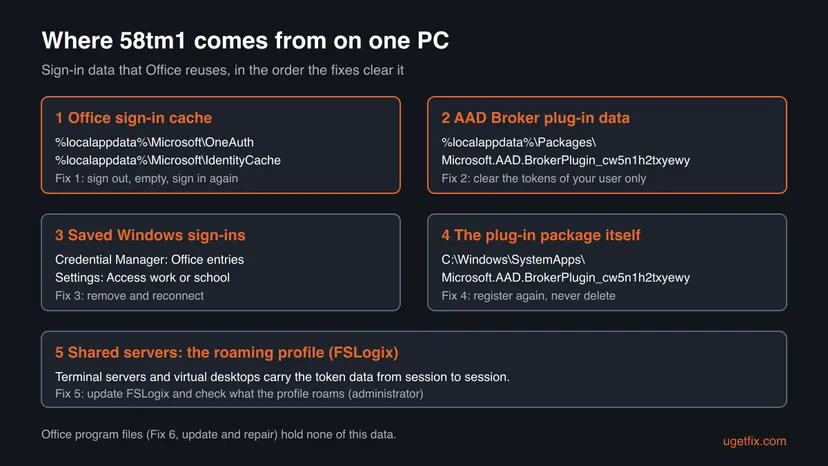
The old version of this page blamed a poor internet connection. No source we read ties 58tm1 to the network, and the error code points at missing data in the profile, not at a connection. If the browser signs in on the same network, the connection is not the cause.
Home PC, work PC or terminal server: who may run which fix
Fix 1 only clears data in your own user profile and is safe on any PC. Fix 2 and Fix 3 sign Windows out of your work account, so on a PC that an employer or a school manages, ask IT first. Fix 4 and Fix 5 need administrator rights, and Fix 5 is a server task.
- Run Fix 1 first and test the sign-in.
- Note the app, the time and the troubleshooting details before you close the window.
- On a terminal server, tell the administrator that the error follows your logon.
- Delete the folder
C:\Windows\SystemApps\Microsoft.AAD.BrokerPlugin_cw5n1h2txyewy. It is the Windows component itself, not your data. - Run
regsvr32on a BrokerPlugin DLL. The plug-in is an app package, not a DLL, so the command only returns an error. - Disconnect an account under Access work or school when the button is greyed out or IT manages the PC.
How to fix error 58tm1 in Outlook, Teams and Office
The fixes are ordered by how often they end 58tm1 and how little they change. Fix 1 is safe on every PC and is the one to try first. After each fix open the app that failed and sign in. When the app shows your name and stays signed in after a restart, you are done.
| What you see | Start with | Then |
|---|---|---|
| One app fails (Outlook, Teams or Word), the browser works | Fix 1 | Fix 2, Fix 3 |
| Every Office app fails at sign-in on your own PC | Fix 1 | Fix 2, Fix 4 |
| Signing out and in again helps for a day, then 58tm1 returns | Fix 2 | Fix 3 |
| The sign-in window is blank or closes at once | Fix 4 | Fix 6 |
| Terminal server, Azure Virtual Desktop or FSLogix profiles | Fix 2 | Fix 5 (administrator) |
| office.com in the browser refuses the account too | Nothing on this PC | Reset the password or ask the administrator |
Fix 1. Sign out and empty the Office sign-in cache (OneAuth and IdentityCache)
5 minutesLow riskEveryone, first. Above all when only one app fails or the error began after a password change or a reinstall.
OneAuth and IdentityCache hold the accounts and tokens that Office reuses at sign-in. When an entry is damaged or points at data that is gone, Office keeps trying it and stops with 58tm1. Office rebuilds both folders at the next sign-in.
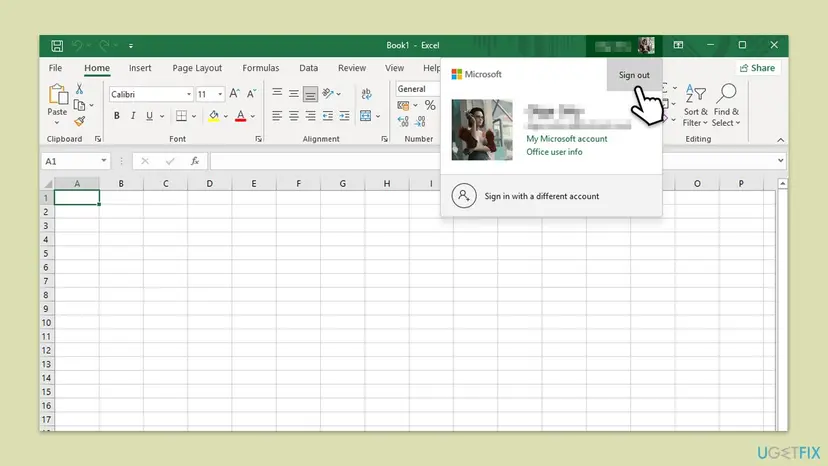
- Open Word or Excel, select your name or picture at the top right and select Sign out. Sign out of every account listed.
- Close Outlook, Teams, OneDrive and every other Office app. Quit OneDrive and Teams in the taskbar corner too.
- Press Win + R, paste this path and press Enter:
%localappdata%\Microsoft\OneAuth - Select everything inside with Ctrl + A and delete it.
- Press Win + R again, open the second folder and delete its contents too:
%localappdata%\Microsoft\IdentityCache - Restart the PC, open the app that failed and sign in with your account.
Nothing of value is lost: no mail and no files, only saved sign-ins. The administrator in the Teams case on Microsoft Q&A cleared these same two folders, together with %localappdata%\Microsoft\TokenBroker, before reinstalling Teams. If you want an undo, rename the folders to OneAuth.old and IdentityCache.old instead of emptying them.
It worked if: The sign-in window asks for your password and approval, then closes, and your name appears at the top of the app.
If not: If the tag returns at once, or a day later, the tokens of the Windows sign-in component are damaged as well. Go to Fix 2.
Fix 2. Clear your user's AAD Broker plug-in data
10 minutesRead the warningFix 1 did not hold, every Office app fails, or 58tm1 comes back after each sign-in. This is the fix administrators report most for terminal servers.
The AAD Broker plug-in is the Windows component that hands Office its work and school tokens, and it stores them per user under Packages. An administrator quoted by BornCity ended 58tm1 for affected users by deleting this folder from their profile; Windows creates it again.
Every app that uses your work or school account through Windows, such as Teams, OneDrive and Edge, asks you to sign in again. Have your password and the phone for approvals ready. On a PC managed by an employer or school, ask IT before you do this, as some policies block access to the folder.
- Sign out of Office as in Fix 1 and close all Office apps, Teams and OneDrive.
- Open File Explorer and paste this path into the address bar:
%localappdata%\Packages\Microsoft.AAD.BrokerPlugin_cw5n1h2txyewy - Go one level up to Packages, right-click the folder and select Rename. Add .old to the end of its name.
- If Windows says the folder is in use, sign out of Windows, sign in again and rename it before you open any app.
- Restart the PC and sign in to the Office app. Windows creates a fresh plug-in folder.
- When the sign-in holds for a few days, delete the .old folder.
Do this only in your own profile under %localappdata%\Packages. A Microsoft moderator's reply once pointed at the folder of the same name in C:\Windows\SystemApps, and the user could not delete it even after taking ownership. That folder is the installed Windows component, not your data, and it is repaired in Fix 4 instead.
It worked if: Office asks for a complete sign-in with password and approval, and stays signed in after the next restart.
If not: If 58tm1 returns, remove the saved credentials and reconnect the work account with Fix 3.
Fix 3. Remove the saved Office credentials and reconnect the work or school account
10 minutesLow riskA work or school account on a PC you own, when Fix 1 and Fix 2 did not hold.
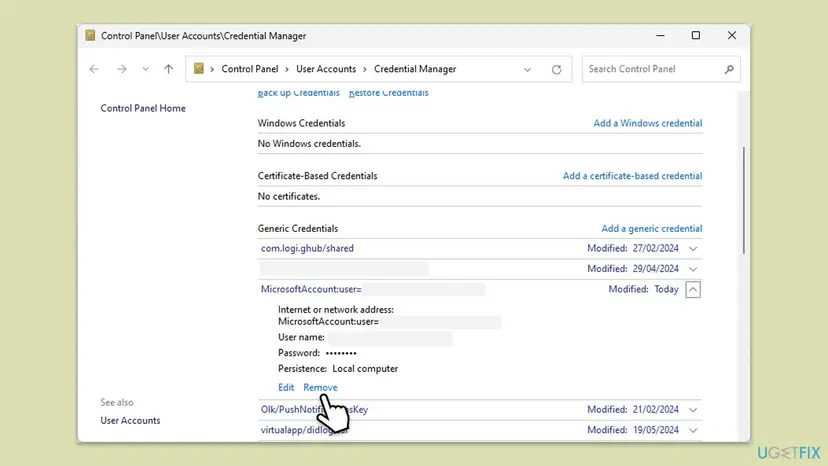
Windows keeps Office sign-ins in Credential Manager and in the list under Access work or school, and Fix 1 does not touch either. Microsoft's forum staff give both steps for 58tm1: remove the Office credentials, then disconnect and connect the account again to refresh it.
- Close all Office apps and Teams.
- Select Start, type
credential managerand open Credential Manager. - Select Windows Credentials. Under Generic Credentials, expand each entry named MicrosoftOffice16 (older installs may show MicrosoftOffice15) and select Remove.
- Open Settings > Accounts > Access work or school.
- Select the account you use for Office, select Disconnect and confirm.
- Restart the PC, return to Access work or school, select Connect and sign in with the same account.
- Open the Office app and sign in.
Then your organisation manages the device, and the Microsoft moderator's answer is plain: only the IT administrator can change it. The same goes when Windows Credentials is disabled by policy, as one administrator found. Do only Fix 1 and ask IT for Fix 2.
It worked if: Credential Manager has no MicrosoftOffice16 entries left, the app asks for a fresh sign-in, and it opens without the tag.
If not: If the sign-in window is blank or closes at once, the plug-in package itself may be damaged. Go to Fix 4.
Fix 4. Register the AAD Broker plug-in again with PowerShell
5 minutesLow riskThe sign-in window is blank, closes at once, or Fix 1 to Fix 3 changed nothing.
If the plug-in package is missing or broken for your user, no token it returns can be used. The Microsoft moderator's answer for 58tm1 gives a PowerShell line that registers the package again only when it is missing, then shows its details.
- Select Start, type
PowerShell, right-click Windows PowerShell and select Run as administrator. Select Yes. - Paste this line and press Enter. It registers the plug-in if it is missing and then lists it:
if (-not (Get-AppxPackage Microsoft.AAD.BrokerPlugin)) {Add-AppxPackage -Register "$env:windir\SystemApps\Microsoft.AAD.BrokerPlugin_cw5n1h2txyewy\Appxmanifest.xml" -DisableDevelopmentMode -ForceApplicationShutdown}; Get-AppxPackage Microsoft.AAD.BrokerPlugin - Check that the output shows Name : Microsoft.AAD.BrokerPlugin and a PackageFullName.
- Restart the PC and sign in to the Office app.
The plug-in package is installed for each user, so run this while you are signed in to Windows as the person who sees 58tm1. For the background of this component and a second plug-in for personal accounts, see our guide to error tag 7q6ch, a sister error of the same sign-in layer.
It worked if: PowerShell prints the package details without red error text, and after the restart the sign-in window reaches the password step and closes normally.
If not: On a terminal server go to Fix 5. On a normal PC go to Fix 6.
Fix 5. On terminal servers and virtual desktops: update FSLogix and check the profile (administrator)
30 minutesLow riskUsers sign in to Windows Server terminal servers or Azure Virtual Desktop with FSLogix profiles, and 58tm1 returns after each logon.
Most 58tm1 reports come from shared servers where FSLogix carries each user's profile, including the AAD Broker tokens, from session to session. Microsoft's forum staff tell administrators to update FSLogix and register the plug-in again on the server.
- Download the current FSLogix release from the Microsoft Download Center and install it on every session host. Microsoft's moderator linked version 25.06 in August 2025.
- Restart the session hosts.
- Run the PowerShell line from Fix 4 on the server as administrator.
- For each affected user, rename the folder from Fix 2 inside their profile, then let them log on again.
- If 58tm1 still returns, review what your FSLogix profile roams for sign-in data, and whether Roam Identity is on or off for your setup.
The BornCity blog reported in September 2025 that FSLogix 25.09 fixed the Outlook 365 error 58tm1. We could not confirm this in Microsoft's FSLogix release notes, which name no 58tm1 fix, so treat it as a report. Administrators also report opposite results with Roam Identity: some say turning it off ended 58tm1, others that turning it on with hybrid join and single sign-on did.
Deleting the plug-in folder of one user fixes that user until the next damaged token is saved into the profile container. An administrator quoted by BornCity calls it a temporary fix. The lasting answer is a current FSLogix and a profile setup that stores the sign-in data cleanly.
It worked if: Users log on, sign in to Outlook once and stay signed in across new sessions.
If not: Open a ticket with Microsoft support with the FSLogix version, the Windows Server version and the troubleshooting details from the error window.
Fix 6. Update Office, then repair it
15 to 40 minutesLow riskNothing above helped, or Office has not been updated for a long time.
An update brings the current sign-in code of Office and a repair replaces damaged program files. Microsoft's moderator lists both for 58tm1. Neither touches the stored sign-in data behind most cases, which is why this comes last.
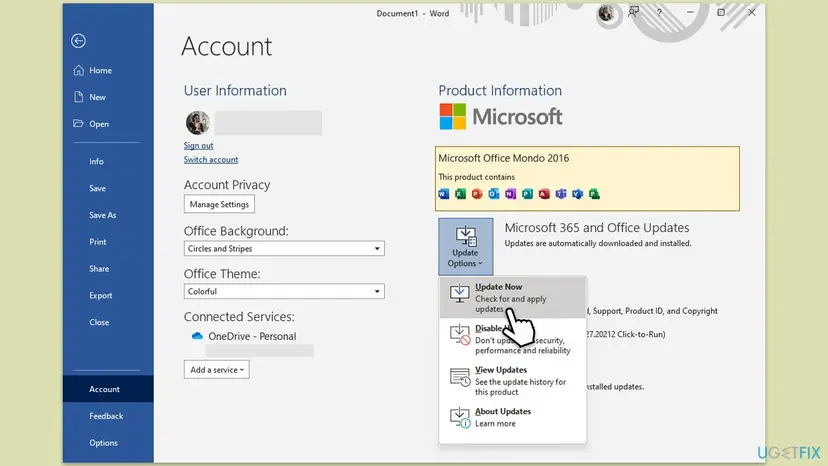
- Open Word and go to File > Account (Office Account in classic Outlook).
- Under Product Information select Update Options > Update Now.
- Wait for the message that updates were installed or that you are up to date, then restart the PC.
- If 58tm1 is still there, run Quick Repair, and Online Repair if Quick Repair does not help.
Every screen of both repairs on Windows 11: How to repair Microsoft 365 or Office.
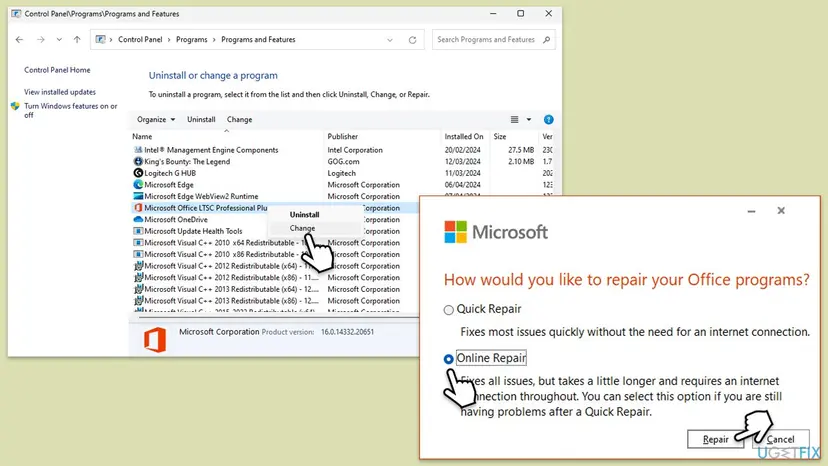
It worked if: Office reports that it is up to date or that the repair is done, and the app signs in after the restart.
If not: Do not reset Windows for this. Run the tests in the next section and send the results to your administrator or to Microsoft support.
If 58tm1 is still there: what to check and what to send
When all fixes fail, stop changing things and narrow the problem down. Three tests tell you whether the fault is the account, your Windows profile or the whole PC.
| Test | Result | What it means |
|---|---|---|
| Sign in at office.com in a browser | Refused | The account, the password or the licence. No change on the PC can fix it. |
| Sign in to Office from a second Windows account on the same PC | Works | Your own profile holds the damaged data. Repeat Fix 1 and Fix 2, or move to the new profile. |
| The same second Windows account | Fails too | The PC itself: the plug-in package, the Office install or the organisation's device settings. |
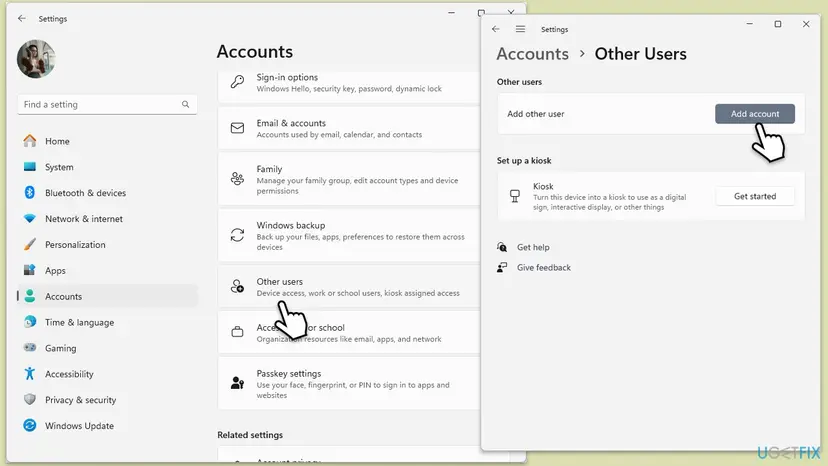
- The test account in full: Create a new user account to test a problem. Sign in to Office there with the same work or personal address.
- For support, copy the details. Select the details link in the error window and note Error Code, Correlation Id and Timestamp, the app, when it started, and whether office.com works.
- For administrators: an administrator on Microsoft Q&A quoted Microsoft support, who traced a recurring 58tm1 in Outlook to a sync issue between Exchange Online Protection and Exchange Online and ran a sync for the user. If one mailbox keeps failing on every PC, ask Microsoft support about this.
If office.com refuses the account as well, the password was reset, the account was disabled or the licence ran out. A school or employer closes accounts when you leave, and then only the account owner can help.
How to keep 58tm1 from coming back
58tm1 returns when the sign-in data saved in your profile is damaged again or no longer matches the account. Most prevention is about keeping that data clean and current.
- Sign out of Office before a password or account change, not after it.
- Do not reinstall Office as the first answer to a sign-in error. The data behind 58tm1 lives in your profile, so clear it first with Fix 1 and Fix 2.
- Leave the Windows sign-in components alone. Tools that remove built-in packages or trim services can break the AAD Broker plug-in.
- On shared servers, keep FSLogix current and test each new release with Outlook and Teams sign-in before you roll it out.
- Keep Office and Windows updated. Windows 10 left support on 14 October 2025, so a Windows 10 PC no longer gets security fixes for this sign-in layer.
Frequently asked questions
What does error 58tm1 mean?
It means that a Microsoft 365 app on Windows could not complete your sign-in with the data it saved on the PC. Microsoft publishes no definition of the tag. Its forum staff link it to authentication, corrupted cached credentials and the Microsoft.AAD.BrokerPlugin component. The code that often comes with it, 2147942403, is the Windows error "The system cannot find the path specified". Clear the Office sign-in cache first with Fix 1.
How do I fix Outlook error 58tm1?
Sign out of Office, close Outlook and every other Office app, and empty the OneAuth and IdentityCache folders under %localappdata%\Microsoft. Restart and sign in to Outlook again. If the tag returns, rename your user's Microsoft.AAD.BrokerPlugin folder under %localappdata%\Packages (Fix 2). On a terminal server with FSLogix, the administrator should also update FSLogix (Fix 5). Your mail at outlook.office.com keeps working while you do this.
Why does Teams show 58tm1 when Teams on the web works?
Because the web version signs in through the browser, while the desktop app asks Windows for a token through the AAD Broker plug-in. When that saved token data is damaged, only the desktop app fails. An administrator on Microsoft Q&A saw exactly this and found that a Teams reinstall alone did not help. Clear the Office cache and the plug-in data with Fix 1 and Fix 2, then reconnect the work account with Fix 3.
What does the error code 2147942403 under 58tm1 mean?
In hexadecimal it is 0x80070003. The 8007 part means a Windows error is wrapped inside, and 3 is ERROR_PATH_NOT_FOUND, "The system cannot find the path specified". So Office looked for something in your profile, such as a token file or a plug-in folder, and did not find it. That is why clearing the cache and letting Windows rebuild it is the usual cure.
Is it safe to delete the Microsoft.AAD.BrokerPlugin folder?
Only the one in your own profile, under %localappdata%\Packages. It holds your tokens and Windows creates it again, though every work app asks you to sign in once more. Renaming it to .old is safer than deleting. Never delete the folder of the same name in C:\Windows\SystemApps: that is the Windows component itself. If it is damaged, register it again with Fix 4.
Does the regsvr32 Microsoft.AAD.BrokerPlugin.dll command fix 58tm1?
No. Some guides, including an older version of this page, suggest regsvr32 /u and regsvr32 on Microsoft.AAD.BrokerPlugin.dll. The AAD Broker plug-in is a Windows app package, not a COM DLL, so the command fails and changes nothing. The supported way is the PowerShell line in Fix 4, which registers the package from its Appxmanifest.xml file, as Microsoft's forum staff give it.
Why does 58tm1 keep coming back on our terminal server?
Because FSLogix saves each user's profile, with its sign-in tokens, into a container and loads it at every logon. A damaged token travels with the profile. Clearing it for one user is a temporary fix, as an administrator quoted by BornCity put it. Update FSLogix on all session hosts, register the plug-in again and review what the profile roams (Fix 5). BornCity reported that FSLogix 25.09 fixed the error; we could not confirm that in Microsoft's notes.
Is "Se ha producido un error. [58tm1]" or "erreur 58tm1" the same error?
Yes. Office translates the sentence and keeps the tag, so Spanish users see "Se ha producido un error. [58tm1]" and French users search for "erreur 58tm1". This page is in English, and the folders, commands and steps are the same in every language. Only the menu labels are translated, so look for the same positions on the screen.
Will reinstalling Office remove error 58tm1?
Usually not. The data that 58tm1 trips over lives in your Windows profile and in the AAD Broker plug-in, not in the Office program files. An administrator on Microsoft Q&A reinstalled Teams and still saw the error. Clear the stored sign-in data with Fix 1 to Fix 3 first. Update and repair Office once with Fix 6, and reinstall only if a repair fails.
Sources
- Microsoft Q&A: Error: Something went wrong [58tm1] (Microsoft moderator answers, July and August 2025) (learn.microsoft.com)
- Microsoft Learn: FSLogix release notes (checked for a 58tm1 or sign-in fix; none is listed) (learn.microsoft.com)
- BornCity: Microsoft 365: Outlook Error [58tm1] (administrator reports, FSLogix and AAD Broker plug-in) (borncity.com)
Did this fix work?
One click, no account. It tells the next reader which guides are worth their time.
Questions and experiences: fix Microsoft Office error 58tm1 in Windows
Still broken, or found a fix we did not cover? Ask here: members and our editors answer. Reading is open; writing needs a free account.
…