
How to fix Microsoft Office error code 30015-11 (3221225506) in Windows?

Prefer to fix it yourself? The manual steps follow.
- 8methods
- 10 minutes to 2 hours
- Intermediate
Applies to Microsoft 365, Office 2024, Office 2021, Office 2019 and Office 2016 installed with Click-to-Run on Windows 11 and Windows 10
8 methods in this guide
I had to reinstall Windows because of many problems I've been having with it, and now I can't install Office 365. Every time I try, I get error code 30015-11 (3221225506). Would you be able to help me?
Error Code: 30015-11 (3221225506) stops Microsoft 365 and Office setup close to the end, often at 90 to 97 %. The number in brackets is the Windows value for access denied. Restart, check that the Software Protection service can start, then remove every trace of Office and install again.
Restart the PC, open Services and make sure Software Protection is not disabled and starts, and check that Windows is activated (Fix 1). Then remove Office completely with Microsoft's uninstall troubleshooter, restart and install again as an administrator (Fix 2). If you ever used a privacy or tuning tool, undo its changes first (Fix 3). When nothing helps, users report that a Windows repair that keeps your files ends the error (Fix 8).
| Error | Something went wrong, Sorry, we ran into a problem., Go online for additional help. and Error Code: 30015-11 (3221225506) in the Office setup window. |
|---|---|
| Where it appears | Near the end of a new Office installation, at 90 to 97 % in users' reports. A repair of the same Office often ends with 30015-13 (3221225506), and a second window with 0-2031 (17002) can follow. |
| Main cause | Setup is refused access in its last step: a damaged earlier Office, a Windows service that Office needs (most often Software Protection) that is disabled or cannot start, or a damaged Windows installation. |
| Fastest fix | Restart and start the Software Protection service (Fix 1), then a full removal with the uninstall troubleshooter and a new installation (Fix 2). |
| Also written as | 30015-11(3221225506), error code: 30015-11, 3001511, 30015 11, errorcode 3221225506, and 30015-11 (-1073741790), which is the same number written as a negative value. |
| What 3221225506 means | It equals 0xC0000022, the Windows status STATUS_ACCESS_DENIED: a process has requested access to an object but has not been granted those access rights. Microsoft does not document the number for Office setup, so this is our reading. |
| Affects | Click-to-Run products: Microsoft 365 Personal, Family and business plans, Office 2024, 2021, 2019 and 2016. Reports come from Windows 10 and Windows 11. |
| Microsoft's status | No support article for 30015-11 (checked 15 October 2026). Microsoft's list of installation errors names only 30015-6, 30015-4 (1392) and 30015-1011 (1392), and says not every error is listed. |
| Where the cause is logged | Office setup logs in %temp% and %windir%\Temp. Service failures are in Event Viewer > Windows Logs > System. |
| Time to fix | 10 minutes when a service or a restart is the problem. 30 to 45 minutes for a full removal and a new installation. 1 to 2 hours for a Windows repair. |
Facts checked on 15 October 2026. Steps written for Click-to-Run versions of Microsoft 365 and Office on Windows 11 (25H2 and 26H2) and Windows 10 22H2, read against Microsoft's documentation.
What error code 30015-11 (3221225506) means in Office setup
Every desktop Office sold today, from Microsoft 365 to Office 2024, is installed by Click-to-Run. The same engine also updates, repairs and removes Office. When it cannot finish a job, the small setup window shows Something went wrong and a code made of two numbers and a third one in brackets.
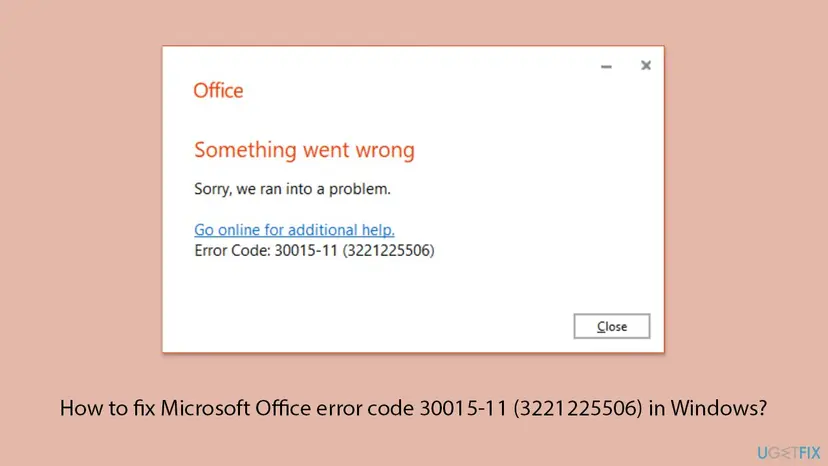
The useful part is the number in brackets. 3221225506 in decimal is 0xC0000022 in hexadecimal, which Microsoft's list of Windows status values names STATUS_ACCESS_DENIED. You can check the conversion yourself in the Windows Calculator, in Programmer mode. Some Office versions print the same value as a negative number, -1073741790.
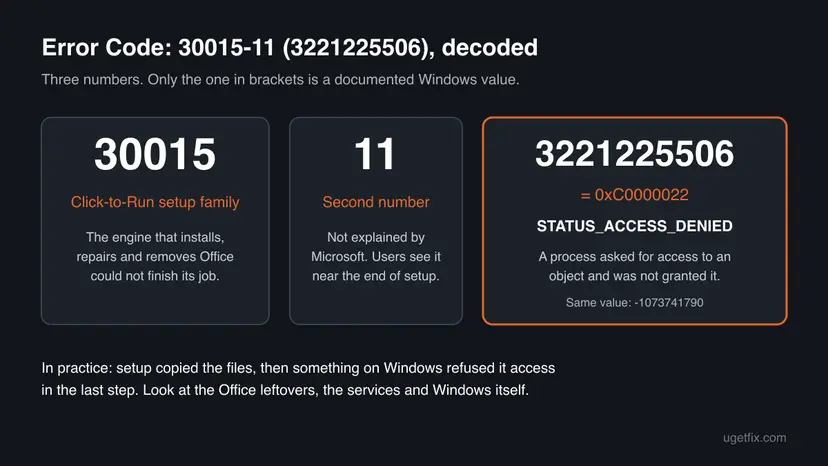
Error code 30015-11 (3221225506), Error Code: 30015-11, 30015-11(3221225506), errorcode 3221225506, 3001511 and 30015-11 (-1073741790) are the same failure. Microsoft has no page for 30015-11, and its own list of setup errors says that not every error is listed there. What follows comes from Microsoft's documentation of the parts involved and from solved reports on Microsoft Q&A.
When error 30015-11 appears: the pattern behind most reports
The reports of this exact code tell a remarkably similar story. Office worked, then every app started to fail. Reinstalling then runs for several minutes and stops at the very end. Knowing which step you are at saves you from repeating fixes that cannot work.
| Moment | What users see | What it tells you |
|---|---|---|
| Before the error, in Word, Excel or Outlook | We're sorry, but Excel has run into an error that is preventing it from working correctly. Repair does not help. | Something under Office broke first. In one report the apps only worked after the user started the Software Protection service by hand. |
| Installing Office again | Setup reaches 90 %, 94 % or 97 %, then shows Error Code: 30015-11 (3221225506). | The download and the copying worked. The last step, which sets Office up on Windows, was refused. |
| Repairing the existing Office | Quick Repair or Online Repair ends with 30015-13 (3221225506). | Same bracket value, same cause. Repair cannot fix it. |
| After closing the first window | A second window with 0-2031 (17002). | The general closing message of setup. It adds no new cause. |
| Right after a new Windows installation | The error appears on a fresh Windows with no older Office on it. | Leftovers are unlikely. Look at activation and the services first (Fix 1). |
- Network problems are rarely behind this code. Users with 30015-11 (3221225506) report that the offline installer, which needs no download during setup, stopped with the same error.
- Several users had already tried everything else. Uninstalling many times, turning off the antivirus, Safe Mode and SFC did not change the result in their reports. The order of fixes below reflects that.
What causes Office error 30015-11, from the most common to the rare
Microsoft publishes no list of causes for 30015-11. The ranking is our reading of the reports with this bracket value and of what Microsoft's forum staff answered. It is an order of likelihood, not a statistic.
| How often | Cause | Typical sign | Fix |
|---|---|---|---|
| Most often | The Software Protection service (sppsvc), which handles licences for Windows and Windows applications, is disabled or refused access | Office apps worked only after starting the service by hand. Windows shows itself as not activated, or the activation page is blank. Event Viewer says Access is denied for the service. | Fix 1 |
| Most often | A damaged or half removed earlier Office, including its registry keys | The apps failed first, then the reinstall failed. A normal uninstall did not help. | Fix 2, Fix 4 |
| Often | A privacy, tuning or registry cleaning tool that switched off Windows services or removed keys | Services such as Windows Update return to Disabled after you turn them on. One user had switched off telemetry with such a tool. | Fix 3 |
| Less often | Security software or a filtered network that stops setup | It fails on a work or school PC, or only with one security program installed. | Fix 5 |
| Less often | A damaged Windows user profile | Office installs on another account of the same PC. | Fix 7 |
| Rarely, but the hardest | A damaged Windows installation, including broken activation | Nothing above helps. Users solved it with a Windows reset that kept their files. | Fix 6, Fix 8 |
Microsoft has not said which step of setup the 11 stands for, and it has never tied this code to a faulty Office build. The link between the Software Protection service and 30015-11 comes from user reports and from the access denied value, not from a Microsoft statement. Several websites blame the internet connection. We found no solved report of 30015-11 (3221225506) that a network change fixed.
How to fix error code 30015-11 (3221225506) when you install or repair Office
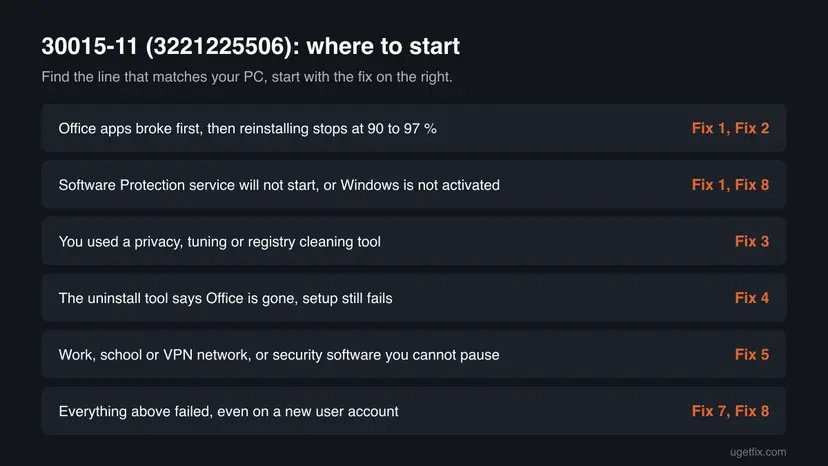
Fix 1 and Fix 2 solve the cases that can be solved in minutes. Fix 3 to Fix 5 remove what blocks setup from outside Office. Fix 6 to Fix 8 repair Windows itself, which is where the hardest cases end. Use the table to pick your start.
| What you see or have | Start with |
|---|---|
| Office apps stopped working first, then the reinstall stopped at 90 % or more | Fix 1, then Fix 2 |
| You just reinstalled Windows and Office will not install | Fix 1 (activation and services), then Fix 5 |
| You have used a privacy, tuning or registry cleaning tool on this PC | Fix 3 |
| The uninstall troubleshooter says Office is removed, but setup still fails | Fix 4 |
| It fails on a work or school network, or with third party security software | Fix 5 |
| Software Protection will not start, even after Fix 3 | Fix 8 |
| Nothing helped so far | Fix 7, then Fix 8 |
Fix 1. Restart and check the Software Protection service and Windows activation
10 minutesNo riskEveryone, first. Above all when the Office apps failed before the reinstall, or when Windows was just reinstalled.
3221225506 means access was refused, and Office setup licenses the product in its last step. Microsoft describes Software Protection as the service that enables the download, installation and enforcement of digital licenses for Windows and Windows applications, and advises not to disable it. Users with this exact symptom found it stopped or blocked.
- Save your work and restart the PC with Start > Power > Restart.
- Press Win + R, type
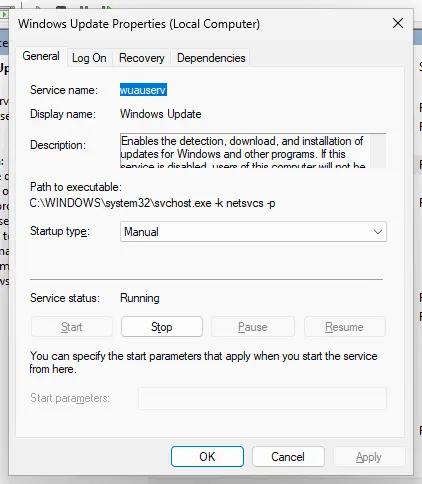
services.mscand press Enter. - Find Software Protection in the list and double-click it. If Startup type is Disabled, change it back to the type it had (the default on most PCs is Automatic), then select Apply.
- If Service status is Stopped, select Start. Note the exact message if Windows cannot start it, for example Access is denied.
- Find Microsoft Office Click-to-Run Service the same way. If it is listed and Disabled, set it to Automatic and start it.
- Open Settings > System > Activation (Windows 10: Settings > Update & Security > Activation) and read the Activation status.
- Run Office setup again: right-click the file and select Run as administrator.
The same check in an elevated Command Prompt. STATE should say RUNNING after you start the service.
sc query sppsvc
sc query ClickToRunSvc| What you find | What it means | Next step |
|---|---|---|
| The service starts and Windows shows Windows is activated | The service was only stopped. Setup may now finish. | Run setup. If it fails again, Fix 2. |
| The service was Disabled and you did not change it | A tool or a script switched it off. | Fix 3, so it does not happen again. |
| Starting the service ends with Access is denied | Its own permissions in Windows are damaged. | Fix 8. Do not change system permissions by hand. |
| Windows is not activated, or the page is blank | Licensing in Windows is broken, and Office uses the same service. | Fix activation first, then Fix 8 if it stays broken. |
How the Services console works, with every screen: Check and restart Windows services. One user with 30015-11 (-1073741790) on a newly installed Windows 10 found the line The Software Protection service terminated with the following error: Access is denied. in the Windows logs. Office installed without errors once Windows was reset and activated.
It worked if: Software Protection shows Running, Windows shows an activated status, and setup passes 90 % to the message You're all set.
If not: If the service runs and setup still fails, remove Office completely with Fix 2. If the service will not start, go to Fix 3 and then Fix 8.
Fix 2. Remove Office completely with Microsoft's uninstall troubleshooter and install again
30 to 45 minutesRead the warningThe Office apps broke before the reinstall, a repair ends with 30015-13, or Office was installed on this PC before.
A normal uninstall leaves files, scheduled tasks and registry keys behind. Microsoft's engineers on its forum answered 30015-11 (3221225506) with a full clean of every Office trace before a new installation, and this is the tool Microsoft offers for that today.
Removing Office deletes the apps, not your documents, workbooks or the mail in your Microsoft account. What you can lose is the way back: write down the Microsoft account or product key the product belongs to, and check that you can sign in at m365.cloud.microsoft/apps. Copy custom templates and Outlook signatures first if you need them: Back up your files (Windows Backup, File History, Time Machine).
- Sign in to Windows with an administrator account.
- Open Microsoft's page Uninstall Microsoft 365 or Office from a PC and select the Uninstall button under the uninstall troubleshooter.
- When the browser says This site is trying to open Get Help, select Open.
- Follow the prompts in the Get Help app and choose to remove every Office version it finds.
- Restart the PC when you are prompted.
- Open Settings > Apps > Installed apps (Windows 10: Apps & features) and check that no Microsoft 365 or Office entry is left.
- Sign in at
m365.cloud.microsoft/apps, select Install apps, then right-click the downloaded setup file and select Run as administrator.

- Limits of the tool: Microsoft says it removes Microsoft 365, Office 2021, Office 2019 and Office 2016, that it currently can't uninstall Office 2024, and that it needs Windows 10 or higher. For Office 2024 use Installed apps, or the steps in our guide to error 30015-25, which also covers a manual removal.
- If the PC came with Office preinstalled, a Microsoft Store edition may still be there. Microsoft's command for it is
Get-AppxPackage -name "Microsoft.Office.Desktop" | Remove-AppxPackage, run in an elevated PowerShell window. It does nothing to a normal Click-to-Run Office.
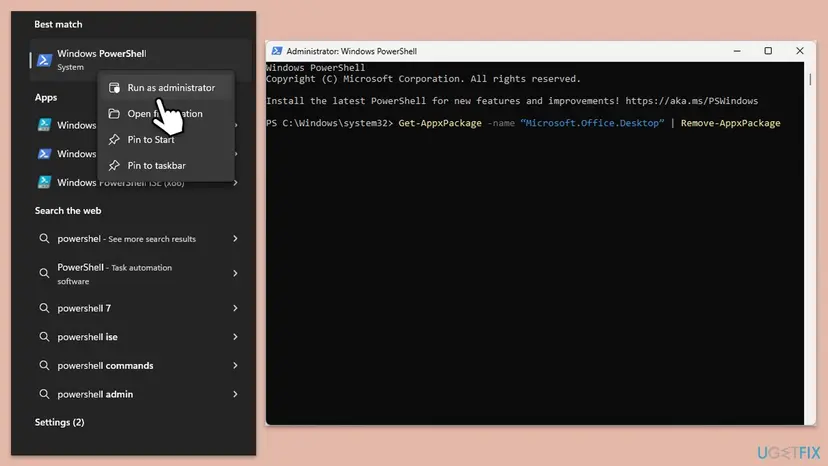
It worked if: No Office entry is left in Installed apps, and the new installation passes the point where it stopped and ends with You're all set.
If not: If you used a tuning or privacy tool, go to Fix 3. If the troubleshooter reports success and setup still fails, remove the leftover keys with Fix 4.
Fix 3. Undo privacy, tuning and registry cleaning tools, then try a clean boot
15 minutesLow riskYou used a tool that turns off telemetry, Windows services or updates, or cleans the registry, or services return to Disabled after you change them.
Access denied is exactly what a service or key locked by such a tool produces. In two reports of 30015-11 the user had switched off telemetry with a privacy tool, or found Windows Update returning to Disabled on its own. A Microsoft forum answer to (3221225506) asked the user to remove a registry cleaner.
- Open the privacy or tuning tool you used. Most have a command that restores the Windows defaults or undoes all changes. Use it, then restart.
- If the tool has no undo, or you no longer remember the changes, uninstall it with Settings > Apps > Installed apps: Uninstall a program or app in Windows.
- Open
services.mscand check Software Protection, Windows Update and Background Intelligent Transfer Service again. None of them should be Disabled. - If a service turns back to Disabled after a restart, something still runs at startup. Start Windows with only Microsoft services in a clean boot.
- Run Office setup as an administrator in the clean boot.
- Return Windows to a normal start afterwards. Every step of the clean boot and the way back: How to perform a clean boot in Windows.

The earlier version of this guide ticked Safe boot on the Boot tab as part of a clean boot. That starts Safe Mode, where Office setup does not run normally. A clean boot only disables non Microsoft services and startup apps.
It worked if: The services keep the startup type you set after a restart, and setup ends with You're all set.
If not: Return to a normal start. If setup still fails after a full removal, go to Fix 4.
Fix 4. Delete the Office registry keys left after the removal
15 minutesRead the warningFix 2 reported that Office is gone, but setup still ends with 30015-11 (3221225506).
A Microsoft forum engineer answered this exact code with these steps, and the person who asked accepted the answer. Old Office keys with broken permissions can deny setup the access it needs when it writes its configuration at the end.
Export the registry first: Back up the registry before editing it. Deleting these keys resets every Office setting of your user account, such as recent files and custom toolbars. Your documents and mail are not touched. Do not delete them while an Office you want to keep is installed.
- Remove Office with Fix 2 and restart.
- Press Win + R, type
regeditand select OK. Confirm the User Account Control prompt. - Go to
HKEY_CURRENT_USER\Software\Microsoft, right-click the Office key and select Delete. - Go to
HKEY_LOCAL_MACHINE\SOFTWARE\Microsoft, right-click the Office key and select Delete. If Windows says it cannot delete a key, write down which one and continue. - Close Registry Editor and restart the PC.
- Right-click the Office setup file, select Run as administrator and install again.
A key that Windows refuses to delete is itself a sign of the access problem this code reports. Do not try to take ownership of system keys by hand. Microsoft's full manual removal, with the service, the scheduled tasks and the folders, is on its page Manually uninstall Office.
It worked if: Both keys are gone, and the new setup runs past 90 % to You're all set.
If not: If a key cannot be deleted or setup fails the same way, test a different route with Fix 5, then a new account with Fix 7.
Fix 5. Install with the offline installer and rule out security software
20 to 40 minutesLow riskIt fails on a work, school or VPN connection, or a third party security program is installed.
The offline installer puts every file on the disk before setup starts, so the network and download filters are out of the picture. Security software can lock files that setup must change at the end, which also shows as access denied. Neither cause is common for this code, so these are tests.
- Open Microsoft's page Use the Office offline installer, choose the home tab, select Download and sign in with the account that owns Office.
- In the Install window select Offline installer from the Choose a version list, then Download.
- Double-click the downloaded file. For Microsoft 365 Family and Personal it is named
O365HomePremRetail.img. - Select the new virtual drive, which may be named D or the next free letter, and open the Office folder.
- Pause the real-time protection of your security program for this one attempt: Turn off Microsoft Defender protection for a moment.
- Run
Setup64.exefor 64-bit Office orSetup32.exefor 32-bit Office. - Turn the protection back on as soon as setup ends, whatever the result.
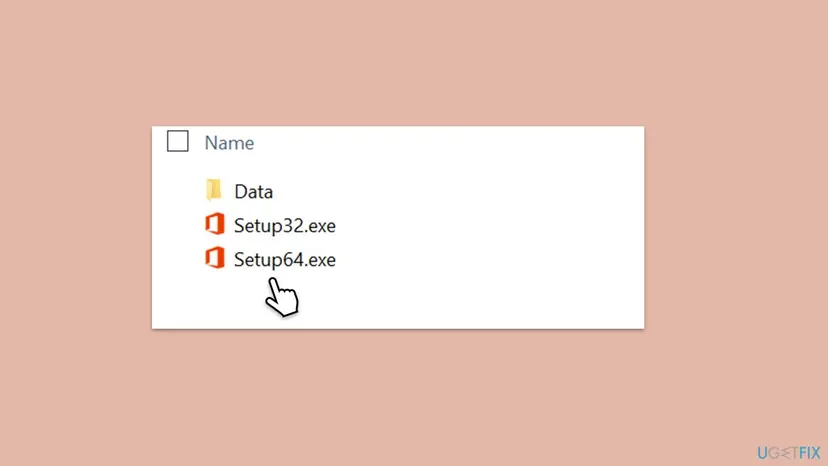
If Office installs only while the protection is paused, do not leave it off. Ask the maker of the security program why it blocks a Microsoft installer, or add an exception the program's maker documents. For work and school PCs, an administrator's policy may block installations, and only the administrator can change that.
It worked if: Setup started from the image runs past 90 % and ends with You're all set.
If not: Turn the protection back on. If the offline setup fails the same way, the cause is on Windows: go to Fix 6.
Fix 6. Repair Windows system files with DISM and SFC
20 to 30 minutesLow riskFix 1 to Fix 5 did not help, or Windows also shows other errors.
Damaged system files and damaged permissions can both end in access denied. DISM repairs the Windows image that SFC uses as its source, so run DISM first. Expect less from this than from the fixes above: in several reports SFC found and repaired files and the error stayed.
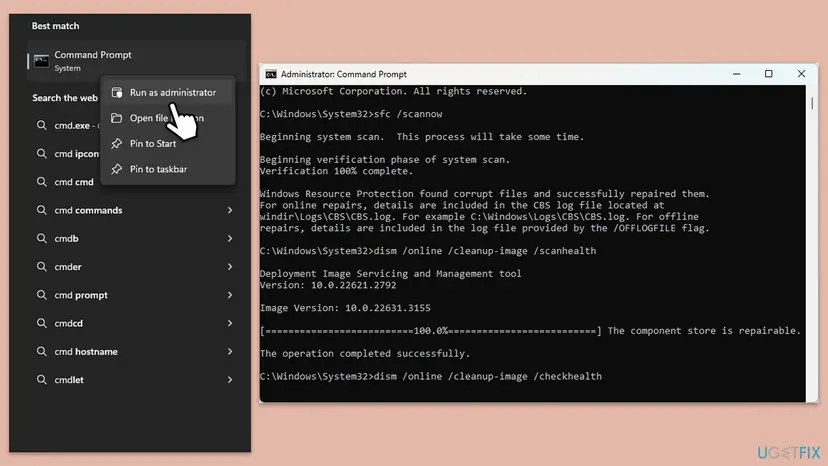
- Open an elevated command window. Right-click Start and select Terminal (Admin), or type cmd in the search box, right-click Command Prompt and select Run as administrator. Select Yes when Windows asks for permission.

Search for cmd and choose Run as administrator. Screenshot: Windows 11 26H2. - Run DISM first. Type the command below and press Enter. DISM downloads clean copies of damaged components from Windows Update, so it can take several minutes. Wait until it says The operation completed successfully.
DISM.exe /Online /Cleanup-Image /RestoreHealth
DISM /RestoreHealth running. Screenshot: Windows 11 26H2. - Run System File Checker. In the same window, type the command below and press Enter. Do not close the window until the verification reaches 100%.
sfc /scannow
sfc /scannow at 100%. Screenshot: Windows 11 26H2. - Read the result and restart. Compare the last message with the table below this guide, then restart the PC so that repaired files are loaded.

The result line tells you what SFC did. Screenshot: Windows 11 26H2.
These steps were written for Windows 11 24H2 and 25H2. The full page with the other versions and what each result means: Run DISM and SFC to repair Windows system files
It worked if: DISM ends with The restore operation completed successfully, SFC finds no integrity violations on a second run, and setup finishes.
If not: Test with a new user account in Fix 7.
Fix 7. Install Office from a new administrator account
15 minutesLow riskFix 1 to Fix 6 did not help and you want to know whether your user profile is the problem.
Access rights are also stored per user. An independent advisor on Microsoft Q&A suggested a new administrator profile for this exact code. If setup works there, your own profile is damaged and Windows does not need a repair.
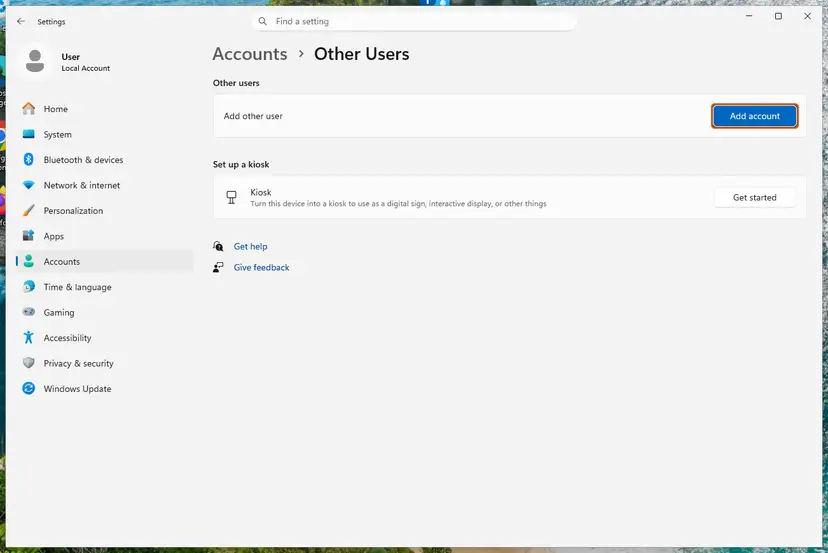
- Create a new local account and make it an administrator: Create a new user account to test a problem.
- Sign out and sign in to the new account.
- Open a browser, sign in at
m365.cloud.microsoft/appswith the account that owns Office, and select Install apps. - Run the setup file as an administrator and wait for You're all set.
- Sign back in to your own account. Office installed for the whole PC, so the apps appear there too.
It worked if: Setup finishes in the new account and the apps start in both accounts.
If not: One user with this code reported that a new account changed nothing. In that case Windows itself is the cause: go to Fix 8.
Fix 8. Repair Windows while keeping your files
1 to 2 hoursRead the warningSoftware Protection will not start, Windows activation is broken, or every fix above failed.
This is where the solved threads end. One user installed Office only after resetting Windows and activating it. A forum answer marked as the solution for 30015-11 (3221225506) said to reset the PC but keep the files, and another user with 30015-11 solved it with a reset.
Reinstall now keeps your apps, files and settings. Reset this PC with Keep my files keeps your personal files but removes installed apps and resets settings. Back up your files anyway and note the apps you will have to install again: Back up your files (Windows Backup, File History, Time Machine).
- Windows 11: open Settings > System > Recovery and, next to Fix problems using Windows Update, select Reinstall now. This keeps apps, files and settings.
- Let it finish, restart, and check Fix 1 again: Software Protection starts and Windows is activated.
- Install Office. If it fails again, return to Settings > System > Recovery and select Reset PC next to Reset this PC.
- Choose Keep my files. Do not choose Remove everything.
- Choose Cloud download for a fresh copy of Windows, review the summary and select Reset.
- After the reset, let Windows Update finish, check activation, and install Office before you install any tuning tools.

Every screen, and the Windows 10 route through Settings > Update & Security > Recovery: Reinstall Windows without losing files. Windows 10 left support on 14 October 2025. Microsoft still ships security updates for Microsoft 365 Apps on Windows 10 until 10 October 2028, but it recommends Windows 11 for them.
It worked if: Windows starts with an activated status, Software Protection runs, and Office setup ends with You're all set.
If not: Read the setup log as described below and contact Microsoft support with it.
If 30015-11 is still there: where the real cause is written
The setup window gives one line. Office writes much more to its setup logs, and Windows writes service failures to Event Viewer. With an access denied code, those logs usually name what was refused.
| Where | How to open it | What to look for |
|---|---|---|
%temp% | Press Win + R, type %temp%, press Enter. Use the account that ran setup. | The newest .log file whose name starts with your PC name, written in the minute of the failure. |
%windir%\Temp | Press Win + R, type %windir%\Temp and confirm the permission prompt. | Logs written by the system account, which does the actual installing. |
| Event Viewer | Press Win + R, type eventvwr.msc, then open Windows Logs > System. | Errors at the time of the failure about Software Protection or Microsoft Office Click-to-Run Service, for example terminated with the following error: Access is denied. |
- Run setup once more and note the time it fails.
- Open
%temp%, switch to the Details view and sort by Date modified, newest first. - Open the newest log that starts with your PC name. It opens in Notepad.
- Press Ctrl + F and search for
0xC0000022, then3221225506,access deniedand30015. - Read the lines just before the first hit. A file path, a registry key or a service name there is what setup was refused.
- Repeat it in
%windir%\Tempand compare with Event Viewer.
- What to send to Microsoft support: the full code with the brackets, the percentage where setup stopped, and your Office product with 32-bit or 64-bit. Add the Windows version from Settings > System > About, the newest log from both folders and the Event Viewer error.
- A path under
C:\Windows\System32or a service name in the log points to Windows, not Office. Fix 8 is the realistic next step.
A managed work or school PC may block installations by policy, and then only the administrator can install Office. An account that shows no product to install is a licence question for the seller or Microsoft support. A disk that keeps reporting errors needs a backup and a check before any new setup: Check a disk for errors (chkdsk).
How to avoid error 30015-11 the next time you install Office
Almost every report of this code starts with Windows services or keys that were changed by a tool, or with a Windows whose licensing broke. Prevention means leaving those parts at their Microsoft defaults.
- Check that Windows is activated before you install Office on a newly installed PC.
- Let Windows Update finish and restart before Office setup.
- Remove an old Office with Settings or Microsoft's uninstall troubleshooter before you install a new one.
- Install Office as an administrator and keep the PC online and on mains power until You're all set.
- Keep a backup of your files, so a Windows reset is a short job if it is ever needed.
- Disable Software Protection, Windows Update or other system services with a tuning or privacy tool.
- Let registry cleaners remove Office or Windows licensing keys.
- Change permissions on system files or registry keys by hand to get past an access denied error.
- Leave security software paused after a test installation.
- Run a repair over and over when it ends with 30015-13. It uses the same damaged parts.
Frequently asked questions
What does error code 30015-11 (3221225506) mean?
It means that Click-to-Run, the engine that installs Office, was refused access during its last step and stopped. 30015 is a family of setup failures, and Microsoft does not explain the 11. The bracket value 3221225506 equals the Windows status 0xC0000022, STATUS_ACCESS_DENIED. That fits what users see: the files are copied, the installation reaches 90 % or more, and then the setup of licensing or configuration fails. Microsoft has no support page for this exact code. Start with the Software Protection service and a full removal of Office (Fix 1 and Fix 2).
I reinstalled Windows and now get 30015-11 (3221225506) when I install Office. Why?
On a newly installed Windows there are no Office leftovers, so look at Windows itself. Check Settings > System > Activation first: one user with the same error found his Windows was not properly activated after a clean installation, and Office installed only after Windows was activated. Let Windows Update finish, check that the Software Protection service starts (Fix 1), and use the offline installer if your connection is slow (Fix 5). If Software Protection still fails with Access is denied, reset Windows again while keeping your files (Fix 8).
Why does Office setup stop at 90 % or 97 % with 30015-11?
Because the part that fails comes after the copying. Users report the bar reaching 90 %, 94 % or 97 % and then the error, after several minutes of normal progress. At that point the files are on the disk and setup is registering, licensing and configuring Office on Windows. An access denied value at this moment points to a service, a registry key or a Windows permission, not to the download. That is why the offline installer alone rarely helps with this code, and why the Software Protection service and a clean removal come first.
Is 30015-11 (-1073741790) the same error as 30015-11 (3221225506)?
Yes. Both are the same 32-bit value, 0xC0000022. One is printed as an unsigned number and the other as a signed one, so the bits are identical. Users have posted both spellings with the same symptoms, including a stop near the end of setup and Software Protection failures in the Windows logs. The fixes on this page apply to both. Other values in the brackets, such as (2147942405) or (-2147023838), are different Windows errors with their own meanings.
Why does Office repair show 30015-13 (3221225506)?
The repair runs the same Click-to-Run engine and meets the same refusal. Users with 30015-11 on installation saw 30015-13 with the identical bracket value when they tried Quick Repair or Online Repair. Repeating the repair does not help. Check the services in Fix 1, then remove Office completely with the uninstall troubleshooter in Fix 2 and install it again.
I see ErrorCode 3221225506 in Event Viewer, not in Office. Is that the same problem?
Not necessarily. 3221225506 is a general Windows value for access denied, and it shows up in many places. A common one is a Microsoft-Windows-Kernel-EventTracing event with ID 2, where a logging session fails to start. A Microsoft Q&A answer described that event as usually harmless and safe to ignore. It is unrelated to Office setup unless it appears at the same time as the setup failure. This page covers the Office code 30015-11 (3221225506).
Will I lose my documents or mail if I remove Office to fix this?
No. Uninstalling Office removes the applications, not the files you created. Mail in a Microsoft 365, Outlook.com or Exchange account stays on the server. Deleting the Office registry keys in Fix 4 resets your Office settings, such as recent files and toolbars. A Reset this PC with Keep my files in Fix 8 keeps your personal files but removes installed apps. Make a backup before Fix 8, and keep the account or product key of your Office at hand.
Is there an official Microsoft fix or patch for 30015-11?
No. Microsoft's list of Office installation errors has pages for 30015-6, 30015-4 (1392) and 30015-1011 (1392) only, and it says that not every error is listed. Microsoft's forum staff answered 30015-11 (3221225506) with a full removal of Office, the deletion of the Office registry keys, Windows updates and a reinstall as administrator. No Office update is known to fix it, because the cause sits in Windows, not in an Office build.
I searched for "code erreur 30015 office" or for 30015-25 (1006) or 0-2031 (17002). Is this the right page?
For 30015-11 in any language, yes. The setup window is translated, but the code and the fixes are the same in French, Spanish, Thai or Vietnamese. The code 0-2031 (17002) belongs to the general window that follows a failed setup and has no cause of its own. The code 30015-25 (1006) is a different error tied to a damaged existing installation: see our guide to error 30015-25. If your code ends with another number after 30015, the full removal in Fix 2 is still a sound start.
Sources
- Microsoft Learn: [MS-ERREF] NTSTATUS values, 0xC0000022 STATUS_ACCESS_DENIED (learn.microsoft.com)
- Microsoft Support: Troubleshoot installing Office (list of installation error codes) (support.microsoft.com)
- Microsoft Support: Uninstall Microsoft 365 or Office from a PC (support.microsoft.com)
Did this fix work?
One click, no account. It tells the next reader which guides are worth their time.
Questions and experiences: fix Microsoft Office error code 30015-11 (3221225506) in Windows
Still broken, or found a fix we did not cover? Ask here: members and our editors answer. Reading is open; writing needs a free account.
…