
How to fix Microsoft Office error code 30174-8 (1392)?

Prefer to fix it yourself? The manual steps follow.
- 7methods
- 10 to 45 minutes
- Easy
Applies to Microsoft 365, Office 2024, 2021, 2019, 2016 and 2013 installed with Click-to-Run on Windows 11 and Windows 10
7 methods in this guide
I tried to install Microsoft Office 365, but I received error code 30174-8 instead. I'm running Windows 8, and I use Avast antivirus, if that matters in this case. Please advise what I should do to solve this issue. Thanks!
Office error code 30174-8 (1392) means Click-to-Run setup could not download Office in one piece: 30174 is Microsoft's family of download errors, and 1392 is the Windows code for a corrupted, unreadable file. Microsoft's first fix is the offline installer. A cable, another network and a proxy turned off come next.
Download Office with Microsoft's offline installer and install from that file (Fix 1). It avoids the live download that 30174 errors break. If you still use the online installer, plug in a network cable or move to another network (Fix 2), and turn off any proxy and VPN (Fix 3). Pause a third-party antivirus only for one test, and turn it back on right after (Fix 4).
| Error | Sorry, we ran into a problem. with Error Code: 30174-8 (1392) in the Microsoft Office setup window. |
|---|---|
| Where it appears | While the online Office installer downloads Office, usually after setup has started and shown some progress. |
| Main cause | Something between the PC and Microsoft breaks the download: a proxy, a VPN, a weak or limited network, an antivirus or a firewall. |
| Fastest fix | Microsoft's offline installer (Fix 1), then a cable or another network (Fix 2). |
| What the numbers mean | 30174 is the download error family. 1392 is the Windows code ERROR_FILE_CORRUPT: the file or directory is corrupted and unreadable. Microsoft does not explain the 8. |
| Also written as | 30174-8, 30174-8 (1392), error 30174, 30174-4 (1392). Microsoft files the 1392 case under its page for 30174-4. |
| Affects | Click-to-Run Office: Microsoft 365 and Office 2013 to 2024 on Windows 11 and Windows 10. Older versions such as Office 2010 used a different installer. |
| Microsoft's status | Not a bug with a patch. Microsoft's page Error code 30174-4 when installing Office lists six network and security fixes, the offline installer first (updated 26 September 2026). |
| Time to fix | 10 to 30 minutes with the offline installer, depending on your connection. Longer when the network has to be changed by IT. |
Facts checked on 15 October 2026. Steps written for Click-to-Run Microsoft 365 and Office 2016 to 2024 setup on Windows 11 (25H2 and 26H2) and Windows 10 22H2, read against Microsoft's support page for the 30174 family.
What Office error code 30174-8 (1392) means
Current desktop Office, from Office 2013 to Office 2024 and Microsoft 365, is installed by Click-to-Run. The small installer you download from your account fetches the rest of Office from Microsoft's servers while it runs. When that download fails, setup stops with Sorry, we ran into a problem. and a code line such as Error Code: 30174-8 (1392).
30174 is the family. Microsoft links 23 inner codes of this family to one page, Error code 30174-4 when installing Office. One of its internal IDs is 1392-4-30174. 1392 is a Windows system error: ERROR_FILE_CORRUPT, 0x570, The file or directory is corrupted and unreadable. The 8 is not explained by Microsoft, and we could not find it in any Microsoft page.
| Part of the code | What it says | Where we read it |
|---|---|---|
30174 | Office setup could not download what it needs | Microsoft Support, Error code 30174-4 when installing Office |
-8 or -4 | The step or variant of the error; not published | Not explained by Microsoft |
(1392) | A downloaded file is corrupted and unreadable | Microsoft Learn, System Error Codes 1300 to 1699 |
Put together: setup received parts of Office, but they did not arrive the way Microsoft sent them, so setup refused to install them. That is why every fix on this page changes the way Office reaches your PC, and why repairing Windows comes last.
What causes error 30174-8 (1392), from the most common to the rare
Microsoft says you might see the 30174 error if anti-virus software, a firewall, proxy settings or the connection prevent you from installing Office. It lists its solutions with the most common first. The ranking below follows that order and adds two rare causes that fit the 1392 part of the code. It is an order of likelihood, not a statistic.
| How often | Cause | Typical sign | Fix |
|---|---|---|---|
| Most often | A weak, busy or limited connection breaks the long online download | Wi-Fi, a hotel or school network, or setup stops at a different point each time | Fix 1, Fix 2 |
| Often | A proxy or VPN sits between setup and Microsoft | A laptop used at work and at home, or a VPN app is on | Fix 3 |
| Less often | A third-party antivirus or firewall scans and breaks the download | A security suite with a web shield, such as the Avast in the question | Fix 4 |
| Less often | A company web filter blocks or rewrites the Office download | Several PCs on the same office network fail the same way | Fix 5 |
| Rarely | File system errors on drive C: damage the setup files after download | The offline installer fails too, and other big files go bad | Fix 6 |
| Rarely | A half-installed earlier Office confuses the new setup | An earlier attempt was stopped, or another Office version is still listed | Fix 7 |
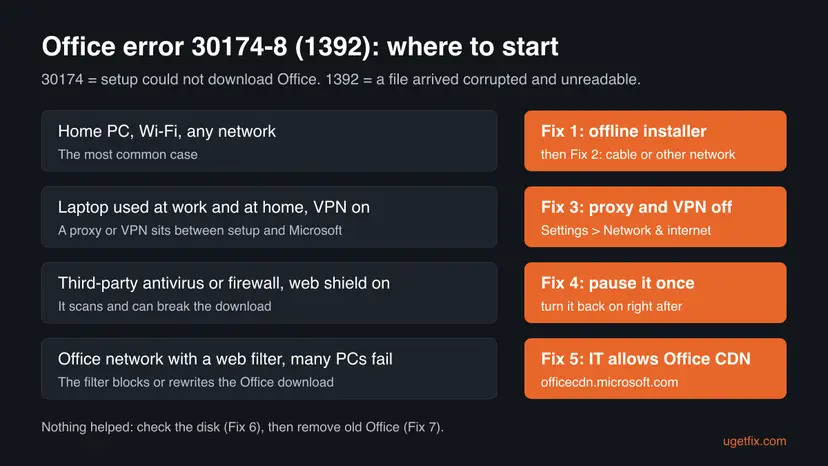
How to fix error code 30174-8 (1392) when you install Office
Fix 1 to Fix 3 follow Microsoft's own order for the 30174 family and solve most cases. Fix 4 and Fix 5 are for security software and company networks. Fix 6 and Fix 7 are for the rare case where Office fails even from local files.
| What you see or what your PC has | Start with |
|---|---|
| A home PC on Wi-Fi, or any PC where the online installer fails | Fix 1 |
| You cannot download the offline installer, or it is too large for your data plan | Fix 2 |
| A laptop used at work and at home, a VPN, or a proxy address in Settings | Fix 3 |
| A third-party antivirus or firewall, such as Avast, Norton or Kaspersky | Fix 4 |
| Several PCs on an office or school network fail with 30174 | Fix 5 |
| The offline installer fails with 1392 as well | Fix 6 |
| An earlier Office install was stopped or another Office version is still listed | Fix 7 |
Fix 1. Install Office with Microsoft's offline installer
10 to 30 minutesLow riskEveryone first, above all on Wi-Fi or a network you do not control.
Microsoft's first solution for the 30174 family is the offline installer, because it may help bypass proxy, firewall, antivirus or connection problems. It downloads Office as one file first, then installs from that file without a live download.
- Close the error window with Close.
- Open Microsoft's page Use the Office offline installer and pick the tab for your Office version.
- Sign in with the Microsoft account that owns Office and select Offline installer in the Choose a version list.
- Pick your language, select Install and save the file.
- Open Downloads and double-click the image file. Windows opens it as a new drive.
- Open the Office folder on that drive and run
Setup64.exefor 64-bit Office orSetup32.exefor 32-bit Office.
We walk through every screen of the offline installer, with pictures, in our guide to Office installation error 0-2060, another download error with the same first fix.
The image file is large. If your browser stops the download or reports a failed file, that points to the same network problem. Try the download again on a cable or on another network (Fix 2) before you go on.
It worked if: Setup runs from the local drive, shows its progress to the end and says Office is installed. Word opens and asks you to sign in.
If not: If the image will not download or setup still stops with 1392, use a cable or another network with Fix 2.
Fix 2. Use a wired connection, or install from another network
10 to 20 minutesLow riskYou are on Wi-Fi, at work, at school, in a hotel, or the offline installer download breaks too.
Microsoft's second and third solutions are a wired connection and another location. A limited or unstable network is the most likely way for a file to arrive corrupted, which is what 1392 reports.
- If the PC has a network port, plug a cable from the router into it.
- Select the network icon next to the clock and check that it shows the wired connection. All checks: How to check your internet connection in Windows.
- At work or at school, take the device home, to a friend's house or to a hotspot instead.
- Run the Office installer again, online or offline.

Microsoft notes that a work or school network may be limited so that Office will not install. Its advice there is to install somewhere else or to ask the IT department. If the PC is managed by your employer, do not try to get around the network rules yourself.
It worked if: The download part of setup passes the point where it stopped before, and Office installs.
If not: If you use one laptop at home and at work, or a VPN, go to Fix 3.
Fix 3. Turn off the proxy and the VPN in Windows Settings
5 minutesLow riskYour laptop is used both at work and at home, a VPN app runs, or a proxy address is set in Windows.
Microsoft's fourth solution for the 30174 family is to turn off the proxy settings before you install. A proxy or VPN passes the Office download through another server, where parts of a file can be cut or changed.
- Disconnect your VPN app and close it from the icon next to the clock.
- Press Win + I and open Network & internet > Proxy (Windows 10: Network & Internet > Proxy).
- Write down any proxy address and port you see there.
- Under Manual proxy setup, set Use a proxy server to Off and select Save.
- Under Automatic proxy setup, turn off Use setup script if your home network does not need it.
- Run the Office installer again.
If the proxy was on because your workplace needs it, switch it back on when Office is installed. Microsoft says some proxy settings cannot be bypassed this way. In that case the IT department has to help, and Fix 5 is the part they can check.
It worked if: Setup downloads without the proxy and ends with Office installed.
If not: If no proxy or VPN was on, or nothing changed, test the security software with Fix 4.
Fix 4. Pause a third-party antivirus or firewall for one installation
10 minutesLow riskYou use a security suite other than Microsoft Defender, and Fix 1 to Fix 3 did not help.
Microsoft lists antivirus software and the firewall among the causes of the 30174 family. A product that scans downloads can hold back or change parts of the Office files, and setup then sees a corrupted file.
Microsoft says to turn protection on again right after Office is installed. Pause the product for the shortest time it offers, do not browse or open other downloads while it is paused, and turn it back on whether setup worked or not.
- Download the Office installer first, while protection is still on.
- Find your security product in Control Panel > System and Security > Security and Maintenance, under Security and Virus protection.
- Pause its real-time and web protection for 10 or 15 minutes. Steps for Microsoft Defender: Turn off Microsoft Defender protection for a moment.
- Run the Office installer.
- Turn protection back on as soon as setup ends.
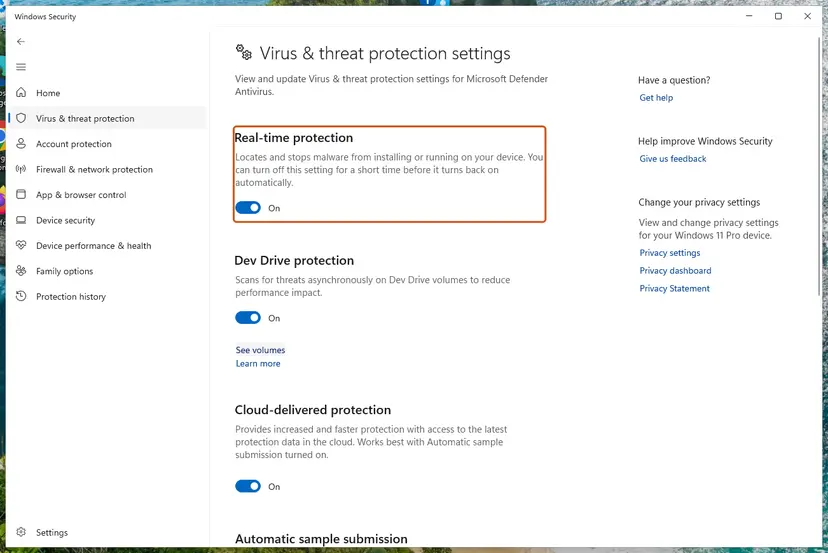
If setup works only while the product is paused, the fix is in that product: add the Office installer and Microsoft's Office download address to its exceptions, or ask its maker. Do not leave the protection off.
It worked if: Setup finishes while the security product is paused, which shows that it was breaking the download.
If not: If setup fails with protection paused too, the security product is not the cause. Turn it back on. On an office network, go to Fix 5; at home, go to Fix 6.
Fix 5. On a company network: let the Office download through the web filter
15 to 60 minutesLow riskSeveral PCs on one office or school network fail with 30174, and they install fine at home. This fix is for the network administrator.
On a Sophos firewall forum, an administrator saw 30174-4 (1392) on every online Office install. A Sophos engineer replied that range requests are probably the issue, because the antivirus cannot scan the middle of a file. Office downloads its files in such parts.
- What users report: after the Office addresses from Microsoft's list of Microsoft 365 URLs and IP address ranges were allowed in the web filter, the online installer worked.
- The short version another administrator used: two web filter exceptions,
officecdn.microsoft.comandofficecdn.microsoft.com.edgesuite.net, so that the Office download skips the scan. - Microsoft's own pointer for administrators on its 30174 page is the same list of Microsoft 365 URLs and IP address ranges.
- In the web filter's log, find the blocked or scanned requests at the time setup failed.
- Compare their addresses with Microsoft's list of Microsoft 365 URLs and IP address ranges.
- Create an exception that skips scanning for the Office download addresses, starting with
officecdn.microsoft.com. - Run the Office installer again on one PC before you change the rule for everyone.
It worked if: The online installer finishes on the company network without 30174.
If not: If only one PC fails and the network is clean, check its drive with Fix 6.
Fix 6. Check drive C: for file system errors
10 minutes to 1 hourLow riskThe offline installer fails with 1392 as well, or other large files on the PC turn out damaged.
Microsoft's 30174 page does not list this step. We add it because 1392 is the Windows code for a file or folder that is corrupted and unreadable, and file system errors on drive C: can damage setup files after a clean download.
- Open Command Prompt as administrator. Type cmd in the search box on the taskbar, right-click Command Prompt and select Run as administrator. Select Yes when Windows asks for permission.
- Scan the drive without changing anything. Type the command below and press Enter. Replace C: with another drive letter to check that drive. This scan only reports; it does not fix anything.
chkdsk C: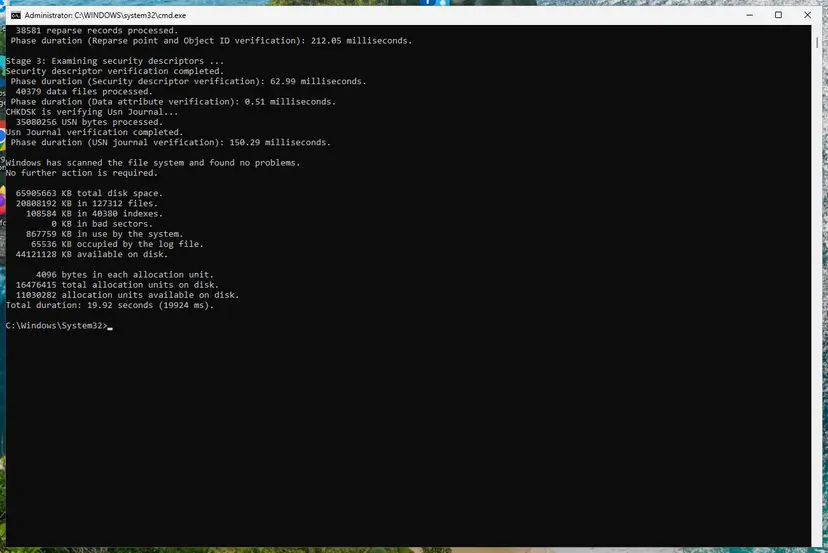
A clean result: no problems found and 0 KB in bad sectors. Screenshot: Windows 11 26H2. - If errors were found, run the repair. Run chkdsk with /f to fix file system errors. On the Windows drive (C:) chkdsk cannot lock the drive while Windows is running, so it offers to check it at the next restart.
chkdsk C: /f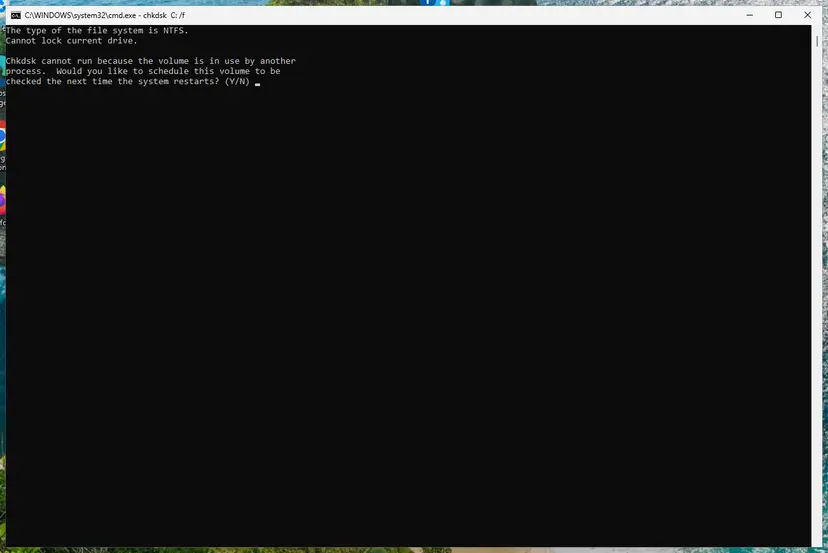
On the system drive chkdsk /f asks to run at the next restart. Screenshot: Windows 11 26H2.
These steps were written for Windows 11 and Windows 10 (the steps are the same). The full page with the other versions and what each result means: Check a disk for errors (chkdsk)
When the scan reports errors, run the repair, restart the PC, delete the old offline installer image and download it again before you run setup. A drive that keeps showing new errors after a repair may be failing: copy your files to another drive first.
It worked if: The scan says Windows found no problems, or the repair fixes them, and a fresh installer runs to the end.
If not: If the drive is clean and setup still fails, remove every earlier Office with Fix 7.
Fix 7. Remove a half-installed Office, then install again
20 to 45 minutesRead the warningAn earlier Office install was stopped, another Office version is still listed, or nothing above helped.
The earlier version of this page named a half-installed Office as the most common cause. Microsoft does not list it for 30174, so it comes last here. A broken earlier attempt can still leave Click-to-Run parts that the new setup trips over.
Uninstalling Office removes the apps, not your documents. Keep the product key or the Microsoft account that owns Office at hand, and save open files before you start. Copy custom templates and any Outlook .pst file if you would miss them: Back up your files (Windows Backup, File History, Time Machine).
- Press Ctrl + Shift + Esc, select
OfficeClickToRun.exeor any other Office process and choose End task. - Open Settings > Apps > Installed apps (Windows 10: Apps > Apps & features) and type
Officein the search box. - Uninstall every Microsoft 365 or Office entry. Every screen: Uninstall a program or app in Windows.
- Restart the PC with Restart, not Shut down.
- Install Office again with the offline installer from Fix 1.

If an entry will not uninstall, Microsoft's uninstall troubleshooter and its manual removal steps clear what is left. We explain both in our guide to Office error 30088-45.
It worked if: No Office is left in Installed apps, and the new installation ends without error code 30174-8 (1392).
If not: Read the next section on what to check and what to send to Microsoft support.
If error 30174-8 (1392) is still there: what to check and what to send
The setup window shows only the code. Click-to-Run setup writes text logs to the %temp% folder of the user who ran it. We could not confirm from Microsoft which log line belongs to 30174-8, so read the logs as a hint, not as proof.
- Run setup once more and note the time it fails.
- Press Win + R, type
%temp%and press Enter. Sort by Date modified, newest first. - Open the newest
.logfiles and search with Ctrl + F for30174, then for1392. - Note the address or file name next to the error, if there is one. A Microsoft download address there points back to the network fixes.
- A managed work or school PC may block the Office download on purpose. Only the IT department can change that.
- Windows 8 or 8.1, as in the question above, is no longer supported by Microsoft. Microsoft's 30174 page now gives its steps for Windows 10 and Windows 11 only, so on an older Windows the error may not be fixable on that PC.
- What to send to Microsoft support: the full code 30174-8 (1392), the Office product, online or offline installer, the network type, any VPN or security suite, the Windows version from Settings > System > About and the newest setup log.
How to avoid error 30174 the next time you install Office
Every cause of this code sits on the way between Microsoft and your drive. Giving setup a short, clean path avoids it on the next install, on a new PC and after a reset.
- Keep the offline installer image on a USB drive if you install Office on several PCs.
- Install on a cable or a home network you trust.
- Disconnect the VPN while Office installs.
- Turn the antivirus back on right after a test.
- Install Office on a hotel, school or public network.
- Leave a work proxy on when you install at home.
- Stop setup halfway and start a second installer.
- Leave protection or the firewall off after a test.
Frequently asked questions
What does Office error code 30174-8 (1392) mean?
It means Office Click-to-Run setup could not download Office correctly. The 30174 family is Microsoft's group of download errors, and Microsoft files the 1392 case under its page Error code 30174-4 when installing Office. The number in brackets, 1392, is the Windows code for a file or directory that is corrupted and unreadable. So setup received parts of Office that were not intact and stopped. Microsoft does not say what the 8 stands for.
How do I fix error 30174-8 when installing Office?
Use Microsoft's offline installer, which downloads Office as one file and installs it without a live download (Fix 1). If you stay with the online installer, plug in a network cable or move to another network (Fix 2), then turn off any proxy and VPN (Fix 3). If you use a third-party antivirus or firewall, pause it for one installation and turn it back on right after (Fix 4). On a company network, the administrator may need to allow the Office download (Fix 5).
Is error code 30174-4 the same as 30174-8?
They belong to the same family and have the same fixes. Microsoft has one support page for the family, Error code 30174-4 when installing Office, and links many inner codes to it, including 1392. If your code is 30174-4 with any number in brackets, follow the same order: offline installer, a cable or another network, proxy off, then a short antivirus test. Microsoft does not publish what the 4 or the 8 means.
What is 30174 in Microsoft Office?
30174 is the first number of an Office setup error code, the part that names the family of the problem. For 30174 that family is the download: anti-virus software, a firewall, proxy settings or the connection kept setup from getting Office. The second number and the code in brackets give more detail. If you only saw 30174 and no other numbers, the fixes on this page still apply, starting with the offline installer.
What do the 8 and the 1392 in the code mean?
The 8 after the dash is a detail Microsoft does not publish; we found no Microsoft page that explains it. The 1392 in brackets is a standard Windows system error, ERROR_FILE_CORRUPT, which Microsoft Learn describes as The file or directory is corrupted and unreadable. Here it means a downloaded Office file did not arrive intact. That is why the fixes change how Office reaches the PC, and why a disk check (Fix 6) comes in only when local files fail too.
Does Avast or another antivirus cause error 30174-8?
It can. Microsoft lists antivirus software among the causes of the 30174 family, and a Sophos engineer explained that scanners cannot check the middle of a file that is downloaded in parts, so they may block it. Test this only after the network fixes. Pause the product for one Office installation, run setup, and turn protection back on straight after (Fix 4). If setup works only while it is paused, add Office to the product's exceptions instead of leaving it off.
Can I fix error 30174-8 on Windows 8 or Windows 7?
Perhaps, but it is not worth the effort. The reader's question above came from Windows 8, and Microsoft no longer supports Windows 7, 8 or 8.1. Its 30174 page now describes its steps for Windows 10 and Windows 11 only. The network fixes on this page still make sense on an old PC, but if current Office will not install there, the lasting answer is a supported Windows. Windows 10 itself left support on 14 October 2025, while Microsoft's 30174 page still lists steps for it.
Does error 30174-8 (1392) mean my hard drive is failing?
Usually not. In the cases Microsoft describes, the file is damaged on its way to the PC, not on the drive. If the offline installer also fails with 1392, or other large files on the PC turn out unreadable, check drive C: with CHKDSK (Fix 6). A drive that shows new errors after every repair may be failing. Copy your files to another drive first, then replace it before you install Office on it again.
Is there a fix for ai30174 or for the error in other languages?
We found no product or Microsoft code called ai30174; it is most likely a search for the Office code 30174, which this page covers. People also search for this error in other languages, for example in Russian. The code is the same in every language of Office, and so are the fixes: the offline installer first, then a cable or another network, the proxy and VPN off, and a short antivirus test. This page is in English only.
Sources
- Microsoft Support: Error code 30174-4 when installing Office (covers the inner code 1392) (support.microsoft.com)
- Microsoft Learn: System Error Codes (1300-1699), ERROR_FILE_CORRUPT 1392 (learn.microsoft.com)
- Sophos Community: Office 2016/365 Install Failing with error 30174-4 (1392), answers by Sophos staff and administrators (community.sophos.com)
Did this fix work?
One click, no account. It tells the next reader which guides are worth their time.
Questions and experiences: fix Microsoft Office error code 30174-8 (1392)
Still broken, or found a fix we did not cover? Ask here: members and our editors answer. Reading is open; writing needs a free account.
…