
How to fix Microsoft Store 0x00000194 error?

Prefer to fix it yourself? The manual steps follow.
- 8methods
- 10 minutes
- Intermediate
Applies to Windows 8, Windows Server 2012, Windows 10, Windows 11
8 methods in this guide
Hello, I have recently had some problems with the Microsoft Store. When I try to download or update apps, I always face the 0x00000194 error. Could anyone help me?
0x00000194 is an error that users may encounter during the usage of the built-in Windows Store. The app can be used for many different purposes, such as updating apps, installing new ones, writing comments, and even watching videos. Thus, whenever users face a malfunction, it could be a major downfall to their computing experience.
Windows Store is a digital distribution service for the Windows operating system and was first introduced with the launch of Windows 8 and Windows Server 2012. Microsoft soon merged with Windows Phone Store, Xbox Video, Xbox Music, and a similar platform and was renamed to Microsoft Store in October 2017.
While the functionality of the platform is useful and well-liked by many people, it can malfunction on several occasions, including errors like 0x000001F7, 0x8004e108, 0x8000FFFF, and many others. These errors can manifest in various ways, such as apps failing to download to update, or the Store itself may malfunction and not even open. Nevertheless, just like with the mentioned errors, several things could be done to fix the 0x00000194 error on Windows.
In most cases, Microsoft Store errors do not provide much information but instead expose the error code, such as:
Something went wrong.
The error code is 0x00000194, in case you need it.
Reasons for 0x00000194 error on Windows can vary, depending on your system configuration settings. But most common problems include incorrect time and date settings, corrupt Data Store cache, software conflict, and even malware infections. Because of a wide array of causes, our experts prepared several solutions that can help you find the error fix.
Most recently, users have experienced the issue along with another error - 0x80131500. In this case, the Store would simply not load at all, so users would not even know where to begin. The issue occurs for those who just recently installed Windows and also for those who had the OS running without problems prior to the occurrence.
This software is capable of detecting and replacing corrupt Windows files (25,000 legitimate and updated Windows files are used), stopping various errors (including BSoD), as well as fixing the damage done by virus infections. The scan of the system is free, but you will have to purchase a licensed version of the program for automatic repair.
To make sure that your system is not infected with malware, we recommend scanning it with reputable security software that can remove viruses from your PC.
Fix 1. Sign out and back into the Store
Let's start with the very basics - log out and back into the Microsoft Store; this solution helped some people immediately. If using the same account did not help, we recommend trying another Microsoft account if you have one.
- Type Store in Windows search and hit Enter
- Click on your user account profile picture and then select the user account by clicking it and pick Sign out
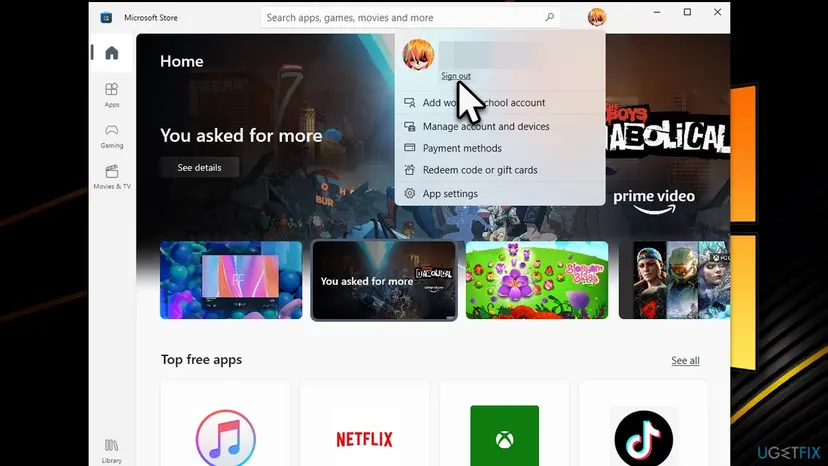
How to fix microsoft store 0x00000194 error sign out of microsoft account - You can log back in now - click the user profile icon and select Sign in
- Pick Use a different account > Microsoft account > Continue
- Enter your credentials to log in.
Fix 2. Run Microsoft Store App Troubleshooter
Troubleshooters are great tools that come built-in within Windows OS. There are specific ones available and the one you need to find to fix the 0x00000194 error in the Windows Store Apps troubleshooter. Follow these steps to run it:
- Type in Troubleshoot into Cortana's search box and hit Enter
- In the Settings, scroll down the right pane to find Windows Store Apps
- Click Run the troubleshooter
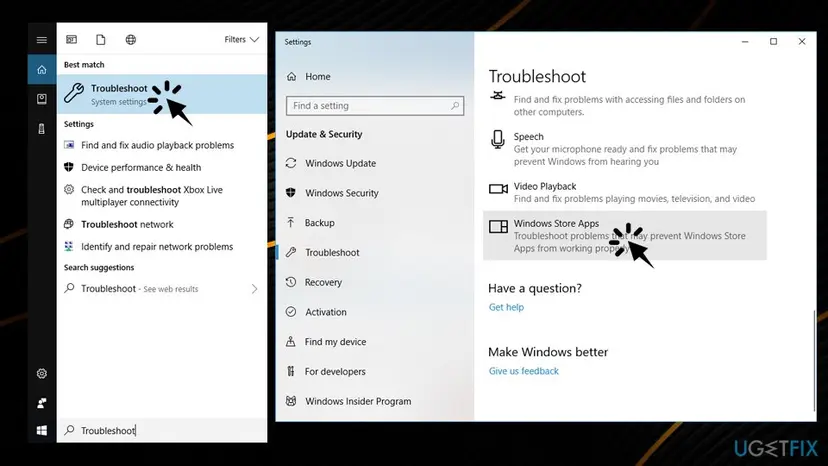
Microsoft store 0x00000194 error run troubleshooter
Fix 3. Check your time and date settings
In some cases, users' date and time settings might be misconfigured. Microsoft store will not work if it set to 1970s. Therefore, make sure it is correct in the following way:
- Click on the search box and type Date & time
- Hit Enter. It will open Date & Time settings
- Make sure that Set time automatically and Set time zone automatically is turned ON
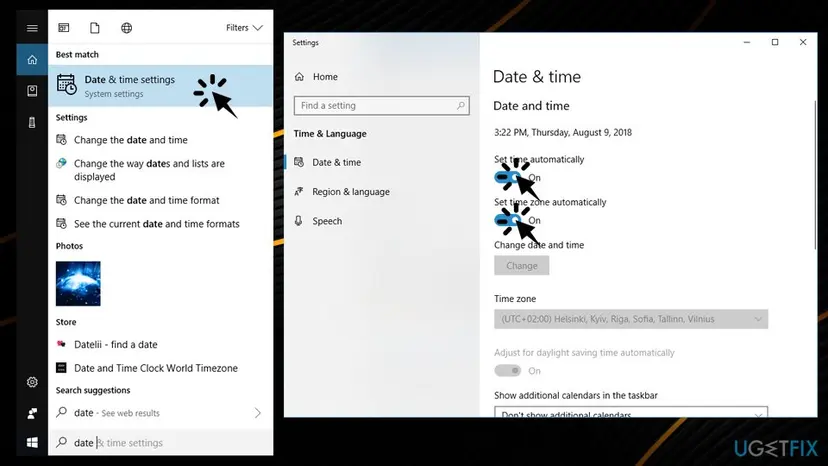
Microsoft store 0x00000194 error confirm correct date and time
Fix 4. Reset Microsoft Store cache
Many users reported that simply resetting the store helped them to fix the error. To do that, use the WSReset function:
- Type in wsreset into the search box
- Right-click it from the search results and pick Run as administrator
- An empty command line window will open, let it hang
- As soon as it disappears, your Microsoft Store will be reset
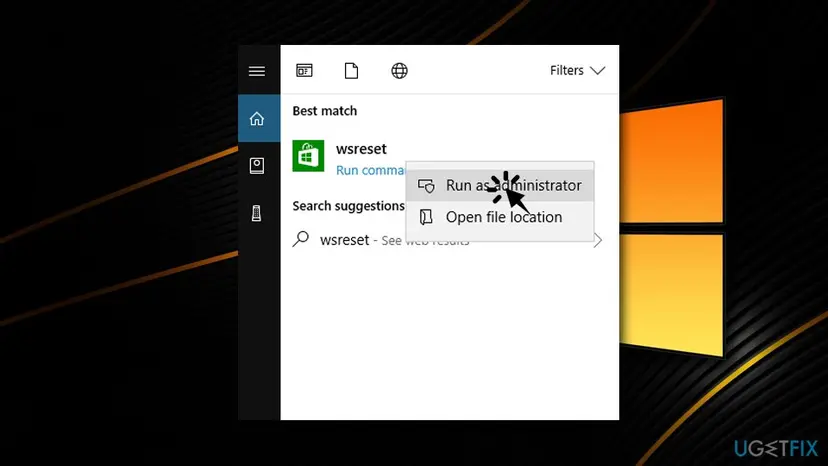
Microsoft store 0x00000194 error confirm reset microsoft store
Fix 5. Repair or reset the app
A more thorough reset of the app can be done via the Apps & Features section in the Settings menu.
- Right-click on Start and pick Apps & Features
- Scroll down to locate Microsoft Store and click Advanced options
- Click Terminate and Repair
- If that does not help, try the Reset option instead.
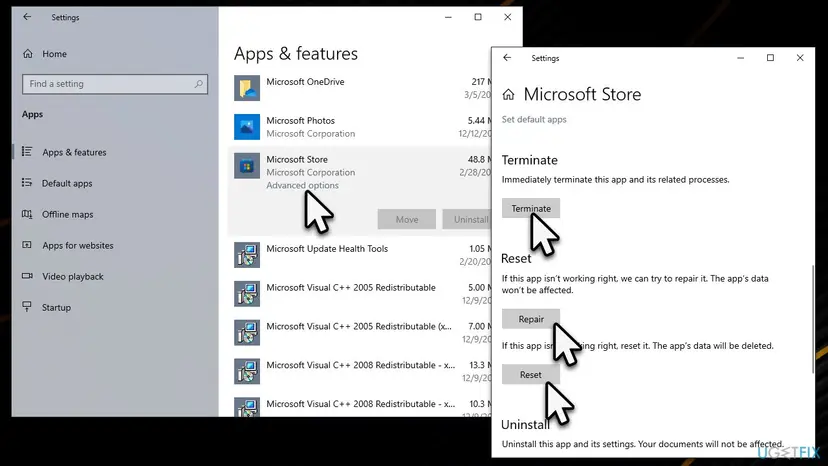
How to fix microsoft store 0x00000194 error reset microsoft store
Fix 6. Reinstall Microsoft Store using Command Prompt or Power Shell
Microsoft store, just like any other software, can get buggy and not work correctly. In such case, you can re-install it via Command Prompt or Power Shell:
- Right-click on the Start button and pick Power Shell (Admin) or Command Prompt (Admin)
- When User account control shows up, click OK
- Next, type in the following Get-AppXPackage *WindowsStore* -AllUsers | Foreach {Add-AppxPackage -DisableDevelopmentMode -Register "$($_.InstallLocation)\AppXManifest.xml"} and hit Enter
- Restart the Store
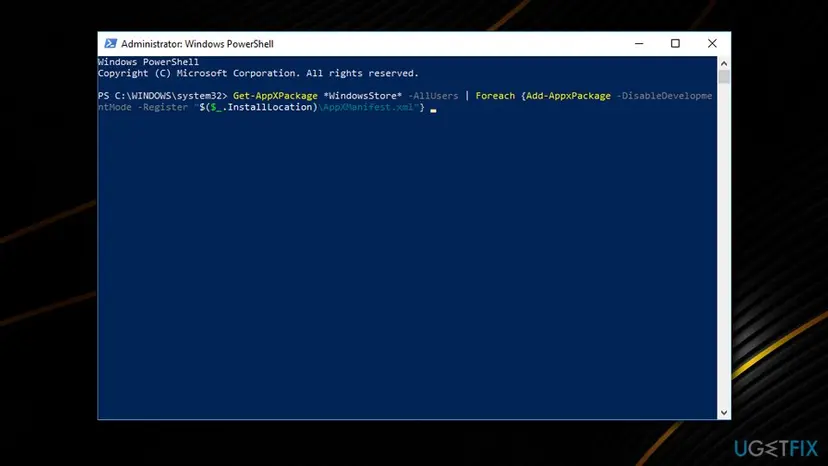
Microsoft store 0x00000194 error confirm reinstall microsoft store
Fix 7. Reset the software distribution folder
Before you proceed with this step, it is vital for you to disable any connection to the internet. In case you will not, Windows will prevent apps from being modified and announce that they are in use. Once the device is disconnected from the internet, perform the following steps:
- Type in cmd into the search box, right-click and select Run as administrator
- Type in the following lines, hitting Enter after each of them (note: repeat that for the first line several times)
taskkill /F /FI "SERVICES eq wuauserv"
net stop cryptSvc
net stop bits
net stop msiserver
ren C:\Windows\SoftwareDistribution SoftwareDistribution.old
rmdir C:\Windows\SoftwareDistribution\DataStore
rmdir C:\Windows\SoftwareDistribution\Download
- If that did not help, type each of the lines and press Enter:
Run these codes:
Net Stop bits
Net Stop wuauserv
Net Stop appidsvc
Net Stop cryptsvc
Ren %systemroot%\SoftwareDistribution SoftwareDistribution.bak
Ren %systemroot%\system32\catroot2 catroot2.bak
Net Start bits
Net Start wuauserv
Net Start appidsvc
Net Start cryptsvc
Fix 8. Perform a repair install of Windows
If none of the steps above helped you, try reinstalling Windows using Media Creation Tool. The process is not difficult, and it will let you keep your files. Make sure you back up your important files as a precautionary measure. Also, make sure you disconnect any unnecessary external peripherals such as printers or cameras.
- Visit the official Microsoft website and download Windows 10 installation media (Windows 11 version)
- Double-click the installer and select Yes when UAC shows up
- Agree to terms
- Select Upgrade this PC now and click Next
- Windows will start downloading the needed files
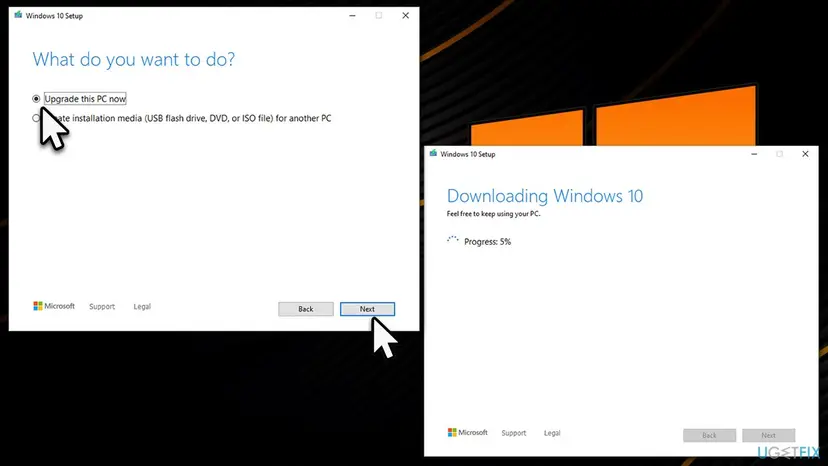
How to fix microsoft store 0x00000194 error reinstall windows - Agree to terms once again and click Next
- Before installing, make sure that you are happy with your choices (otherwise, you can click Change what to keep option)
- Finally, click Install to begin the upgrade process.
Did this fix work?
One click, no account. It tells the next reader which guides are worth their time.
Questions and experiences: fix Microsoft Store 0x00000194 error
Still broken, or found a fix we did not cover? Ask here: members and our editors answer. Reading is open; writing needs a free account.
…