
How to fix Microsoft Store error 0x80070483?

Prefer to fix it yourself? The manual steps follow.
- 7methods
- 2 to 45 minutes
- Easy
Applies to Windows 11 and Windows 10; Microsoft Store and the apps installed from it, such as Photos, Snipping Tool and Calculator
7 methods in this guide
Hi. There's something wrong with my Microsoft Store. I could not open it for a while, so I ran the troubleshooter and received error 0x80070483. Now I can't open Microsoft Store, nor the apps downloaded through it. Please advise.
Error 0x80070483 means Windows looked for the app that should open something, often Microsoft Store itself, and found none registered. It usually comes with a Store that will not open, or apps that will not start. Restart the PC first, then reset the Store.
0x80070483 is Windows error 1155: "No application is associated with the specified file for this operation." The Store or a Store app is not registered right for your account. Restart the PC with Restart, not Shut down (Fix 1). If the Store still fails, clear its cache and repair it (Fix 2), then re-register the Store (Fix 3).
| Error | 0x80070483, the Windows system error 1155 ERROR_NO_ASSOCIATION: "No application is associated with the specified file for this operation." |
|---|---|
| Where it appears | When Microsoft Store will not open, when Store apps such as Photos or Snipping Tool will not start, and as the result of the Windows Store Apps troubleshooter. |
| Main cause | The Store or its apps lost their registration for your user account, often after an update that waits for a restart. |
| Fastest fix | A full restart (Fix 1). Then wsreset and Repair for the Store (Fix 2). |
| Also written as | 0x80070483, error code 0x80070483, erro 0x80070483, errore 0x80070483, код ошибки 0x80070483, Win32 error 1155 (hex 0x483). |
| Affects | Windows 11 and Windows 10. Windows 10 left Microsoft support on 14 October 2025; the fixes still work on it. |
| Microsoft's status | A general Windows error code, not a listed Store bug. No update is named as its fix. |
| Not the same as | 0x8007048F, which is error 1167: "The device is not connected." |
| Time to fix | 2 minutes for a restart. 5 to 15 minutes for Fixes 2 to 5. Up to 45 minutes for the last fixes. |
Facts checked on 15 October 2026. Steps written for Windows 11 (25H2 and 26H2) and Windows 10 22H2.
What error 0x80070483 means
Codes that start with 0x8007 carry a normal Windows system error inside them. The last four digits, 0483, are hexadecimal for 1155. Microsoft's list of system error codes names 1155 ERROR_NO_ASSOCIATION and gives it one line: "No application is associated with the specified file for this operation."
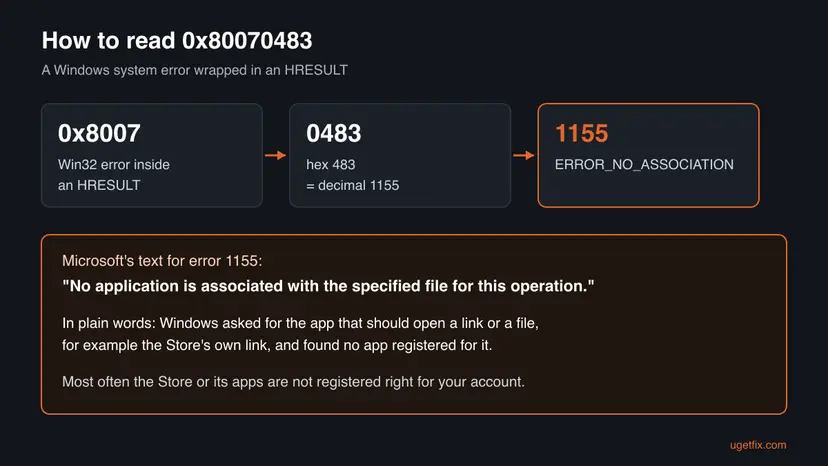
In plain words, Windows was asked to open something with "its" app and no app was registered for it. Microsoft Store opens through its own link type, and every Store app is registered to your user account. When that registration breaks, Windows has nothing to hand the request to, and this code comes back.
- What users see
- A Store that does not open or closes at once, Store apps (Photos, Snipping Tool, clipboard, video player) that do not start, and the code in the troubleshooter's result. Users on Microsoft Q&A describe exactly this pattern.
- Why the troubleshooter shows it
- The troubleshooter tries to reach the Store and its apps and reports the error it hits. The code is its finding, not a fault of the troubleshooter.
- What it is not
- Not a download or network error and not a licence problem. On its own it says nothing about your hardware.
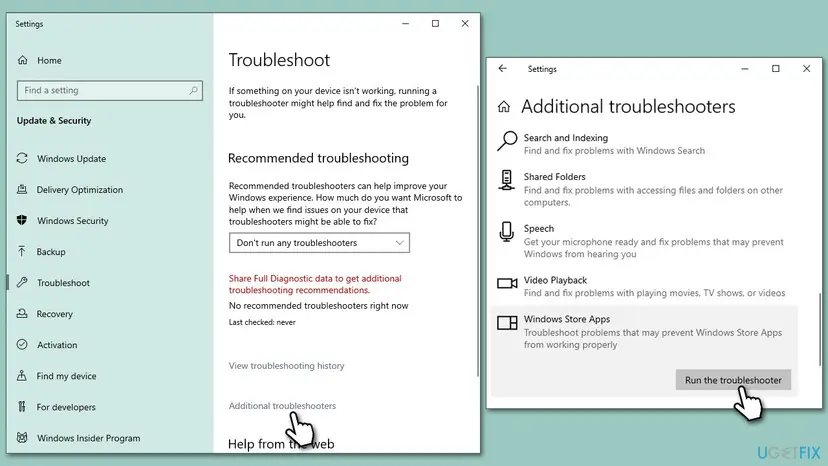
Why 0x80070483 appears: the causes, ranked
Most often an update changed the Store or its apps and the change is not finished until a restart. Less often the Store's cache or its registration for your account is damaged. Rarely the whole set of app registrations or Windows system files is broken.
| Cause | How often | How to tell | Fix |
|---|---|---|---|
| An app or Windows update waits for a restart, so the old registration is gone and the new one is not active yet. | Most often | The error started after updates, and the PC was only put to sleep or shut down since. | Fix 1 |
| The Store's cache or settings are damaged. | Often | The Store opens but stays blank, closes, or will not download. | Fix 2 |
| Microsoft Store is not registered right for your account. | Sometimes | The Store does not open at all, while other apps work. | Fix 3 |
| Many Store apps lost their registration at once. | Sometimes | Photos, Snipping Tool, Calculator and similar apps do not open either. | Fix 4 |
| Store apps are out of date after a Store repair. | Sometimes | The Store opens again but a few apps still crash. | Fix 5 |
| Damaged Windows system files. | Rarely | Settings, Start or other parts of Windows misbehave too. | Fix 6 |
| A broken Windows installation that the fixes above cannot repair. | Rarely | PowerShell finds no Store package, or every fix fails. | Fix 7 |
How to fix error 0x80070483 in Microsoft Store and Store apps
Fix 1 costs two minutes and, in the Microsoft Q&A thread on this code, was the fix that worked. Fixes 2 to 4 repair the Store and the app registrations. Fix 5 updates the apps. Fixes 6 and 7 repair Windows itself.
| What you see or have | Start with |
|---|---|
| The error came after an update, and you have not restarted since. | Fix 1 |
| The Store opens but is blank, slow or will not download. | Fix 2 |
| The Store does not open at all, other apps work. | Fix 3 |
| Photos, Snipping Tool, Calculator and other apps fail too, as in the question above. | Fix 1, then Fix 4 |
| The Store opens again but some apps still crash. | Fix 5 |
| Other parts of Windows fail too, or nothing above helped. | Fix 6, then Fix 7 |
Fix 1. Restart the PC with Restart, not Shut down
2 minutesNo riskEveryone, first. Most of all when the error started after Windows or Store updates.
App updates replace the registration of the Store and its apps, and part of that work runs at the next start. With fast startup on, Shut down does not start Windows fresh, while Restart does. The reader who asked about this code on Microsoft Q&A wrote that just restarting was enough.
- Save your work and close open apps.
- Select Start, then the Power button.
- Choose Update and restart if it is offered, otherwise Restart. Do not use Shut down or Sleep for this test.
- Wait until Windows has started again and you are signed in.
- Open Microsoft Store from the Start menu, then one app that failed before.
It worked if: The Store opens on its home page and the apps that failed start normally.
If not: If the Store opens but misbehaves, go to Fix 2. If it does not open at all, go to Fix 3.
Fix 2. Clear the Store cache with wsreset, then repair or reset Microsoft Store
5 minutesLow riskThe Store opens but stays blank, closes at once or will not download, or Fix 1 did not help.
wsreset clears the Store's cache without touching your apps. Repair rebuilds the Store app's files, and Reset also clears its settings, which can restore the parts Windows needs to open it. Your purchases stay in your Microsoft account.
- Clear the Store cache. Press Windows + R, type wsreset.exe and select OK. A blank Command Prompt window opens; after a short while it closes and Microsoft Store opens by itself.
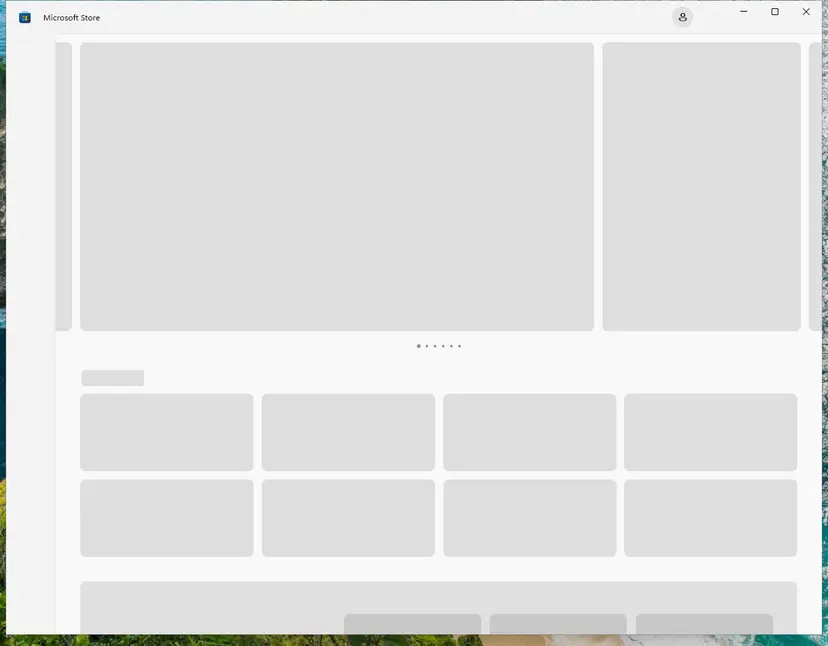
After wsreset, the Store opens and loads again. Screenshot: Windows 11 26H2. - Open System components. If the problem stays, select Start > Settings > System > System components. Next to Microsoft Store, select the three dots and Advanced options. If Microsoft Store is not listed there, look for it in Settings > Apps > Installed apps.
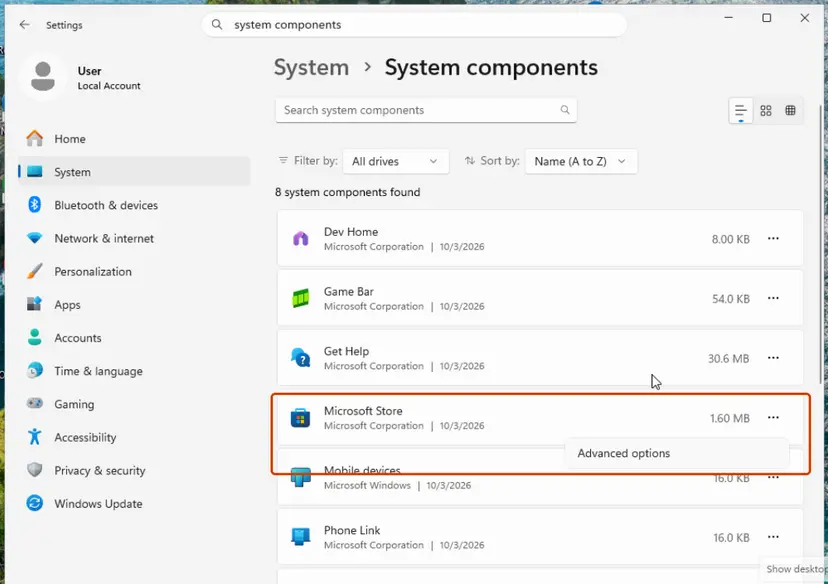
Microsoft Store is listed under System components. Screenshot: Windows 11 26H2. - Repair first. Scroll to Reset and select Repair. Repair keeps the app's data. Open the Store and check whether it works.
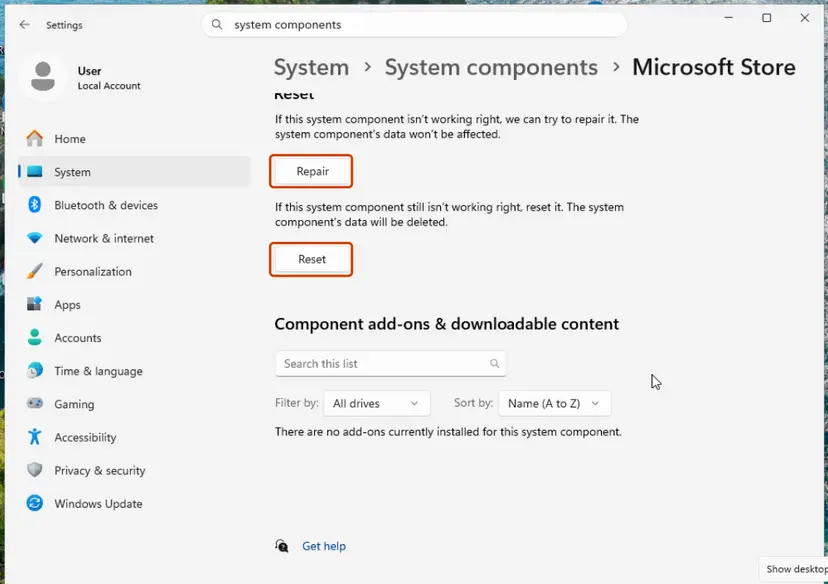
Repair keeps the app's data; Reset deletes it. Screenshot: Windows 11 26H2. - Reset if Repair did not help. Select Reset and confirm. This deletes the Store app's data on this PC; your purchases stay in your Microsoft account. Open the Store and sign in again.
These steps were written for Windows 11 26H2 (build 26300). The full page with the other versions and what each result means: Reset the Microsoft Store
On Windows 11 the Store is under Settings > System > System components. On Windows 10 it is under Settings > Apps > Apps & features > Microsoft Store > Advanced options.
It worked if: After wsreset the Store opens by itself. After Repair or Reset it opens on the home page and asks you to sign in again.
If not: If wsreset shows no window or the Store still will not open, re-register it with Fix 3.
Fix 3. Re-register Microsoft Store for your account with PowerShell
5 minutesLow riskThe Store does not open at all, or wsreset and Repair did not help.
Error 1155 means no app is registered for the request. Re-registering reads the Store's manifest from its install folder and links it to your account again, without downloading anything.
- Close Microsoft Store and any Store apps.
- Select Start, type PowerShell and select Windows PowerShell. Open it the normal way, not as administrator, so the Store is registered to your own account.
- Paste the first command below and press Enter. If PowerShell prints details with Name
Microsoft.WindowsStoreand an InstallLocation, the Store is on the PC. - Paste the three lines of the second command and press Enter. If no red text appears, it worked.
- Close PowerShell, restart the PC and open the Store.
PowerShell: check that the Store package is there
Get-AppxPackage -Name '*WindowsStore*'PowerShell: register the Store again for your account
$InstallLocation = Get-AppxPackage -Name '*WindowsStore*' | Select-Object -ExpandProperty InstallLocation
$ManifestPath = $InstallLocation + '\Appxmanifest.xml'
Add-AppxPackage -Path $ManifestPath -Register -DisableDevelopmentMode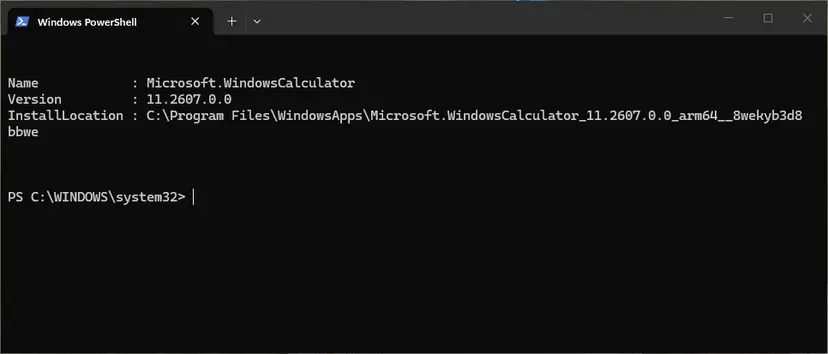
The same steps for any one app, with pictures: How to re-register Microsoft Store apps with PowerShell
It worked if: PowerShell returns to the prompt without red text, and after the restart the Store opens.
If not: If the first command prints nothing, the Store package is missing for your account: go to Fix 7. If other apps fail too, run Fix 4.
Fix 4. Re-register all apps of your account when many apps fail
5 to 10 minutesLow riskPhotos, Snipping Tool, Calculator, clipboard and other Store apps do not open, as in the reader's question.
When many apps fail with the same code, their registrations broke together. One command registers every app package of your account again from the files already on the disk.
- Close all apps you can.
- Open Windows PowerShell from Start the normal way, not as administrator.
- Paste the command below and press Enter.
- Wait until the prompt returns. Some red text is normal; see the note below.
- Restart the PC and open the apps that failed.
PowerShell: register every app of your account again
Get-AppxPackage | ForEach-Object { Add-AppxPackage -Path "$($_.InstallLocation)\AppxManifest.xml" -Register -DisableDevelopmentMode }0x80073D02 means a package is in use, and 0x80073D06 means a newer version is already registered. Both mean the package was left as it is. Other codes, such as 0x80073CF6, point to a real problem: note the package name and run Fix 6.
It worked if: The prompt returns, and after the restart the apps open again.
If not: If the Store opens but some apps still fail, update them with Fix 5. If almost nothing changed, run Fix 6.
Fix 5. Update the Store apps from Library
5 to 15 minutesNo riskThe Store opens again, but some apps still crash or show the code.
An app that was half updated when its registration broke can stay broken. Get updates installs the current version over it, which also registers it again.
- Open Microsoft Store.
- Select Library in the lower left corner (Windows 10: See more > My Library).
- Select Get updates and wait until all downloads finish.
- Restart the PC so the updated apps are registered.
- Open the app that failed.
If one app still fails, repair or reset only that app in Settings > Apps > Installed apps > Advanced options. Step by step: How to repair or reset an app in Windows
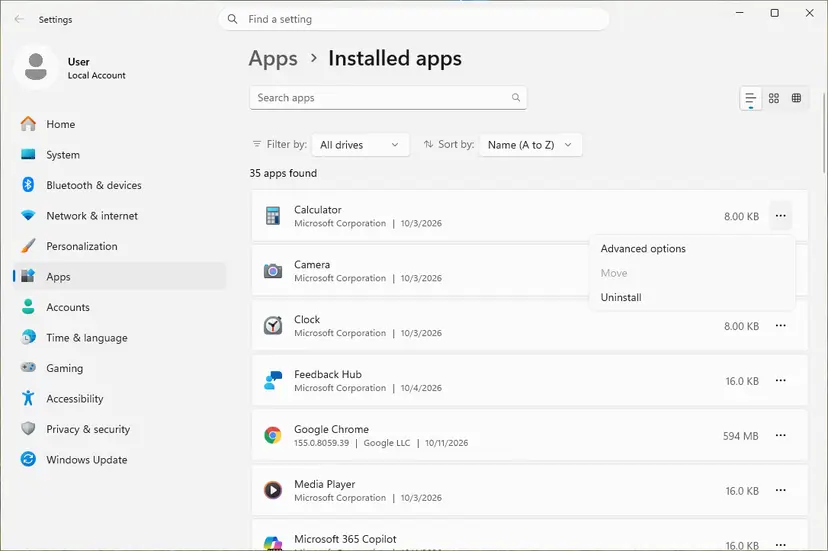
It worked if: Library shows no more pending updates and the app opens.
If not: If apps still fail after updates, repair Windows system files with Fix 6.
Fix 6. Repair Windows system files with DISM and SFC
15 to 30 minutesLow riskSettings, Start or other parts of Windows fail too, or Fixes 3 and 4 print errors such as 0x80073CF6.
The Store and the app registration service are parts of Windows. If their system files are damaged, no app can be registered. DISM fetches good copies and SFC puts them back.
- Open an elevated command window. Right-click Start and select Terminal (Admin), or type cmd in the search box, right-click Command Prompt and select Run as administrator. Select Yes when Windows asks for permission.

Search for cmd and choose Run as administrator. Screenshot: Windows 11 26H2. - Run DISM first. Type the command below and press Enter. DISM downloads clean copies of damaged components from Windows Update, so it can take several minutes. Wait until it says The operation completed successfully.
DISM.exe /Online /Cleanup-Image /RestoreHealth
DISM /RestoreHealth running. Screenshot: Windows 11 26H2. - Run System File Checker. In the same window, type the command below and press Enter. Do not close the window until the verification reaches 100%.
sfc /scannow
sfc /scannow at 100%. Screenshot: Windows 11 26H2. - Read the result and restart. Compare the last message with the table below this guide, then restart the PC so that repaired files are loaded.

The result line tells you what SFC did. Screenshot: Windows 11 26H2.
These steps were written for Windows 11 24H2 and 25H2. The full page with the other versions and what each result means: Run DISM and SFC to repair Windows system files
It worked if: SFC reports that it repaired files or found no integrity violations. Restart, then run Fix 3 or Fix 4 again.
If not: If SFC cannot repair some files or the Store still fails, use Fix 7.
Fix 7. Reinstall Windows over itself and keep your files
45 minutes or moreRead the warningLast, when PowerShell finds no Store package, or every fix above failed.
A repair install puts a fresh copy of Windows, including Microsoft Store and the built-in apps, under your existing files and programs. It replaces what the other fixes cannot.
Your files, apps and most settings normally stay, but a failed setup can leave Windows in a bad state. Copy important files to an external drive or the cloud before you start: Back up your files (Windows Backup, File History, Time Machine)
- Open Recovery in Settings. Open Settings > System > Recovery. Next to Fix problems using Windows Update, select Reinstall now. This keeps your apps, files and settings.

Fix problems using Windows Update reinstalls the current version and keeps apps, files and settings. Screenshot: Windows 11 26H2. - Start the reinstall. Choose whether the PC may restart on its own 15 minutes after the installation, then select OK.
- Wait and restart. Windows Update downloads and installs a repair copy of your current Windows version. Keep the PC plugged in and online, and restart it when asked.
- If that did not help: Reset PC. Back in Settings > System > Recovery, next to Reset this PC, select Reset PC. This keeps your personal files but removes installed apps and settings.
- Choose Keep my files. Select Keep my files. Do not select Remove everything.
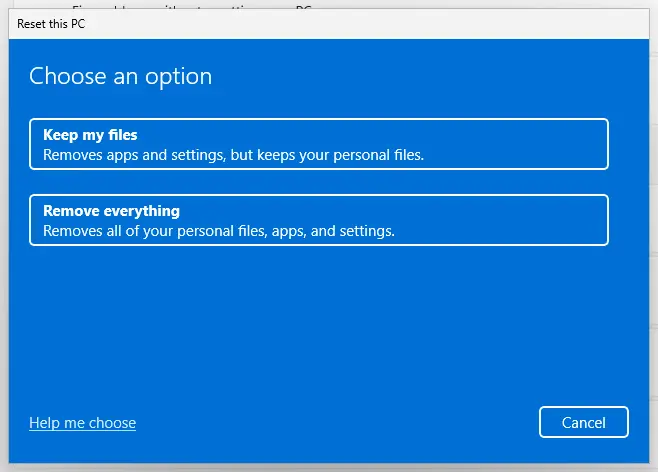
Keep my files removes apps and settings but keeps personal files. Screenshot: Windows 11 26H2. - Choose where Windows comes from. Select Cloud download to download a fresh copy of Windows, or Local reinstall to use the files already on the PC (faster, but may not include the latest updates).
- Reset. Review the summary and select Reset. The PC restarts several times.
These steps were written for Windows 11 22H2 and later. The full page with the other versions and what each result means: Reinstall Windows without losing files
It worked if: Windows starts with your files and apps in place, and Microsoft Store opens.
If not: If the error comes back right after the repair install, read the event log in the next section and ask Microsoft Support.
If 0x80070483 is still there
The code only says that no app was registered. The reason an app could not be registered is written in the Windows event log for app installs and registrations.
- Right-click Start and select Event Viewer.
- Open Applications and Services Logs > Microsoft > Windows > AppXDeployment-Server > Microsoft-Windows-AppXDeploymentServer/Operational.
- Select Filter Current Log, tick Error and select OK.
- Open the newest errors and look for the package name
Microsoft.WindowsStoreor the name of the app that fails. Write down the error code and text.
- What to send to Microsoft Support: the error lines from that log, your Windows version from Settings > System > About, and the fixes you tried, with any red text from PowerShell.
- It did not work ("não deu certo"): if Fixes 1 to 6 fail and PowerShell finds no Store package, Fix 7 is the step that brings the Store back.
- A work or school PC: the organization may block or remove the Store by policy. Ask the administrator before you change anything.
- When it is not software: this code does not point to hardware. If Windows also crashes or files get damaged, check the disk with Check a disk for errors (chkdsk).
How to keep 0x80070483 from coming back
The error follows broken app registrations, and most of them come from unfinished updates or from removing built-in apps. These habits avoid both.
- Restart with Restart after Windows or Store updates.
- Let Store updates finish in Library before you shut down.
- Repair or reset a single app before you re-register everything.
- Keep a recent backup of your files.
- Remove Microsoft Store or built-in apps with PowerShell or debloat scripts.
- Delete folders inside WindowsApps by hand.
- Run the re-register commands as administrator for your own apps.
- Use modified Windows builds that strip the Store.
Frequently asked questions
What does error code 0x80070483 mean?
It is Windows system error 1155, ERROR_NO_ASSOCIATION, which Microsoft describes as "No application is associated with the specified file for this operation." Windows was asked to open something with an app and found no app registered for it. With Microsoft Store it usually means the Store or one of its apps is not registered right for your account. Restart first (Fix 1), then reset the Store (Fix 2).
Why did the troubleshooter give me 0x80070483?
The Windows Store Apps troubleshooter tries to reach the Store and its apps, and it reports the error it hits. So the code tells you what is wrong, not that the troubleshooter failed. Running it again rarely changes the result. Go on with the fixes on this page: a restart, a Store reset, then re-registering the Store and its apps.
Can I fix 0x80070483 without resetting Windows or using a USB drive?
Yes, in most cases. Fixes 1 to 6 need no USB drive and keep everything on the PC. The reader on Microsoft Q&A who asked exactly this reported that a restart was enough. A repair install (Fix 7) is the last step and also keeps your files and apps; you can start it from Windows without a USB drive.
Microsoft Store and all my apps stopped opening. Will I lose my apps?
No. The apps are still on the disk; only their registration for your account is broken. Re-registering them (Fixes 3 and 4) links them again without downloading anything. A Store Reset signs you out of the Store, but your purchases stay in your Microsoft account. Only a single app's Reset clears that app's own data, so use Repair first.
Should I run the re-register command as administrator?
Not for your own apps. Microsoft's guidance for app registration problems is to register from a normal, non elevated PowerShell window, so the app is registered to the signed-in account. Many older guides use an administrator window with -AllUsers. If your account is not an administrator, sign in with your own account and still use a normal window.
Does this guide fix код ошибки 0x80070483 on Windows 10?
Yes. код ошибки 0x80070483 is the same error code, and the fixes are the same on Windows 10 22H2 and Windows 11. Where menus differ, each fix gives both paths. Windows 10 left Microsoft support on 14 October 2025, so it gets no more security updates; plan a move to Windows 11 if your PC can run it.
Is 0x8007048F the same error as 0x80070483?
No. 0x8007048F is Windows error 1167, "The device is not connected." It usually concerns a drive, a phone or another device that is missing, not app registration. The two codes look alike because both carry a Windows error number inside 0x8007. The fixes on this page are for 0x80070483 only.
My Canon printer shows an error. Is it 0x80070483?
This page is about Microsoft Store and its apps, not about printers. A printer error has its own code from the printer or its driver. If a printer app from the Store will not open and shows 0x80070483, the app's registration is broken: repair or reset that app (Fix 5), then re-register it (Fix 3 with the app's name).
Is 0x80070483 caused by a virus?
Not as a rule. Broken app registrations most often follow unfinished updates or removed built-in apps. If you also see unknown programs, pop-ups or changed browser settings, run a full scan with Microsoft Defender: How to scan for malware with Microsoft Defender. Then come back to the fixes on this page. A scan alone does not register the Store again, so you still need the restart and the Store fixes above.
Sources
Did this fix work?
One click, no account. It tells the next reader which guides are worth their time.
Questions and experiences: fix Microsoft Store error 0x80070483
Still broken, or found a fix we did not cover? Ask here: members and our editors answer. Reading is open; writing needs a free account.
…