
How to fix Microsoft Store error 0x80073CFF?

Prefer to fix it yourself? The manual steps follow.
- 6methods
- 5 to 20 minutes
- Intermediate
Applies to Windows 11, Windows 10, Windows Server; .appx, .msix and bundle packages installed with App Installer, Add-AppxPackage or an app's own setup program, Microsoft Store installs
6 methods in this guide
Hi, I've been having difficulty installing an application from the Microsoft Store onto my Windows computer, but every time I get error 0x80073CFF. It keeps it from downloading, and I don't understand why. I have tried restarting my computer, but this is still not working. Why is this, and how can I fix it?
Error 0x80073CFF means that Windows refused to install an app package because its install policy does not allow packages from outside Microsoft Store on your PC. It is a sideloading block, not a broken Store. Turn on Developer Mode for the install first, then check the policy that allows trusted apps.
0x80073CFF is Microsoft's code ERROR_INSTALL_POLICY_FAILURE: "To install this app, you need a developer license or a sideloading-enabled system." The package did not come signed from Microsoft Store, and your PC does not allow sideloading. Turn on Developer Mode in Settings for the install (Fix 1). If it is greyed out or the error stays, check the policy Allow all trusted apps to install (Fix 2).
| Error | 0x80073CFF, name ERROR_INSTALL_POLICY_FAILURE, Microsoft's text "To install this app, you need a developer license or a sideloading-enabled system." |
|---|---|
| Where it appears | In the install window of an app package, in PowerShell after Add-AppxPackage, in setup programs that add packages in the background ("AddPackage failed with HRESULT 0x80073CFF"), and sometimes when a Store install is started. |
| Main cause | The package is not a Microsoft Store package, and sideloading is switched off on the PC by a policy, a setting or the Windows edition. |
| Fastest fix | Turn on Developer Mode in Settings, install, then turn it off again (Fix 1). |
| Also written as | 0x80073cff, 80073CFF, HRESULT 0x80073CFF, "Exception from HRESULT: 0x80073CFF", "AddPackage failed with HRESULT 0x80073CFF" |
| Affects | Windows 11 and Windows 10 on PCs where sideloading is off, and Windows Server, where it is off by default. Windows 10 left support on 14 October 2025. |
| Microsoft's status | A documented install policy error, not a bug with a patch. Microsoft lists the three ways a package may pass the check. |
| Where the cause is logged | Event Viewer > AppXDeployment-Server, or Get-AppxLog in PowerShell. |
| Time to fix | 5 minutes in Settings. Up to 20 minutes if the policy or the registry must be changed. |
Facts checked on 15 October 2026. Steps written for Windows 11 (25H2 and 26H2) and Windows 10 22H2.
What error 0x80073CFF means: the package failed the install policy check
0x80073CFF is one of the deployment errors that Windows returns when it installs an app package, the .appx or .msix format that Microsoft Store apps and many downloaded apps use. Microsoft names it ERROR_INSTALL_POLICY_FAILURE. The check happens before any file is copied, so nothing on your PC was changed.
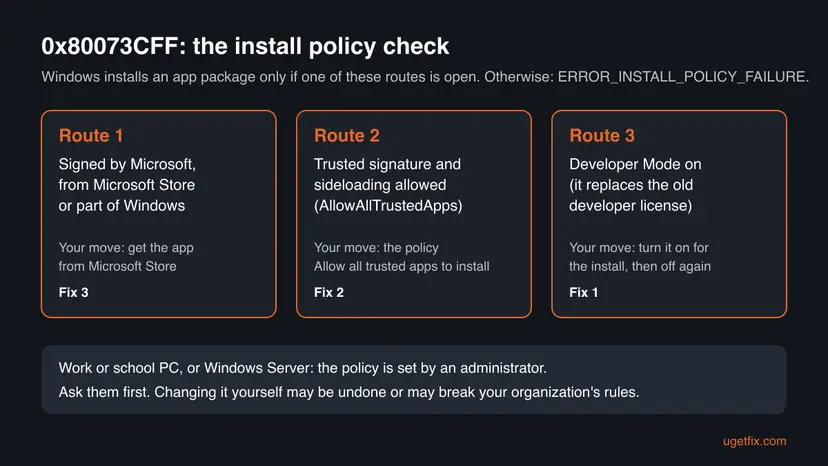
Microsoft's developer table lists three cases in which a package passes this check. If none of them is true on your PC, the install stops with 0x80073CFF:
- The package is signed by Microsoft and comes from Microsoft Store, or it is part of Windows.
- The package has a trusted signature, and the PC allows sideloading: a developer license, or the AllowAllTrustedApps policy on a domain PC or a PC with a sideloading licence.
- A developer deploys the app from Visual Studio on a PC with a developer license. Today Developer Mode replaces that license.
- HRESULT
- 0x80073CFF (people also type 0x80073cff, 80073CFF and hresult 0x80073cff)
- Name
ERROR_INSTALL_POLICY_FAILURE- Microsoft's developer table
- To install this app, you need a developer license or a sideloading-enabled system.
- Text in the install window
- To install this application you need either a Windows developer license or a sideloading-enabled system.
- Text from setup programs
- Installation failed: AddPackage failed with HRESULT 0x80073CFF
In the install window, the message reads:
The message in the install window
Error encountered during install
To install this application you need either a Windows developer license or a sideloading-enabled system.
(Exception from HRESULT: 0x80073CFF)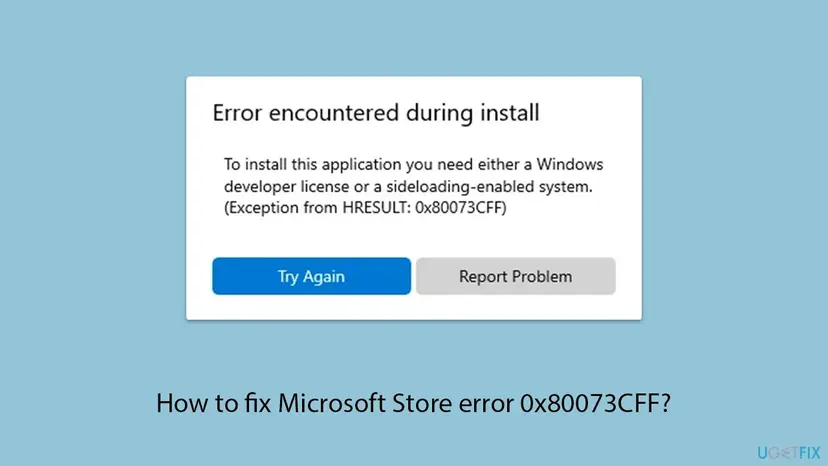
Apps that Microsoft Store installs are signed by Microsoft and pass this check by design. The code points at a package from somewhere else, or at a policy that blocks it. Store repairs come later on this page, for the rare case that the error starts from the Store.
Why 0x80073CFF appears: the causes, ranked
On Windows 11 and recent Windows 10, sideloading of packages with a trusted signature is allowed by default on desktop PCs. A Microsoft engineer confirmed on the Windows App SDK tracker that the default changed some years ago, but only on desktop. So 0x80073CFF usually means that something switched it off again, or that the package needs more than a trusted signature.
| Cause | How often | How to tell | Fix |
|---|---|---|---|
| A downloaded package, a loose app folder or a package for testing needs Developer Mode. | Most often | You opened an .msix or .appx file, ran Add-AppxPackage or a setup program, and the PC is your own. | Fix 1 |
| The policy Allow all trusted apps to install is set to Disabled, by an administrator, a management tool or a tweak program. | Often | Developer Mode is greyed out, or it is on and the error stays. | Fix 2 |
| The PC runs Windows Server, where sideloading is still off by default. | Often on servers | winver shows Windows Server. | Fix 2 |
| The package is not signed with a trusted certificate, or it is a helper package signed for sideloading only. | Sometimes | The file has no Digital Signatures tab, or a setup program adds runtime packages in the background. | Fix 3 |
| Microsoft Store or its cache is damaged. | Rarely | Every Store install fails, not only one package. | Fix 4 and Fix 5 |
| Windows system files are damaged. | Rarely | Nothing installs, and other system tools fail too. | Fix 6 |
The column "How often" is our reading of Microsoft's table and the public reports for this code. Microsoft publishes no numbers for it.
Related codes: 0x80073D01, 0x80073CF0, 0x80073D11 and 0x80073D3F
Four neighbours of this code come from the same Microsoft table and are often mixed up with it. Each one has a different cause, so read the exact code before you change anything.
| Code | Microsoft's name | What it means | What to do |
|---|---|---|---|
| 0x80073D01 | ERROR_DEPLOYMENT_BLOCKED_BY_POLICY | An Application Control policy or a special profile policy blocks the install, or you are signed in with a temporary profile. | Ask your administrator, or sign out and in again. Our 0x80073D01 guide. |
| 0x80073CF0 | ERROR_INSTALL_OPEN_PACKAGE_FAILED | The package could not be opened: it is unsigned, or the publisher name does not match the certificate. | Get a correctly signed package from the publisher. |
| 0x80073D11 | ERROR_DEV_SIDELOAD_LIMIT_EXCEEDED | The device has reached the limit of developer sideloaded packages. | Uninstall a sideloaded package and try again. |
| 0x80073D3F | ERROR_INSTALL_DRIVE_NOT_FOUND | The drive set for app installs could not be found, for example an external drive that is not connected. | Connect the drive, or change Settings > System > Storage > Change where new content is saved. |
How to fix error 0x80073CFF in Windows 11 and Windows 10
The fixes work on Windows 11 and Windows 10, with both paths where they differ. Fix 1 to Fix 3 open one of the three routes that Microsoft lists. Fix 4 and Fix 5 are for errors that start in Microsoft Store, and Fix 6 is the general repair.
| What you see or have | Start with |
|---|---|
Your own PC, and you opened a downloaded .msix or .appx file or ran Add-AppxPackage. | Fix 1 |
| Developer Mode is greyed out, or it is on and the error stays. | Fix 2 |
| A work or school PC, or Windows Server. | Ask your administrator, then Fix 2 |
| A setup program fails with "AddPackage failed with HRESULT 0x80073CFF". | Fix 1, then Fix 3 |
| The error starts in Microsoft Store, for every app. | Fix 4 |
| Nothing above fits, or the code returns after every fix. | Fix 6, then the log |
Fix 1. Turn on Developer Mode for the install, then turn it off again
5 minutesLow riskYour own PC, and you install a downloaded package, a loose app folder or an app from a setup program.
Microsoft says Developer Mode replaces the old developer license and also allows sideloading. That opens the third route of the policy check, so a package with a trusted signature, or a loose folder, installs.
- Press Win + I to open Settings.
- On Windows 11 25H2 and 26H2, go to System > Advanced and scroll to the For developers section.
- On older Windows 11 versions, go to System > For developers. On Windows 10 22H2, go to Update & Security > For developers.
- Turn on Developer Mode ("Install apps from any source, including loose files").
- Read the warning and select Yes.
- Install the app again.
- When it works, come back and turn Developer Mode off.
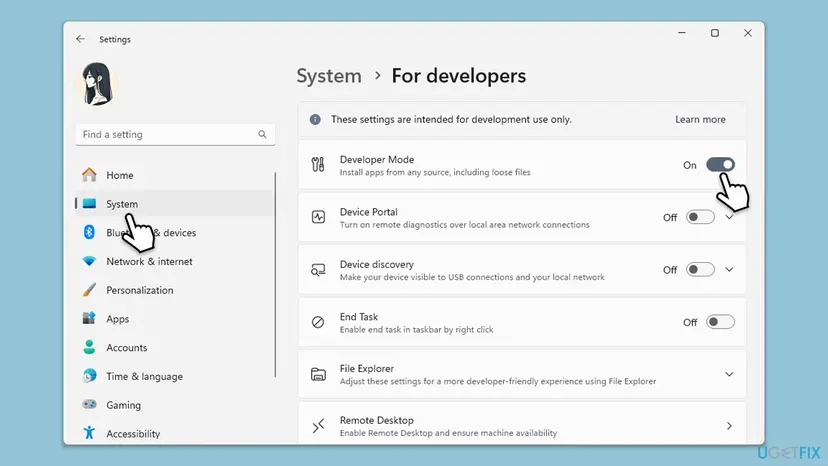
Microsoft writes that a PC used for everyday work, games, web and Office has no need for Developer Mode. It also starts extra services for developers. Leave it on only while you install or test apps.
It worked if: The install runs and the app appears in Start.
If not: If the switch is greyed out, needs an administrator, or the error stays with Developer Mode on, a policy blocks it. Go to Fix 2.
Fix 2. Allow trusted apps in Group Policy or the registry
10 to 20 minutesRead the warningDeveloper Mode is greyed out or did not help, or the PC runs Windows Server.
The policy Allow all trusted apps to install is the switch behind the second route of the check. If it is Disabled, every package from outside Microsoft Store fails with 0x80073CFF, whatever its signature.
On a work or school PC the policy is set by your administrator. Ask them first: a change you make may be reset, or may break your organization's rules. A wrong registry edit can stop Windows from working, so back up the registry first: Back up the registry before editing it
- Pro, Enterprise and Education: press Win + R, type
gpedit.mscand select OK. - Go to Computer Configuration > Administrative Templates > Windows Components > App Package Deployment.
- Double-click Allow all trusted apps to install, select Enabled and select OK.
- Home editions have no
gpedit.msc. Open Windows PowerShell as administrator and run the command below. - Restart the PC and install the app again.
Allow sideloading on Windows Home (Windows PowerShell as administrator)
reg add "HKEY_LOCAL_MACHINE\SOFTWARE\Microsoft\Windows\CurrentVersion\AppModelUnlock" /t REG_DWORD /f /v "AllowAllTrustedApps" /d "1"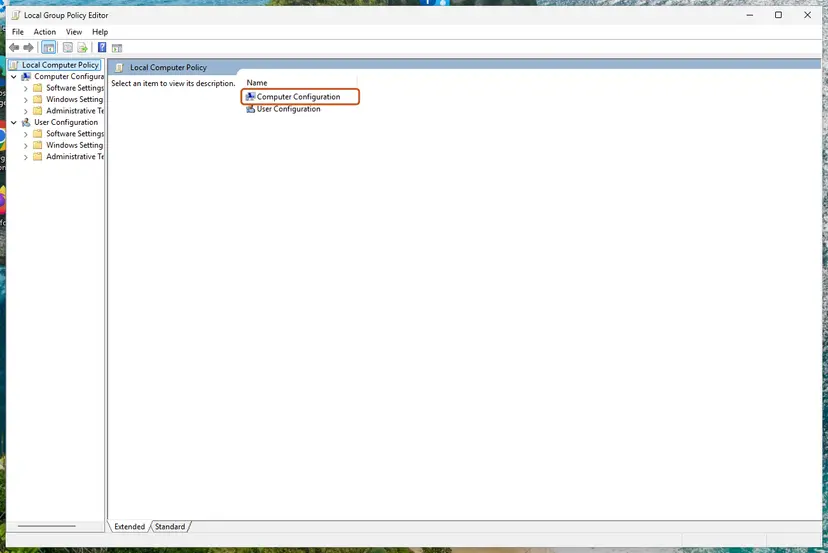
How to open and change a policy, with every screen: Open the Local Group Policy Editor
It worked if: The policy shows Enabled, and the package installs after the restart.
If not: If the policy is greyed out or switches back by itself, the PC is managed. Only the administrator can change it. Otherwise check the package itself (Fix 3).
Fix 3. Get the app from Microsoft Store or a correctly signed package
5 to 10 minutesNo riskSideloading is allowed and one package still fails, or a setup program fails with "AddPackage failed with HRESULT 0x80073CFF".
Sideloading only lets in packages with a trusted signature. A package signed by Microsoft from Microsoft Store passes the first route and needs no sideloading at all, so the Store version avoids the check.
- Open Microsoft Store and search for the app. If it is there, install it from the Store instead of the file.
- If it is not in the Store, right-click the .msix or .appx file and select Properties.
- Open the Digital Signatures tab. Check that it exists and names the publisher you expect.
- If there is no signature or the name is wrong, do not install it. Download the package again from the publisher's own site.
- If a setup program fails, look on the publisher's site or issue tracker for a newer installer.
- Helper packages from setup programs: Microsoft's Windows App SDK team explained in 2022 that some of its runtime helper packages are signed for sideloading only. Installers that add them failed with 0x80073CFF where sideloading was off. A newer installer, or Fix 1 for the install, solved it.
- Packages from unknown sites: a package from outside Microsoft Store or the publisher's own site can hold anything. Do not lower Windows protection to install it.
It worked if: The app installs from Microsoft Store, or the package shows a valid signature from its publisher and installs.
If not: If the Store version fails too, the Store is the problem. Go to Fix 4.
Fix 4. Repair or reset Microsoft Store
10 minutesLow riskThe error starts in Microsoft Store and every Store install fails, not only one package.
Store apps pass the policy check by design. If the Store still shows 0x80073CFF, its own data or cache may be damaged, and a reset rebuilds them without touching other apps.
- Press Win + R, type
wsreset.exeand select OK. A black window opens. Wait until Microsoft Store opens by itself. - Try the install. If it fails, select Start > Settings > System > System components. On Windows 10: Settings > Apps > Apps & features.
- Next to Microsoft Store, select the three dots and Advanced options.
- Select Repair and try again.
- If that does not help, select Reset, open the Store and sign in again.
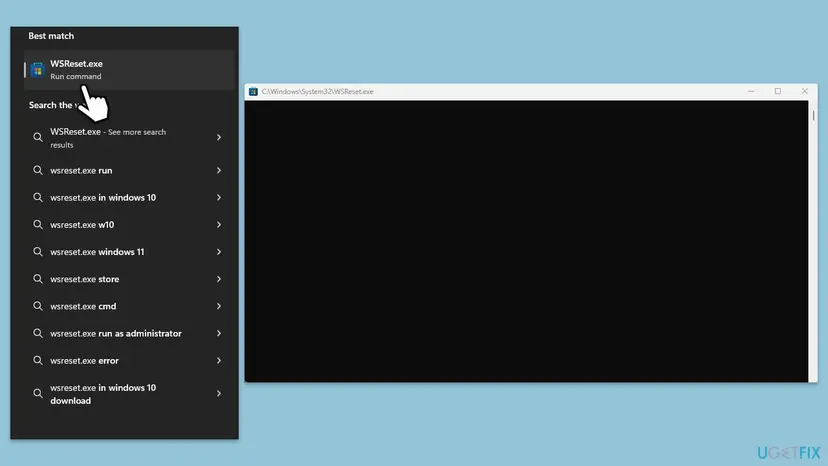
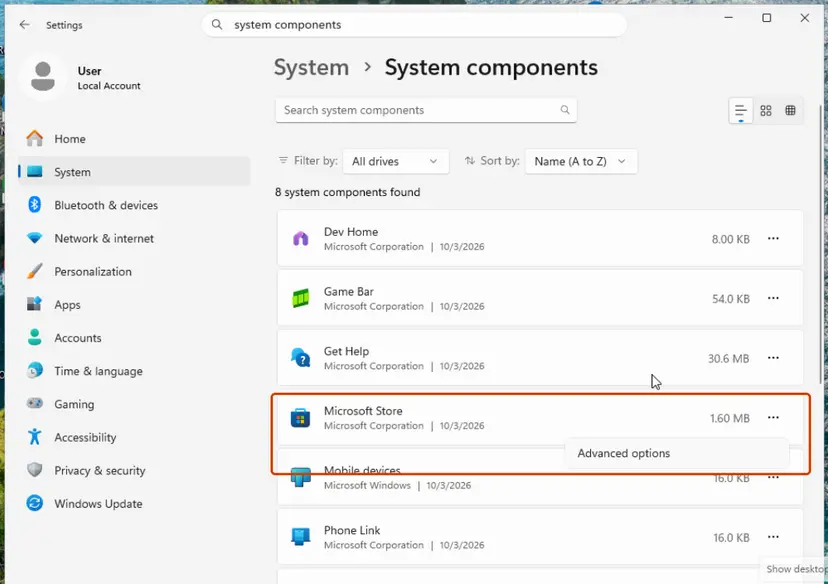
Reset removes the Store's data on this PC and the sign in. Purchases stay with your Microsoft account. Every screen: Reset the Microsoft Store
It worked if: Microsoft Store opens, and the app installs without the code.
If not: If every Store app still fails, update Windows (Fix 5).
Fix 5. Update Windows to the latest build
15 to 30 minutesLow riskStore installs fail after Fix 4, or Windows has pending updates.
Microsoft Store and the app deployment service are updated with Windows. A half-installed update can leave them out of step, and the Store's own repair does not cover that part.
- Select Start > Settings > Windows Update. On Windows 10: Start > Settings > Update & Security > Windows Update.
- Select Check for updates, or Install all if updates are waiting.
- Install the optional updates as well if they are offered.
- Restart the PC when asked and try the install again.
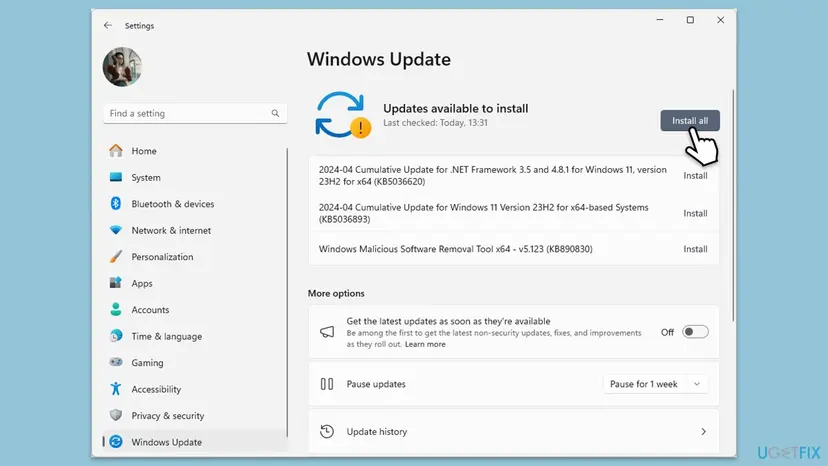
It worked if: Windows shows that it is up to date, and the Store installs apps again.
If not: Go to Fix 6, then read the log.
Fix 6. Repair Windows system files with SFC and DISM
20 to 30 minutesLow riskNothing installs, other system tools fail too, or no fix above helped.
No Microsoft source ties 0x80073CFF to damaged system files. It is the last general check, for the case where the deployment service itself is damaged and every package fails.
- Open an elevated command window. Right-click Start and select Terminal (Admin), or type cmd in the search box, right-click Command Prompt and select Run as administrator. Select Yes when Windows asks for permission.

Search for cmd and choose Run as administrator. Screenshot: Windows 11 26H2. - Run DISM first. Type the command below and press Enter. DISM downloads clean copies of damaged components from Windows Update, so it can take several minutes. Wait until it says The operation completed successfully.
DISM.exe /Online /Cleanup-Image /RestoreHealth
DISM /RestoreHealth running. Screenshot: Windows 11 26H2. - Run System File Checker. In the same window, type the command below and press Enter. Do not close the window until the verification reaches 100%.
sfc /scannow
sfc /scannow at 100%. Screenshot: Windows 11 26H2. - Read the result and restart. Compare the last message with the table below this guide, then restart the PC so that repaired files are loaded.

The result line tells you what SFC did. Screenshot: Windows 11 26H2.
These steps were written for Windows 11 24H2 and 25H2. The full page with the other versions and what each result means: Run DISM and SFC to repair Windows system files
It worked if: SFC reports that it found no problems or that it repaired them, and the install runs after a restart.
If not: Read the deployment log as shown in the next section. It names the package and the reason.
If the error is still there: read the deployment log
Microsoft's advice for every deployment error is the AppXDeployment-Server event log. For 0x80073CFF it shows which package failed the policy check and when.
- Make the error appear once more and note the time.
- Open Windows PowerShell and run the command below. A table opens in its own window.
- Look for the rows with 0x80073CFF and read the lines around them for the package name.
- For Event Viewer, press Win + R, run
eventvwr.mscand open Applications and Services Logs > Microsoft > Windows > AppXDeployment-Server. - Open Microsoft-Windows-AppXDeploymentServer/Operational and read the Error entries at the time you noted.
The last deployment in a table
Get-AppxLog | Out-GridView- What to send to support: the error entry from the log, the package name, the OS build from
winver, your Windows edition, and where you got the package. - When it is not your PC: if the package has no trusted signature, only the publisher can fix it. If the PC is managed, only the administrator can change the policy.
How to keep 0x80073CFF from coming back
- Install from Microsoft Store when you can. Store packages are signed by Microsoft and pass the policy check without sideloading.
- Download packages only from the publisher. A correct signature is what sideloading accepts.
- Keep Developer Mode off when you do not need it. Turn it on for an install or a test, then off.
- Be careful with tweak and privacy tools. Some change Windows policies in bulk. Check App Package Deployment in
gpedit.mscafter you use one. - Keep Windows current. Windows 10 left support on 14 October 2025, and new packages are built and tested for Windows 11.
Frequently asked questions
What does error 0x80073CFF mean?
It means that Windows refused an app package because of its install policy. Microsoft names the code ERROR_INSTALL_POLICY_FAILURE and describes it as "To install this app, you need a developer license or a sideloading-enabled system." The package was not signed by Microsoft from the Store, and your PC does not allow sideloading or Developer Mode. The check happens before any file is copied, so nothing was changed. Turning on Developer Mode for the install is the fastest fix on your own PC.
What does "AddPackage failed with HRESULT 0x80073CFF" mean?
It is the same error, reported by a setup program instead of the Windows install window. Many modern apps install an MSIX package in the background, and the setup program shows the code it got back from Windows. The full text often reads "Installation failed: AddPackage failed with HRESULT 0x80073CFF". The fix is the same: allow the package with Developer Mode (Fix 1) or the trusted apps policy (Fix 2). If it still fails, ask the app's publisher for a newer installer.
Is it safe to turn on Developer Mode?
For an install, yes, if the package comes from a publisher you trust. Developer Mode lets Windows install apps from any source, including loose files, and it starts some services for developers. Microsoft says that a PC used for everyday tasks does not need it. So turn it on, install the app, and turn it off again. Never turn it on because a website or a pop-up tells you to install something unknown.
Why is Developer Mode greyed out?
Because a policy controls it, or your account is not an administrator. Microsoft notes that turning on Developer Mode needs administrator access, and that on a PC owned by an organization the option may be disabled. On your own PC, sign in with an administrator account and check the App Package Deployment policies in gpedit.msc, as in Fix 2. On a work or school PC, ask the administrator. Do not try to get around a policy your organization set.
I get 0x80073CFF in Microsoft Store. Is the Store broken?
Not necessarily. Apps that the Store installs are signed by Microsoft and should pass this check. If one Store app fails, check whether you opened a downloaded file or a link to a package outside the Store. If every Store install fails, reset the Store with wsreset.exe and then Repair or Reset in Settings (Fix 4), and update Windows (Fix 5). The deployment log names the package that failed.
Does 0x80073CFF happen on Windows 11 25H2?
Yes, it can. Sideloading of trusted packages is allowed by default on Windows 11, so the code there usually means a policy turned it off, the package needs Developer Mode, or the package is not trusted. On 25H2 and 26H2 the Developer Mode switch has moved: it is now under Settings > System > Advanced, in the For developers section. Older guides that name System > For developers describe Windows 11 before 25H2.
How do I fix 0x80073CFF on Windows Server?
Allow trusted apps with the policy. A Microsoft engineer on the Windows App SDK tracker explained that the sideloading default changed only on desktop Windows, and Windows Server still has the old default of disabled. Open gpedit.msc, go to Computer Configuration > Administrative Templates > Windows Components > App Package Deployment and enable Allow all trusted apps to install. In a domain, the server administrator sets this through Group Policy instead.
Will SFC or re-registering all apps fix 0x80073CFF?
Usually not. The error comes from the install policy, and repairing system files does not change a policy. The PowerShell command that re-registers every app on the PC is often copied for Store errors, but it does nothing for a blocked package and can produce new red errors for unrelated apps. SFC and DISM stay on this page as the last general step, for a PC where nothing installs at all.
¿Qué significa el error 0x80073CFF y cómo lo soluciono?
This page is in English. Error 0x80073CFF means that Windows blocked an app package by its install policy, because sideloading or Developer Mode is not on. In Spanish Windows, open Configuración, then Sistema, and turn on Modo de desarrollador for the install, as in Fix 1. If the switch is greyed out, the policy in Fix 2 blocks it. After the install, turn the mode off again. Microsoft Store versions of an app need none of this.
I don't have Microsoft Store. Can I still fix 0x80073CFF?
Yes. This error does not need the Store at all, because it is about packages installed from outside it. Turn on Developer Mode (Fix 1) or allow trusted apps (Fix 2), and the package installs without the Store. If you need the Store itself back, it is a package too, and a policy can block it as well. Our guide to error 0x80073D01 covers installs that a policy blocks.
Sources
- Microsoft Learn: Troubleshooting packaging, deployment, and query of Windows apps (error codes and event logs) (learn.microsoft.com)
- Microsoft Learn: Settings for developers (Developer Mode, App Package Deployment policies, AllowAllTrustedApps) (learn.microsoft.com)
- Microsoft Windows App SDK on GitHub: Windows App Runtime Install fails with 0x80073cff (issue 2469, answers by the Windows App SDK team) (github.com)
Did this fix work?
One click, no account. It tells the next reader which guides are worth their time.
Questions and experiences: fix Microsoft Store error 0x80073CFF
Still broken, or found a fix we did not cover? Ask here: members and our editors answer. Reading is open; writing needs a free account.
…