
9hehw error: how to fix Something went wrong [9hehw] in OneNote, Sticky Notes and Teams

Prefer to fix it yourself? The manual steps follow.
- 7methods
- 2 to 20 minutes
- Easy
Applies to OneNote and its Sticky Notes tab on Android phones and tablets with a personal Microsoft account, and Microsoft Teams or Outlook on a phone when the same sign-in window shows tag 9hehw
7 methods in this guide
What does error tag 9hehw in Teams mean? I can't log in because of it, which is bothersome because I need to use Teams for my school online lessons. I'm on Windows 10, by the way.
Something went wrong. [9hehw] is a Microsoft sign-in error that OneNote for Android began to show on 26 August 2026, mostly on the Recent Pages and Sticky Notes tabs. A Microsoft employee said on 2 September 2026 that the cause was found and a backend fix was rolling out. Restart OneNote first, and do not reset or uninstall it.
9hehw means the Microsoft sign-in refused access: the details say Access denied for the resource, Code 0. Most reports came from OneNote for Android after 26 August 2026, and Microsoft fixed it on its servers from 2 September. Close OneNote fully and open it again (Fix 1). If the tag stays, update OneNote and clear its cache only (Fix 2). Your notebooks keep syncing meanwhile.
| Error | Something went wrong. [9hehw] in a Microsoft sign-in page. The troubleshooting details read Correlation Id, Timestamp, DPTI, Message: Access denied for the resource., Tag: 9hehw and Code: 0. |
|---|---|
| Where it appears | In OneNote for Android, when you tap Sign in under the banner Working offline. Sign in to sync your notes on Recent Pages, or on the Sticky Notes tab. Less often in Teams or Outlook on a phone. |
| Main cause | A fault on Microsoft's side in the service behind Recent Pages and Sticky Notes. A Microsoft employee confirmed the root cause on 2 September 2026. |
| Fastest fix | Force stop OneNote and open it again (Fix 1). If the tag stays, update OneNote from Google Play and clear its cache, not its storage (Fix 2). |
| Also written as | 9hehw, [9hehw], error 9hehw, Error Tag: 9hehw, onenote 9hehw, OneNote Fehler 9hehw, Si è verificato un errore. [9hehw], Произошла ошибка. [9hehw]. |
| Affects | OneNote for Android on Samsung, Pixel, Motorola, Huawei and Nothing phones, with personal Microsoft accounts. OneNote on Windows, on an iPad and on the web kept working in the reports. |
| Microsoft's status | Known and fixed on the server side: a backend fix rolled out from 2 September 2026 and could take a day to reach everyone. Microsoft asked users to restart the app, not to reset or uninstall it. |
| Time to fix | 2 minutes for Fix 1, 5 minutes for Fix 2. A Teams or Outlook case on a work account can need your IT department. |
Facts checked on 15 October 2026. Steps written for OneNote for Android on Samsung, Google Pixel and other Android phones, read against a Microsoft employee's answer on Microsoft Q&A and the reports in that thread. We did not reproduce the error on a device, and Android menu names differ between phone makers.
What Something went wrong [9hehw] means
On the Recent Pages tab of OneNote for Android, a banner says Working offline. Sign in to sync your notes. You tap Sign in, and instead of a password field a Microsoft page opens with the title Error and the line Something went wrong. [9hehw]. Under Troubleshooting details the page shows this:
The 9hehw page in OneNote for Android, as users posted it in late August 2026
Something went wrong. [9hehw]
If you contact your administrator, send this info to them.
Correlation Id: (a long number)
Timestamp: 2026-08-30T08:32:40.000Z
DPTI: (a short number)
Message: Access denied for the resource.
Tag: 9hehw
Code: 0
The page belongs to the Microsoft sign-in, not to OneNote itself. The tag marks where the sign-in stopped, and the message says the service refused access to the resource the app asked for. Microsoft publishes no list of these tags, so the message line is the useful part.
| What you see | What it means |
|---|---|
| Working offline. Sign in to sync your notes on Recent Pages | The Recent Pages list could not reach its service. Your notebooks can still sync. |
| Sign in opens the 9hehw page | The sign-in for that service is refused with Access denied for the resource. |
| The Sticky Notes tab says you are offline | The same failure, reported for Sticky Notes inside the OneNote app. |
| Recent Pages is empty or old | The list stops updating until the service accepts the sign-in again. |
Microsoft's employee wrote that the fault does not affect core notebook sync, only extra features such as the Recent Pages list. You can still edit and sync your sections and pages while the tag is on screen.
This page says Teams on Windows: where 9hehw really shows up
This guide started from a reader who saw 9hehw in Teams and was on Windows 10. Almost every search that reaches this page today is about OneNote, and every report we read came from an Android phone or tablet. People with the same account said OneNote on a Windows PC, on an iPad and in the browser kept working.
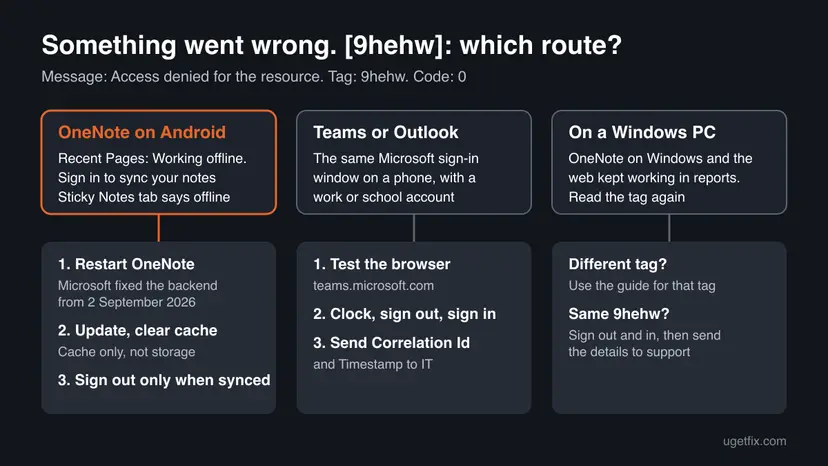
- OneNote or Sticky Notes on Android: Fix 1 to Fix 6 are for you.
- Teams or Outlook on a phone: the same sign-in page can show 9hehw with a work or school account. Fix 7 covers it. We found no Microsoft statement about 9hehw in Teams.
- A Windows PC: read the tag in brackets again. Teams sign-in errors on Windows usually carry other tags. Our guide to Teams error tag 7ita9 on Windows covers the stored account fixes there.
- Windows 10 left support on 14 October 2025. It does not cause 9hehw, but it no longer gets security fixes.
What causes error 9hehw, ranked
Microsoft named the main cause itself: a fault in its backend, now fixed. The other causes below come from what users in the Microsoft Q&A thread reported after the fix. They are reports, not statistics.
| How often | Cause | Typical sign | Fix |
|---|---|---|---|
| Most often | Microsoft's backend fault from 26 August 2026, fixed from 2 September | Many phones and accounts at once. A brand new phone shows it too. | Fix 1 |
| Often | The app still holds the old, refused state after the server fix | The tag stays after a restart. Users cleared the cache and it was gone. | Fix 2 |
| Sometimes | You need the app now and the fix has not reached you | Recent Pages is old, but notebooks open from the Notebook list. | Fix 3 |
| Rarely | OneDrive storage is full, so OneNote cannot save | One user had 5 GB of 5 GB used and fixed 9hehw by freeing space. | Fix 4 |
| Rarely | A stale sign-in on the phone | One user needed to sign out and back in after the fix. | Fix 5, Fix 6 |
| Teams or Outlook | A work account refused by the service or by a company rule | The browser refuses you too, or only managed phones work. | Fix 7 |
How to fix error 9hehw in OneNote, Sticky Notes and Teams
Start at Fix 1 and try OneNote after each fix. Success looks the same every time: the Working offline banner is gone, Recent Pages shows today's pages and Sticky Notes loads. Fix 5 and Fix 6 can cost unsynced notes, so do them only after Fix 3 shows your edits arrived elsewhere. For Teams or Outlook, go straight to Fix 7.
| Your case | Start with | Then |
|---|---|---|
| OneNote for Android shows 9hehw on Recent Pages or Sticky Notes | Fix 1 | Fix 2 |
| The tag stayed after a restart | Fix 2 | Fix 4 |
| You need your notes now, before anything else | Fix 3 | Fix 1 |
| OneDrive says your storage is full or nearly full | Fix 4 | Fix 2 |
| Nothing helped and your edits show on the PC or web | Fix 5 | Fix 6 |
| Teams or Outlook on a phone shows 9hehw | Fix 7 | IT department |
Fix 1. Close OneNote fully and open it again
2 minutesNo riskEveryone with 9hehw in OneNote for Android, before anything else.
Microsoft's employee wrote that the root cause was in the backend, that the fix was rolling out, and that you only need to restart the app. A restart makes OneNote ask the fixed service again.
- Open the recent apps view and swipe OneNote away.
- Open Settings > Apps > OneNote and tap Force stop, then OK.
- Open OneNote again and wait a minute so that it can sync.
- Open the Recent Pages tab. If the banner is still there, tap Sign in once.
- If you see the tag again, wait a day and repeat: Microsoft said the rollout could take a day to reach everyone.
It worked if: Recent Pages shows your latest pages, Sticky Notes loads and the Working offline banner is gone.
If not: If 9hehw is still there after a day, update OneNote and clear its cache with Fix 2.
Fix 2. Update OneNote from Google Play and clear its cache only
5 minutesLow riskThe tag stayed after Fix 1, or you restarted on more than one day.
After Microsoft's fix, several users still saw 9hehw until they cleared the app's cache and relaunched OneNote. One installed the newest OneNote from Google Play, cleared the cache and restarted the phone. The cache holds no notes.
- Open Google Play, search for Microsoft OneNote and tap Update if it is offered.
- Open Settings > Apps > OneNote and tap Storage or Storage & cache.
- Tap Clear cache. Do not tap Clear storage or Clear data at this point.
- Restart the phone.
- Open OneNote and, if the banner is still there, tap Sign in.
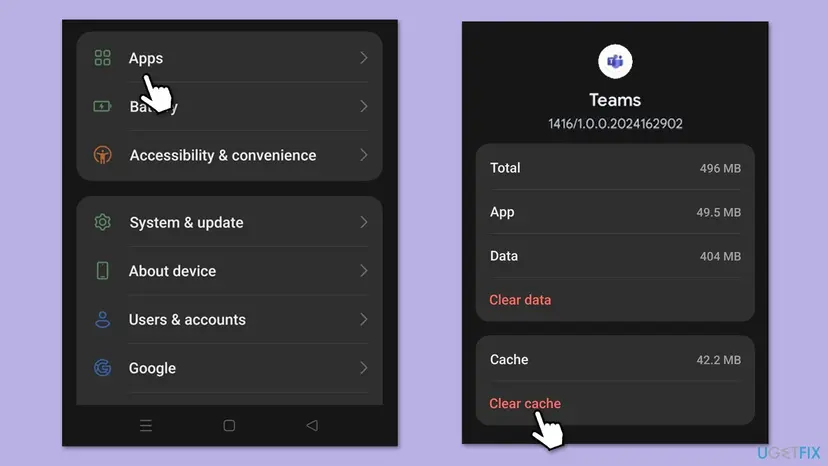
It worked if: OneNote opens without the banner, and Recent Pages and Sticky Notes fill again.
If not: If the tag stays, keep working from the Notebook list with Fix 3 and check your OneDrive space with Fix 4.
Fix 3. Keep working from the Notebook list and check that your edits arrive
5 minutesNo riskYou need your notes now and the tag has not gone yet.
Microsoft said that notebook sync still works and only the Recent Pages list is out of date. One Pixel user reported that opening each notebook from the Notebook list loaded live data without the error.
- In OneNote for Android, leave Recent Pages and open the Notebooks tab.
- Open each notebook you use. Wait for its sections to sync.
- Edit a page as usual.
- On a PC or at
onenote.comin a browser, open the same page and check that the edit is there. - Use this way in until Recent Pages works again.
It worked if: Your edit from the phone appears on the PC or on the web within a few minutes.
If not: If edits do not arrive anywhere, do not sign out. Check your OneDrive storage with Fix 4 first.
Fix 4. Check that your OneDrive storage is not full
10 minutesLow riskOneDrive warned you about space, or the tag stayed after Microsoft's fix.
OneNote notebooks and Sticky Notes are saved in your OneDrive. One user reported that the account had 5 GB of 5 GB used, OneNote could not sync, and 9hehw went away after space was freed.
- Open
onedrive.live.comin a browser and sign in with the same account. - Look at the storage line in the left pane, which shows how much of your space is used.
- If it is full, delete or move large files you do not need, and empty the Recycle bin in OneDrive.
- Never delete the Documents folder or your notebooks to make space.
- Open OneNote on the phone and restart it as in Fix 1.
It worked if: OneDrive shows free space, and OneNote syncs and shows Recent Pages again.
If not: If there was plenty of space, go to Fix 5, but only after Fix 3 showed your edits on another device.
Fix 5. Sign out of OneNote and sign in again, once your notes are synced
10 minutesRead the warningFix 1 to Fix 4 did not help and your latest edits already show on a PC or the web.
One user had to sign out and sign in again after Microsoft's fix before 9hehw went away. A fresh sign-in replaces the refused session on the phone.
Users reported that signing out while 9hehw was active removed the notes from the phone, and one lost notes. Before you sign out, check with Fix 3 that every recent edit shows on a PC or at onenote.com. Copy any note that does not into another app first.
- Make sure your latest edits show on another device or on the web.
- In OneNote, tap your profile picture and open Settings.
- Select your account and tap Sign out.
- Close OneNote, then open it again.
- Sign in with the same Microsoft account and let the notebooks download.
It worked if: OneNote signs in without the error page, and your notebooks, Recent Pages and Sticky Notes come back.
If not: If the sign-in itself shows 9hehw, clear the app's storage or reinstall it with Fix 6.
Fix 6. Clear OneNote's storage or reinstall it, as the last step
15 minutesRead the warningEvery fix above failed, weeks after Microsoft's fix, and your notes show on another device.
Some users fixed 9hehw only by clearing the app's data or installing OneNote again from Google Play. Microsoft asked people not to do this while the server fix was rolling out, so keep it for the end.
Clear storage and uninstall remove notes that have not synced. Before you start, check that your notes and Sticky Notes show at onenote.com or on a PC. Copy anything that does not into another app.
- Open Settings > Apps > OneNote > Storage or Storage & cache.
- Tap Clear storage or Clear data and confirm with OK.
- Open OneNote and sign in. If 9hehw stays, go on with the next step.
- Go back to Settings > Apps > OneNote and tap Uninstall, then OK.
- Restart the phone and install Microsoft OneNote from Google Play.
- Sign in and wait until your notebooks have downloaded.
It worked if: The new OneNote signs in, downloads your notebooks and shows Recent Pages and Sticky Notes.
If not: If even a fresh install shows 9hehw, send the details to Microsoft support as described below.
Fix 7. For Teams or Outlook on a phone: test the browser, fix the clock, sign in again
10 minutesLow riskThe 9hehw page appears in Teams or Outlook, often with a work or school account.
The message Access denied for the resource means the service refused your account, not that the phone is broken. A browser test shows whether the account works, and a fresh sign-in on a correct clock removes a stale session.
- Open
https://teams.microsoft.comin the phone's browser and sign in with the same address. - On Android, open Settings, search for Date & time and turn on Set time automatically.
- In Teams, tap your profile picture, then Settings, then Sign out.
- Close Teams, open it again and sign in.
- If 9hehw comes back, tap the details, copy the Correlation Id and Timestamp and send them to your IT department or school.
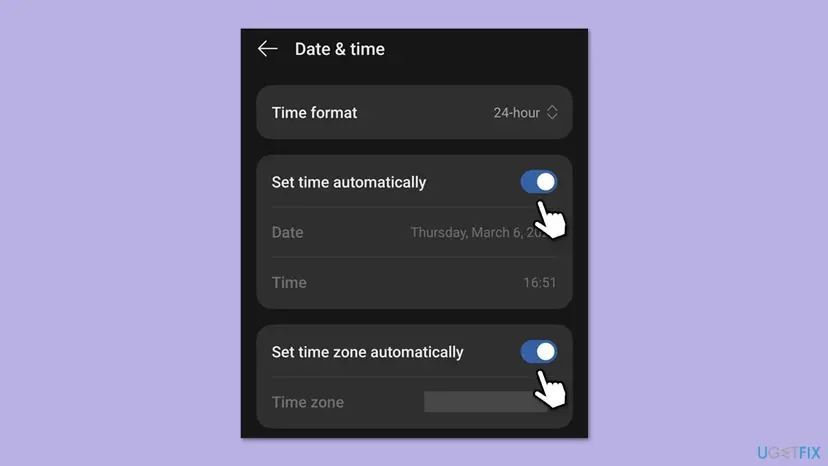
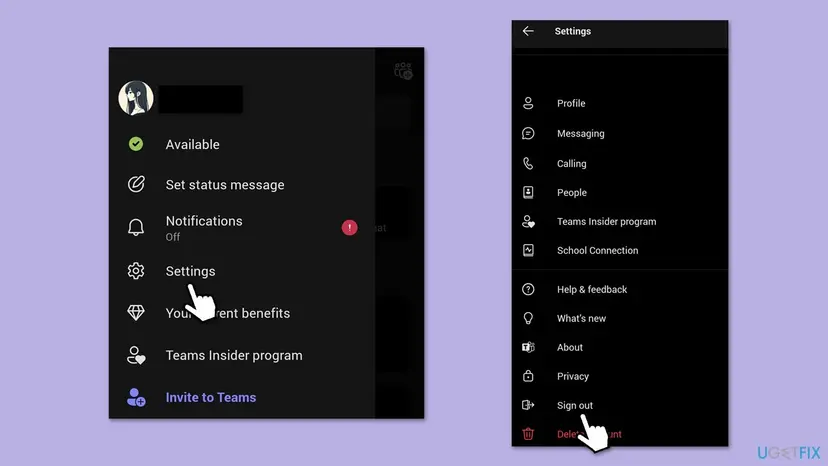
It worked if: Teams or Outlook signs in and loads your chats or mail without the error page.
If not: If the browser also refuses you, only IT can fix it. For a phone sign-in with tag 4vlpo, see our Teams 4vlpo guide.
If 9hehw is still there: what to check and what to send
9hehw is decided on Microsoft's servers, so a phone with no log to read cannot tell you more than the details on the error page. Those details are what support needs. Copy them with Copy info to clipboard before you close the page.
| What you see | Likely reason | Who can fix it |
|---|---|---|
| OneNote on the web works, the Android app does not | The service still refuses the app's request. | Microsoft support, with the details. |
| OneNote on the web also fails | An account problem, or OneDrive storage is full. | You, with Fix 4, then Microsoft support. |
| Teams in the browser refuses a work account | A wrong password, a missing licence or a company rule. | Your IT department. |
| Teams on a Windows PC shows another tag | A Windows sign-in error, not 9hehw. | The guide for that tag. |
- Send: the Correlation Id and Timestamp, the app and its version, the phone model and Android version, and whether the web works.
- Do not post the full details publicly. The Correlation Id and DPTI belong to your account's sign-in.
- Personal account: ask through Microsoft's support in the OneNote app or on support.microsoft.com.
How to keep 9hehw and lost notes away
You cannot prevent a fault on Microsoft's servers. You can make sure the next one costs you nothing, and that you do not make it worse while you wait.
- Restart before you reset. A server-side error goes away with a restart once the fix arrives. A reset only adds risk.
- Do not sign out while a sync error shows. Check your edits on the web first.
- Keep OneNote updated from Google Play.
- Keep free space in OneDrive. Notebooks and Sticky Notes need it to sync.
- Open notebooks from the Notebook list when Recent Pages looks old. It reads live data.
Frequently asked questions
What is the 9hehw error?
9hehw is a tag on a Microsoft sign-in error page. The details say Access denied for the resource and Code 0, which means the service refused the app's request. Most reports came from OneNote for Android from 26 August 2026, on the Recent Pages and Sticky Notes tabs. A Microsoft employee confirmed a backend fault on 2 September 2026 and said a fix was rolling out. Restart OneNote first, then clear its cache.
Why does OneNote say Working offline. Sign in to sync your notes?
That banner appears on the Recent Pages tab when OneNote for Android cannot reach the service behind the list. In late August 2026 the cause was the 9hehw fault on Microsoft's side, and tapping Sign in only showed the error page. Your notebooks still synced, according to Microsoft. Close OneNote fully and open it again. If the banner stays, update the app and clear its cache only.
Did Microsoft fix the OneNote 9hehw error?
Yes. On 2 September 2026 a Microsoft employee wrote on Microsoft Q&A that the root cause was found and a fix was rolling out to the backend. The rollout could take a day to reach everyone. Microsoft asked users to restart the app and not to uninstall or reset OneNote. Several users reported that they also had to clear the app's cache once before Recent Pages and Sticky Notes worked again.
Will I lose my notes because of 9hehw?
Not because of the error itself. Microsoft said core notebook sync kept working, and only Recent Pages and similar features were affected. The risk comes from what people do next. Users reported that signing out or clearing the app's data while the error was active removed notes from the phone. Before any such step, check at onenote.com or on a PC that your recent edits are there.
Why does 9hehw appear only in Sticky Notes and not in OneNote?
Sticky Notes on Android lives inside the OneNote app and uses its own service. In the reports, some users saw the notebooks sync while the Sticky Notes tab said it was offline and showed 9hehw on Sign in. One user saw it only with personal accounts, while a work account on the same phone worked. The same fixes apply: restart OneNote, then clear its cache.
Is 9hehw a Teams error on Windows?
We found no Microsoft statement about 9hehw in Teams, and no report from the Teams desktop app on Windows. The same Microsoft sign-in page can show 9hehw in Teams or Outlook on a phone. On Windows, Teams sign-in errors usually carry other tags with their own fixes. Read the tag in brackets again, and if it is 9hehw on a phone, follow Fix 7.
Does clearing the cache or storage fix 9hehw?
Clearing the cache helped many users once Microsoft's fix had arrived. It removes temporary files and keeps your notes and sign-in. Clearing storage or data is different: it resets the app and deletes notes that have not synced. Microsoft asked users not to reset OneNote. Clear the cache first (Fix 2), and keep Clear storage for the last step, after you check your notes on the web.
Does reinstalling OneNote fix 9hehw?
Sometimes, but Microsoft advised against it while the server fix was rolling out. During the fault, several users reinstalled OneNote and still saw the tag, and one could no longer sign in at all. After the fix, some users reported that a reinstall from Google Play worked. Restart first, then clear the cache, and reinstall only if your notes show on another device.
What does Access denied for the resource mean?
It is the message line on the 9hehw page. It means the sign-in reached Microsoft, but the service refused to give the app access to the resource it asked for, such as the Recent Pages list or Sticky Notes. In late August 2026 the refusal came from Microsoft's own fault. For a work account in Teams, the same words can mean a company rule or a licence problem.
What do onenote fehler 9hehw and errore 9hehw mean?
They are the same error in German and Italian. The Italian page reads Si è verificato un errore. [9hehw], and the Russian page reads Произошла ошибка. [9hehw]. The tag and the fixes do not change with the language of your phone. Restart OneNote, update it and clear its cache, as in Fix 1 and Fix 2.
Sources
- Microsoft Q&A: OneNote Android app sign-in failure with Error Tag 9hehw and Code 0 (answer by a Microsoft employee, 2 September 2026, and user reports) (learn.microsoft.com)
- OneNote Gem: Android OneNote Sign In Error, Something went wrong [9hehw] (start date 26 August 2026 and the full error details) (onenotegem.com)
Did this fix work?
One click, no account. It tells the next reader which guides are worth their time.
Questions and experiences: 9hehw error: how to fix Something went wrong [9hehw] in OneNote, Sticky Notes and Teams
Still broken, or found a fix we did not cover? Ask here: members and our editors answer. Reading is open; writing needs a free account.
…