
How to fix Microsoft Teams error CAA90019 in Windows?

Prefer to fix it yourself? The manual steps follow.
- 7methods
- 5 to 40 minutes
- Intermediate
Applies to Microsoft Teams (new and classic) for Windows on Windows 11 and Windows 10, with work, school and guest accounts
7 methods in this guide
I keep getting a caa90019 error when I try to sign in to Teams, and I need to fix this as soon as possible.
CAA90019 appears in the Microsoft sign-in window of Teams with the words We couldn't sign you in. The account itself usually works, and Teams on the web often opens. Clear the account data that Windows stores on this PC first, then remove old credentials, and check guest access if the error comes from one team only.
CAA90019 means Windows could not finish your Teams sign-in. Microsoft does not document the code, but the window comes from the Windows sign-in broker, so the cause is usually the account data stored on this PC. Quit Teams, delete the files in the TokenBroker Accounts folder and restart (Fix 1). If it returns, remove stored credentials (Fix 2). Guests in another company's team should check the invitation (Fix 3).
| Error | Something went wrong. We couldn't sign you in. If this error persists, contact your system administrator and provide the error code CAA90019. |
|---|---|
| Where it appears | In the Microsoft sign-in window that the Teams desktop app opens when you sign in, or when you open a team in another organisation. |
| Main cause | The Windows sign-in broker cannot finish the sign-in with the account data it has stored on this PC. Guest access to another company's team comes second. |
| Fastest fix | Quit Teams, empty %LOCALAPPDATA%\Packages\Microsoft.AAD.BrokerPlugin_cw5n1h2txyewy\AC\TokenBroker\Accounts and restart the PC (Fix 1). |
| Also written as | CAA90019, caa90019, 0xCAA90019, decimal 3400073241, signed -894894055. |
| Affects | New and classic Teams on Windows 11 and Windows 10, mostly work, school and guest accounts. |
| Microsoft's status | Not listed in Microsoft's table of Teams sign-in codes, which names only 0xCAA82EE7, 0xCAA82EE2, 0xCAA20004, 0xCAA70004 and 0xCAA70007. No fix in an update is announced. |
| Time to fix | 5 minutes for Fix 1. Up to 40 minutes if you need Fix 2 to Fix 7. Nothing to download except Teams itself in Fix 6. |
Facts checked on 15 October 2026. Steps written for the new Microsoft Teams on Windows 11 (25H2 and 26H2) and Windows 10 22H2, read against Microsoft's Teams sign-in documentation and Microsoft Q&A reports.
What CAA90019 means in Microsoft Teams
You start Teams and type your work or school address. Instead of your chats, a small window opens with the heading Something went wrong and the text We couldn't sign you in. It tells you to contact your system administrator and give them the code CAA90019.
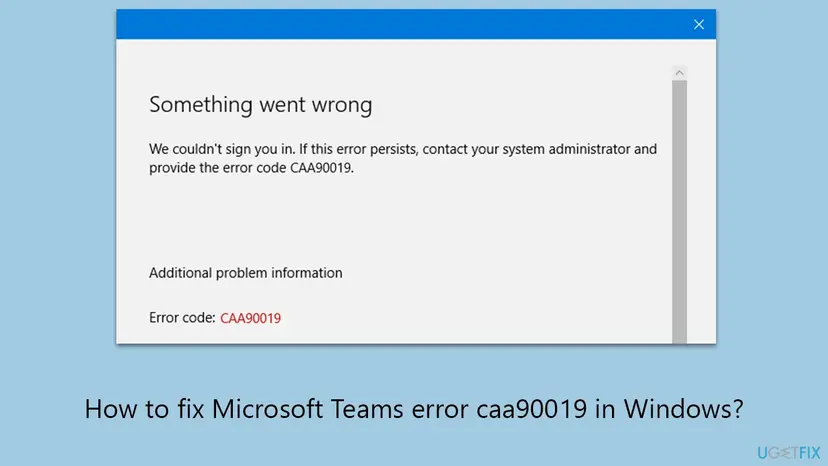
That window is not drawn by Teams. It is the window of the Web Account Manager, the Windows broker that keeps work and personal accounts for apps. Teams asks it for a sign-in token, and the same window with other codes, such as CAA90063 and CAA2000C, also appears in Outlook and the Office apps.
| Line in the window | What it tells you |
|---|---|
| Something went wrong and We couldn't sign you in | The broker could not finish the sign-in. It says nothing about why. |
| Error code: CAA90019 | The broker's result. Hexadecimal 0xCAA90019, decimal 3400073241. Microsoft does not publish its meaning. |
| Correlation ID and Timestamp (scroll down) | The values an administrator needs to find the attempt in the organisation's sign-in logs. Copy them before you close the window. |
| contact your system administrator | A standard line of this window. On a home PC with a school account, the administrator is the school's IT. |
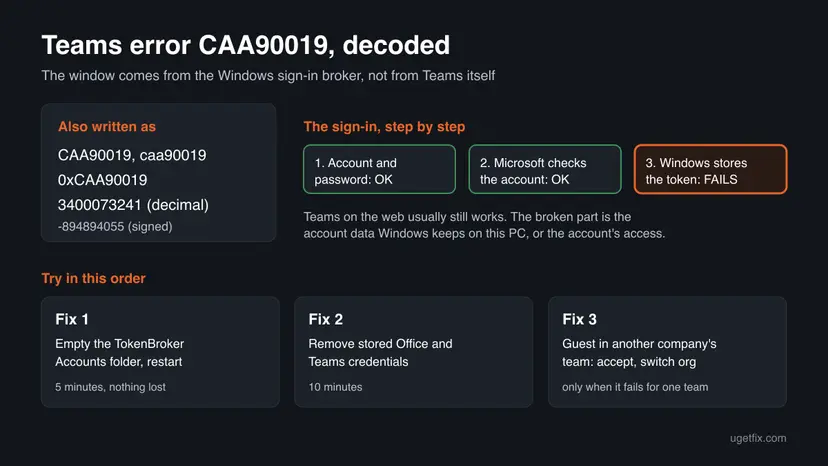
A user on Microsoft Q&A wrote that downloading Teams again did not remove CAA90019. That fits the window: the account data sits in Windows, not in the Teams app, so the fixes below start there.
What causes error CAA90019, ranked by how often it is reported
Microsoft has not published a cause for CAA90019. The order below is our reading of the reports and of how the same broker window behaves with its sister codes. It is not a statistic.
| How often | Cause | Typical sign | Fix |
|---|---|---|---|
| Most often | Damaged or stale account data in the broker's token store | Error at every Teams start, Teams on the web works. | Fix 1 |
| Often | Old Teams or Office credentials, or a second work account on the PC | Started after a password change, a new account or a move to another school or employer. | Fix 2 |
| Often for guests | Guest access to a team in another organisation that is not complete | Your own Teams works, the error comes when you open the other company's team. | Fix 3 |
| Less often | Wrong clock, or Windows and Teams far behind on updates | A PC that was off for weeks or never updates. | Fix 4 |
| Rarely | Teams' own stored state or a damaged Teams install | Only Teams fails, Outlook and Word sign in. | Fix 5, Fix 6 |
| Rarely | A VPN, proxy or security program in the way | Error began after one was installed, or only on one network. | Fix 7 |
Many pages say to delete everything in AppData\Local\Packages or the whole AppData\Local\Microsoft\Teams folder. The first removes the data of every Store app on the PC, the second removes classic Teams itself. Only one small folder holds the sign-in data, and Fix 1 empties just that one.
How to fix error CAA90019 in Teams on Windows
Follow the fixes in order and start Teams after each one. Fix 1 takes five minutes and fixes the broker's own data. Success looks the same every time: Teams asks for your account, accepts it and opens your chats.
| Your case | Start with | Then |
|---|---|---|
| The error appears every time you start Teams | Fix 1 | Fix 2 |
| It began after a password change or a new work or school account | Fix 2 | Fix 1 |
| Your own Teams works, but a team of another company fails | Fix 3 | Fix 2 |
| The PC was off for a long time or shows the wrong time | Fix 4 | Fix 1 |
| Only Teams fails, Outlook and Word sign in fine | Fix 5 | Fix 6 |
| A VPN, proxy or web filter runs on the PC | Fix 7 | Fix 1 |
Fix 1. Empty the Windows token store for work and school accounts
5 minutesLow riskEveryone first, and especially when the error appears at every Teams start while Teams on the web works.
CAA90019 comes from the broker that stores your account's tokens. Its account folder holds the cached data for the account, and clearing it makes Windows build the data again at the next sign-in. Users fixed the same window with code CAA90063 this way.
- Right-click the Teams icon in the corner of the taskbar and select Quit. Close Outlook, Word, Excel and OneDrive too.
- Open File Explorer, paste this path into the address bar and press Enter:
%LOCALAPPDATA%\Packages\Microsoft.AAD.BrokerPlugin_cw5n1h2txyewy\AC\TokenBroker\Accounts - Press Ctrl + A to select all files, right-click the selection and select Delete.
- If Windows says a file is in use, restart the PC and delete the files before you open any app.
- Restart the PC.
- Start Teams and sign in with your work or school address.
Delete the files inside Accounts and nothing else. Do not delete the whole Microsoft.AAD.BrokerPlugin_cw5n1h2txyewy package folder or anything else in Packages. If Accounts is empty or missing, nothing is stored there: go to Fix 2.
The files hold cached account data, not your mail, chats or files. Every Microsoft 365 app on this PC asks for your account once after the restart. If the error stays and Outlook and Word fail too, the broker plug-in itself may be missing: our CAA90063 guide has Microsoft's command to register it again.
It worked if: After the restart Teams asks for your account, accepts it and opens without the CAA90019 window.
If not: If the same window returns, remove the stored credentials and old work accounts with Fix 2.
Fix 2. Remove stored Teams and Office credentials and old work accounts
10 minutesLow riskThe error began after a password change, after adding a second work or school account, or after you moved to another organisation.
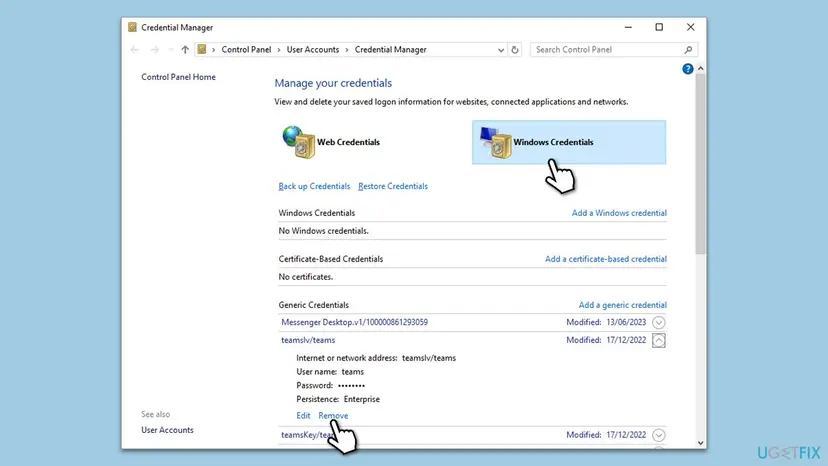
Credential Manager can keep entries that Teams and the Office apps saved for an old password or an old account. When the broker gets data that no longer matches your account, the sign-in stops.
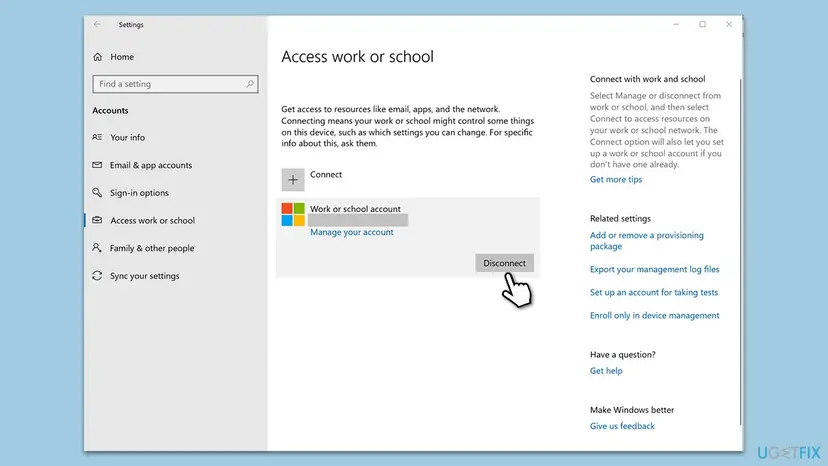
Disconnecting an account under Access work or school can remove the organisation's setup from the PC. On a managed laptop, do only the Credential Manager part and leave Disconnect to IT.
- Quit Teams from the taskbar corner and close the Office apps.
- Select Start, type
credential managerand open Credential Manager. Select Windows Credentials. - Under Generic Credentials, select the arrow next to every entry that starts with teams or MicrosoftOffice16 and select Remove.
- Open Settings > Accounts > Access work or school. If an old work or school account is listed that you no longer use, select it and select Disconnect.
- Restart the PC.
- Start Teams and sign in with your work or school address, not a personal Outlook.com or Hotmail address.
It worked if: Teams asks for the account as on a new PC, signs in and keeps you signed in after a restart.
If not: If only one team of another organisation fails, go to Fix 3. Otherwise check the clock and updates with Fix 4.
Fix 3. Guest in another company's team: finish the invitation and switch organisation
10 minutesLow riskYour own Teams works, but CAA90019 appears when you open a team that another company or school added you to.
A thread on Microsoft Tech Community reports CAA90019 for members of another company who were added to a team. A guest signs in to the other organisation with a separate guest account, which must be accepted and allowed there first.
- Find the invitation email from the team and select its link. Sign in with the address the invitation was sent to and accept the permissions.
- Open
https://teams.microsoft.comin a private browser window and sign in with the same address. - Select your profile picture at the top right and select the other organisation in the list. If it opens on the web, the guest account works.
- Quit the Teams desktop app, start it again and switch to the other organisation in the same way.
- If the organisation is not in the list or the web fails too, ask the team owner to check that you are a member and that guest access is allowed in their organisation.
We could not open the Tech Community thread to read its answers, so the steps above are the standard guest path, not a confirmed fix for this code. The owner's administrator can see why the guest sign-in failed with the correlation ID from your window.
It worked if: The other organisation appears in the account list, and its team opens on the web and in the desktop app.
If not: If your own organisation fails as well, the cause is on the PC: go back to Fix 1 and Fix 2, then Fix 4.
Fix 4. Check the date and time, then update Windows and Teams
15 to 30 minutesLow riskThe PC was off for a long time, shows the wrong time, or has not installed updates for weeks.
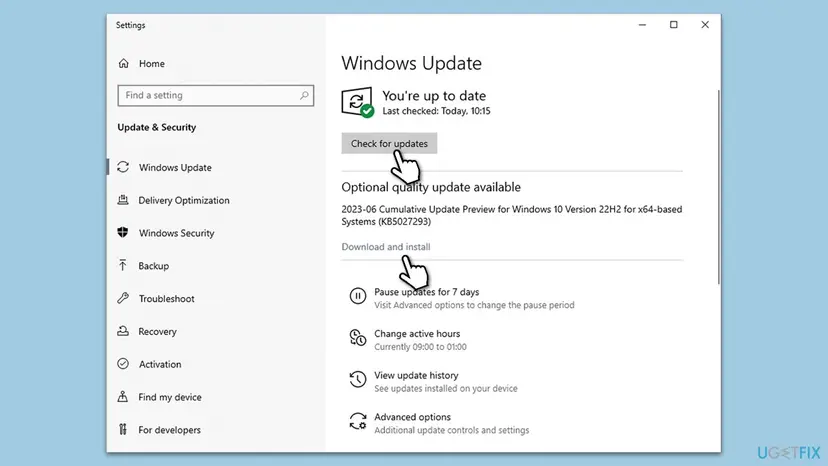
Microsoft's Teams sign-in steps start with a check that the Teams client runs the latest update. A clock that is far off breaks the secure token exchange, and the broker itself is updated through Windows.
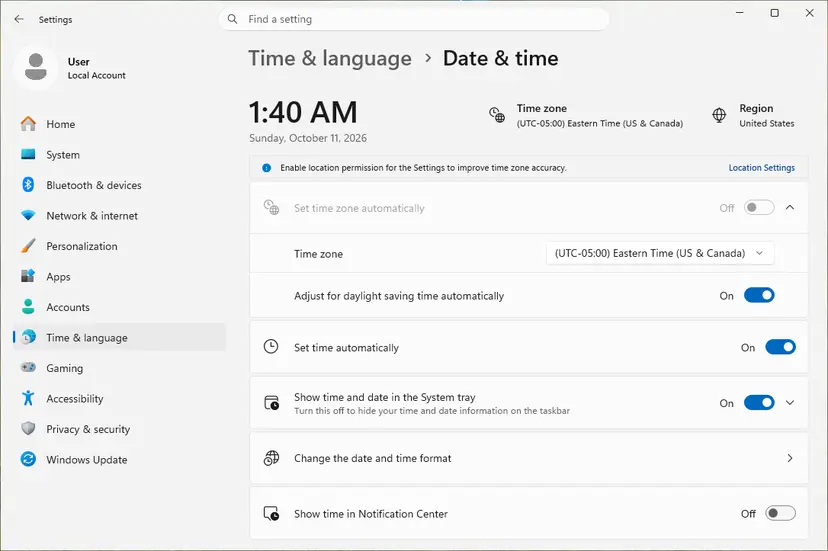
- Check the date, time and time zone in the corner of the taskbar. If they are wrong, turn on automatic time: How to fix the date and time in Windows.
- Select Start, type
check for updatesand open Check for updates. - Select Check for updates, install everything offered, including optional quality updates, and restart.
- Start Teams. If it opens, select Settings and more, the three dots next to your profile picture, and select Check for updates.
Windows 10 left support on 14 October 2025. A Windows 10 PC without Extended Security Updates no longer gets fixes for its sign-in components, so a move to Windows 11 is the lasting answer there.
It worked if: The clock is right, Windows and Teams report that they are up to date, and the sign-in finishes.
If not: If only Teams fails while Outlook signs in, reset Teams with Fix 5.
Fix 5. Repair or reset the Teams app
5 minutesLow riskOnly Teams fails while Outlook and the Office apps sign in, or Fix 1 to Fix 4 did not help.
A reset clears the new Teams app's own stored state, its cache included, in one step. It replaces the old advice to delete Teams folders by hand, which applies only to classic Teams.
- Right-click the Teams icon in the taskbar corner and select Quit.
- Open Settings > Apps > Installed apps and type
Microsoft Teamsin the search box. - Select the three dots next to Microsoft Teams and select Advanced options.
- Select Terminate, then Repair, and start Teams.
- If the error is still there, quit Teams again and select Reset. Teams loses its local settings, while chats and files stay in the cloud.
- Start Teams and sign in.
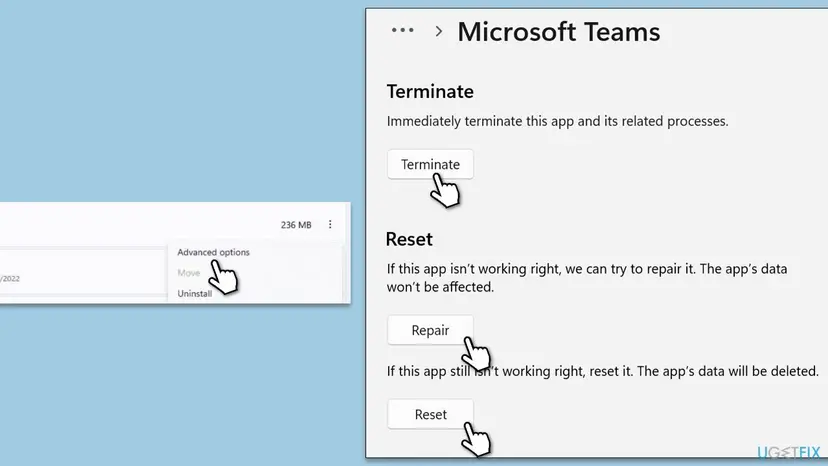
Every screen of the reset, with the Windows 10 path: How to repair or reset an app in Windows. If you still use classic Teams, it has no Advanced options. Its cache folders are under %AppData%\Microsoft\Teams, as the Q&A answer lists them, and Fix 6 removes them.
It worked if: Teams starts like a fresh install, asks for your account and opens your chats.
If not: If the same window returns, reinstall Teams the way Microsoft describes in Fix 6.
Fix 6. Reinstall Teams the way Microsoft describes
15 minutesLow riskFix 1 to Fix 5 did not help, or you still run classic Teams.
Microsoft's Teams sign-in article ends with this step: uninstall Teams, delete the leftover Teams folder in %appdata%\Microsoft, and install Teams again, as an administrator if possible.
- Quit Teams from the taskbar corner.
- Uninstall Microsoft Teams in Settings > Apps > Installed apps: Uninstall a program or app in Windows.
- Press Win + R, type
%appdata%\Microsoftand press Enter. If a Teams folder is there, delete it. - Download Teams from Microsoft's Teams download page.
- Right-click the installer and select Run as administrator, as Microsoft suggests.
- Start Teams and sign in.
The %appdata%\Microsoft\Teams folder belongs to classic Teams and holds its cache and its settings.json. Deleting the whole folder after the uninstall covers what older guides did file by file. Delete nothing else in %appdata%\Microsoft.
It worked if: The new install opens the sign-in, accepts your account and shows your chats.
If not: If CAA90019 survives a clean install, the cause is outside Teams. Test without VPN and security filters with Fix 7.
Fix 7. Test without a VPN, proxy or third-party security software
10 minutesLow riskA personal VPN, a proxy or a web filter runs on the PC, or the error began after one was installed.
Microsoft's sign-in steps start by making sure the user has internet access to Microsoft's services. A filter that rewrites encrypted traffic or blocks Microsoft's sign-in addresses can stop the token exchange.
- Disconnect a personal VPN, or connect the PC to a phone hotspot, and try the Teams sign-in.
- Open Settings > Network & internet > Proxy. If a manual proxy is on and you did not set it, switch it off for one test.
- Pause the antivirus for one attempt. For Microsoft Defender: Turn off Microsoft Defender protection for a moment.
- Try the sign-in, then switch the protection, the proxy and the VPN back on, whatever the result.
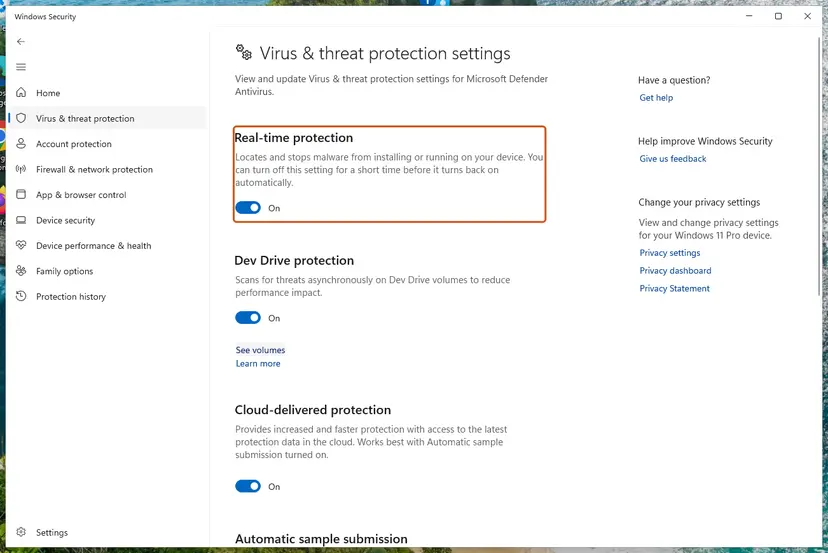
If the sign-in works while one program is paused, keep the program and ask its maker or your IT department to allow Microsoft's sign-in. A paused antivirus is a test, not a fix.
It worked if: The sign-in works with one program paused, which names the blocker, and keeps working once it has an exception.
If not: If nothing changed, turn everything back on and collect the details in the next section for IT.
If CAA90019 is still there: what to collect and who can fix it
When the PC side is clean and the error stays, the cause is usually in the organisation's settings for your account, your device or your guest access. Microsoft asks for the error code shown on the Teams sign-in screen and the Teams debug logs in a support request.
- From the error window: the error code, the Correlation ID and the Timestamp under Additional problem information.
- Windows' own log: right-click Start, open Event Viewer and go to Applications and Services Logs > Microsoft > Windows > AAD > Operational. Note the errors at the time of your sign-in.
- Teams logs: if Teams opens, right-click its icon in the taskbar corner and select Collect support files.
- A web test: whether
https://teams.microsoft.comsigns in with the same account. If it does, the account is fine and the PC is the problem.
| What you see | Likely reason | Who can fix it |
|---|---|---|
| Teams on the web works, the desktop fails on every network | Account data or device record of this PC | IT, with the correlation ID |
| Only the team of another organisation fails | Guest access or the invitation in that organisation | The team owner and their IT |
| Several colleagues get CAA90019 at the same time | A Conditional Access policy or a service problem | IT, in the Microsoft 365 admin center |
| Teams on the web fails too | The account itself, or a Microsoft outage | IT, or wait and check the service status |
For administrators: Microsoft's Teams sign-in diagnostics
Microsoft's article on Teams sign-in errors gives administrators two tests that check the account itself. Neither lists CAA90019 by name, but both show whether the account meets the requirements to sign in to Teams.
- Teams Sign-in diagnostic in the Microsoft 365 admin center: open
https://aka.ms/TeamsSignInDiag, enter the user's email address and select Run Tests. It needs an administrator account. - Microsoft Remote Connectivity Analyzer: the Teams Sign in test at
https://testconnectivity.microsoft.com/tests/TeamsSignin/input, run with the user's credentials. It does not support the GCC and GCC High environments. - Sign-in logs: search the correlation ID and timestamp from the user's window to see which policy or condition stopped the attempt.
- Guests: for an external user, check that the invitation was redeemed and that guest access to Teams is allowed in the organisation.
How to keep CAA90019 from coming back
Once the broker has clean data for your account, the error does not return on its own. It comes back when that data and your account drift apart. These habits keep them in step.
- After a password change, lock and unlock Windows with the new password while online, before you open Teams.
- Remove accounts you no longer use under Access work or school and in Teams, after asking IT on a managed PC.
- Keep automatic time on. A clock that is far off breaks secure sign-ins.
- Keep Windows and Teams updated. Fixes for the broker arrive through Windows updates.
- Accept guest invitations from the email link before you open another organisation's team in the desktop app.
- Give security tools an exception, not a pause, if one of them blocked the sign-in in Fix 7.
Frequently asked questions
What is error code CAA90019 in Teams?
It is a sign-in error of the Windows account broker that the Teams desktop app uses. The window says Something went wrong and We couldn't sign you in, and asks you to give the code to your administrator. Microsoft does not list CAA90019 in its public table of Teams sign-in codes and does not publish its meaning. In practice it is fixed in the same place as its sister codes: the account data Windows stores on the PC (Fix 1 and Fix 2).
Will reinstalling Teams fix CAA90019?
Usually not on its own. A user on Microsoft Q&A downloaded Teams again and the error stayed, because the sign-in data sits in Windows, not in the Teams app. Microsoft does list a clean reinstall as the last step in its Teams sign-in article, and it is Fix 6 here. Start with the token store in Fix 1 and the stored credentials in Fix 2, which touch the data the broker actually uses.
Can I use Teams while CAA90019 is not fixed?
Often yes. Teams on the web at https://teams.microsoft.com and the Teams phone app use other sign-in paths, so they can work while the desktop app fails. That also tells you the account is fine and the problem is on this PC. Use the web version for meetings and chats while you work through the fixes. If the web fails too, the cause is the account or the organisation, and only IT can fix it.
Why do I get CAA90019 only in another company's team?
Because you sign in to that team as a guest, with a separate guest account in the other organisation. A thread on Microsoft Tech Community reports exactly this case for members of another company. The invitation may not be accepted yet, or the other organisation may limit guest access. Accept the invitation from the email link, test the team on the web and switch organisation in Teams (Fix 3). If it still fails, the team owner's IT has to check it.
Is it safe to delete the files in the TokenBroker folder?
Yes, for the Accounts folder that Fix 1 empties. It holds the broker's cached account data, not mail, chats or documents, and Windows builds it again at the next sign-in. The cost is that Teams, Outlook and the other Microsoft 365 apps ask for your account once more. Quit the apps first so that no file is in use. Do not delete the whole package folder or other folders in Packages, and tell IT on a managed laptop.
Should I delete the whole Packages folder, as some guides say?
No. %LOCALAPPDATA%\Packages holds the data of every Microsoft Store app on the PC, such as Photos, Calculator, the Microsoft Store and the new Teams. Emptying it resets all of them and can lose their settings and local files. The sign-in data of Teams is in one subfolder only, Microsoft.AAD.BrokerPlugin_cw5n1h2txyewy\AC\TokenBroker\Accounts, and that is the only one Fix 1 empties.
Does running Teams as administrator fix CAA90019?
We found no report that it does. The sign-in runs in your user account, and the token store belongs to that account, so administrator rights do not change it. Microsoft's article only suggests running the Teams installer as administrator during a reinstall, which is part of Fix 6. Starting Teams as administrator every day is not needed and can even sign it in under a different user profile.
Is CAA90019 a Microsoft outage?
Rarely. The code comes from the broker on your PC, and Teams on the web often works at the same time. During a real outage the web version fails as well, and colleagues on other networks see problems too. If several people in your organisation get CAA90019 at once, the administrator can check service health and the sign-in logs in the Microsoft 365 admin center, or run Microsoft's Teams Sign-in diagnostic.
What is the difference between CAA90019 and CAA90063?
Both appear in the same Windows window with Something went wrong and We couldn't sign you in, and both belong to the broker's 0xCAA9 family. CAA90063 usually comes right after a multi-factor approval and shows a server message about a key not in the pipeline. Microsoft documents neither code. The first fixes are the same: empty the token store and remove stored credentials. Our CAA90063 guide covers that code and the plug-in command.
Sources
Did this fix work?
One click, no account. It tells the next reader which guides are worth their time.
Questions and experiences: fix Microsoft Teams error CAA90019 in Windows
Still broken, or found a fix we did not cover? Ask here: members and our editors answer. Reading is open; writing needs a free account.
…