How to fix
“Minecraft is currently not available in your account” error
on Windows
Resolve the "Minecraft is currently not available in your account" error on Windows 10 and 11 effortlessly with our expert-tested solutions. Fixed in mi…


What causes How to fix “Minecraft is currently not available in your account” error on Windows?
- Corrupted game files
- Windows update issues
- Activation key application
- Email change associated with Microsoft account
- General Microsoft Store issues
Repairs Windows system files, removes malware, and restores a clean OS state — without reinstalling.
Whenever I try launching Minecraft via the Microsoft Store, I receive the error "Minecraft is currently not available in your account," even though it shows that it is present and installed. It also shows an error code 0x803F8001. Is there anything that could be done to fix this?
Microsoft App Store is a digital distribution platform that has been around since the Windows 8 release and is now an integral part of Windows 10[ref en-2] systems. Windows apps for various purposes can be installed through it, and, over time, Microsoft is including more and more games that can be downloaded from it, such as Microsoft Flight Simulator and Minecraft.
Since Minecraft was acquired by Microsoft in 2014,[ref en-1] it is no wonder that it uses the integrated store as the main distribution method. However, many users noticed that Minecraft isn't working after they purchase and add it to their accounts. Instead, they receive the following error message:
Check your account
Minecraft is currently not available in your account. Here’s the error code, in case you need it: 0x803F8001
Evidently, error code 0x803F8001 is not only unique to Minecraft, and users reported receiving it when trying to download or update apps via the Microsoft Store. Users also reported that the code is shown as "Do you own this game or app?" on the Xbox app.[ref en-3]
"Minecraft is currently not available in your account" error can be caused by several different issues, although it most commonly occurs due to corrupted game files (so reinstalling the app can help). Some users claimed that they started experiencing the issue after they updated Windows to the latest version or after they applied the activation key on the OS or changed the email associated with their Microsoft account.
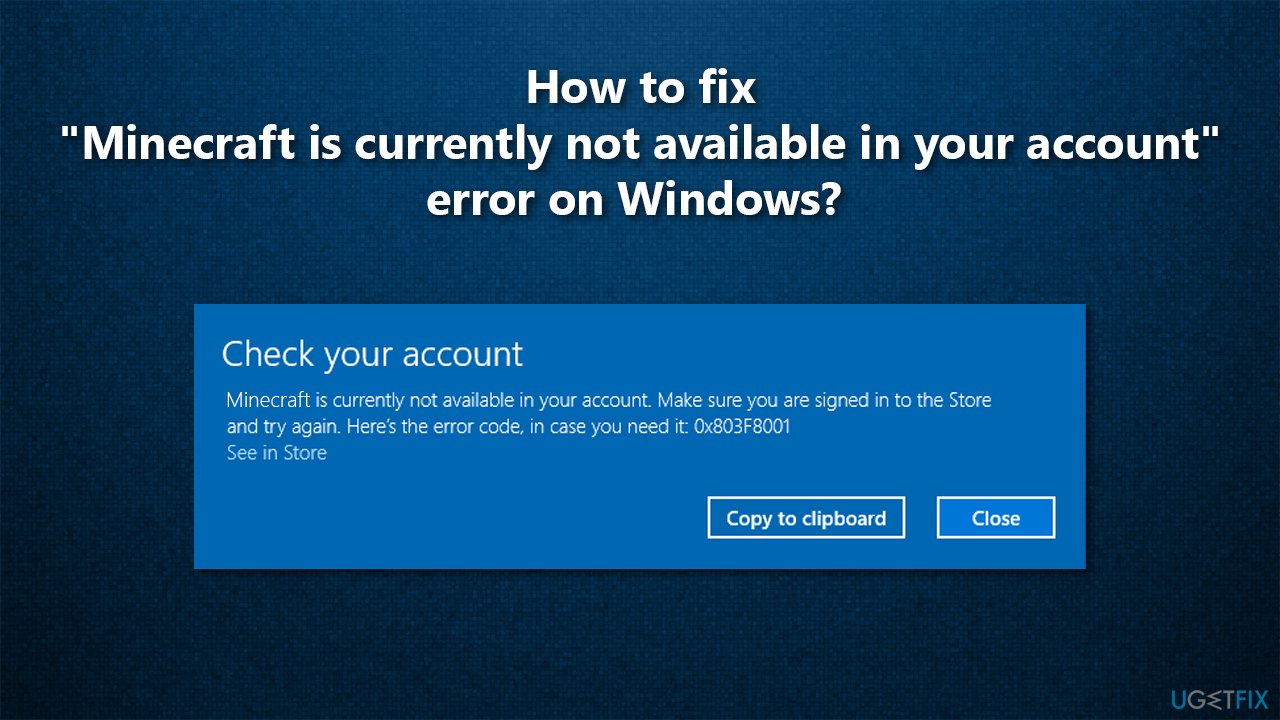
Since there are several different reasons for an issue to arise, you must follow the steps below in order to fix "Minecraft is currently not available in your account" error code 0x803F8001 on Windows.
Since the problem can be related to file corruption, we strongly recommend you first try running a scan with repair software [d1], as it can help help you fix underlying issues on Windows without you having to troubleshoot and waste your time when trying to find solutions.
Method 1. Run Microsoft Store Apps troubleshooter
Since Minecraft is Microsoft Store app, we strongly recommend you try running the troubleshooter as explained below:
- Type troubleshoot in Windows search and hit Enter
- All the troubleshooters should be listed on the right (if not, click Additional troubleshooters)
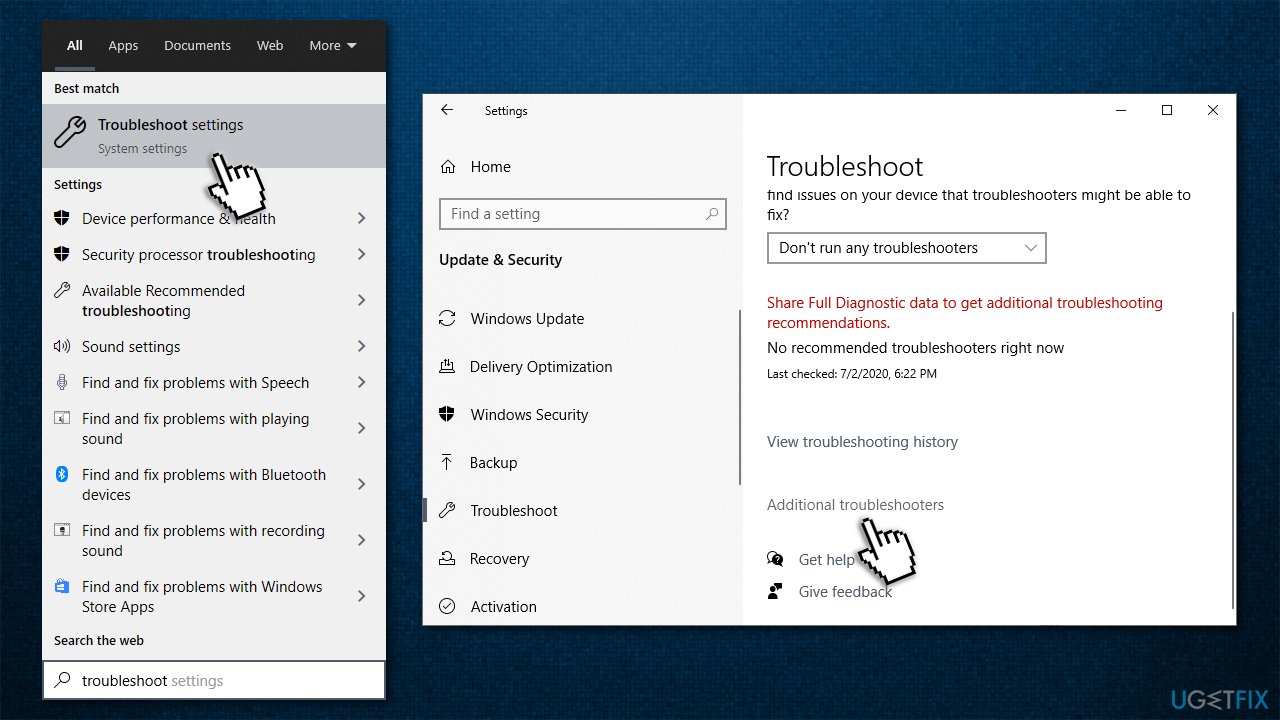
How to fix minecraft is currently not available in your account error on windows run troubleshooter - From the list, find Windows Store Apps
- Click it and select Run the troubleshooter
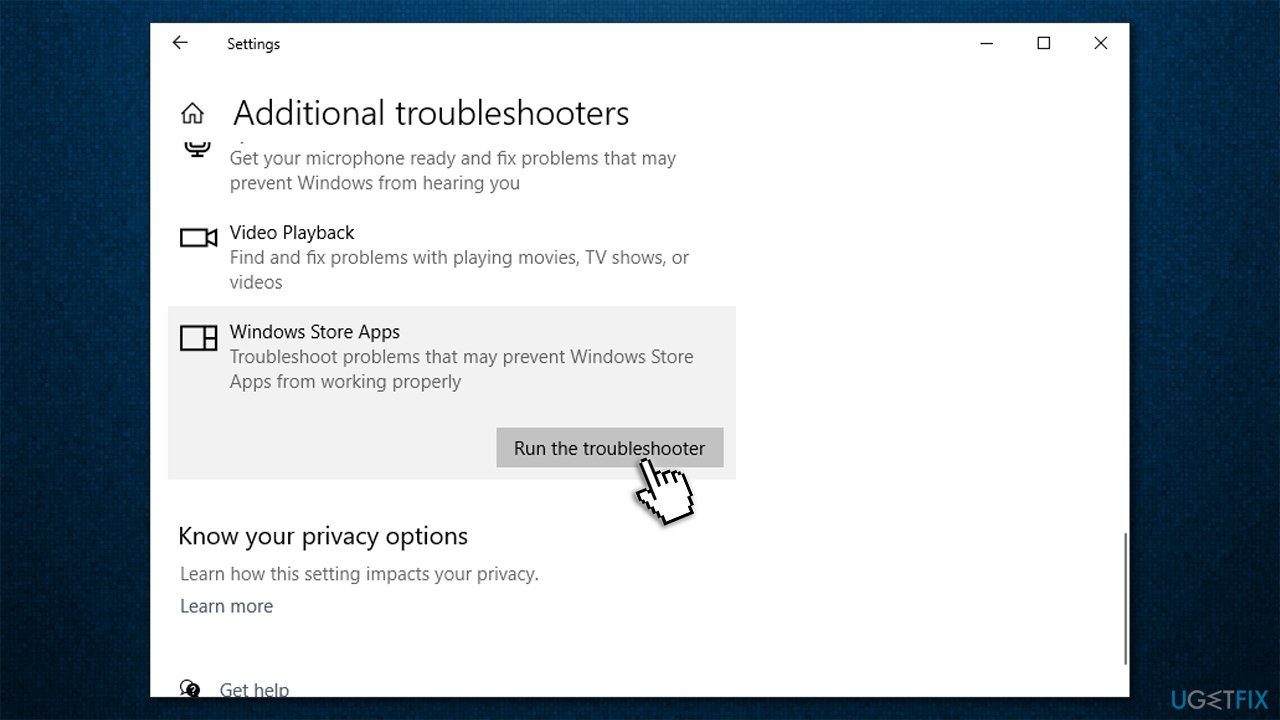
How to fix minecraft is currently not available in your account error on windows run troubleshooter2 - See the results after the scan is finished.
Method 2. Update Windows
If you are using an outdated version of Windows (below 17134.0), you can not play Minecraft. Thus, you should upgrade Windows to the latest version (you should also install all the optional updates):
- Right-click on Start and pick Settings
- Go to Updates & Security section
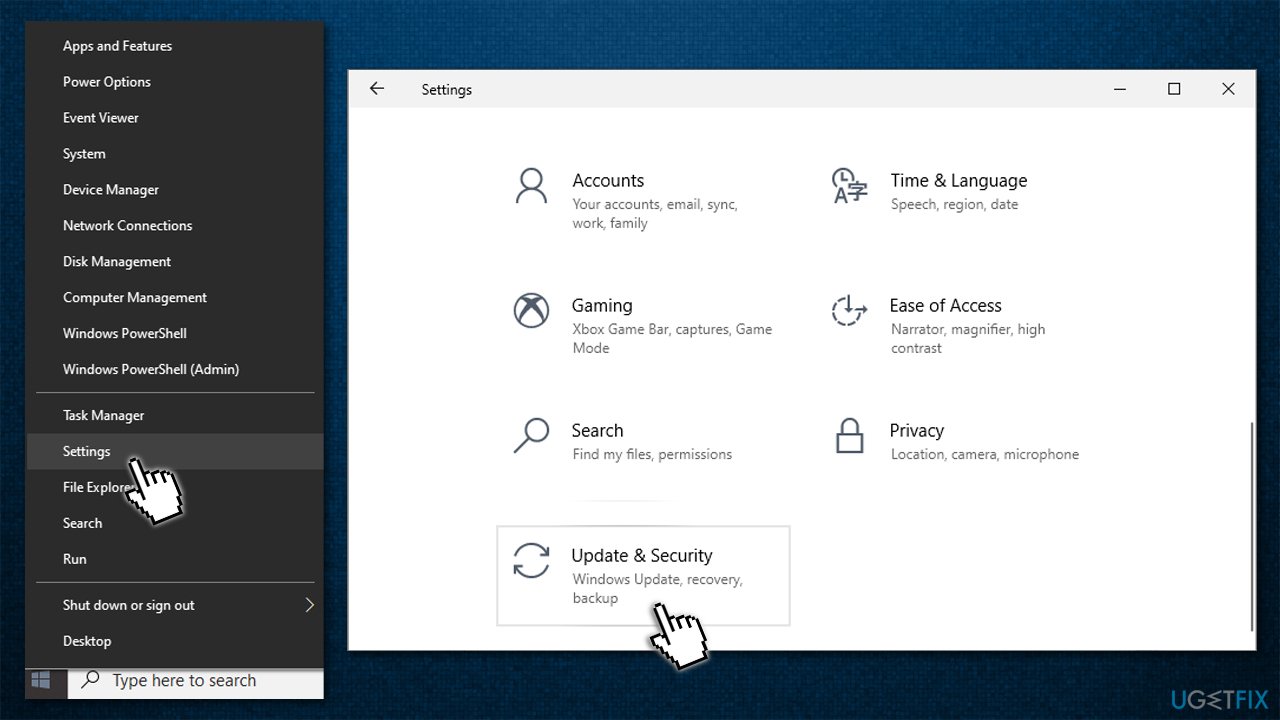
How to fix minecraft is currently not available in your account error on windows update windows - On the right, click Check for updates
- Wait till updates get downloaded and installed
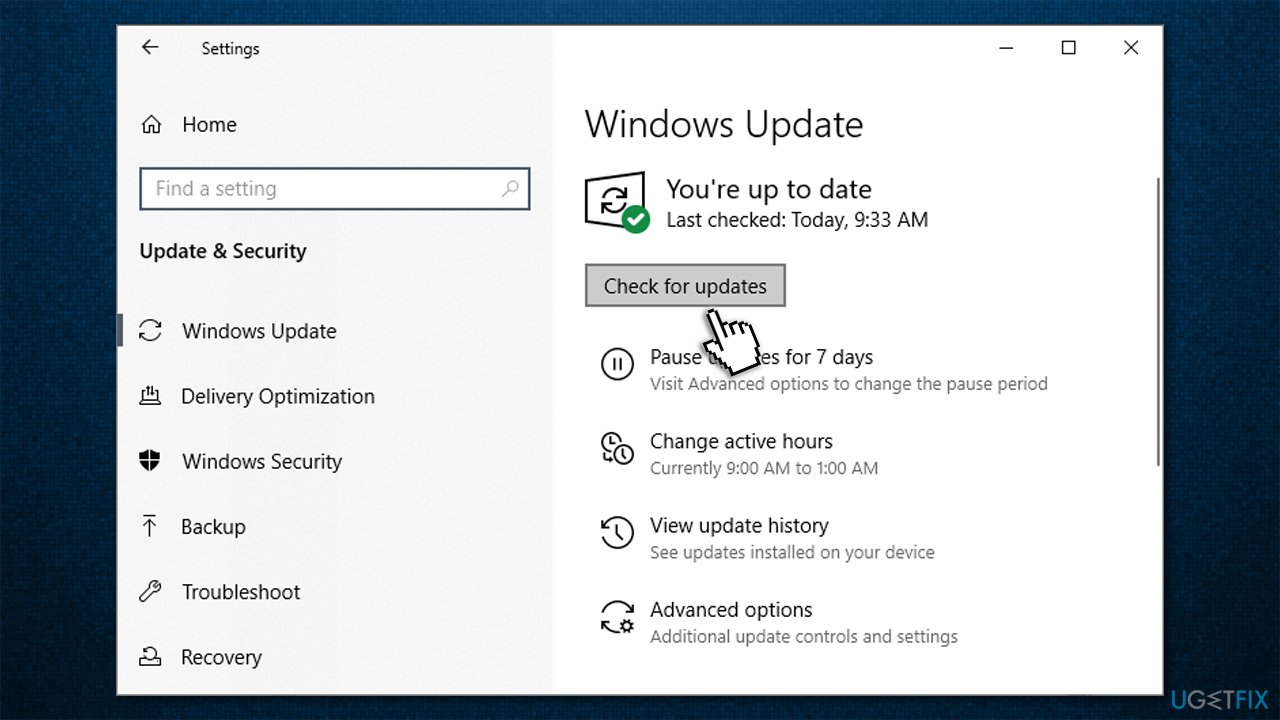
How to fix minecraft is currently not available in your account error on windows update windows2 - Restart your computer and try launching the game once again.
Note: you should also ensure your computer has at least 4GB of memory and is running DirectX version 11+.
Method 3. Reset Minecraft app options
- Type in %AppData% in Windows search bar and press Enter
- Here, find Minecraft folder
- Access it and find options.txt file
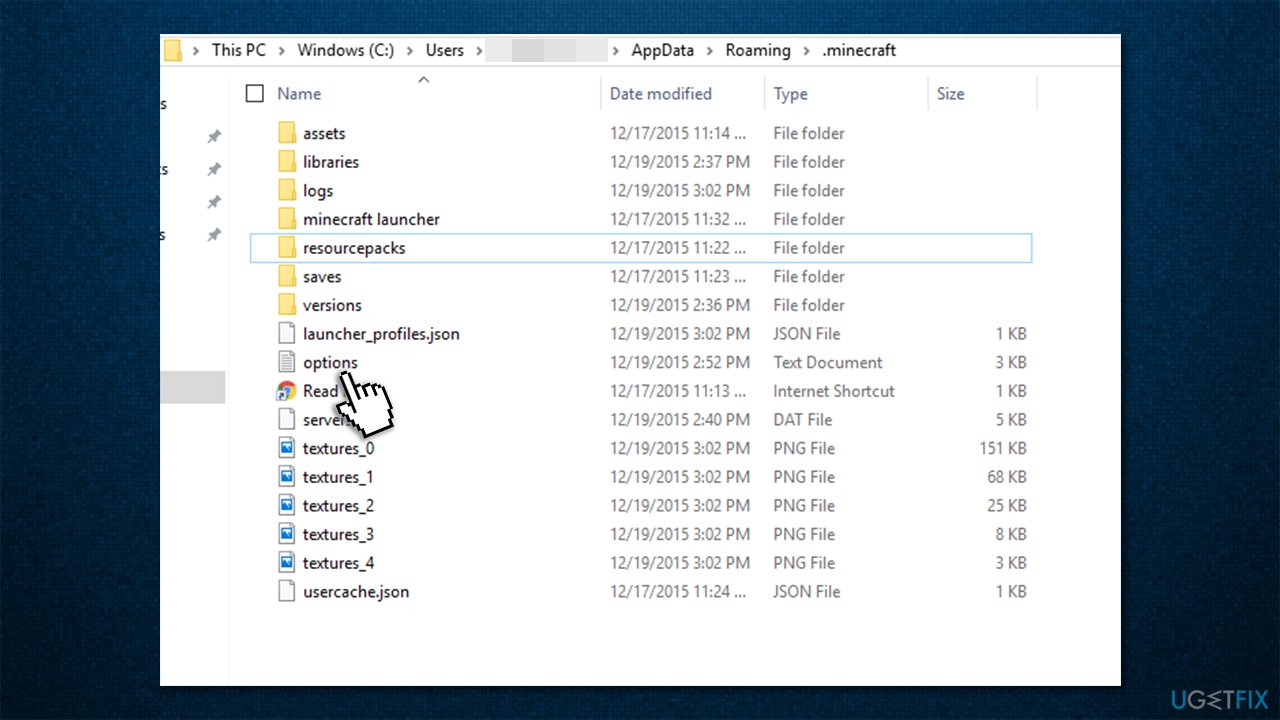
How to fix minecraft is currently not available in your account error on windows reset game options - Delete it (Shift + Del) and try starting the game.
Method 4. Reinstall Minecraft
- Right-click on Start and pick Apps and Features
- Scroll down until you find Minecraft - click on it
- Select Uninstall and then confirm with Uninstall once again
- Follow on-screen instructions to finalize the process
- Type in %AppData% in Windows search and press Enter
- Here, delete Minecraft folder
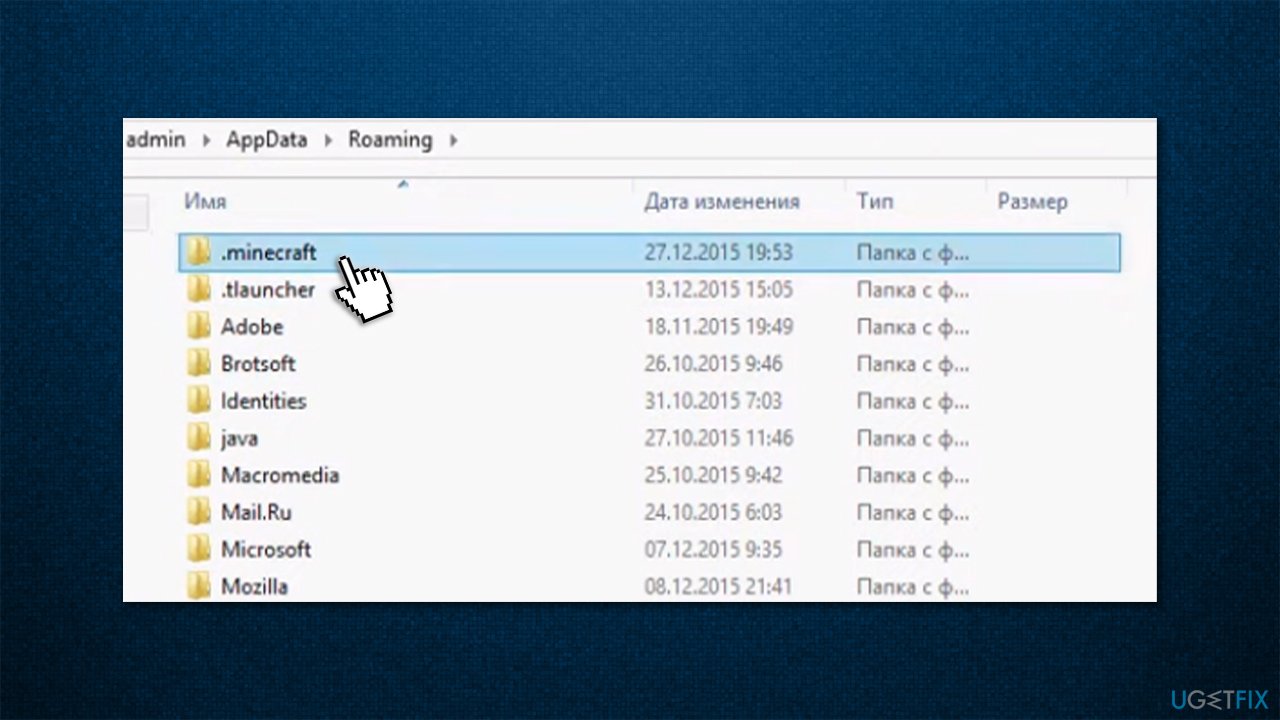
How to fix minecraft is currently not available in your account error on windows uninstall minecraft - Now open Microsoft Store and install the app once again.
Method 5. Reset Microsoft Store
Try resetting Microsoft Store to fix Minecraft is currently not available in your account error:
- Type in WSReset in Windows search
- Press Enter
- A black pop-up window will show up - do not close it
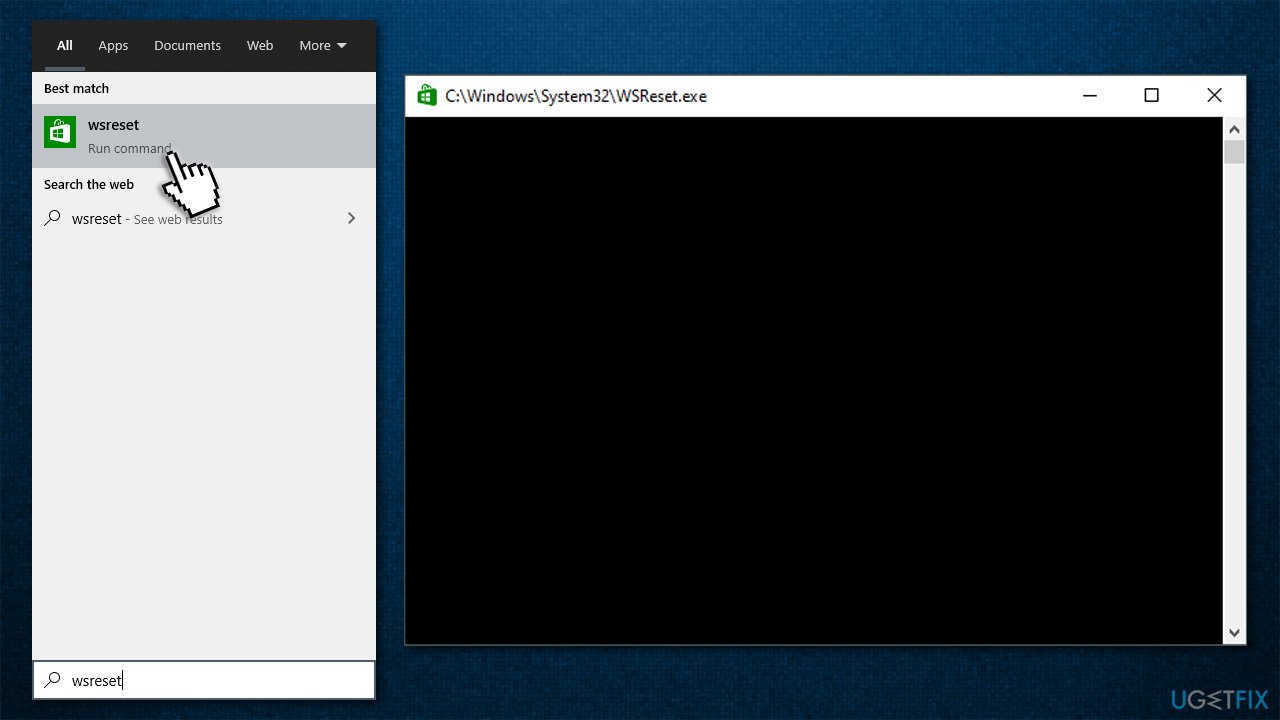
How to fix minecraft is currently not available in your account error on windows reset store app - After it is gone, Microsoft Store will be reset.
Method 6. Sign in with the correct Microsoft account
Generally, the 0x803F8001 error code indicates that the app is not present in the account you are trying to launch it on. The problem often arises because games are not using the same account as the Xbox app. There are several of them, so things might get confusing, especially if you recently applied for your Windows license or changed the associated account email. Here's how to fix this:
- Open Microsoft Store and download Xbox Console Companion (note: Xbox app should also do the trick) by pressing Get
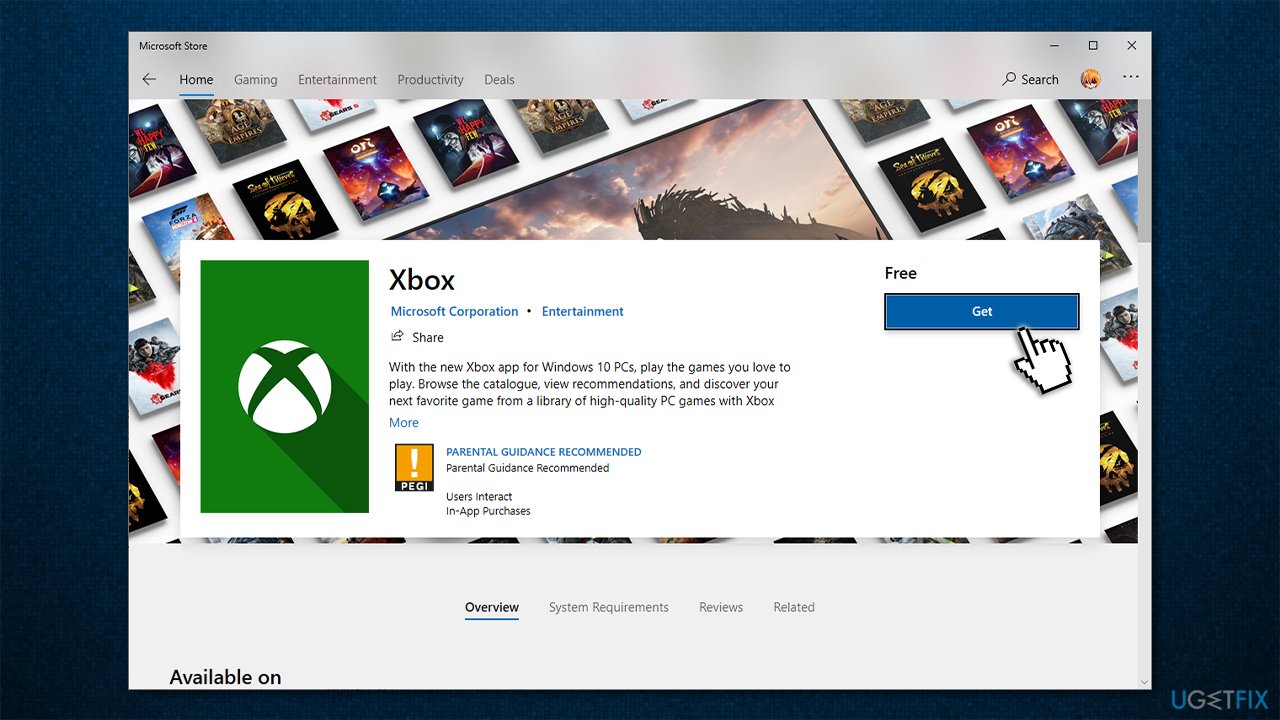
How to fix minecraft is currently not available in your account error on windows login with correct account - If you are logged in automatically, sign out by pressing Settings > Sign out
- Go to https://account.xbox.com and make sure you are logged in with the same account (Hotmail/Live)
- Now open the Xbox app/Xbox Console Companion and log in with the same account you use for purchasing apps on Microsoft Store.
If you are having other issues with Minecraft, we recommend checking the following articles:
Bottom line
To fix the "Minecraft is currently not available in your account" error, try reinstalling the app, running a scan with repair software, or checking your Microsoft account details. If these solutions do not resolve the issue, consider seeking further assistance from Microsoft support.
Frequently asked questions
First, ensure that your Microsoft account is linked to your Minecraft purchase. If it is linked and you still see the error, try reinstalling the game from the Microsoft Store.
Check if your Windows 11 is updated to the latest version and then restart your PC. If the problem persists, resetting the Microsoft Store cache may also help.
Yes, make sure you are logged into the correct Microsoft account that purchased Minecraft, and verify your purchase history for any discrepancies.




Report an issue
What's wrong with this guide? We review every report and update or remove content.
Report received — thank you. We'll review and fix it.
You need a free account to submit a report.
Be the first to comment