
Microphone Boost missing in Windows 11 and 10: why it is not showing and how to fix it

Prefer to fix it yourself? The manual steps follow.
- 6methods
- 5 to 25 minutes
- Easy
Applies to Windows 11 and Windows 10 PCs and laptops with an analog, USB, built-in or Bluetooth microphone
6 methods in this guide
Hello. I have recently been told that whenever I speak on my mic, I am very quiet. This is weird because I had my volume set to max, so I thought I would use Microphone Boost as well. When I checked it out, I realized that Microphone Boost was missing entirely.
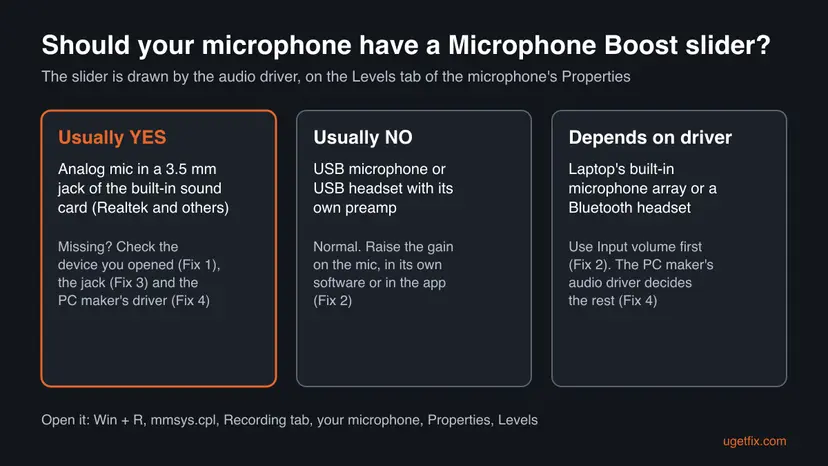
Microphone Boost is not a Windows switch: the audio driver adds it, and mostly for analog microphones plugged into the built-in sound card. A USB microphone usually never has it. Open the Levels tab of the right microphone first, then check the jack and the PC maker's audio driver.
The Microphone Boost slider appears on the Levels tab only when the audio driver offers it, which is usually for an analog microphone in a 3.5 mm jack of the built-in sound card. HP support staff call its absence normal for USB microphones. Start with Fix 1: open mmsys.cpl, pick the microphone you really use and look at its Levels tab. If it is a USB or Bluetooth microphone, raise the gain another way (Fix 2).
| Error | No error message. The Levels tab of the microphone's Properties shows only the Microphone slider, with no Microphone Boost slider below it. |
|---|---|
| Where it appears | The classic Sound window (mmsys.cpl) > Recording tab > your microphone > Properties > Levels. |
| Main cause | The microphone or its driver does not offer Boost: USB microphones, many headsets and microphones running on a generic driver. |
| Fastest fix | Check that you opened the right device (Fix 1). For a USB microphone, raise the gain on the microphone, in its software or in the app (Fix 2). |
| Also searched as | Microphone boost not showing, no microphone boost option Windows 11, Windows 10 microphone boost missing, where is microphone boost in Windows 11. |
| Affects | Windows 11 and Windows 10. Windows 10 left support on 14 October 2025, but the Levels tab works the same on both. |
| Vendor status | Not a bug. Microsoft's own Windows 10 steps say to adjust the Microphone and Microphone Boost sliders on the Levels tab "as needed"; its Windows 11 steps use only the Input volume slider in Settings. |
| Windows 11 Settings | Settings > System > Sound > Input has Input volume only. The Boost slider, when the driver offers it, is only in the classic Sound window. |
| Time to fix | 2 minutes to check the device, up to 25 minutes for a driver reinstall. |
Facts checked on 15 October 2026. Steps written for Windows 11 25H2 and 26H2 and Windows 10 22H2.
What Microphone Boost is and why the option can be missing
Microphone Boost is a fixed extra gain, set in steps, that the sound card applies before the normal Microphone level. It helps quiet analog microphones that send a weak signal into the 3.5 mm jack. Windows does not draw it on its own: the audio driver tells Windows which controls the device has, and the Levels tab shows them.
So the question is not "how do I turn it on" but "does this microphone, with this driver, have it at all". HP's support staff put it plainly: Boost is a feature of analog microphones on the Realtek or other onboard sound card, and USB microphones have their own preamp, so Windows often shows no Boost slider for them.
| Place | Windows 11 | Windows 10 22H2 |
|---|---|---|
| Settings | System > Sound > Input, select the microphone, Input volume slider. | System > Sound > Input, Device properties. |
| Classic Sound window | mmsys.cpl > Recording > microphone > Properties > Levels. | The same window, also reached from Device properties. |
| Microphone Boost slider | On the Levels tab only, when the driver offers it. | On the Levels tab only, when the driver offers it. |
Why the Microphone Boost option is not showing, from most to least common
In most cases nothing is broken. The reader is looking at a microphone that never had Boost, or at the wrong line in the Recording tab. A real fault is likely only when the slider was there before with the same microphone and the same jack.
| Cause | How common | Fix |
|---|---|---|
| The Properties of another device were opened: a headset, a webcam microphone or Stereo Mix instead of the jack you use. | Most often. | Fix 1. |
| The microphone is USB or Bluetooth. It has its own preamp or goes through the Bluetooth driver, so Boost is not offered. | Very often. | Fix 2. |
| An analog microphone sits in the wrong jack: a headphone jack, a front panel that is not connected, or a combo jack that took it as headphones. | Sometimes. | Fix 3. |
| The PC maker's audio driver was replaced by a generic or newer driver that shows fewer controls. | Sometimes, after an update. | Fix 4. |
| The audio device's driver is half installed or damaged. | Rarely. | Fix 5. |
Ask yourself one question: has this exact microphone, in this exact jack, shown a Boost slider on this PC before? If not, it is most likely not supported, and Fix 2 is where you raise the volume. If yes, the slider was taken away by a change, and Fixes 3 to 5 apply.
How to fix a missing Microphone Boost option in Windows 11 and 10
Go through the fixes in order. Fixes 1 and 2 take a few minutes and answer most cases. The steps are the same on Windows 11 and on Windows 10 22H2 unless both paths are given.
| What you see or have | Start with |
|---|---|
| You are not sure which line in the Recording tab is your microphone. | Fix 1. |
| A USB microphone, a USB headset or a Bluetooth headset. | Fix 2. |
| An analog microphone or headset with a 3.5 mm plug, and the PC does not react when you plug it in. | Fix 3. |
| The slider was there before and vanished after a Windows or driver update. | Fix 4. |
| The microphone shows a warning sign in Device Manager or disappears from the Recording tab. | Fix 5. |
Fix 1. Open the Levels tab of the microphone you really use
2 minutesNo riskEveryone, first. Most PCs list two to four recording devices, and the Boost slider belongs to one of them only.
Boost is shown per device. A webcam, a headset and the analog jack each have their own Levels tab, and only the analog input of the sound card usually has Boost. Speaking and watching the meter shows which line is yours.
- Press Win + R, type
mmsys.cpland press Enter to open the Sound window. - Open the Recording tab.
- Right-click an empty area and tick Show Disabled Devices and Show Disconnected Devices.
- Speak into your microphone and watch which line's green meter moves.
- Select that line and select Properties.
- Open the Levels tab. If the driver offers Boost, the Microphone Boost slider is under the Microphone slider.
- Move Microphone Boost one step at a time, select Apply, and test, because a high Boost also raises hiss.
On the Listen tab of the same Properties window, tick Listen to this device and select Apply to hear the microphone live through your speakers or headphones. Untick it when you are done, or you will hear yourself in every call.
It worked if: The green meter moves for the line you opened, and its Levels tab shows the Microphone Boost slider.
If not: If the right line has no Boost slider and it is a USB or Bluetooth microphone, go to Fix 2. If it is an analog microphone, go to Fix 3.
Fix 2. Raise a USB or Bluetooth microphone's volume without Boost
5 minutesNo riskA USB microphone, a USB headset, a Bluetooth headset or earbuds, or a laptop's built-in microphone that has no Boost slider.
These microphones have their own preamp or are handled digitally, so the sound card's Boost does not apply to them. HP support staff call a missing slider normal for them. The gain has to be raised where it really is: in Windows, on the microphone or in the app.
- On Windows 11, open Settings > System > Sound, select your microphone under Input and set Input volume to 100. On Windows 10, open Settings > System > Sound and select Device properties under Input.
- On Windows 11, select Start test under Input settings, speak normally, then Stop test and Play to hear the sample.
- Check the microphone itself for a gain knob, a mute button or a mute light.
- If the maker offers software or a Windows 11 driver for your microphone, install it from the maker's website and raise the gain there.
- In Teams, Zoom, Discord or OBS, open the audio settings and raise the app's own microphone level, or turn off its automatic adjustment if it keeps lowering you.
Some USB microphones still record quietly at 100 percent, because the gain is set inside the microphone. HP's staff point to the maker's own driver package or firmware for that case. A Bluetooth headset microphone is also limited by the Bluetooth hands-free mode; our guide on the AirPods Pro microphone on Windows explains how that works.
It worked if: The meter in the Recording tab or in the app reaches the middle of the bar when you speak normally, and others hear you clearly.
If not: If the microphone is too quiet even at full gain, try it on another PC. If it is just as quiet there, the microphone or its cable is the limit, not Windows.
Fix 3. Plug an analog microphone into the right jack of the sound card
5 minutesNo riskAn analog microphone or headset with a 3.5 mm plug, and the Boost slider is missing or the microphone is not detected.
Boost belongs to the sound card's analog microphone input. If the plug sits in a headphone jack, in a front panel that is not wired to the motherboard, or in a combo jack that took it as headphones, Windows never sees that input.
- On a desktop PC, plug the microphone into the microphone jack on the back of the PC, usually pink or marked with a microphone sign.
- On a laptop with one combo jack, use a headset with a four-ring plug, or a splitter if your microphone has a separate plug.
- If your sound card's software, such as the PC maker's audio app, asks what you plugged in, choose Microphone or Headset, not Headphones.
- Open
mmsys.cplagain, go to Recording and speak to see which line now moves. - Open that line's Properties > Levels and look for Microphone Boost.
Moving a USB microphone from the front to the back, or from a USB 3 to a USB 2 port, can fix a dropping connection, but it does not give a USB microphone a Boost slider. Boost is a sound card control, not a port feature.
It worked if: The line named after the microphone jack (often Microphone or Mic in with the sound card's name) appears, and its Levels tab has the Boost slider.
If not: If the jack line is there but still has no Boost slider, the driver does not offer it. Go to Fix 4.
Fix 4. Install the PC maker's audio driver, or roll back the last one
10 to 20 minutesLow riskThe Boost slider was there before with the same microphone and jack, and vanished after a Windows update, a driver update or a reinstall of Windows.
The driver decides which sliders the Levels tab shows. When Windows replaces the PC maker's audio driver with a generic or newer one, controls such as Boost can disappear. Going back to the driver the maker built for your model brings them back in many cases, though we could not confirm that for every sound card.
- Right-click Start and select Device Manager.
- Expand Sound, video and game controllers and find the sound card, for example a Realtek device. Note whether it is named High Definition Audio Device, which is the generic Windows driver.
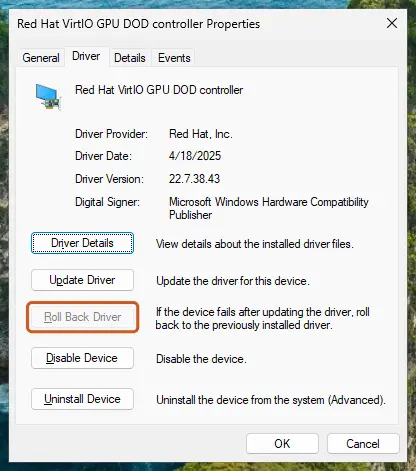
- Right-click it, select Properties and open the Driver tab. Note the Driver Provider and Driver Version.
- If the slider vanished right after an update, select Roll Back Driver and confirm.
- If the button is greyed out, download the audio driver for your exact model from the PC or motherboard maker's support page and install it.
- Restart the PC and check the Levels tab again (Fix 1).
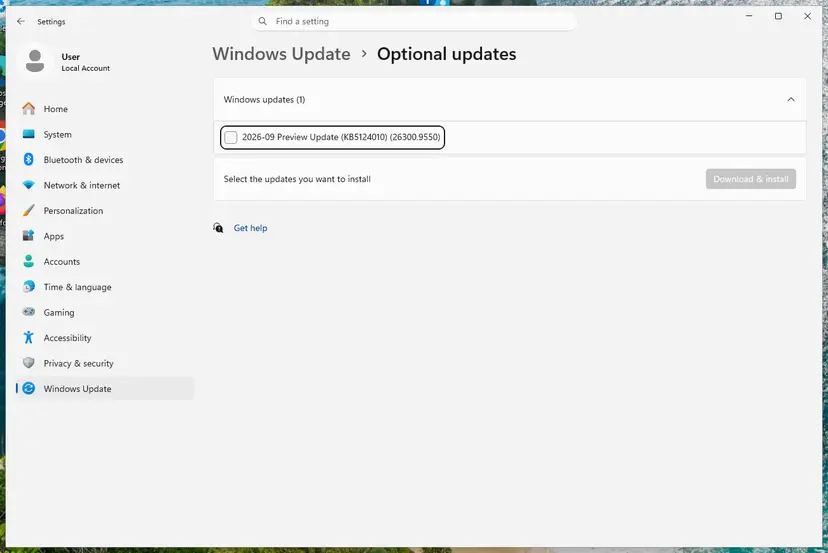
Windows Update can also offer the maker's audio driver as an optional update. The full steps for updating, rolling back and checking optional driver updates are here: Update, roll back or reinstall a driver. If the slider vanished after a Windows update and no older driver is offered, a restore point from before the update also brings the old driver back: Undo recent changes with System Restore.
It worked if: After the restart the sound card shows the maker's name in Device Manager, and the Levels tab of the analog microphone has the Boost slider again.
If not: If the driver is the maker's and Boost is still missing, reinstall the device with Fix 5.
Fix 5. Reinstall the audio device in Device Manager
10 minutesLow riskThe microphone shows a warning sign, disappears from the Recording tab, or the driver looks right but Boost is still missing.
A half-installed driver can load without all its controls. Removing the device makes Windows detect the sound card again and install its driver from scratch, which is the step Microsoft gives when Windows does not detect a microphone properly.
- Right-click Start and select Device Manager.
- Expand Sound, video and game controllers.
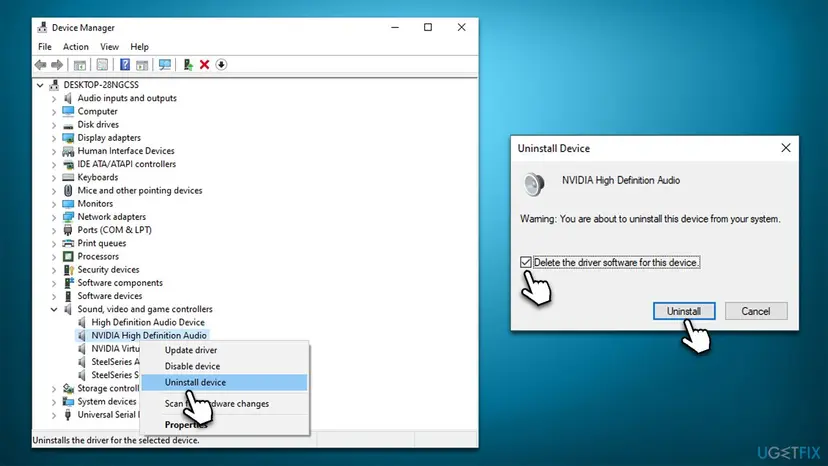
- Right-click the sound card the microphone uses and select Uninstall device.
- Tick Attempt to remove the driver for this device (Windows 10: Delete the driver software for this device) only if you have the maker's driver ready to install, then select Uninstall.
- Restart the PC. Windows finds the device again and installs a driver.
- If the device does not come back, open Device Manager, right-click Sound, video and game controllers and select Scan for hardware changes.
It worked if: After the restart the sound card and the microphone appear again, without a warning sign, and the Levels tab shows Boost if the driver offers it.
If not: If Windows reinstalled a generic driver, install the maker's driver as in Fix 4. If nothing changes, run the troubleshooter in Fix 6.
Fix 6. Run the Windows recording audio troubleshooter
5 minutesNo riskThe microphone is not detected at all, or Fixes 1 to 5 changed nothing.
The troubleshooter cannot add a Boost slider the driver does not offer, but it checks that the microphone is enabled, set as default and not blocked, which rules out the simple causes.
- Windows 11: open Settings > System > Sound, scroll to Advanced and select Input devices under Troubleshoot common sound problems.
- Windows 10: open Settings > Update & Security > Troubleshoot > Additional troubleshooters and run Recording Audio.
- Choose your microphone when asked and apply what it suggests.
- Check the Levels tab again (Fix 1).
It worked if: The troubleshooter reports what it fixed, and the microphone records in the Recording tab.
If not: If it finds nothing and Boost is still missing on an analog microphone with the maker's driver, the sound card most likely does not offer it. See the next section.
If Microphone Boost is still missing
Three short tests tell you whether the slider is gone for good on this PC or whether something is still wrong.
| Test | Result | What it means |
|---|---|---|
| Plug the same analog microphone into another PC's microphone jack. | Boost appears there. | Your sound card or its driver does not offer Boost. Ask the PC maker's support which driver shows it. |
| Plug another analog microphone or headset into your PC's jack. | Boost appears. | Your first microphone is detected as another kind of device, often a headphone-only plug. |
| Look at the sound card in Device Manager. | It is called High Definition Audio Device. | Windows uses its generic driver. Install the maker's driver (Fix 4). |
When you contact the PC or motherboard maker, send the model, the Windows version from Win + R > winver, the sound card name and the Driver Version from Device Manager. Say whether the microphone is analog or USB.
If the microphone is quiet on every PC even at full gain and with Boost, the microphone or its cable is weak. A microphone with its own preamp, or a small USB audio adapter with a microphone input, is then the practical answer.
How to keep Microphone Boost and a good microphone level
- Note your audio driver version in Device Manager while Boost works, so you know what to roll back to.
- Keep the PC maker's audio driver. If an optional update offers a generic or older audio driver, skip it unless you have a problem it fixes.
- Use Boost in small steps. The first step is often enough; higher steps add hiss and background noise.
- Name the microphone in each app instead of "Default", so Teams or Discord does not jump to a quieter webcam microphone.
Frequently asked questions
What is Microphone Boost?
Microphone Boost is an extra gain that the sound card adds to an analog microphone before the normal level slider. It is meant for microphones that send a weak signal into a 3.5 mm jack. It appears as a Microphone Boost slider on the Levels tab of the microphone's Properties in the classic Sound window. Because the audio driver supplies it, not every microphone has it. Raise it a step at a time, because it also makes hiss and background noise louder.
Where is Microphone Boost in Windows 11?
It is in the classic Sound window, not in Settings. Press Win + R, type mmsys.cpl, open the Recording tab, select your microphone, then Properties and the Levels tab. If the driver offers Boost, its slider is under the Microphone slider. The Windows 11 Settings page for a microphone has only Input volume, which is why many people think Boost was removed. See Fix 1 for the full steps.
Why is there no Microphone Boost option in Windows 11?
Usually because your microphone does not use the sound card's analog input. HP's support staff explain that USB microphones have their own preamp and that Windows often shows no Boost slider for them, which is normal. Bluetooth headsets and many headsets with their own adapter behave the same. If you use an analog microphone in the right jack and the slider is still missing, the audio driver is the next suspect: install the PC maker's driver (Fix 4).
Why is Microphone Boost not showing on Windows 10?
For the same reasons as on Windows 11: it is a USB or Bluetooth microphone, you opened another device, the plug is in the wrong jack, or a generic driver replaced the maker's driver. Microsoft's Windows 10 steps still tell you to adjust the Microphone Boost slider on the Levels tab when it is there. Windows 10 left support on 14 October 2025, so newer audio drivers for it can be hard to find.
How do I enable Microphone Boost?
There is no switch that adds it. If your microphone and driver support it, open mmsys.cpl > Recording > your microphone > Properties > Levels and move the Microphone Boost slider up one step, then select Apply and test. If the slider is not there, follow the fixes on this page in order.
My Microphone Boost disappeared after an update. Can I get it back?
Often, yes. When the slider was there before with the same microphone and jack, an update most likely replaced the audio driver. Open Device Manager, check the sound card's driver and select Roll Back Driver if the button is active, or install the driver for your exact model from the PC or motherboard maker (Fix 4). If the device was damaged during the update, reinstall it (Fix 5). We could not confirm that every newer driver keeps the Boost control.
Does a USB microphone have Microphone Boost?
Usually not. A USB microphone converts the sound to digital inside the microphone, with its own preamp, so the sound card's Boost does not apply. Raise its level with Input volume in Settings, with a gain knob on the microphone, in the maker's software, or in the app you record with (Fix 2). Some USB microphones still record quietly at full volume, because their internal gain is set low; the maker's driver or firmware is then the place to look.
Is there an app to boost my microphone volume on Windows?
Windows has no built-in app beyond the Input volume and Levels sliders. Recording and call apps such as OBS, Audacity, Discord and Zoom have their own microphone level or gain settings, and some microphone makers ship their own control software. Software gain makes noise louder too, so start with the microphone's position and the Windows level before adding gain in an app. This page does not cover third-party audio processing tools.
Why is my microphone so quiet even with the volume at 100?
Most often the app uses another microphone, the microphone is too far from your mouth, or a USB microphone's internal gain is low. Check which device moves the meter in the Recording tab (Fix 1), select it by name in your app, and test with Start test in Windows 11 Settings. Microsoft also suggests checking the headset's mute button and that the microphone is positioned correctly. For an analog microphone, Boost on the Levels tab is the next step.
Sources
- Microsoft Support: Fix microphone problems (Windows 11 and Windows 10) (support.microsoft.com)
- HP Support Community: Missing microphone boost (accepted answer by an HP Support Agent) (h30434.www3.hp.com)
Did this fix work?
One click, no account. It tells the next reader which guides are worth their time.
Questions and experiences: Microphone Boost missing in Windows 11 and 10: why it is not showing and how to fix it
Still broken, or found a fix we did not cover? Ask here: members and our editors answer. Reading is open; writing needs a free account.
…