
How to fix Monster Hunter World error code 50382-MW1 in Windows?

Prefer to fix it yourself? The manual steps follow.
- 7methods
- 5 minutes for the first fix, 10 to 30 minutes for the router fixes
- Easy to moderate
Applies to Monster Hunter: World and Monster Hunter World: Iceborne on Steam, Windows 11 and Windows 10
7 methods in this guide
I am unable to connect to the session members because of the error code 50382-MW1 in Monster Hunter World. Any tips on how to approach this error?
Error code 50382-MW1 means Monster Hunter: World could not open a player-to-player connection to the other hunters in time. If it happens with one friend only, Capcom says the problem may be on their network. If it happens with everyone, restart the PC, modem and router first, then put the PC on a cable and turn on UPnP.
50382-MW1 is a network time-out: your PC and another player's PC could not connect directly. It is not a broken game. If only one friend triggers it, the fix is on their side. Otherwise start with Fix 1: exit the game, restart the PC, unplug the modem and router for a few minutes, and try again. Then use a cable (Fix 2) and turn on UPnP on the router (Fix 3).
| Error | "Failed to connect to session members. Error code: 50382-MW1", with a Close button. |
|---|---|
| Where it appears | In Monster Hunter: World or Iceborne, when you join or post a quest, an SOS flare or an online session with other hunters. |
| Main cause | Capcom: a player-to-player (P2P) connection with another user cannot be established and the attempt times out. Usually a strict NAT, a router without UPnP, or Wi-Fi. |
| Fastest fix | Exit the game, restart the PC, and unplug the modem and router for a few minutes (Fix 1). |
| Also written as | 50382 MW1, 50382-mw1, MHW error 50382, "Failed to connect to session members". |
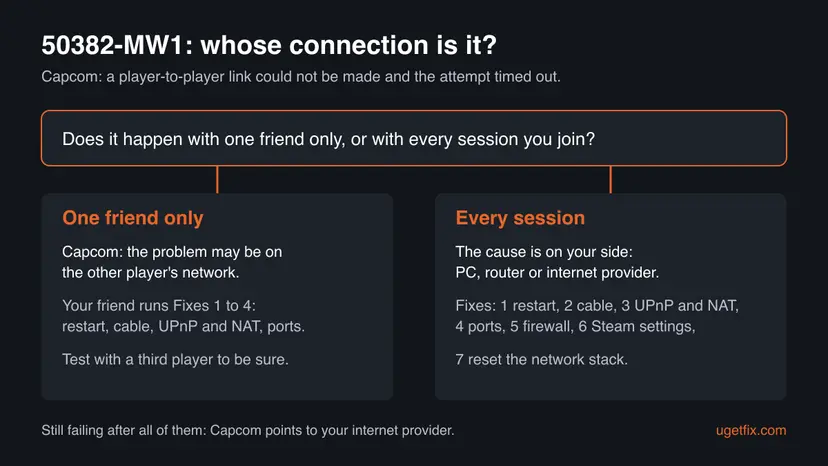
| Whose side | With one friend only: Capcom says it may be the other player's network. With everyone: your PC, router or provider. |
| Vendor status | Not a bug with a patch. Capcom Support has a page for the code (updated 2026-07-06) that points to its network troubleshooting guide for Steam. |
| Affects | The Steam version on Windows 11 and Windows 10; PlayStation 4 and Xbox One players see the same code. Microsoft ended support for Windows 10 on 14 October 2025, which does not change this error. |
| Time to fix | 5 minutes for Fix 1, 10 to 30 minutes for the router fixes (3 and 4). |
Facts checked on 15 October 2026. Steps written for Monster Hunter: World and Iceborne on Steam, Windows 11 (25H2 and 26H2) and Windows 10 22H2, read against Capcom Support's 50382-MW1 page, its Steam network troubleshooting guide and Steam Support's list of required ports.
What Monster Hunter World error code 50382-MW1 means
Monster Hunter: World puts hunters in the same session by connecting their PCs straight to each other, player to player. Capcom Support says error 50382-MW1 occurs "when a player-to-player (P2P) connection with another user cannot be established and the connection attempt is timed out". The game waits, gives up, and shows the message. Your save, your hunter and your copy of the game are not affected.
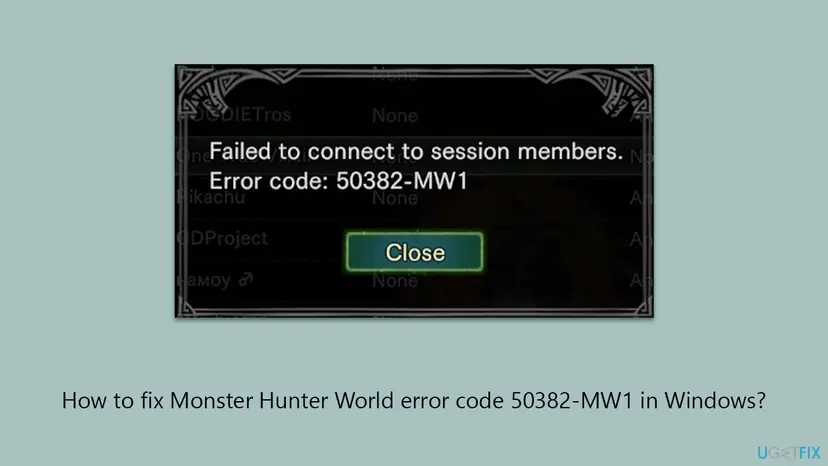
The code is the same in the base game and in the Iceborne expansion, and Capcom uses it on PlayStation 4 and Xbox One too. People search it as 50382-MW1, 50382 MW1, "MHW error code 50382" and by the text "Failed to connect to session members". All of them are the same error.
Capcom says that when the error occurs only with one specific friend, there may be "a problem with the other player's network environment". If you can join other hunters but never that one friend, send this page to the friend. If you fail with everyone, the cause is on your side.
What causes error 50382-MW1, from most to least likely
Capcom's network guide for Steam lists the things that block a direct connection, but publishes no numbers. The order below is ours, from the cheapest check to the one that needs your router or your internet provider.
| Cause | How to tell | Fix |
|---|---|---|
| A stuck connection on the PC, modem or router, or a Steam outage. | It started out of nowhere and online play worked before. | Fix 1 |
| Wi-Fi, or too little bandwidth. Capcom recommends a wired connection and turning off other devices that use the internet. | You play on Wi-Fi, or others stream or download while you play. | Fix 2 |
| A strict NAT, UPnP turned off, packet filtering, or two routers. Capcom names all four. | It fails with every session, also on a cable. | Fix 3 |
| Closed ports on the router or at the internet provider. | UPnP is on or not available, and the error stays. | Fix 4 |
| A firewall or antivirus that blocks MonsterHunterWorld.exe. | It began after you installed or updated a security program. | Fix 5 |
| Steam settings: a private profile, or too many server browser pings. | Friends cannot invite you, or the quest list loads slowly. | Fix 6 |
| Damaged network settings in Windows. | Other online games or programs also have trouble. | Fix 7 |
Many guides, including our earlier version, add -nofriendsui -udp to the game's launch options. Capcom does not mention them, and we could not confirm that they change anything in this game, so this page leaves them out. The same old guide also gave a wrong second Google DNS address: Google's are 8.8.8.8 and 8.8.4.4.
How to fix Monster Hunter World error code 50382-MW1
Fixes 1 and 2 take a few minutes and need no settings. Fixes 3 and 4 are on the router and solve most stubborn cases, because they decide whether other PCs can reach yours. Fixes 5 to 7 cover the PC itself.
| What you see or have | Start with |
|---|---|
| It fails with one friend only, and you can join others. | Your friend does Fixes 1 to 4 |
| It came out of nowhere after online play worked. | Fix 1 |
| You play on Wi-Fi, or you have both Wi-Fi and a cable connected. | Fix 2 |
| It fails with every session, on a cable too, or your NAT type is Strict. | Fix 3, then Fix 4 |
| You play on a university, dorm, office or hotel network. | Fix 3 and Fix 4, with the network administrator |
| It began after you installed or updated an antivirus or firewall. | Fix 5 |
| Friends cannot send you invites, or the session list loads slowly. | Fix 6 |
| Other games and programs also lose the connection. | Fix 7 |
Fix 1. Check Steam, then restart the PC, the modem and the router
5 minutesNo riskEveryone starts here, above all when online play worked until today.
Capcom's first steps for any network error are to check whether Steam is down and to refresh the modem and router. A router that has run for weeks can lose its port mappings, and the game then cannot be reached by other players.
- Check whether Steam reports an outage. Capcom points to the Steam Support account on X (Twitter) for news of outages. If Steam is down, wait.
- Exit Monster Hunter: World, then exit Steam from the Steam menu with Exit.
- Restart Windows: Start > Power > Restart.
- Unplug the modem and the router and leave them off for a few minutes, as Capcom asks.
- Plug in the modem first. When its lights are steady, plug in the router.
- Start Steam and the game, and join the session again.

If Windows itself shows no internet after the restart, fix that first. Step by step: How to check your internet connection in Windows
It worked if: The game joins the session or the SOS flare without the message.
If not: If the error comes back, move the PC to a cable connection with Fix 2.
Fix 2. Play on a cable, turn off Wi-Fi, and free the bandwidth
5 to 10 minutesNo riskYou play on Wi-Fi, have both Wi-Fi and a cable connected, or others use the internet while you play.
Capcom recommends a wired Ethernet connection for Monster Hunter: World online and asks you to turn off other devices that use the internet. A P2P link needs a steady connection, and Wi-Fi drops or a full line make the join time out.
- Connect the PC to the router with an Ethernet cable.
- Press Win + R, type
ncpa.cpland press Enter. Network Connections opens. - Right-click the Wi-Fi adapter and select Disable, so Windows uses the cable only. Leave the Ethernet adapter on.
- Stop streams, downloads and cloud backups on the other devices at home, as Capcom suggests.
- Start the game and join again.
- If you are already on a cable, test once with the cable straight from the PC to the modem, without the router. Capcom suggests this to rule the router out.
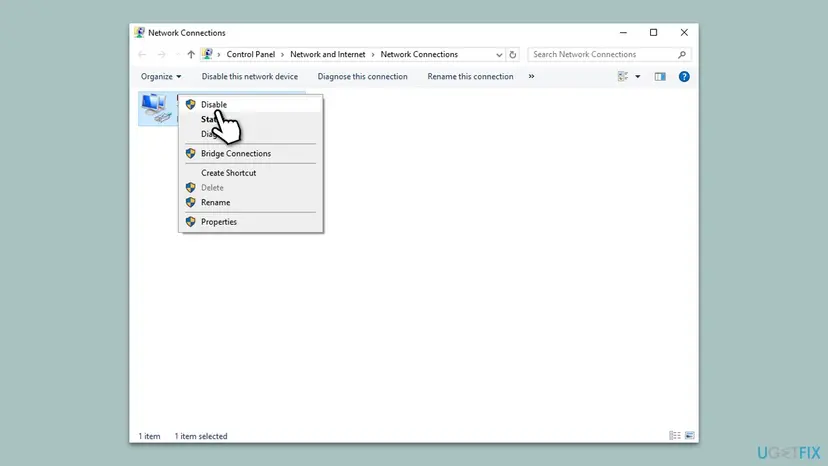
When you go back to Wi-Fi, open Network Connections again, right-click the Wi-Fi adapter and select Enable. Nothing else changes.
It worked if: The join works on the cable, or straight through the modem, which tells you the Wi-Fi or the router was the cause.
If not: If it still fails on a cable, set up the router with Fix 3.
Fix 3. Turn on UPnP, check the NAT type, and fix a double router
10 to 20 minutesLow riskIt fails with every session, also on a cable, or the game or router reports a Strict NAT.
Other players can only connect to your PC if the router lets their traffic in. Capcom asks you to turn UPnP on, turn packet filtering off, and put one of two routers in Bridge Mode. It also says a Strict NAT, common in dorms, can block online play.
- Open the router's settings page. The address and login are usually on a label on the router or in its manual.
- Find UPnP (often under Advanced, NAT or Network) and turn it On. Save.
- Find packet filtering and turn it off, as Capcom asks. Ask your internet provider whether they filter packets too.
- Check whether you have two routers, for example the provider's box and your own Wi-Fi router. If so, put one of them in Bridge Mode, as the router manual explains.
- Restart the router, then the PC, and join a session again.
| NAT type | What Capcom says |
|---|---|
| Type 1 (Open) | No router or firewall in the way, or DMZ is on. No issues while gaming, but it may cause security issues. |
| Type 2 (Moderate) | Connected properly; you should not run into issues. |
| Type 3 (Strict) | You may connect online and download, but other functions may not work as intended. |
DMZ opens every port of the PC to the internet. Capcom itself warns that an Open NAT this way may cause security issues. Use UPnP or the port list in Fix 4 instead, and leave the router's firewall on.
It worked if: The router shows UPnP as on, the NAT type is Moderate or Open, and the game joins.
If not: If your router has no UPnP, or the error stays, open the Steam ports by hand with Fix 4.
Fix 4. Forward the Steam ports on the router and ask your provider
15 to 30 minutesLow riskUPnP is off, missing or did not help, or you play on a university, office or hotel network.
Capcom asks Steam players to forward the Steam ports and to make sure the internet provider does not block them. Monster Hunter: World uses Steamworks P2P networking, whose ports are on Steam Support's list.
- Find your PC's local IP address: press Win + R, type
cmd, press Enter, typeipconfigand note the IPv4 Address. - Open the router's settings page and find Port forwarding (sometimes Virtual server or NAT rules).
- Add the ports from the table below for the PC's IP address, with the protocol shown.
- Save and restart the router.
- On a school, office or dorm network, ask the network administrator to open these ports. Steam Support says many such networks block them and that they cannot be moved to other ports.
- If it still fails, ask your internet provider whether they block any of these ports, as Capcom suggests.
| Purpose | Ports |
|---|---|
| Sign in to Steam and download | TCP 80 and 443, UDP and TCP remote 27015 to 27050 |
| Steam client: game traffic | UDP remote 27000 to 27250, UDP remote 4380 |
| Steamworks P2P networking and voice chat | UDP remote 3478, 4379, 4380 and 27014 to 27030 |
Capcom's guide reposts an older version of Steam's list, with smaller ranges such as UDP 27000 to 27015. The current Steam Support page above covers those ranges and more, so use it.
It worked if: The router lists the forwarding rules for your PC, and the session joins without a time-out.
If not: If the ports are open and it still fails, check the firewall and antivirus on the PC with Fix 5.
Fix 5. Allow MonsterHunterWorld.exe through the firewall and antivirus
5 to 10 minutesLow riskThe error began after you installed or updated a security program, or you use a third-party firewall.
Capcom asks you to add MonsterHunterWorld.exe to the Windows Firewall and antivirus exceptions. A firewall that blocks the game's incoming traffic stops other players from reaching you, which is exactly a P2P time-out.
- Press Win + R, type
firewall.cpland press Enter. - Select Allow an app or feature through Windows Defender Firewall, then Change settings.
- If Monster Hunter: World is in the list, tick Private for it. If not, select Allow another app, Browse, and open the file below.
- Select Add, tick Private, and select OK.
- Open Windows Security > Virus & threat protection > Manage settings > Exclusions > Add or remove exclusions, and add the same file. In another antivirus, add it as a trusted program.
- Start the game and join again.
C:\Program Files (x86)\Steam\steamapps\common\Monster Hunter World\MonsterHunterWorld.exeIf you installed the game in another Steam library, right-click it in Steam, select Manage > Browse local files, and use that folder. To test whether the antivirus is the cause, pause it for one join and turn it back on at once: Turn off Microsoft Defender protection for a moment
It worked if: The game is listed as allowed on private networks, and the next join works.
If not: If the error stays with the exceptions in place, check the Steam settings with Fix 6.
Fix 6. Set your Steam profile to Friends Only and lower the server browser pings
5 minutesNo riskFriends cannot invite you, or the quest and session lists load slowly before the error.
Capcom says Steam users with a private profile cannot send invites, and asks for Public or Friends Only. Steam's own hint under Server browser pings/minute says to lower the value when browsing game servers gives connection problems.
- In Steam, select your name at the top and then Profile.
- Select Edit Profile, then Privacy Settings.
- Set My profile to Public or Friends Only, as Capcom asks.
- Open the Steam menu, select Settings, then In Game.
- Under More, set Server browser pings/minute to 250 (the default is Automatic, 5000).
- Close the settings, restart Steam and join again.
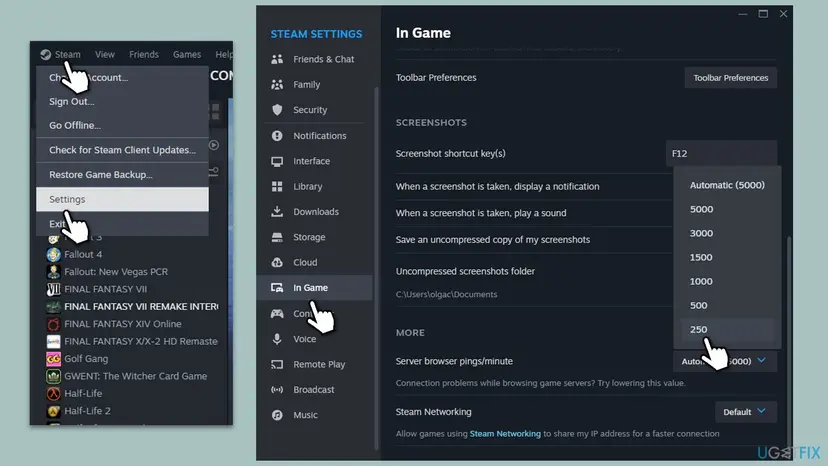
Users on the Steam forums report that the lower ping value cleared 50382-MW1 for them. That is a report, not a Capcom fix, and it costs nothing to try.
It worked if: Friends can invite you, the session list loads, and the join works.
If not: If nothing changed, reset the Windows network settings with Fix 7.
Fix 7. Reset the Windows network stack
10 minutes plus a restartLow riskOther online games or programs also drop, or you changed DNS or IP settings by hand.
Damaged Winsock or TCP/IP settings can break the incoming connections a P2P session needs, while web pages still load. The reset puts these settings back to the Windows defaults.
- Open Command Prompt as administrator.
- Run
ipconfig /flushdns, thennetsh winsock reset, thennetsh int ip reset. - Restart the PC and join a session again.
- If that did not help, use Network reset in Settings, which reinstalls the network adapters. Note your Wi-Fi password and VPN settings first. Step by step: Reset the network and flush DNS

It worked if: The commands report success, and after the restart the game joins without the message.
If not: If the error still shows, collect the details below and contact Capcom Support or your internet provider.
If error 50382-MW1 still shows: what to check and whom to ask
The game writes no log you can read for this error. Capcom's page ends with one advice when all steps fail: contact your internet provider about your network environment. Some providers use carrier-grade NAT, which no home router setting can open.
- Note whether it fails with everyone or with one friend, and whether a phone hotspot works.
- Note the NAT type the router shows, and whether UPnP is on.
- Ask your internet provider whether you have a public IP address, whether they block or filter ports, and whether PPPoE settings are needed. Capcom names the last one.
- Contact Capcom Support with your region, the error code and any other codes you saw. Capcom says this helps them investigate.
- When it is the friend's network: you join others, never them. The friend runs Fixes 1 to 4.
- When it is the provider: a hotspot works and home does not, even with UPnP and ports open.
- When it is not a P2P error: the message names another code. Search Capcom Support for that code, because each code points to a different problem.
How to keep error 50382-MW1 from coming back
- Play on a cable when you hunt online.
- Keep UPnP on in the router, or keep the port forwarding rules after a router update.
- Restart the modem and router when online play suddenly fails.
- Keep your Steam profile on Public or Friends Only.
- Ask the friend to check their side when only one person fails.
- Do not use DMZ to force an Open NAT.
- Do not turn the firewall off to play; allow the game instead.
- Do not run two routers without one in Bridge Mode.
- Do not stream or download on the same line during a hunt if it is slow.
- Do not reinstall the game for this error: it is a network problem.
The rule behind this list is short. Other hunters must be able to reach your PC directly. Keep the line steady, the router open to the game through UPnP or ports, and the firewall aware of the game, and the message stays away.
Frequently asked questions
What does error code 50382-MW1 mean in Monster Hunter World?
It means the game could not connect your PC directly to another player's PC, and the attempt timed out. Capcom Support describes it as a player-to-player (P2P) connection that cannot be established. The full message is "Failed to connect to session members. Error code: 50382-MW1". It shows when you join a session, a quest or an SOS flare. It does not mean your game files or your save are damaged. Start with a restart of the PC and router (Fix 1), then a cable connection and UPnP (Fixes 2 and 3).
Why do I get 50382-MW1 with only one friend?
Capcom says that if the error happens only when joining one specific friend, the problem may be in the other player's network environment. A direct connection needs both routers to let the traffic through. If either side has a Strict NAT or UPnP off, the link fails. Ask the friend to run Fixes 1 to 4 on this page: restart, cable, UPnP and NAT, ports. To be sure, both of you can try joining a third player. Whoever fails with the third player has the problem.
Is 50382-MW1 the same in Iceborne?
Yes. Iceborne is an expansion of Monster Hunter: World and uses the same online system and the same error codes. Capcom's support pages cover Monster Hunter: World and Iceborne together. The cause and the fixes on this page are the same whether you play the base game or the expansion. If you see the error only with one group, check that everyone runs the latest game version, since Steam updates the game for each player separately.
Does changing the Steam download region fix 50382-MW1?
Some users on Reddit report that changing the Steam download region, for example to New York or Tokyo, stopped the error for them. That is a report, not a Capcom fix, and we could not confirm why it would help. It does no harm to try: open Steam > Settings > Downloads and change Download Region, then restart Steam. If it changes nothing, set it back to the region nearest to you, because a far region slows down game downloads.
Do the -nofriendsui -udp or -tcp launch options fix error 50382-MW1?
We could not confirm it. Many older guides, including our previous version, tell you to add -nofriendsui -udp or -nofriendsui -tcp to the game's launch options. Capcom does not mention them for this error or in its network guide either. If you added them and nothing changed, remove them from the game's Properties > General > Launch Options. Spend the time on UPnP and the ports instead (Fixes 3 and 4).
Should I change my DNS server to fix 50382-MW1?
It is unlikely to help. DNS turns names into addresses; a P2P session between two hunters connects to the other player's address directly, so DNS has little to do with it. Capcom does not list a DNS change for this error. If you still want to try Google's public DNS, the addresses are 8.8.8.8 and 8.8.4.4. Our earlier guide listed a wrong second address. A network reset (Fix 7) also clears DNS settings you changed by hand.
Which ports does Monster Hunter World need on PC?
The PC version runs on Steam, and Capcom asks you to forward the Steam ports. Steam Support's current list: TCP 80 and 443, UDP and TCP 27015 to 27050 for sign-in and downloads, UDP 27000 to 27250 and 4380 for game traffic, and UDP 3478, 4379, 4380 and 27014 to 27030 for Steamworks P2P and voice chat. Forward them to your PC's local IP address in the router, or turn on UPnP so the router opens them by itself.
Will verifying or reinstalling the game fix 50382-MW1?
Usually not. The error is a network time-out between two PCs, and Capcom's page and network guide point only to network steps. Verifying the game files is quick and harmless if you also see crashes or missing content: right-click the game in Steam, select Properties > Installed Files > Verify integrity of game files. Reinstalling the whole game costs a long download and does not touch the router, the NAT or the firewall, where the cause of this error lies.
I get 50382-MW1 on PS4 or Xbox. Does this page help?
Partly. The meaning is the same on every platform: a direct connection to another player timed out. Fixes 1 to 4 (restart, cable, UPnP and NAT, ports) apply to a console too. The Windows steps and the Steam settings do not. Capcom has separate network troubleshooting guides for PlayStation 4 and for Xbox One, linked from its 50382-MW1 page, with the ports those consoles need.
Sources
- Capcom Support: 50382-MW1 Error Code (capcom-support.com)
- Capcom Support: Monster Hunter: World, Network / Connection Troubleshooting Guide, Steam (capcom-support.com)
- Steam Support: Required Ports for Steam (help.steampowered.com)
Did this fix work?
One click, no account. It tells the next reader which guides are worth their time.
Questions and experiences: fix Monster Hunter World error code 50382-MW1 in Windows
Still broken, or found a fix we did not cover? Ask here: members and our editors answer. Reading is open; writing needs a free account.
…