
How to fix "MSI.CentralServer.exe is abnormal" error in Windows?

Prefer to fix it yourself? The manual steps follow.
- 6methods
- 5 to 45 minutes
- Easy
Applies to Windows 11, Windows 10; MSI Center and MSI Center SDK on MSI laptops, desktops, motherboards and graphics cards
6 methods in this guide
Hello. Recently, I often started receiving the "MSI.CentralServer.exe is abnormal" error in Windows. Is there any way to fix this?
"MSI.CentralServer.exe is abnormal" and "Error occurs when running MSI.CentralServer.exe" mean that the background server of MSI Center did not start or crashed, so the MSI Center window cannot load. Most often an MSI service is stopped or disabled, or a network or security tool blocks it. Check the MSI services first, then close VPN and network tools.
Open Services and make sure MSI Center Service and the other MSI services are running and not disabled (Fix 1). Then close VPN, traffic shaping and anti-cheat tools and open MSI Center again (Fix 2). If it still fails, repair MSI Center and MSI SDK in Settings (Fix 3), or remove both with MSI's removal tool and install MSI Center again (Fix 4).
| Error | MSI.CentralServer.exe is abnormal (older MSI Center builds) or Error occurs when running MSI.CentralServer.exe (newer builds), in a small MSI Center message window. |
|---|---|
| Where it appears | When you open MSI Center, or right after Windows starts. The main MSI Center window does not load, or it loads and stays empty. |
| Main cause | The MSI Center server process cannot start or crashes: an MSI service is stopped or disabled, another program blocks it, or the install is damaged. |
| Fastest fix | Start MSI Center Service and the other MSI services in Services and set them back to Automatic (Fix 1). |
| The file | MSI.CentralServer.exe in C:\Program Files (x86)\MSI\MSI Center\. It is MSI's own program, not malware, when it sits in that folder. |
| Also written as | "msi.centralserver", "msi central server", "MSICentralServer", "MSI.Central Server", and the Windows log name MSI Central Service. |
| Affects | MSI Center on Windows 11 and Windows 10. Reports on MSI's forum go from MSI Center 1.0.55.0 in 2022 to 2.0.x builds in 2024 and 2025. |
| MSI's status | In 2022 MSI support told a user the crash "will be fixed in the next version of MSI center". MSI has published no fix note we could find. |
| Time to fix | About 5 minutes for Fix 1 and Fix 2. A clean reinstall with the removal tool takes 20 to 30 minutes with restarts. |
Facts checked on 15 October 2026. Steps written for Windows 11 (25H2 and 26H2) and Windows 10 22H2.
What "MSI.CentralServer.exe is abnormal" means
MSI Center is MSI's control app for its laptops, desktops, motherboards, graphics cards and gaming gear. It is built from modules (MSI calls them feature sets) such as User Scenario, Mystic Light, System Diagnosis and Live Update. The window you see is only the front end. The work is done by a background server, MSI.CentralServer.exe, which Windows runs through MSI services.
When the window cannot reach that server, it shows the message. "MSI.CentralServer.exe is abnormal" is the wording of older builds such as 1.0.55.0. Newer builds say "Error occurs when running MSI.CentralServer.exe" and then ask you to check the firewall, antivirus, anti-cheat and network programs. Both point to the same part.
- Is MSI.CentralServer.exe a virus? Not when it is in
C:\Program Files (x86)\MSI\MSI Center\. That is where MSI Center installs it. A file with this name in another folder deserves a malware scan. - What is msi.centralserver? The same program, spelled without
.exe. People also search for "msi central server" and "MSICentralServer". In Event Viewer the service appears as MSI Central Service. - Does it need 32 bit? MSI Center installs into the
Program Files (x86)folder, the folder for 32-bit programs, and it runs on 64-bit Windows 11 and Windows 10. You do not need a separate 32-bit download.
Why the error occurs when running MSI.CentralServer.exe
Most often an MSI service that the server needs is stopped or disabled, often after a clean boot or a startup cleaner. Less often a network, VPN, anti-cheat or security tool blocks the server. Sometimes the install or its MSI SDK part is damaged after an update. Rarely Windows itself lacks an update or has damaged system files.
| Cause | How often | How to tell | Fix |
|---|---|---|---|
| An MSI service is stopped or set to Disabled. | Most often | In Services, MSI Center Service or another MSI service is not Running, or System Configuration shows it unticked. | Fix 1 |
| A network, VPN, anti-cheat or security tool blocks the server. | Often | NetLimiter, a VPN, a game anti-cheat or a third-party firewall runs in the tray. Users report NetLimiter 4 Service as one cause. | Fix 2, Fix 5 |
| MSI Center or MSI SDK is half updated or damaged. | Sometimes | The error began after an MSI Center update, or one of the two MSI apps is missing in Installed apps. | Fix 3, Fix 4 |
| Old MSI Center files and settings survive a normal uninstall. | Sometimes | A plain reinstall gives the same error at once. | Fix 4 |
| A pending Windows update or damaged system files. | Rarely | Windows Update shows updates waiting, or other apps also fail to start. | Fix 6 |
MSI has not published a list of causes for this message. The order above comes from the answers on MSI's own forum and from what each part does. One crash log posted there in 2022 named a System Diagnosis file, API_SSD Doctor.dll, as the failing part. Treat the order as a report, not as an MSI statement.
How to fix the MSI.CentralServer.exe error in MSI Center
Fixes 1 and 2 take a few minutes and change nothing in MSI Center itself. Fixes 3 and 4 repair or replace MSI Center. Fix 5 finds a program that clashes with it, and Fix 6 brings Windows up to date.
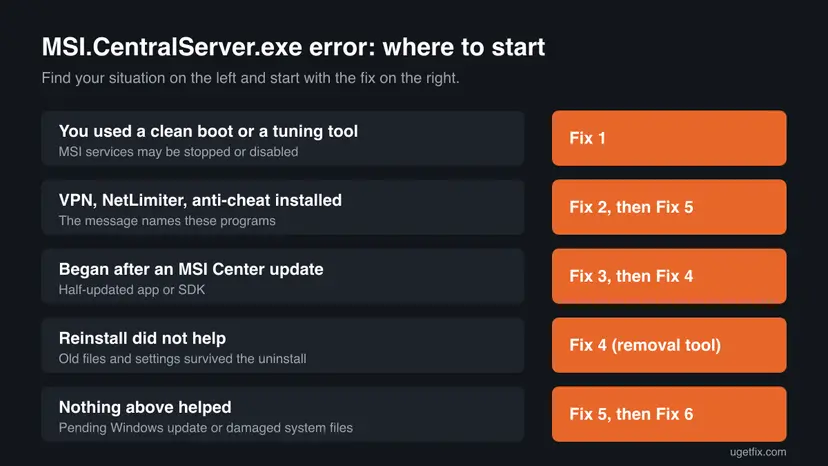
| What you see or have | Start with |
|---|---|
| You ran a clean boot, a startup cleaner or a service tweak tool before the error began. | Fix 1 |
| You use a VPN, NetLimiter, a game anti-cheat or a third-party firewall. | Fix 2, then Fix 5 |
| The error began right after MSI Center updated itself. | Fix 3, then Fix 4 |
| You already uninstalled and installed MSI Center, and the error came back at once. | Fix 4 |
| Every fix above failed. | Fix 5, then Fix 6 |
Fix 1. Start the MSI services and set them back to Automatic
5 minutesLow riskMSI Center worked before, and you recently ran a clean boot, a startup cleaner or a tool that turns off services.
MSI.CentralServer.exe runs through MSI services. If one of them is stopped or disabled, the server cannot start and MSI Center shows the error. Users on MSI's forum report that turning MSI Center Service and msi_case_Service back on fixed it.
- Press Win + R, type
services.mscand press Enter. - Click any row and press M to jump to the services that start with MSI.
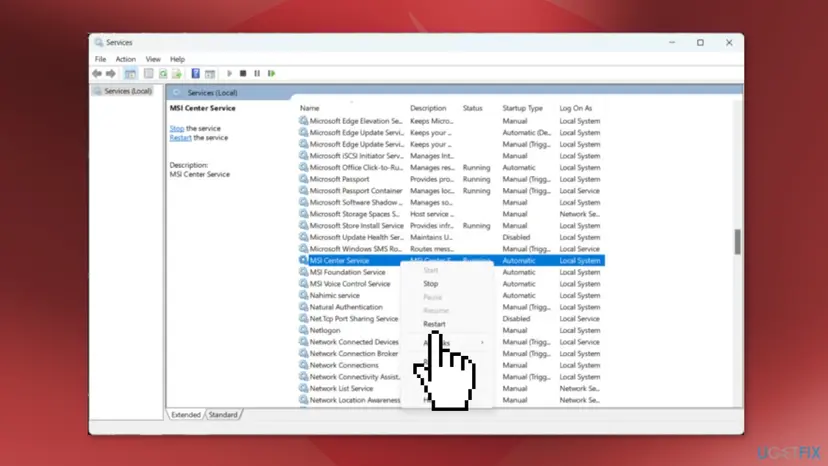
- Find MSI Center Service. Other MSI services may be listed next to it, such as MSI Foundation Service, MSI Voice Control Service or
msi_case_Service. The names depend on the modules you installed. - Right-click MSI Center Service and select Restart, or Start if it is not running.
- If Startup type says Disabled, double-click the service, set it to Automatic, select Apply and then Start.
- Do the same for every other MSI service that is stopped or disabled.
- Open MSI Center again.
If a clean boot turned them off, open System Configuration (msconfig), go to Services, tick Hide all Microsoft services and tick every MSI service again. More on services: Check and restart Windows services
It worked if: Every MSI service shows Running, and MSI Center opens to its main page without the message.
If not: If a service stops again at once or hangs on Starting, go to Fix 2. If it hangs every time, go to Fix 4.
Fix 2. Close VPN, traffic and anti-cheat tools and check your antivirus
5 minutesLow riskThe message asks you to check the firewall, antivirus, anti-cheat or network programs, and you use one of them.
MSI.CentralServer.exe talks to the MSI Center window and to MSI's servers over the network. Tools that filter traffic or watch running processes can stop it. One user on MSI's forum found NetLimiter 4 Service to be the cause after three days.
- Quit any VPN app, NetLimiter, a network booster or a bandwidth tool from its tray icon.
- Close game launchers whose anti-cheat runs in the background, then restart the PC so their drivers unload.
- Open Windows Security > Virus & threat protection > Protection history and look for an MSI file that was blocked or quarantined.
- If the blocked file is in
C:\Program Files (x86)\MSI\MSI Center\, select it and choose Restore or Allow on device. - With a third-party firewall, allow
MSI.CentralServer.exefrom that same folder, and nothing else. - Open MSI Center again.
Allow only the MSI file from the MSI Center folder. Never turn your antivirus or firewall off for good to make MSI Center run. If you want to test with protection paused, do it for one start only and turn it back on: Turn off Microsoft Defender protection for a moment
It worked if: MSI Center opens. If it opens only with the VPN or tool closed, that tool is the cause.
If not: If you are not sure which program interferes, use the clean boot in Fix 5. Otherwise go to Fix 3.
Fix 3. Terminate, repair and reset MSI Center and MSI SDK in Settings
10 minutesLow riskThe error began after MSI Center updated itself, or Fix 1 and Fix 2 did not help.
MSI Center comes as two apps: MSI Center and MSI SDK, the part that talks to the hardware. A moderator on MSI's forum advises to terminate, repair and reset both, so the two parts start again from a clean state.
- Press Win + I and open Apps > Installed apps. In Windows 10 it is Apps > Apps & features.
- Find MSI Center, select the three dots and choose Advanced options.
- Select Terminate, then Repair. Open MSI Center and check whether the message is gone.
- If it is not, go back and select Reset. This removes MSI Center's settings on this PC.
- Do the same for MSI SDK (it may be listed as MSI Center SDK) if it has Advanced options.
- Restart the PC and open MSI Center.
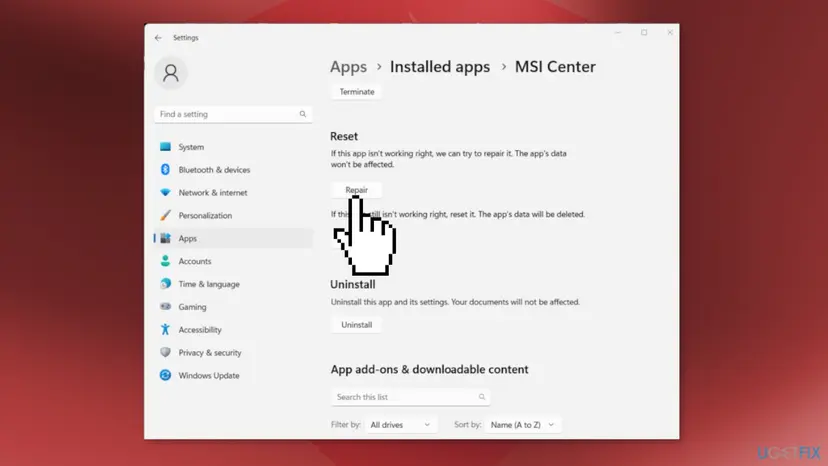
Repair keeps the app's data and Reset deletes it. Step by step for any app: How to repair or reset an app in Windows
It worked if: MSI Center opens, asks you to set it up again after a reset, and the MSI services run.
If not: If there is no Advanced options link or the error stays, remove MSI Center fully in Fix 4.
Fix 4. Remove MSI Center with MSI's removal tool and install it again
30 minutesRead the warningFix 3 did not help, or a normal uninstall and reinstall gave the same error again.
A normal uninstall leaves MSI Center's folder, services and settings behind, and the new install picks up the broken parts. MSI's removal tool, which forum moderators link from MSI's download server, clears what is left. One user reported this exact order fixed the error.
This removes all MSI Center settings and modules: lighting profiles, fan settings, user scenarios. Note the settings you want to keep first. Delete only the folders named below. Leave other MSI programs, such as MSI Afterburner, in place.
- Open Settings > Apps > Installed apps, uninstall MSI Center, then uninstall MSI SDK (or MSI Center SDK).
- Restart the PC.
- Open File Explorer and delete the
MSI Centerfolder inC:\Program Files (x86)\MSI\if it is still there. - Type
%programdata%in the address bar, press Enter and delete the MSI Center folders inside theMSIfolder. Do the same in%appdata%. - Download MSI's removal tool from
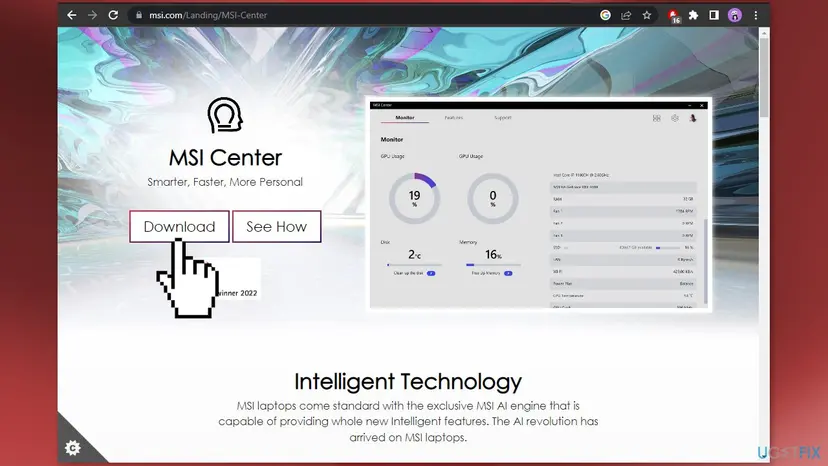
https://download.msi.com/uti_exe/nb/CleanCenterMaster.zip, unpack it and run it. It restarts the PC when it is done. - Install MSI Center again from the Microsoft Store or from MSI's page at msi.com.
- Open MSI Center and install only the feature sets you need.
Both ways to uninstall a program on Windows 11 and Windows 10: Uninstall a program or app in Windows
It worked if: MSI Center installs, asks for your scenario, and opens without the MSI.CentralServer.exe message.
If not: If the installer hangs or an MSI service hangs on Starting, run the install again in the clean boot of Fix 5.
Fix 5. Find the program that clashes with MSI Center in a clean boot
20 minutesLow riskThe error stays after a clean reinstall, or you cannot tell which background program blocks MSI Center.
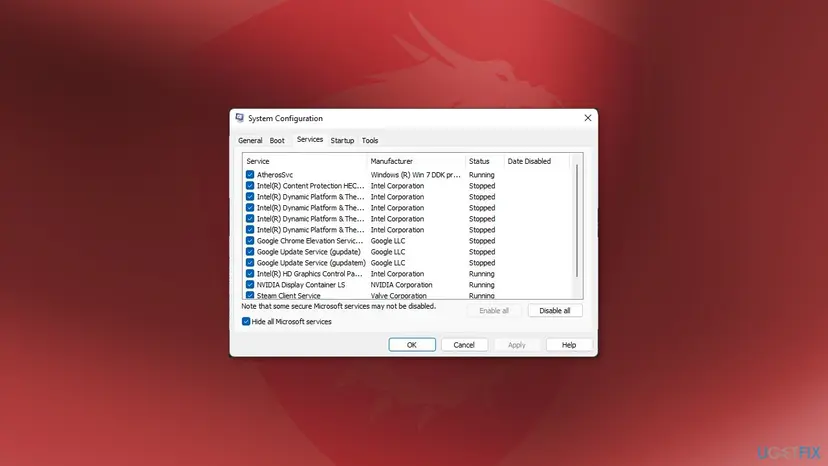
A clean boot starts Windows with Microsoft services only. If MSI Center works there, a third-party service blocks it, and you can find which one by turning services back on in groups.
- Set up a clean boot with the procedure below, but keep every MSI service ticked on the Services tab.
- Restart and open MSI Center. If it shows the error, reinstall it now as in Fix 4.
- If MSI Center works, turn half of the other services back on, restart and test again.
- Keep halving until the error returns. The last group you turned on holds the cause.
- Remove, update or stop that program, then undo the clean boot as the procedure shows.
- Open System Configuration. Select Search on the taskbar, type msconfig and select System Configuration from the results.
- Hide Microsoft services. On the Services tab, select the Hide all Microsoft services check box. Only services from other companies stay in the list.
- Disable the remaining services. Select Disable all, then select Apply.
- Open Task Manager. On the Startup tab of System Configuration, select Open Task Manager.
- Disable the startup apps. On the Startup apps tab in Task Manager, select each item whose status is Enabled and select Disable. Write down or take a screenshot of the items you disable: you need the list to turn them back on.
- Confirm the changes. Close Task Manager. On the Startup tab of System Configuration, select OK.
- Restart and test. Restart the PC. Windows now starts in a clean boot environment: try again the thing that failed (run the app, install the update, uninstall the program).
These steps were written for Windows 11 25H2 and 26H2. The full page with the other versions and what each result means: How to perform a clean boot in Windows
It worked if: MSI Center opens in the clean boot, and the error comes back only with one program's service turned on.
If not: If MSI Center fails even in a clean boot after Fix 4, go to Fix 6.
Fix 6. Install pending Windows updates and repair system files
30 minutesLow riskEvery fix above failed, or other apps also fail to start.
MSI.CentralServer.exe is a .NET program, so it relies on Windows components. A user on MSI's forum reports that MSI support told them to update Windows and that a pending update fixed it. Another fixed it with a system file check.
- Open Settings > Windows Update and select Check for updates.
- Install everything listed, including optional .NET updates, and restart.
- Run DISM and SFC with the procedure below and restart again.
- Update the graphics driver from the maker of your card, then open MSI Center.
- Open an elevated command window. Right-click Start and select Terminal (Admin), or type cmd in the search box, right-click Command Prompt and select Run as administrator. Select Yes when Windows asks for permission.

Search for cmd and choose Run as administrator. Screenshot: Windows 11 26H2. - Run DISM first. Type the command below and press Enter. DISM downloads clean copies of damaged components from Windows Update, so it can take several minutes. Wait until it says The operation completed successfully.
DISM.exe /Online /Cleanup-Image /RestoreHealth
DISM /RestoreHealth running. Screenshot: Windows 11 26H2. - Run System File Checker. In the same window, type the command below and press Enter. Do not close the window until the verification reaches 100%.
sfc /scannow
sfc /scannow at 100%. Screenshot: Windows 11 26H2.
These steps were written for Windows 11 24H2 and 25H2. The full page with the other versions and what each result means: Run DISM and SFC to repair Windows system files
Windows 10 left support on 14 October 2025. If you still use it, install the last 22H2 updates; MSI may not test new MSI Center builds there. To update a driver in Device Manager: Update, roll back or reinstall a driver
It worked if: Windows Update says you are up to date, SFC finds no problems or repairs them, and MSI Center opens.
If not: Read the Event Viewer entries in the next section and send them to MSI support.
If MSI Center still shows the error: where the real cause is written
When MSI.CentralServer.exe crashes, Windows writes the reason to Event Viewer. That entry names the file that failed, which tells you and MSI support far more than the message window.
- Press Win + X and open Event Viewer.
- Open Windows Logs > Application and look for Error entries from Application Error (Event ID 1000) and .NET Runtime (Event ID 1026) at the time of the message.
- Read Faulting application name and Faulting module name. The application is
MSI.CentralServer.exe; the module is the file that crashed it. - Open Windows Logs > System and look for Event ID 7034: "The MSI Central Service service terminated unexpectedly".
- A module from MSI Center's folder (for example
API_SSD Doctor.dll) points to one MSI module. Send the entry to MSI support with your MSI Center version. - A module from another program's folder points to a clash. Remove or update that program, as in Fix 5.
- What to send to MSI: the MSI Center and MSI SDK versions from Installed apps, your MSI product model, the Windows version from
winver, and the text of the Event ID 1000 entry.
This error does not mean your MSI board, laptop or card is failing. Your PC works the same without MSI Center. Only its extras, such as lighting, fan profiles and Live Update, wait until MSI Center runs again.
How to keep MSI Center from breaking again
- Keep the MSI services ticked when you run a clean boot or a startup cleaner.
- Install only the MSI Center feature sets you use.
- Get MSI Center only from the Microsoft Store or msi.com.
- Install Windows updates before a big MSI Center update.
- Run tools that disable services in bulk.
- Install MSI Center over an old Dragon Center or a broken MSI Center without the removal tool.
- Turn the antivirus off for good to make MSI Center start.
If you only need one feature, such as lighting or driver updates, you can also leave MSI Center uninstalled and get drivers from your product's support page on msi.com.
Frequently asked questions
What does error occurs when running MSI.CentralServer.exe mean?
It means the MSI Center window could not start or reach its background server, MSI.CentralServer.exe. The message then asks you to check the firewall, antivirus, anti-cheat and network programs, because those can block the server. Most often an MSI service is stopped or disabled, or a VPN or traffic tool is in the way. Start the MSI services (Fix 1), close network tools (Fix 2), and repair or reinstall MSI Center if that does not help.
Is MSI.CentralServer.exe is abnormal a different error?
No, it is the same problem with the wording of older MSI Center builds, such as 1.0.55.0 from 2022. Newer builds show "Error occurs when running MSI.CentralServer.exe" instead. In both cases the MSI Center server process did not start or crashed. The fixes on this page work for both messages.
What is MSI.CentralServer.exe?
It is the background server of MSI Center, MSI's control app for its laptops, desktops, motherboards and graphics cards. The MSI Center window you see sends its requests to this process, which then talks to the hardware and to MSI's servers. It is installed in C:\Program Files (x86)\MSI\MSI Center\ and runs through MSI services such as MSI Center Service. The same program is searched as msi.centralserver and msi central server.
Is MSI.CentralServer.exe a virus or safe?
The real file is MSI's own program and is safe when it sits in C:\Program Files (x86)\MSI\MSI Center\. If you find a file with this name in another folder, or on a PC with no MSI product and no MSI Center installed, scan the PC with Microsoft Defender. Right-click the file and open Properties > Digital Signatures to see whether MSI signed it.
Is there a 32 bit version of MSI Central Server?
MSI does not offer MSI Central Server as a separate download. It comes with MSI Center. The program installs into Program Files (x86), the folder Windows uses for 32-bit programs, and it runs on 64-bit Windows 11 and Windows 10. We could not confirm whether current MSI Center builds still install on 32-bit Windows 10.
Can I stop or delete MSI.CentralServer.exe?
You can, but MSI Center then stops working, and so do its lighting, fan and Live Update features. Do not delete the file by hand, because that leaves a broken install that shows the error at every start. If you do not want MSI Center at all, uninstall MSI Center and MSI SDK in Settings, then run MSI's removal tool as in Fix 4.
Why does the error come back after I reinstall MSI Center?
A normal uninstall leaves MSI Center's folders, services and settings behind, and the new install picks them up again. Remove both MSI Center and MSI SDK, delete the leftover MSI Center folders, run MSI's removal tool CleanCenterMaster and only then install again (Fix 4). If the error still returns at once, a program that starts with Windows blocks the server: find it with the clean boot in Fix 5.
Does MSI Center work on a PC with a non-MSI motherboard?
MSI's page lists laptops, desktops, all-in-one PCs, motherboards, graphics cards and gaming gear as supported products. Users on MSI's forum report the error on PCs with an MSI graphics card on another brand's motherboard, too. We could not confirm which modules work in that case. If you only need the card's settings, MSI's graphics card tools may be enough.
I tried everything and it is still not fixed. What now?
Read the crash entry in Event Viewer as shown above: Event ID 1000 in the Application log names the file that crashed. Send it to MSI support with your MSI Center version, product model and Windows version. Users in 2022 reported that MSI support then promised a fix in a later MSI Center version. Until then, your PC works normally without MSI Center.
Do these fixes work if my Windows is not in English?
Yes. The message and the menu names are translated, but the steps are the same in every language. Look for the same places: Services, Settings > Apps, System Configuration and Event Viewer. The file name MSI.CentralServer.exe and the folder C:\Program Files (x86)\MSI\MSI Center\ never change, so search for them when a menu name looks different.
Sources
- MSI: MSI Center (feature sets, supported products, download) (msi.com)
- MSI Global English Forum: MSI.CentralServer.exe is abnormal (moderator advice, MSI support reply, Event Viewer log) (forum-en.msi.com)
- MSI Global English Forum: Error occurs when running MSI.CentralServer.exe (removal tool, user reports) (forum-en.msi.com)
Did this fix work?
One click, no account. It tells the next reader which guides are worth their time.
Questions and experiences: fix "MSI.CentralServer.exe is abnormal" error in Windows
Still broken, or found a fix we did not cover? Ask here: members and our editors answer. Reading is open; writing needs a free account.
…