
How to fix msteams_autostarter.exe error in Windows?

Prefer to fix it yourself? The manual steps follow.
- 7methods
- 2 to 30 minutes
- Easy
Applies to New Microsoft Teams (work or school, and home) on Windows 11 and Windows 10, including virtual desktops
7 methods in this guide
I came across the following error which says that msteams_autostarter.exe "Parameter is incorrect." What is the solution to this? Help would be appreciated.
msteams_autostarter.exe is the small program inside the new Microsoft Teams that opens Teams when you sign in to Windows. When it fails, Windows shows The parameter is incorrect. Select OK, start Teams from the Start menu and update it (Fix 1); if it keeps coming back, repair or reset Teams.
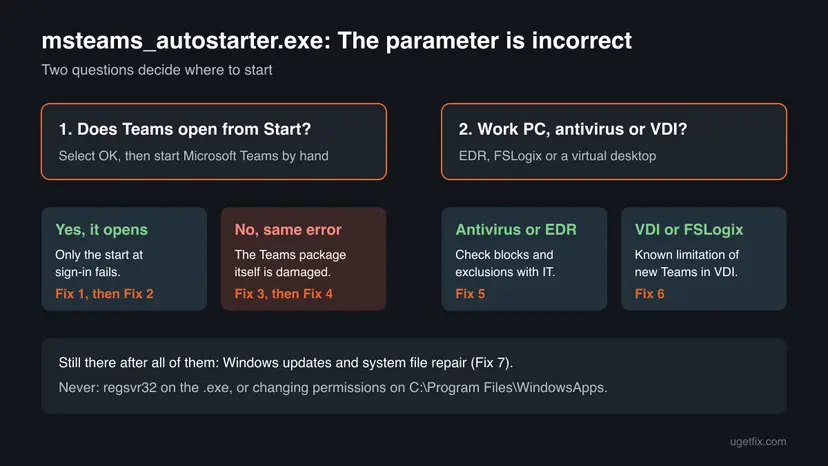
The message comes from the part of new Teams that starts it at sign-in, not from a virus. Select OK, open Microsoft Teams from Start and use Check for updates (Fix 1). If Teams opens by hand, the fault is only in the automatic start: turn it off for now (Fix 2). If Teams does not open at all, repair and then reset it (Fix 3). On work PCs, antivirus or a virtual desktop is a common cause (Fix 5 and Fix 6).
| Error | A Windows dialog titled with the path to msteams_autostarter.exe and the text The parameter is incorrect. with one OK button. |
|---|---|
| Where it appears | Right after you sign in to Windows, when new Teams tries to start by itself. Sometimes also when you start Teams by hand, then naming ms-teams.exe. |
| Main cause | The automatic start of new Teams fails: most often after a Teams update, or because antivirus or endpoint protection stops the start. On virtual desktops it is a known limitation of new Teams. |
| Fastest fix | Select OK, start Teams from the Start menu and run Check for updates (Fix 1). |
| File location | C:\Program Files\WindowsApps\MSTeams_<version>_x64__8wekyb3d8bbwe\msteams_autostarter.exe. The version part changes with every Teams update. |
| Also written as | msteams_autostarter, msteamsautostarter, ms teams autostarter, msteams_autostarter.exe Microsoft Teams, New Teams AutoStart The Parameter is incorrect. |
| Affects | New Teams on Windows 11 and Windows 10. Reports started in late 2023 with Teams versions such as 23285 and 24004. |
| Microsoft's status | In April 2024 a reply in Microsoft's own Q&A thread said the root cause was found and a fix was being worked on. We could not confirm which Teams version fixed it. |
| Time to fix | 2 minutes for Fix 1 and Fix 2. Up to 30 minutes for a reinstall. Antivirus and VDI cases need IT. |
Facts checked on 15 October 2026. Steps written for the new Microsoft Teams on Windows 11 (25H2 and 26H2) and Windows 10 22H2, read against Microsoft Q&A threads on the error and Ivanti's knowledge base article.
What the msteams_autostarter.exe error means
New Teams is installed as a Windows app package in C:\Program Files\WindowsApps, in a folder named after its version, for example MSTeams_23285.3607.2525.937_x64__8wekyb3d8bbwe. Inside it, msteams_autostarter.exe has one job: start Teams when you sign in. The main program is ms-teams.exe in the same folder.
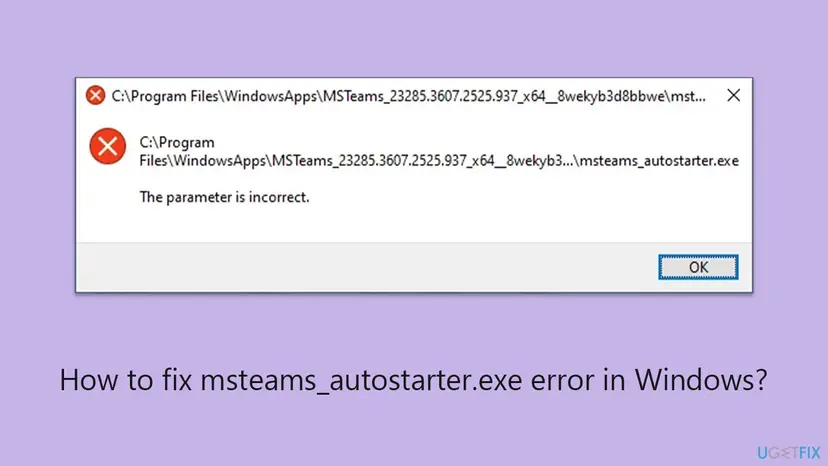
The parameter is incorrect is a general Windows message. Here it means Windows could not start the autostarter with what it was given. Teams itself, your chats and your files are not damaged. In most cases you can still open Teams from the Start menu.
No, when it sits in a MSTeams_..._8wekyb3d8bbwe folder under C:\Program Files\WindowsApps. That folder belongs to the Microsoft Teams package. A file with this name anywhere else, such as your Downloads or Temp folder, is not part of Teams: scan it with How to scan for malware with Microsoft Defender.
The same message can also name ms-teams.exe instead of the autostarter. That is the same problem one step later: the start of the Teams program fails, not only its automatic start. The fixes below are the same.
What causes the msteams_autostarter.exe "The parameter is incorrect" error, ranked
Microsoft has not published one cause. The order below is our reading of the Microsoft Q&A threads and Ivanti's knowledge base article. It is not a statistic, and each cause points to its fix.
| How often | Cause | Typical sign | Fix |
|---|---|---|---|
| Most often | A Teams update left the automatic start pointing at a package that does not start | Teams worked for days, then the error came after an update | Fix 1, Fix 2 |
| Often | Damaged files or local data of the Teams package | Teams also fails when you start it by hand | Fix 3, Fix 4 |
| Often on work PCs | Antivirus or endpoint protection (EDR) stops the start | Only PCs with a certain security product fail, even with exclusions | Fix 5 |
| On virtual desktops | A known limitation of new Teams in VDI, often with FSLogix profiles | Error at every second sign-in, or only in some session pools | Fix 6 |
| Rarely | Damaged Windows components | Other Store apps fail to start too | Fix 7 |
Running regsvr32 on msteams_autostarter.exe does nothing useful: regsvr32 registers DLL and OCX files, not programs. Giving all users rights on the Teams folder in C:\Program Files\WindowsApps, as one forum reply suggests, weakens a protected system folder and stops working with the next update, because each update creates a new folder.
How to fix the msteams_autostarter.exe error in Windows
Go in order and restart the PC after each fix to see whether the message still appears at sign-in. Fix 1 to Fix 4 are for every PC. Fix 5 and Fix 6 are for work PCs with endpoint protection or virtual desktops. Success looks the same every time: you sign in and Teams opens, or simply no dialog appears.
| Your case | Start with | Then |
|---|---|---|
| You do not know the cause yet | Fix 1 | Fix 2 |
| Teams opens fine from the Start menu | Fix 1 | Fix 2 |
| Teams does not open at all, or the error names ms-teams.exe | Fix 3 | Fix 4 |
| You only want the message gone today | Fix 2 | Fix 1 later |
| Work PC with antivirus or EDR, other PCs are fine | Fix 5 | Fix 4 |
| Virtual desktop, FSLogix or every second sign-in | Fix 6 | Fix 5 |
Fix 1. Select OK, start Teams from the Start menu and update it
3 minutesNo riskEveryone, first. Above all when Teams worked until recently and the error started after an update.
The error is in the automatic start, and a Microsoft Q&A thread describes it appearing a few days after Teams updated itself. Starting Teams by hand tells you whether the package works, and an update installs a new package folder that the next automatic start uses.
- Select OK in the dialog.
- Open Start, type Teams and select Microsoft Teams.
- When Teams is open, select Settings and more (three dots) next to your profile picture.
- Select Check for updates and let Teams install what it finds.
- Restart Teams when it asks, then restart the PC and sign in again.
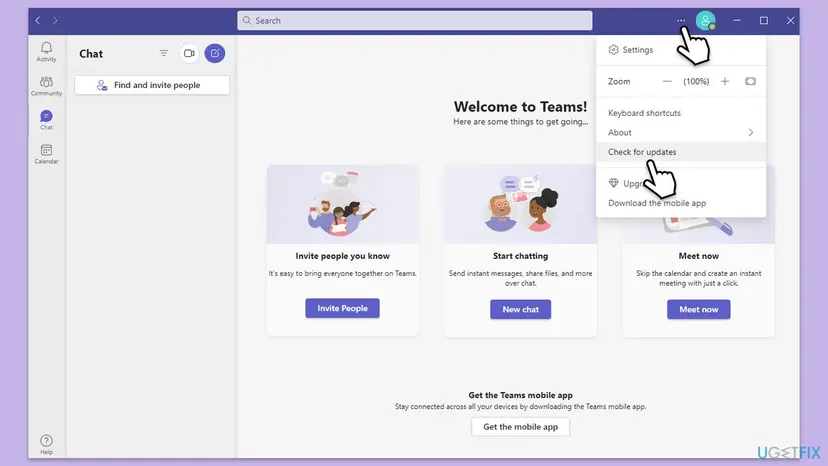
It worked if: Teams opens from Start, updates, and after a restart it starts at sign-in without the dialog.
If not: If Teams opens by hand but the dialog comes back at sign-in, go to Fix 2. If Teams does not open by hand either, go to Fix 3.
Fix 2. Turn off Teams at sign-in to stop the message
2 minutesNo riskTeams works when you open it by hand, and you want the dialog gone now. Also as a stopgap while IT works on Fix 5 or Fix 6.
The dialog appears only because Windows runs the autostarter at sign-in. When the Teams startup entry is off, the autostarter does not run, so the message cannot appear. Teams itself stays installed and works when you start it.
- Open the Startup settings. Select Start > Settings > Apps > Startup.
- Turn apps off. Set the switch of each app you do not need at sign-in to Off. Use Sort by to put the apps with the highest impact first.
These steps were written for Windows 11 24H2, 25H2 and 26H2. The full page with the other versions and what each result means: Stop apps from opening at startup
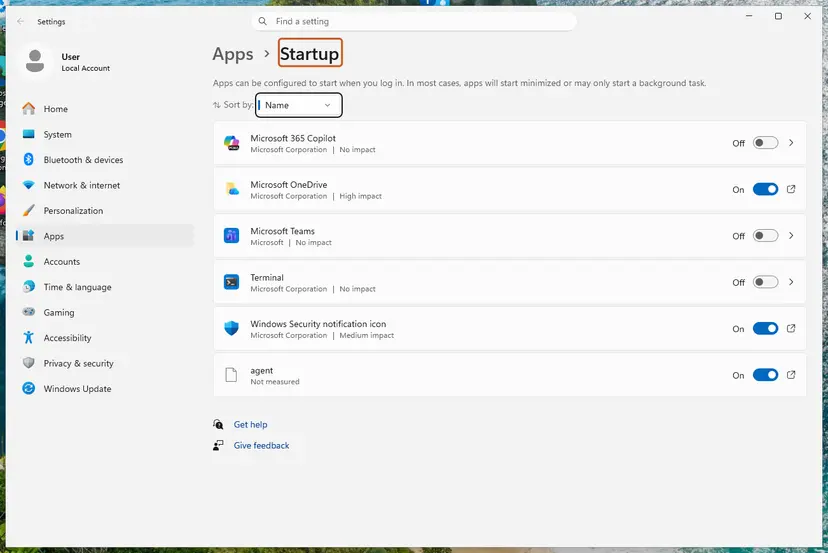
- In the list, find Microsoft Teams (the new Teams can also be listed as Microsoft Teams (work or school)) and set its switch to Off.
- Restart the PC. The dialog should no longer appear.
- After a later Teams update, turn the switch back On and restart once to see whether the automatic start works again.
Teams also has its own auto-start option in its settings. If your version shows it under Settings and more > Settings > General, it controls the same start. We could not confirm its exact place in every Teams version.
It worked if: You sign in without the dialog and open Teams yourself from Start.
If not: If the dialog still appears, Teams is started by a policy or by IT. Ask IT, or try Fix 3.
Fix 3. Repair Teams, then reset it
5 minutesLow riskTeams does not open from Start either, the error names ms-teams.exe, or Fix 1 did not help.
Repair checks the files of the Teams package and keeps its data. Reset also deletes the local Teams data, which removes damaged settings that can stop the start. Both work on the installed package without a new download.
- Open Settings > Apps > Installed apps on Windows 11, or Settings > Apps > Apps & features on Windows 10.
- Find Microsoft Teams, select More options (three dots) and select Advanced options.
- Select Terminate so no Teams process is running.
- Under Reset, select Repair. Wait for the check mark and start Teams from Start.
- If the error stays, come back and select Reset, then confirm. Start Teams and sign in again.
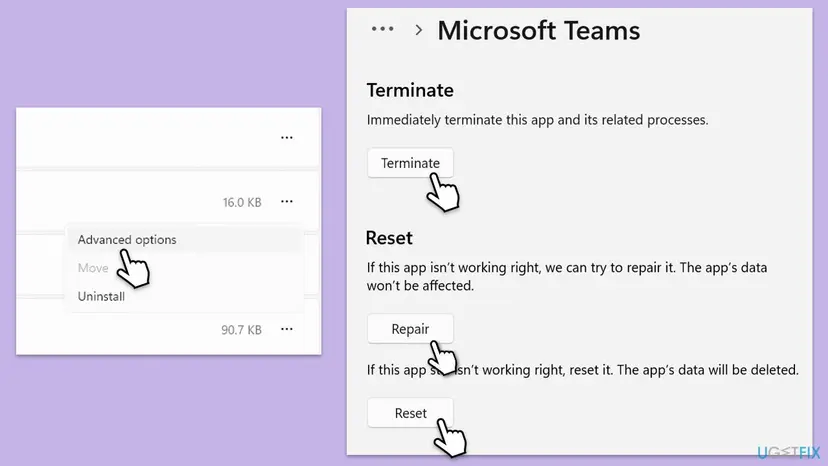
Step by step with screenshots for any app: How to repair or reset an app in Windows.
Reset deletes the local data of Teams on this PC, such as your app settings and the sign-in. Chats, files, channels and meetings are stored in your Microsoft account and come back after you sign in.
It worked if: Teams opens from Start, and after a restart it starts at sign-in without the dialog.
If not: If Teams still fails after the reset, uninstall it and install a fresh copy with Fix 4.
Fix 4. Uninstall Teams and install a fresh copy
10 to 20 minutesLow riskRepair and reset did not help, or two Teams versions are installed side by side.
A new install creates a clean package folder and a new startup entry for it. Users in the Microsoft Q&A thread report that reinstalling alone did not always last, so do it after Fix 3 and check Fix 5 if the error comes back.
- Uninstall from the Start menu. Select Start > All apps and find the app. Right-click it (or press and hold) and select Uninstall.
- Or uninstall in Settings. Select Start > Settings > Apps > Installed apps. Find the app, select More (the three dots) > Uninstall, and confirm.
- Or uninstall from Control Panel. Some programs can only be removed here. Type Control Panel in the search box on the taskbar and open it, then select Programs > Programs and Features. Right-click the program and select Uninstall or Uninstall/Change, then follow the program's own uninstaller.
These steps were written for Windows 11 24H2 and 25H2. The full page with the other versions and what each result means: Uninstall a program or app in Windows
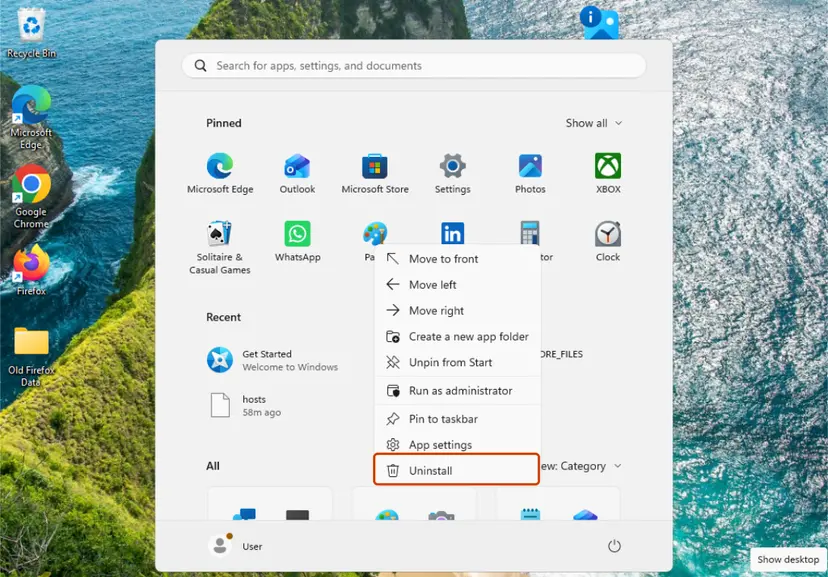
- Remove Microsoft Teams from the list of installed apps. Remove Microsoft Teams classic too if it is still listed.
- Restart the PC.
- Download a fresh installer from Microsoft:
https://www.microsoft.com/microsoft-teams/download-app. - Run it, sign in and restart the PC once more to test the automatic start.
Older guides tell you to delete the Teams folder in C:\Program Files\WindowsApps by hand. Do not: that folder is protected, and a half-deleted package can block every later install. Uninstalling through Settings removes the package properly.
It worked if: The new Teams installs, opens, and starts at sign-in without the dialog.
If not: If the error returns after some days, on a work PC go to Fix 5. If setup itself fails, read our Installation has failed guide.
Fix 5. Check whether antivirus or endpoint protection blocks Teams
10 minutes, plus ITLow riskA work or school PC with endpoint protection (EDR), or any PC where the error started after a security product was installed.
In one Microsoft Q&A case two identical pools of virtual PCs differed only in Bitdefender: the pool with it got the error, the one without did not, even with exclusions for ms-teams.exe and ms-teamsupdate.exe. Ivanti also says how often the error appears depends mostly on the antivirus in use.
- Open Windows Security from Start and select Virus & threat protection > Protection history.
- Look for blocked items around the time you signed in that name Teams,
msteams_autostarter.exeorms-teams.exe. - If you use another security product, open its event or quarantine list and look for the same names.
- On a work PC, send IT the time of the error and the full path from the dialog. Ask them to check endpoint protection logs and exclusions for the whole
MSTeams_..._8wekyb3d8bbwepackage, not onlyms-teams.exe. - On a home PC, you can test once with protection paused for a few minutes, then turn it back on: Turn off Microsoft Defender protection for a moment.
Never leave antivirus or endpoint protection off as a fix. If Teams starts cleanly with it paused, turn protection back on and add an exclusion or report the false block to the security vendor.
It worked if: You find a block that names Teams, and after an exclusion Teams starts at sign-in without the dialog.
If not: If nothing is blocked and this is a virtual desktop, go to Fix 6. Otherwise go to Fix 7.
Fix 6. For IT: virtual desktops and FSLogix profiles
30 minutes for a test pool, longer for rolloutRead the warningTeams runs on a virtual desktop (VMware Horizon, Citrix, Azure Virtual Desktop), with FSLogix profile containers or a workspace manager.
Ivanti's article says this error at the start of new Teams in non-persistent environments with FSLogix is a known limitation listed by Microsoft. It also happens in sessions not managed by Ivanti, so the cause is new Teams in VDI, not the session manager.
Profile container and redirection changes affect every user of the pool and can lose cached data. Change one test pool, keep a copy of the current FSLogix settings, and roll out only after several clean sign-ins.
- Read the section Features currently not available and known issues in VDI with the new Teams in Microsoft's article on new Teams for VDI, and apply the workarounds listed there for your version.
- Check that the endpoint protection on the session hosts excludes the new Teams package, as in Fix 5.
- Review the FSLogix profile settings for Temp and INetCache folders. One administrator on Microsoft Q&A reported the error stopped after INetCache was no longer redirected.
- Keep Teams and the VDI agent on current versions and test sign-in several times, because the error can appear only at every second sign-in.
- If it persists, open a case with Microsoft support with the Teams version and the session logs.
Microsoft's article is at https://learn.microsoft.com/en-us/microsoftteams/new-teams-vdi-requirements-deploy. We did not read its current known issues list for this guide, so check it for your Teams version.
It worked if: Users sign in to the virtual desktop and Teams starts without the dialog, also on repeated sign-ins.
If not: Keep auto-start off for the pool (Fix 2) while the Microsoft case is open.
Fix 7. Install Windows updates and repair system files
20 to 40 minutesLow riskLast. Fixes 1 to 6 did not help, or other Store apps also fail to start.
New Teams runs as a Windows app package, so it depends on the Windows parts that start such packages. If those are damaged or out of date, the start can fail with a general message like this one.
- Open Settings > Windows Update, select Check for updates and install everything, then restart.
- If the error stays, repair Windows system files: Run DISM and SFC to repair Windows system files.
- Restart and sign in to test.
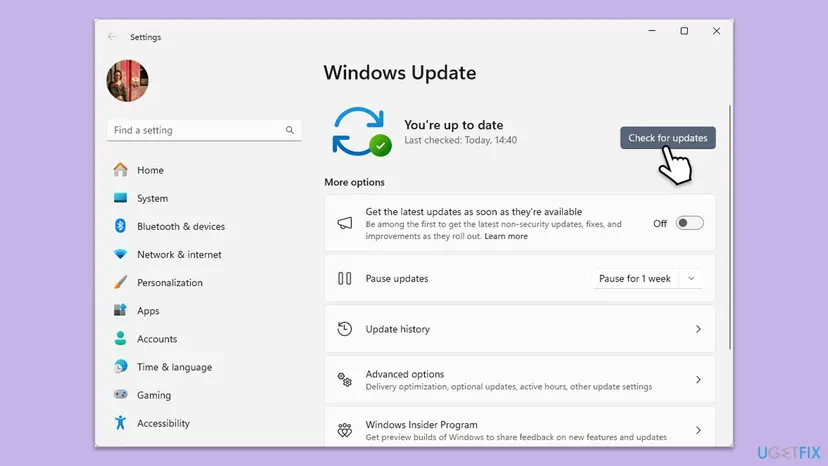
It worked if: After updates and repair, Teams starts at sign-in without the dialog.
If not: See the next section for what to send to IT or Microsoft.
If msteams_autostarter.exe still says "The parameter is incorrect"
Keep the automatic start off (Fix 2) and open Teams by hand, or use Teams on the web at https://teams.microsoft.com meanwhile. Then hand the case on with the details below.
| What you see | Likely reason | Who can fix it |
|---|---|---|
| Only PCs with one security product fail | Endpoint protection blocks the start | IT and the security vendor |
| Only virtual desktops fail | Known limitation of new Teams in VDI | IT, with Microsoft support |
| Teams fails for one Windows user, works for another | Damaged profile data | Fix 3, then Create a new user account to test a problem to test |
| Several Store apps fail to start | Damaged Windows components | Run DISM and SFC to repair Windows system files, then Reinstall Windows without losing files |
- Copy the full path from the dialog title, including the Teams version number.
- Note whether the error names
msteams_autostarter.exeorms-teams.exe. - Note your Windows version from
winverand the Teams version from Settings and more > About. - Note the security product in use and any entries in its event log at the time of sign-in.
- Say which fixes on this page you tried and what each one changed.
How to keep the error from coming back
- Let Teams update itself, and run Check for updates now and then.
- Keep only the new Teams installed. Remove old or duplicate Teams entries from Installed apps.
- On work PCs, keep endpoint protection exclusions in line with the current Teams package, not a fixed version folder.
- Never delete files in
C:\Program Files\WindowsAppsor change its permissions by hand. - Install Windows updates. Windows 10 support ended on 14 October 2025, so a Windows 10 PC no longer gets fixes for the parts Teams depends on.
Frequently asked questions
What is msteams_autostarter.exe?
It is part of the new Microsoft Teams. It sits in the Teams package folder under C:\Program Files\WindowsApps\MSTeams_<version>_x64__8wekyb3d8bbwe and starts Teams when you sign in to Windows. It is not a separate program you installed, and it is not a virus when it is in that folder. If you find a file with this name somewhere else, such as in Downloads, scan it with Microsoft Defender.
Why does msteams_autostarter.exe say "The parameter is incorrect"?
Windows could not start the autostarter with the details it was given. Reports on Microsoft Q&A tie it to three situations: a Teams update after which the automatic start fails, antivirus or endpoint protection that stops the start, and virtual desktops where Microsoft lists it as a known limitation of new Teams. Start Teams by hand and update it first (Fix 1). The causes table above ties each case to its fix.
How do I stop the msteams_autostarter message from showing at startup?
Open Settings > Apps > Startup and set Microsoft Teams to Off (Fix 2). The autostarter then does not run when you sign in, so the message stops showing. Teams stays installed, and you open it from the Start menu when you need it. After the next Teams update, turn the switch back on and restart once to see whether the automatic start works again.
Can I delete msteams_autostarter.exe?
No. It is part of the Teams app package in a protected folder, and deleting files there by hand can break Teams and block later installs. If you do not want Teams to start at sign-in, turn it off in Settings > Apps > Startup. If you do not use Teams at all, uninstall Microsoft Teams from Settings > Apps > Installed apps, which removes the autostarter with it.
Will repairing, resetting or reinstalling Teams delete my chats?
No. Chats, channel messages, files and meetings are stored in your Microsoft account, not on the PC. Repair keeps the app's data. Reset deletes local Teams data on this PC, such as settings and the sign-in, and you sign in again. Reinstalling removes the app and its local data the same way. After you sign in, your chats and files load again from the account.
Does running regsvr32 on msteams_autostarter.exe fix it?
No. regsvr32 registers DLL and OCX components, and msteams_autostarter.exe is a program, so the command has nothing to register. This tip appears on older pages, including an earlier version of this one. Use Fix 1 to Fix 4 instead: update, repair, reset or reinstall the Teams package through Windows Settings.
Is something wrong with my laptop?
Almost certainly not with the hardware. The message is about Microsoft Teams failing to start itself when you sign in. Your files are safe, and other apps work as before. Select OK, open Teams from the Start menu and update it (Fix 1). If you do not use Teams, you can turn off its start at sign-in (Fix 2) or uninstall it.
What is m365copilot_autostarter.exe?
The name follows the same pattern as the Teams file, so it most likely starts the Microsoft 365 Copilot app at sign-in. We could not confirm this or which errors it shows from Microsoft's documentation, so this page does not cover it. If it shows The parameter is incorrect, the general steps are the same idea: start the app by hand, update it, repair or reset it in Advanced options, or turn it off in Settings > Apps > Startup.
What is this message, and how do I fix it in my language?
Readers ask what this is, how to fix it and why it appears in Indonesian, Russian, Ukrainian, Arabic, Bengali, Thai, Vietnamese, French and Italian. The answer is the same in every language: the message comes from Microsoft Teams, which failed to start itself when Windows started. It is not a virus. Select OK, open Teams from Start and update it. To stop the message, turn off Teams in Settings > Apps > Startup.
Did Microsoft fix the msteams_autostarter.exe error?
In April 2024 a reply in Microsoft's Q&A thread on this error said the root cause was found and a fix was being prepared. We could not confirm which Teams version included it, and later replies on virtual desktops still report the error. Ivanti's article says Microsoft lists it as a known limitation for new Teams in VDI. On a normal PC, a current Teams version plus Fix 1 to Fix 4 is the practical answer.
Sources
- Microsoft Q&A: New Teams prompting "The parameter is incorrect" error (path with ms-teams.exe, error after updates, April 2024 reply on the root cause, permission workaround reported by a user) (learn.microsoft.com)
- Microsoft Q&A: New Teams - AutoStart The Parameter is incorrect (VDI pools with and without Bitdefender, exclusions for ms-teams.exe and ms-teamsupdate.exe, FSLogix INetCache report) (learn.microsoft.com)
- Ivanti knowledge base 000091716: "The parameter is incorrect" when (auto)launching New Teams in a non-persistent environment (msteams_autostarter.exe path, antivirus dependence, Microsoft known VDI limitation) (hub.ivanti.com)
Did this fix work?
One click, no account. It tells the next reader which guides are worth their time.
Questions and experiences: fix msteams_autostarter.exe error in Windows
Still broken, or found a fix we did not cover? Ask here: members and our editors answer. Reading is open; writing needs a free account.
…