
How to fix .NET Framework error 0x800f080c in Windows?

Prefer to fix it yourself? The manual steps follow.
- 6methods
- 5 to 30 minutes
- Medium
Applies to Windows 11 and Windows 10: DISM, Turn Windows features on or off, and program setups that turn on .NET Framework 3.5 or Hyper-V
6 methods in this guide
Hello, I can't seem to be able to install .NET Framework because of the 0x800f080c error. How can I overcome this?
Error 0x800f080c comes from DISM, the tool Windows uses to turn features on, and it means Windows does not recognise the feature name it was asked to install. Most often that is .NET Framework 3.5 (NetFx3) or Hyper-V. Read the name in the message, then check it with DISM /Get-Features (Fix 1).
0x800f080c means "Feature name is unknown": the feature you asked DISM to turn on does not exist in this Windows under that name. Check the exact name with DISM /Get-Features (Fix 1). If the name is NetFx3 and your Windows 11 build is 28000 or later, .NET Framework 3.5 is no longer a Windows feature: install Microsoft's standalone .NET 3.5 installer instead (Fix 2). For Hyper-V, check that your edition is not Home (Fix 4).
| Error | Error: 0x800f080c with Feature name NetFx3 is unknown. (or another name) and A Windows feature name was not recognized. |
|---|---|
| Where it appears | In Command Prompt or Terminal after a DISM /Online /Enable-Feature command, or in a program's setup that turns on .NET Framework 3.5 or Hyper-V for you. |
| Main cause | The feature name is not in this Windows image: a typo, an edition without the feature, or a feature Microsoft removed, such as .NET 3.5 from Windows 11 build 28000. |
| Fastest fix | List the real names with DISM /Online /Get-Features /Format:Table and run the command again with the exact name (Fix 1). |
| Also written as | 0x800F080C, error: 0x800f080c, error code 0x800f080c, "ошибка: 0x800f080c" or "erro 0x800f080c" in other languages. |
| Affects | Windows 11 and Windows 10. Windows 10 left support on 14 October 2025. |
| Microsoft's status | Not a bug. From Windows 11 26H1 (build 28000) and Insider build 27965, .NET Framework 3.5 is only a standalone installer, so the NetFx3 feature name is gone there. |
| .NET 3.5 support | Microsoft says .NET Framework 3.5 reaches end of support on 9 January 2029. |
| Log file | C:\Windows\Logs\DISM\dism.log, the path DISM names under the error. |
| Time to fix | 2 minutes to check the name, up to 30 minutes for the repairs at the end. |
Facts checked on 15 October 2026. Steps written for Windows 11 (25H2 and 26H2) and Windows 10 22H2.
What error 0x800f080c means
0x800f080c is a Windows servicing error. DISM, the Deployment Image Servicing and Management tool, returns it when you ask it to turn on a feature whose name it cannot find in the Windows image. Nothing was downloaded and nothing was changed. DISM stopped at the very first check: does this name exist here?
The full message in Command Prompt or Terminal looks like this. The name in the second line changes with the feature you asked for, for example NetFx3 for .NET Framework 3.5 or Microsoft-Hyper-V for Hyper-V.
Error: 0x800f080c

Feature name NetFx3 is unknown.
A Windows feature name was not recognized.
Use the /Get-Features option to find the name of the feature in the image and try the command again.

The DISM log file can be found at C:\Windows\Logs\DISM\dism.log| Line | What it tells you |
|---|---|
| Error: 0x800f080c | The servicing code for an unknown feature. The same code on Windows 10 and Windows 11. |
| Feature name NetFx3 is unknown. | The exact name DISM looked for. This is the part that decides the fix. |
| A Windows feature name was not recognized. | The name is not in the list of features of this Windows. It is not a download or network problem. |
| Use the /Get-Features option to find the name of the feature in the image and try the command again. | DISM's own advice: list the names this Windows really has. That is Fix 1. |
If you searched in another language, for example "ошибка: 0x800f080c", "erro 0x800f080c" or "حل مشكلة": this page explains the Windows error 0x800f080c. A Russian Windows shows it as Ошибка: 0x800f080c with Имя компонента "Microsoft-Hyper-V" неизвестно, which is the same "feature name is unknown" message, and the fixes below are the same.
Why Windows does not recognise the feature name
The old advice for this code was to update Windows, run SFC and turn off security features. That misses the point: the error is about a name. Find out why the name is missing, and the fix follows. These are the causes, from the most common to the rarest.
| Cause | How often | How to tell | Fix |
|---|---|---|---|
| The name is typed wrong, or a guide gave a name from another Windows version. | Most often | DISM /Online /Get-Features lists a name that is close but not the same. | Fix 1 |
| Windows 11 build 28000 or later (26H1) no longer has .NET Framework 3.5 as a feature. | Often, and growing | The name is NetFx3 and winver shows OS Build 28000 or higher. | Fix 2 |
| The name is right, but .NET 3.5 should be turned on through Windows Features or from media. | Sometimes | NetFx3 appears in the list with State Disabled on Windows 10 or Windows 11 25H2 and earlier. | Fix 3 |
| The edition has no Hyper-V, or Hyper-V was removed from the image. | Sometimes | The name is Microsoft-Hyper-V and the edition is Home, or Hyper-V is missing from Windows Features. | Fix 4 |
| An unfinished update or a damaged component store. | Rarely | A restart is pending, or the name is in the list but DISM still fails. | Fix 5 and Fix 6 |
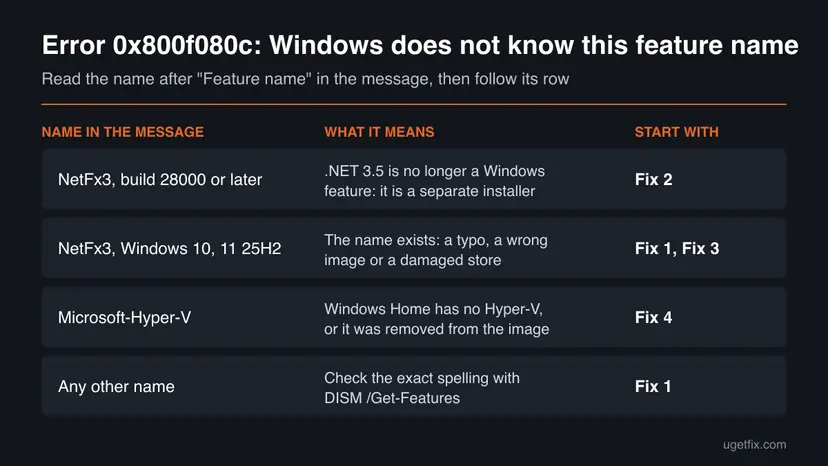
Microsoft's .NET team announced that from Windows 11 Insider Preview Build 27965, .NET Framework 3.5 must be obtained as a standalone installer and is no longer an optional Windows component. Microsoft Learn puts the line at Windows 11 26H1 (build 28000). Microsoft says the change does not affect Windows 10 or Windows 11 releases through 25H2. On a build of 28000 or later, DISM /Enable-Feature /FeatureName:NetFx3 has no name to find.
How to fix error 0x800f080c in Windows 11 and Windows 10
Fix 1 takes two minutes and tells you which of the other fixes you need. Fixes 2 and 3 cover .NET Framework 3.5, Fix 4 covers Hyper-V, and Fixes 5 and 6 are for the rare case where the name is right and DISM still fails.
| What you see or have | Start with |
|---|---|
| You typed a DISM command from a guide or a forum and it failed with 0x800f080c. | Fix 1 |
The message names NetFx3 and winver shows OS Build 28000 or higher. | Fix 2 |
| The message names NetFx3 on Windows 10 or Windows 11 25H2 and earlier. | Fix 1, then Fix 3 |
| The message names Microsoft-Hyper-V, or you tried to install WSL or a virtual machine app. | Fix 4 |
| The name is in the Get-Features list and DISM still fails. | Fix 5, then Fix 6 |
Fix 1. Check the exact feature name with DISM /Get-Features
2 to 5 minutesNo riskEvery reader first. It takes two minutes and shows whether the feature exists in your Windows at all.
The error itself says the name was not recognised and tells you to use /Get-Features. That option lists every feature name this Windows image really has, so you see at once whether you have a typo or a feature that is not there.
- Right-click Start and select Terminal (Admin). On Windows 10 select Windows PowerShell (Admin). Select Yes in the User Account Control window.
- Run
DISM /Online /Get-Features /Format:Tableto see all feature names and their state. - To find one name quickly, run the filtered command below with a part of the name, for example
netfx,hyperorlinux. - Compare the name in the list with the name in the error, letter by letter.
- If the name is in the list, run your command again and type the name exactly as the list shows it, for example
DISM /Online /Enable-Feature /FeatureName:NetFx3 /All. - If the name is not in the list at all, go to the fix for that feature: Fix 2 for NetFx3 on a new build, Fix 4 for Hyper-V.
DISM /Online /Get-Features /Format:Table | findstr /i "netfx hyper linux virtualmachine"| Feature you want | Name DISM uses |
|---|---|
| .NET Framework 3.5 (includes .NET 2.0 and 3.0) | NetFx3 (only up to Windows 11 25H2) |
| Hyper-V with its tools | Microsoft-Hyper-V with /All, or Microsoft-Hyper-V-All |
| Windows Subsystem for Linux | Microsoft-Windows-Subsystem-Linux |
| Virtual Machine Platform (used by WSL 2) | VirtualMachinePlatform |
Copy the name from the Get-Features output instead of typing it. A guide written for Windows Server or for another Windows version can use names your PC does not have.
It worked if: The name is in the list, and DISM ends with The operation completed successfully when you run the command with that exact name.
If not: If NetFx3 is missing, check your build for Fix 2. If Microsoft-Hyper-V is missing, go to Fix 4.
Fix 2. Install .NET Framework 3.5 with Microsoft's standalone installer on build 28000 or later
10 minutesNo riskThe message names NetFx3 and winver shows OS Build 28000 or higher, for example Windows 11 26H1, or you are on an Insider build of 27965 or later.
Microsoft Learn says that from Windows 11 26H1 (build 28000) .NET Framework 3.5 is only available as a standalone installer and cannot be installed as a Windows component. DISM, Windows Features and program setups that call them look for the NetFx3 name, find nothing and return 0x800f080c.
- Press Win + R, type
winverand select OK. Note the OS Build number in the window. - If the build is 28000 or higher, open Microsoft Learn's page Install .NET Framework 3.5 on Windows 11 on learn.microsoft.com.
- Under Windows 11 26H1 (build 28000) and later, select Download .NET Framework 3.5 for Windows 11 26H1.
- If Windows runs in a language other than English, also download the .NET Framework 3.5 Language Pack for Windows 11 26H1 from the next link.
- Run the downloaded installer, then the language pack, and follow their steps.
- Restart the PC and start the program that asked for .NET 3.5.
Microsoft says these installers only work with the Windows version they name. The old .NET Framework 3.5 SP1 download from the Download Center is for legacy Windows such as Windows XP and Vista, and a Microsoft engineer confirmed it does not apply to 26H1. Download .NET only from Microsoft.
Microsoft also removed the extra 3.5 parts from build 28000: ASP.NET 3.5, .NET Extensibility 3.5, WCF HTTP Activation and WCF non-HTTP Activation. If a web server program needs ASP.NET 3.5 in IIS, Microsoft provides the Enable-ASPNet35.ps1 script on the same page. Normal desktop programs do not need it.
It worked if: The installer finishes, and the program that needed .NET Framework 3.5 starts without asking for it again.
If not: If winver shows a build lower than 28000, the standalone installer does not apply: use Fix 3.
Fix 3. Turn on .NET Framework 3.5 in Windows Features, or from Windows media
5 to 20 minutesLow riskThe message names NetFx3, your build is lower than 28000 (Windows 10 or Windows 11 25H2 and earlier), and Fix 1 shows NetFx3 in the list.
On these versions .NET 3.5 is still a Windows Feature on Demand, so the name exists. The usual reason for 0x800f080c here is a wrong name in a command or a program that calls DISM in a way that fails. Turning the feature on yourself through Windows Features uses the right name for you.
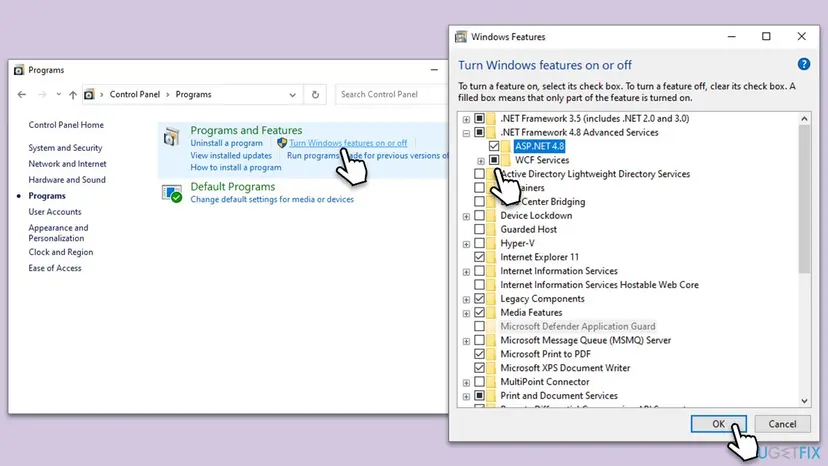
- Select Start, type
Windows Featuresand open Turn Windows features on or off. You can also open Control Panel > Programs and select Turn Windows features on or off. - Select .NET Framework 3.5 (includes .NET 2.0 and 3.0) so the box is filled, and select OK.
- Choose Let Windows Update download the files for you if Windows asks.
- Wait for Windows completed the requested changes and restart if asked.
- Run the program's setup again. It should now find .NET 3.5 and skip its own install step.
If the PC has no internet or the download fails with another code, such as 0x800F0906 or 0x80072EE6, install .NET 3.5 from Windows media of the same version with DISM /Online /Enable-Feature /FeatureName:NetFx3 /All /Source:D:\sources\sxs /LimitAccess. Our guide on .NET Framework error 0x80072EE6 shows that route step by step.
It worked if: The box next to .NET Framework 3.5 is filled in Windows Features, and the program installs.
If not: If .NET Framework 3.5 is not in the Windows Features list at all, check your build again (Fix 2). Otherwise install pending updates with Fix 5.
Fix 4. Check your Windows edition before you turn on Hyper-V
5 to 20 minutesLow riskThe message names Microsoft-Hyper-V, or a virtual machine app or WSL setup failed with 0x800f080c.
Microsoft offers Hyper-V on Windows 11 and Windows 10 Pro, Enterprise and Education, not on Home. On Home the name Microsoft-Hyper-V is not in the image, so DISM reports it as unknown. On Pro the same error means Hyper-V was removed from the image.
- Open Settings > System > About and read Edition under Windows specifications.
- If it says Home, Hyper-V cannot be turned on. Use a virtual machine program that does not need Hyper-V, or upgrade the edition to Pro in Settings > System > Activation.
- If it says Pro, Enterprise or Education, open Turn Windows features on or off and look for Hyper-V. Select it, select OK and restart.
- If Hyper-V is missing from the list on Pro, it was removed from the image. Mount a Windows ISO of the same version and note its drive letter, for example D:.
- In Terminal (Admin), run the command below with your drive letter, then restart.
DISM /Online /Enable-Feature /FeatureName:Microsoft-Hyper-V /All /Source:D:\sources\sxs /LimitAccessUsers report 0x800f080c also after wsl --install on some PCs. WSL itself works on Home: it needs Microsoft-Windows-Subsystem-Linux and VirtualMachinePlatform, not Hyper-V. Check both names with Fix 1 and install pending updates with Fix 5.
It worked if: Hyper-V shows as turned on in Windows Features, and Hyper-V Manager opens from Start after the restart.
If not: If DISM fails with the media too, the ISO probably does not match your version: check with winver, then repair the component store with Fix 6.
Fix 5. Restart and install all pending Windows updates
10 to 30 minutesLow riskThe feature name is in the Get-Features list, but DISM still fails, or Windows Update shows Restart now.
A half-installed update leaves the component store in a pending state, and features can only be added once Windows has finished it. Updates also bring the servicing stack, the part of Windows that DISM uses to read feature names.
- Save your work and restart the PC once, even if Windows does not ask.
- Open Settings > Windows Update and select Check for updates. On Windows 10 it is Settings > Update & Security > Windows Update.
- Install everything offered, including optional updates that mention .NET Framework or the servicing stack.
- Restart again when the updates ask for it.
- Run Fix 1 again and turn the feature on with its exact name.
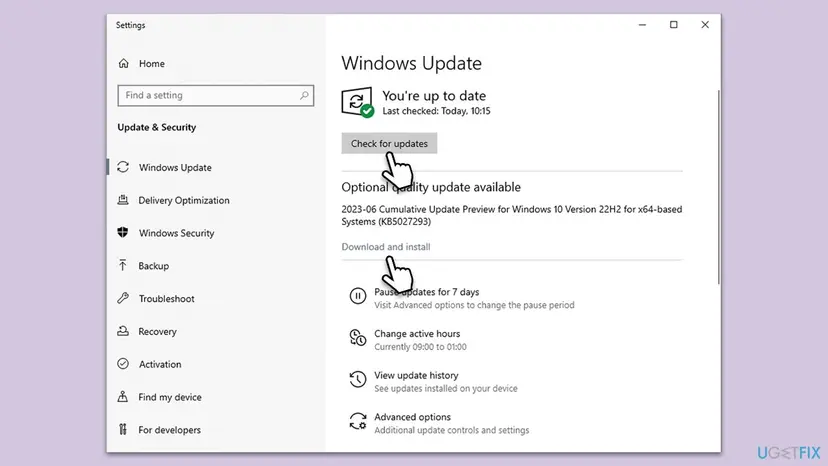
It worked if: Windows Update shows You're up to date with no restart pending, and DISM turns the feature on.
If not: If one update will not install, install it by hand with Install an update from the Microsoft Update Catalog. Then repair the component store with Fix 6.
Fix 6. Repair the component store with DISM RestoreHealth and SFC
20 to 30 minutesLow riskThe name is in the list, updates are installed, and DISM still returns 0x800f080c or another servicing error.
Windows features live in the component store. If the store's records are damaged, DISM can fail to match a name that should be there. RestoreHealth repairs the store, and SFC then repairs the system files that depend on it.
- Open an elevated command window. Right-click Start and select Terminal (Admin), or type cmd in the search box, right-click Command Prompt and select Run as administrator. Select Yes when Windows asks for permission.
- Run DISM first. Type the command below and press Enter. DISM downloads clean copies of damaged components from Windows Update, so it can take several minutes. Wait until it says The operation completed successfully.
DISM.exe /Online /Cleanup-Image /RestoreHealth - Run System File Checker. In the same window, type the command below and press Enter. Do not close the window until the verification reaches 100%.
sfc /scannow - Read the result and restart. Compare the last message with the table below this guide, then restart the PC so that repaired files are loaded.
These steps were written for Windows 11 24H2 and 25H2. The full page with the other versions and what each result means: Run DISM and SFC to repair Windows system files

It worked if: DISM and SFC report that they repaired the damage or found none, and the feature then turns on with its exact name.
If not: Read the DISM log as shown in the next section.
If error 0x800f080c is still there
DISM names its log under every error: C:\Windows\Logs\DISM\dism.log. The newest lines at the end of the file belong to your last command and show which name it looked for.
- Press Win + R, type
notepad C:\Windows\Logs\DISM\dism.logand select OK. - Press Ctrl + End to jump to the end of the file.
- Press Ctrl + F and search upward for
0x800f080corEnable-Feature. - Read the feature name on that line and check it against Fix 1.
- If the log also mentions
CBS, openC:\Windows\Logs\CBS\CBS.logthe same way and search for the same time.
For support from the program's maker or Microsoft, send the full error text, the command you ran, your edition and build from winver, and the last lines of dism.log. If Windows Update itself keeps failing, reset it first: Reset Windows Update components. 0x800f080c is never a hardware fault. It can be a licence limit: a Home edition does not include Hyper-V, and only an edition upgrade adds it.
Windows 10 reached the end of support on 14 October 2025. The fixes work the same on Windows 10 22H2, but without Extended Security Updates the PC no longer gets security fixes.
How to keep error 0x800f080c from coming back
- Copy feature names from
DISM /Online /Get-Features, not from old guides. - Check your build with
winverbefore you install .NET 3.5: 28000 or later needs the standalone installer. - Plan to move programs off .NET Framework 3.5, which Microsoft supports until 9 January 2029.
- Keep Windows updated and restart when Windows Update asks.
- Do not download .NET Framework or feature files from sites other than Microsoft.
- Do not use Windows media of another version as a DISM source.
- Do not turn off Memory integrity or other protection for this error: it has nothing to do with feature names.
Frequently asked questions
What does error 0x800f080c mean?
It means Windows does not recognise the feature name it was asked to turn on. DISM shows it as Error: 0x800f080c with a line such as Feature name NetFx3 is unknown, followed by A Windows feature name was not recognized. The name in that line, often NetFx3 or Microsoft-Hyper-V, is the key. Either the name is spelled wrong, your edition does not have the feature, or Microsoft removed it from your Windows build. Fix 1 checks the name in two minutes.
How do I fix 0x800f080c on Windows 11?
First run winver and note the OS Build. If the error names NetFx3 and the build is 28000 or higher, .NET Framework 3.5 is no longer a Windows feature there, so install Microsoft's standalone .NET 3.5 installer for Windows 11 26H1 (Fix 2). On Windows 11 25H2 and earlier, check the name with DISM /Get-Features (Fix 1) and turn .NET 3.5 on in Windows Features (Fix 3). For Hyper-V, check the edition (Fix 4).
Does 0x800f080c happen on Windows 10?
Yes, but less often than on new Windows 11 builds. Microsoft says the .NET 3.5 change does not affect Windows 10, so on Windows 10 the NetFx3 name still exists and the usual causes are a typo in the command or Hyper-V on a Home edition. Check the name with Fix 1, then use Fix 3 or Fix 4. Windows 10 reached the end of support on 14 October 2025, but the fixes still work on 22H2.
Why can I not install .NET Framework 3.5 on my new Windows 11 PC?
Because from Windows 11 26H1 (build 28000) .NET Framework 3.5 is no longer part of Windows. Microsoft's .NET team says it must be obtained as a standalone installer, and Microsoft Learn says you can't install it as a Windows component on these builds. Windows Features, DISM and old program setups then return 0x800f080c. Download the .NET Framework 3.5 installer for Windows 11 26H1 from Microsoft Learn (Fix 2).
Is .NET Framework 3.5 still supported?
Yes, for now. Microsoft says .NET Framework 3.5 is supported on Windows 11 and reaches the end of support on 9 January 2029. The move to a standalone installer is part of that plan: Microsoft encourages program makers to move to newer .NET versions. Until then, programs that need 3.5 keep working once it is installed, either as a Windows feature on older builds or with the standalone installer on build 28000 and later.
Why does Hyper-V give error 0x800f080c?
Usually because the edition is Windows Home. Microsoft offers Hyper-V on Pro, Enterprise and Education, so on Home the name Microsoft-Hyper-V is not in the image and DISM reports it as unknown. Scripts that add Hyper-V to Home from package files are not a Microsoft method, and we do not recommend them. On Pro, the same error means Hyper-V was removed from the image: restore it from Windows media of the same version (Fix 4).
Can wsl --install fail with 0x800f080c?
Users report that it can. WSL needs the features Microsoft-Windows-Subsystem-Linux and VirtualMachinePlatform, and if either name is not found in the image, the servicing step behind wsl --install fails with this code. WSL does not need Hyper-V and works on Home. Check both names with DISM /Get-Features (Fix 1), install pending Windows updates and restart (Fix 5), then run wsl --install again.
Is 0x800f0806 the same error as 0x800f080c?
No. They are neighbouring Windows servicing codes, so they show up together in searches, and users report 0x800f0806 with Windows Update and with .NET 3.5 installs. We could not confirm its exact meaning from Microsoft today. 0x800f080c is only about a feature name that Windows does not recognise. If you see 0x800f0806 instead, the name check in Fix 1 does not apply; start with Windows Update (Fix 5) and the repair in Fix 6.
Will SFC, a clean boot or turning off Memory integrity fix 0x800f080c?
Rarely. The error is about a missing feature name, and SFC repairs system files, a clean boot stops third-party programs, and Memory integrity guards the kernel. None of them adds a feature name to Windows. DISM RestoreHealth and SFC help only when the component store is damaged (Fix 6). Turning off Memory integrity weakens protection and does not help with this code, so leave it on.
Sources
- Microsoft .NET Blog: .NET Framework 3.5 moves to standalone deployment in new versions of Windows (devblogs.microsoft.com)
- Microsoft Learn: Install .NET Framework 3.5 on Windows 11 (build 28000 and later, standalone installer) (learn.microsoft.com)
- Microsoft Q&A: Error 0x800f080c, feature name Microsoft-Hyper-V is unknown (DISM message and staff answer) (learn.microsoft.com)
Did this fix work?
One click, no account. It tells the next reader which guides are worth their time.
Questions and experiences: fix .NET Framework error 0x800f080c in Windows
Still broken, or found a fix we did not cover? Ask here: members and our editors answer. Reading is open; writing needs a free account.
…