
How to fix .NET Framework error code 0x80072EE6 in Windows?

Prefer to fix it yourself? The manual steps follow.
- 8methods
- 5 to 30 minutes
- Medium
Applies to Windows 11 and Windows 10: turning on .NET Framework 3.5 and other Windows updates and features
8 methods in this guide
- What the error means
- Why it appears
- On newest Windows 11
- The fixes
- 1. Find the server address
- 2. Fix the server address
- 3. Allow Windows Update source
- 4. Install from Windows media
- 5. Standalone installer
- 6. Check connection and proxy
- 7. Reset update components
- 8. Repair system files
- If it is still there
- Keep it from coming back
- FAQ
I need help with this problem on Windows 11. Every attempt to install .NET Framework 3.5 fails with error 0x80072EE6. I need a simple solution, because I have never dealt with this kind of issue before.
Error 0x80072EE6 means Windows tried to download the .NET Framework 3.5 files from an update server whose address it cannot use. Most often the PC has an old or badly written WSUS address in its update policy. Check that policy first (Fix 1), because cache resets and SFC do not change it.
0x80072EE6 appears when Windows fetches the .NET Framework 3.5 files from an update server (WSUS) whose address is invalid, for example one written without http://. Check whether such an address is set (Fix 1). On your own PC, remove it or correct it (Fix 2), then turn on .NET Framework 3.5 again. If that is not possible, install it from Windows installation media with DISM (Fix 4).
| Error | 0x80072EE6, also shown as 80072EE6 in Windows Update. |
|---|---|
| Where it appears | In Turn Windows features on or off when you add .NET Framework 3.5 (includes .NET 2.0 and 3.0), in a program's .NET 3.5 prompt, or during Windows Update. |
| Main cause | The policy Specify intranet Microsoft update service location holds an address Windows cannot use, such as corp.contoso.com or a bare IP address without http://. |
| Fastest fix | Check the update server policy (Fix 1), then remove it or add http:// or https:// (Fix 2). |
| Also written as | 80072EE6, 0x80072ee6, error code 0x80072EE6. The last four digits, 2EE6, are the number 12006 from the Windows internet library (WinINet). |
| Why .NET 3.5 is hit | On Windows 10 and 11, .NET Framework 3.5 is a Feature on Demand: Windows holds only its description and downloads the files when you turn it on. |
| Affects | Windows 11 and Windows 10. Windows 10 left support on 14 October 2025. On Windows 11 26H1 (build 28000) and later, .NET 3.5 is a standalone installer instead. |
| Microsoft's status | A documented configuration error, not a bug: Microsoft's article on 80072EE6 names an invalid WSUS address as the cause. |
| Time to fix | 2 minutes to check, 5 to 10 minutes to correct the policy, about 20 minutes with installation media. |
Facts checked on 15 October 2026. Steps written for Windows 11 (25H2 and 26H2) and Windows 10 22H2.
What .NET Framework error 0x80072EE6 means
The code has two parts. 0x8007 marks a Windows system error, and 2EE6 is the number 12006 in hexadecimal. Numbers from 12000 up belong to WinINet, the library Windows uses to reach addresses on the internet. Microsoft's own article on 80072EE6 gives the practical meaning: the update server address on the PC is not a valid web address.
You see it most often with .NET Framework 3.5. Microsoft explains that on Windows 10 and Windows 11 this version is a Feature on Demand: Windows keeps only its metadata, and when you turn it on, it contacts Windows Update to download the files. If the PC is set to use an update server (WSUS) with a broken address, that request fails at once.
| What you see | Where | What it tells you |
|---|---|---|
| Windows couldn't complete the requested changes. Error code: 0x80072EE6 | Turn Windows features on or off after you select .NET Framework 3.5 | Windows could not reach the server it is told to download the files from. |
| 80072EE6 next to an update | Settings > Windows Update or Update history | The same broken server address stops normal updates too. |
| 0x80072EE6 in a program's .NET 3.5 prompt | After Download and install this feature | The prompt uses the same Feature on Demand download. |
| 0x80072EE5 | Windows Update, rarer | A neighbouring WinINet code (12005). We could not confirm its exact description today, but the same address and connection checks apply. |
If you reached this page with a search in another language, such as "me explique esse erro" or "mengapa", this page explains the Windows error code 0x80072EE6. The address of the update server on the PC is wrong, and the fixes below correct it.
Why Windows cannot download .NET Framework 3.5
The error is about where Windows looks for the files, not about the files themselves. So the cause is almost always a setting that points Windows at the wrong place, and a few common repairs are pointless until that setting changes.
| Cause | How often | How to tell | Fix |
|---|---|---|---|
The WSUS address in the update policy has no http:// or https://, or points to a server that is gone. | Most often | Fix 1 shows an address under Specify intranet Microsoft update service location. | Fix 2 |
| A work or school PC must use the company's WSUS, which does not offer the .NET 3.5 files. | Often on work PCs | Some settings are managed by your organization in Windows Update. | Fix 3 (ask IT) |
| A proxy, VPN or firewall blocks the download from Windows Update. | Sometimes | No WSUS address, but downloads from Microsoft fail. | Fix 6 |
| Damaged update components or system files. | Rarely | Fix 1 to 6 change nothing. | Fix 7 and 8 |
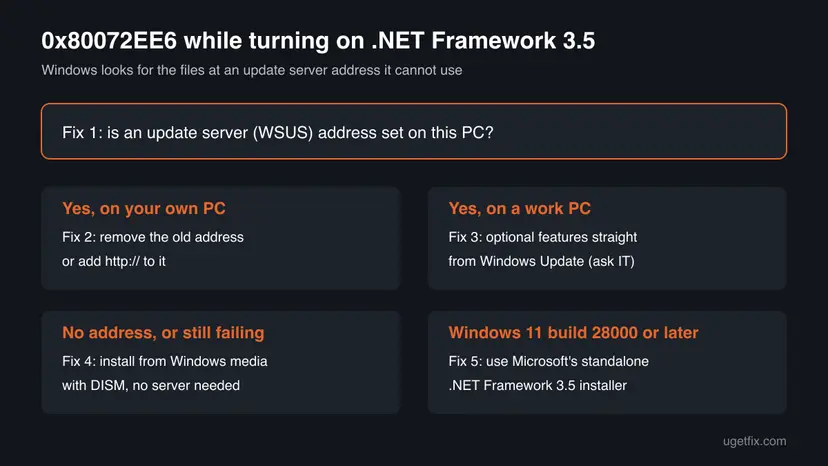
Resetting the update cache or running SFC does not touch the update policy. As long as Windows is told to use a broken WSUS address, .NET Framework 3.5 fails with 0x80072EE6 after every reset.
.NET Framework 3.5 on Windows 11 26H1 and later
Microsoft changed how .NET Framework 3.5 is delivered. Starting with Windows 11 26H1 (build 28000), it is only available as a standalone installer and can no longer be installed as a Windows component. The optional components that depend on it, such as ASP.NET 3.5 and WCF HTTP Activation, were removed too.
- Press Win + R, type
winverand select OK. The window shows your version and OS Build. - Build 28000 or higher: use Microsoft's standalone installer in Fix 5. The Windows Features route does not apply.
- A lower build, for example Windows 11 25H2 or Windows 10 22H2: .NET 3.5 is still a Windows feature, and Fix 1 to 4 apply.
Microsoft also advises checking for a newer version of the program first: .NET Framework 3.5 dates from 2008, and many programs that once needed it now run on .NET Framework 4.8 or later.
How to fix .NET Framework error 0x80072EE6
Fix 1 shows in two minutes whether an update server address is set. Fix 2 corrects it on your own PC, Fix 3 lets a managed PC fetch the files from Windows Update, and Fix 4 installs from media with no server at all. Fixes 6 to 8 are the general repairs.
| What you see or have | Start with |
|---|---|
| You do not know the cause yet. | Fix 1 |
| Your own PC, and Fix 1 shows a WSUS address. | Fix 2 |
| A work or school PC, or Some settings are managed by your organization. | Fix 3, with IT |
| No address, or you want a sure route without any server. | Fix 4 |
Windows 11 with OS Build 28000 or higher in winver. | Fix 5 |
| Other downloads from Microsoft also fail, or you use a VPN or proxy. | Fix 6 |
| Normal Windows updates fail too, with no address set. | Fix 7, then Fix 8 |
Fix 1. Check whether an update server (WSUS) address is set
2 minutesNo riskAlways first. It only reads settings and takes two minutes.
Microsoft names an invalid address in Specify intranet Microsoft update service location as the cause of 80072EE6. Seeing that address tells you at once whether the policy is the problem.
- Right-click Start and open Terminal (Admin) on Windows 11, or Windows PowerShell (Admin) on Windows 10. Select Yes.
- Run the command below. It lists the update policy values on the PC and changes nothing.
- ERROR: The system was unable to find the specified registry key or value means no update policy is set: go to Fix 4.
- A line WUServer with a value means a WSUS address is set. Read it: an address without
http://orhttps://at the start is the invalid kind Microsoft describes. - On Windows 11 Pro or Windows 10 Pro you can see the same in the policy editor: press Win + R, type
gpedit.mscand open Computer Configuration > Administrative Templates > Windows Components > Windows Update. - Look for Specify intranet Microsoft update service location. If you do not see it, open the subfolders under Windows Update. Enabled in the State column means an address is set.
reg query "HKLM\SOFTWARE\Policies\Microsoft\Windows\WindowsUpdate"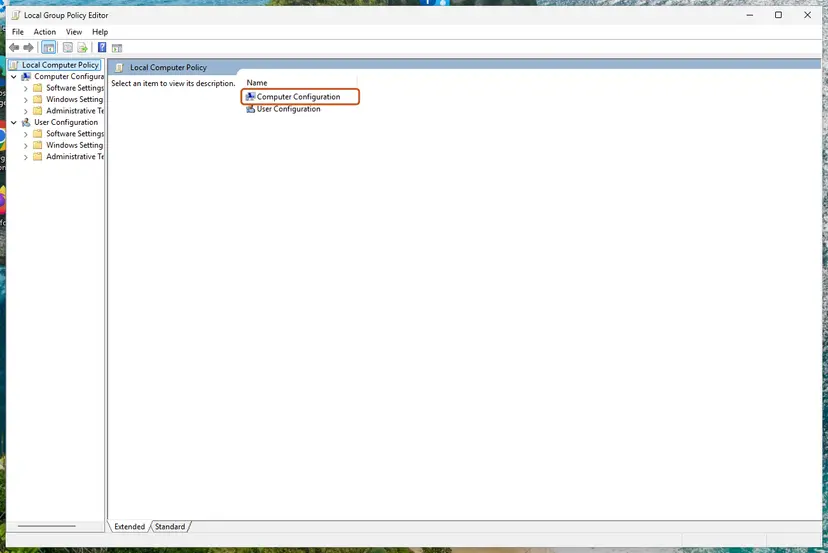
It worked if: You know whether a WSUS address is set and whether it starts with http:// or https://.
If not: An address on your own PC: Fix 2. A managed work PC: Fix 3. No address: Fix 4.
Fix 2. Correct or remove the WSUS address, then turn on .NET Framework 3.5
5 to 10 minutesRead the warningFix 1 found an address and the PC is yours, for example a former company laptop or a PC where a tool changed the update settings.
Windows follows the policy and asks only that server for the .NET 3.5 files. With the policy back to Not Configured, Windows downloads them from Windows Update. If the server is real, adding http:// or https:// is the fix Microsoft gives.
You change an update policy. On a home PC that is safe, but a wrong edit can affect other update settings, so export the key first with Back up the registry before editing it. On a work or school PC, do not change it: use Fix 3 with IT.
- Pro editions: in the policy editor from Fix 1, double-click Specify intranet Microsoft update service location.
- If the server still exists, add
http://orhttps://in front of both addresses, for examplehttp://corp.contoso.com, and select OK. - If the server is gone or you do not know it, select Not Configured and OK.
- Home edition, or no policy editor: run the commands below in the admin terminal. They remove the two address values and tell Windows not to use a WSUS server.
- Run
gpupdate /forceand restart the PC. - Select Start, search for Windows Features and open it. Select .NET Framework 3.5 (includes .NET 2.0 and 3.0), then OK, and choose Let Windows Update download the files for you if Windows asks.
reg delete "HKLM\SOFTWARE\Policies\Microsoft\Windows\WindowsUpdate" /v WUServer /f
reg delete "HKLM\SOFTWARE\Policies\Microsoft\Windows\WindowsUpdate" /v WUStatusServer /f
reg add "HKLM\SOFTWARE\Policies\Microsoft\Windows\WindowsUpdate\AU" /v UseWUServer /t REG_DWORD /d 0 /f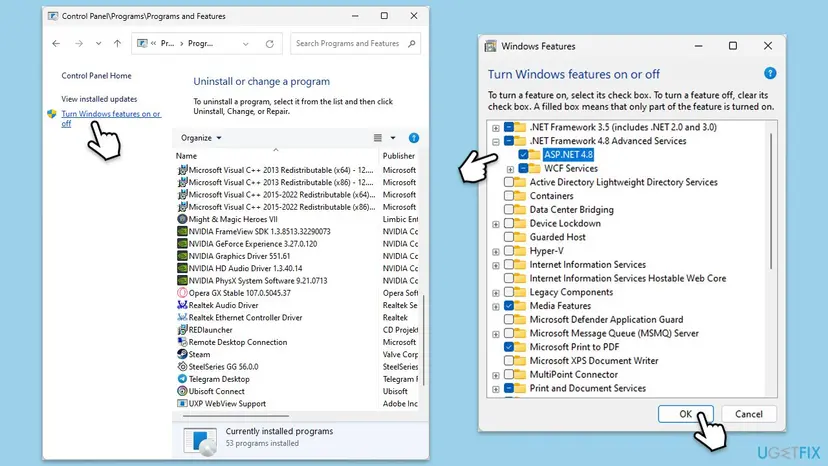
It worked if: Windows Features shows Windows completed the requested changes, and the .NET Framework 3.5 box is filled.
If not: If the address comes back after a restart, a domain or a management tool sets it: that PC is managed, so use Fix 3 or Fix 4.
Fix 3. Let a managed PC download optional features from Windows Update
5 minutes, by an administratorLow riskA work or school PC that must keep its WSUS server, or the setting is managed by your organization.
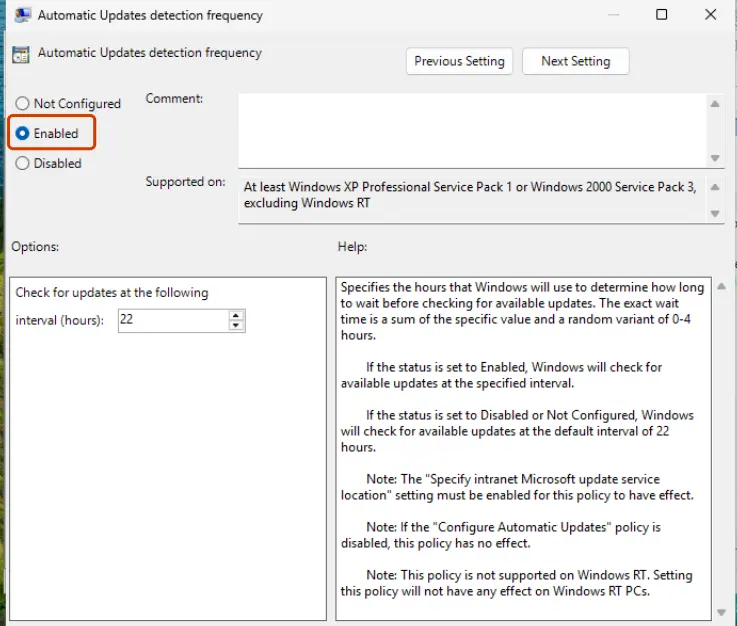
Microsoft's fix for .NET 3.5 on WSUS-managed PCs is a second policy that sends only optional features and repairs to Windows Update, while normal updates still come from WSUS.
- Open the policy editor: Open the Local Group Policy Editor
- Go to Computer Configuration > Administrative Templates > System.
- Open Specify settings for optional component installation and component repair and select Enabled.
- Select the box Contact Windows Update directly to download repair content instead of Windows Server Update Services (WSUS). Its wording can differ slightly between Windows versions.
- Or fill Alternate source file path with a shared folder that holds
\sources\sxsfrom the installation media, for example\\server_name\share\Win8sxs. - Select OK, run
gpupdate /forcein an admin terminal, and turn on .NET Framework 3.5 again.
A domain policy overwrites local changes. Send IT the code 0x80072EE6 and the name of this policy, so they can set it for the whole group.
It worked if: .NET Framework 3.5 downloads and installs, while normal updates still come from the company server.
If not: If the company network blocks Windows Update too, install from media with Fix 4.
Fix 4. Install .NET Framework 3.5 from Windows installation media with DISM
20 minutesLow riskFix 1 to 3 did not help, the PC has no internet, or you want a route that needs no update server at all.
With /Source and /LimitAccess, DISM takes the .NET 3.5 files from the sources\sxs folder of the media and does not contact any server, so a broken WSUS address cannot stop it.
- Make a Windows ISO of the same version as your PC with Microsoft's Media Creation Tool, or use the installation USB you already have.
- Right-click the ISO file and select Mount. Note the drive letter it gets in File Explorer, for example D:.
- Open Terminal (Admin) or Windows PowerShell (Admin).
- Run the command below. Replace
D:with your drive letter. - Wait for The operation completed successfully and restart if asked.
Dism /online /enable-feature /featurename:NetFx3 /All /Source:D:\sources\sxs /LimitAccessMicrosoft warns that files from a different Windows version either install a mismatched .NET 3.5 or fail, and can leave the system in an unsupported state. Check your version with winver before you make the ISO.
It worked if: DISM ends with The operation completed successfully, and .NET Framework 3.5 is ticked in Windows Features.
If not: Error 0x800F081F means the path is wrong or the files do not match your Windows: check the drive letter and the version. Then read the section below.
Fix 5. Use the standalone .NET Framework 3.5 installer on Windows 11 build 28000 or later
10 minutesNo riskwinver shows OS Build 28000 or higher, for example Windows 11 26H1.
From build 28000, Microsoft ships .NET Framework 3.5 only as a standalone installer. The Windows Features and DISM route no longer installs it, so the download path behind 0x80072EE6 is not used.
- Open Microsoft's page Install .NET Framework 3.5 on Windows 10 and Windows Server on learn.microsoft.com and find Developers and .NET Framework 3.5.
- Select Download .NET Framework 3.5 for Windows 11 26H1. Add the language pack from the next link if you use Windows in another language.
- Run the downloaded installer and follow its steps.
- Restart the PC and start the program that asked for .NET 3.5.
Microsoft says these installers work only with the Windows version they name. On a lower build, use Fix 2 or Fix 4 instead.
It worked if: The program that needed .NET 3.5 starts.
If not: Check the build again in winver. If it is lower than 28000, go back to Fix 1.
Fix 6. Check the connection, proxy and VPN
5 to 10 minutesLow riskFix 1 found no update server address, and downloads from Microsoft fail.
Without a WSUS policy, Windows downloads the .NET 3.5 files from Windows Update. Microsoft says network, proxy or firewall settings can stop that download, so a leftover proxy or a VPN can make the feature fail.
- Open Settings > Network & internet > Proxy and make sure Use a proxy server under Manual proxy setup is Off. On Windows 10 it is Settings > Network & Internet > Proxy.
- In the admin terminal, run
netsh winhttp show proxy. Direct access (no proxy server). is the normal answer. - Disconnect a VPN for the test and connect it again afterwards.
- Try .NET Framework 3.5 in Windows Features again.
If websites also fail, check the connection itself step by step: How to check your internet connection in Windows
It worked if: Windows Features downloads the files and finishes.
If not: Reset the update components with Fix 7, or skip the download with Fix 4.
Fix 7. Reset the Windows Update components
15 minutesLow riskNo WSUS address is set, the connection works, and Windows Update itself also fails.
A damaged update database can keep a failed request in a loop. Renaming SoftwareDistribution and catroot2 makes Windows start over. It does not fix a broken WSUS address, so do it only after Fix 1.
- Open Command Prompt as administrator. Type cmd in the search box, right-click Command Prompt and select Run as administrator. Select Yes when Windows asks for permission.
- Stop the update services. Type the commands below and press Enter after each one. If Windows says that other services depend on Cryptographic Services, it stops them too. A message that a service is not started is fine.
net stop wuauserv net stop bits net stop cryptsvc - Delete the download queue files. This clears the list of downloads that the Background Intelligent Transfer Service keeps. If Windows says it cannot find the files, continue.
del "%ALLUSERSPROFILE%\Application Data\Microsoft\Network\Downloader\qmgr*.dat" - Rename the update cache folders. Renaming keeps a copy in case you need it; Windows creates new, empty folders when the services start again. If you get Access is denied, a service is still running: repeat the previous step.
ren %systemroot%\SoftwareDistribution SoftwareDistribution.old ren %systemroot%\System32\catroot2 catroot2.old - Start the services again. Type the commands below and press Enter after each one. The requested service has already been started is fine: Windows started it on its own.
net start cryptsvc net start bits net start wuauserv - Restart and check for updates. Restart the PC. Then select Start > Settings > Windows Update > Check for updates. The first check can take longer than usual because everything is downloaded again.
These steps were written for Windows 11 and Windows 10 (the steps are the same). The full page with the other versions and what each result means: Reset Windows Update components
It worked if: Windows Update checks for updates again, and .NET 3.5 installs.
If not: Repair the system files with Fix 8.
Fix 8. Repair system files with SFC and DISM
20 to 30 minutesLow riskNothing above helped, or other Windows features also fail to install.
Damaged component store files can stop a feature from installing. DISM RestoreHealth downloads its repair files from the same source as .NET 3.5, so a broken WSUS address stops it too; fix that first.
- Open an elevated command window. Right-click Start and select Terminal (Admin), or type cmd in the search box, right-click Command Prompt and select Run as administrator. Select Yes when Windows asks for permission.
- Run DISM first. Type the command below and press Enter. DISM downloads clean copies of damaged components from Windows Update, so it can take several minutes. Wait until it says The operation completed successfully.
DISM.exe /Online /Cleanup-Image /RestoreHealth - Run System File Checker. In the same window, type the command below and press Enter. Do not close the window until the verification reaches 100%.
sfc /scannow - Read the result and restart. Compare the last message with the table below this guide, then restart the PC so that repaired files are loaded.
These steps were written for Windows 11 24H2 and 25H2. The full page with the other versions and what each result means: Run DISM and SFC to repair Windows system files
It worked if: SFC and DISM report that they repaired or found no damage, and .NET 3.5 installs.
If not: Read the next section: the DISM and CBS logs name the step that fails.
If error 0x80072EE6 is still there
Microsoft names the DISM log as the place to look: C:\Windows\Logs\DISM\dism.log. Open it with Notepad, search for 0x80072ee6 from the bottom up and read the lines just above the hit. They show which source Windows tried.
| What you find | What it means |
|---|---|
| The name of your company or an old server near the error | The WSUS policy is still active. Repeat Fix 1, or ask IT for Fix 3. |
| 0x800F0906 instead | Windows could not download the files from Windows Update. Use Fix 6 or Fix 4. |
| 0x800F0907 | A policy forbids downloads from Windows Update. Use Fix 3 or Fix 4. |
| 0x800F081F | The source you gave is wrong or from another Windows version. Check the media in Fix 4. |
For support, send the code 0x80072EE6, your Windows version and build from winver, the output of the reg query command in Fix 1 and the last lines of dism.log. This error is not a hardware fault and not a licence problem: it is always about where Windows looks for the files.
Windows 10 reached the end of support on 14 October 2025. Fix 2 and Fix 4 still work on Windows 10 22H2, but without Extended Security Updates the PC no longer gets security fixes.
How to keep error 0x80072EE6 from coming back
- After you take over a former company PC, check the update policy with the command in Fix 1 and clear it.
- Keep a Windows ISO of your current version, so you can add .NET 3.5 with DISM without any server.
- Ask the maker of an old program whether a version for .NET Framework 4.8 exists, as Microsoft recommends.
- Do not use tweak tools that change Windows Update settings without telling you what they write.
- Do not install .NET 3.5 files from another Windows version or from unofficial download sites.
- Do not change the update policy of a work or school PC yourself: ask IT.
Frequently asked questions
What does error code 0x80072EE6 mean?
It means Windows could not use the address of the server it was told to download from. The last digits, 2EE6, are WinINet error 12006 from the Windows internet library. Microsoft's article on 80072EE6 ties it to the policy Specify intranet Microsoft update service location: when that WSUS address is invalid, for example without http://, updates and features such as .NET Framework 3.5 fail. Check the policy with Fix 1.
How do I fix 0x80072EE6 when installing .NET Framework 3.5?
First check whether an update server address is set (Fix 1). On your own PC, remove it or add http:// to it, then turn on .NET Framework 3.5 again in Windows Features (Fix 2). On a work PC, IT can let optional features come from Windows Update (Fix 3). If none of that is possible, install .NET 3.5 from Windows installation media with DISM (Fix 4), which needs no server.
Is 80072EE6 the same as 0x80072EE6?
Yes. Windows Update often shows the code without the 0x prefix, as 80072EE6, while Windows Features and DISM show 0x80072EE6. Small letters, as in 0x80072ee6, make no difference. Error 0x80072EE6 and error code 0x80072EE6 in forum posts are the same error too, so everything on this page applies to every spelling.
Does 0x80072EE6 happen on Windows 10?
Yes. The code and its cause are the same on Windows 10 and Windows 11, because both treat .NET Framework 3.5 as a Feature on Demand and download its files when you turn it on. The menu names differ only slightly. Windows 10 reached the end of support on 14 October 2025, but Fix 1, 2 and 4 still work on Windows 10 22H2.
Can 0x80072EE6 appear in Windows Update without .NET?
Yes. Microsoft's article describes 80072EE6 as a Windows Update error on PCs that use WSUS through the policy Specify intranet Microsoft update service location. The same broken address stops normal updates and optional features alike. The fix is the same as for .NET 3.5: correct the address or set the policy to Not Configured (Fix 2), or ask IT on a work PC.
What is error 0x80072EE5?
It is a neighbouring code from the same Windows internet library, number 12005. We could not confirm its exact Microsoft description in the sources we read today. In practice it shows up in the same places, mostly Windows Update. Check for an update server address with Fix 1 and the connection and proxy with Fix 6, because both errors come from Windows trying to reach an address.
Why does my PC have a WSUS address if I am not in a company?
Usually the PC was once managed by a company or school, and the policy stayed after it was sold or reset without a clean install. A tool that changes update settings can also write such values. Microsoft's article gives examples of invalid addresses, such as corp.contoso.com or a bare IP address. If the server means nothing to you, set the policy to Not Configured (Fix 2).
Can I download a .NET Framework 3.5 offline installer instead?
Not for Windows 10 or Windows 11 before build 28000. Microsoft says the classic .NET Framework 3.5 SP1 offline installer is for versions before Windows 10, and that from Windows 10 on, the supported offline route is the installation media. That is Fix 4 with DISM. On Windows 11 build 28000 and later, Microsoft offers a new standalone installer instead (Fix 5).
Will the .NET Framework Repair Tool fix 0x80072EE6?
Unlikely. The repair tool fixes damaged .NET Framework installations, but 0x80072EE6 happens before anything is installed: Windows cannot reach the source of the files. Fix the update server address or install from media first. If a program then still fails on .NET 4.x, the repair tool is described in How to repair Microsoft Visual C++ Redistributable and .NET Framework.
Sources
- Microsoft Learn: You receive a 80072EE6 error code when you download an update from Windows Server Update Services (KB 2724184) (learn.microsoft.com)
- Microsoft Learn: .NET Framework 3.5 installation errors 0x800F0906, 0x800F081F, 0x800F0907, 0x800F0922 (KB 2734782) (learn.microsoft.com)
- Microsoft Learn: Install .NET Framework 3.5 on Windows 10 and Windows Server (build 28000 standalone installer) (learn.microsoft.com)
Did this fix work?
One click, no account. It tells the next reader which guides are worth their time.
Questions and experiences: fix .NET Framework error code 0x80072EE6 in Windows
Still broken, or found a fix we did not cover? Ask here: members and our editors answer. Reading is open; writing needs a free account.
…