
How to fix "New CPU installed, fTPM/PSP NV corrupted or fTPM/PSP NV structure changed"?

Prefer to fix it yourself? The manual steps follow.
- 7methods
- 5 minutes without encryption, 15 to 30 minutes with BitLocker
- Intermediate
Applies to Windows 11 and Windows 10 on AMD Ryzen desktops and laptops with fTPM turned on
7 methods in this guide
Hi. I don't usually turn off my PC when I go away from it. Once I came back, the screen was blank as usual. I tried to turn the PC on, but nothing happened, so I hard-rebooted it. As soon as it started loading, I received a "New CPU installed. fTPM NV corrupted or fTPM NV structure changed" error on a black screen. I pressed N to keep the previous setting (which seemed logical to me), but Windows failed to boot, and I received the same error. Please help.
"New CPU installed, fTPM/PSP NV corrupted or fTPM/PSP NV structure changed" is a message from the firmware of an AMD PC, shown before Windows starts. Pressing Y resets the firmware TPM and is safe when your drive is not encrypted. If BitLocker or device encryption is on, press N first, check it and save the recovery key.
On a new PC with nothing on it yet, press Y (Fix 1). On a PC with your files, press N, sign in and run manage-bde -status to see whether the drive is encrypted (Fix 2). Protection Off means you can restart and press Y. Protection On means: save the 48-digit recovery key, suspend BitLocker, then press Y (Fix 3). If Windows does not start after N, find the recovery key before anything else (Fix 4).
| Error | "New CPU installed, fTPM/PSP NV corrupted or fTPM/PSP NV structure changed." Followed by "Press Y to reset fTPM" and "Press N to keep previous fTPM record and continue system boot." |
|---|---|
| Where it appears | On a black text screen right after power on, before the Windows logo. It comes from the motherboard firmware (BIOS or UEFI), not from Windows. |
| Main cause | The firmware TPM inside the AMD CPU no longer matches the record the board stored: after a CPU swap, a BIOS update or a BIOS reset, or on the first start of a new build. |
| Fastest fix | No encryption: press Y. BitLocker or device encryption on: press N, save the recovery key, suspend BitLocker, restart and press Y (Fix 2 and Fix 3). |
| Also written as | New CPU installed fTPM NV corrupted, fTPM/PSP NV corrupted, fTPM PSP NV corrupted, fTPM NV corrupted or fTPM NV structure changed, fTPM NV structure changed. |
| What Y deletes | Every key stored in the fTPM. Microsoft says clearing a TPM loses all keys and the data they protect, such as a sign-in PIN. Your files stay on the drive. |
| Affects | PCs with an AMD CPU and the AMD fTPM turned on, on Windows 11 and Windows 10. Users report it on ASUS, MSI, Gigabyte, ASRock and Lenovo machines. |
| Vendor status | Not a Windows bug and not a fault in itself. It is the board's firmware warning you before it resets security keys. |
| Time to fix | One restart without encryption. With BitLocker, 15 to 30 minutes, plus the time to find the recovery key. |
Facts checked on 15 October 2026. Steps written for Windows 11 (25H2 and 26H2) and Windows 10 22H2 on AMD PCs with firmware TPM, from Microsoft's BitLocker and TPM documentation.
What "New CPU installed, fTPM/PSP NV corrupted or fTPM/PSP NV structure changed" means
AMD Ryzen CPUs carry a firmware TPM, the fTPM. It runs on the AMD Platform Security Processor, the PSP, and keeps its data in a small non-volatile store, the NV. Windows uses the TPM for BitLocker and device encryption and for the Windows Hello PIN. When the firmware finds that this stored record no longer fits the CPU it sees, it stops the start and asks you what to do.
The full text, as it appears on most boards, reads:
New CPU installed, fTPM/PSP NV corrupted or fTPM/PSP NV structure changed. Press Y to reset fTPM. If you have BitLocker or encryption enabled, the system will not boot without a recovery key. Press N to keep previous fTPM record and continue system boot. fTPM will NOT enable in new CPU, you can swap back to the old CPU to recover TPM related keys and data.
- Y wipes the fTPM and creates it again. Anything sealed in the old fTPM, such as the BitLocker key and the Windows Hello PIN, cannot be read any more.
- N keeps the old record and goes on starting, but the fTPM stays off for now. Windows then cannot use it, so a BitLocker drive asks for the recovery key.
- Older boards print the same text without PSP: "New CPU installed. fTPM NV corrupted or fTPM NV structure changed." Both mean the same thing.
- Not a CPU fault. The words "New CPU installed" also appear when you did not touch the CPU. The firmware only knows that the record changed.
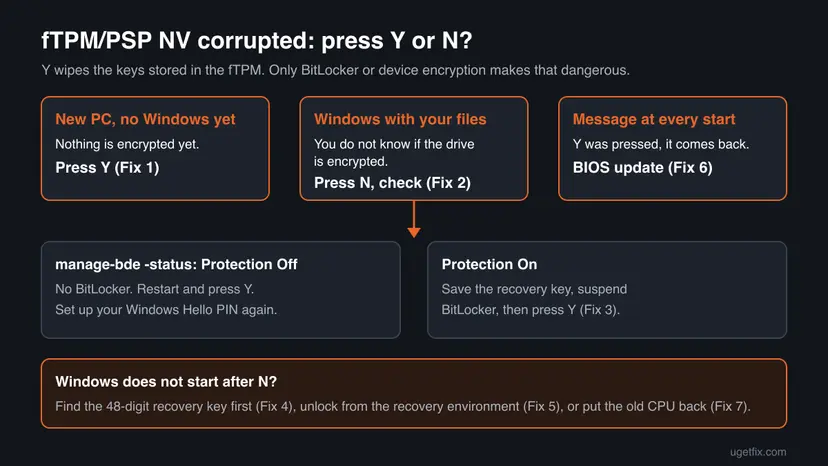
Why the fTPM/PSP NV corrupted message appears: the causes, ranked
The message is a safety stop, so the real question is what changed. Most often it is a BIOS update or a BIOS reset, which rebuilds the firmware and with it the fTPM record. Next comes the case the text names, a new or swapped CPU. A brand-new build shows it on the first start. Less often it appears after a power loss or a forced shutdown, as in the question above.
| Cause | How you recognise it | Fix |
|---|---|---|
| A new build or a fresh Windows install. | First start of the PC, nothing on the drive yet. | Fix 1 |
| A BIOS update, a CMOS reset or a reset to defaults. | You updated the BIOS or reset it shortly before. | Fix 2, Fix 3 |
| A CPU swap or upgrade. | You put in a different AMD CPU. | Fix 2, Fix 3, Fix 7 |
| A power loss or a forced shutdown. | The PC froze or lost power, then showed the message. | Fix 2, Fix 4, Fix 5 |
| The firmware cannot keep the new record. | You pressed Y and the message comes back at every start. | Fix 6 |
If BitLocker or device encryption protects your system drive and you press Y, Windows will ask for the 48-digit recovery key. Microsoft Support cannot retrieve or recreate a lost key. Without it the only way back is a reset that removes all your files.
How to fix "New CPU installed, fTPM/PSP NV corrupted" in Windows 11 and 10
Fix 1 is for a new PC with nothing on it. Fixes 2 and 3 are for most readers: check the encryption, protect the key, then press Y. Fixes 4 and 5 are for a PC that does not start after N. Fix 6 stops a message that keeps coming back, and Fix 7 is for a CPU swap without a recovery key.
| What you see or have | Start with |
|---|---|
| A new build or new laptop, Windows not installed or just installed. | Fix 1 |
| Your own PC with files, Windows starts after N. | Fix 2, then Fix 3 |
| Windows asks for a BitLocker recovery key after N. | Fix 4, then Fix 5 |
| You pressed Y and the message returns at every start. | Fix 6 |
| You changed the CPU and have no recovery key. | Fix 7 |
Fix 1. Press Y on a new PC or a fresh Windows install
1 minuteLow riskA new build or a new laptop on its first starts, or a PC where you are about to install Windows from scratch.
Nothing has been encrypted with the old fTPM record yet, so resetting it loses nothing. The firmware simply creates a clean fTPM for the CPU it has.
- On the message screen, press Y.
- Let the PC restart. It may restart once more on its own.
- Go on with the Windows setup or sign in as usual.
Users report that some USB keyboards do not work at this early stage. Plug a wired keyboard into a USB port on the back of the PC, directly on the motherboard, and try again.
It worked if: The message does not come back and the PC starts normally.
If not: If the message returns at every start, go to Fix 6.
Fix 2. Press N, sign in and check whether your drive is encrypted
5 minutesNo riskYour own PC with files and apps on it, and you do not know whether BitLocker or device encryption is on.
N keeps the old fTPM record, so Windows usually still starts. That gives you a safe moment to see whether pressing Y would lock the drive.
- On the message screen, press N.
- Sign in with your PIN. If the PIN fails, select Sign-in options and use your account password.
- Type
cmdin the search box, right-click Command Prompt and select Run as administrator. - Select Yes when Windows asks for permission.
- Run the command below and read Protection Status and Conversion Status for drive C:.
Command Prompt (as administrator): BitLocker state of all drives
manage-bde -status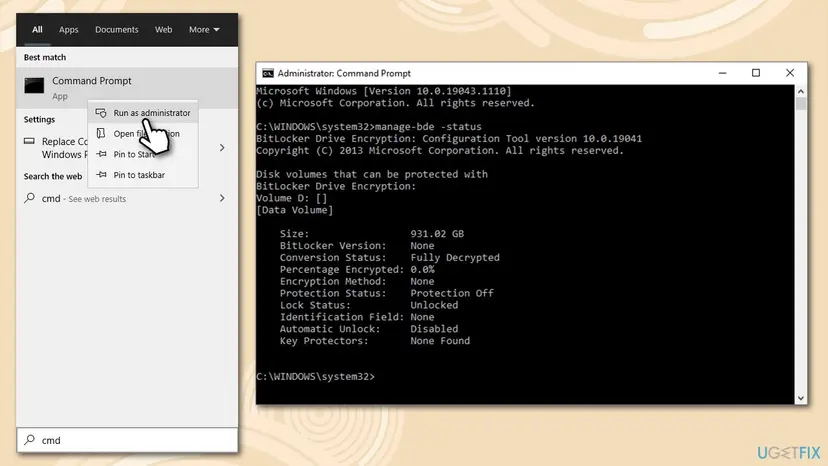
- Protection Off and Fully Decrypted on every drive: restart, press Y at the message and you are done.
- Protection On, or Used Space Only Encrypted or Fully Encrypted: do not press Y yet. Go to Fix 3.
- Windows 11 Home: device encryption shows up here too, as BitLocker with Protection On.
It worked if: You know whether the drive is encrypted and which key the next step needs.
If not: If Windows does not start after N or asks for a recovery key, go to Fix 4.
Fix 3. Save the recovery key, suspend BitLocker, then press Y
15 minutesRead the warningFix 2 showed Protection On, and Windows still starts after N.
While BitLocker is suspended, the drive does not need the TPM to unlock. You can reset the fTPM with Y, start Windows without the recovery key, and BitLocker then seals its key into the new fTPM.
Write down or print the 48-digit recovery key before you suspend anything (Fix 4 shows where). Your files stay encrypted on the drive while BitLocker is suspended, but if something goes wrong at the restart, the key is the only way in.
- Open Command Prompt as administrator again, as in Fix 2.
- Run the first command below. It suspends BitLocker on drive C: for two restarts.
- Restart the PC. At the message, press Y.
- Sign in with your password. The old Windows Hello PIN no longer works, because it was kept in the fTPM.
- Run the second command to turn protection back on, then the third to check it.
Command Prompt (as administrator): suspend, resume and check BitLocker on C:
manage-bde -protectors -disable C: -RebootCount 2
manage-bde -protectors -enable C:
manage-bde -status C:
Other encrypted drives, such as a second data drive, need the same treatment: replace C: with their letter. If you prefer to remove the encryption for good, manage-bde -off C: decrypts the drive instead. Wait until manage-bde -status shows Fully Decrypted before you restart and press Y.
Then set up your PIN again in Settings > Accounts > Sign-in options > PIN (Windows Hello).
It worked if: Windows starts after Y without asking for the recovery key, and manage-bde shows Protection On again.
If not: If Windows asks for the recovery key after Y, enter it (Fix 4). If the message returns at every start, go to Fix 6.
Fix 4. Find your BitLocker recovery key
5 to 15 minutesNo riskWindows asks for a recovery key after N or after Y, or you need the key before Fix 3.
Once the fTPM no longer holds the BitLocker key, the 48-digit recovery key is the only thing that unlocks the drive. Microsoft says it is usually stored in one of four places.
- On the blue BitLocker recovery screen, note the first 8 characters of the Recovery key ID. They tell you which key to use if you find more than one.
- On another device, open
https://aka.ms/myrecoverykeyand sign in with the Microsoft account you use on the PC. Find the key with the matching ID. - If the PC was ever used with a work or school account, open
https://aka.ms/aadrecoverykey, select Devices, expand the PC and select View BitLocker Keys. Or ask your IT department. - Check your papers for a printout made when BitLocker was turned on.
- Check USB flash drives for a text file named like BitLocker Recovery Key followed by the ID.
- Type the 48 digits on the recovery screen and press Enter.
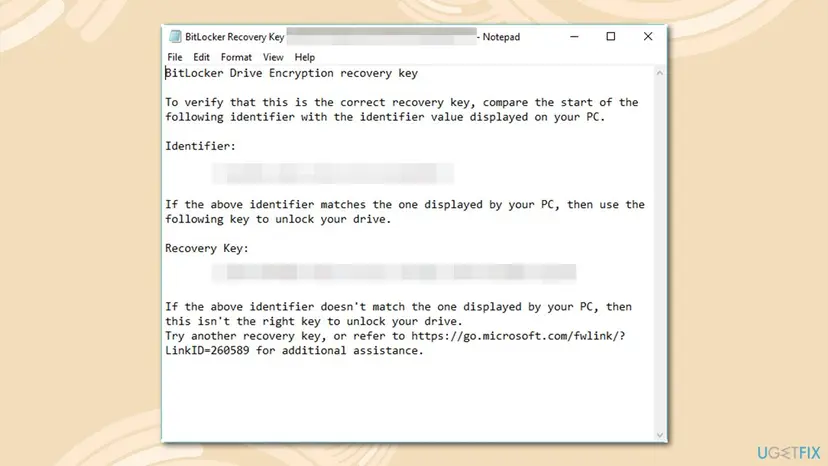
Microsoft notes that if another person set up the device or turned BitLocker on, the key may be in their Microsoft account. On Windows 11 24H2 and newer, the recovery screen shows a hint of the account that holds the key.
It worked if: The drive unlocks and Windows starts. Then follow Fix 3 before you press Y again.
If not: If Windows still does not start, go to Fix 5. If you cannot find the key at all and changed the CPU, try Fix 7.
Fix 5. Unlock and decrypt the drive from the recovery environment
20 minutes or moreRead the warningYou have the recovery key, but Windows does not start normally after N, so you cannot run Fix 3 from the desktop.
The recovery environment has its own Command Prompt. There you can unlock the drive with the recovery key and remove the encryption, so pressing Y afterwards cannot lock you out.
These commands need the 48-digit key from Fix 4. Decrypting a large drive takes a long time. Keep the PC on mains power and do not switch it off until the status shows Fully Decrypted.
- Open the recovery environment. If Automatic Repair appears, select Advanced options. If not, press N at the message, then hold the power button for about 5 seconds when the Windows logo shows. After two or three forced stops Windows opens it by itself.
- Select Troubleshoot > Advanced options > Command Prompt. The screens are shown in Run Startup Repair; pick Command Prompt instead of the repair tile.
- Run
manage-bde -statusand note the drive letter of the encrypted volume. In the recovery environment it is not always C:. - Unlock it with the first command below, using your letter and key.
- Decrypt it with the second command and repeat
manage-bde -statusuntil it shows Fully Decrypted. - Close the window, restart and press Y at the message.
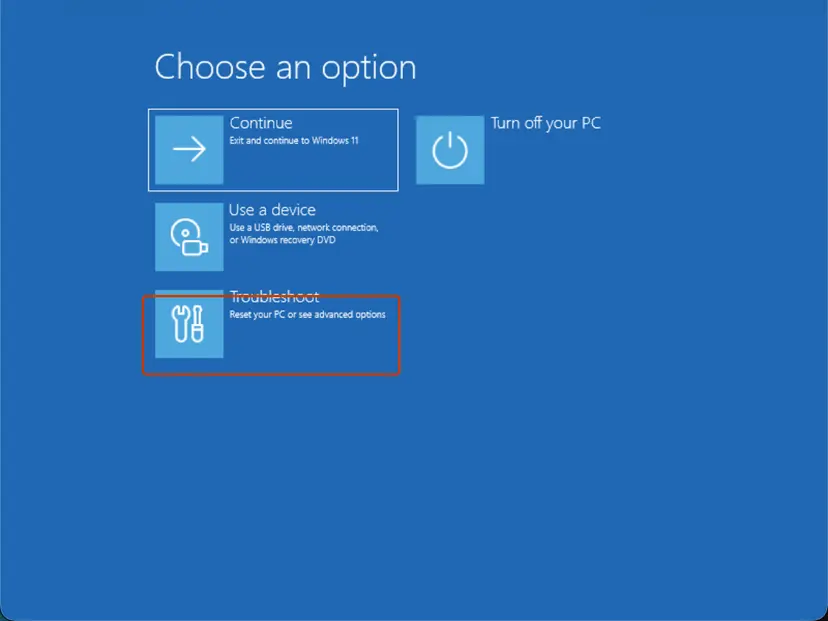
Command Prompt in the recovery environment (example for drive C:)
manage-bde -unlock C: -rp 111111-222222-333333-444444-555555-666666-777777-888888
manage-bde -off C:
manage-bde -status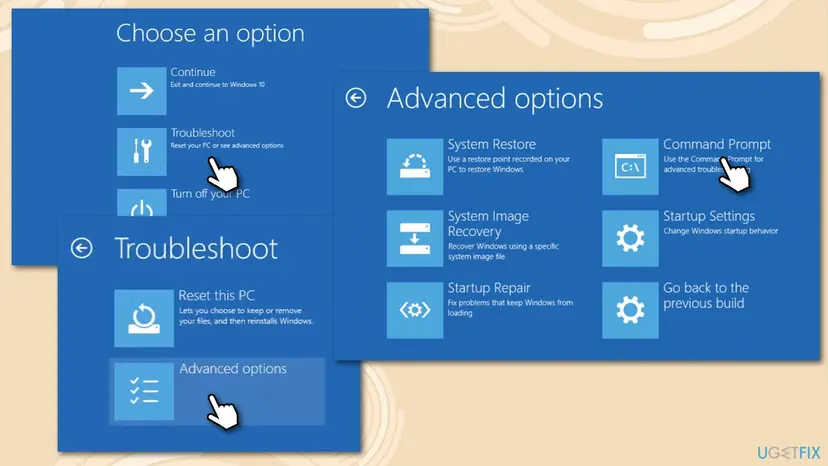
It worked if: Windows starts after Y without a recovery key. You can turn BitLocker or device encryption on again afterwards.
If not: If the recovery environment does not open, start the PC from a Windows installation USB, select Repair your computer and use the same commands.
Fix 6. Update the BIOS when the message comes back at every start
15 to 30 minutesRead the warningYou pressed Y, Windows starts, but the message appears again at each power on.
A message that returns after Y means the firmware cannot keep the new fTPM record. That is a firmware problem, and board makers fix such problems in BIOS updates.
Suspend BitLocker first (the first command of Fix 3) and keep the recovery key at hand. Do not switch the PC off during the update.
- Press Win + R, type
msinfo32and press Enter. - Note System Manufacturer, System Model (or BaseBoard Product on a desktop) and BIOS Version/Date.
- On the maker's support page for that exact model, compare the newest BIOS version with yours.
- If yours is older, install it with the maker's own tool or BIOS flash utility and its instructions.
- After the update, press Y once if the message appears, then restart twice to see whether it stays away.
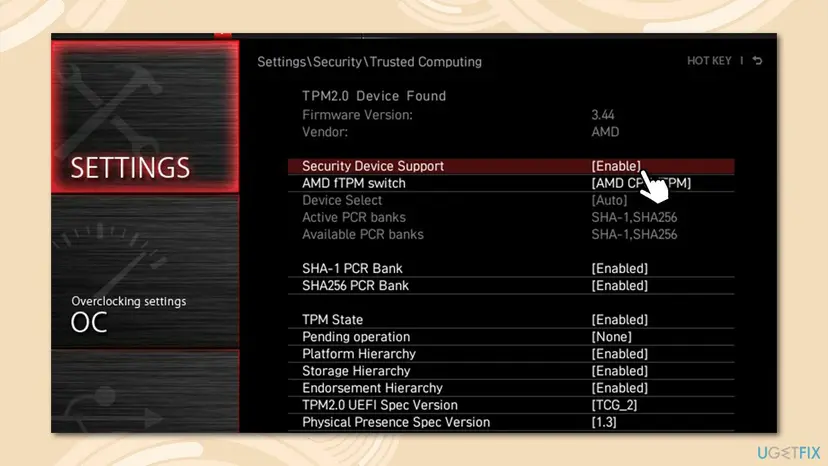
- MSI: Settings > Security > Trusted Computing > Security Device Support and AMD fTPM switch.
- ASRock: Advanced > CPU Configuration > AMD fTPM Switch.
- Gigabyte: Settings > Miscellaneous (or Peripherals) > AMD CPU fTPM.
It worked if: The message no longer appears at start, and Windows Security shows a ready security processor.
If not: If the newest BIOS still shows it at every start, contact the board or laptop maker's support (see the section below).
Fix 7. Put the old CPU back to recover the TPM keys
30 minutesRead the warningYou changed the CPU, the drive is encrypted, and you cannot find the recovery key.
The message itself says it: with N the old record stays, and the old CPU can read the TPM keys again. That is the only way back to an encrypted drive without the recovery key.
Every Y on the new CPU erases the old record for good. Press N at every start until the old CPU is back in place.
- Shut the PC down and put the old CPU back in its socket.
- Start the PC. If the message appears, press N.
- Sign in to Windows and save the recovery key: open Command Prompt as administrator and run the command below, then copy the 48-digit Password to paper or another device.
- Suspend BitLocker with the first command of Fix 3, shut down and install the new CPU.
- Start the PC, press Y at the message and turn protection back on, as in Fix 3.
Command Prompt (as administrator): show the recovery key of C:
manage-bde -protectors -get C:It worked if: Windows starts on the new CPU, the drive is protected again and you hold a copy of the recovery key.
If not: If the old CPU is gone and no key exists, Microsoft's only path is a reset that removes all files.
If the fTPM/PSP NV message stays: what to collect and when it is hardware
This message never comes from Windows, so Windows logs do not explain it. What helps the board or laptop maker's support is the exact situation:
- Make, model and BIOS Version/Date from
msinfo32, plus the CPU model. - What happened just before: a BIOS update, a CPU change, a CMOS reset or a power loss.
- What Y does: whether the message comes back at every start after Y, and whether the keyboard reacts at all.
- The TPM state in Windows: run
tpm.mscand note what Status says.
If the message returns after Y on the newest BIOS, or the PC also freezes and shuts down by itself, the board or the CPU may be at fault. That is a warranty case for the maker. If your PC also turned off unexpectedly, see our guide to event 6008, the previous system shutdown was unexpected.
How to avoid the fTPM/PSP NV corrupted message next time
- Keep the recovery key outside the PC. Check now that it is in your Microsoft account at
https://aka.ms/myrecoverykey, or print it. - Back up your files to another drive or the cloud before firmware work, so even a lost key does not cost your data: Back up your files (Windows Backup, File History, Time Machine).
- Suspend BitLocker before a BIOS update or a CPU change with the first command of Fix 3. Then pressing Y at the next start costs nothing.
- Know your sign-in password. After any fTPM reset the Windows Hello PIN is gone and Windows asks for the password.
- Leave the fTPM on. Windows 11 requires TPM 2.0, and BitLocker and Windows Hello depend on it. Turning it off hides the message but removes that protection.
- Shut down properly instead of holding the power button, where you can. A frozen PC is the exception.
Frequently asked questions
Should I press Y or N for fTPM?
Press Y on a new PC or when your drive is not encrypted. Press N on a PC with your files when you do not know whether BitLocker or device encryption is on. N lets Windows start with the old record, so you can check the drive with manage-bde -status, save the recovery key and suspend BitLocker. After that, Y is safe. Pressing Y on an encrypted drive without the key at hand is the one choice that can lock you out.
What happens if I press Y to reset fTPM?
The firmware erases the fTPM and creates a fresh one for the current CPU. Microsoft says clearing a TPM loses all keys created with it and the data they protect, such as a sign-in PIN or a virtual smart card. Your files stay on the drive. If BitLocker or device encryption is on, Windows asks for the 48-digit recovery key at the next start. You then sign in with your password and set up the PIN again.
What does fTPM/PSP NV corrupted mean?
fTPM is the firmware TPM built into AMD CPUs. PSP is the AMD Platform Security Processor it runs on. NV is the non-volatile memory where the fTPM keeps its data. "Corrupted or structure changed" means the firmware found that this stored data no longer matches the CPU it sees. It does not mean the CPU is broken, and it often appears without any CPU change.
Do I reset fTPM when installing a new CPU?
Yes, but only after you have prepared the drive. Before the swap, save the BitLocker recovery key and suspend BitLocker (Fix 3). Then install the CPU and press Y at the message. Windows starts without the recovery key and BitLocker seals its key into the new fTPM. If you already swapped the CPU without preparing, press N, find the recovery key (Fix 4) and follow Fix 3 or Fix 5.
Why does the message appear when I did not change the CPU?
The firmware cannot tell a new CPU from a changed fTPM record, so it always uses the same words. A BIOS update, a reset of the BIOS settings or a CMOS reset rebuilds the firmware and with it the fTPM record. Users also report it after a power loss or a forced shutdown. In each case the fix is the same: check the encryption, then press Y.
Does this happen on Lenovo laptops too?
Yes. Lenovo laptops with AMD Ryzen CPUs use the same AMD fTPM, and users report the same message after BIOS updates. Many of these laptops come with device encryption turned on, so press N first and follow Fix 2 and Fix 3. Lenovo's own BIOS updates come through Lenovo Vantage or the support page for your model, which is the route for Fix 6.
Should I turn off fTPM in the BIOS to stop the message?
We do not recommend it as a fix. Turning the fTPM off hides the message, but Windows 11 requires TPM 2.0, and BitLocker, device encryption and the Windows Hello PIN all depend on it. On a PC with an encrypted drive, turning it off also triggers the recovery screen. If the message returns at every start, update the BIOS (Fix 6) instead.
What is "Erase fTPM NV for factory reset"?
It is a BIOS setting on some AMD boards, ASUS boards among them, that decides whether the fTPM data is erased when the BIOS is reset to factory defaults. Erasing it has the same effect as pressing Y. If your drive is encrypted, suspend BitLocker and keep the recovery key at hand before you reset the BIOS, whatever this setting says.
The keyboard does not work at the fTPM message. What now?
Users report that some USB keyboards, especially wireless ones or those on a hub or front panel, are not ready at this early stage. Plug a wired keyboard into a USB port on the back of the PC, directly on the motherboard, and restart. On a laptop the built-in keyboard should work. If nothing reacts, the board maker's support is the next step.
Can I get my files back without the BitLocker recovery key?
Only if the old fTPM record still exists. If you changed the CPU, put the old one back and press N (Fix 7). If the fTPM was already reset with Y and no key exists in your Microsoft account, a work account, a printout or a USB drive, the data cannot be decrypted. Microsoft Support cannot recreate the key, and its only remaining path is a reset that removes all files.
Sources
- Microsoft Support: Find your BitLocker recovery key (support.microsoft.com)
- Microsoft Learn: Troubleshoot the TPM (clear all the keys from the TPM) (learn.microsoft.com)
- WinTips.org: FIX New CPU installed, fTPM NV corrupted or fTPM NV structure changed (wintips.org)
Did this fix work?
One click, no account. It tells the next reader which guides are worth their time.
Questions and experiences: fix "New CPU installed, fTPM/PSP NV corrupted or fTPM/PSP NV structure changed"
Still broken, or found a fix we did not cover? Ask here: members and our editors answer. Reading is open; writing needs a free account.
…