
How to fix NVIDIA Container high CPU usage on Windows?

Prefer to fix it yourself? The manual steps follow.
- 8methods
- 5 to 30 minutes
- Easy
Applies to Windows 11 and Windows 10 PCs with an NVIDIA graphics card, the NVIDIA driver and the NVIDIA app or GeForce Experience
8 methods in this guide
Hello, I have noticed that my Windows is working extremely slowly, and fans are spinning fast, especially when I launch a game. So I checked the Task Manager to see what was going on and noticed that NVIDIA Container is stuck in a permanent state of high CPU usage. Any help would be appreciated.
NVIDIA Container is a background program that NVIDIA's driver and app start for their own services. It should be quiet most of the time, so a constant high CPU reading points to a stuck service, the in-game overlay, a scheduled task or a bad driver. Check which instance is busy first, then follow the fixes in order.
Open Task Manager, go to the Details tab and sort by CPU. Right-click the busy NVIDIA Container entry and choose Go to service(s) to see which service owns it. Then turn off the NVIDIA overlay, restart the NVIDIA services, and update or roll back the graphics driver if the load stays high.
| Error | NVIDIA Container (NvContainer.exe) shows a high, steady CPU percentage in Task Manager. There is no error message or code. |
|---|---|
| Where it appears | Task Manager, on the Processes tab as NVIDIA Container, and on the Details tab under its file name. Fans spin up and games stutter. |
| Main cause | A stuck NVIDIA service, the in-game overlay, background tasks of the NVIDIA software, or a faulty driver build. Users report it most often right after a driver or app update. |
| Fastest fix | Find the busy instance, turn off the NVIDIA overlay and restart the NVIDIA services. It takes about 5 minutes. |
| Process and services | NvContainer.exe, and on some PCs NVDisplay.Container.exe, which belongs to the service NVIDIA Display Container LS. |
| Safe to end? | Ending one process in Task Manager is safe for Windows. Windows or NVIDIA may start it again, and NVIDIA features can stop until then. |
| Time to fix | 5 to 30 minutes, depending on how many fixes you need. |
Facts checked on 16 October 2026. Steps written for Windows 11 (25H2 and 26H2) and Windows 10 22H2.
What NVIDIA Container is and what high CPU usage means here
NVIDIA Container is the name Task Manager shows for small helper programs that NVIDIA's software installs as Windows services. The driver starts some of them, such as NVIDIA Display Container LS, and the NVIDIA app or GeForce Experience starts others. NVIDIA's own installer article tells you to stop every service whose name starts with NVIDIA and end processes that start with nv before a reset, which shows how many of these helpers exist.
These helpers should use almost no processor time while you work. A short rise is normal after you start a game, install a driver or open the NVIDIA app. A reading that stays high for many minutes, with the fans running, is not normal and has a cause you can find. This is the NVIDIA Container CPU usage problem that the fixes below address.
- Process names
NvContainer.exe,NVDisplay.Container.exe- Service you will meet
- NVIDIA Display Container LS
- Belongs to
- The NVIDIA driver and the NVIDIA app (it replaced GeForce Experience)
- Message or code
- None. Only a high CPU percentage
Task Manager can list more than one NVIDIA Container. Only one of them is usually busy. Fix 1 shows which one, so you do not change services that were never the problem.
Why NVIDIA Container uses too much CPU, from most to least common
NVIDIA has not published an article that names one cause of this problem, and we found none on its support site. The list below combines what NVIDIA's software does with what users report on NVIDIA's forum and other forums, mostly after a driver or app update. Treat it as an order to test in, not as a verdict.
| Cause | How often users report it | How to tell | Fix |
|---|---|---|---|
| A stuck NVIDIA service after an update or after sleep | Often | The load stays high after a restart of the service only | Fix 1 and Fix 3 |
| The in-game overlay of the NVIDIA app or GeForce Experience | Often | The load rises when the overlay or a game starts | Fix 2 |
| Background tasks and data collection of the NVIDIA software | Sometimes | Task Scheduler lists tasks starting with Nv | Fix 4 and Fix 5 |
| A faulty or damaged driver build | Sometimes | The problem began right after a driver update | Fix 6 and Fix 7 |
| A damaged NVIDIA app or GeForce Experience install | Less often | Services or the app itself misbehave | Fix 8 |
Hardware is rarely the cause. If the PC also crashes or the screen goes black, read the last section before you change more software.
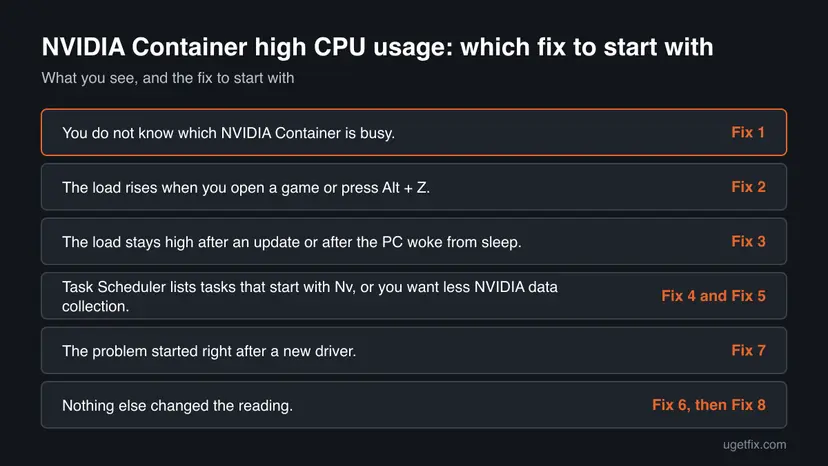
How to fix NVIDIA Container high CPU usage on Windows 11 and Windows 10
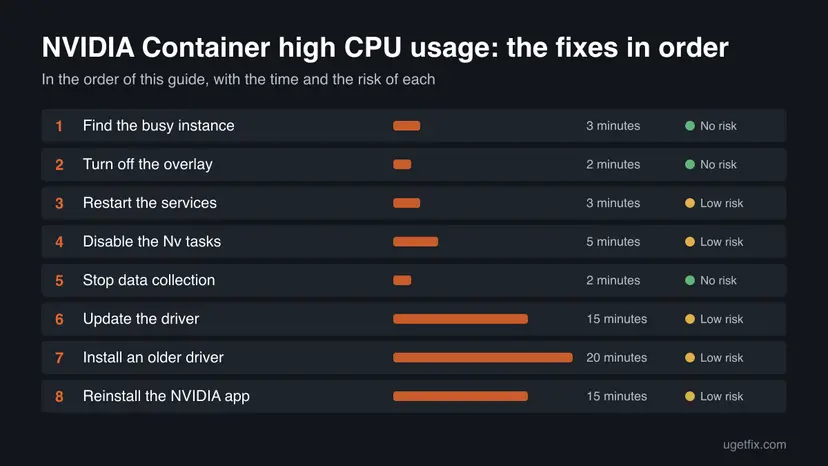
Fixes 1 to 3 take a few minutes and solve most cases. Fixes 4 and 5 reduce NVIDIA's background work. Fixes 6 to 8 change the driver and the app, so do them last.
| What you see | Start with |
|---|---|
| You do not know which NVIDIA Container is busy. | Fix 1 |
| The load rises when you open a game or press Alt + Z. | Fix 2 |
| The load stays high after an update or after the PC woke from sleep. | Fix 3 |
| Task Scheduler lists tasks that start with Nv, or you want less NVIDIA data collection. | Fix 4 and Fix 5 |
| The problem started right after a new driver. | Fix 7 |
| Nothing else changed the reading. | Fix 6, then Fix 8 |
Fix 1. Find which NVIDIA Container is busy
3 minutesNo riskYou see NVIDIA Container in Task Manager and do not know which copy or service causes the load.
Several NVIDIA helper programs share the same display name, so restarting the wrong service changes nothing. The Details tab shows the file name and the service that owns the busy copy.
- Press Ctrl + Shift + Esc to open Task Manager and select the Details tab.
- Click the CPU column header until the highest value is at the top.
- Find the NVIDIA entry with the high value. Its name is
NvContainer.exeorNVDisplay.Container.exe. - Right-click it and choose Go to service(s). The Services tab opens with the owning service highlighted.
- Write down the service name and the process ID (PID) for the next fixes.
Give the PC a few minutes after a driver install, a game start or a wake from sleep first. A short rise is normal, and only a reading that stays high needs a fix.
It worked if: You know the exact service behind the load, for example NVIDIA Display Container LS, and the PID that is busy.
If not: If the busy entry is not an NVIDIA file, the cause is another program. Sort Task Manager by CPU and work on that program instead.
Fix 2. Turn off the NVIDIA overlay
2 minutesNo riskThe load rises when you open a game, press Alt + Z, or start the NVIDIA app.
The overlay hooks into running programs for recording, the statistics display and filters. Users report that switching it off lowers the load of the NVIDIA container that serves it.
- Open the NVIDIA app from the Start menu. On an older PC the program is GeForce Experience.
- Open Settings (the cog icon).
- Find the in-game overlay option and set it to Off. In the NVIDIA app, the same overlay opens with Alt + Z.
- Close the window and watch Task Manager for a few minutes.
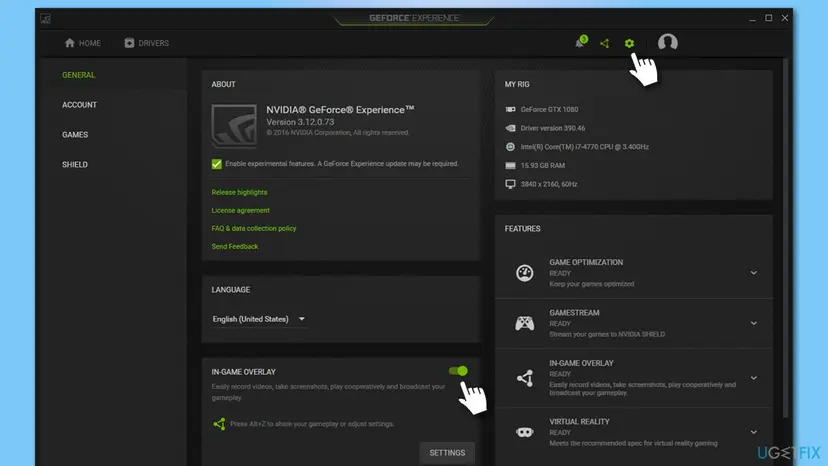
NVIDIA's release notes describe the overlay as the panel for recording, performance statistics and game filters, so turning it off only removes those features.
It worked if: The NVIDIA Container load drops while you play or while you sit on the desktop, and the overlay no longer opens with Alt + Z.
If not: If the load stays high, turn the overlay back on if you use it and go to Fix 3.
Fix 3. Restart the NVIDIA services
3 minutesLow riskThe load stays high after a driver update, a game or a wake from sleep, and Fix 1 named a service.
A service can get stuck in a busy loop after an update or after sleep. Restarting it ends that loop and starts it clean without a reboot.
- Press Win + R, type
services.mscand press Enter. - Scroll to the service you wrote down in Fix 1. If you have none, start with NVIDIA Display Container LS.
- Right-click it and choose Restart.
- Repeat for the other services whose name starts with NVIDIA.
- Wait a minute and check Task Manager again.
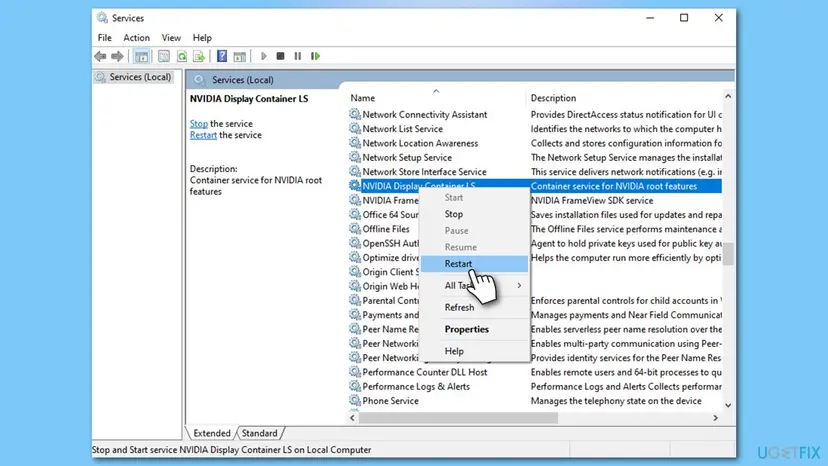
Step by step for both Windows versions: Check and restart Windows services
It worked if: The CPU reading falls within a minute, and each NVIDIA service shows Running with its startup type unchanged.
If not: If the load returns in minutes, the cause is not a one-time hang. Go to Fix 4.
Fix 4. Disable the Nv scheduled tasks
5 minutesLow riskTask Scheduler lists NVIDIA tasks, and the load comes in bursts instead of a steady line.
NVIDIA's software registers scheduled tasks for background work such as reporting. Switching them off stops that work from waking the container, and you can turn each one on again.
- Open the Start menu, type Task Scheduler and press Enter.
- Select Task Scheduler Library on the left.
- Look for tasks whose name starts with Nv.
- Select one task and choose Disable in the right pane. Repeat for each Nv task.
- Restart the PC and watch Task Manager.
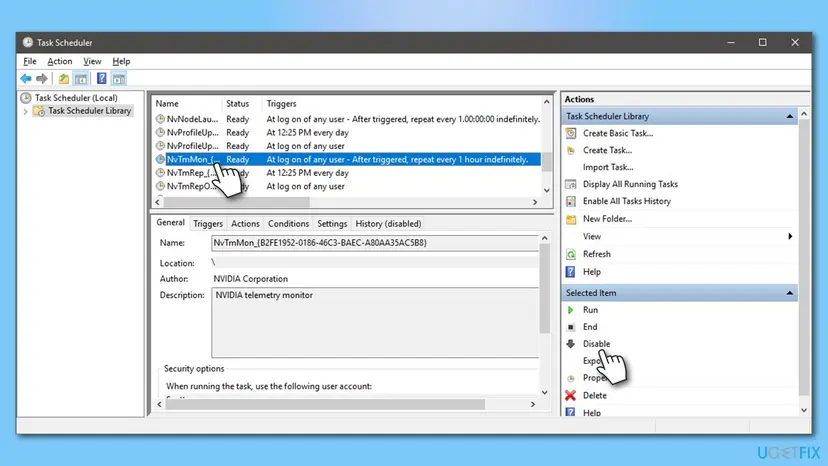
Use Disable so you can switch a task back on with Enable. We found no NVIDIA list that says which task does what, so change only the tasks that start with Nv.
It worked if: The tasks show Disabled in the Status column, and the bursts of CPU use stop after the restart.
If not: If the load is unchanged, leave the tasks disabled or enable them again, then try Fix 5.
Fix 5. Turn off data collection in the NVIDIA app
2 minutesNo riskYou use the NVIDIA app and want less background reporting from it.
The NVIDIA app has two optional data collection settings in its About tab. Switching them off reduces what the app reports in the background.
- Open the NVIDIA app and go to Settings.
- Open the About tab.
- Clear the box Configuration, performance, and usage data.
- Clear the box Error and crash data.
- Close the app and check Task Manager after a few minutes.
NVIDIA says this data helps it reproduce and fix issues, so turning it off has no effect on your games. We could not confirm that it lowers the CPU load, so treat it as a small step.
It worked if: Both boxes are cleared in the About tab, and the settings stay that way after you reopen the app.
If not: If the boxes are not there, you use GeForce Experience. Skip this fix and go to Fix 6.
Fix 6. Update the graphics driver
15 minutesLow riskYour driver is old, and the problem began before any recent driver change.
A driver that is outdated or damaged can leave the container in a loop. A newer build from NVIDIA replaces the files and starts the services fresh.
- Open the NVIDIA app, go to Drivers and select Download, then Install for the newest driver.
- Or download the driver for your card from nvidia.com, choosing your product type, series and Windows version.
- Restart the PC after the install.
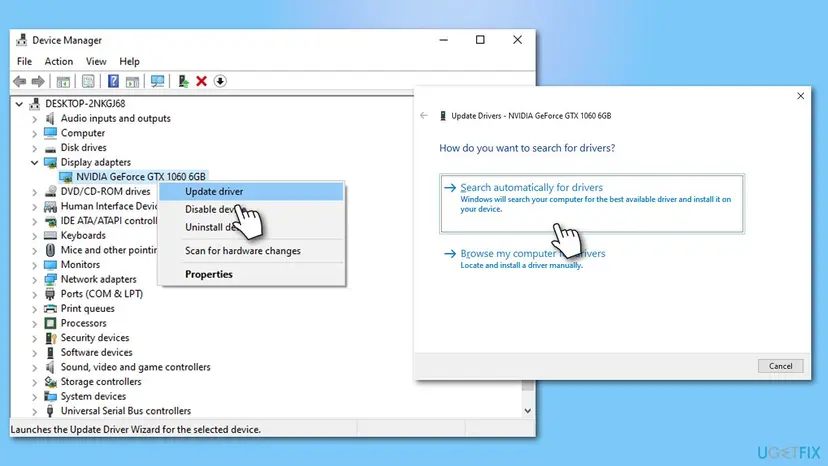
The Device Manager route and the clean reinstall are described in Update, roll back or reinstall a driver. Windows 10 is out of support since 14 October 2025, so install the newest driver NVIDIA still offers for it.
It worked if: The driver version shown in the NVIDIA app is the newest one, and the container load stays low after the restart.
If not: If the problem began after a new driver, go to Fix 7 and go back to the older one.
Fix 7. Go back to an older driver
20 minutesLow riskThe high CPU usage started right after you installed a new driver.
Users report the problem after particular driver versions. Going back to the previous version tells you whether the new build is the cause.
- In the NVIDIA app, open Drivers, select the three dots next to the earlier driver and choose Reinstall.
- Or open Device Manager and expand Display adapters.
- Right-click your GPU and choose Uninstall device.
- Tick Attempt to remove the driver for this device if it is shown, and select Uninstall.
- On nvidia.com open the driver search, enter your product type, series and Windows version, and pick the previous driver in the list.
- Install it and restart the PC.
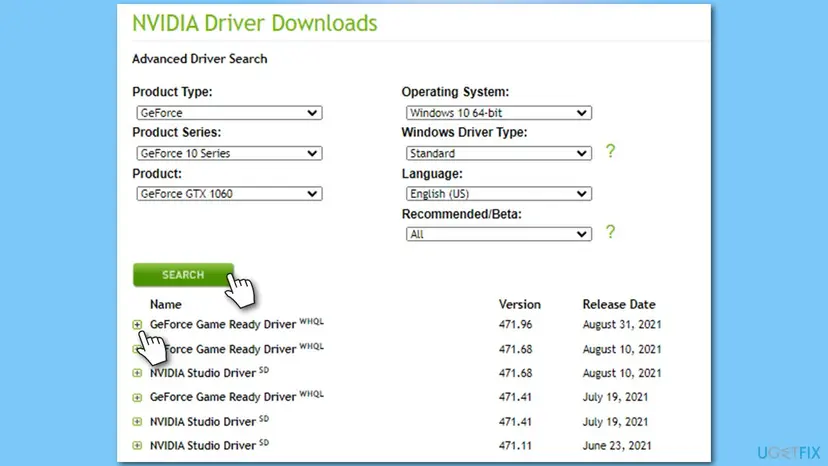
After the rollback, turn off automatic driver downloads in the NVIDIA app settings. Otherwise the newest driver can return on its own.
It worked if: The older driver is listed as the installed version, and the NVIDIA Container load stays low.
If not: If it is still high on the older driver as well, the driver is not the cause. Go to Fix 8.
Fix 8. Reinstall the NVIDIA app or GeForce Experience
15 minutesLow riskEvery earlier fix failed, or the NVIDIA app itself is slow, missing features or crashing.
NVIDIA's own reset for broken installs removes the app and installs it again. That replaces the app's service files, which is the part that misbehaves when a GeForce Experience install is damaged.
- Right-click Start, open Settings and go to Apps > Installed apps.
- Find NVIDIA App (or GeForce Experience), select the three dots and choose Uninstall.
- Restart the PC.
- Download the NVIDIA app from nvidia.com and install it.
- Check Task Manager again.
A general walkthrough of removing a program is in Uninstall a program or app in Windows. The graphics driver stays installed, so your display keeps working.
It worked if: The app reinstalls cleanly, its services start, and the NVIDIA Container load stays low.
If not: If it is still high, read the next section and collect the facts for NVIDIA support.
If NVIDIA Container still uses too much CPU
Collect the facts before you try more changes. The same details help NVIDIA's support team and any forum helper find the cause faster than a general description.
- Note the file name and service from Fix 1, the PID and the CPU percentage.
- Write down your driver version from the NVIDIA app or Device Manager, and your Windows version from
winver. - Test a clean start with How to perform a clean boot in Windows and leave the NVIDIA services on. If the load disappears, another program was triggering it.
- Check the card, cooling and power if the PC also crashes or the screen goes black.
- Send to NVIDIA support: the items above, plus the driver you used before the problem began. NVIDIA's support site offers chat and a question form.
- If another program is named: update or remove it, then test again.
- If it only happens in one game: verify that game's files and update it.
Removing files from the NVIDIA folders by hand can break the driver. Use the uninstall steps in Fix 7 and Fix 8 instead.
How to keep NVIDIA Container from using high CPU again
- Restart the PC after every driver or app update.
- Keep the previous driver's installer so you can roll back if a new one misbehaves.
- Leave the NVIDIA overlay off if you never use it.
- Check Task Manager after a driver update, before you start a long game.
- Do not turn off the NVIDIA services for good as a fix. Features such as the tray icon and settings may stop.
- Do not install NVIDIA software from sites other than nvidia.com.
- Do not use tweak tools that disable every Nv task and service in one click.
A short rise after an update is normal. Act only when the load stays high for more than a few minutes.
Frequently asked questions
Is NVIDIA Container safe to keep on my PC?
Yes. NVIDIA Container is a legitimate helper program of the NVIDIA driver and the NVIDIA app, and it is installed by NVIDIA's own software. To check that your copy is genuine, open Task Manager, right-click the entry and choose Open file location. The file should sit in a folder under Program Files or the driver store, not in a temporary or user folder. If it sits somewhere else, run a Microsoft Defender scan.
How to disable NVIDIA Container?
You can set its service to Disabled in Services, but that is a last resort and not a fix. Press Win + R, run services.msc, double-click the NVIDIA service, set Startup type to Disabled and select Stop. We found no NVIDIA statement about what stops working. A user on NVIDIA's forum says the display container only serves the tray icon, but treat that as a user report. Use the earlier fixes first, and set the type back to Automatic to undo it.
How to turn off NVIDIA Container for a moment?
Right-click the service in Services and choose Stop. It stays off until the next restart or until NVIDIA's software starts it again. This is a way to test whether the container causes the load. NVIDIA's own installer article stops its services the same way before a reset. Do not leave it stopped while you update the driver, because a stopped service can make the install fail.
Can I disable NVIDIA Container if I only play games?
The games run on the graphics driver and not on the container, so they keep working in most cases. What you lose is the NVIDIA app features, such as the overlay, recording and driver update notices. We could not find an NVIDIA list of exactly what stops. If you never open the NVIDIA app, uninstalling the app (Fix 8) is cleaner than disabling services by hand.
Can I close NVIDIA Container in Task Manager?
Yes, ending it is safe for Windows, and it is a quick way to test the cause. Open Task Manager, select the Details tab, right-click the busy NVIDIA Container and choose End task. Windows or the NVIDIA software may start it again, and until then the NVIDIA overlay and app features can stop. If the load drops and returns, work through the fixes in this guide.
Can I disable NVIDIA Display Container LS?
It is the display service of the driver, and it starts with Windows. Users on NVIDIA's forum say it also keeps the NVIDIA tray icon and control panel entry working. Disabling it is not part of NVIDIA's guidance and may remove those items. Restart it in Services (Fix 3) or update the driver first. If you disable it for a test, set it back to Automatic afterward.
How to uninstall NVIDIA Container?
NVIDIA Container is not a separate program in Installed apps. It comes with the graphics driver and the NVIDIA app. To remove the app's part, uninstall the NVIDIA app or GeForce Experience, as in Fix 8. To remove the driver's part, uninstall the driver in Device Manager, as in Fix 7. Windows then installs a basic display driver, so install the NVIDIA driver again afterward.
What if NVIDIA Container causes high disk usage?
The same fixes apply. Use Fix 1 to find the busy copy in Task Manager, then restart its service in Fix 3. Turn off the overlay and recording in Fix 2, because recording writes to disk. Update or roll back the driver in Fix 6 and Fix 7 if the problem began after an update. If the disk stays busy, check the drive's health.
Why does NVIDIA Container use CPU only when I play a game?
The overlay and the performance statistics start with the game and use the container to do their work. Users report that switching the in-game overlay off removes the extra load. Turn it off as in Fix 2, then test the game again. If the load is gone, you can leave the overlay off or turn it on only for games where you need it.
Will updating Windows fix NVIDIA Container high CPU usage?
Not by itself. The container belongs to NVIDIA's software, so the useful updates are the NVIDIA driver and the NVIDIA app. Windows 10 22H2 left support on 14 October 2025, so keep the PC secure by moving to Windows 11 when you can. Check Windows Update after the driver work, because a pending restart can also keep a service busy.
Sources
- NVIDIA Support: Solving NVIDIA Installer Issues (article 4223) (nvidia.custhelp.com)
- NVIDIA GeForce News: NVIDIA App Officially Released (nvidia.com)
Did this fix work?
One click, no account. It tells the next reader which guides are worth their time.
Questions and experiences: fix NVIDIA Container high CPU usage on Windows
Still broken, or found a fix we did not cover? Ask here: members and our editors answer. Reading is open; writing needs a free account.
…