
How to fix Office error code 30068-44 in Windows?

Prefer to fix it yourself? The manual steps follow.
- 5methods
- 5 to 45 minutes
- Intermediate
Applies to Microsoft 365, Office 2024, 2021, 2019 and 2016 installed with Click-to-Run on Windows 11 and Windows 10
5 methods in this guide
I had Office 2019 running on my computer with no problems for several years. However, there was an issue with Outlook that I couldn't fix, so I uninstalled the suite, only later to see that the installation does not work anymore and I get an error code 30068-44 every time. Any tips for me?
Error Code: 30068-44 means the Office installer could not get the Microsoft Office Click-to-Run Service to do its job, usually after an earlier Office was removed or broken. Restart the PC normally and run setup again. If that fails, check that the service is not disabled, then remove every Office with Microsoft's uninstall troubleshooter and install once more.
Restart Windows normally, not in Safe Mode, and run the Office installer again (Fix 1). If the code returns, open services.msc and make sure Microsoft Office Click-to-Run Service is not Disabled (Fix 2). If the service is missing or the error stays, remove every Office with Microsoft's uninstall troubleshooter, restart and install again (Fix 3). The number in brackets after the code tells you where to start.
| Error | Something went wrong and Sorry, we ran into a problem. with Error Code: 30068-44 (1715) or another number in brackets, in the Microsoft setup window. |
|---|---|
| Where it appears | When you install, reinstall or uninstall Microsoft 365 or Office 2016 to 2024. Most reports come right after an earlier Office was uninstalled, as in the reader's question above. |
| Main cause | The installer cannot start or reach the Microsoft Office Click-to-Run Service (ClickToRunSvc), because it is disabled, half removed or blocked. |
| Fastest fix | A normal restart and setup again (Fix 1), then the service check in services.msc (Fix 2). Both are Microsoft's first two solutions for 30068. |
| Also written as | 30068-44, error 30068-44, 30068 44, 30068-44 (1715), код ошибки 30068 44, error 30068-4 al instalar office. Close relatives: 30068-47, 30068-4, 30068-39. |
| Affects | Click-to-Run Office of version 16.0: Microsoft 365, Office 2024, 2021, 2019 and 2016. Windows 11 and Windows 10. |
| Microsoft's status | Covered by Microsoft's support page Error code 30068 when installing Office, which applies to any error that contains 30068 (checked 15 October 2026). No Office update fixes it, because the cause is on the PC. |
| Not the cause | Disk space, temporary files or the Windows Store troubleshooter. No source we read ties them to 30068. |
| Time to fix | 5 minutes when a restart or the service is enough. 20 to 45 minutes when Office has to be removed and installed again. |
Facts checked on 15 October 2026. Steps written for Click-to-Run versions of Microsoft 365, Office 2016 to 2024 on Windows 11 (25H2 and 26H2) and Windows 10 22H2, read against Microsoft's documentation.
What error code 30068-44 means in Office setup
Every current desktop Office, from Office 2016 to Office 2024 and Microsoft 365, is installed, updated and removed by Click-to-Run. The setup window you run talks to a Windows service, Microsoft Office Click-to-Run Service, whose short name is ClickToRunSvc. When the window cannot get that service to work, it stops with a code that begins with 30068.
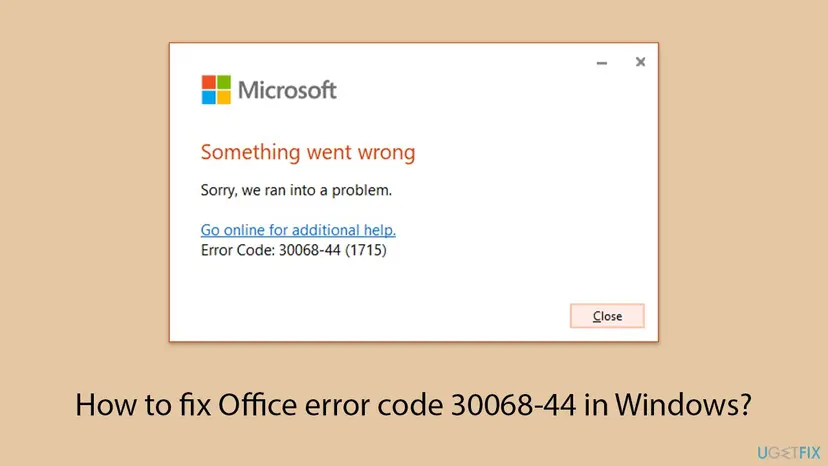
Microsoft has one support page for the whole family. It says the advice applies if you see an error that contains 30068, and it lists its solutions with the most common first. The second number, here 44, is not explained anywhere we could find. The number in brackets is a plain Windows error code, and it is the useful part.
Error 30068-44, error code 30068-44, 30068 44 and the translated windows (код ошибки 30068 44 in Russian, error 30068-44 al instalar Office in Spanish) are the same error. The number is never translated. 30068-47, 30068-4 and 30068-39 belong to the same family and are fixed the same way.
- It is not an error of Word, Excel or Outlook. The installer shows it. If you meet it while you try to get Outlook back, as the reader above did, the reinstall is what failed.
- It also appears on uninstall. One administrator reported Office 365 apps that stopped working and an uninstall from Programs and Features that ended with 30068-5 (1715). The fix there was a forced removal, which is Fix 3 and Fix 4 here.
The number in brackets after 30068-44 and what it points to
Look at the end of the code line. The number in brackets is a Windows system error, and Microsoft Learn gives each one a fixed text. Almost all of the numbers seen with 30068 describe a service that could not be started or reached. That is why the fixes below deal with the service and with the old installation, not with the network.
| Brackets | Windows' own text | Start with |
|---|---|---|
(1058) | The service cannot be started, either because it is disabled or because it has no enabled devices associated with it. | Fix 2 |
(1053) | The service did not respond to the start or control request in a timely fashion. | Fix 1, then Fix 2 |
(1715) | The RPC server is not listening. | Fix 1, Fix 2, then Fix 3 |
(1726), (1728) | The remote procedure call failed. A remote procedure call (RPC) protocol error occurred. | Fix 2, then Fix 3 |
(1084) | This service cannot be started in Safe Mode. | Fix 1 |
(5) | Access is denied. | Fix 5, then Fix 3 |
| No number, or one not listed here | None | Fix 3, then Fix 4 |
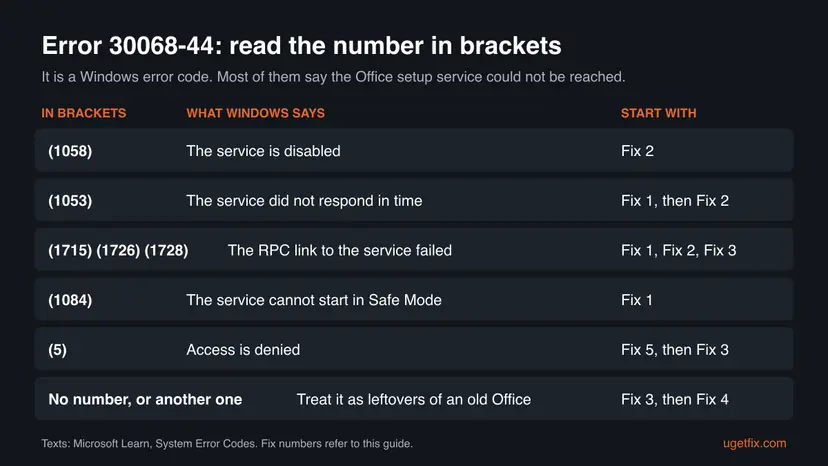
Microsoft does not document what the 44 or the 47 in the middle means. The list of codes that Microsoft's 30068 page is linked to includes many such pairs, for example 1715 with 4, 11, 13 and 43, but not 44 or 47. The fixes are the same, because Microsoft's page covers any error that contains 30068.
What causes Office error 30068-44, from the most common to the rare
Microsoft names no single cause. The ranking below is our reading of Microsoft's own order of solutions, the Windows meaning of the numbers in brackets and the reports on Microsoft Q&A. It is an order of likelihood, not a statistic.
| How often | Cause | Typical sign | Fix |
|---|---|---|---|
| Most often | The Click-to-Run service is stuck or did not start in time after an uninstall or an update | (1715) or (1053) right after you removed Office, with no restart in between. | Fix 1 |
| Often | The service is set to Disabled, for example by a tuning tool or a manual tweak | (1058). One user saw the text Office ran into a problem because its system service is disabled with 30068-4 (1058). | Fix 2 |
| Often | An earlier Office was removed only in part | The service is missing from services.msc, but setup still behaves as if Office were there. One user with 30068-44 (5) wrote that Click-to-Run was not in services at all. | Fix 3, Fix 4 |
| Less often | Windows is running in Safe Mode or with a Safe boot option left on | (1084). Safe Mode was set for a test and never turned off. | Fix 1 |
| Rarely | The Windows account has no rights to the Office folders or keys | (5), Access is denied, on a PC with several users or after a manual cleanup. | Fix 5 |
Many websites blame full disks, temporary files, the Windows Store apps troubleshooter or damaged system files for 30068-44. No Microsoft page and no solved report we read ties them to this code. A system file check is mentioned once under Still there, as a last test.
How to fix error code 30068-44 when you install or remove Office
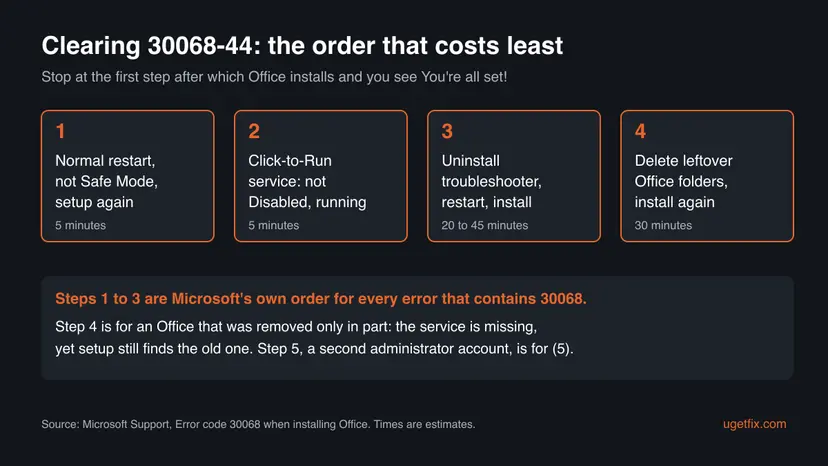
Fix 1 to Fix 3 follow Microsoft's own order for every error that contains 30068, so work through them in turn. Fix 4 removes leftovers that the troubleshooter did not reach. Fix 5 is for (5), Access is denied.
| What you see or what your PC has | Start with |
|---|---|
| You just removed Office, did not restart, and setup fails with (1715) or (1053) | Fix 1 |
| The brackets say (1084), or the desktop shows Safe Mode in the corners | Fix 1 |
| The brackets say (1058), or the message says the system service is disabled | Fix 2 |
| Microsoft Office Click-to-Run Service is not in services.msc at all | Fix 3 |
| The error appears when you try to uninstall Office | Fix 3 |
| The troubleshooter finished, yet setup still fails | Fix 4 |
| The brackets say (5) | Fix 5 |
Fix 1. Restart Windows normally and run Office setup again
5 minutesNo riskEveryone first, and above all after you removed Office, or when the brackets say (1715), (1053) or (1084).
Microsoft lists a restart and a new installation as the most common solution for 30068. After an uninstall the old service can be left half stopped, and Windows error 1084 says the service cannot run in Safe Mode at all.
- Close the setup window with Close.
- Press Win + R, type
msconfigand press Enter. On the Boot tab, make sure Safe boot is not ticked. If it is, clear it and select OK. - Select Start > Power > Restart. Use Restart, not Shut down, so Windows starts fully fresh.
- Sign in to
microsoft365.comwith the account that owns Office and select Install apps or Install Office. - Run the downloaded file, select Yes at the User Account Control prompt and wait for You're all set!
- Office 2016, 2019 and 2021 bought once are also installed from the account page, under Services & subscriptions. You need the Microsoft account the product key was linked to.
- Office 2016 and Office 2019 reached the end of support on 14 October 2025. They still install and run, but get no more security updates. Windows 10 left support on the same day.
It worked if: Setup runs past the point where it stopped and ends with You're all set!, and Word, Excel and Outlook appear in the Start menu.
If not: If the same code comes back, check the service with Fix 2.
Fix 2. Check that Microsoft Office Click-to-Run Service is not disabled
5 minutesLow riskThe brackets say (1058), (1053) or (1715), or Fix 1 did not help.
This is Microsoft's second solution for 30068. The installer hands the work to this service. Windows error 1058 means it is disabled, and 1715 means nothing was listening when setup called it.
- Press Win + R, type
services.mscand select OK. - Scroll to Microsoft Office Click-to-Run Service. Click any row and type M to jump there faster.
- Look at the Startup Type column. If it says Disabled, right-click the service and select Properties.
- On the General tab set Startup type to Automatic. Microsoft allows Manual too.
- Select Apply. If Service status is not Running, select Start, then OK.
- Run the Office installer again.
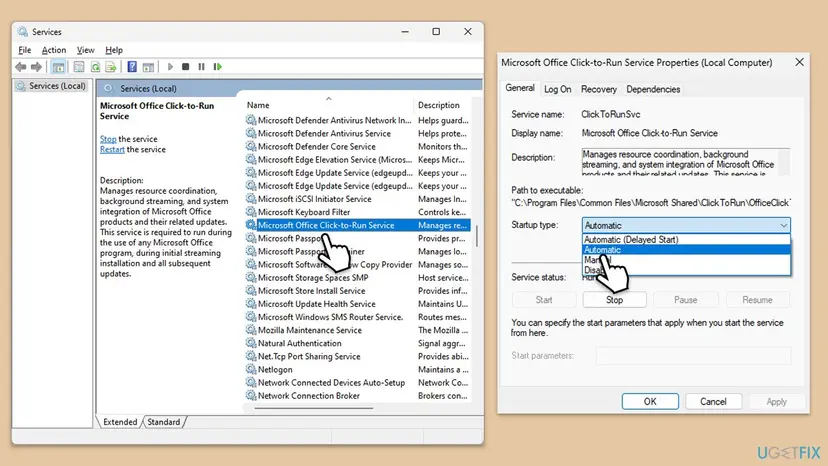
The same check in an elevated Command Prompt: STATE should say RUNNING
sc query ClickToRunSvcHow the Services console works, with every screen for Windows 11 and Windows 10: Check and restart Windows services. If sc query answers that the specified service does not exist, the old Office was removed only in part. Go to Fix 3.
Some forum answers for 30068-4 (1058) name an Office System Service. On current Office the service in this list is Microsoft Office Click-to-Run Service, the one Microsoft's 30068 page names. Older guides that send you to the Windows Installer service are about MSI products, not Click-to-Run.
It worked if: The service shows Running with the startup type Automatic or Manual, and setup ends with You're all set!
If not: If the service is missing, will not start, or the code returns, remove Office completely with Fix 3.
Fix 3. Remove every Office with Microsoft's uninstall troubleshooter, then install again
20 to 45 minutesRead the warningThe service is missing, Fix 2 did not help, or 30068 appears when you try to uninstall Office.
Microsoft's third solution for 30068. When an Office is half removed, setup finds its traces and calls a service that no longer answers. The troubleshooter clears all Click-to-Run versions so that the next installation starts from nothing.
This removes every Microsoft 365 and Office product on the PC. Your documents stay where they are. Before you start, make sure you can sign in at account.microsoft.com and see your Office there, or have the product key. Copy custom templates and Outlook signatures if you would miss them: Back up your files (Windows Backup, File History, Time Machine).
- Sign in to Windows with an administrator account.
- Open Microsoft's page Uninstall Microsoft 365 or Office from a PC and keep the Click-to-Run tab selected.
- Select the Uninstall button under the uninstall troubleshooter, and Open when the browser says This site is trying to open Get Help.
- Follow the prompts. When it asks which versions to remove, select all of them.
- Restart the PC when you are told to.
- Check Settings > Apps > Installed apps (Windows 10: Apps > Apps & features) for any Office left, then install Office again as in Fix 1.

| Limit | What it means for you |
|---|---|
| The troubleshooter currently can't uninstall Office 2024 | Remove Office 2024 in Installed apps, or by hand with Fix 4. |
| You need Windows 10 or higher | It still runs on Windows 10 22H2, even after the end of support. |
| Run it on the PC with the Office you want to remove | It cannot clean another computer over the network. |
| Microsoft Support and Recovery Assistant is gone | Old guides point to SetupProd_OffScrub.exe. Its job now runs in the Get Help app. |
It worked if: Installed apps shows no Office, and the new installation ends with You're all set! without 30068-44.
If not: If the troubleshooter fails, or setup still stops with 30068, delete the leftovers with Fix 4.
Fix 4. Delete the leftover Office folders and the broken service, then install again
30 minutesRead the warningThe troubleshooter finished or failed, and setup still stops with 30068.
Microsoft's tip for a troubleshooter that does not remove everything is to uninstall Office by hand. An administrator who met 30068-5 (1715) on several PCs cleared it by deleting three Office folders after the forced removal.
Deleting these folders resets your Office settings, recent file lists and cached sign-ins. Your documents are not in them. Outlook data files may be, so copy any .pst file under AppData\Local\Microsoft\Outlook first: Back up your files (Windows Backup, File History, Time Machine). Do not delete other folders under AppData\Local\Microsoft.
- Restart the PC so no Office process holds the files.
- Select Start, type
cmd, right-click Command Prompt and select Run as administrator. - Type
sc delete ClickToRunSvcand press Enter. If the service no longer exists, the command says so, which is fine. - Press Win + R, type
%localappdata%\Microsoftand select OK. Delete the Office folder. - Press Win + R, type
%appdata%\Microsoftand select OK. Delete the Office folder. - Press Win + R, type
%ProgramData%\Microsoftand select OK. Delete the Office folder, or at least the file ClickToRunPackagerLocker inside it. - Restart the PC and install Office as in Fix 1.
If setup still finds an old Office, the program folders, scheduled tasks and registry keys of Click-to-Run are left too. Microsoft's full manual removal, with every path and key, is described step by step in our guide to error 30015-25. It deals with the same Click-to-Run parts, and it needs a registry backup first: Back up the registry before editing it.
It worked if: The three folders are gone, setup creates them again, and it ends with You're all set!
If not: If the brackets say (5), try Fix 5. Otherwise read the setup log as described under Still there.
Fix 5. Install Office from a second administrator account
15 minutesLow riskThe brackets say (5), Access is denied, or the code appears for one Windows user only.
Windows error 5 means the account was refused access to a file, folder or key that setup needs. A fresh administrator account has clean rights and a clean profile, so it shows whether the problem belongs to your account.
- Create a local account and make it an administrator: Create a new user account to test a problem.
- Sign out and sign in to the new account.
- Open the browser, sign in at
microsoft365.comwith the Microsoft account that owns Office and start the installation. - Wait for You're all set!, then sign out and sign in to your own account. Office is installed for every user of the PC.
- Open Word in your own account and activate it with the same Microsoft account.
Keep the test account until Office works in your own account, then remove it. We found no Microsoft page that ties 30068 to a damaged user profile, so this is a test for (5), not a likely cause for the other numbers.
It worked if: Setup in the new account ends with You're all set!, and Office opens in both accounts.
If not: If it fails in the new account too, the problem is system wide. Repeat Fix 3 and Fix 4, then read the log under Still there.
If 30068-44 is still there: read the setup log and Event Viewer
The setup window shows only the code. Click-to-Run writes more to its log files in the %temp% folder of the user who ran setup, and in %windir%\Temp for the system account. Windows also logs a service that fails to start in Event Viewer.
- Run the installer once more and note the time.
- Press Win + R, type
%temp%and press Enter. Switch to Details and sort by Date modified, newest first. - Open the newest
.logfile whose name begins with the name of your PC. Press Ctrl + F and search for30068, then forerror. - Repeat it in
%windir%\Temp. - Press Win + R, type
eventvwr.mscand open Windows Logs > System. Look for errors from Service Control Manager at that time that name Microsoft Office Click-to-Run Service.
We could not confirm from Microsoft which exact log line goes with 30068-44, so read it as a hint. A service error in Event Viewer points back to Fix 2. A line about access points to Fix 5.
- Check Windows itself as a last test. If services in general fail to start, damaged system files are possible. Run the system file check once: Run DISM and SFC to repair Windows system files.
- A managed work or school PC may block installations and services by policy. Only IT can change that.
- What to send to Microsoft support: the full code with the number in brackets, the Office product and year, and whether it happened on install or uninstall. Add the Windows version from Settings > System > About and the newest log from both folders.
How to avoid error 30068-44 the next time you reinstall Office
Almost every report of this code starts with an Office that was removed and then installed again. The Click-to-Run service needs a clean start between the two. Removing Office the supported way and restarting in between avoids most of it.
- Restart the PC after every uninstall, before you install again.
- Remove Office in Installed apps or with Microsoft's uninstall troubleshooter.
- Try Quick Repair or Online Repair first when one app such as Outlook misbehaves: How to repair Microsoft 365 or Office.
- Keep your product key linked to your Microsoft account, so a reinstall needs nothing else.
- Set Microsoft Office Click-to-Run Service to Disabled with a tuning tool.
- Install Office while Windows runs in Safe Mode.
- Remove Office by deleting folders before you have tried the troubleshooter.
- Use registry or system cleaning tools on Office keys.
Frequently asked questions
What does error code 30068-44 mean?
It means the Office installer could not get the Microsoft Office Click-to-Run Service to do its work. Microsoft covers every code that contains 30068 on one support page, with three solutions in order: restart and reinstall, check that the service is not disabled, and uninstall Office completely before installing again. The number in brackets after the code is a Windows error. Most of those numbers, such as 1058, 1053 and 1715, describe a service that was disabled, too slow or not listening.
What does 30068-44 (1715) mean?
The 1715 is a Windows system error with the text The RPC server is not listening. Office setup talks to its service by remote procedure call, so it means the setup window called the Click-to-Run service and nothing answered. That happens when the service is stopped, disabled or half removed. Start with a normal restart and setup again (Fix 1), then check the service (Fix 2). If the service is missing, remove Office with the uninstall troubleshooter (Fix 3).
Is error code 30068-47 different from 30068-44?
Not in any way that changes the fix. Microsoft's support page applies to any error that contains 30068, and it does not explain the second number, whether it is 44, 47, 4 or 39. What helps is the number in brackets, such as (1715) in 30068-47 (1715). Read it in the table in the section on the number in brackets and start with the fix named there. The steps for 30068-47 are the same as on this page.
Why do I get error code 30068 when uninstalling Office?
Uninstalling a Click-to-Run Office also runs through the Click-to-Run service. If the service is disabled or the installation is damaged, the uninstall window stops with a 30068 code and Office stays in the list of apps. One administrator saw 30068-5 (1715) on uninstall from Programs and Features on several PCs. Use Microsoft's uninstall troubleshooter instead of Settings (Fix 3), and if it fails, delete the leftovers by hand (Fix 4).
Why do I get error code 30068 when installing Office after I removed it?
Because the removal often leaves the Click-to-Run service stopped, disabled or half deleted, and the new installer depends on it. That is the case in the reader's question above and in most reports. Restart the PC normally before you install again (Fix 1). If the service is not in services.msc at all, the old Office was removed only in part. Run Microsoft's uninstall troubleshooter, restart and then install (Fix 3).
Will fixing 30068-44 delete my documents or emails?
No fix on this page touches your documents. Fix 3 removes the Office programs, not your files. Fix 4 deletes the Office settings folders under AppData, which hold settings, recent lists and caches. Outlook data files can sit near them, so copy any .pst file under AppData Local Microsoft Outlook before Fix 4. Email in a Microsoft 365, Outlook.com or Gmail account stays on the server and comes back when you sign in again.
Can I install Office in Safe Mode to avoid the error?
No, it makes it worse. Windows error 1084 says This service cannot be started in Safe Mode, and Office setup needs the Click-to-Run service. If your code shows (1084), Windows is probably still set to start in Safe Mode. Press Win + R, type msconfig, clear Safe boot on the Boot tab and restart. Old guides that suggest a clean boot with the Safe boot option are a common way this happens.
What does код ошибки 30068 44 or error 30068-4 al instalar Office mean?
They are the same Office setup error in a Russian and a Spanish Office. The number is never translated, only the text around it. This page is in English, but the fixes are the same in every language: a normal restart and setup again, the Microsoft Office Click-to-Run Service in services.msc, and a full removal with Microsoft's uninstall troubleshooter. Microsoft's own 30068 page is also available in Russian, Spanish and many other languages.
Does the old Support and Recovery Assistant still fix 30068?
Not in its old form. Older guides tell you to download SetupProd_OffScrub.exe and run Microsoft Support and Recovery Assistant. Microsoft has moved that job to the Get Help app. The Uninstall button on Microsoft's uninstall page and on its 30068 page now opens Get Help, which runs the same removal. It needs Windows 10 or higher and currently cannot remove Office 2024, which you remove in Installed apps instead.
Sources
- Microsoft Support: Error code 30068 when installing Office (support.microsoft.com)
- Microsoft Support: Uninstall Microsoft 365 or Office from a PC (support.microsoft.com)
- Microsoft Support: Manually uninstall Office (support.microsoft.com)
Did this fix work?
One click, no account. It tells the next reader which guides are worth their time.
Questions and experiences: fix Office error code 30068-44 in Windows
Still broken, or found a fix we did not cover? Ask here: members and our editors answer. Reading is open; writing needs a free account.
…