
How to fix Office installation error 30094 in Windows?

Prefer to fix it yourself? The manual steps follow.
- 7methods
- 10 to 45 minutes
- Intermediate
Applies to Microsoft 365, Office 2024, Office 2021, Office 2019 and Office 2016 installed with Click-to-Run, the offline installer or the Office Deployment Tool on Windows 11 and Windows 10
7 methods in this guide
Could you please inform me of what I need to do to get Microsoft Office installed? I'm getting the same error all the time: Error Code 30094-2023.
Error code 30094 means that Office setup could not verify the digital signature of the files it needs, so it stops to keep the PC safe. The files are usually fine but damaged in transit, old, or checked on a PC that cannot reach Microsoft's certificate servers. Delete the old setup file, download a fresh one from your account and run it again.
Delete the Office setup file you already have, download a fresh one from your Microsoft account and run it once, online, as an administrator (Fix 1). If 30094 returns, check that the PC's date and time are right (Fix 2), then remove every older Office and install again (Fix 3). On an offline PC with the Office Deployment Tool, use the newest tool and a new XML file (Fix 7).
| Error | Error Code: 30094 followed by a second number and (0), for example 30094-2030 (0), 30094-1011 (0) or 30094-2016 (0), under the heading Couldn't install. |
|---|---|
| Where it appears | In the small Office setup window, after setup has started, when it checks the files it is about to install. |
| Main cause | Setup cannot confirm the digital signature of its files: a damaged or old installer, a check that cannot reach Microsoft's certificate servers, or missing root certificates. |
| Fastest fix | Delete the old setup file and run a fresh one from your Microsoft account (Fix 1). |
| Also written as | 30094-2030, 30094-1011, 30094-2016, 30094-2023, 30094-44, 30094-35, error code 30094 when installing office. |
| Affects | Microsoft 365, Office 2024, 2021, 2019 and 2016 on Windows 11 and Windows 10, home installs and installs with the Office Deployment Tool. |
| Microsoft's status | No Microsoft Support page for 30094 (checked 15 October 2026). Answers on Microsoft Q&A tie it to old Office versions, network filters and missing root certificates. |
| Your files | Not at risk. The error stops the installation before anything is changed, and removing Office does not delete documents. |
| Time to fix | 10 minutes for a fresh download. 30 to 45 minutes for a full removal and a new installation. |
Facts checked on 15 October 2026. Steps written for Click-to-Run versions of Microsoft 365 and Office on Windows 11 (25H2 and 26H2) and Windows 10 22H2, read against Microsoft's documentation and Microsoft Q&A answers.
What Office error code 30094 means and how the message reads
Every file of a current Office installation carries Microsoft's digital signature. Before setup copies anything, it checks those signatures. Error code 30094 means that this check failed for at least one file, so setup stops on purpose instead of installing something it cannot trust.
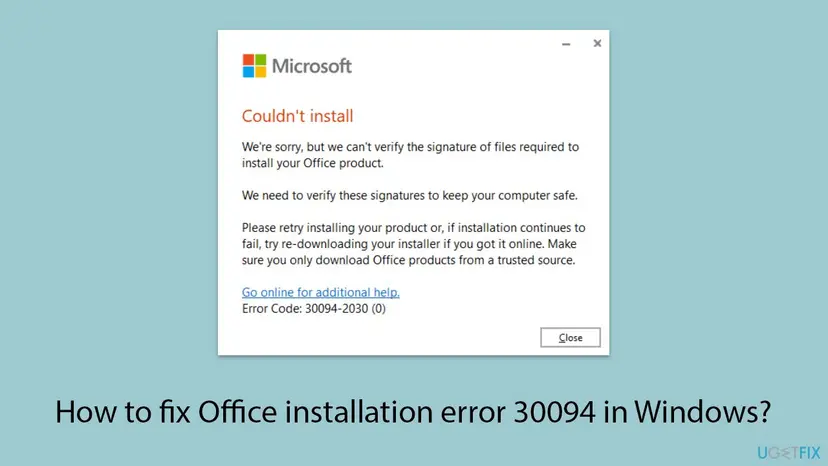
Couldn't install. We're sorry, but we can't verify the signature of files required to install your Office product. We need to verify these signatures to keep your computer safe. Please retry installing your product or, if installation continues to fail, try re-downloading your installer if you got it online. Make sure you only download Office products from a trusted source. Error Code: 30094-2030 (0)
Newer setup builds say your Microsoft 365 and Office product instead of your Office product. The advice in the message itself is the first fix: retry, then download the installer again, and only from Microsoft.
- The first number, 30094, names the failure: a signature could not be verified.
- The second number changes with the setup build and the job. Users report 2030, 1011, 2016, 2023, 44 and 35. The fixes are the same for all of them.
- The (0) in brackets is not a Windows error. Unlike other Office codes, it does not point to a missing file or a denied folder.
What causes error 30094 in Office setup, from the most common to the rare
Microsoft publishes no list of causes for 30094. The order below comes from the message itself, from answers by Microsoft Q&A moderators and from the reports we read. It is an order of likelihood, not a statistic.
| How often | Cause | Typical sign | Fix |
|---|---|---|---|
| Most often | An old, incomplete or damaged setup file, often run a second time from the Downloads folder | The error appears at once, every time you start that file. | Fix 1 |
| Often | A wrong date, time or time zone on the PC, which makes valid certificates look invalid | The clock in the taskbar is wrong, or the battery of an old PC is flat. | Fix 2 |
| Often | An older or half-removed Office that setup trips over | You switched from 32-bit to 64-bit, changed edition, or a removal failed. | Fix 3, Fix 4 |
| Less often | A proxy, VPN, firewall or security program that blocks the certificate check | Fails on a work, school or VPN network, works elsewhere. | Fix 5 |
| Rarely | A damaged Windows user profile | Other installers also fail under your account. | Fix 6 |
| In companies | A PC without internet, missing root certificates, or an old Office Deployment Tool and XML file | 30094-2016 (0) with setup.exe /configure on a closed network. | Fix 7 |
A Microsoft Q&A moderator explains that the installer often validates certificates through Microsoft's servers. If the PC cannot reach the revocation servers, the signature check fails, even though the files are genuine. Windows 11 may check more strictly than Windows 10.
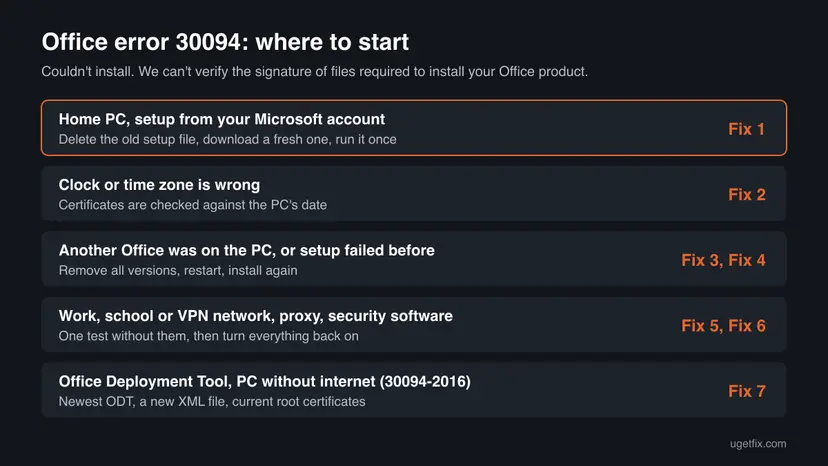
How to fix error code 30094 when you install Office
Fix 1 to Fix 4 solve most home installations, cheapest first. Fix 5 and Fix 6 are for PCs where something else gets in the way. Fix 7 is for administrators who install with the Office Deployment Tool, often on a PC without internet.
| What you see or have | Start with |
|---|---|
| A home PC, installing from your Microsoft account | Fix 1 |
| The clock or time zone in the taskbar is wrong | Fix 2 |
| Another edition or bitness of Office was on the PC, or an earlier setup failed | Fix 3, then Fix 4 |
| A work, school, hotel or VPN connection, or third-party security software | Fix 5 |
| Other programs also refuse to install under your account | Fix 6 |
You run setup.exe /configure on a PC without internet and get 30094-2016 (0) | Fix 7 |
Fix 1. Delete the old setup file and run a fresh one from your Microsoft account
10 to 20 minutesNo riskEveryone, first. Above all if you start setup from a file you downloaded some time ago.
The message itself says to retry and, if installation continues to fail, to download the installer again. A small setup file that was cut off, cached or taken from another site fails the signature check every time you run it.
- Close the setup window. If an Office icon near the clock shows progress, wait until it disappears.
- Open the Downloads folder and delete every Office setup file there, such as
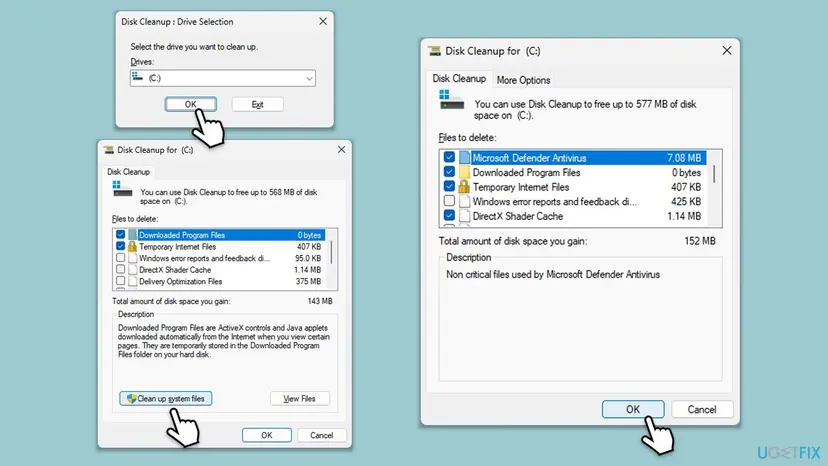
OfficeSetup.exe. - Delete temporary files, which can hold a cached copy of the old download: Free up disk space and delete temporary files.
- Restart the PC with Start > Power > Restart.
- Go to
m365.cloud.microsoft/apps, sign in with the account that owns Office and select Install apps. Office 2021 and 2019 bought with a key install from the same account page. - Right-click the new setup file and select Run as administrator. Keep the PC online and awake until you see You're all set.
The message ends with: Make sure you only download Office products from a trusted source. A setup file from a download site, a forum or a cheap key seller can fail the check because it is not genuine. Do not try to get around 30094 for such a file.
It worked if: Setup runs past the point where it stopped and ends with You're all set.
If not: If the fresh file shows 30094 too, check the clock with Fix 2.
Fix 2. Set the correct date, time and time zone
3 minutesNo riskThe taskbar clock is wrong, the PC was off for a long time, or the motherboard battery of an older PC is flat.
A signature check compares the certificate's validity dates with the PC's clock. If the clock is far off, valid Microsoft certificates look expired or not yet valid, and setup refuses the files.
- Right-click the clock in the taskbar and select Adjust date and time.
- Turn on Set time automatically and Set time zone automatically.
- Select Sync now under Additional settings.
- Check that the date in the taskbar is today's date, then run the setup file from Fix 1 again.
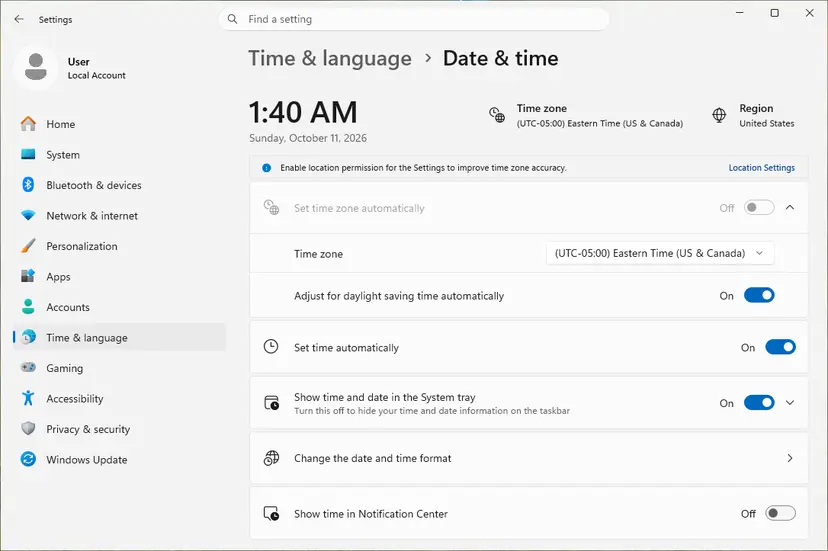
All screens, the Windows 10 route and the command line resync are in the library procedure: How to fix the date and time in Windows. No Microsoft page ties 30094 to the clock, so treat this as a quick check, not a known cause.
It worked if: The clock shows the right time after a restart, and setup gets past the signature check.
If not: If the clock was already right, remove the older Office with Fix 3.
Fix 3. Remove every older Office with Microsoft's uninstall troubleshooter, then install again
20 to 40 minutesRead the warningAnother edition, a 32-bit or 64-bit Office, or a half-removed Office was on the PC, or Fix 1 did not help.
A Microsoft Q&A moderator puts removing the previous Office first for 30094-1011. The reports often start after a switch from 32-bit to 64-bit, when setup meets files and registrations of the old version.
Uninstalling removes the Office apps, not your documents. You need the Microsoft account or product key to install again, so check that you can sign in to m365.cloud.microsoft/apps first. Copy custom templates and Outlook signatures if you need them: Back up your files (Windows Backup, File History, Time Machine).
- Sign in to Windows with an administrator account.
- Open Microsoft's page Uninstall Microsoft 365 or Office from a PC and select the Uninstall button of the uninstall troubleshooter.
- When the browser asks to open Get Help, select Open and follow the prompts. Choose all versions when it asks.
- Restart the PC when you are prompted.
- Open Settings > Apps > Installed apps (Windows 10: Apps & features) and type
office. If an entry is left, select the three dots next to it and Uninstall. - Restart again and install Office as in Fix 1.
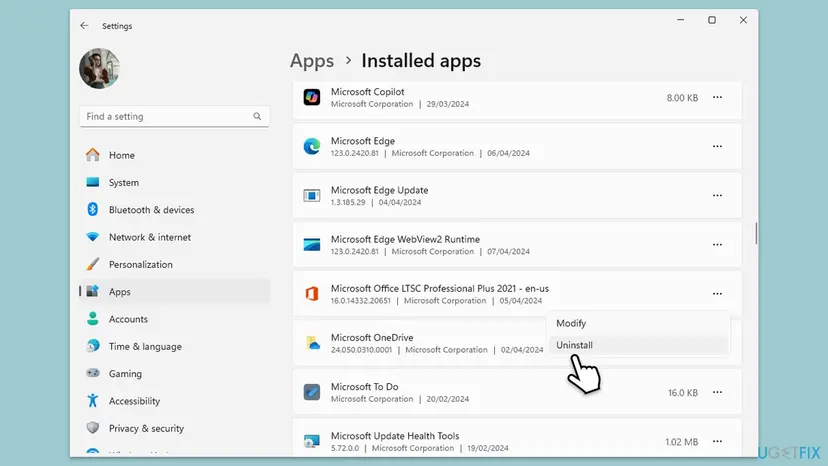
The uninstall troubleshooter cannot remove Office 2024; use Installed apps for it. If the removal stops halfway, Microsoft's manual removal deletes services, tasks and registry keys in a fixed order. We describe it in our guide to error code 30015-25, Fix 8.
It worked if: Installed apps lists no Office, and the new setup runs through to You're all set.
If not: If the new setup fails with 30094 again, install from the offline installer with Fix 4.
Fix 4. Install Office with Microsoft's offline installer
20 to 40 minutesNo riskThe small setup file keeps failing, or your connection is slow or drops.
The normal setup downloads its files while it installs. The offline installer downloads one complete image first, so you install from files that arrived whole. Microsoft offers it for slow speeds or unreliable connections.
- Open Microsoft's page Use the Office offline installer, choose the tab for your plan and select the download button.
- Sign in. In the Install window, select Offline installer in the Choose a version list.
- Pick the language and select Install. The image file downloads.
- Double-click the image file in Downloads. For Microsoft 365 Family and Personal it is
O365HomePremRetail.img. If prompted, select Open. - A virtual drive opens. If not, find the new drive, for example (D:), in File Explorer.
- Open the Office folder and run
Setup64.exefor 64-bit Office orSetup32.exefor 32-bit. - When you see You're all set, stay online and open Word to activate.
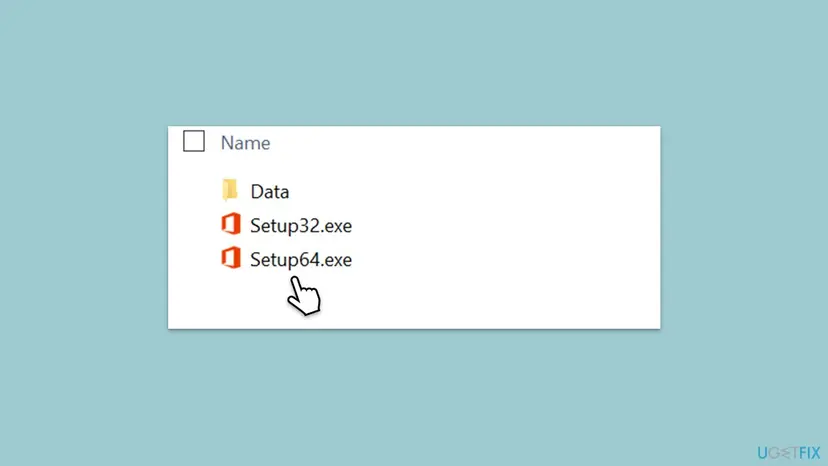
Microsoft says you can install from the image offline, but the signature check may still need to reach Microsoft's certificate servers. If you get 30094, run the image again with the PC connected.
It worked if: Setup started from the image ends with You're all set and the apps appear in the Start menu.
If not: If the image also ends with 30094, something on the PC or network blocks the check. Go to Fix 5.
Fix 5. Test once without proxy, VPN and security software, and on another network
10 to 20 minutesLow riskA work, school or VPN connection, a manual proxy, or a third-party security program.
A Microsoft Q&A moderator lists another network, no proxy and security software as the next checks for 30094-1011. A filter that blocks the certificate revocation servers makes genuine files fail the check.
- Disconnect any VPN.
- Open Settings > Network & internet > Proxy. Under Manual proxy setup, note the setting, switch the proxy off and select Save.
- Pause the real-time protection of your security program for one attempt: Turn off Microsoft Defender protection for a moment.
- Run the fresh setup file from Fix 1.
- Turn the protection and the proxy setting back on straight away, whatever the result.
- If it still fails, try once on a home network or a phone hotspot.
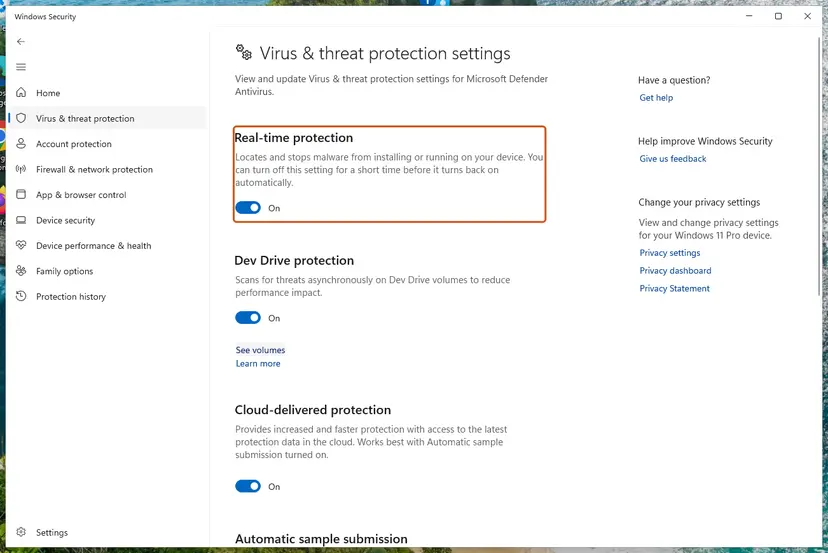
If Office installs only with the protection paused, do not leave it off. Ask the maker of the security program why it blocks a Microsoft installer, or add an exception for it. Network administrators should let the PC reach Microsoft's certificate revocation addresses.
It worked if: Setup passes the signature check on the other network or with the filter paused.
If not: Turn everything back on. If nothing changed, test a new Windows account with Fix 6.
Fix 6. Install from a new administrator account
15 minutesLow riskOther installers also fail under your account, or Fix 1 to Fix 5 did not help on a home PC.
The same Microsoft Q&A answer suggests creating a new local user profile and installing there. A damaged profile can hold broken certificate or temporary data that only your account uses.
- Create a new local account and make it an administrator: Create a new user account to test a problem.
- Sign out and sign in to the new account.
- Open a browser, sign in to
m365.cloud.microsoft/appswith the account that owns Office and download setup. - Run setup. Office installed this way is available to every account on the PC.
- Sign back in to your own account and open Word to check that it starts.
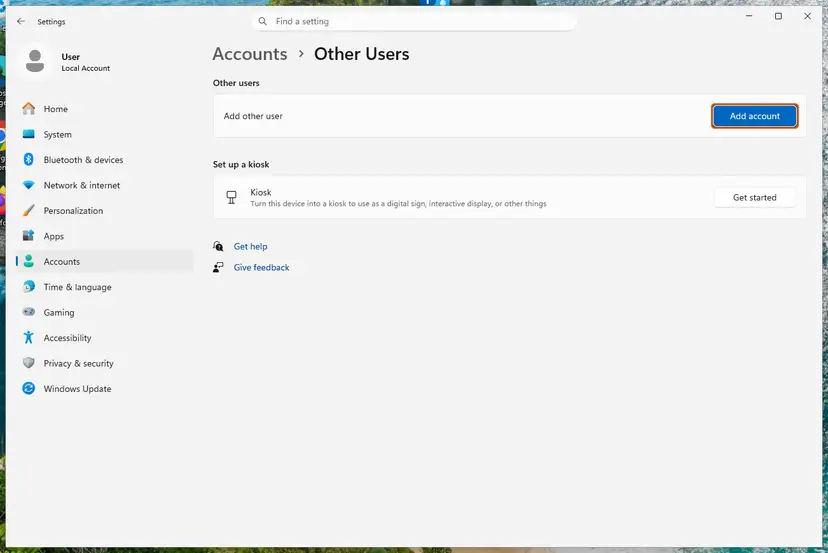
It worked if: Setup ends with You're all set in the new account, and Office opens in yours too.
If not: If setup also fails in a new account, the cause is on the PC or network. Read the setup log as described below.
Fix 7. On an offline or managed PC: use the newest Office Deployment Tool, a new XML file and current root certificates
20 to 60 minutesLow riskYou install with setup.exe /configure, often volume licensed Office 2019, 2021 or 2024, and get 30094-2016 (0), above all on a PC without internet.
On Microsoft Q&A, an administrator got 30094-2016 (0) only on an offline Windows 11 PC. The moderator named missing or outdated root certificates and old tool builds. The administrator solved it with a freshly downloaded tool and a new XML file.
- Download the current Office Deployment Tool from Microsoft and extract it to a new folder, for example
C:\ODT. - Write a new configuration XML instead of reusing the old one. Copy only the product ID, channel and language from the old file.
- On a PC with internet, download the Office files with the new tool:
cd C:\ODT setup.exe /download configuration.xml - If the target PC can go online for a moment, connect it during the installation so the signature check can reach Microsoft, then disconnect.
- If it cannot, install the current Windows updates on it from your update server first. They keep the Microsoft root certificates up to date.
- Run the installation with the new XML file:
setup.exe /configure configuration.xml
The same Q&A answer also suggests turning off certificate revocation checks with the WinTrust State value in the registry. That weakens a security check for every program, and it did not solve the reported case. We do not recommend it.
The moderator also mentions importing Microsoft root certificates with certutil -addstore root from a file made on a connected PC. That is a task for the administrator of a closed network, not for a home PC.
It worked if: setup.exe /configure installs without stopping at the signature check.
If not: Turn on the Logging element in the XML, run setup again and read the log as described below.
If error 30094 is still there: read the setup log
The setup window gives one line. Click-to-Run writes the details to log files in the %temp% folder of the account that ran setup, with names that start with the PC's name. With the Office Deployment Tool, the log goes to the folder named in the Logging element.
- Run setup once more and note the time it fails.
- Press Win + R, type
%temp%and press Enter. - Switch to the Details view and sort by Date modified, newest first.
- Open the newest file that starts with the name of your PC and ends in
.log. - Press Ctrl + F and search for
30094, then forsignature,certificateandrevocation. Read the lines just before. - Repeat it in
%windir%\Tempif the first folder holds nothing new.
- What to send to Microsoft support or your administrator: the full code with both numbers, the product, 32-bit or 64-bit, the Windows version, where the setup file came from and the newest log.
- When it is not a problem on your PC: a setup file that did not come from Microsoft, or a key bought from an unknown seller, can fail the check because it is not genuine. Contact the seller.
- A managed work PC may block installations or certificate traffic by policy. That is a question for the administrator.
How to avoid error 30094 the next time you install Office
Almost every 30094 report starts with a file that setup could not trust or a check that could not reach Microsoft. Give setup a fresh file, the right time and a connection it can use.
- Download setup from your Microsoft account every time you install, not from an old copy.
- Keep the PC's time and time zone set automatically.
- Remove the old Office with Microsoft's tools before you switch edition or bitness.
- Keep the PC online until setup ends and Office is activated.
- In companies, keep the Office Deployment Tool current and the PCs' root certificates up to date.
- Use Office setup files from download sites or sellers you do not know.
- Start a second installation while an Office icon still shows progress.
- Leave security software paused after a test.
- Turn off certificate revocation checks to force an installation.
- Reuse an old XML file for years without checking it.
Frequently asked questions
What does error code 30094 mean when installing Office?
It means that Office setup could not verify the digital signature of the files it needs. Setup checks every file it installs, and when the check fails it stops with Couldn't install to keep the PC safe. The files are usually genuine. The check fails because the file is damaged or old, the clock is wrong, an older Office is in the way, or the PC cannot reach Microsoft's certificate servers. Start with a fresh setup file from your Microsoft account.
What do 30094-44, 30094-35, 30094-2030 and 30094-1011 mean?
They are the same error. The first number, 30094, says that a signature could not be verified. The second number changes with the setup build and the task, and users report 2030, 1011, 2016, 2023, 44 and 35. Microsoft does not document the second numbers. The (0) in brackets is not a Windows error code. Use the same fixes for all of them, starting with a fresh installer and the uninstall troubleshooter.
Why does Office say it can't verify the signature when I downloaded it from Microsoft?
Because a genuine file can still fail the check. The download may have been cut off, an old copy may be run again, or the PC's clock may make Microsoft's certificates look invalid. On a PC without internet, setup may not reach the servers that confirm a certificate has not been revoked, and a Microsoft Q&A moderator names this as a cause. A proxy, VPN or security program can block that check too. Fix 1, Fix 2 and Fix 5 cover these cases.
Does error 30094 mean my PC has a virus or the file is fake?
Usually not. Most reports involve files downloaded from Microsoft that failed the check for a technical reason. But the message also says to download Office only from a trusted source, and a setup file from a download site or an unknown key seller can fail because it was changed. If your file did not come from your Microsoft account or Microsoft's site, delete it and get a new one there. A Microsoft Defender scan does no harm if you are unsure: How to scan for malware with Microsoft Defender.
Can I install Office 2021 or Office 2019 if I get error 30094?
Yes. The fixes on this page work for Office 2021, 2019 and 2024 bought with a key, which install from the same Microsoft account page as Microsoft 365. Volume licensed versions install with the Office Deployment Tool, so start with Fix 7. Keep in mind that Microsoft ended support for Office 2016 and Office 2019 on 14 October 2025, so they get no more security updates. Office 2021 and newer are still supported.
Will I lose my files if I uninstall Office to fix this error?
No. Uninstalling Office removes the applications, not the documents, workbooks and presentations you created. Mail in a Microsoft 365, Exchange or Outlook.com account stays on the server. Before you remove Office, make sure you know the Microsoft account or the product key, because you need it to install and activate again. Copy custom templates and Outlook signatures if you would miss them.
How do I fix 30094-2016 on a PC without internet?
Make sure the PC has current Microsoft root certificates, use the newest Office Deployment Tool and write a new XML file. In the case on Microsoft Q&A, the administrator fixed 30094-2016 (0) on an offline Windows 11 PC by downloading the tool again and creating a completely new configuration file. If the PC can go online for the installation alone, connect it so that the signature check can reach Microsoft. Fix 7 lists the steps.
Should I turn off certificate revocation checks to get past 30094?
No. One Microsoft Q&A answer mentions changing the WinTrust State value in the registry so Windows skips revocation checks, then changing it back. That weakens a check that protects every program on the PC, and in the reported case it did not fix the error. A fresh installer, the right clock, current root certificates or a short internet connection during setup solve the problem without lowering security.
I keep getting the same error (me sigue dando el mismo error). What next?
If 30094 returns after a fresh download, check the clock (Fix 2), remove all Office versions (Fix 3) and try the offline installer (Fix 4). Then test another network and a new Windows account. The Spanish message No podemos comprobar la firma de archivos is the same error, and the fixes work in every language of Office. This page covers Office on Windows 11 and 10; Windows 7 lost support in January 2020. We could not find what icdv 30094 means.
Sources
- Microsoft Q&A: Installation problem with Office on a Windows 11 offline client, error 30094-2016 (0) (moderator answer and administrator's solution) (learn.microsoft.com)
- Microsoft Q&A: Office 365 error code 30094-1011 (0) (moderator answer) (learn.microsoft.com)
- Microsoft Support: Use the Office offline installer (support.microsoft.com)
Did this fix work?
One click, no account. It tells the next reader which guides are worth their time.
Questions and experiences: fix Office installation error 30094 in Windows
Still broken, or found a fix we did not cover? Ask here: members and our editors answer. Reading is open; writing needs a free account.
…